I previously wrote a program that automatically backs up important data on Linux and uploads it to Google Storage. It was written in Python 2.7, but the Python built into Linux is 2.4, and even if you upgrade with yum, the newest version it gives you is 2.4. So if you want a newer version of Python, you have to compile it yourself. Below, I’ll use Python 3.2 as the example.
Also, if your Linux has yum installed, you’ll run into a problem after installing the new Python: yum stops working. You can fix it by following the steps below. This happens because yum uses Python 2.4, so of course it breaks once you install a newer Python~
- First, go to the page below and download the Python source code.
http://www.python.org/download/releases/
Make sure you download the file with the .tgz extension. That is the source code.
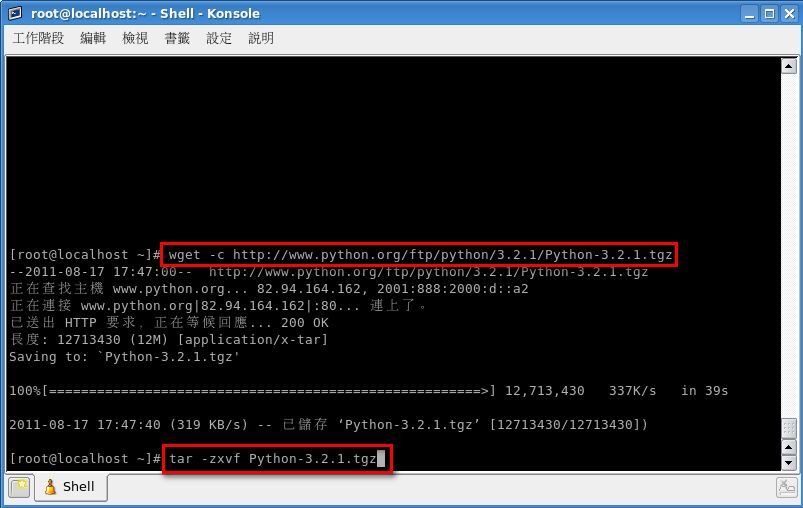
wget -c http://www.python.org/ftp/python/3.2.1/Python-3.2.1.tgz
Next, extract the file you just downloaded.
tar -zxvf Python-3.2.1.tgz
- Go into the folder you just extracted.
cd Python-3.2.1
Then run the following command to set some installation options and check the build environment.
./configure –prefix=/usr
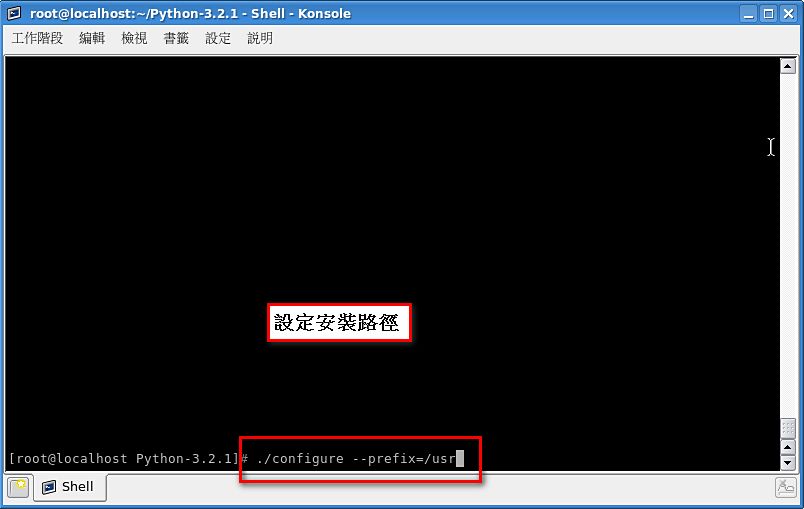
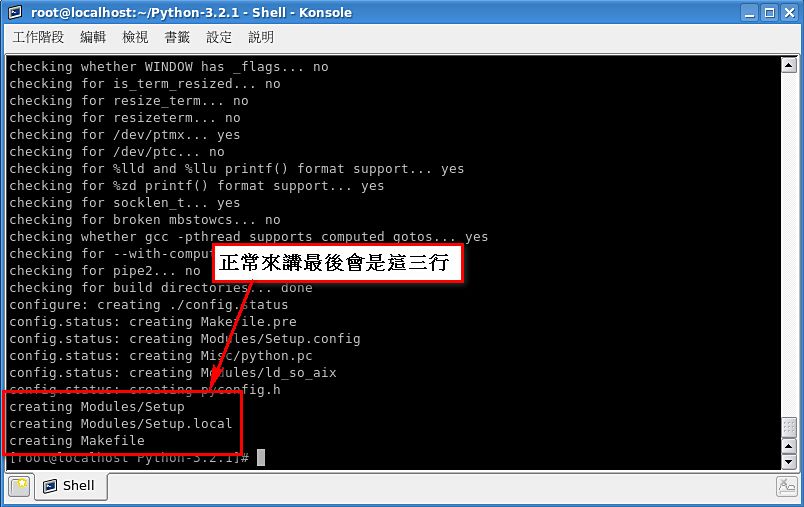
Normally it prints a lot of output. If it finishes after only a few lines, and the last three lines aren’t “Creating ….”, your computer is probably missing some required programs, usually make and gcc. Install those first before you start installing Python.
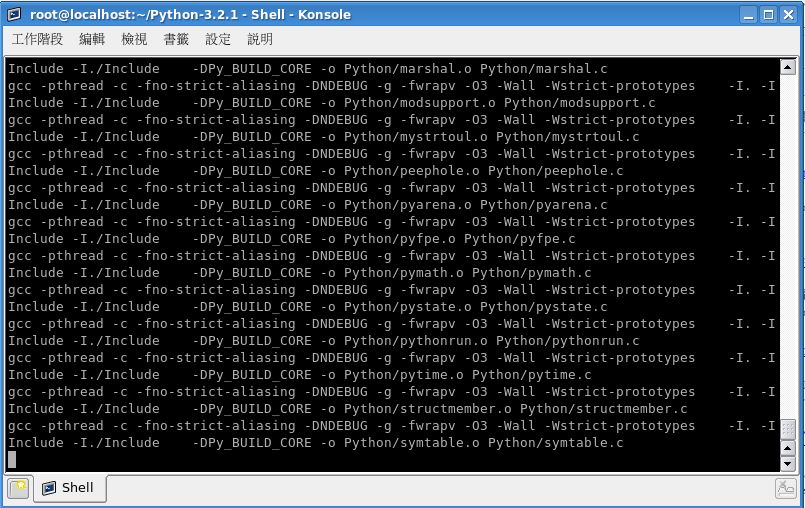
- Run: make
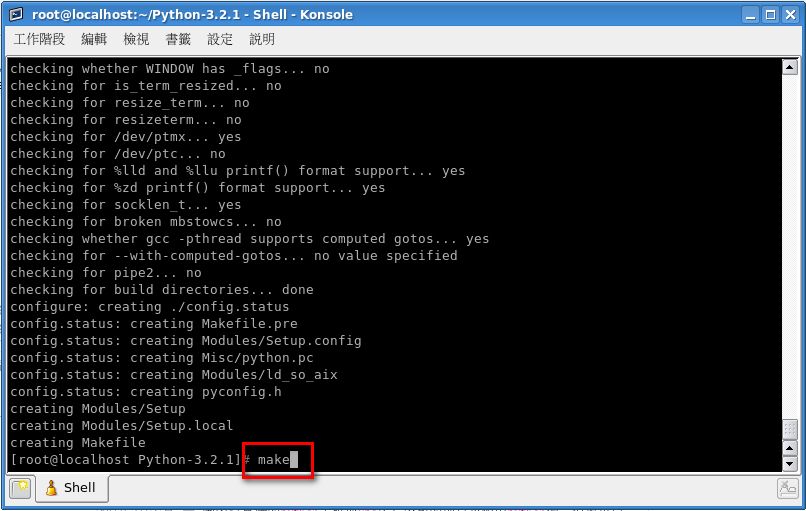
Compiling…
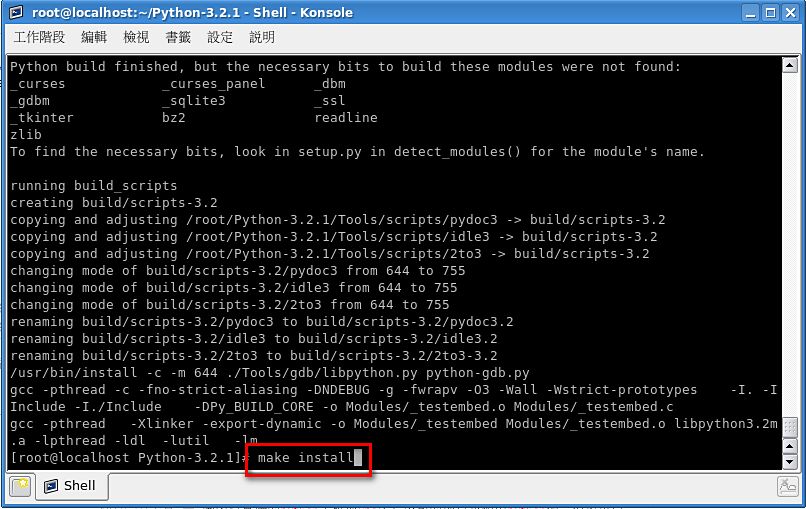
- When the previous command finishes, run: make install. This starts the actual installation.
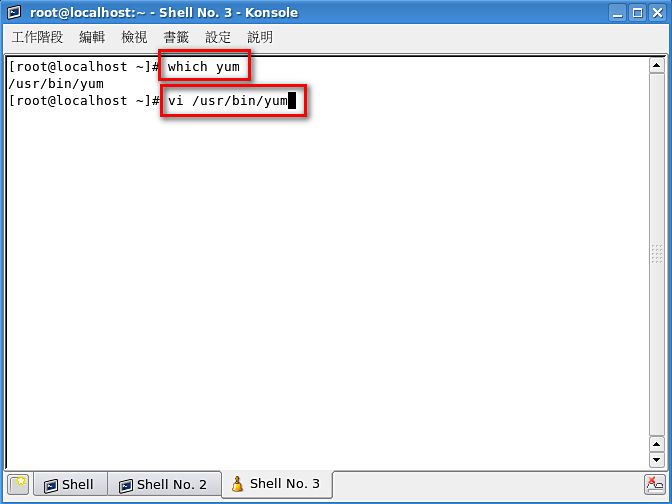
- If your Linux has yum installed, you may run into some problems. First, run which yum to find out where it is, then open it with vi.
You may see this message:
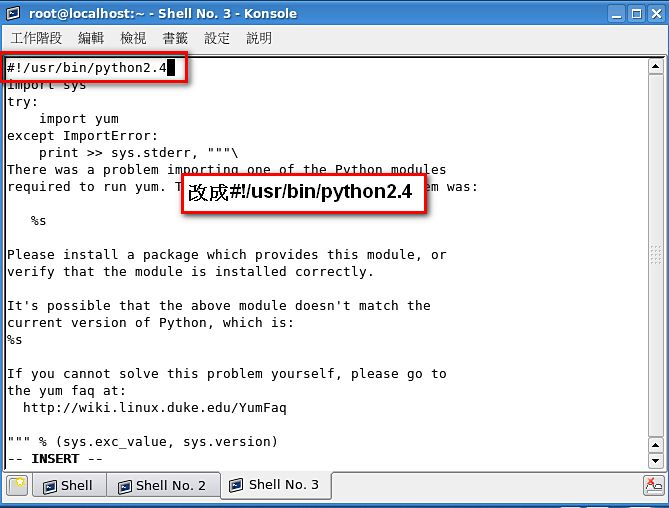
There was a problem importing one of the Python modules required to run yum. The error leading to this problem was: No module named yum Please install a package which provides this module, or verify that the module is installed correctly. It's possible that the above module doesn't match the current version of Python, which is:However, some people won't run into this problem. You can run yum to check whether it works. If yum is working fine, leave it alone.
- Change the first line from “#!/usr/bin/python” to “#!/usr/bin/python2.4” and it will work again.
I only noticed at the very end that the background of the screenshots is different… XD