One of the reasons I like the Mac is that it comes with many useful built-in features, such as screenshots and image editing. Windows has these features too, but they’re pretty much useless, so you end up installing a bunch of apps anyway. Today I’ll show you that Mac OS already has a very powerful screenshot feature! You can even set where screenshots are saved, their format, and more!
In Mac OS, you can take screenshots with these two shortcuts, depending on what you need:
- Full screen: Command + Shift + 3
- Selected area: Command + Shift + 4
- Command + Shift + 4, then press the spacebar once the crosshair appears, and it turns into a camera icon
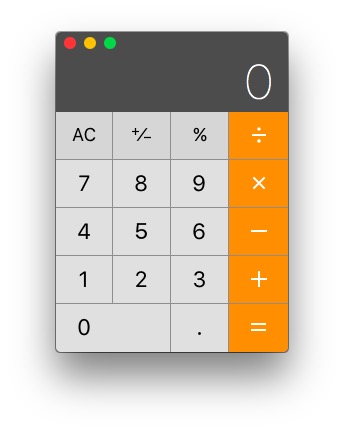
But if you find the shadow annoying, you can hold the Option key while taking the window screenshot. That is: Command + Shift + 4 + Space, then Option (Alt) + click the window. This captures the window without the shadow.
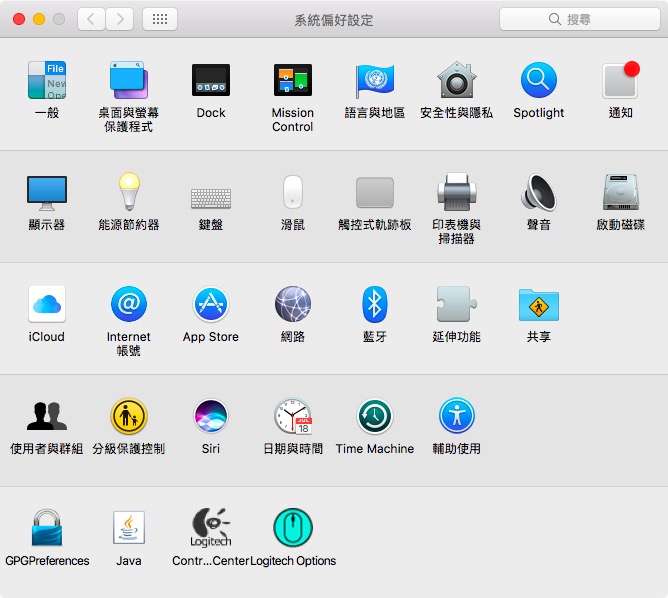
By default, screenshots are saved to the desktop. If you’re like me and don’t like a desktop full of files, you can change the default save location by entering the following command in Terminal (remember to change the path at the end):
defaults write com.apple.screencapture location /users/screenhosts
If you don’t want to save the file and would rather have it go straight to the clipboard, like in Windows, hold the Ctrl key while taking the screenshot. Nothing will be saved, and you can paste it directly wherever you need the image.
The default format is PNG. If you want to save as JPEG, you can likewise enter the following command in Terminal:
defaults write com.apple.screencapture type jpg
Currently supported file formats are: PNG, JPG, PDF, and TIFF.