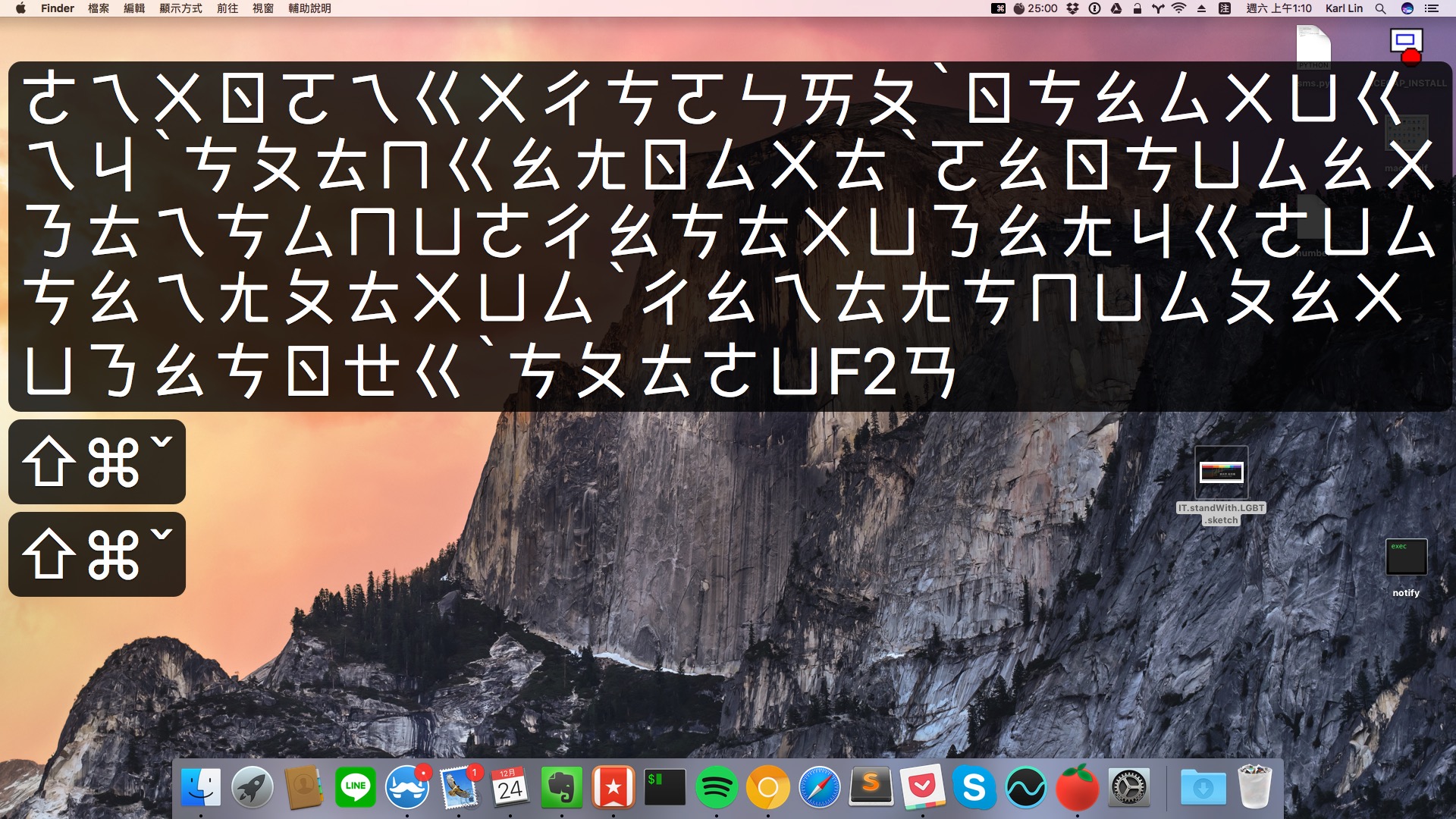
Online courses are very popular now, and many people record their courses as videos to share online. Whenever I record this kind of “computer tutorial video,” I always wonder how to show the keys you press. Sometimes you’re used to pressing Ctrl + C to copy a piece of text, but viewers can’t tell what you did when they watch the video. Some recording software can capture keystrokes too, by building a virtual keyboard into the recording whenever you press a key. But besides recording software itself, there are also apps that can display the keys you press directly on screen! Besides live streaming and online courses, it’s also very handy for in-person lectures and talks!
KeyCastr is open-source software that only runs on Mac OS. Its development history was still active up until three months ago, and in my own testing it also works fine on macOS Sierra. KeyCastr is very powerful. It can display every key you press on the keyboard on screen, whether it’s a text key or a command key (Shift, Command, Optional, etc.). You can adjust the display position, or set it to show only command keys. There are many detailed settings, including how long keys stay on screen, colors, size, and more. It handles Chinese input in an interesting way, though: it shows every Zhuyin (bopomofo) symbol you type. Is that wrong?… Well, it’s not really wrong (lol), but it just doesn’t fit my needs. If anyone familiar with Objective-C wants to send a Pull Request, go for it!
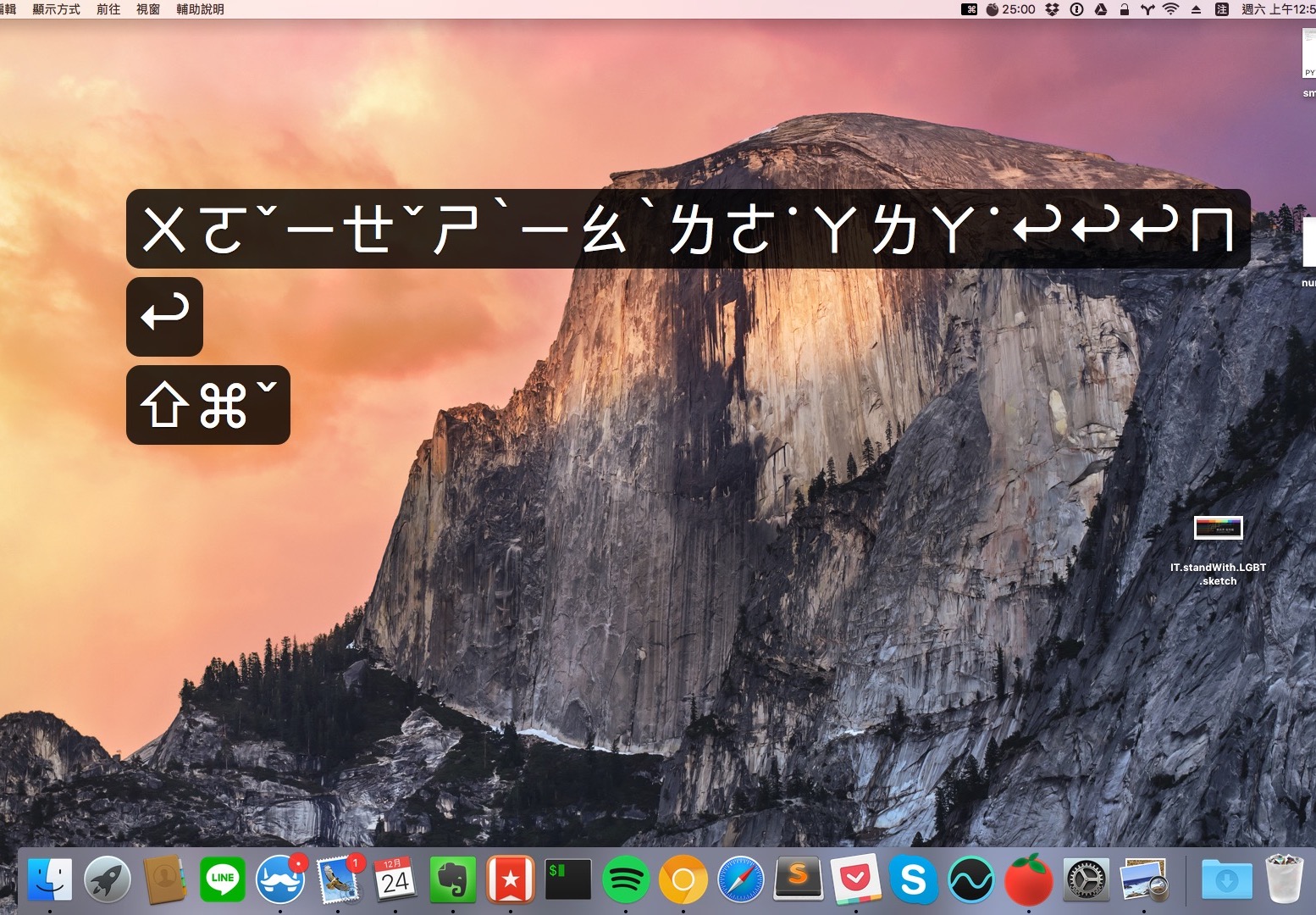
Note that KeyCastr is itself an app, so when you switch to a different desktop (Space), you won’t see it. It only shows the virtual keyboard on the desktop where you launched it!
KeyCastr Info
- GitHub: https://github.com/keycastr/keycastr
- Download page: https://github.com/keycastr/keycastr/releases
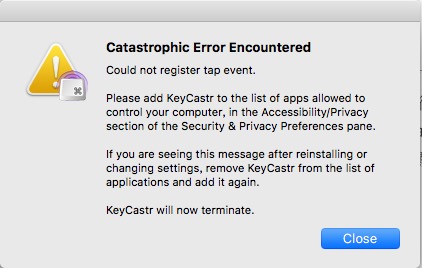
After installing, you’ll see KeyCastr in Launchpad. However, before you launch it, you need to give it enough permissions. Otherwise, you’ll see this error message:
Click System Preferences => Security & Privacy => Accessibility, and add KeyCastr to the list.
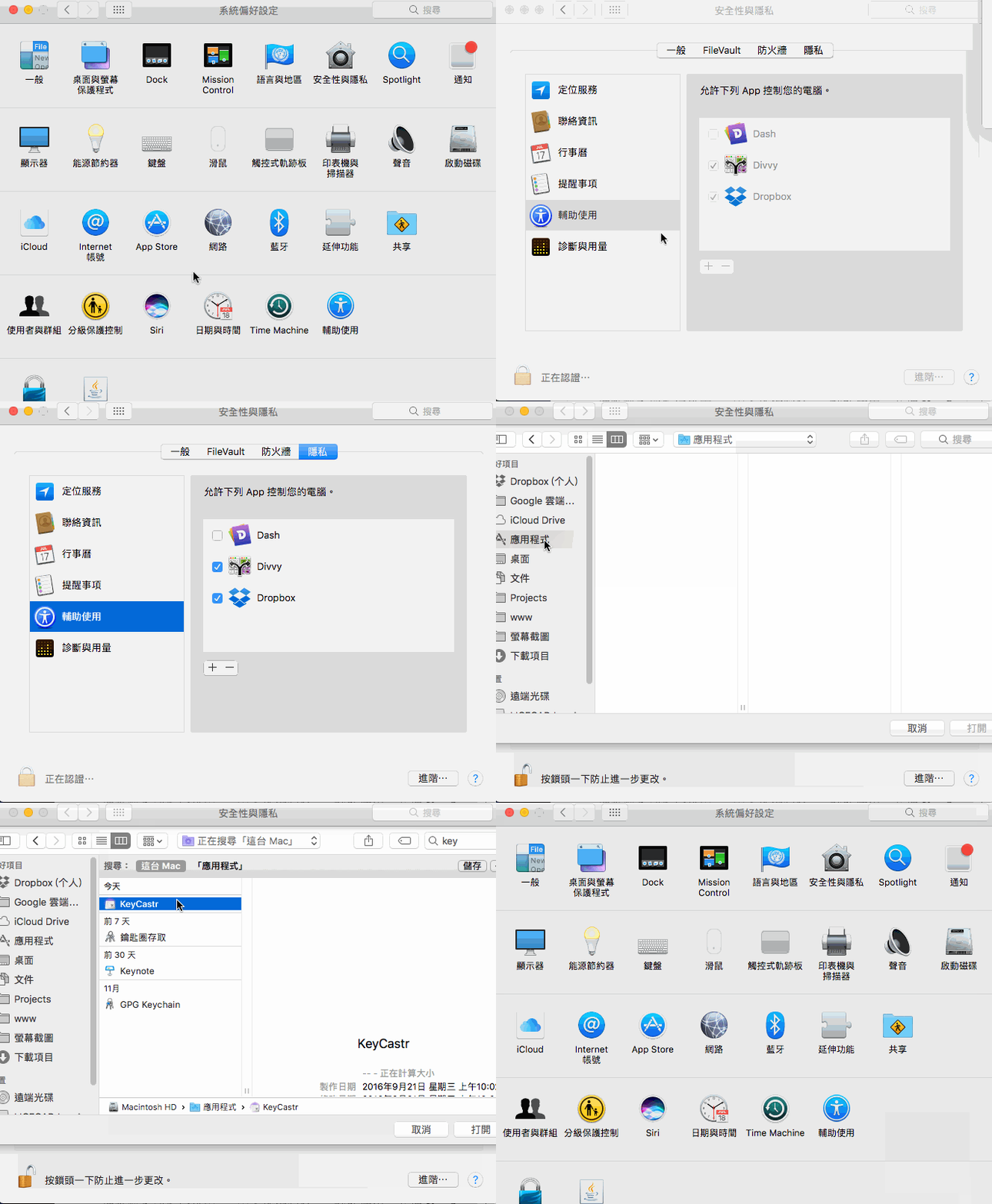
Once that’s done, you can open KeyCastr. After opening it, go to the upper right corner to adjust the settings. Here are a few of the main options:
Starting from the top, KeyCastr has two display modes. Here are screenshots of each: the left one is Default, and the right one is Svelte mode.
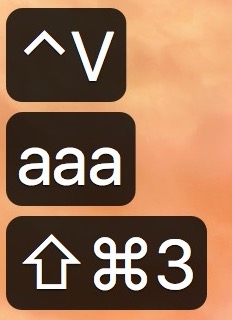
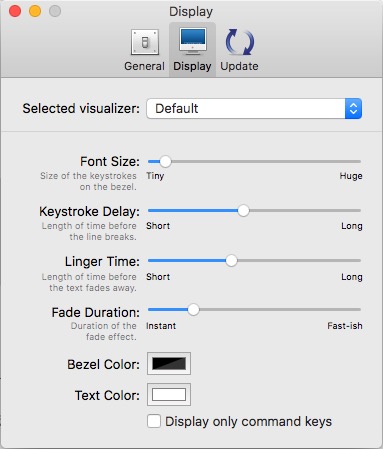
Let’s start with Default mode and its settings. In Default mode, nothing appears when you’re not typing. It shows all text by default (but you can set it to show only command keys). When you type, a black box appears, and it disappears automatically after a while. If you press a shortcut, it’s shown as well. Personally, I find this easier to read than Svelte. In Default mode, you can set the text size, how long the black box stays visible, and so on. You can also set the colors of the text and the background.
In Default mode, the black box appears in the lower left corner by default, but you can drag it with your mouse to any position you like!
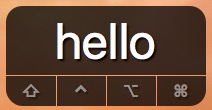
As for Svelte mode, it’s always displayed on screen whether or not you’re pressing a key, floating there like a toolbar. Unlike Default mode, it doesn’t show character keys (A-Z, 0-9, etc.) by default, but you can turn them on in the settings. Also, unlike Default mode, it doesn’t spread out into many rows, which is a nice advantage. This avoids the situation below, which happens when you type too much……
Give me back my screen!!!