Since I’m really sleepy, let’s keep it simple and share something small today! Whenever I use vim or Terminal and run into a super long command, I find it annoying to press the arrow keys forever just to get to the position I want. Today I’ll share three ways to quickly move the cursor to a specific spot.
If you want to move to the beginning or end of the line, you can press Ctrl + A to jump to the start, or Ctrl + E to jump to the end. This is different from the Windows habit, so people who are new to Mac OS may not know about it.
Also, when you’re using vim, if you want to move to the bottom of the file, press Shift + G. If you want to insert a blank line below, press o in command mode. It inserts a blank line and enters insert mode at the same time.
Last but not least, the grand finale! I’ve always wanted to control the cursor with the mouse, which would be very handy when entering long commands or using vim. I thought this would need a plugin, but after digging through the documentation, I found that you only need to hold the Option / Alt key and click where you want to go with the mouse. The Terminal’s input cursor will jump right there!
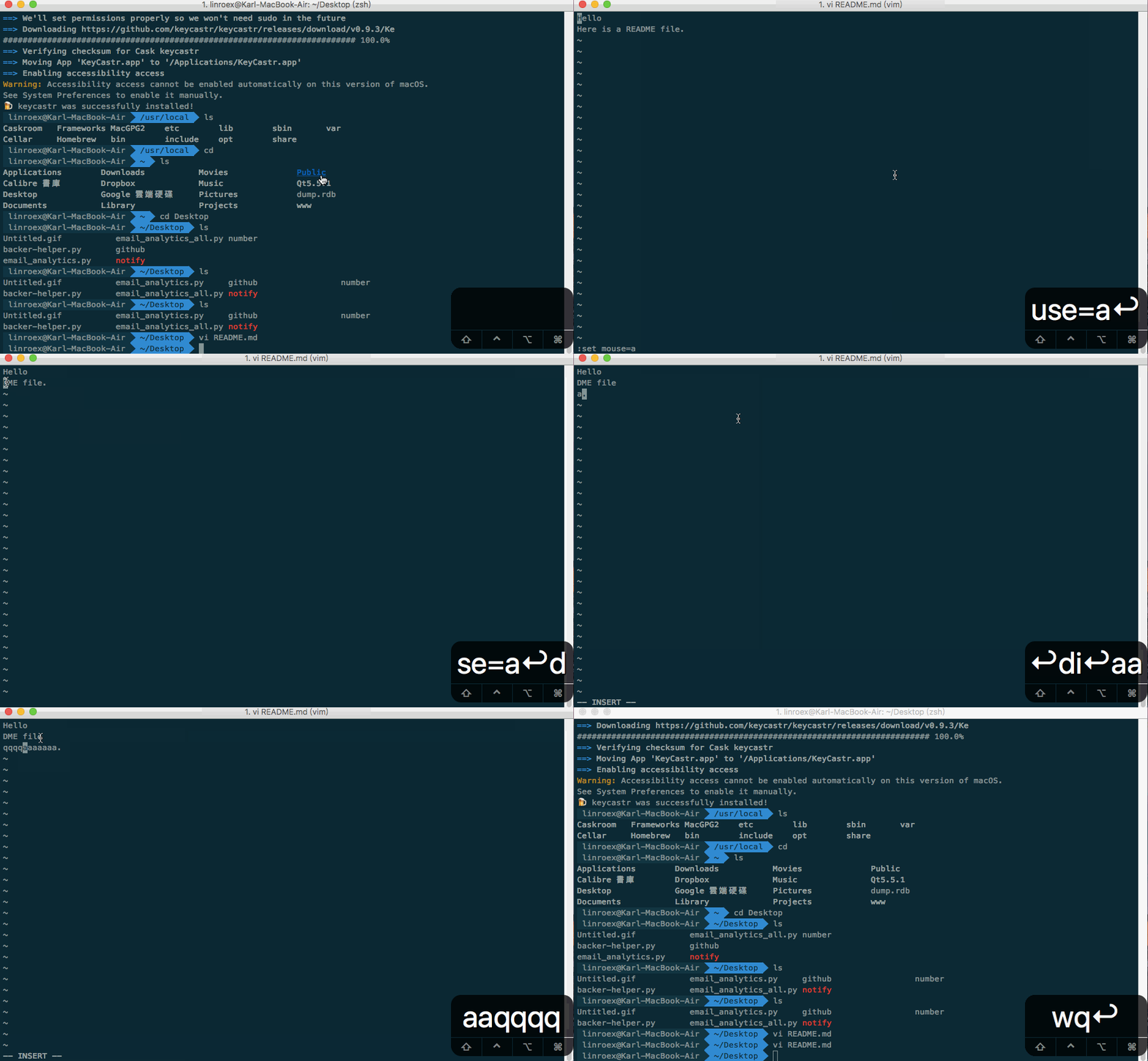
Switching the cursor position alone isn’t enough, though. vim also has built-in mouse support. You can select a block of text with the mouse, then delete a bunch of text with a shortcut! Press ESC and then enter set mouse=a to enable mouse mode. After that, you can select text directly without any shortcuts, then press D to delete it or Y to copy it.
Let me wrap up today with these three little tricks (collapses)