MediaCoder is a very handy video converter. It runs on Windows, Linux, and Mac, and it’s free. But those aren’t the main point. The real highlight is that it can use the GPU (graphics card) to do the conversion work. This technique is called GPGPU. With it, you’re much less likely to run into the problem of CPU usage spiking past 100% and the computer crashing during conversion, and conversion is ridiculously fast. I often convert videos while playing online games, and everything runs smoothly.
That said, GPGPU is only useful if your graphics card supports it. In general, if you have integrated graphics, skip this feature and just use the CPU, which is more practical. But if you have a mid-to-high-end graphics card, I strongly recommend turning it on!
So when would you use this software? For example, some people like to watch videos on an iPad or iPhone, but those devices are picky about formats. Or maybe you recorded a video and want to upload it to YouTube, but the original file is too big. In cases like these, you can convert it with MediaCoder first.
MediaCoder Info
- Official website: http://www.mediacoderhq.com/
- Download page: Official download page
- Languages: Multiple languages (including Traditional Chinese)
- Supported systems: Windwos (separate versions for 32-bit and 64-bit) (running on Linux or Mac requires a special approach)
MediaCoder Features
- Free, with multi-language support
- Supports NVIDIA CUDA and Intel Quick Sync Video
Tutorial
1. First, go to the download page and download MediaCoder. The download link is surprisingly hard to find....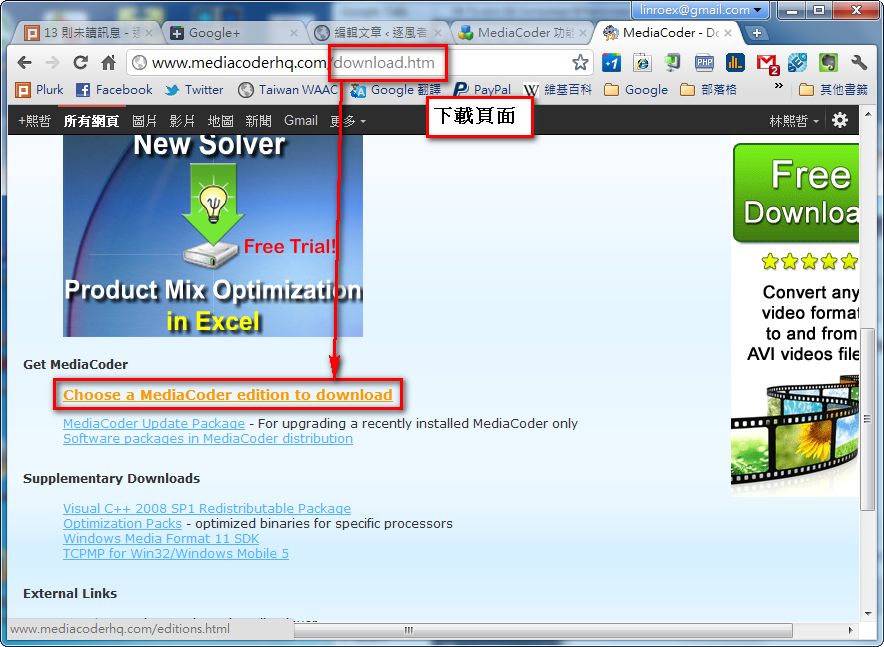
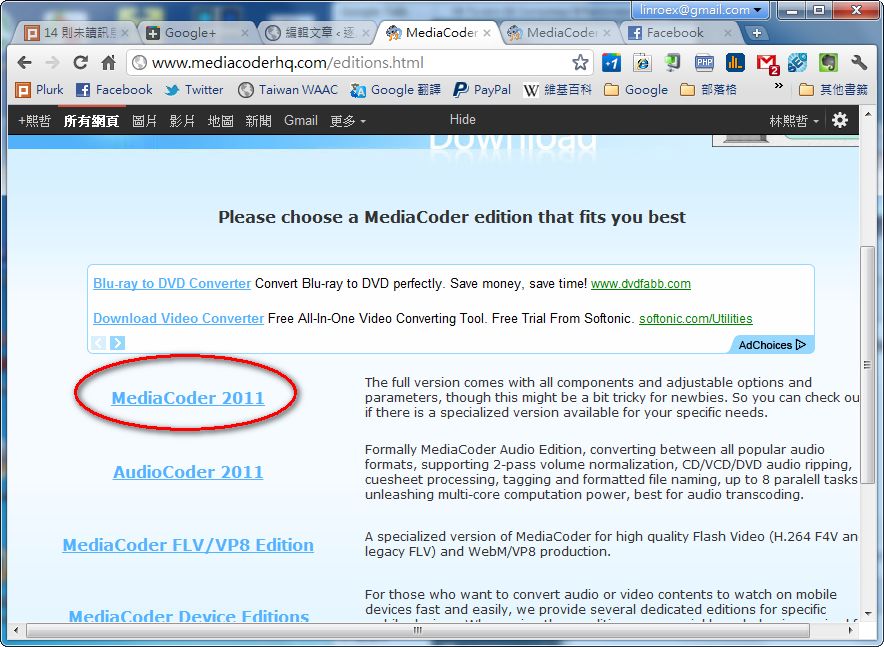
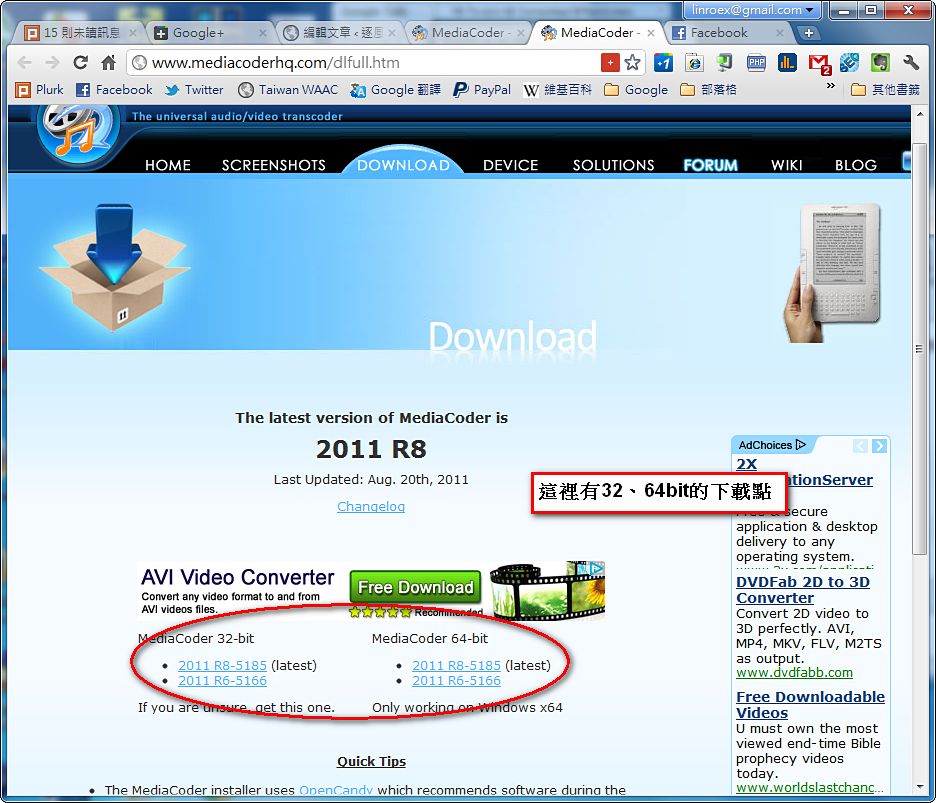
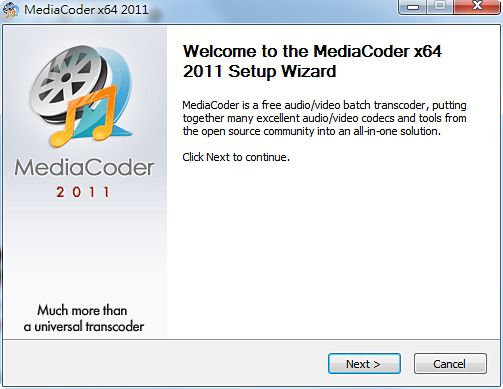
- Install MediaCoder. The process is just clicking “Next” over and over….
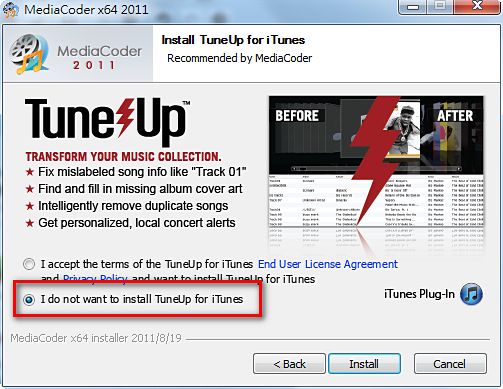
Be careful during installation: it will ask whether you want to install the TuneUp plugin. I recommend declining.
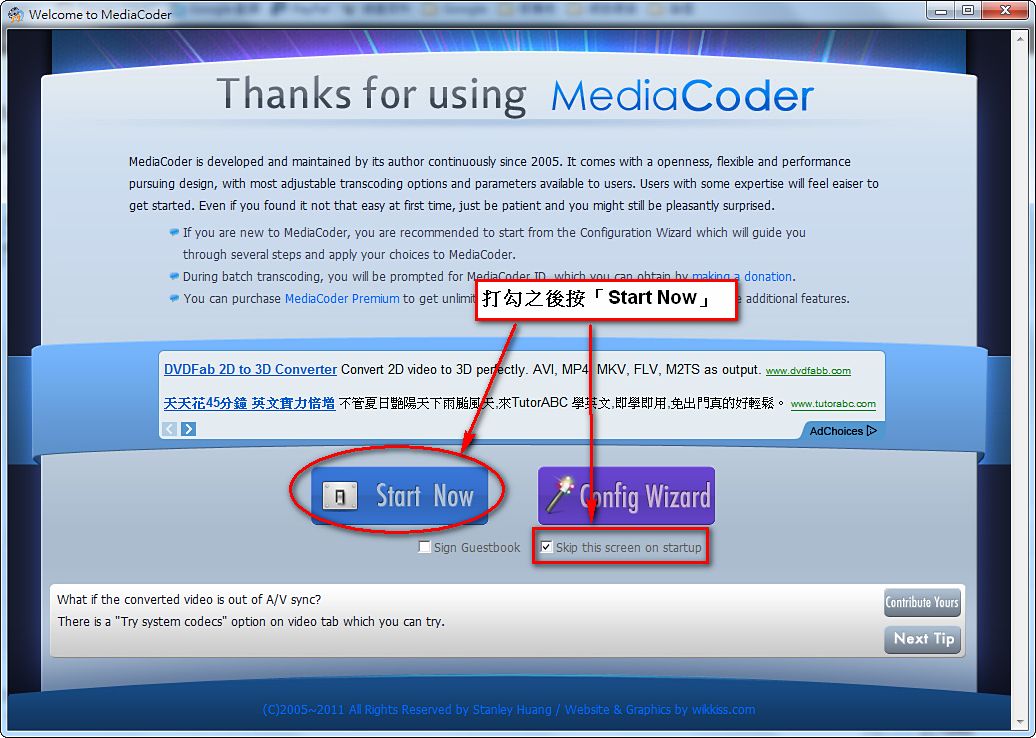
- After installing, run it. The first time you use it, a “Welcome to MediaCoder” window appears. Check “Skip this screen on startup” and then click “Start now”.
- The default interface is English, so you need to switch it to Chinese manually. Click “Options” -> “Use Interface Language” in that order, then select Traditional Chinese.
P.S. Actually, I thought it only had an English interface until I read Pseric’s article and found out there was a Chinese version….
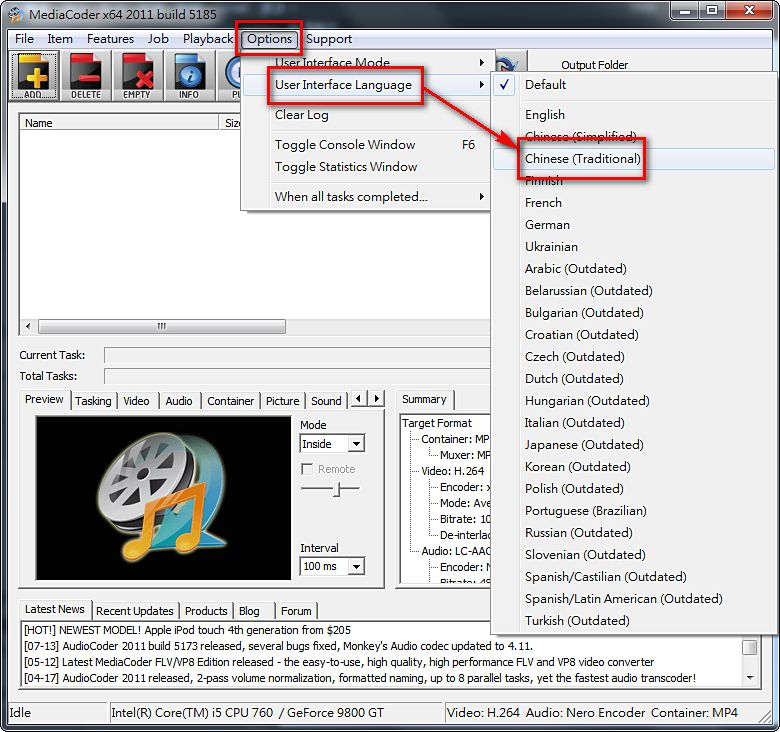
You need to restart the program after making this change for the interface to show up in Chinese.
- Now you can start converting. Click “File” to add the files you want to convert. You can add many at once, or add an entire folder. You can even give it a video URL, and it will download and convert the video for you XD
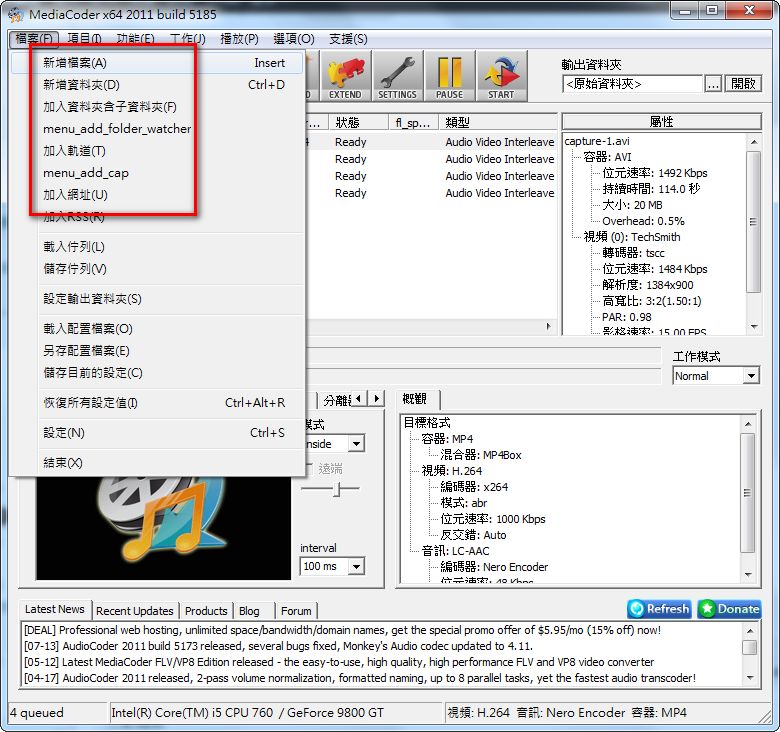
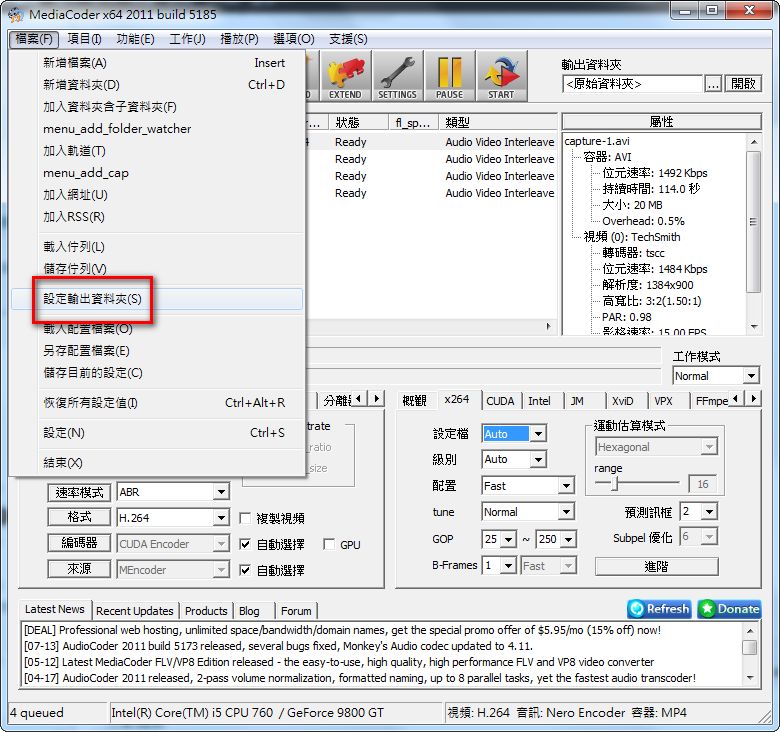
After adding your files, set where the output files will be saved. By default they go to the same location as the input files, but I recommend setting up a dedicated folder, which is more convenient.
“File” -> “Set Output Folder”
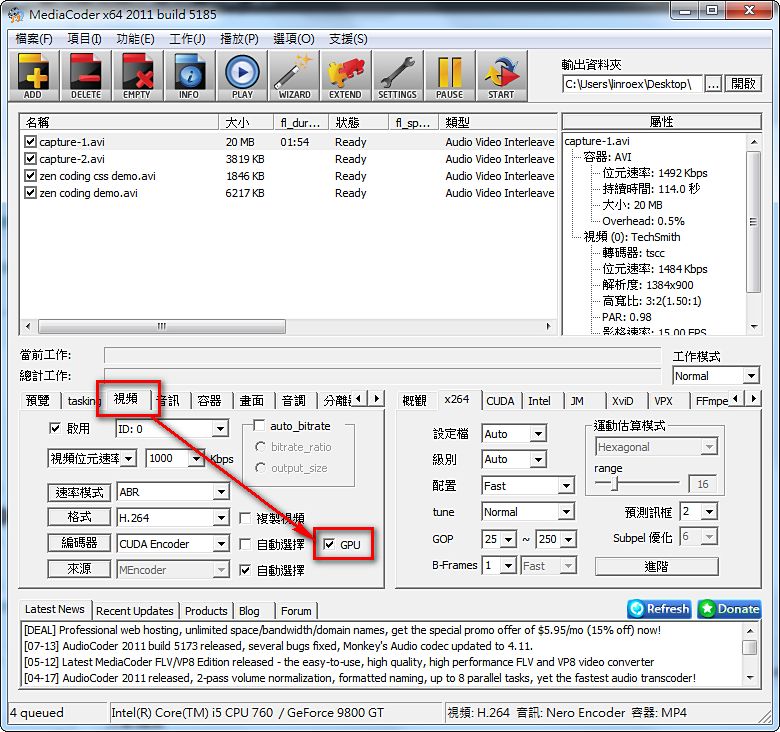
After setting the output folder, select “Video” in the lower-left corner and check “GPU”. This will turn on GPGPU computing and automatically choose the decoder you need.
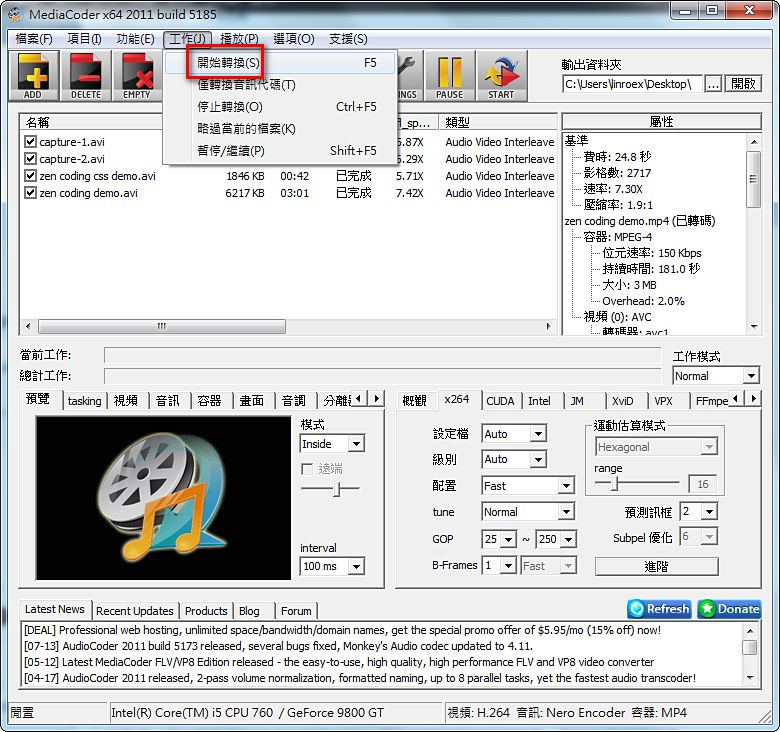
Press F5, or go to “Job” -> “Start Conversion,” to begin converting.
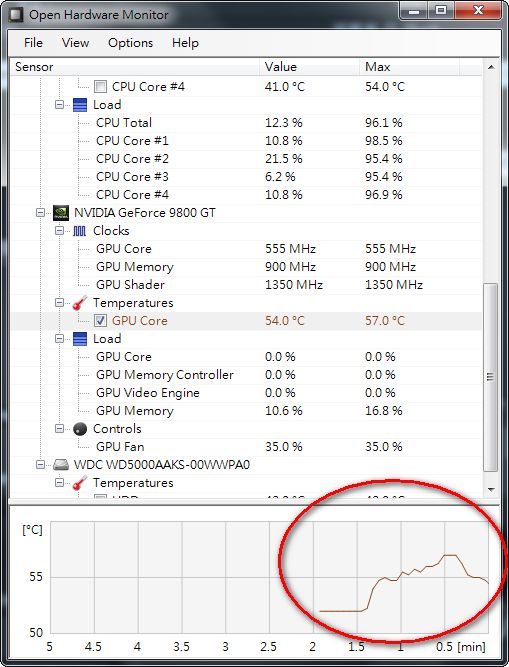
- The GPU temperature shoots up during conversion XDD
In my testing, the compression ratio with GPU computing seemed to be somewhat worse.