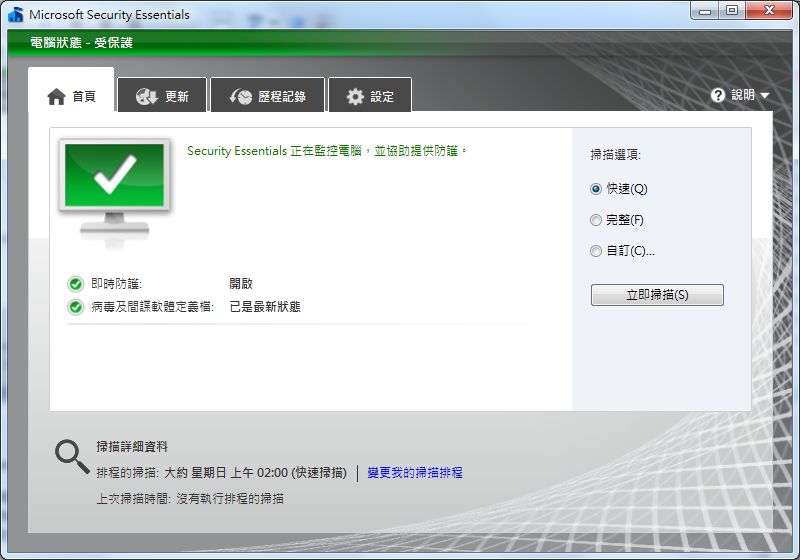
Microsoft Security Essentials is a “free” antivirus program offered by Microsoft. Its biggest feature is that it’s free! It’s also from the company that people affectionately call M$. Microsoft Security Essentials performs reasonably well, and its virus protection is decent. If you’ve just set up a new computer and you’re a fan of Microsoft products, I suggest you take a look at this antivirus.
Microsoft has been developing antivirus software recently. Microsoft Security Essentials has actually been around for a while, but its earliest version (1.0) was honestly not very good. It only became useful with version 2.0. I think in the not-too-distant future, even Windows itself might come with this antivirus built in~
Microsoft Security Essentials Features
- Fully integrated with IE
- Built-in network inspection system
- Dynamic virus signature technology
- Integrated with the Windows built-in firewall... (in other words, it doesn't include a firewall of its own)
Microsoft Security Essentials Info
- Official website: http://www.microsoft.com/zh-tw/security_essentials/Default.aspx
- Version: 2.0
- Download links: 4Shared|Box.net |Official download page
Microsoft Security Essentials Tutorial
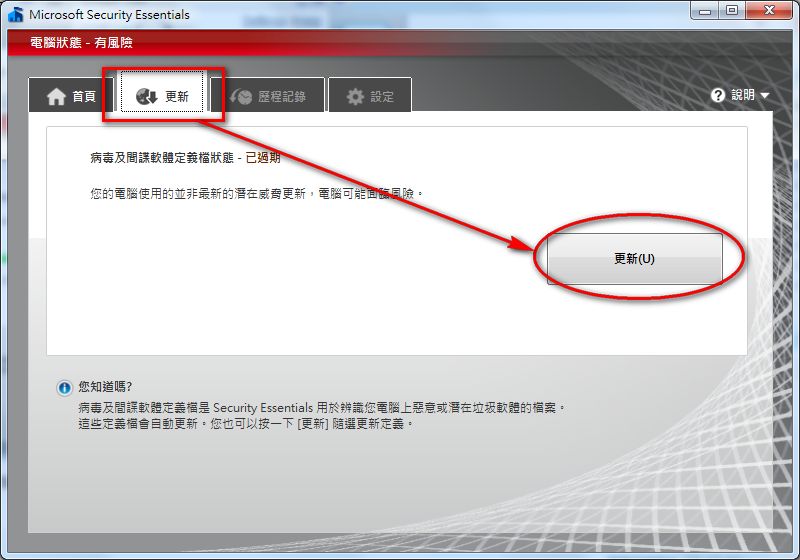
This section shows you how to install it and update the virus definitions. Note that the installer does not include virus definitions, so you need to update right after installation before you can start using it. If you don't update, it won't let you use it...- Run the installer, then click [Next].
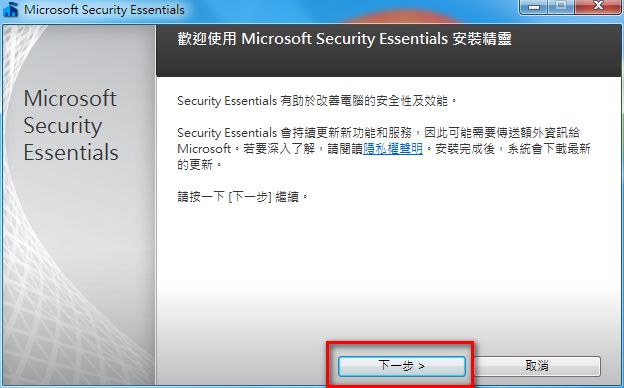
- Select [I accept].
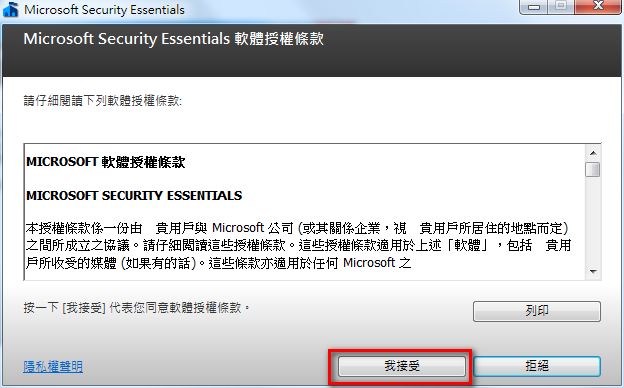
- This asks whether you want to join the “Customer Experience Improvement Program.” In other words, it will send some of your computer’s data to Microsoft so they can improve the program. If you’re privacy-conscious, click “I don’t want to join the program”~
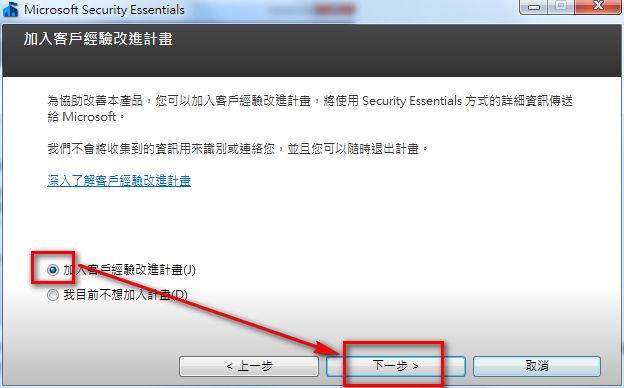
- This is just a reminder to turn on the Windows firewall. Click [Next].
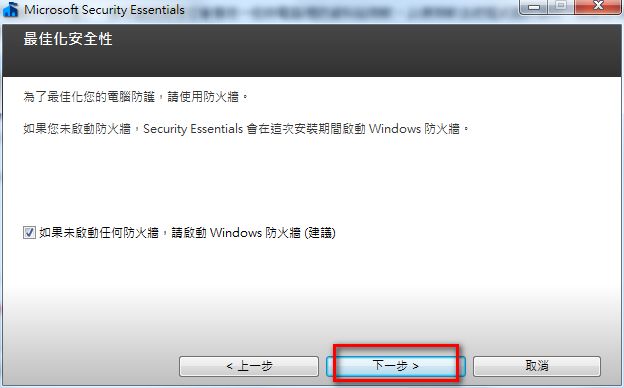
- Click [Install] and you’re good to go~
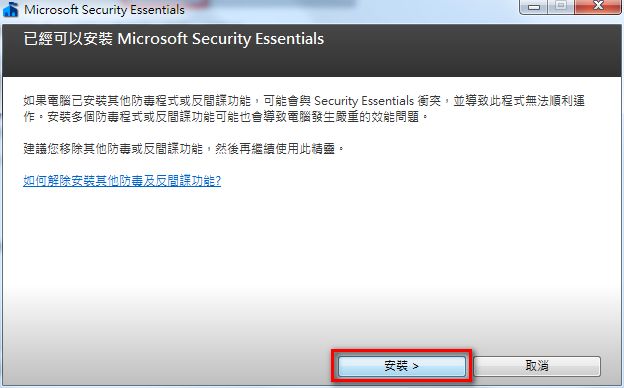
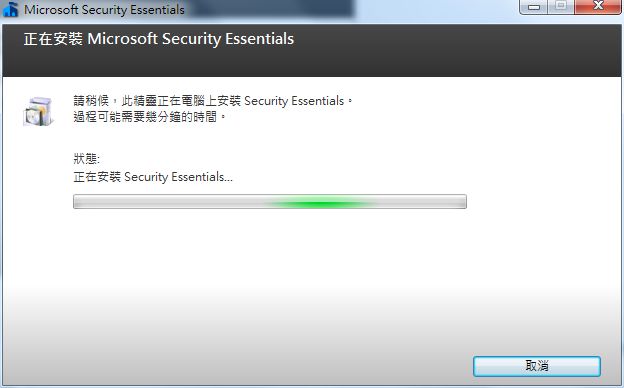
- Installation is pretty quick, so just wait a moment~
- Installation complete.
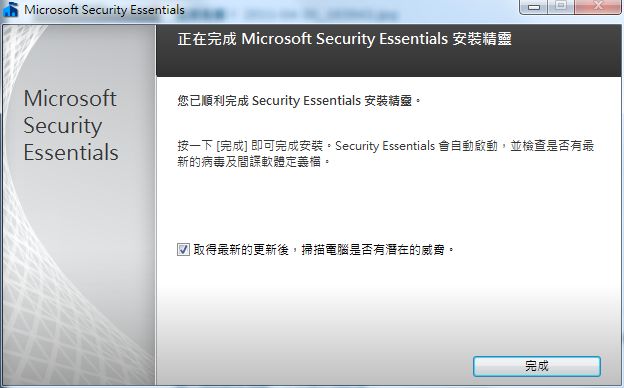
- It will update automatically~
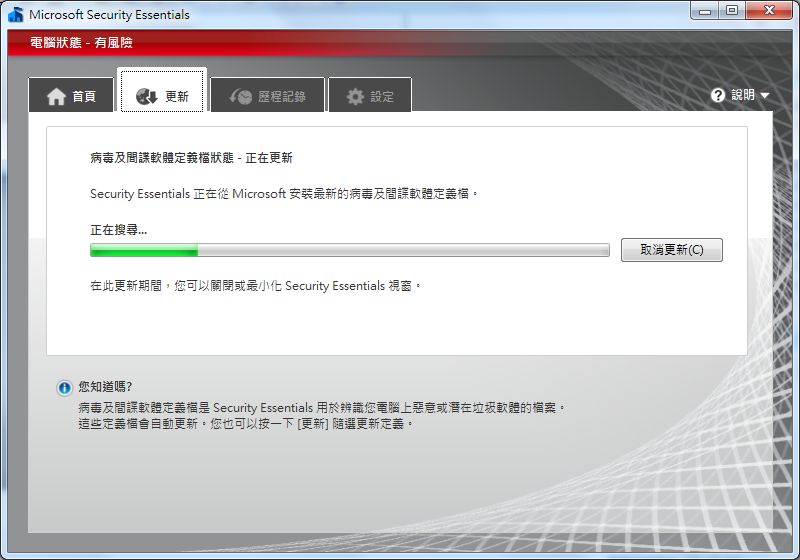
If it doesn’t update automatically, click the [Update] tab, then click the [Update] button.
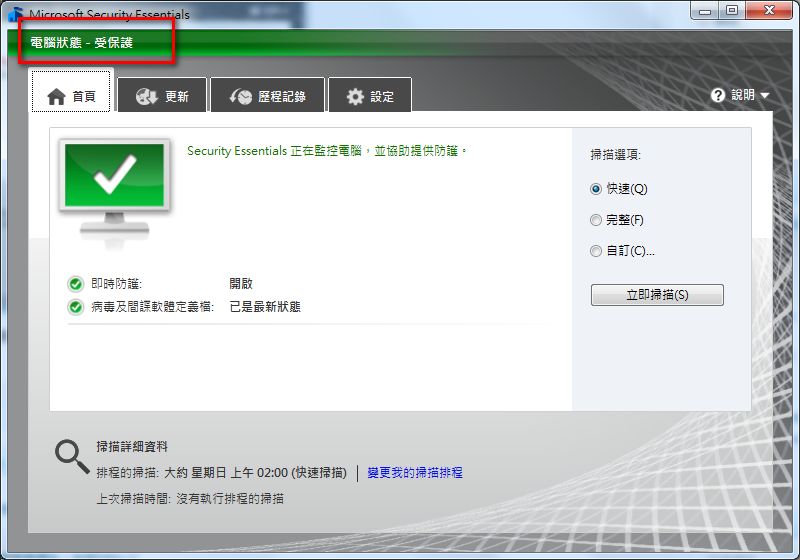
- Once the update is complete, the computer status at the top will change to protected.
Scanning Tutorial
1. Open Microsoft Security Essentials, then choose the scan mode you want, such as Quick, Full, or Custom.- Quick: checks your computer once, as fast as possible
- Full: a thorough check, but slow
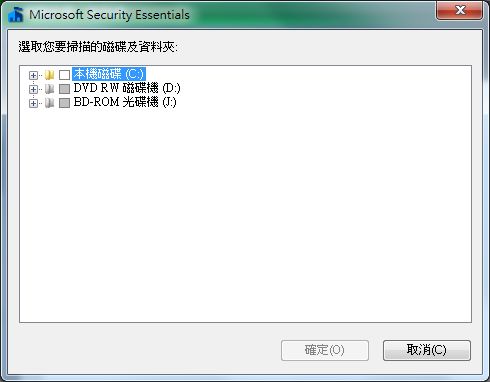
- Custom: lets you choose which folders and drives to scan
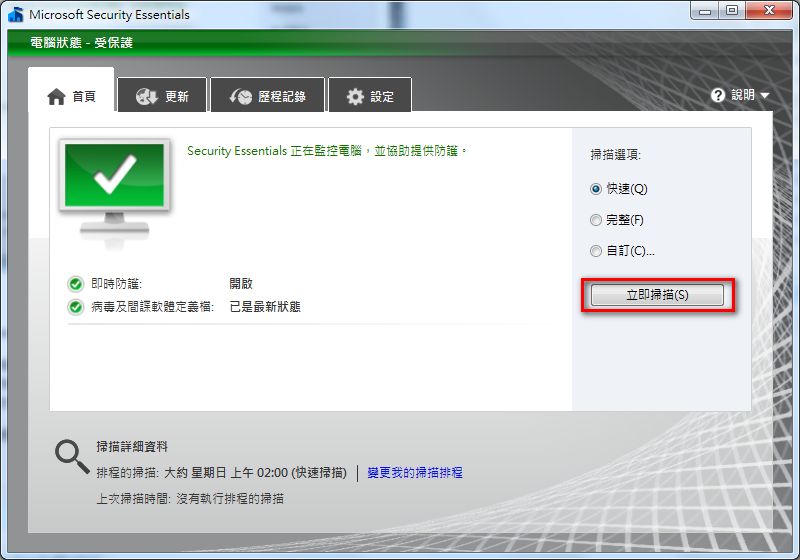
If you chose Custom earlier, after clicking [Scan now] it will ask you where to scan.
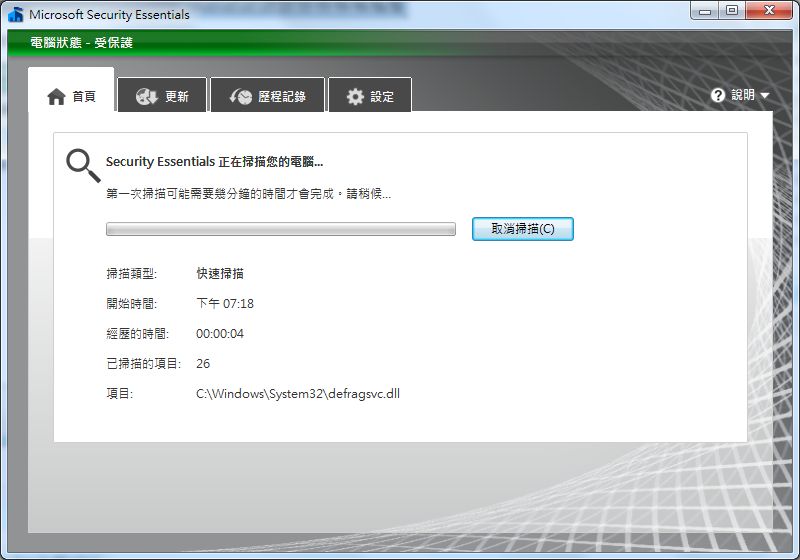
- Scanning~
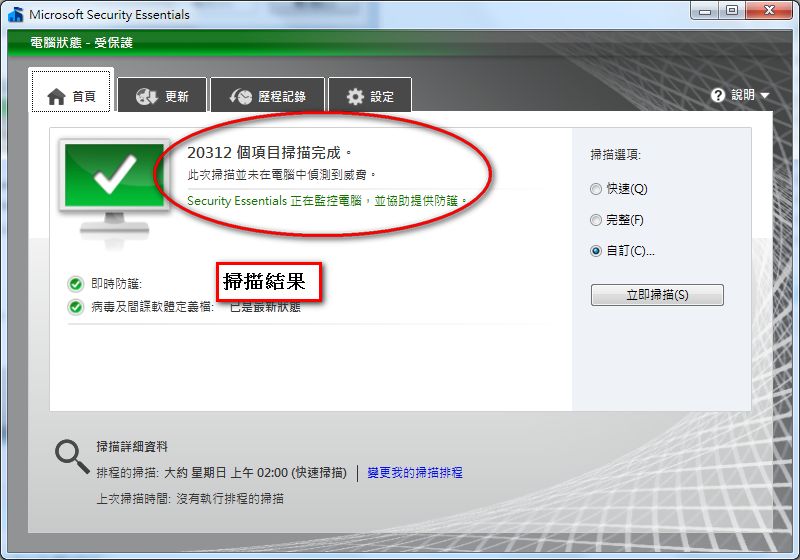
- When the scan finishes, the results are shown on the home page.
Video Installation Tutorial
Conclusion:
Compared with Avast, which I usually use, Microsoft Security Essentials is still a bit weak. But compared with some other free antivirus programs, it's decent enough. Honestly, though, Microsoft Security Essentials has too few features. It has all the basic functions an antivirus should have, but it lacks more advanced features such as a sandbox or a firewall. Its scan options are also limited to three, while other antivirus programs offer much more detailed scan options. So overall, I'd only give it 70 points.