A while ago, thanks to Ben’s guidance, I stepped into the NoSQL world, which I had always been interested in but never really tried. The first NoSQL system I came across (and still the only one I know) is MongoDB. I had read many articles about NoSQL and thought it was very different from regular SQL. But after actually using MongoDB, I found the two are quite similar. They differ a bit in principle, and NoSQL performs better. Of course, some things SQL can do, NoSQL can’t, so it comes down to the trade-offs and needs of each person. NoSQL itself isn’t what this post is about, though. This post introduces MongoDB and shows how to install it on Windows.
MongoDB is a NoSQL program developed by the 10gen team. It’s a document-oriented database system, which means each MongoDB database is stored as a “file” inside a folder. To delete a database, you just delete the file. It supports multiple operating systems, and Windows, Mac, and Linux are all supported. Many programming languages also support MongoDB, such as the well-known PHP, C++, Python, .NET, and Java. For the full list of supported languages, see this page (http://www.mongodb.org/display/DOCS/Drivers).
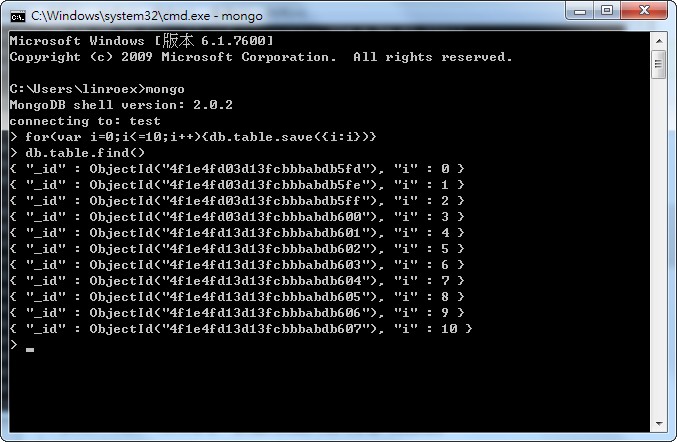
Another big feature of MongoDB is that its syntax is very similar to JavaScript. You can use a lot of JavaScript syntax in MongoDB commands, and you can even use loops, conditionals, and so on. For example, for(var i=0;i
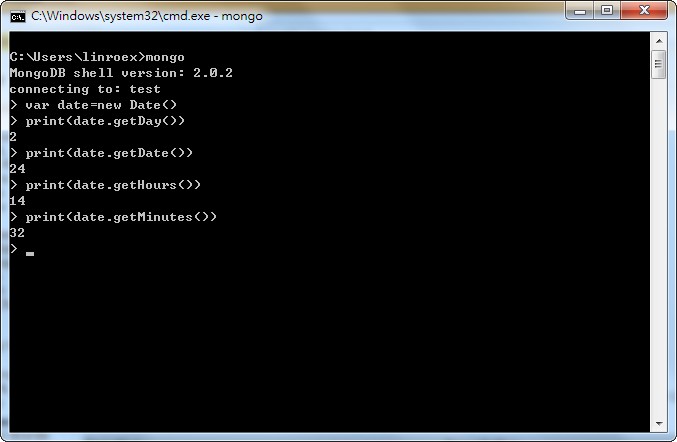
You can also use various JavaScript objects directly in mongod, such as Date.
MongoDB Info
- Official website: http://www.mongodb.org/
- Download page: http://www.mongodb.org/downloads
- Documentation: http://www.mongodb.org/display/DOCS/Home
- SQL & MongoDB mapping chart: http://www.mongodb.org/display/DOCS/SQL+to+Mongo+Mapping+Chart
MongoDB Features
- Document-oriented NoSQL
- Integrates JavaScript
- High performance
- Simple, easy-to-understand syntax
Install MongoDB on Windows and Linux
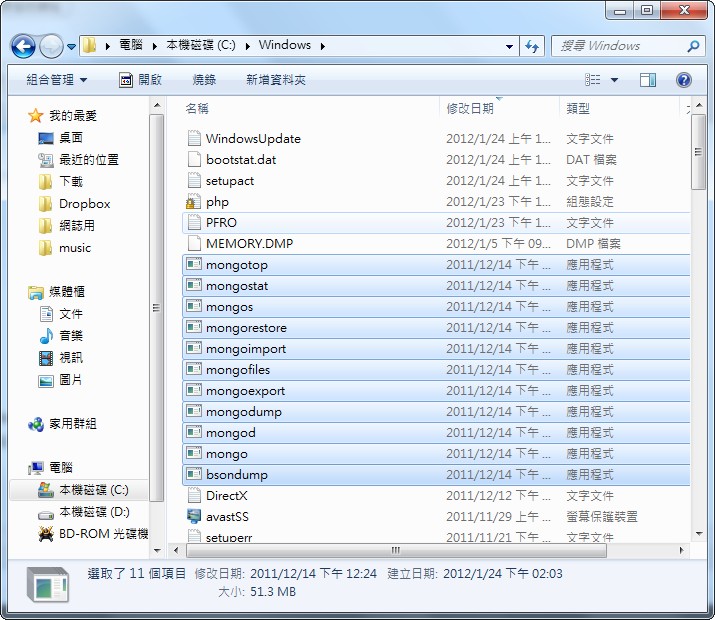
1. First, go to the MongoDB download page and download the main program you need. Note that 32-bit and 64-bit are different builds. After downloading, extract it. Inside there's a bin folder. Move the files in that bin folder to C:WINDOWS.If you’re installing on Linux, move the files in bin to /usr/bin instead.
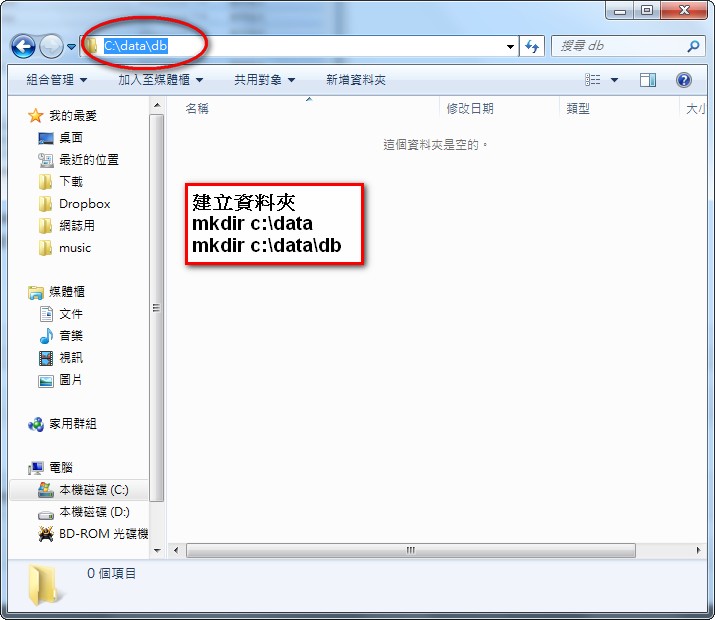
- Create a folder called data in the system root directory (C:), then create a folder called db inside data. This folder is where MongoDB stores its databases.
Linux:
sudo mkdir -p /data/dbsudo chown
id -u/data/db
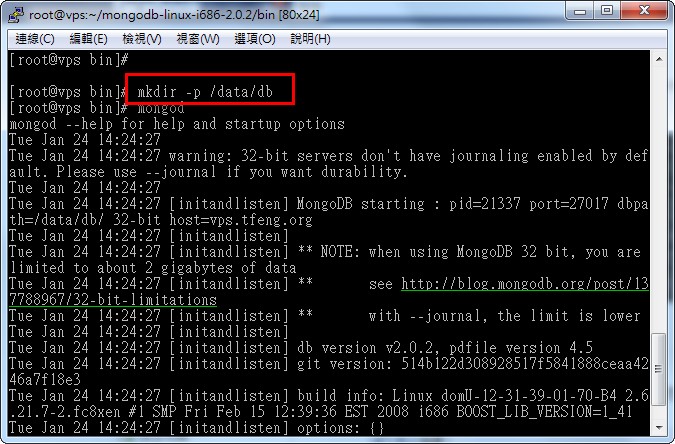
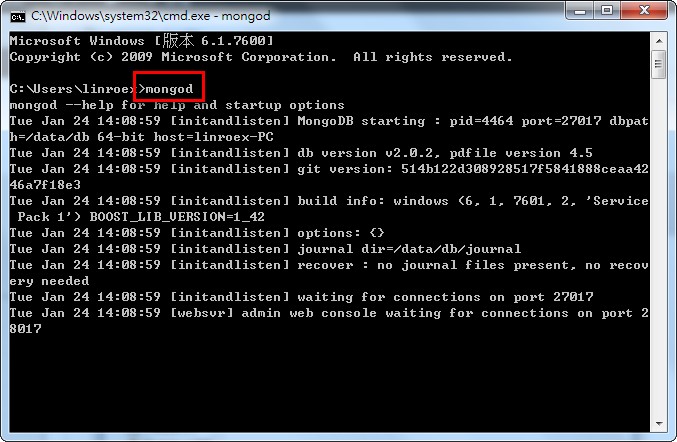
- At this point the installation is complete. Open CMD and type mongod. This starts the MongoDB server. You can add many different parameters after it to meet different needs.
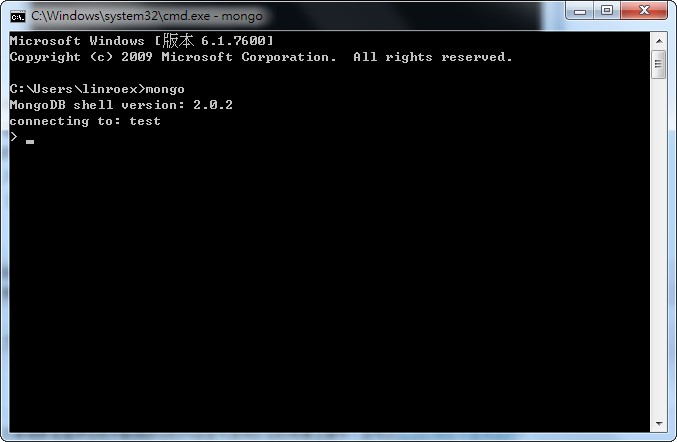
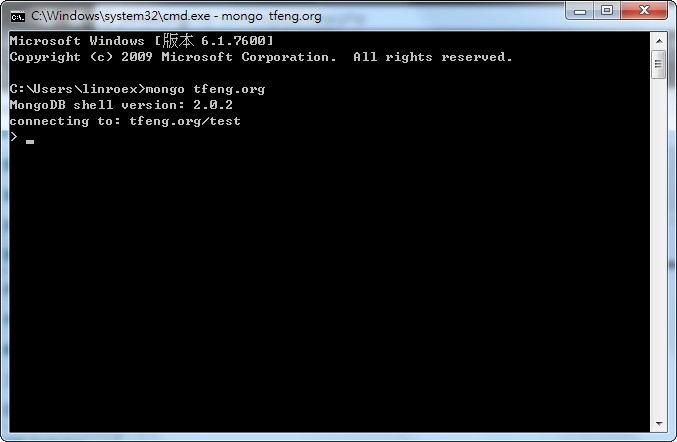
- Then open another CMD window and type mongo. This starts the MongoDB shell, where you can operate MongoDB directly. By default it connects to the mongod server on the local machine. To connect to a mongod on another computer, type [mongo ip/dbname]. For example, to connect to the test database at 200.0.0.15, type: mongo 200.0.0.15/test. If the port of the mongod server has been changed, you can type [mongo ip:port/dbname].
- Finally, you can set bin/mongod to start automatically when the computer boots. However, if you do this, be sure to pay attention to the security settings.