Yesterday, while reading the newspaper, I came across an article saying that a supervisor at 104 Job Bank had been monitoring employees’ instant messages. I won’t comment on that, since it’s an adult matter. From the company’s point of view, of course they want to take measures to prevent employees from leaking information, and the company had told employees that instant messaging software would be monitored. But from the employee’s point of view, it must be really annoying, since nobody likes being watched. Oops, I’ve drifted off topic a bit~~ Anyway, this post is going to teach you to use two programs: MSNShell and SimpLite-Yahoo.
MSNShell and SimpLite-Yahoo are two programs: one encrypts MSN messages, and the other encrypts Yahoo instant messages. SimpLite also released an MSN-encrypting version, but because MSNShell has a Chinese interface, I’ll use MSNShell for the MSN part. The principle behind MSNShell and SimpLite-Yahoo is not hard to understand: when you send an instant message, it’s encrypted before it’s sent to the other person. So even if a network administrator tries to record it, they’ll only capture a bunch of gibberish. However, using MSNShell and SimpLite-Yahoo has one inconvenience: not only do you (the sender) have to install the program, but the other person (the receiver) has to install it too. Otherwise, the messages you send them won’t be encrypted.
Note: Besides basic encryption, MSNShell has lots of other fun features. I'll cover them someday when I have time, but in the meantime, feel free to check out its official website. Also, be sure to note: if you want to encrypt messages, both computers must have the encryption program installed. For example, if computer A sends data to computer B, then both A and B must have the encryption program installed.
MSNShell Info
- Main function: Encrypts MSN communication content to prevent malicious programs and network administrators from monitoring it
- Official website: http://my.msnshell.com/
- Download link: Official download|Xun6 | 4Shared | Box.net
- Virus scan report: VirusTotal
- MD5: 9ff0682054070ece83a934bec3d493fa
SimpLite-Yahoo Info
- Main function: Encrypts instant message content to prevent malicious programs and network administrators from monitoring it
- Official website: http://goo.gl/SO63
- Download link: Official download|Xun6 | 4Shared | Box.net
- Virus scan report: VirusTotal
- MD5: c9d3007f4d74490b5ce11ec4567651e1
- Interface language: English
MSNShell Installation and Usage Tutorial:
1. After downloading the MSNShell installer, double-click it.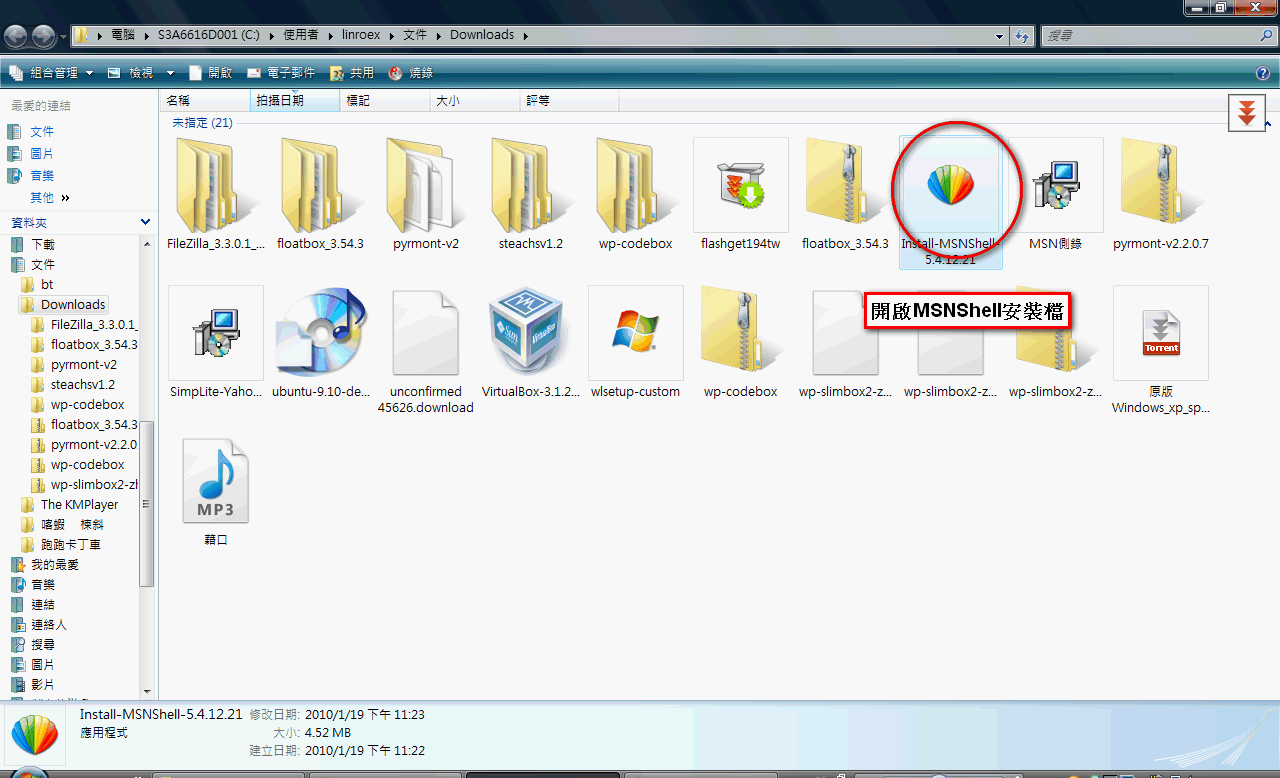
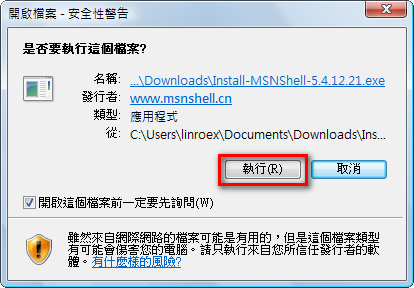
- If a security warning appears, just click [Run].
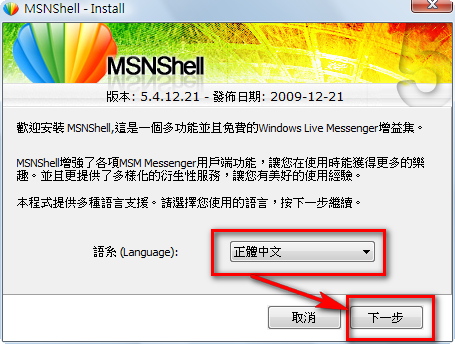
- Select [Traditional Chinese] and click [Next].
- Select [I have read……] and click [Next].
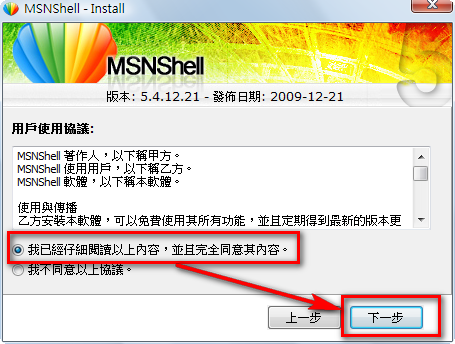
- The program will show you some reminders next. I didn’t think any of them were important, so I just clicked [Next].
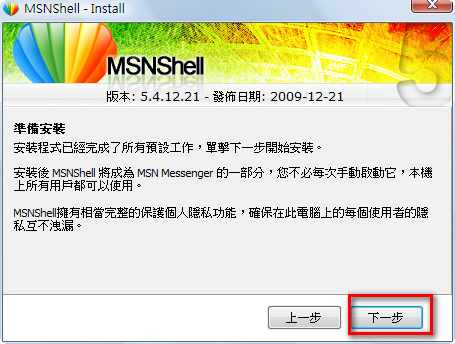
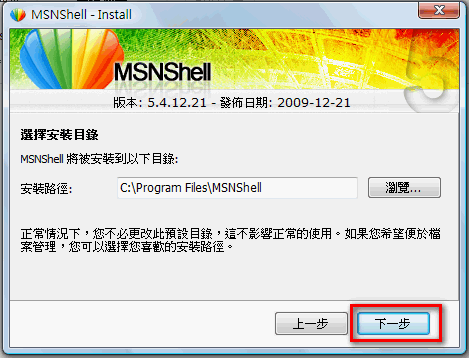
- Set the installation path. Unless you have some hard drive space planning in mind, the default value is fine.
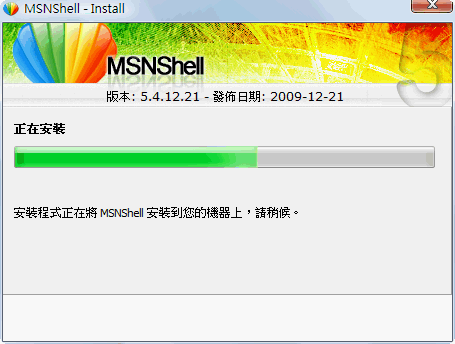
- Installation begins.
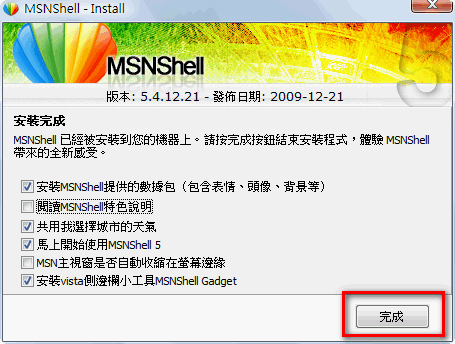
- After installation, MSNShell will ask whether you want to install and set up other things, such as emoticons. Set them up as you need.
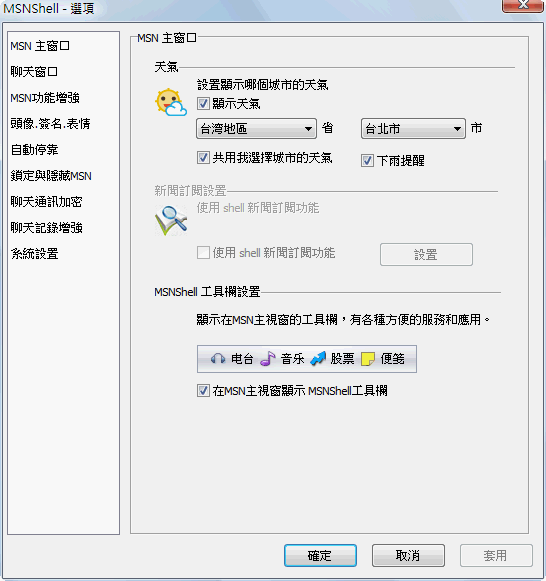
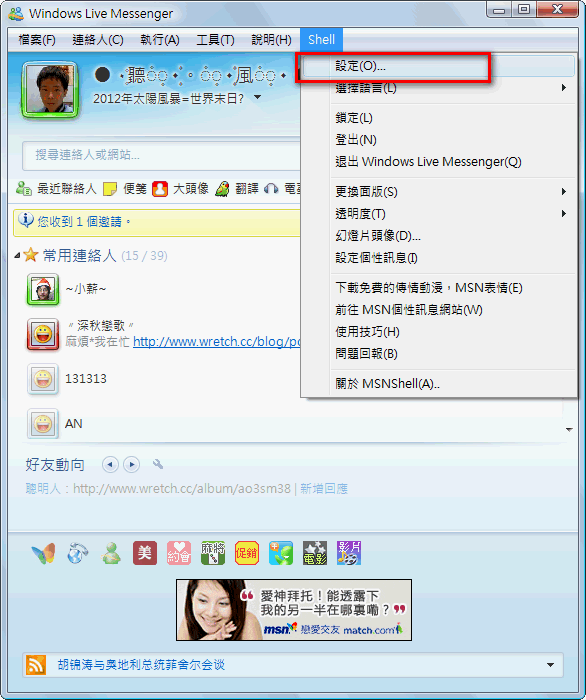
- Next, open and sign in to the main MSN program, then select [Shell] → [Settings] on the top toolbar. (Maximize the window and you’ll see the Shell button.)
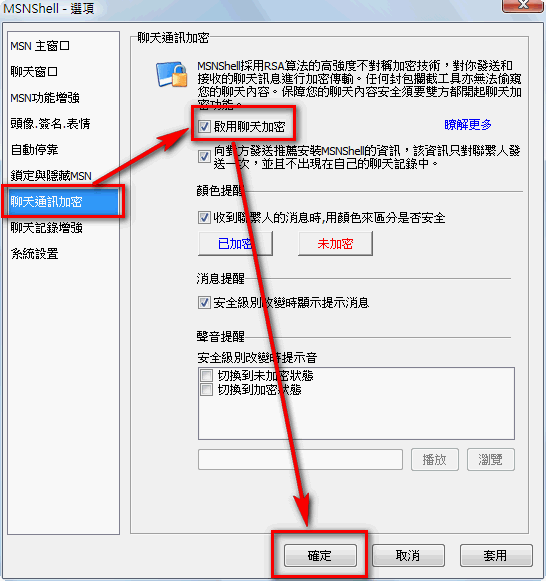
- Select [Chat Encryption], check [Enable chat encryption], then click [OK] and you’re done.
SimpLite-Yahoo Installation and Usage Tutorial:
1. Open the SimpLite-Yahoo installer (if a security warning appears, just click [Run]).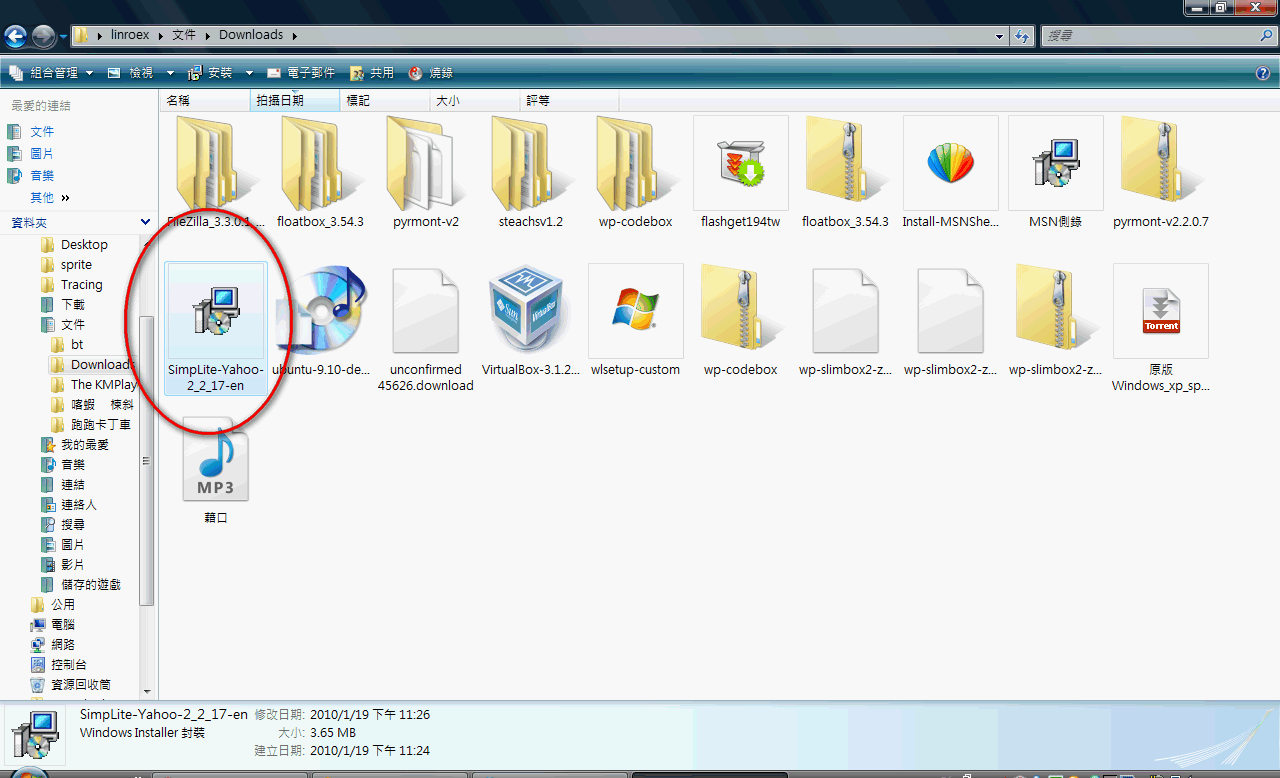
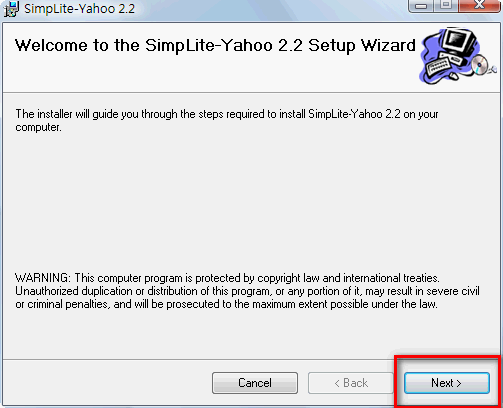
- Click [NEXT>].
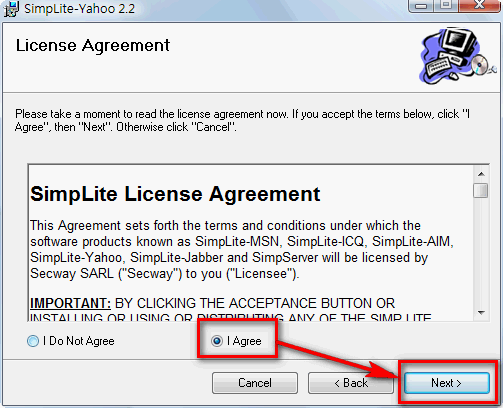
- Select [I Agree], then click [Next>].
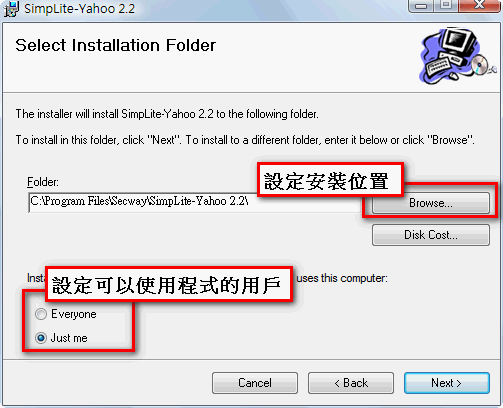
- Choose who will use SimpLite-Yahoo: you can select “Just me” or “every one.” The difference is that if you choose “Just me,” only the Windows account that installed the program can open it. If you choose “every one,” every user of this computer can use the program. You can also set the installation location. Once you’ve made your choices, click [NEXT>].
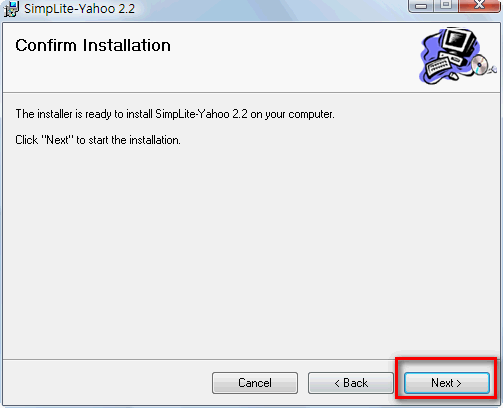
- Click [NEXT>] to start the installation.
- After installation, just click [NEXT] for the next three steps.
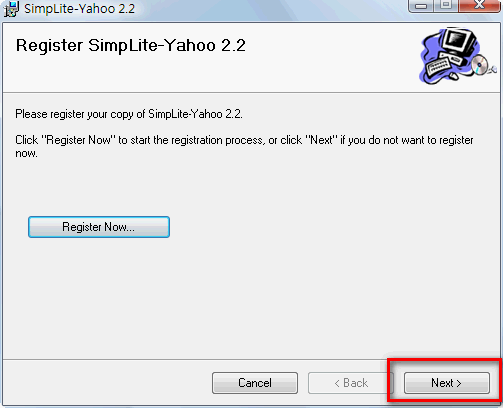
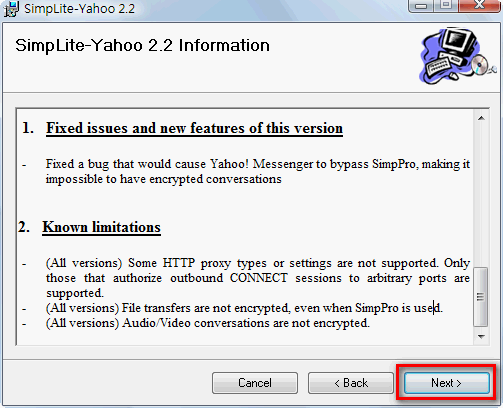
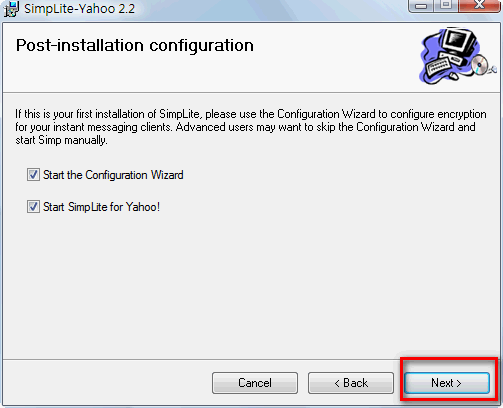
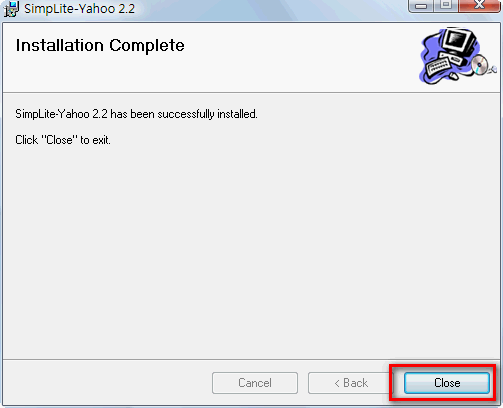
- Finally, click [Close] to finish.
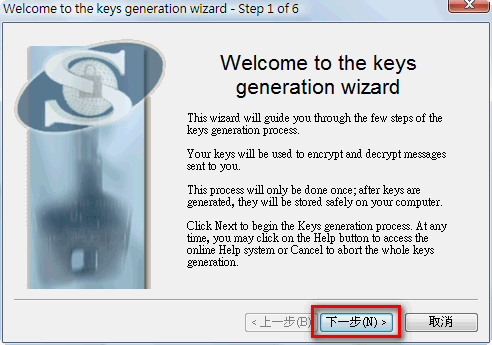
- After you click Close, SimpLite-Yahoo will open a window. Just click [Next].
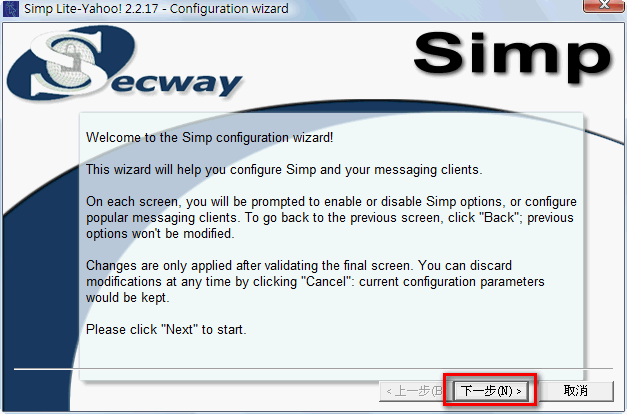
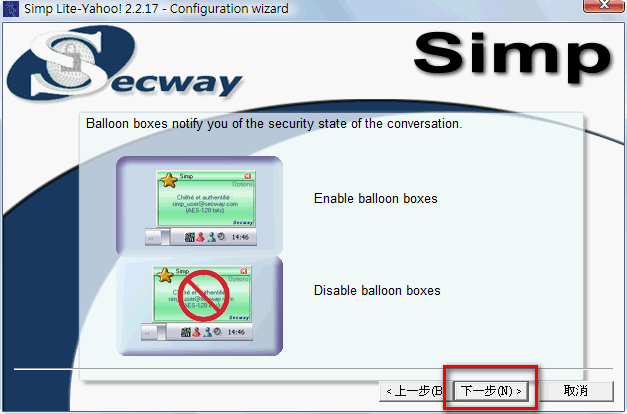
- This sets whether you want to be reminded when an unencrypted message is sent to you. I recommend keeping the default value, then click [Next].
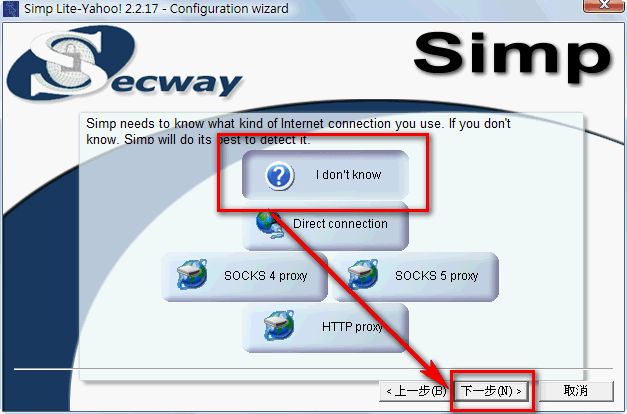
- Set how Yahoo Messenger connects. If you don’t know, select [I don’t know] to let SimpLite-Yahoo set it up for you, then click [Next].
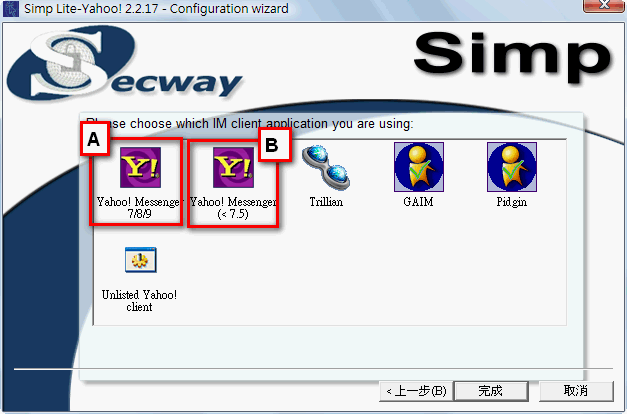
- Set your instant messenger version. If you use versions 7 to 9, select option A (see the image below). If your version is earlier than 7, select option B. Once you’ve chosen, click [Finish].
- Next, another window will open. Just click [Next].
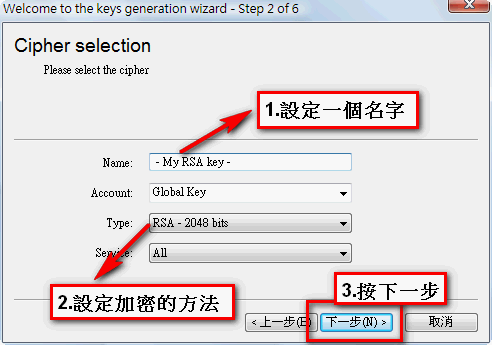
- Next, set the encryption method you want to use. See the image below for how to set it.
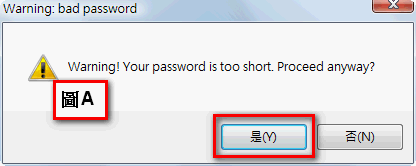
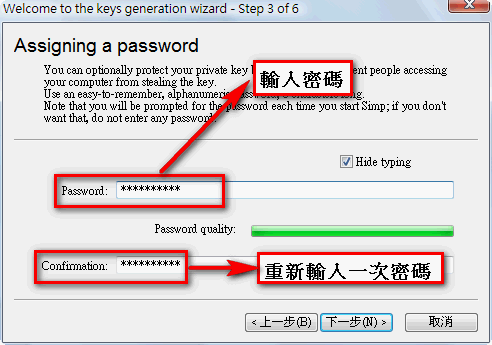
14. Next, set the encryption password. If the password is too simple, the system will tell you to set a new one. If you don’t want to reset it, click [Yes] (see Figure A).
- Move your mouse around randomly. The program will use the mouse movement to generate a key. When it’s finished, click [Next].
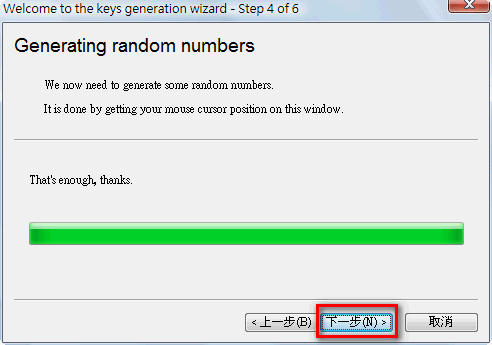
- The program will run another process. Once it finishes, click [Next] again.
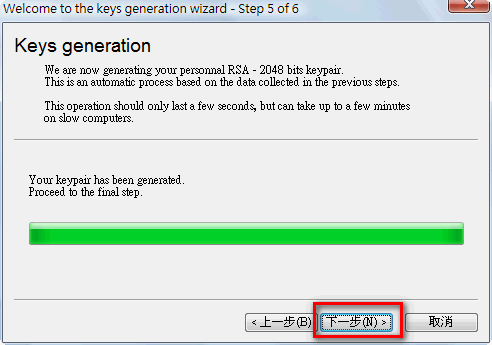
- Finally finished, thank goodness~~
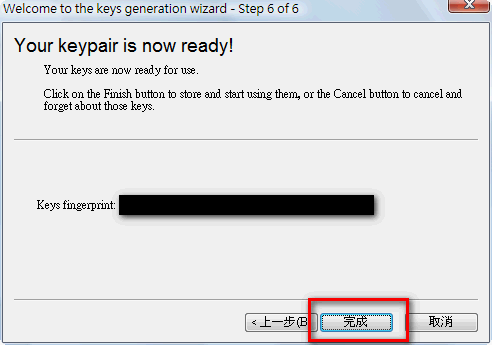
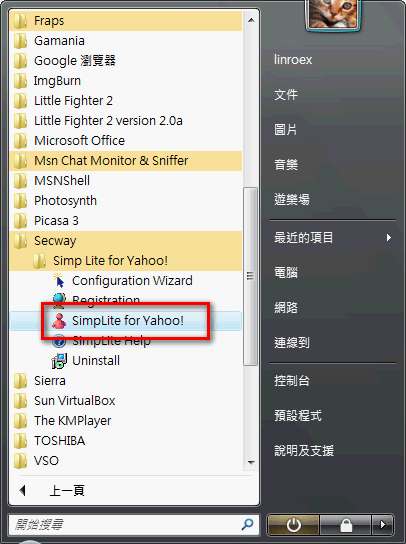
- From now on, every time the system boots, a small red figure will appear in the lower-right corner of the taskbar, which means it started successfully. If the red figure doesn’t appear, you can open it from [Start → Programs → Secway → Simp Lite for Yahoo! → SimpLite for Yahoo!.exe].
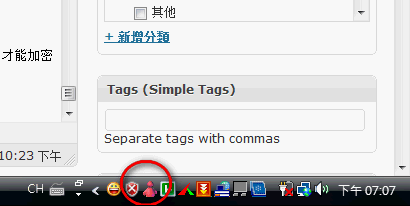
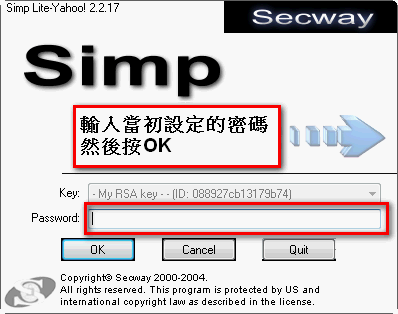
- When you boot up, a window will also appear asking you to enter a password.
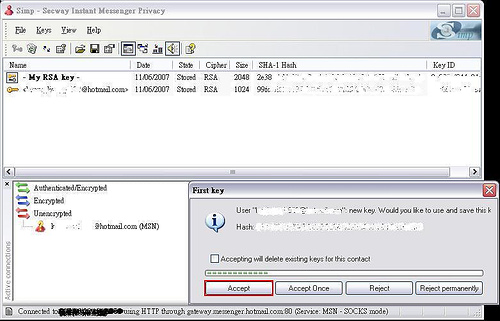
- Also, when someone who has simplite-yahoo installed sends you encrypted messages, the system will ask whether you want to exchange keys. Choose Accept to exchange keys. After the exchange, you also have to tell the other person your password, so they can enter it when they log in (the password you entered in the previous step).
Note: Turning on encryption on your side isn’t enough. It only works if the other person also sets it up on their end.
For questions, see http://spock.pixnet.net/blog/post/5202866