Every Kindle user probably has their own routine for managing e-books: buying books, organizing them, sending them to the Kindle reader, and backing them up. Over time, you develop a routine you're used to. At first, like most people, I used Calibre to manage my e-book files. But once I got a second Kindle reader, I started to notice many inconveniences in relying only on Calibre and transferring files to the reader over USB, such as:
- Reading progress, notes, and so on can't be synced, which is very inconvenient with multiple Kindles. Also, when you replace a Kindle with a new one, the old reading records and notes can't be backed up.
- When you have multiple computers, it's easy to lose track of which computer you last used to process e-books, and you end up with lots of duplicate books on your Kindle.
- When you switch to a new Kindle reader, you have to sort your books into Collections all over again.
Recently, Kindle finally added a "Read / Unread" filter that lets you list only unread books. But the read and unread status can't be backed up or synced either. This made me determined to find a way to solve the problems of backup, syncing, and managing e-book files across my laptop and desktop.
Kindle users should all know about the "Personal Document E-mail" feature. Just email a file in MOBI, TXT, or PDF format to the dedicated address Amazon assigns, then turn on Wi-Fi on your Kindle and the file downloads automatically. A file sent by email is treated the same as an e-book bought on Amazon. That means reading progress, notes, and read status can be backed up automatically and synced across devices. You can even look at your notes conveniently in the phone app. And when you get a new reader, you can easily download all your books, just like restoring from an iCloud backup.
My latest recommended workflow uses IFTTT together with Personal Document E-mail. When a file appears in a Dropbox folder, it is automatically emailed to the Amazon address. Because the files reach the Kindle by email, the note syncing and backup problems are solved. And because everything is managed through Dropbox, you don't have to worry about whether an e-book file is on the laptop or the desktop, since Dropbox automatically syncs it from the laptop to the desktop. As for Calibre, I've moved it to a supporting role where it focuses on file conversion. Calibre doesn't hold any e-books, so its library list is completely empty.
The benefits of doing it this way:
- Dropbox takes care of syncing the books, so you don't have to worry about whether the e-book files are on the laptop or the desktop.
- Your own e-books (not bought from Amazon) can also get syncing for reading progress, notes, and read status.
- If your Kindle reader breaks and you get a new one, you won't have to worry about losing the notes you made before.
Now let's get hands-on!
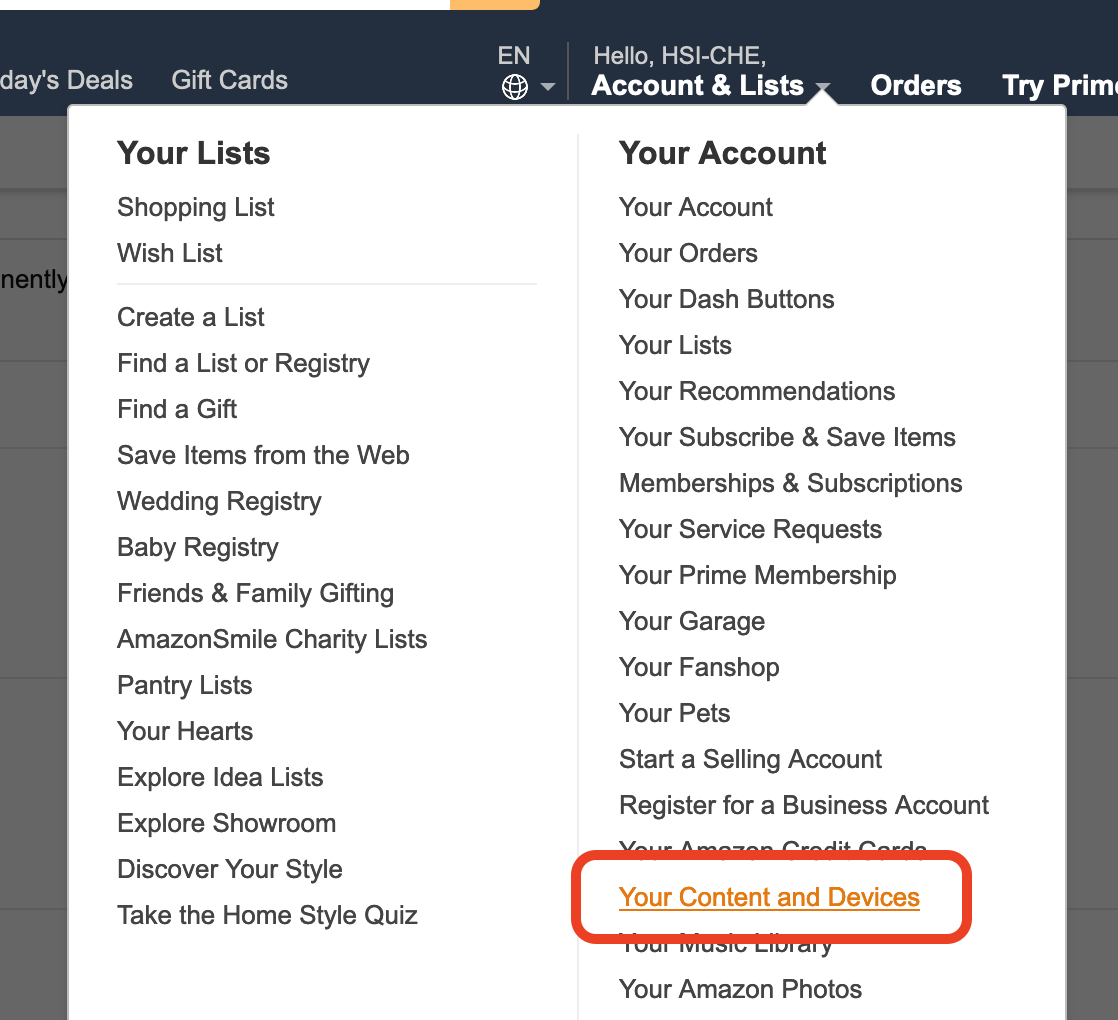
First, go to the "Your devices and content" page on the Amazon website to set things up and get your dedicated Kindle Email Address.
Go into "Preferences" and turn on the following items:
- Device Synchronization (Whispersync Settings)
- Personal Document Settings - Personal Document Archiving
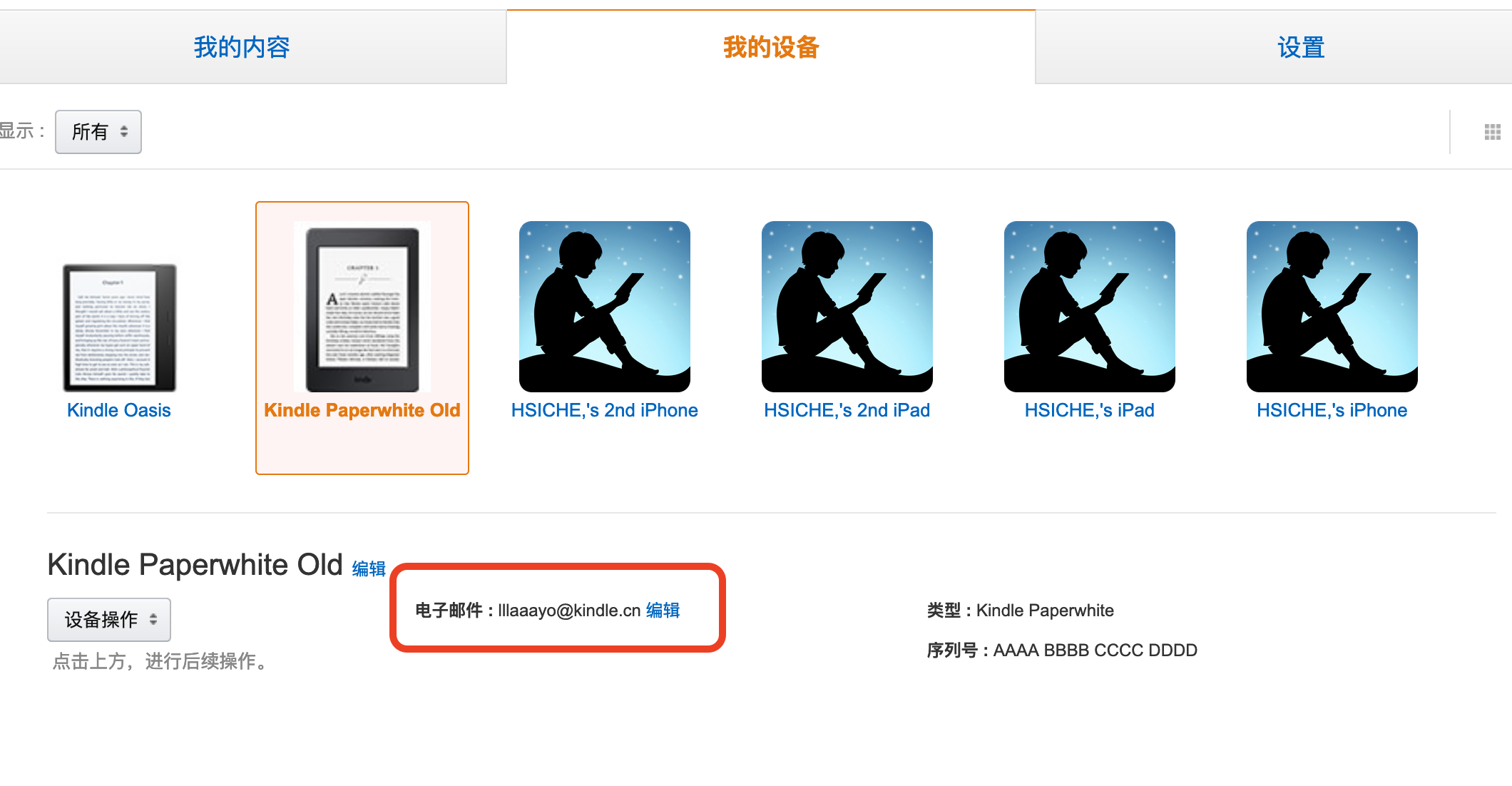
Next, add your own email address to the "Approved Personal Document E-mail List".
On the Device tab, you can see the dedicated Email Address for each reader you've registered. As long as you send e-book files in a supported format to this address, the matching Kindle will automatically download them when it connects to Wi-Fi.
Next, sign up for an account at IFTTT, then click "My Applets" -> "New Applet" to create a new one.
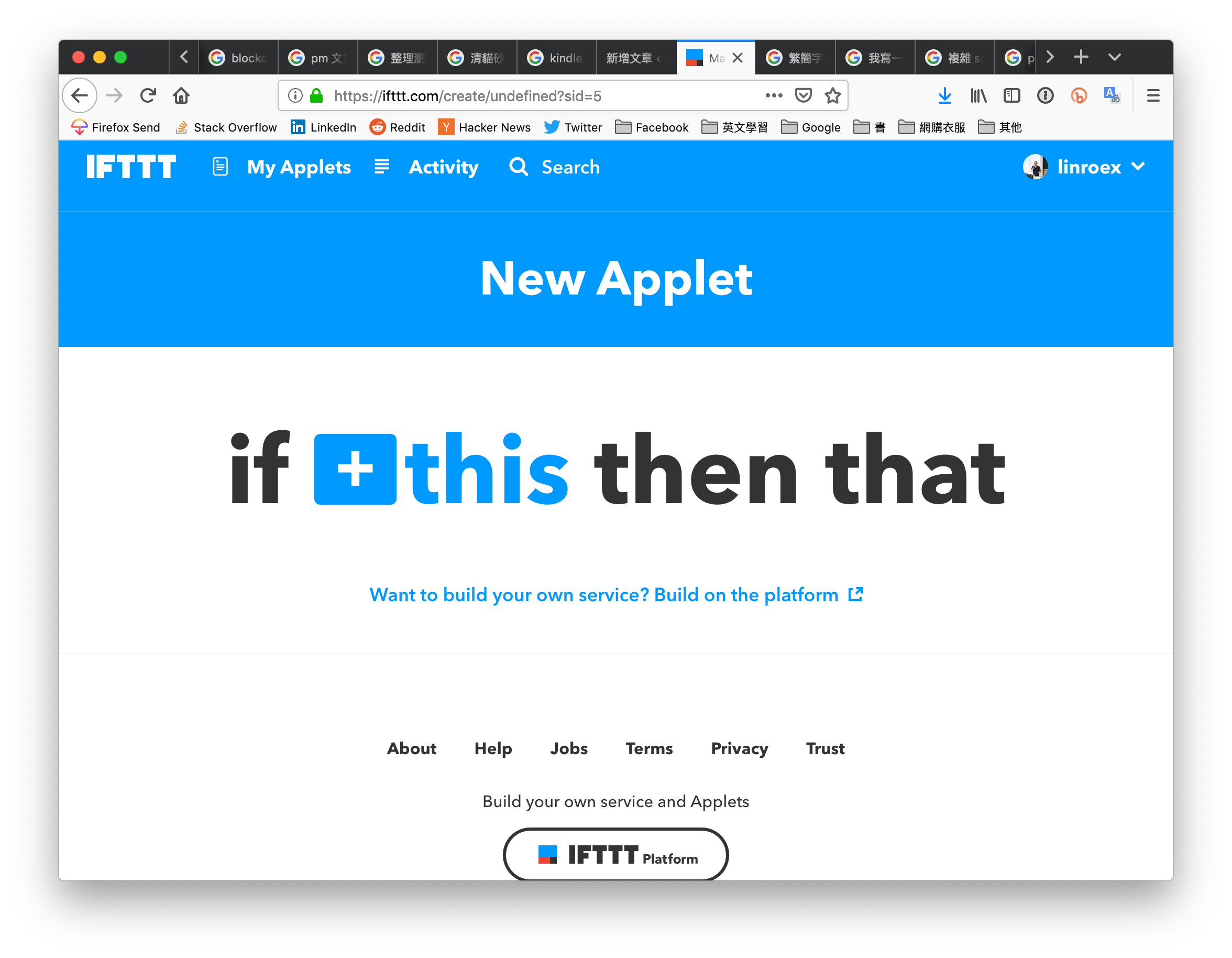
IFTTT is an interesting service (I'm not sure how to describe it). It lets you write a simple program to solve your problems without much effort. IFTTT divides every service into Triggers and Actions. For example, we can set "New file in Dropbox" as the Trigger, and then choose a matching Action, which might be sending an email or posting to Facebook. IFTTT has built-in support for many services, including Dropbox, Facebook, Twitter, and Google, so you can build your own automations without writing a single line of code.
Click "this", search for "Dropbox", and then select "New file in your folder".
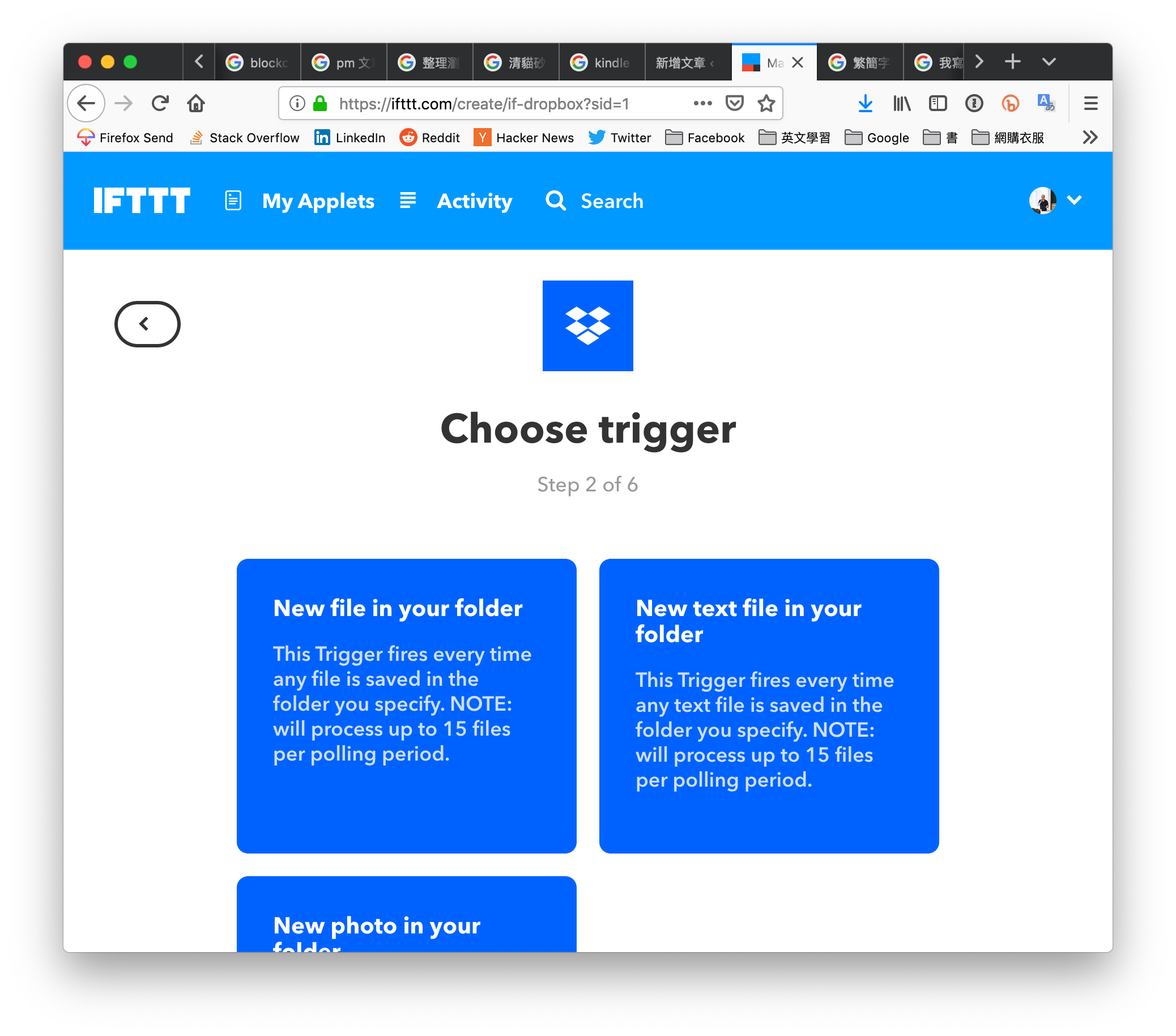
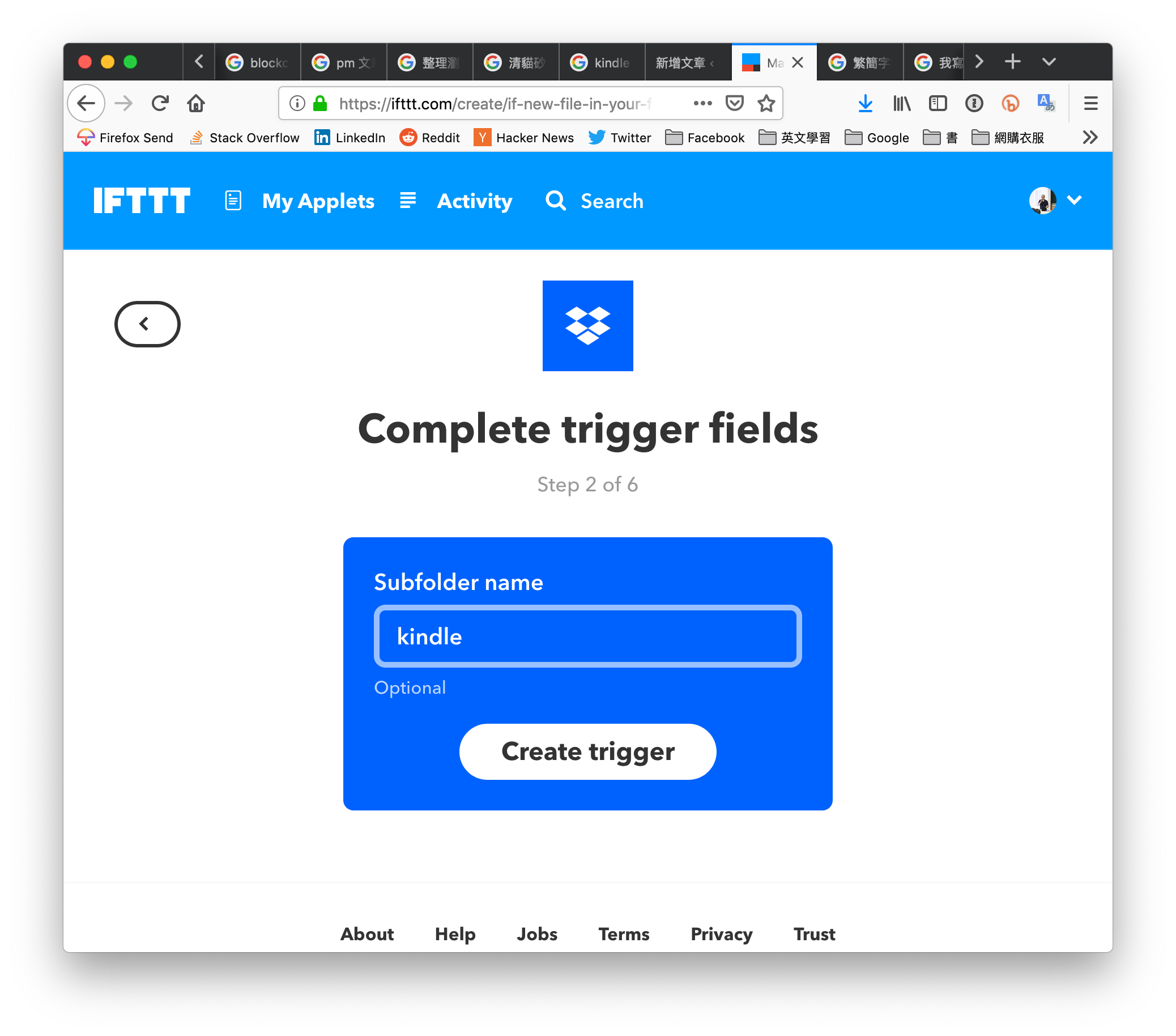
Next, IFTTT asks whether you want to specify a folder. When a new file is added to the specified folder, the follow-up action is triggered. I created a folder named "Kindle" and put all my files in it.
Finally, press Create Trigger to finish the first step.
Next, go back to the original "if ... then ..." page. Click "that" after "then". This means the action to take "when a file is uploaded to the specified Dropbox folder".
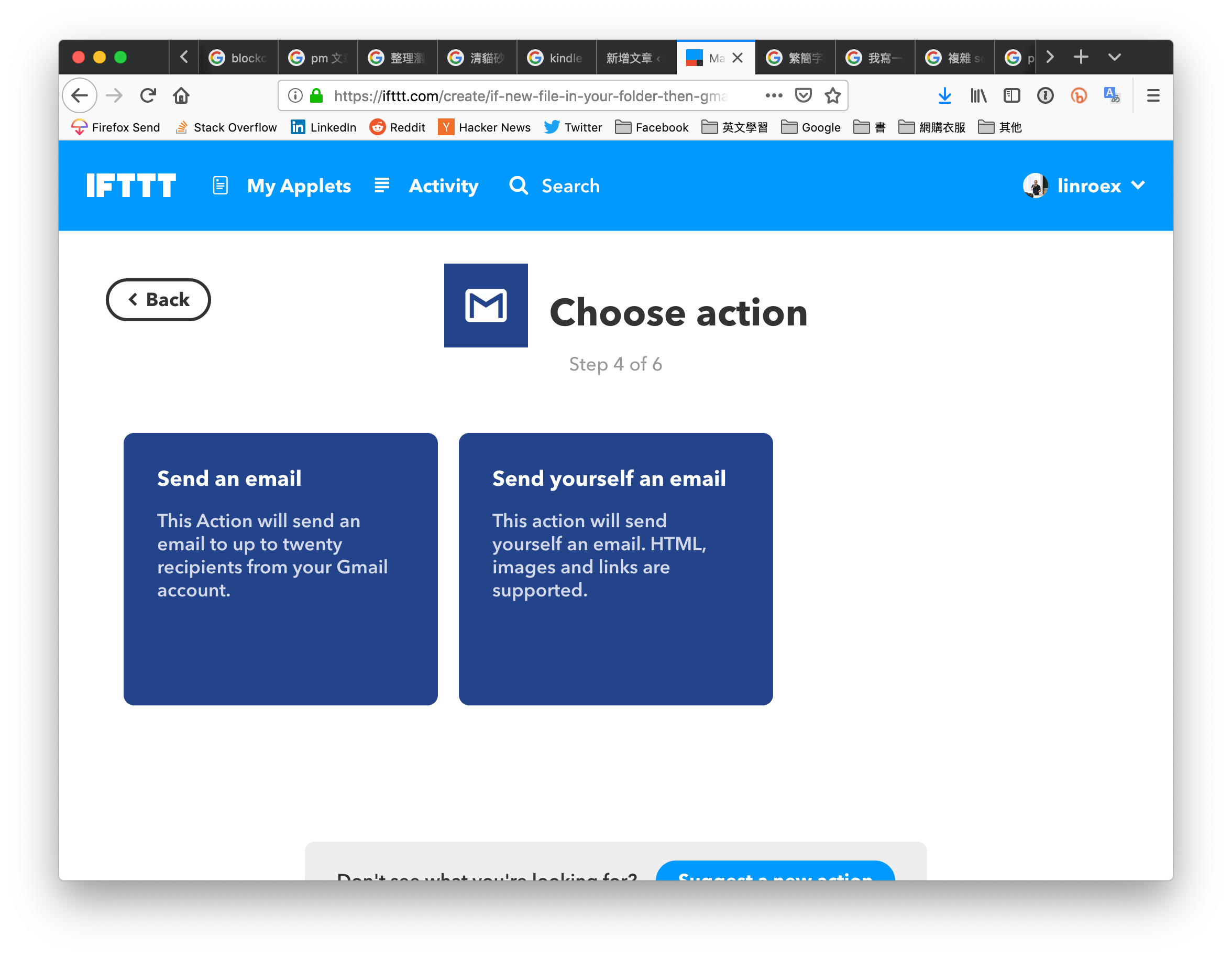
Search for "Gmail" and select it. The first time you use it, IFTTT will ask you to link it to Gmail. Then choose "Send an email".
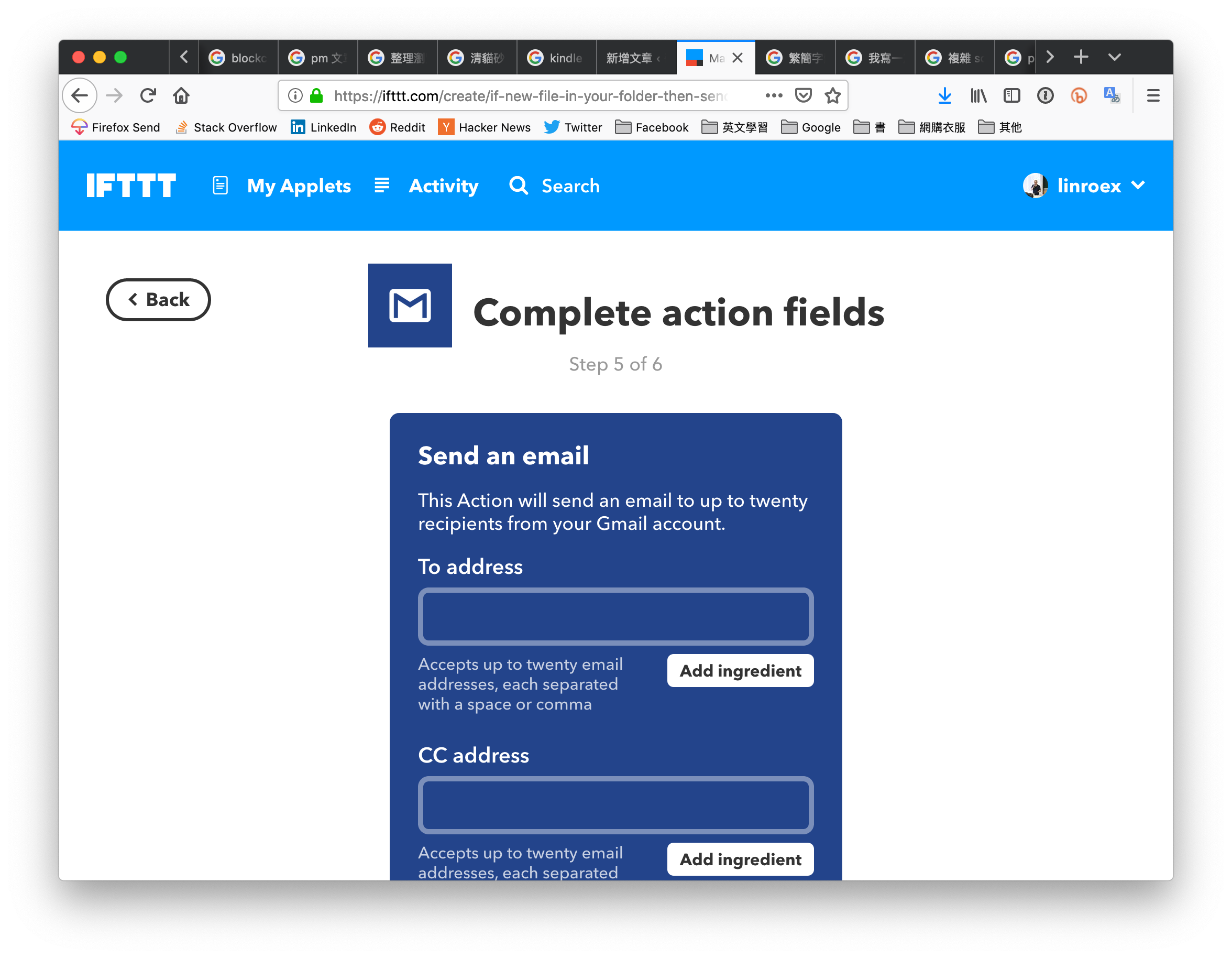
Next, enter your Kindle's dedicated Email Address in the "To Address" field. The other settings, such as the email subject, are up to you. Keep the default value "FileUrl" for "Attachment URL".
When you're done with the settings, press "Create Action"!
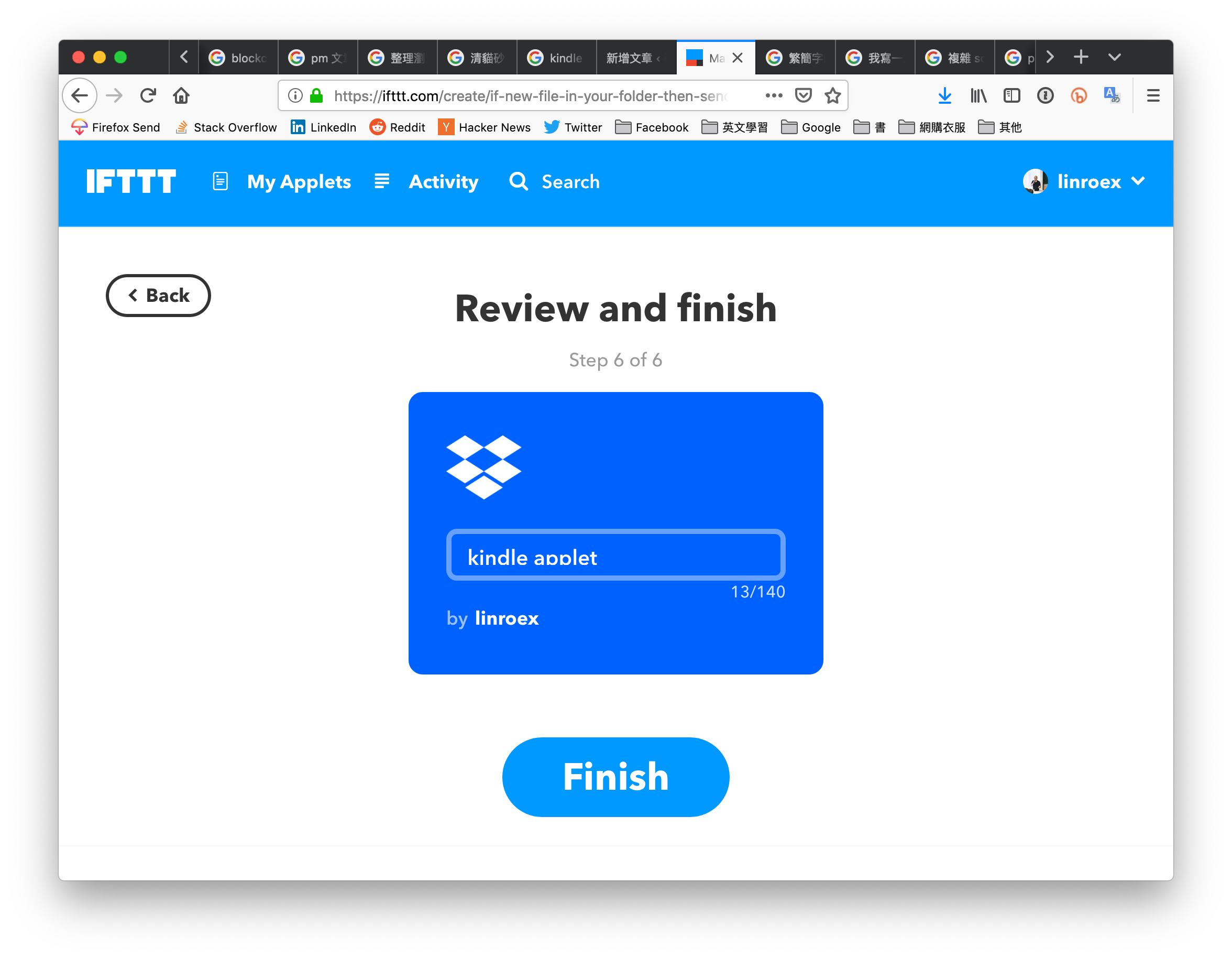
Finally, you can give the automation you just created a name. By default, it will look something like "If New file in your folder kindle, then Send an email from admin@gmail.com".
That completes the whole setup! Next, use Calibre to convert the e-book to MOBI format, then boldly drag it into the Dropbox folder you specified. Turn on Wi-Fi on the Kindle reader, and once the file finishes uploading, you'll be amazed to see the reader start downloading it too. It's as magical as it sounds! The same approach also works with Google Drive or any other online storage you prefer!