Ngrok is an essential tool for backend developers. Whenever I develop a website on localhost, webhooks, API callbacks, and OAuth are a real headache. Take my earlier experience developing a Mandrill Webhook to receive email open and send events as an example. Because you have to set the URL in the Mandrill admin panel before you can test, you have to upload the program to a server after writing it to see the results. That has a big impact on development speed. Ngrok was born to solve exactly this problem!
After you run Ngrok on your computer, you get a randomly generated URL. Give this URL to a webhook or to anything else that needs a remote URL (such as a Facebook Messenger bot). When someone sends a request to that URL, Ngrok forwards those requests to your computer. The principle is simple but practical! Ngrok’s free plan has some limits, for example, a maximum of 40 connections per minute, and only one ngrok process per computer at a time. For detailed limits and pricing plans, see here. From my own experience, the free plan is already quite sufficient. Apart from a few rare cases, I have almost never run into problems. Paying is also reasonable, since the traffic has to go through ngrok’s servers to be forwarded, and that traffic isn’t cheap either.
The core idea of Ngrok is a forwarding server. It can forward outside requests to a port you specify. Following this idea, you can do many things, for example:
- Developing webhooks locally, such as for a Facebook Messenger bot
- Demos at the end of a hackathon: you save the time of setting up a server, and you can hand the product to everyone to play with
- Mobile device testing: previously you had to deploy to a server before testing on a real phone, but with Ngrok you can skip that step and test directly
Ngrok Info
- Official: https://ngrok.com
- Download: https://ngrok.com/download
Usage
It works on Mac and Linux. Installation is very simple and doesn't require compiling. Just download it and use it right away, or move it to a path such as /usr/local/bin for easier use later.To use it, enter the command in Terminal. The most basic command is:
ngrok http 8080
This sends traffic from the outside to localhost on port 8080, and it needs to use the http protocol. After running it, you’ll see this screen:
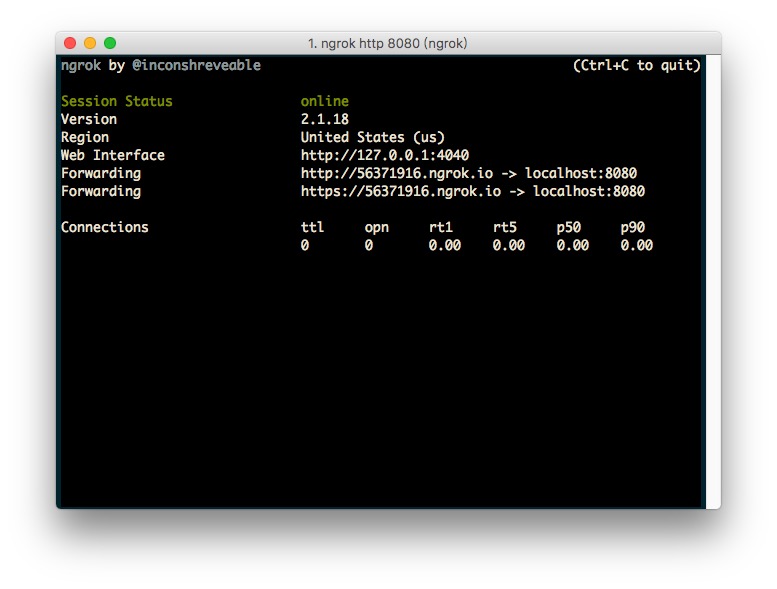
The URL you give to the outside world is the Forwarding URL. If you need SSL, choose the one that starts with https (the second one). Both URLs point to the same target. The only difference is whether SSL encryption is used.
Press Ctrl + C to exit and stop forwarding.
Some features require free registration, such as HTTP Auth. Go to the official Ngrok website and click Login in the top-right corner to register. You can sign up with GitHub or Google. After logging in, you’ll see a screen like this, and you just follow the commands there.
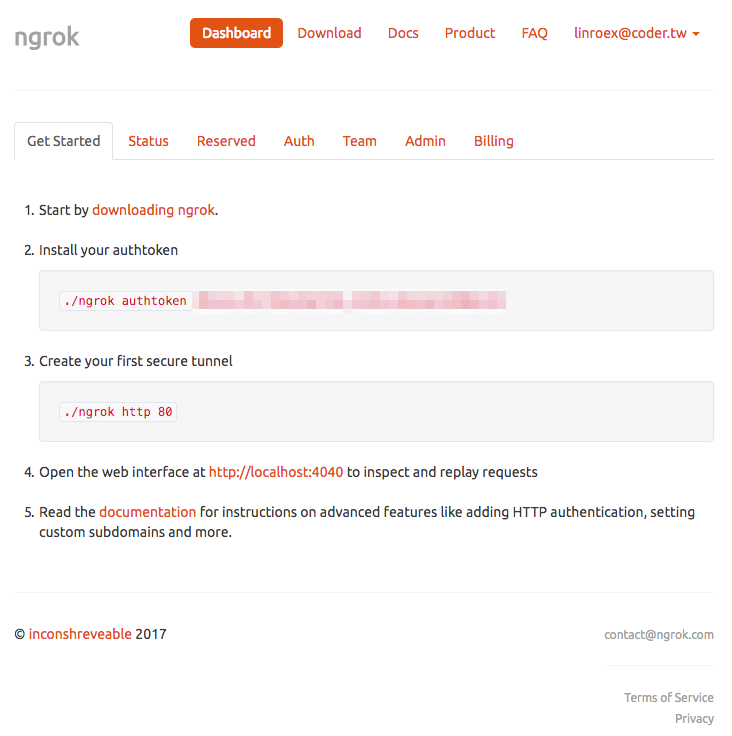
Don’t forget to run the command below so that ngrok knows you’ve registered! Replace the token with your own.
ngrok authtoken {token}Once you’ve registered, you can use member-only features, such as HTTP Auth:
ngrok http -auth "user:passwd" 80
In addition, sometimes you need to direct traffic to a specific local domain. Even though it’s your own machine, by modifying /etc/hosts you can give your local machine a fake domain. For example, coder.tw is my blog, but for development convenience my localhost has a fake domain, coder.dev, that points to this machine. The server is also set to listen on coder.dev (Powder is one such case). In this situation, you can use this syntax:
ngrok http -host-header=myapp.dev mayapp.dev:80