Almost everyone who writes programs or web pages uses a text editor, because sometimes you just want to open a file to look at its code, and opening it in Dreamweaver or Visual Studio takes too long. Some people use the Notepad that comes with Windows, or Vim, which is famous on Linux. Others install a text editor they find online. Today’s pick, Notepad++, is a very well-known and powerful text editor.
Notepad++ is one of the programs that always stays running on my computer. It’s really good: it’s free, it supports Traditional Chinese, and you can install lots of plugins. For example, Zen Coding, which I wrote about before, has a Notepad++ version. It also supports basic syntax highlighting and encoding conversion. It has a built-in “Run” feature, too. For example, if you’re writing a web page and want to view it in a browser, you can just press a shortcut key. Or if you’re writing Python or C++ code, you can press Run to automatically send the code to the compiler, or do other things. This needs to be set up yourself, though. There are plenty of tutorials online~
On top of that, Notepad++ can also fold and unfold code blocks, which helps keep your code neat and easy to read.
Notepad++ Info
- Official website: http://notepad-plus-plus.org/
- Supported languages: multilingual, including Traditional Chinese
- Download page: http://notepad-plus-plus.org/download/
- Version at the time of writing: V5.9.3
Notepad++ Features
- Open source, multilingual, free
- Extensions and themes can be installed
- Tabbed mode, similar to browser tabs
- Supports viewing and converting many encodings (including ANSI, UTF8, BIG5, and more)
- Code folding
- Auto-completion
How to Install Plugins
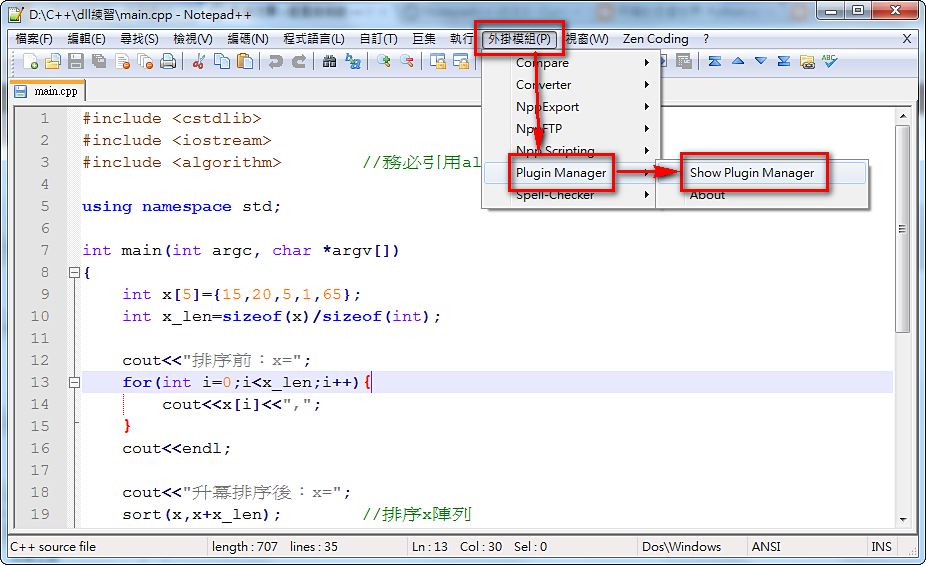
Newer versions of Notepad++ have a built-in Plugins Manager, which you can use to install plugins directly into Notepad++. If the plugin you want doesn't appear there, you can also manually put the plugin files into the Plugins folder in the Notepad++ root directory.- Click “Plugins” -> “Plugin Manager” -> “Show Plugin Manager”
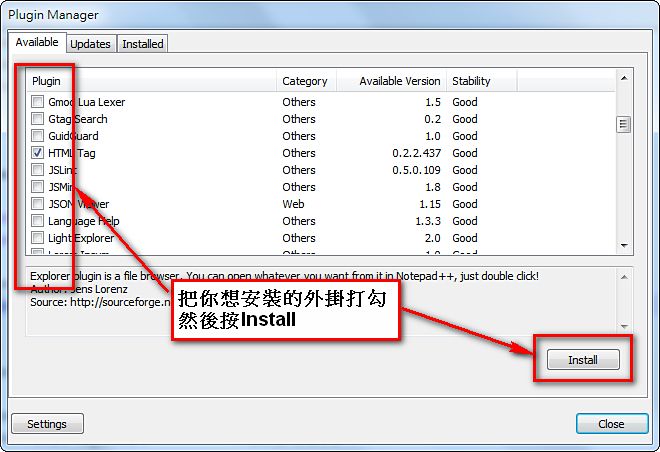
- Under “Available,” select the feature you want to install, then click “Install”
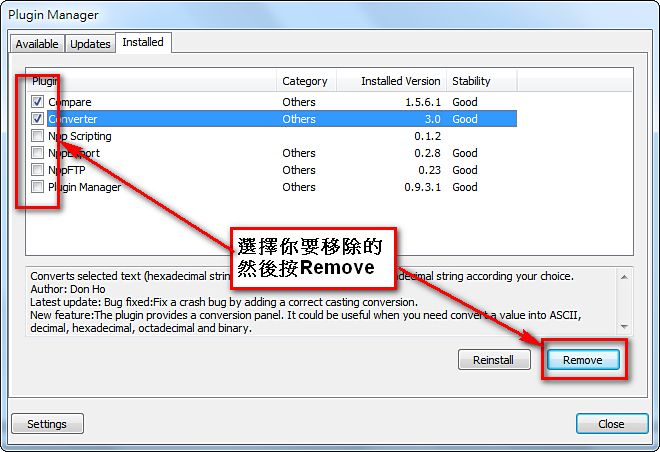
- You can also remove an installed plugin through Plugin Manager. Go to the “Installed” tab, select the plugin you want to remove, then click “Remove”
How to Install a New Theme
Notepad++ has more than ten built-in themes that you can use right away. Of course, you can also write your own. Themes use the XML format. You can refer to the theme files in the theme folder in the Notepad++ root directory, then write the style you like.- To change the Notepad++ theme, it’s simple: select “Settings” -> “Style Configurator”
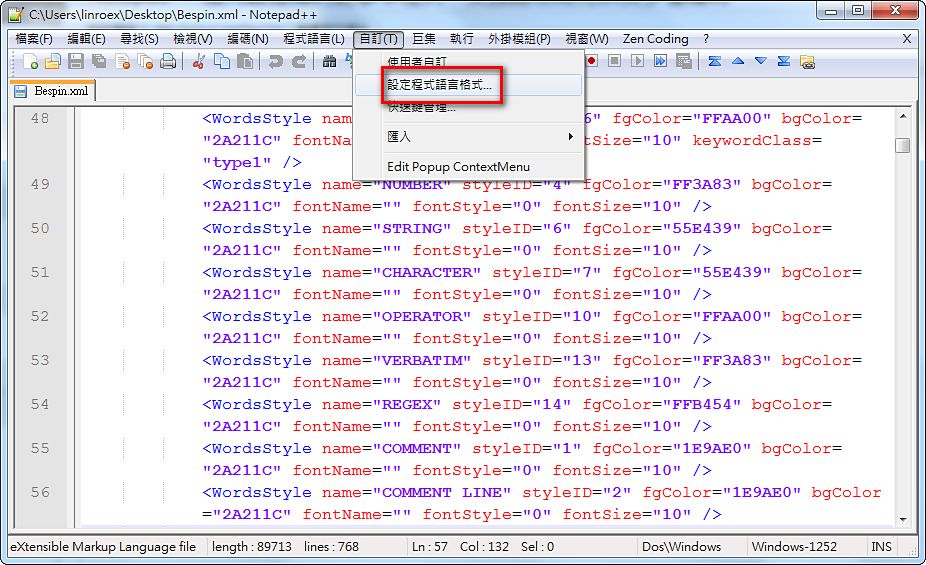
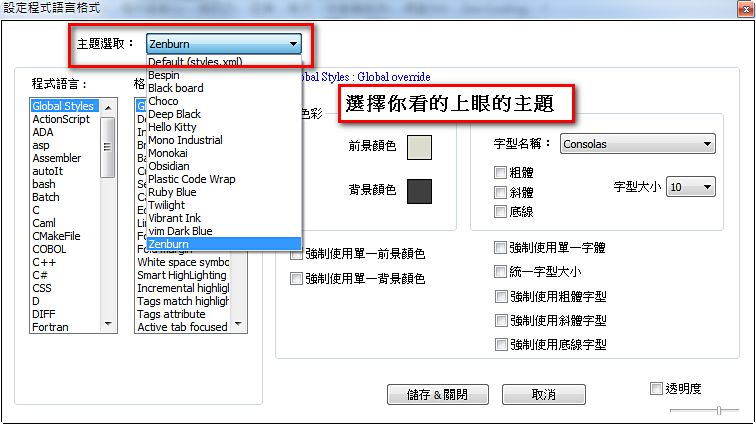
- In the “Select theme” section, choose the one you like, then click “Save & Close.” You can preview the styles as you choose, and they apply immediately.
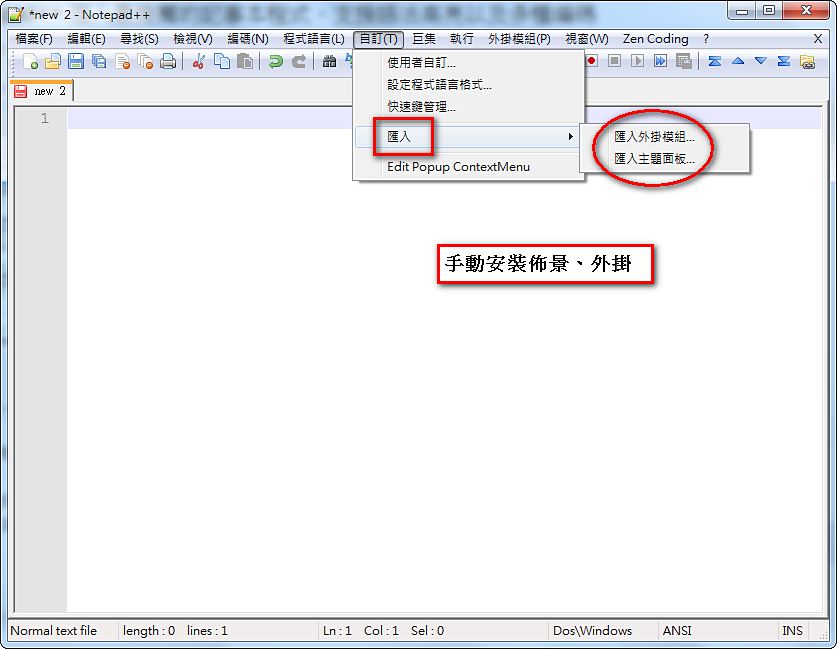
The Ultimate Trick for Installing Plugins and Themes!
Sometimes the plugin you want doesn't appear in Plugin Manager, or you want to install a theme you downloaded from the internet. What do you do? It's actually very simple XD. Select "Settings" -> "Import," then select the item you want to import, and you're done~