Introduction to OpenHardwareMonitor:
- Official website: http://openhardwaremonitor.org/
- Download links: Xun6 | 4Shared | Box.net | Official download
- MD5 checksum: b49aa6923b202c22ef9f7e01c32e3ab0
OpenHardwareMonitor Features:
- Plots temperature changes as a chart
- Monitors the temperature of multiple hardware components (hard drive, graphics card, CPU, motherboard)
- Still being updated, with support for many newer hardware devices (including CPUs from both AMD and Intel)
OpenHardwareMonitor Tutorial:
1.Open the OpenHardwareMonitor main program. It starts a bit slowly, so give it a moment.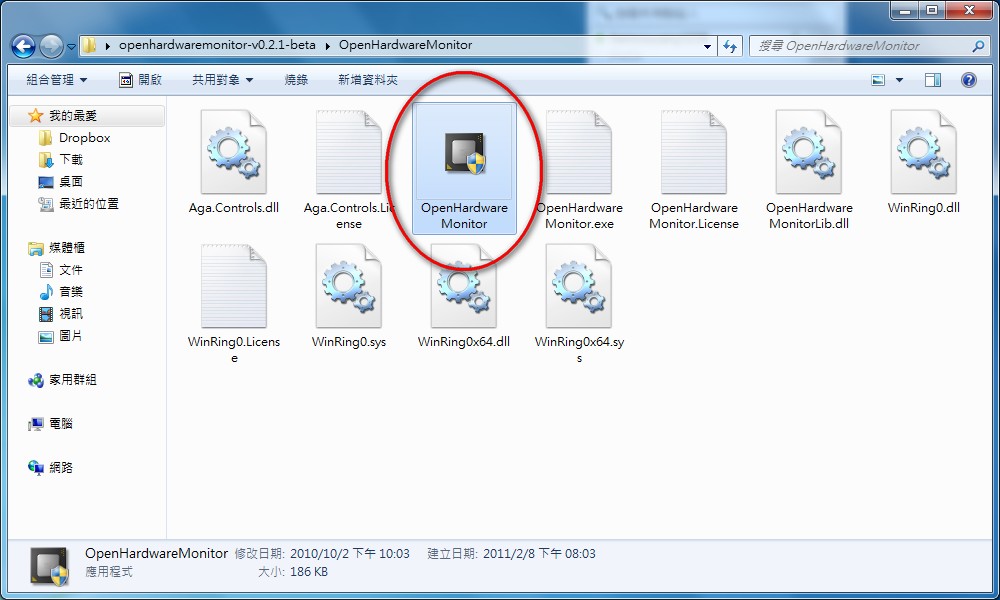
2.The main window shows the temperatures of the hardware in your computer, along with other hardware information such as CPU clock speed and motherboard model.
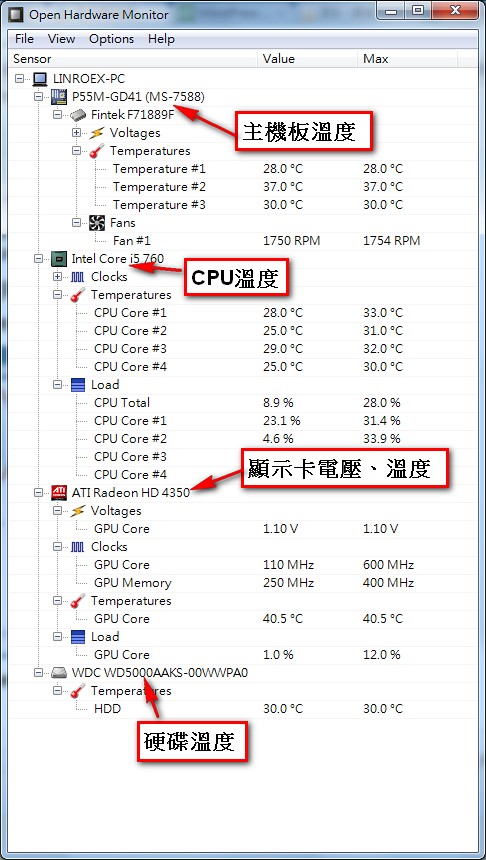
3.Checking hardware temperatures is fairly easy. But what if you want to plot the temperature changes as a chart? Click 【View】→【Show Plot】 on the toolbar at the top.
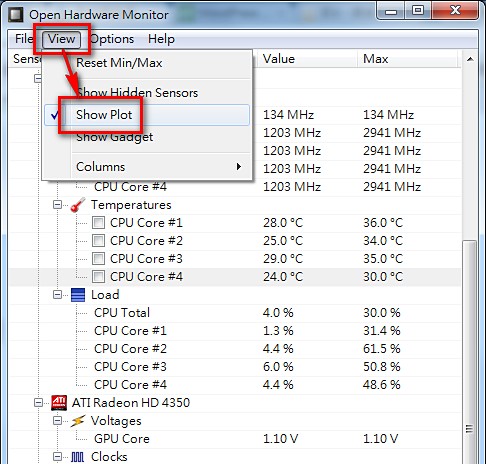
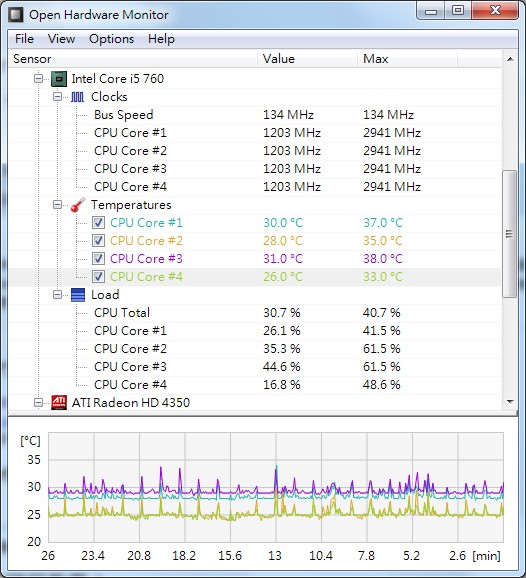
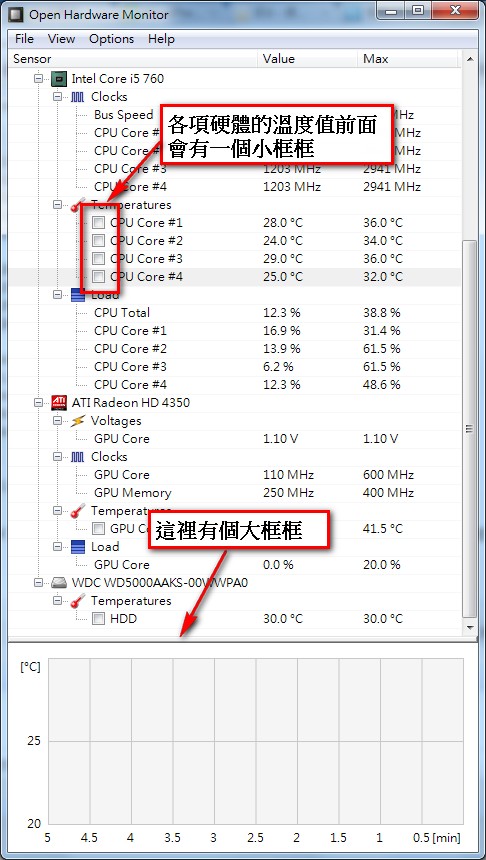
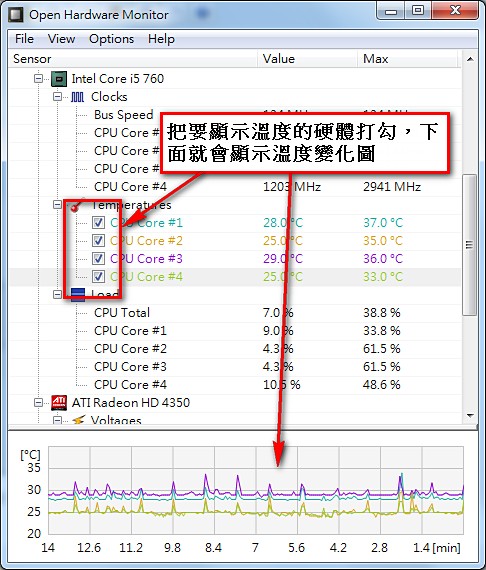
4.After you turn on Show Plot, you’ll notice a new box at the bottom of the program. You’ll also see small checkboxes in front of each temperature value. Checking one causes that temperature to be drawn in the large box at the bottom.
For example, if I want to show the temperatures of the 4 CPUs (I have a quad-core), I check the box in front of CPU, and the temperature changes then appear below.
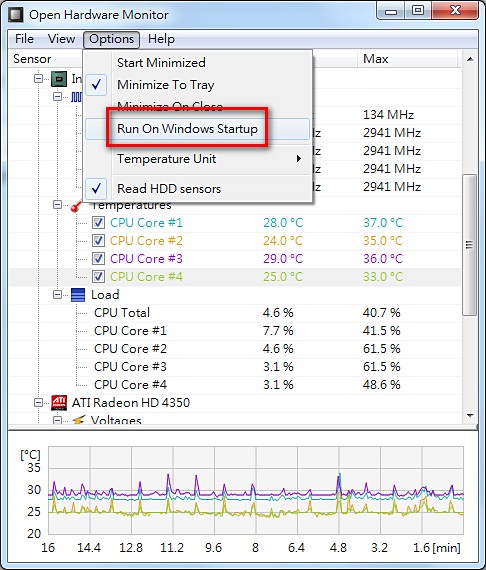
5.You can also set it to start automatically when Windows starts. To do this, click 【Options】→【 Run On Windows Startup 】 on the toolbar at the top.