Some people feel that OpenOffice’s features can’t match Microsoft’s, and I admit that’s true. But in practical terms, the features OpenOffice lacks are not used very often. Also, OpenOffice supports extensions, and you can install plugins to add features, so you could say OpenOffice’s functionality is unlimited. For that reason, I personally think that if you have a limited budget or simply don’t want to spend money, you should use OpenOffice.
OpenOffice Features
- Free and open source
- Full-featured, with support for extensions
- Multilingual interface built in, with good support for Traditional Chinese
- Supports multiple operating systems
OpenOffice Information
- Official website: http://zh.openoffice.org/new/index.html
- Company: Oracle
- Download page: http://download.openoffice.org/index.html
- Supported languages: Multiple languages (including Traditional Chinese)
Included OpenOffice Software
- Writer → word processing, similar to Word
- Calc → spreadsheets, similar to Excel
- Impress → presentations, similar to PowerPaint
- Draw → drawing (I've never used it)
- Base → databases, similar to Access
- Math → formulas (I've never used it)
OpenOffice Installation Tutorial
1.First, go to the download page and download the main OpenOffice program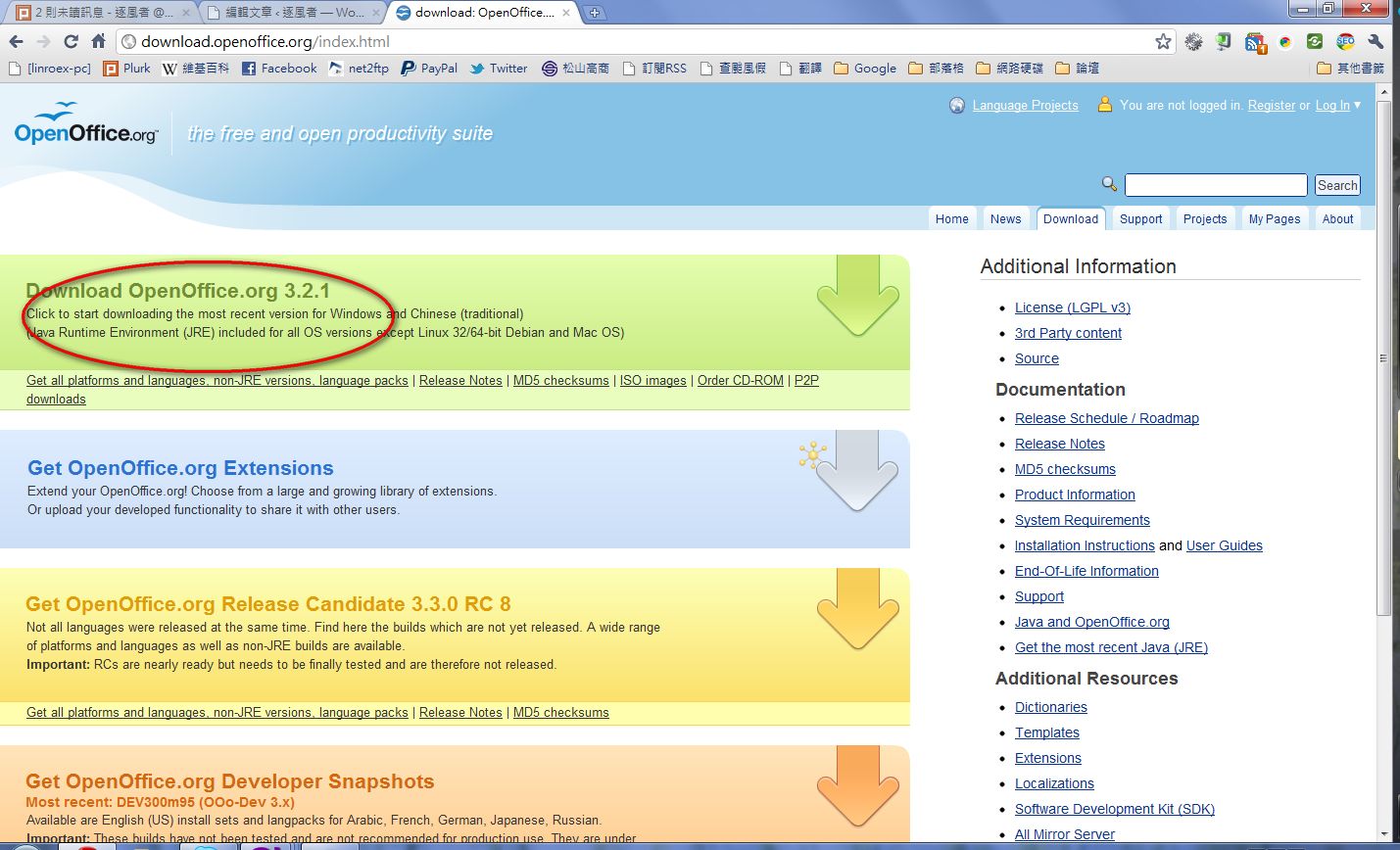
2.After the download finishes, open the installer and click 【Next】
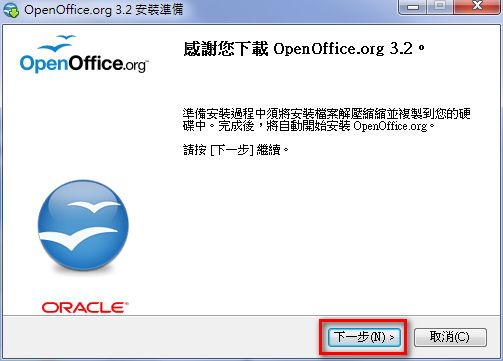
3.Because the downloaded file is large, the program has to be extracted before it can be installed. This step sets where the extracted files are temporarily stored. By default they go on the desktop, but you can click 【Browse】 to change the location.
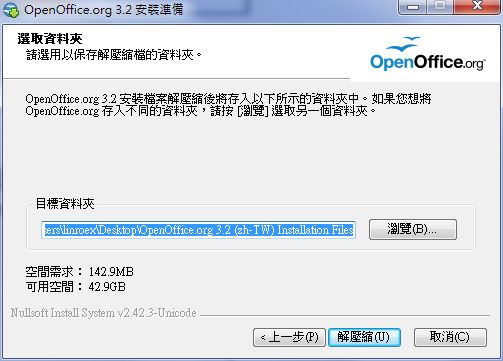
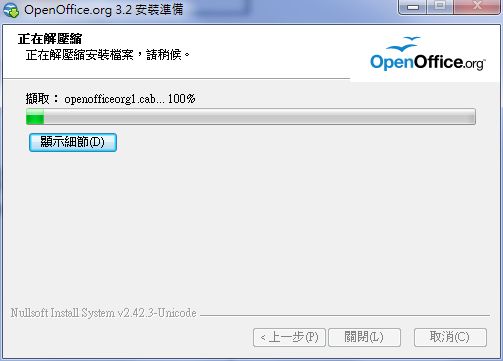
4.Extracting…
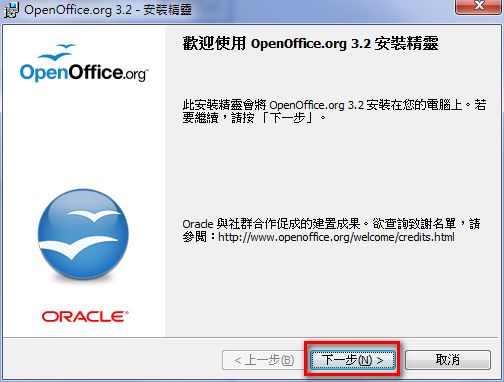
5.Once extraction finishes, the installer starts automatically. Just click 【Next】.
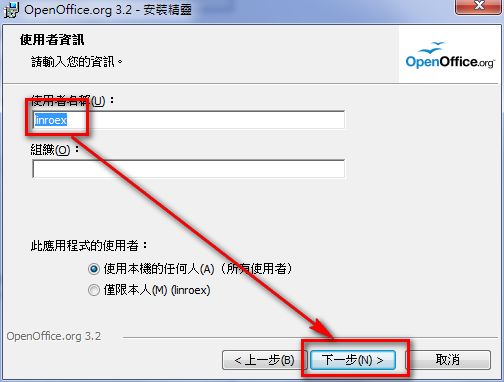
6.Enter your user name and click 【Next】. The 【Organization】 field is optional.
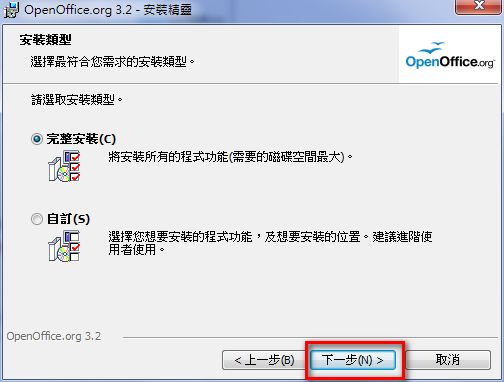
7.Keep the default settings and click 【Next】. If you only want to install certain components of OpenOffice instead of all of them, click 【Custom】.
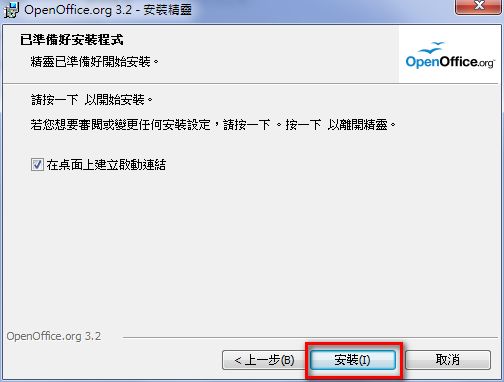
8.Click 【Install】, and the system will automatically install OpenOffice and make the related settings.
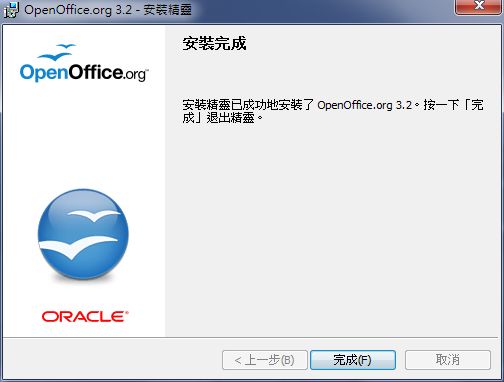
9.Installation complete
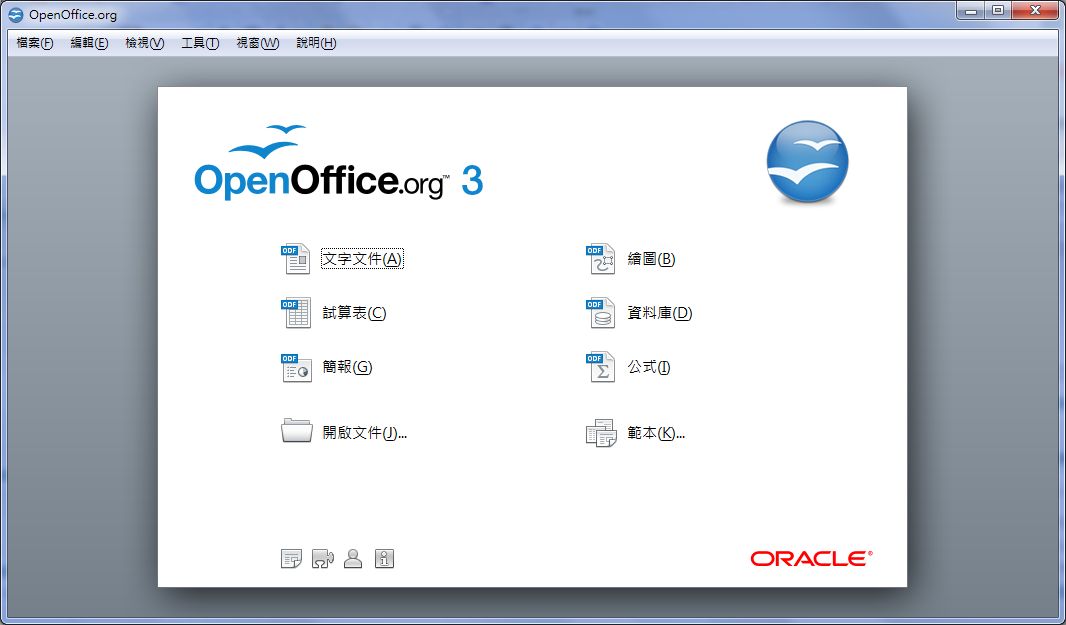
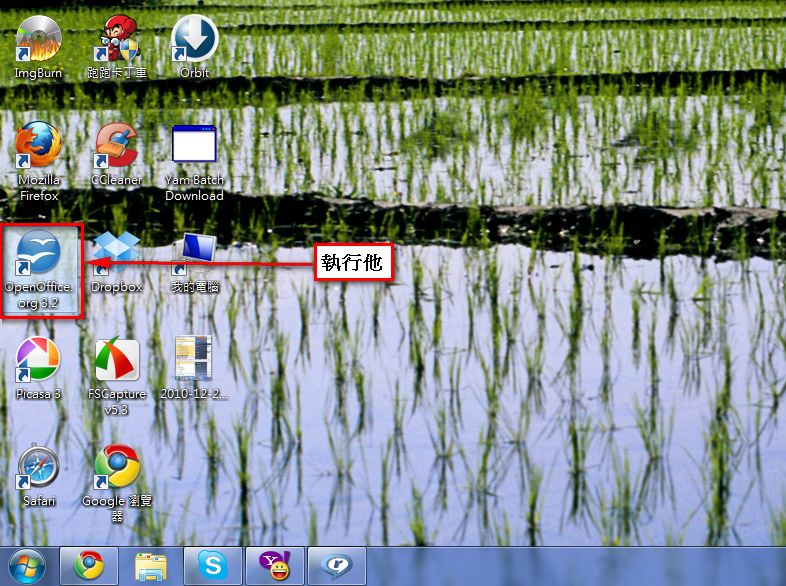
10.After installation, go to the Start menu (All Programs), open the OpenOffice.org folder, and run the openoffice.org program. You can also open it directly from the desktop. This program helps you quickly configure OpenOffice.
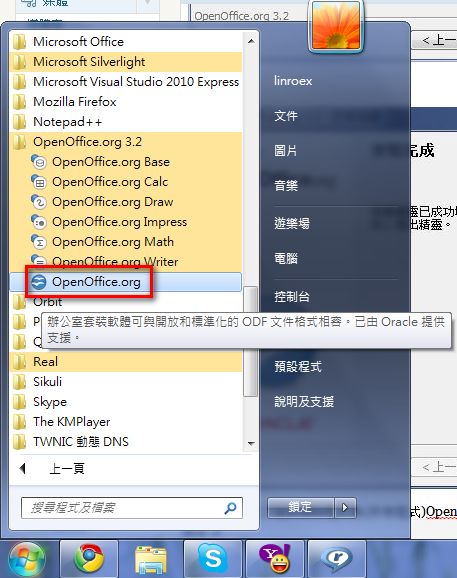
↓↓You can also run OpenOffice.org directly from the desktop
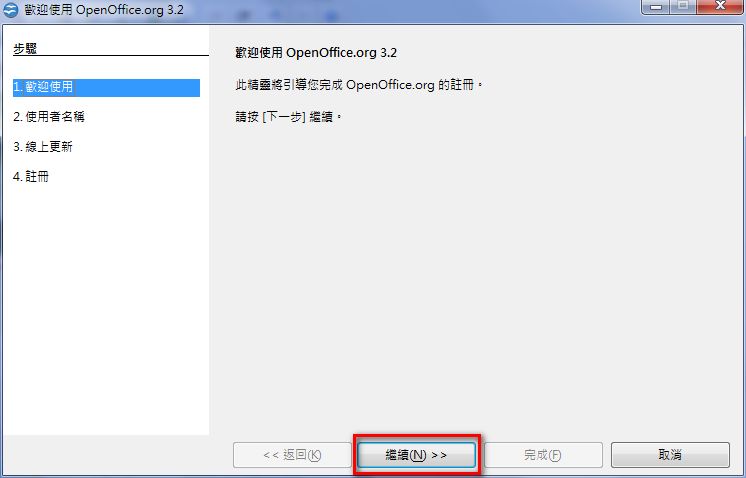
11.Click 【Continue】
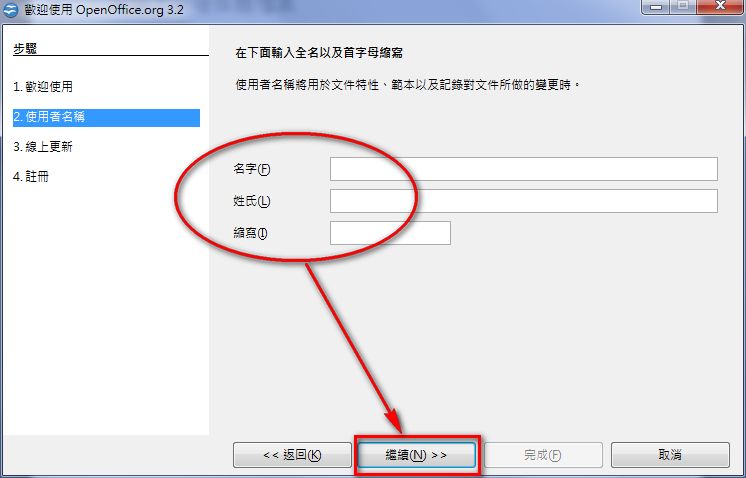
12.Enter your information
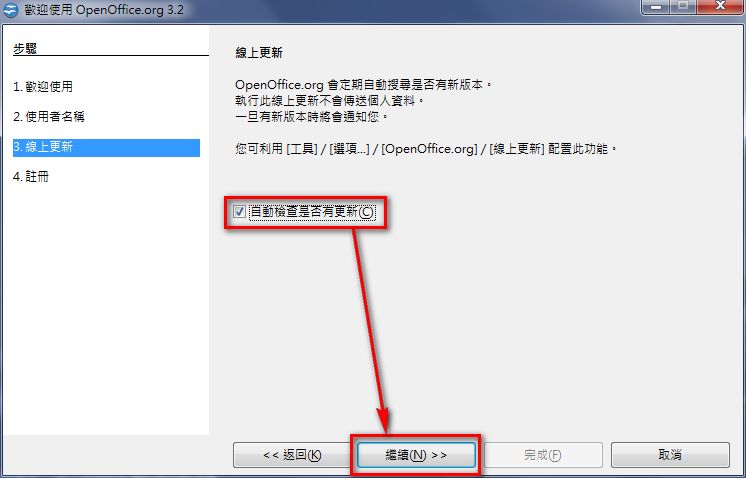
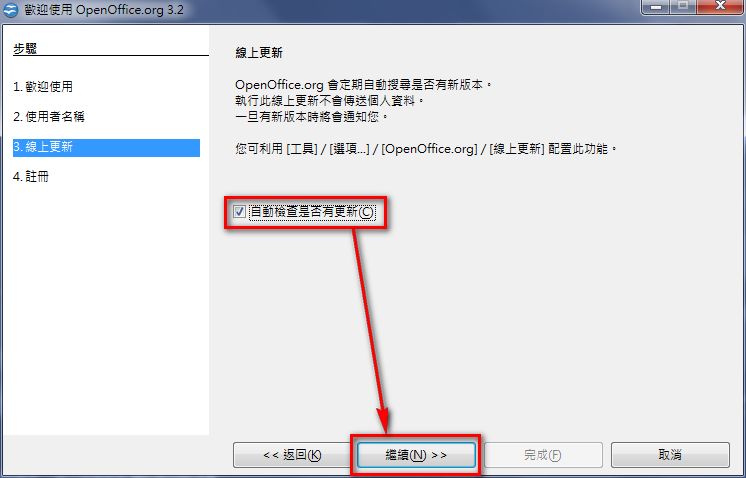
13.Check the box for automatically checking for updates, then click 【Continue】
14.This step asks whether you want to register. Registering doesn’t affect the program’s functions. If you have time, go ahead and register. Otherwise, choose the option not to register and click 【Finish】.