Opera is a browser that stands alongside Firefox and IE. Opera’s strengths are that it uses very few system resources when it starts and its files are small, so it’s great for keeping on a USB flash drive. Opera’s stability is also just as good as Firefox’s. Opera also has strong support for CSS syntax, supporting most of it, unlike IE, which doesn’t support a whole bunch of syntax.
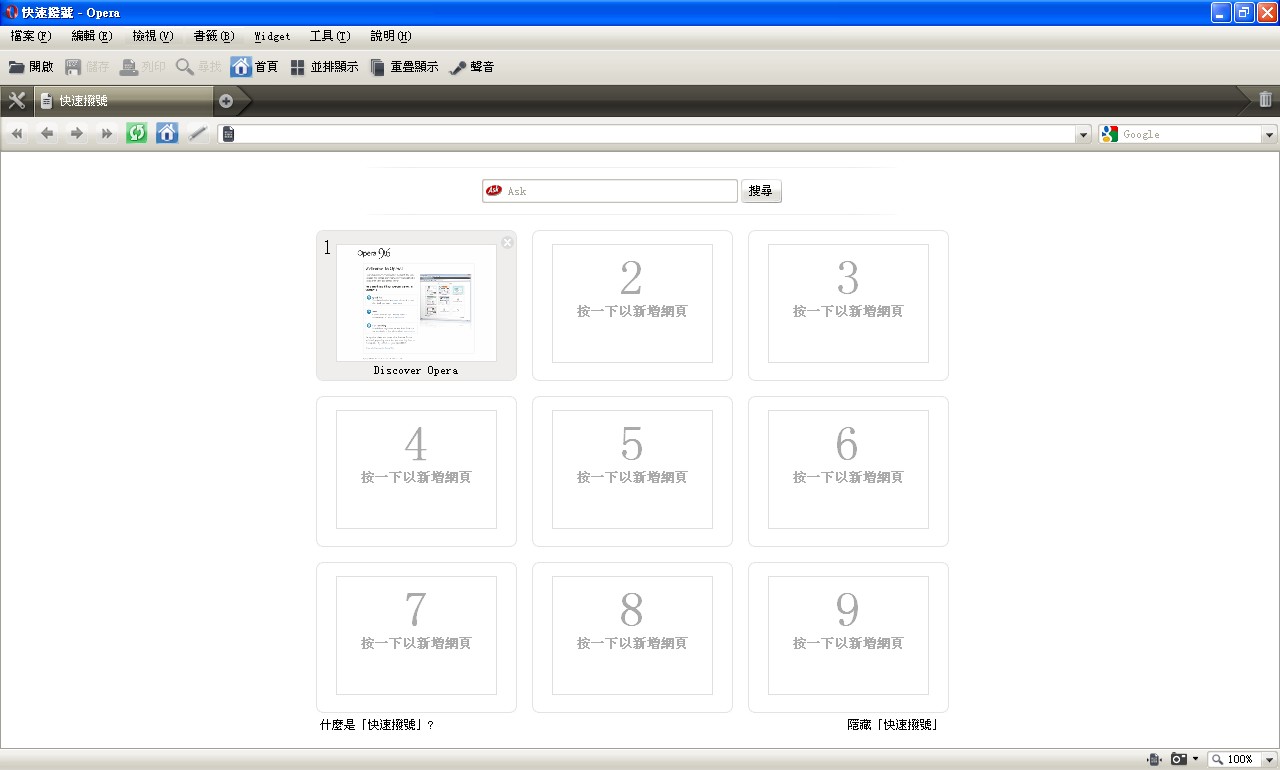
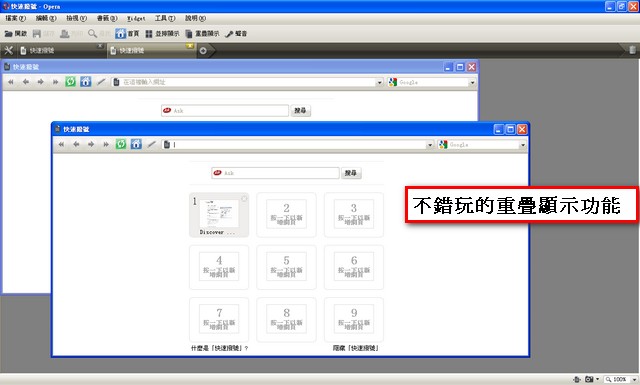
Software Features
- Small size, uses few system resources
- High stability
- Great for carrying around
- Built-in tabbed browsing
- Built-in multilingual support
Official website: http://www.opera.com/
Download: http://www.opera.com/download/
Tutorial
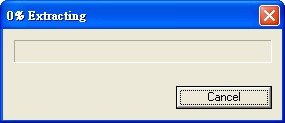
1.Open the installer. It first runs a program that loads some files.
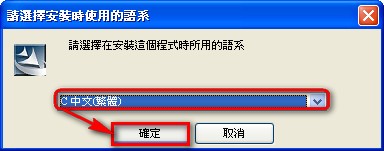
2.Select the Traditional Chinese option (the entry starting with “C”), then click OK.
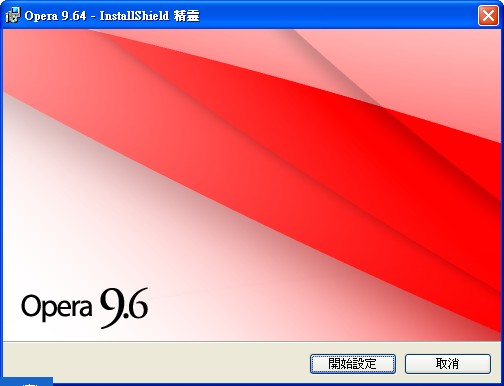
3.Next, it runs a few more things, and then you’ll see the nicely designed Opera installation screen.
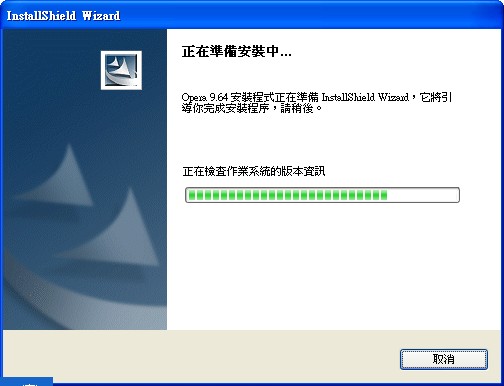
4.Click “Start setup”, then “I accept”, then “Next”, in that order.
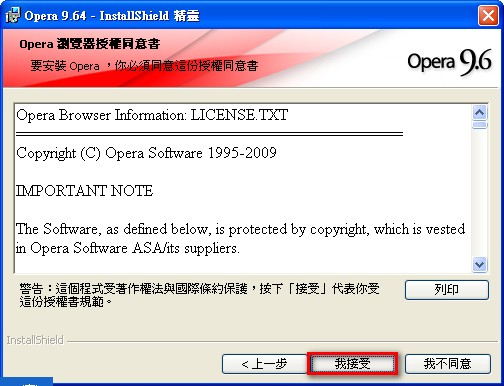
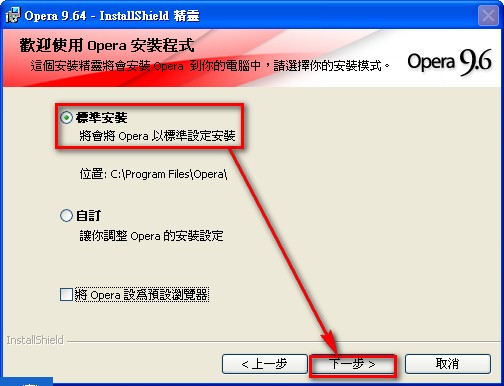
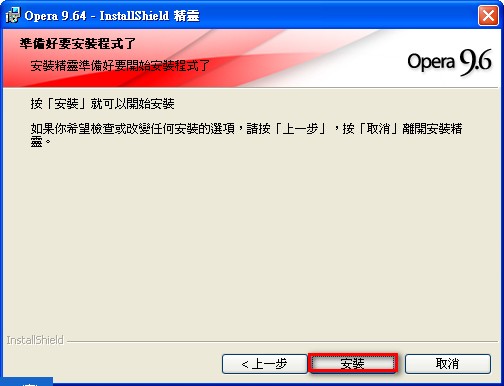
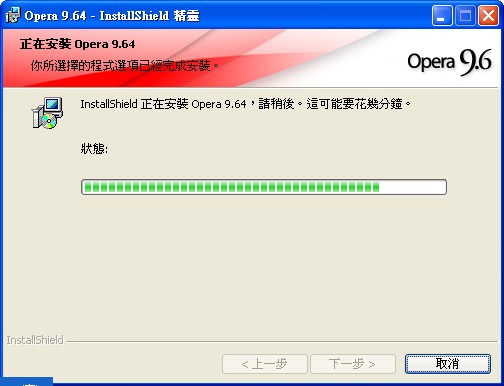
5.Finally, click Install. Once installation is done, click Finish and you can open Opera.
Conclusion: I just tested it, and Opera really is fast. However, I have to say I’m not impressed with how its text looks. You can try it yourself, but the text it displays comes out with some parts thick and some parts thin. I don’t know whether the problem is on my end or not = = I’ll cover more Opera tutorials slowly over time, since I only just started using this browser myself.