(Image taken from the official Oprea Mini website)
As everyone knows, Apple is famously ruthless with its rivals, and the latest news makes that clear. For example, none of Apple’s products support Adobe’s Flash. The reason given is that Flash eats up resources and has lots of security holes. But some people tested other smartphones with the same specs as the iPhone and found they didn’t use as many resources as Apple claimed. Meanwhile, Adobe added a Package for iPhone to its new Creative Suite 5, which lets users convert Flash files into a format that works on the iPhone / iPod Touch. Apple immediately changed the rules in the iPhone Developer Program License Agreement to ban the use of the Package for iPhone technology. It’s a clear sign that Apple doesn’t welcome Flash. But what does this have to do with Opera Mini?
On the night of April 13, at around 11:30, I suddenly got a message from a reader named Jeremy saying that Opera Mini had been approved. I thought, no way! Given Apple’s approach to its rivals, how could it let Opera take over the turf of its own Safari? Had Apple really given in to Opera’s video offensive? It’s hard to believe Apple would let Opera through, but the fact is that Opera Mini really did make it onto the App Store. I don’t understand why, but since Apple has already let Opera Mini in, it seems a shame not to give it a try~
Opera Mini official website: http://www.opera.com/mobile/
Advantages of Opera Mini over Safari:
- Faster web page loading
- Built-in mobile browsing mode
- Built-in option to turn images on or off
- Speed Dial, similar to Google's
Opera Mini Knocks on the Gate with Video
Opera Mini Tutorial
1.Open the App Store that comes built into your iPod Touch or iPhone, type Opera Mini in the Search field, and tap Opera Mini Web browser.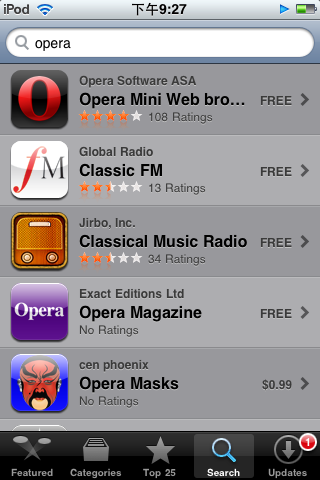
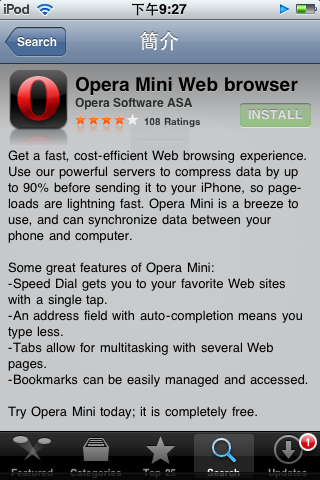
2.Tap FREE → Install in the upper right corner.
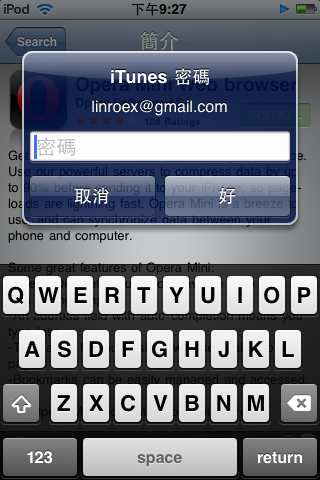
3.Sign in with your iTunes account.
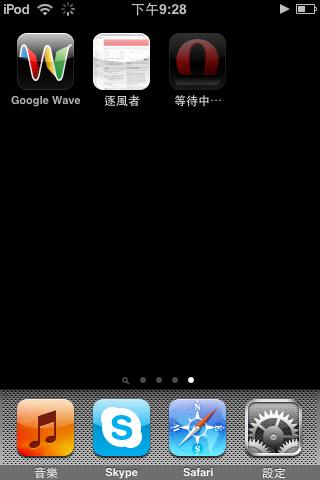
4.Installation starts. Once it’s done, tap the Opera Mini icon to open it.
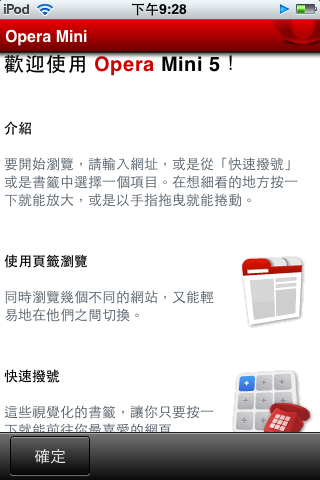
5.Opera Mini’s welcome screen
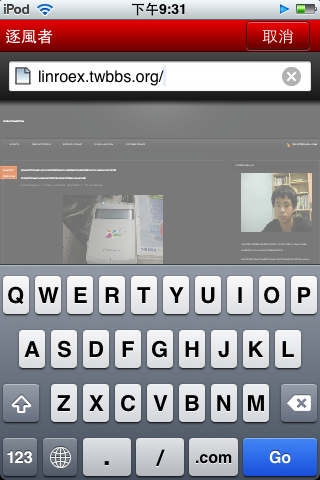
6.It works much like Safari. Tap the address bar at the top to enter a URL.
7.The second button from the right at the bottom is for tabs. It’s a bit different from Safari, but I find this design more convenient. Opera Mini also has Google’s search engine built in.
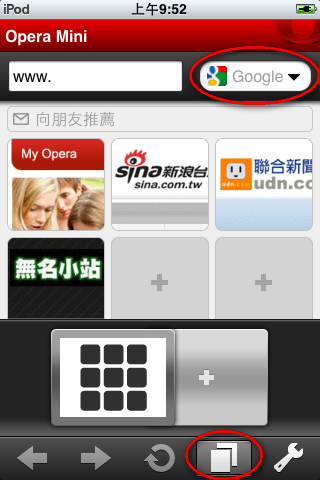
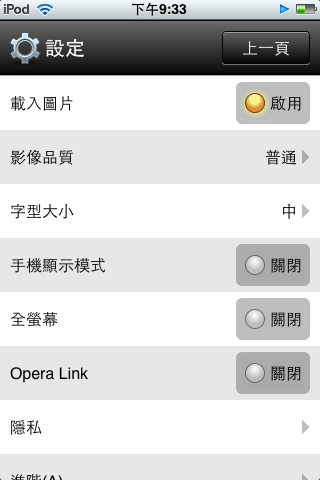
8.Opera Mini’s bookmark feature is hidden behind the wrench button at the far right of the bottom bar. That’s also where you can make detailed browser settings. It’s the equivalent of the Control Panel in Windows.
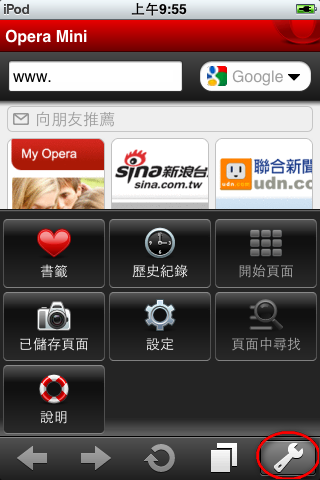
9.【Settings inside the wrench button】 let you adjust font size, image quality, whether images load, and whether to turn on mobile display mode. Mobile display mode strips out unnecessary style sheets so you can read a web page without scrolling side to side.