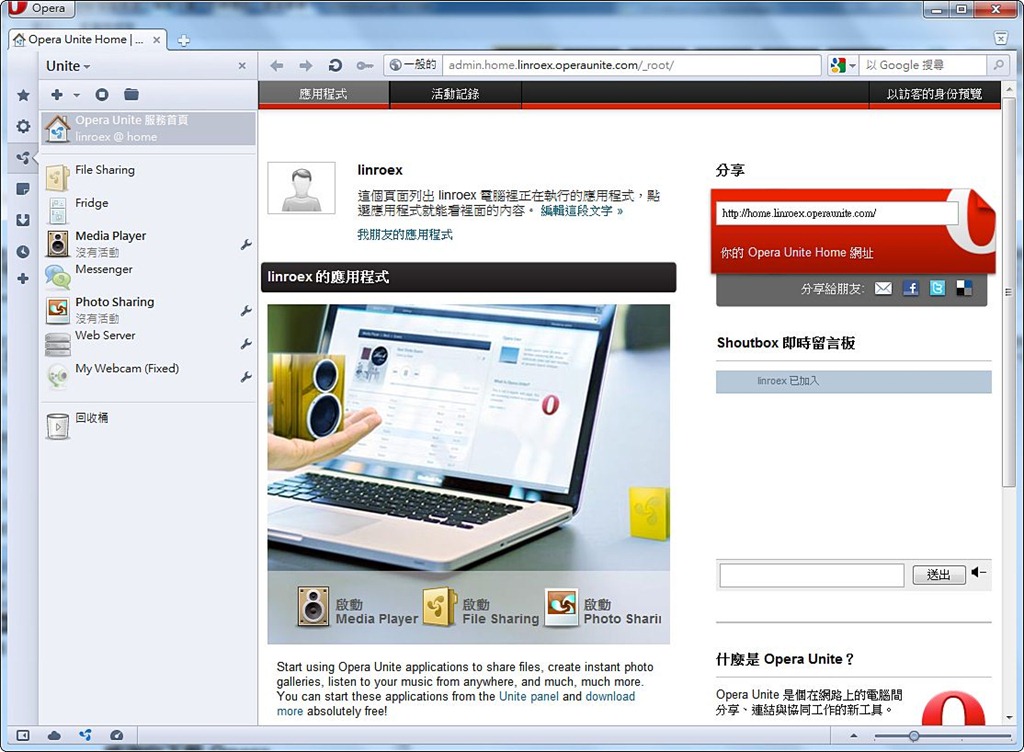
Opera Unite is a special feature built into the Opera browser. With Opera Unite, even if you know nothing about computers, you can set up a simple cloud service. Sometimes you have a great song you want to share with a friend. Besides the usual ways of sending files, like instant messaging, MSN, or email, you can also try the built-in Media Player in Opera Unite. Just send your friend the URL, and they can listen to the music right in their browser! You can also set up a WebCam so you can check on things at home while you’re away. Opera Unite has built-in features like that too. In short, Opera Unite is a great service. Normally, to build a website, you have to apply for a domain name and hosting space, and you need basic computer skills. But with Opera Unite, none of that is needed! Your computer is the server, and Opera automatically assigns the domain name.
Opera Unite can be used for file sharing, cloud video, instant messaging, and more. You can also download all kinds of other features from Opera’s official website. If you know how to program, you can write your own features and plug them into Opera. The downside is that customization is limited. Unless you can write code yourself, you can’t develop your own features, so customization is a bit limited for ordinary users. But from the perspective of ordinary users, they don’t need much customization. They just want features that work, are simple, and are easy to use. So this drawback isn’t really a drawback XD
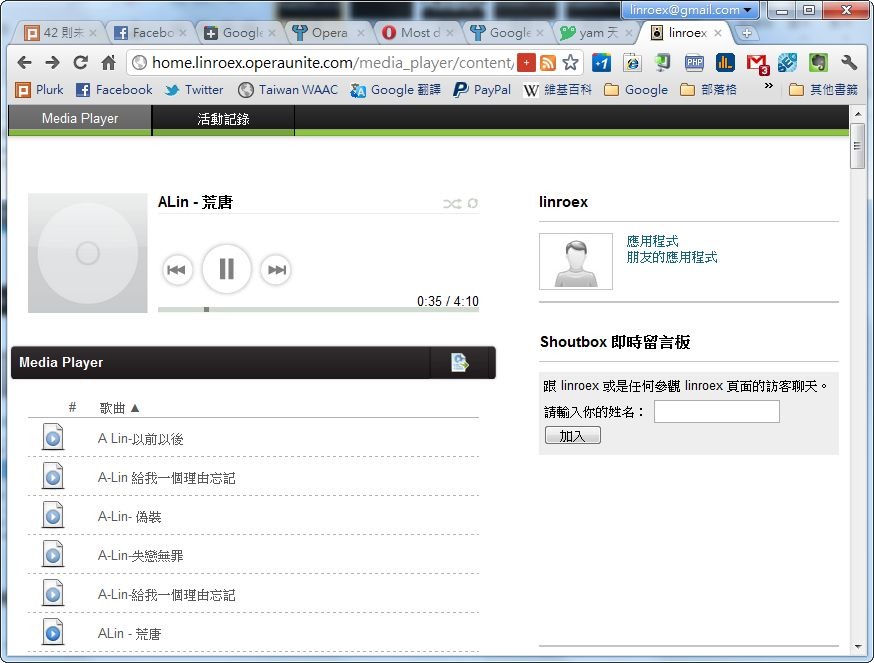
▲▲Cloud music
Opera Unite Information
- Company: Opera
- Official website: http://unite.opera.com/overview/
- Package downloads: http://unite.opera.com/applications/
Opera Unite Tutorial
1.Before you start, install Opera, since Opera Unite is a feature built into Opera.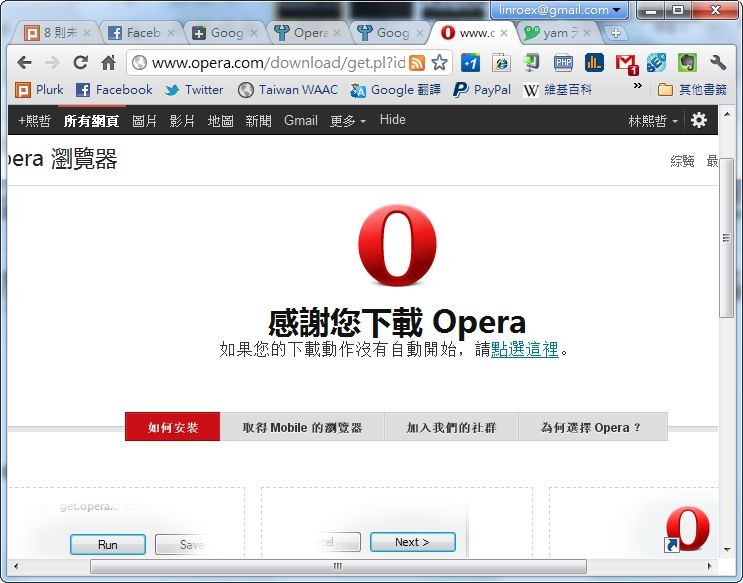
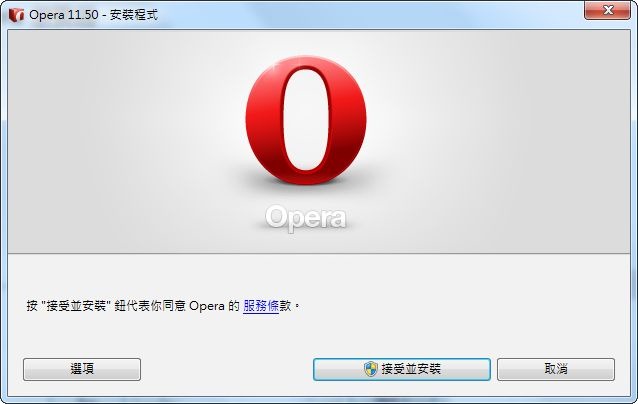
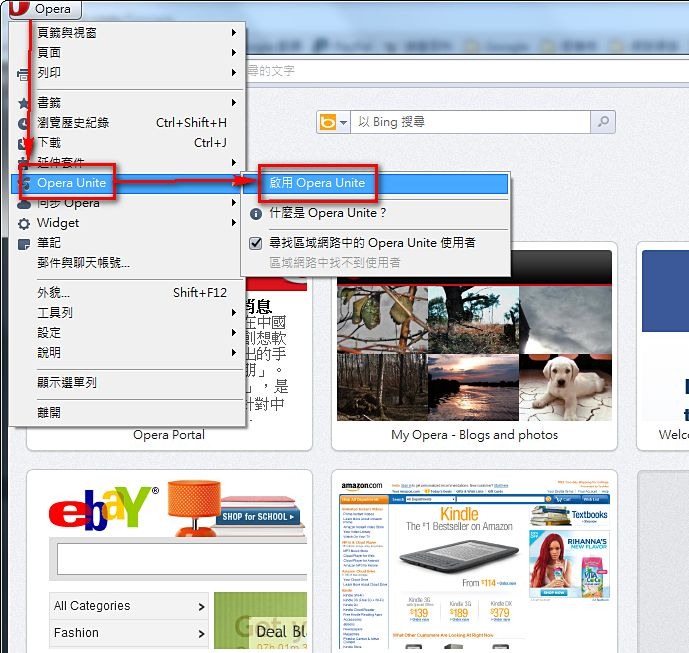
2.After installing Opera, open it, click the “Opera” button at the upper left, and choose “Opera Unite” -> “Enable Opera Unite”.
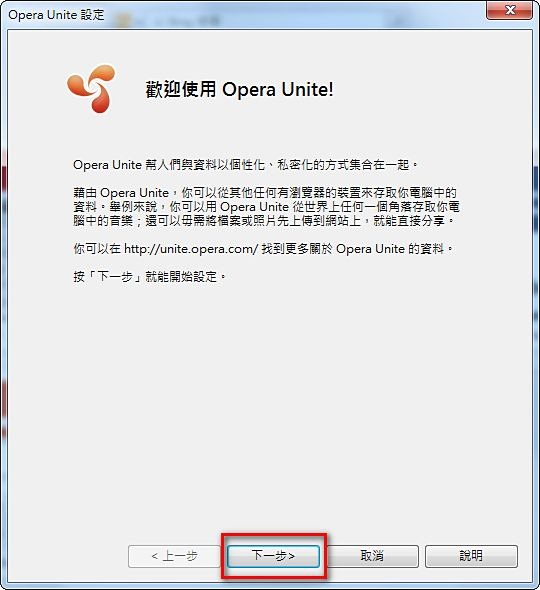
3.A simple welcome screen appears. Just click “Next”.
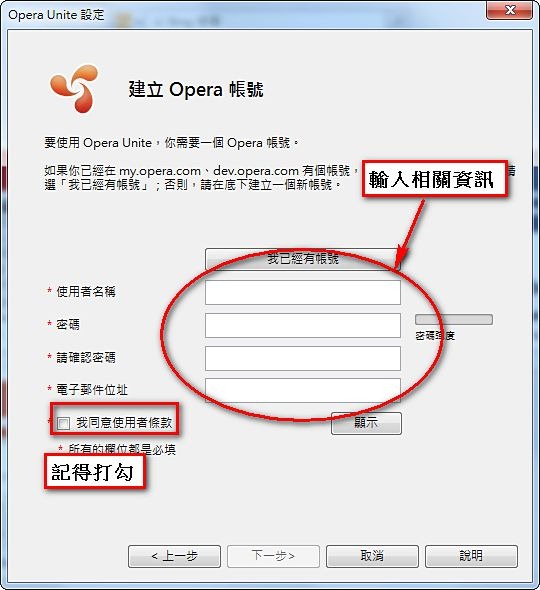
4.The first time you use it, you’ll be asked to create an Opera account. Enter your information and click “Next”.
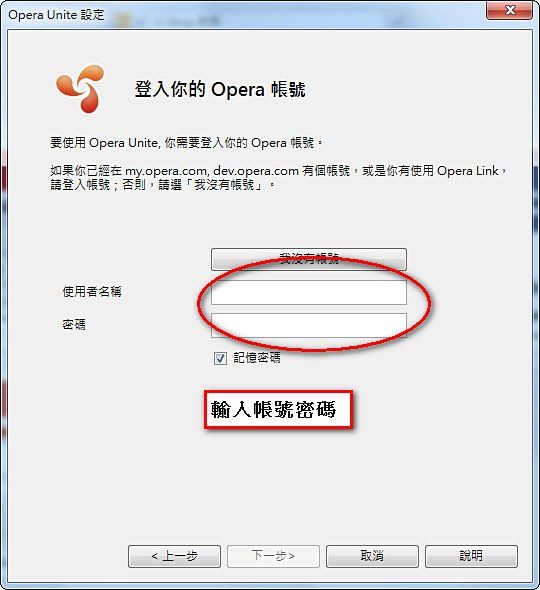
If you already have an account, click “I already have an account” and enter your account name and password.
5.Wait a moment while it downloads some related files. Once that’s done, this screen appears. Enter a computer name. It will later become part of your domain name~
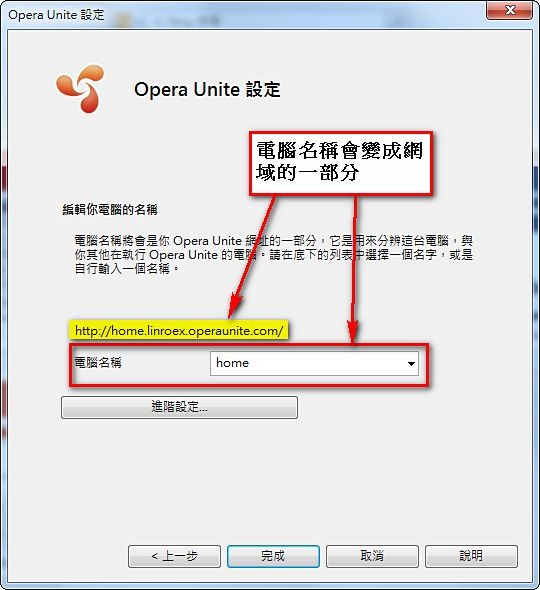
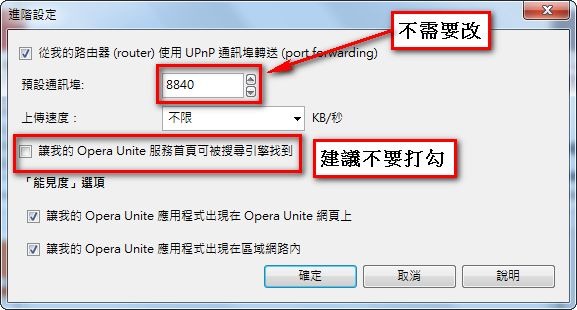
In the advanced settings, you can make some changes, such as the port (it’s better not to change it) and visibility, among other things.
It’s recommended that you don’t check “Allow my Opera Unite home page to be found by search engines,” since it may pose a security risk.
For the upload speed, a good setting is about 1/3 to 1/2 of your internet upload speed. You can also set it to unlimited. This is just a safeguard to keep your network from getting bogged down.
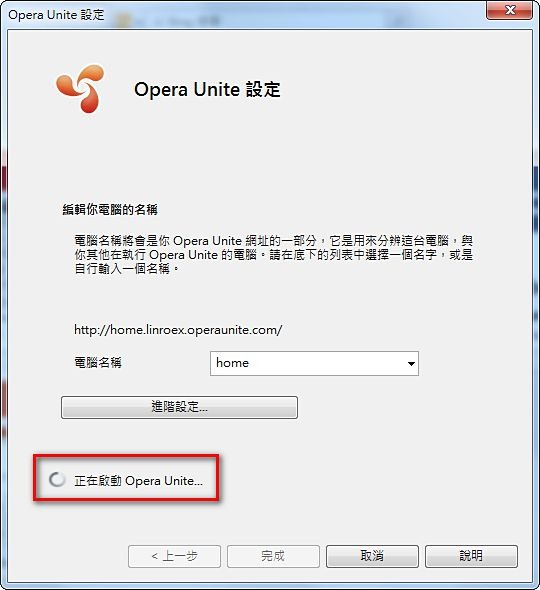
6.Starting up, please wait~
7.Once you get here, it’s successfully started~ You can send the “Share” URL on the right side of the window to others, so they can see your web page.
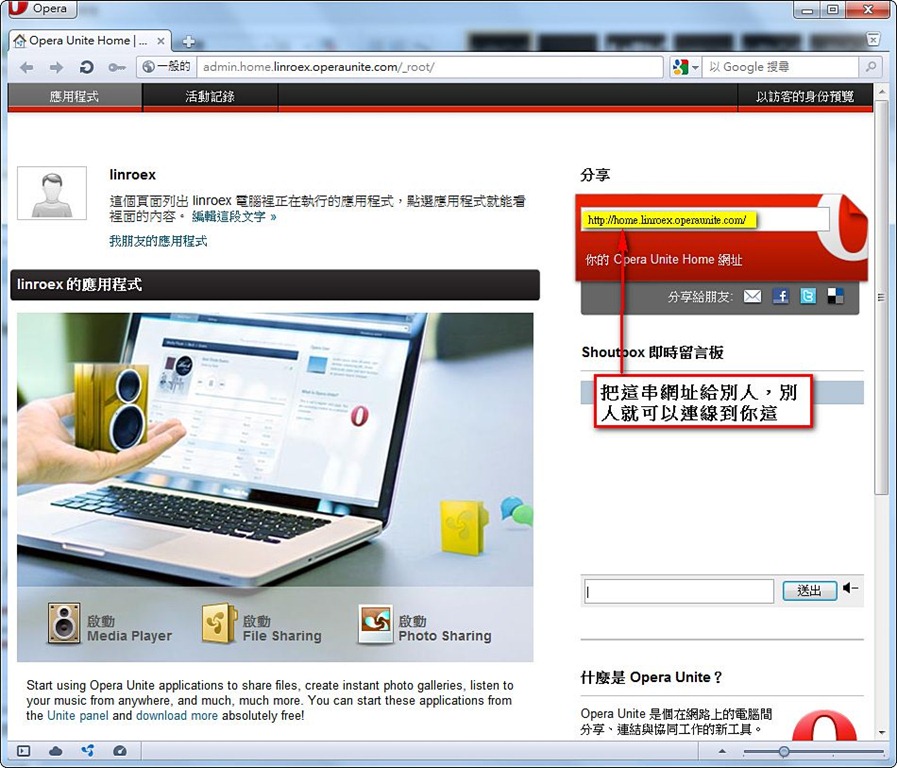
Photo Sharing
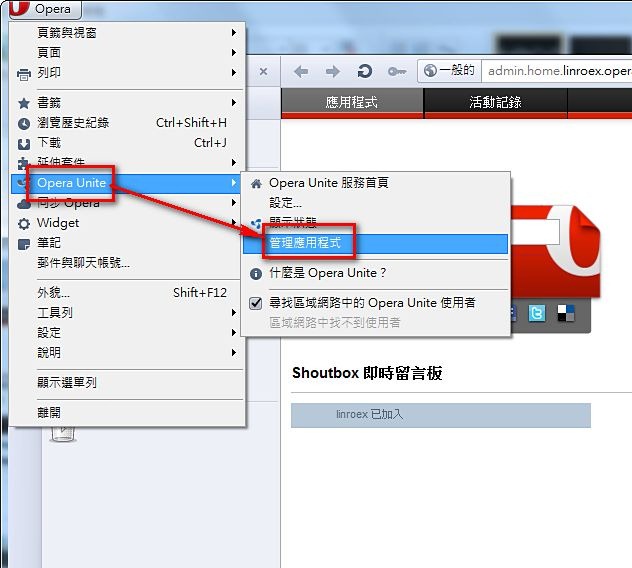
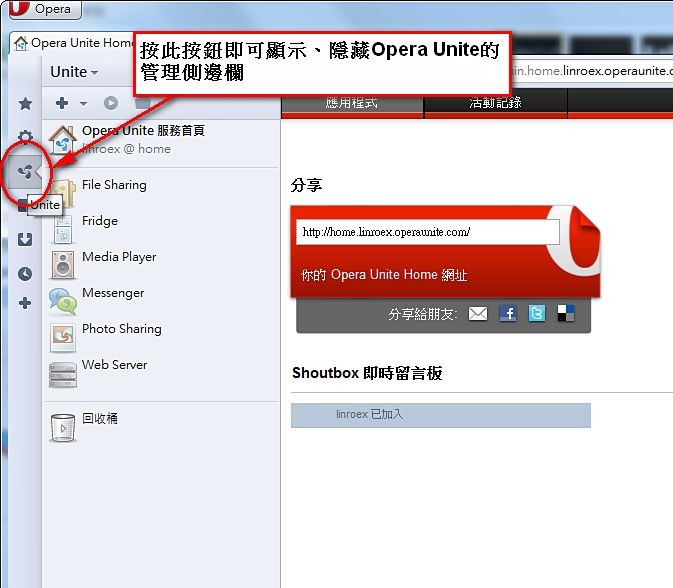
This section shows you how to use Opera Unite's Photo Sharing feature. The others, such as File Sharing and Media Player, are set up in much the same way.1.Open the Opera Unite sidebar. It’s on by default, but some people may have accidentally closed it.
Method 1: Upper left Opera button -> “Opera Unite” -> “Manage Applications”
Method 2: Click the Opera Unite button on the left directly.
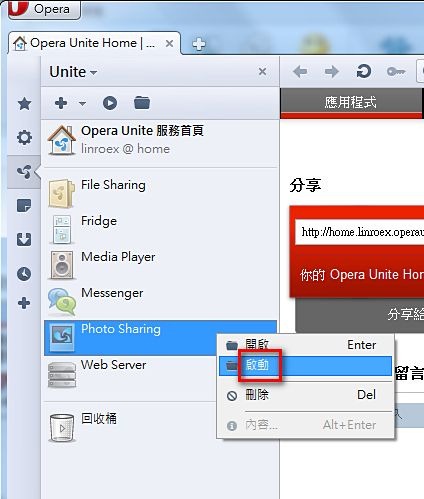
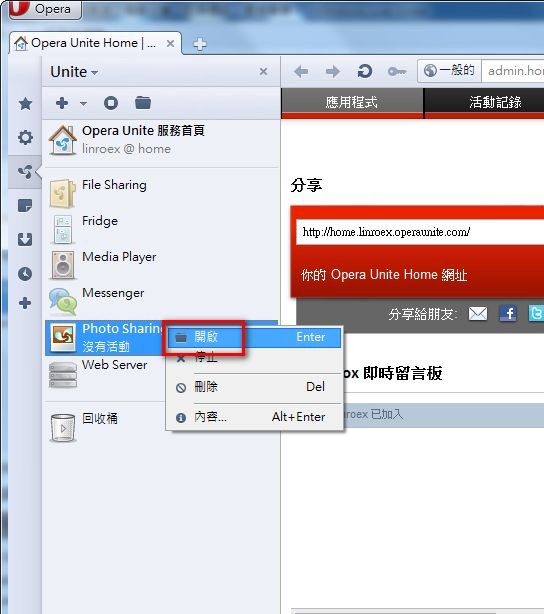
2.Right-click “Photo Sharing” and choose “Start”.
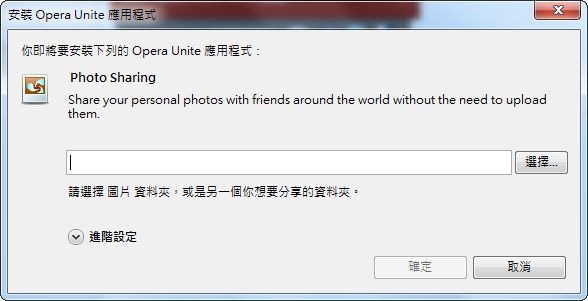
3.Set the folder that contains the pictures you want to share, then click “OK”.
Please don’t share a whole drive directly. It poses a serious security risk!
4.The Photo Sharing screen will open automatically afterward. If it doesn’t, you can also right-click “Photo Sharing” and choose “Open”.
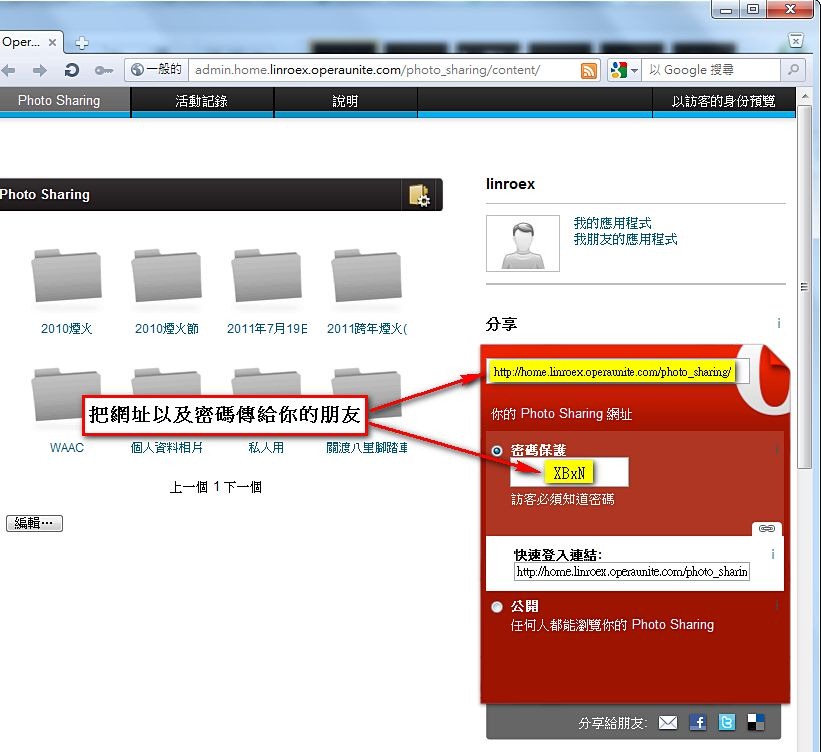
5.Once it’s open, you’ll see the sharing URL on the right side, just like before. Send the URL and the password to your friends, and they can find this page through their browser~
P.S. I’m not sure if it’s a bug or something else, but when you enter this page, the scrollbar starts at the very bottom. You have to drag it up manually to see the sharing URL and password.
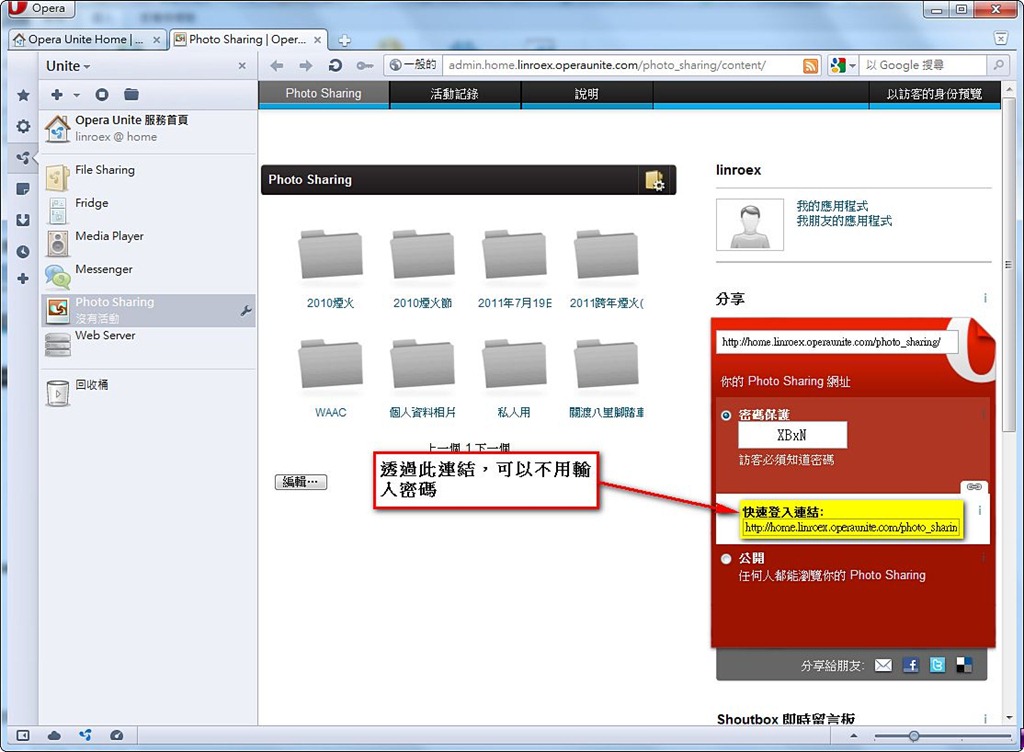
If typing a password feels like too much trouble, you can send the “Quick login link” to your friends. That way they can come in without entering a password. Anyone with the link can get in.
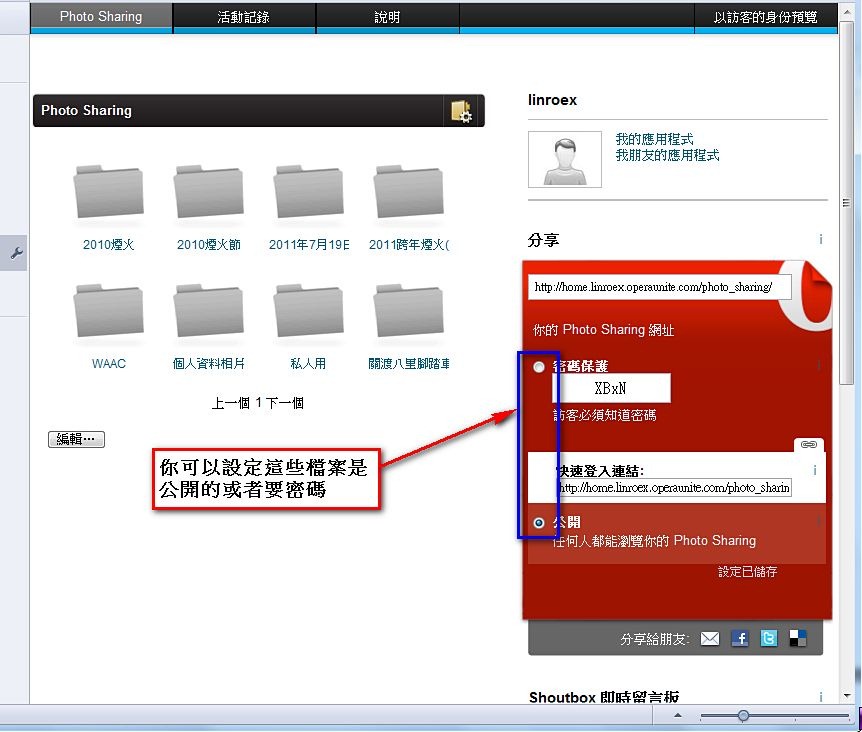
6.You can also turn on public access. That way, you can send the URL to friends without a password. But I don’t recommend this unless the photos are public anyway~ Even the “Quick login link” still requires a password. It just fills it in for you. If you set it to public, though, anyone can see your pictures even without the URL (by searching in certain ways).
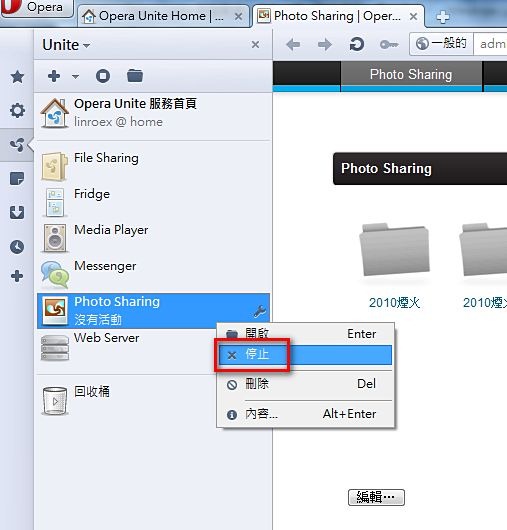
7.If you want to turn this feature off, right-click “Photo Sharing” and choose “Stop”.
The built-in features mostly work like Photo Sharing. In most cases, you just need to set a folder. If you want more features, you can also go to the official package library to download and install them.
http://unite.opera.com/applications/
P.S. You must use the “Opera” browser to install and download other Unite features, but other people can view your web pages with any browser.