In this post, I’ll show you how to back up and restore a database by hand. If you know a bit about building websites, you know you should back up your database regularly, because almost all of a website’s data is stored in the database. But how many people actually back up their databases? Most people learn to build websites from so-called “ten-minute website” books, and those usually don’t go into any depth, so plenty of people don’t know how to back up a database. So here I’m going to show everyone how to back up a database by hand (a MySQL database).
.
Backing Up the Database
1.First, go into your MySQL database and click "Export"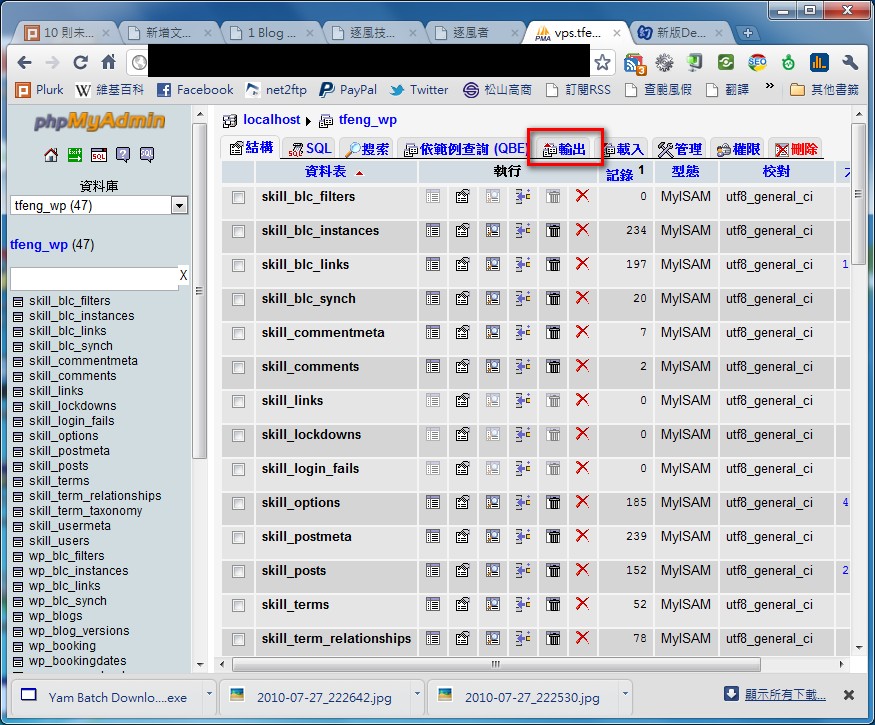
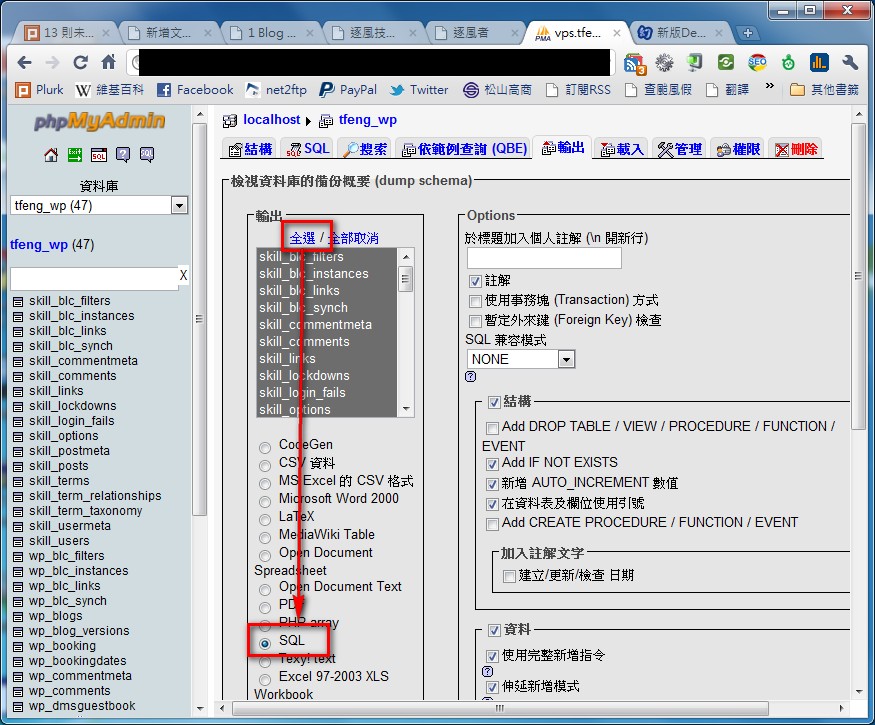
2.Click “Select all” under the export options, then set the export format to SQL
3.Check the “Save as file” option, then click “Go”. As for compression, I recommend not using it, since not every host supports compressed files
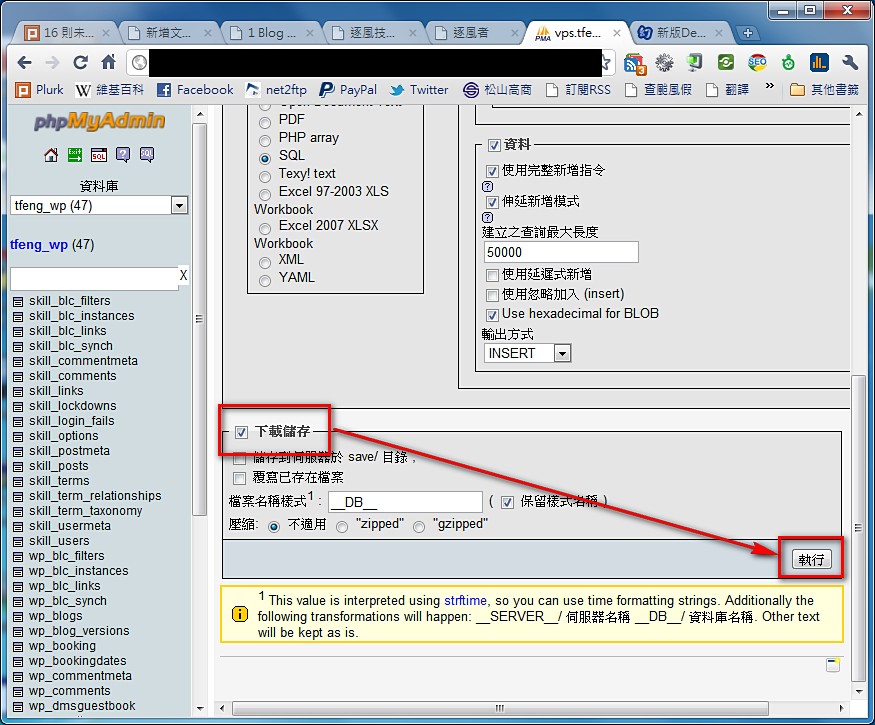
That’s about it for backing up.
Next, I’ll show you how to restore, since a backup is pointless if you can’t restore it.
Restoring the Database
1.Same as before, go into the phpMyAdmin dashboard, but this time click "Import" instead of "Export"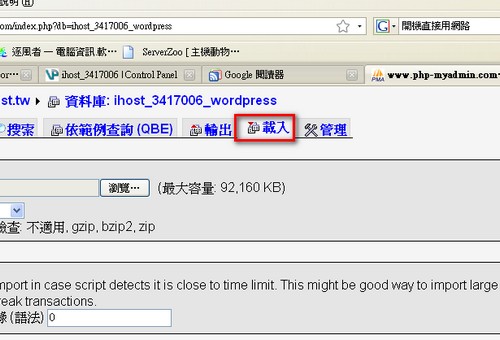
2.Click the Browse button below “File to import”, select the location where you saved the backup file, then click “Go”
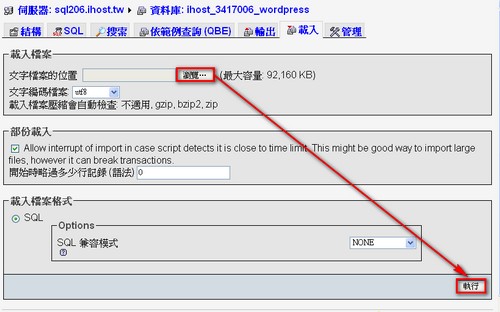
Restoring takes a while, depending on how big the backup file is. When I moved my site, a 10 MB backup took about 5 minutes. Don’t mistake it for a freeze and force-shut down your computer ^^
If you compressed the file when you backed it up, the restore will be faster.
In addition, I recommend the quick SQL restore method from Shachi: http://shachi.tw/cpanel-quickly-upload-sql/