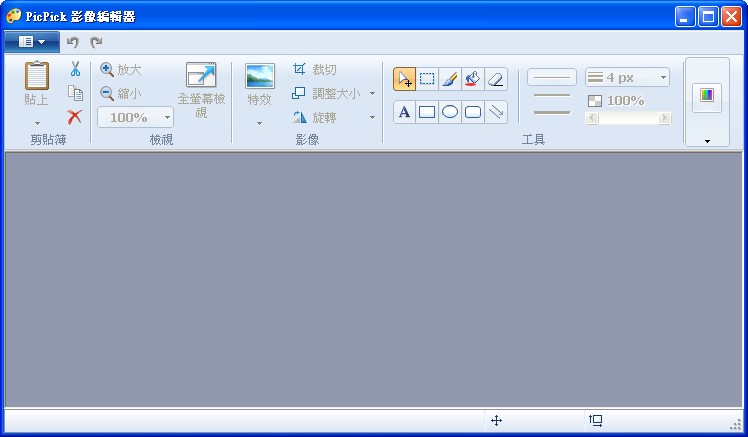
In this post, I’m writing a tutorial on the Picpick editor, because it’s really excellent. It has basic features like rotating, drawing lines, and resizing, as well as some more advanced ones. It’s practically comparable to GIMP! The new version of Picpick also has a completely redesigned editor interface that looks very Windows 7-like. So let me walk you through the Picpick editor.
Picpick Info
- Software name: Picpick
- Official website: http://picpick.wiziple.net/
- Download: Xun6 | 4Shared | Box.net
- Virus scan report: VirusTotal
- MD5: 93293b13f6cb741702069272dc3f9a2a
1. Opening the Editor
First, open the Picpick main program, then right-click the Picpick icon in the bottom-right corner of the screen and click Screen Editor.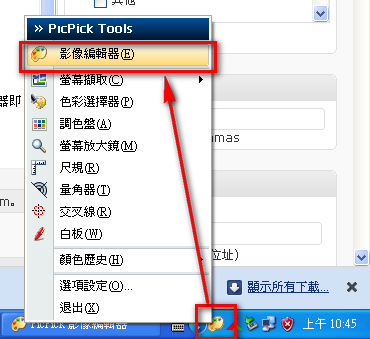
P.S. Basically, once you’ve captured an image, the program opens the editor automatically.
2. Rotating Images
Sometimes after capturing an image, you find it's upside down or mirrored. What do you do then? Do you really have to open a professional program like Photoshop? In fact, the Picpick editor has a built-in rotate feature. It's not as perfect as Photoshop, which can rotate to any angle, though.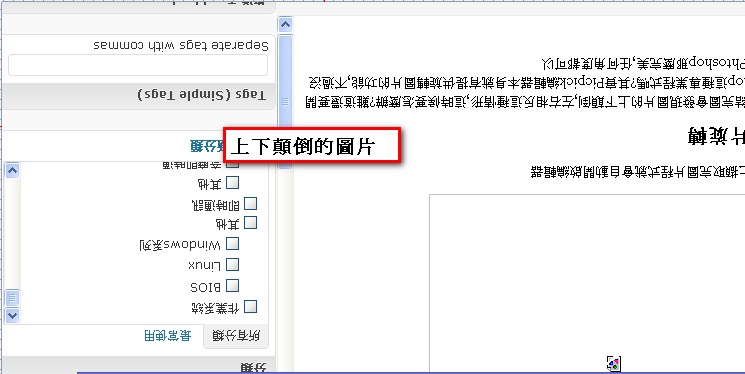
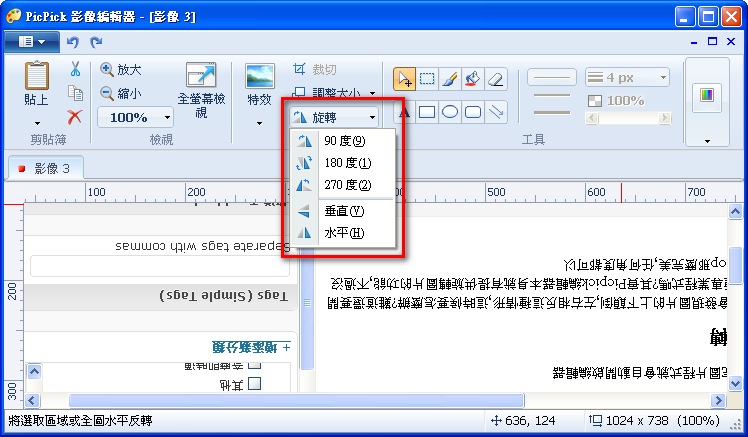
The method is simple: click Rotate at the top of the editor, then choose the angle you want (all rotations are clockwise).
3. Undo
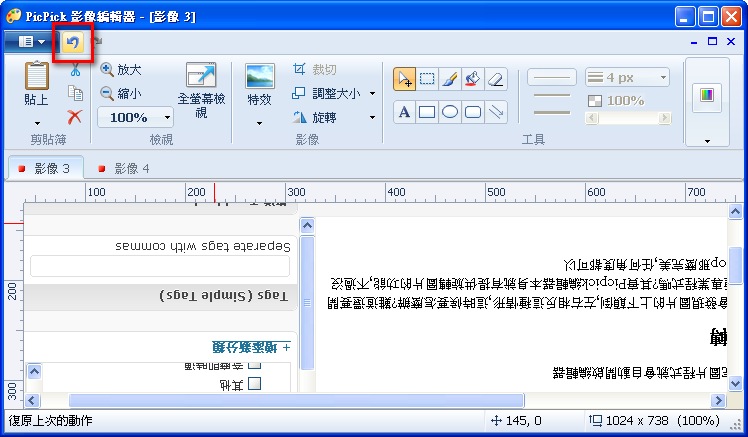
Sometimes you may mis-click and draw a line in the wrong place. Don't rush to recapture the image, because Picpick has an undo feature.Click the arrow at the very top of the editor to undo.
4. Drawing Arrows and Boxes
The most important part of a tutorial is the images, and the most important part of a tutorial image is the boxes & arrows. Without boxes and arrows, readers won't know which spot you're talking about, even with a picture.Click any of the buttons inside the red frame in the image below (from left to right: rectangle, ellipse, rounded rectangle), then choose the border color, and you can start drawing boxes.
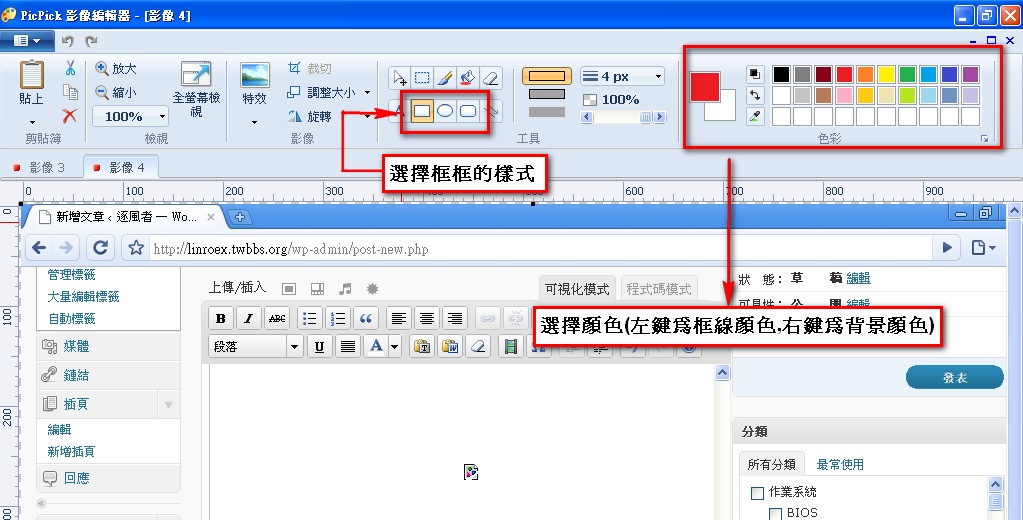
Drawing arrows works about the same way, except you click the arrow button instead.
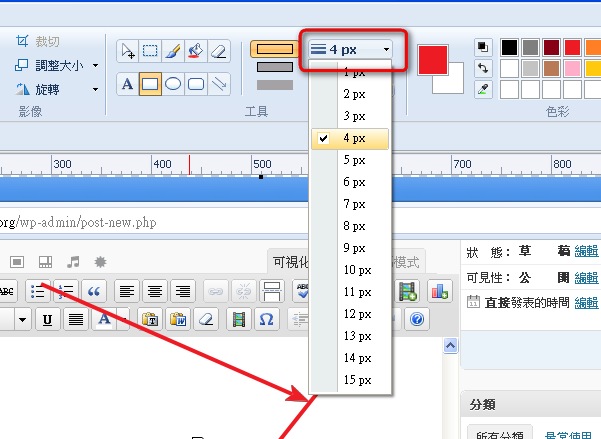
You may also have noticed the 4PX next to the border button. That’s the border thickness: the bigger the number, the thicker the line.
5. Resizing
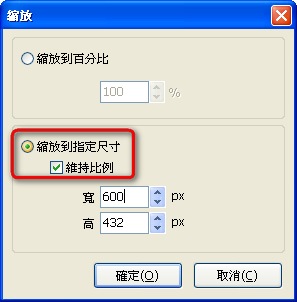
Click **Resize** → **Resize Image / Scale** in that order, then check **Scale to specified size** and **Keep aspect ratio**, and enter the width or height you want. You only need to enter one of them; the computer will calculate the other automatically.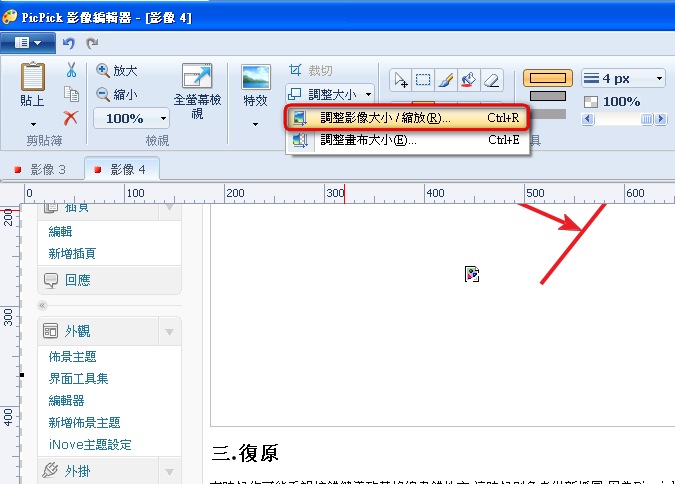
- Adding Text
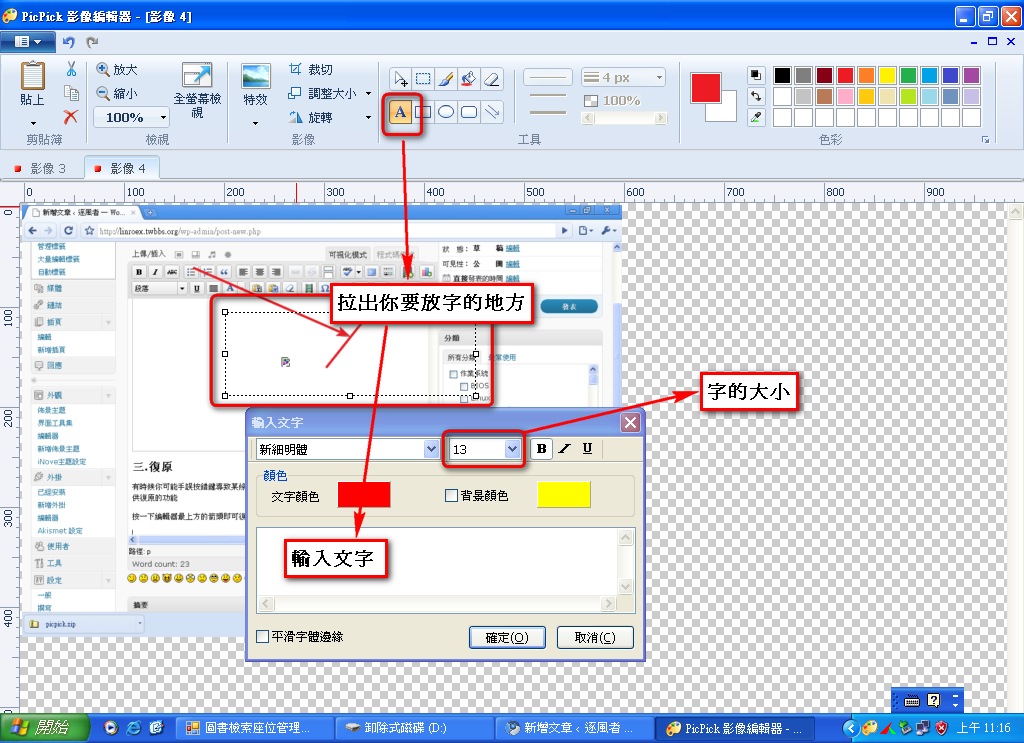
Select the A button, then use the mouse to draw the area where you want the text, and type your text.
7. Mosaic
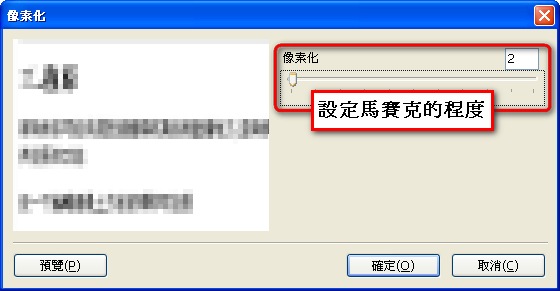
The mosaic tool blurs out anything in an image that you don't want people to see. First, use the selection tool to select the area you want to pixelate, then click **Effects** → **Mosaic**, and choose the mosaic strength.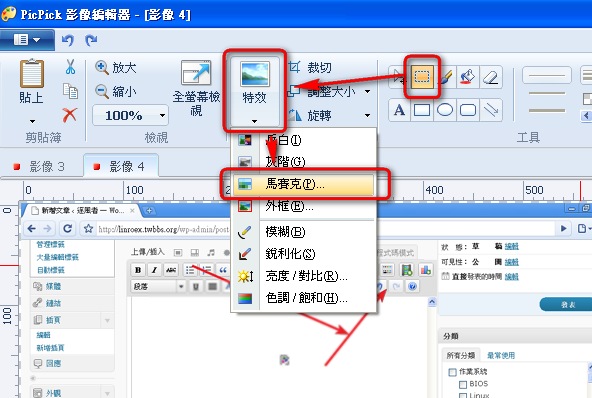
8. Saving
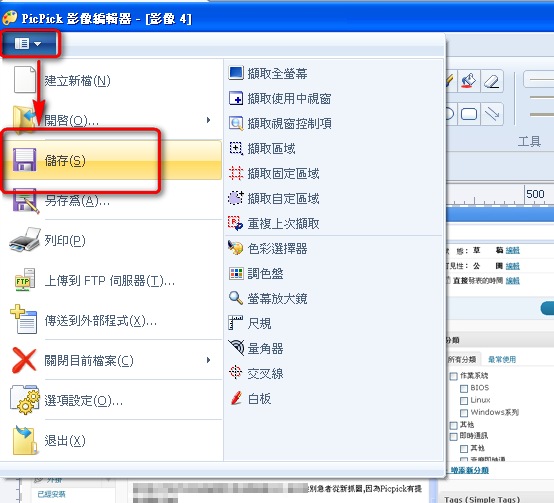
Once you've finished editing, of course you need to save the image, or all your edits will have been for nothing. First, click the button in the top-left corner, then choose **Save**.