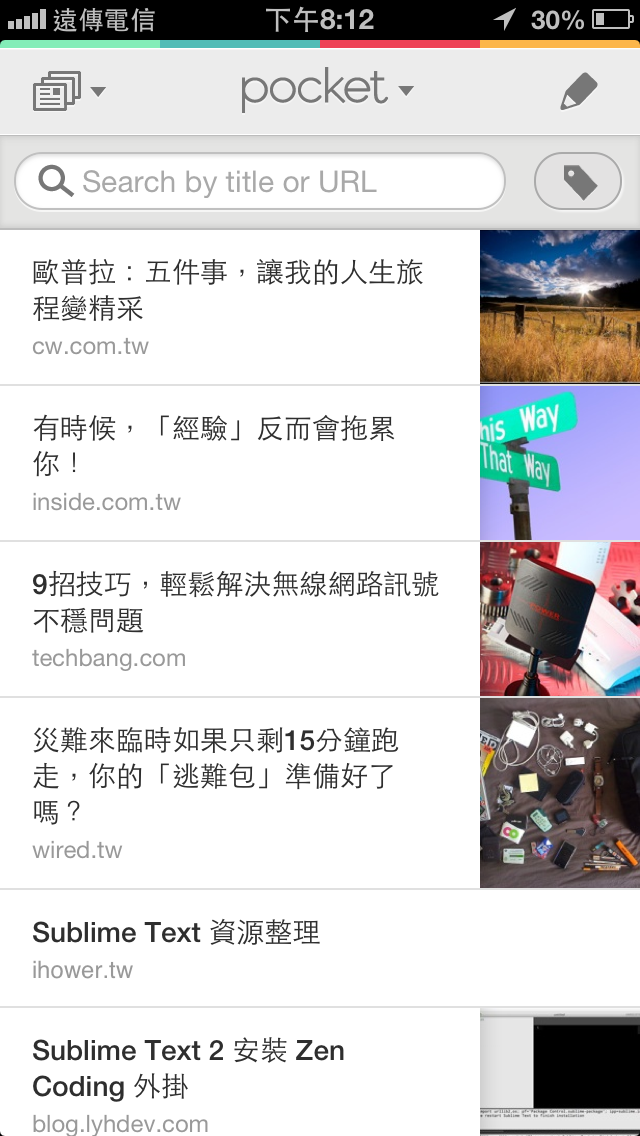
Pocket was formerly known as Read It Later. It has extensions for Chrome and Firefox that let you save articles you don’t have time to read to its database, so you can read them later when you’re free. Its reading app is available for iOS and Android, and it supports offline reading. You can also add tags to articles to make them easier to find later. Many RSS apps also support saving articles to Pocket, and that’s my favorite feature. The reason I gave up on Evernote was that many mobile news reader apps don’t support Evernote. If I came across a good article, I had to use a computer to save it to Evernote. Pocket is different: popular reading apps like Flipboard and Feedly all support saving directly to Pocket. If you’re reading in a mobile browser and want to save an article, that’s easy too. Just send it through Email.
Pocket also helps you make good use of your time. I often come across good articles online while I’m coding or busy with something else, so I can’t read them right away. That’s when I save the article to Pocket, then take out my phone and read it when I have some free time. It also supports offline reading, and you just need to sync the content every so often. Evernote, by contrast, requires a paid plan for offline reading. For now, I put temporary articles in Pocket, and articles I want to keep permanently or study notes go into Evernote.
Introduction to Pocket
- Website: http://getpocket.com/
- Related tools: Chrome | iOS | Android
Pocket Tutorial
1.To use Pocket, the first step is to register on its website. Registration is very simple: just enter your email address, username, and password.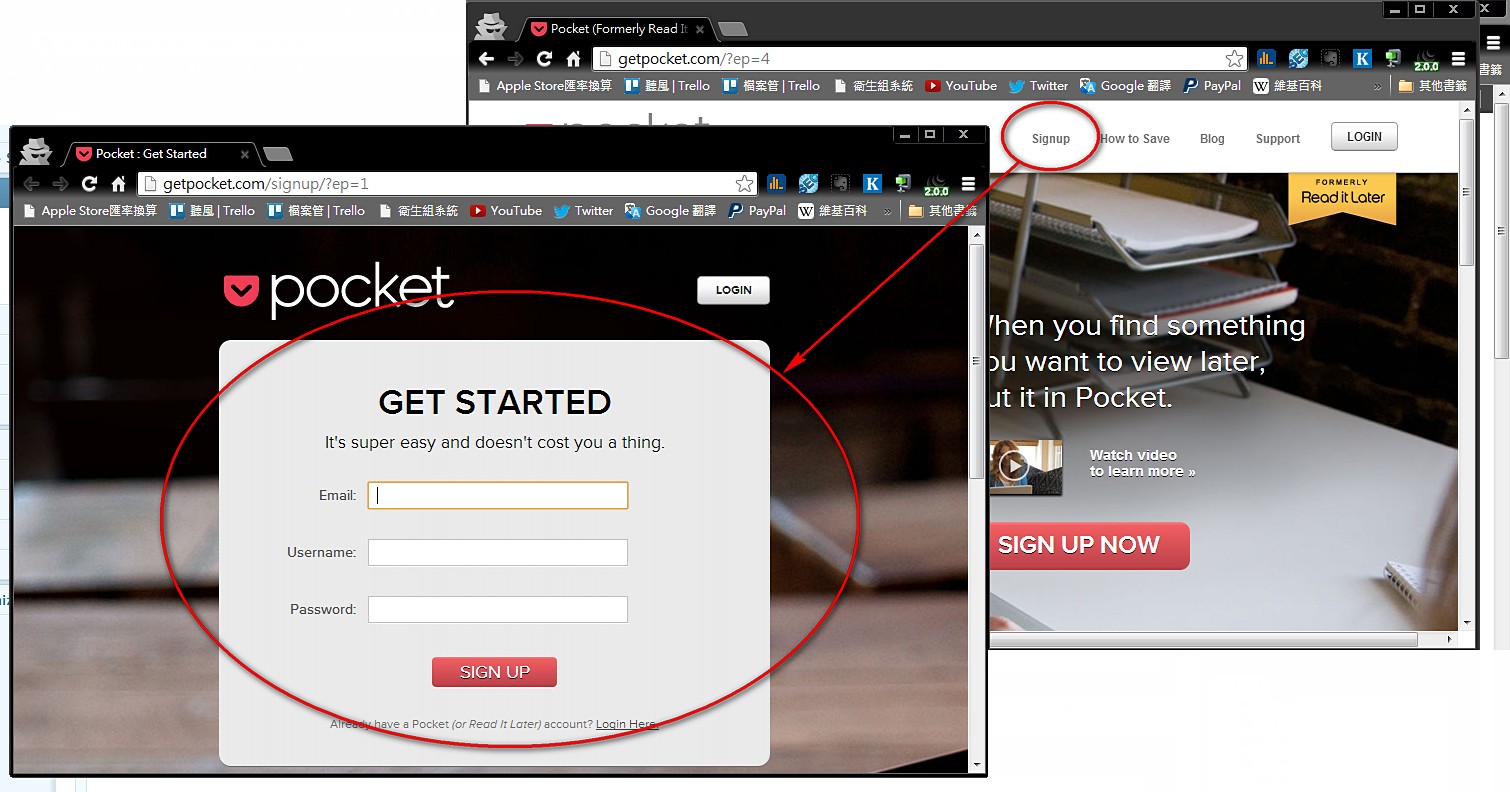
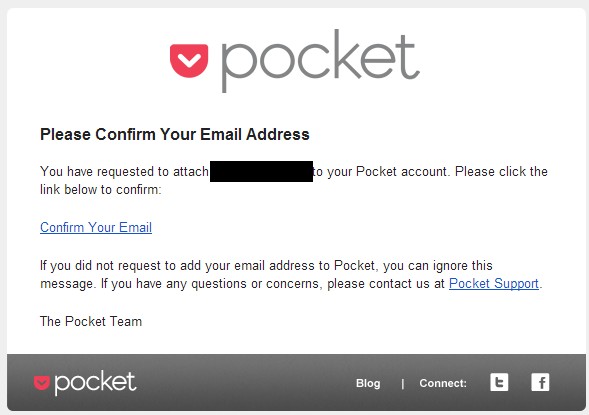
2.After you register, Pocket sends you an email to verify your address.
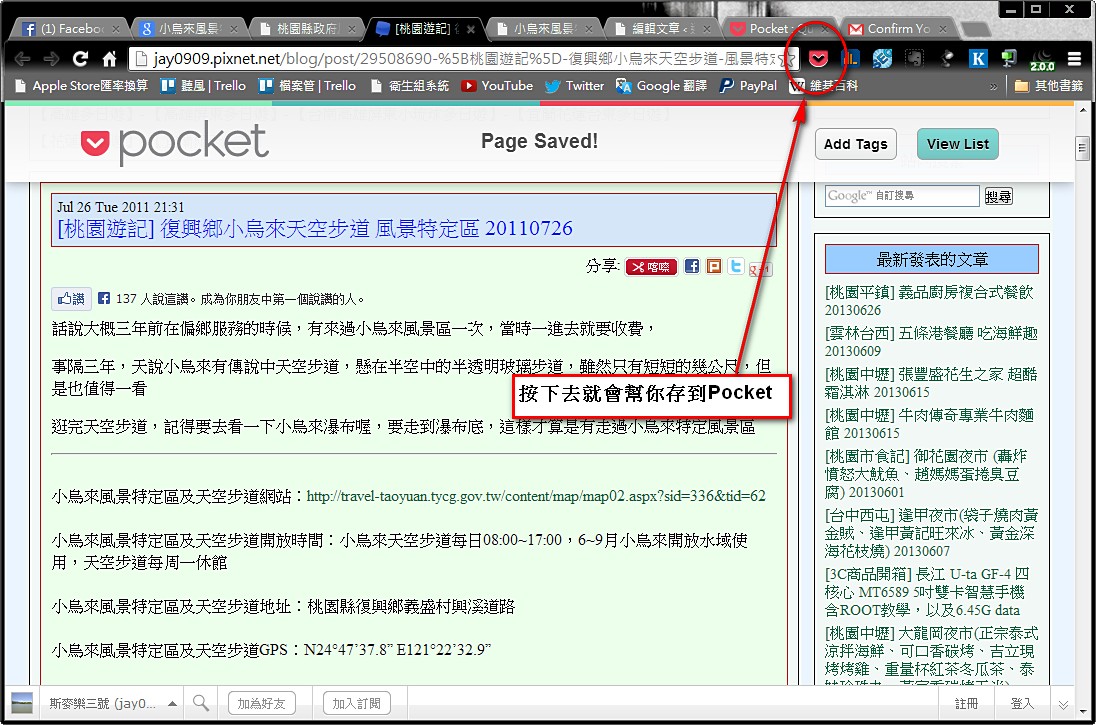
3.Next, download the app that suits your needs and log in. Taking Chrome as an example: once you’ve installed its extension, the icon appears in the upper-right corner of the window. When you see an article you like, click it and Pocket will save it for you.
If your browser doesn’t have a Pocket extension, don’t be discouraged. The official website provides a piece of code. Just add this code to your browser’s bookmarks, and you’ll get the same functionality as the extension. If you often read in a mobile browser, you can save articles this way too.
You need to get this code from your Pocket app. First, open the app, then follow the guide below.
http://help.getpocket.com/customer/portal/articles/491013-installing-the-pocket-bookmarklet-on-iphone
4.Now, enjoy it~
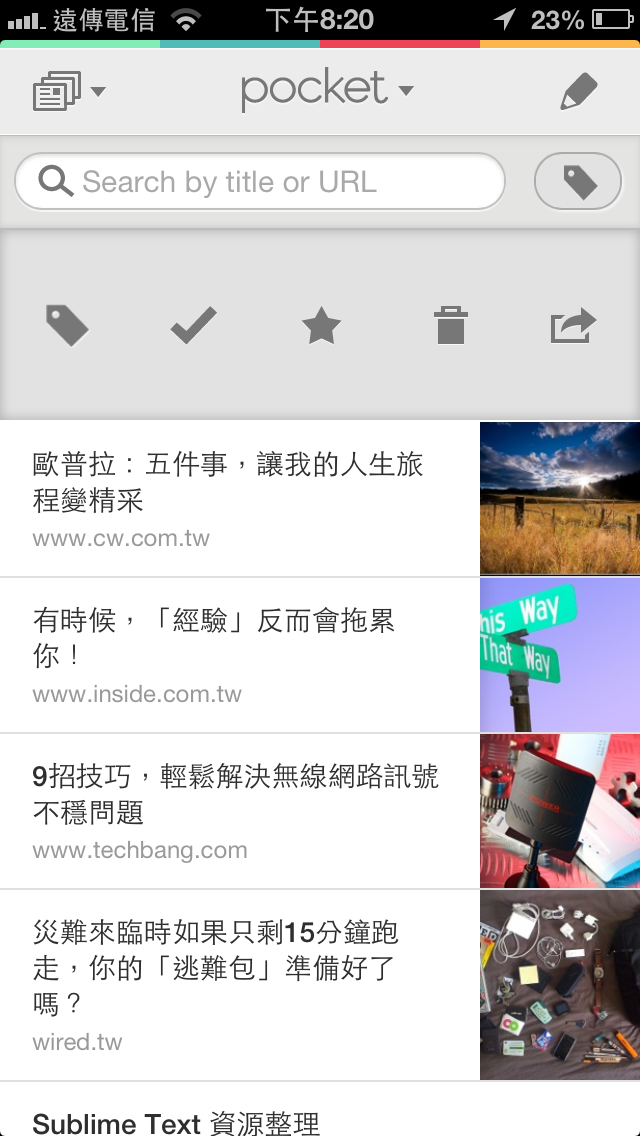
After you finish reading an article, you can either delete it or move it to Done.
To delete it, tap the trash can. To mark it as done, tap the checkmark.
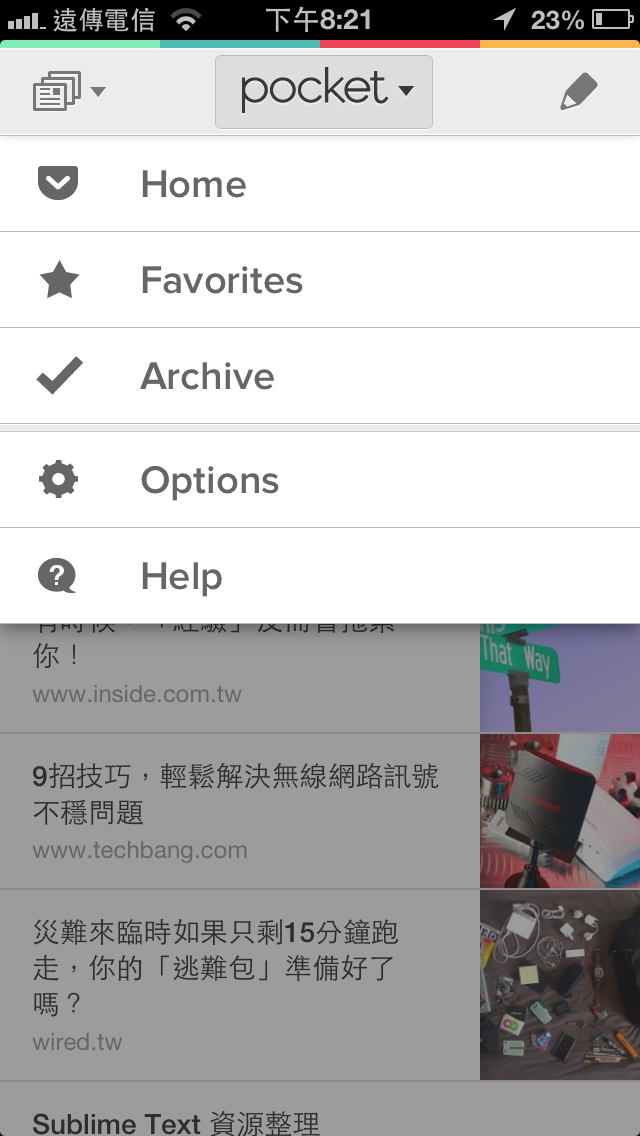
If you want to change your Pocket password or make other detailed settings, tap the title at the top of the app, then choose Options.
Many apps now also support saving articles to Pocket, such as Flipboard, Feedly, Twitter, and more.
If you have any questions, feel free to leave a comment and ask me~