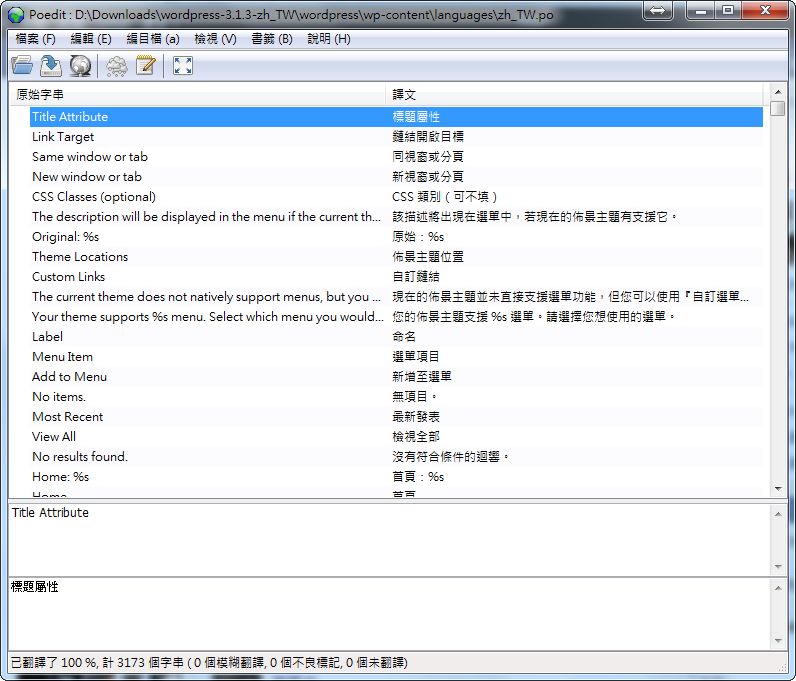
Today I want to introduce a very handy tool for making multilingual software: Poedit. I think many people have come across the term “Chinese localization” online, right? In short, Poedit is a program that helps you with localization work. In Taiwan this kind of work is called “Chinese localization,” but in other countries it could be called “English localization” or “Japanese localization,” so the general term for all of these is “multilingualization”~
Poedit can’t multilingualize every program. It’s a tool specifically for the Gettext project. Gettext is a multilingual framework under GNU, and Poedit files use the .po and .mo extensions. So if you see a program online whose language files also use .po or .mo, that means you can use Poedit to localize it into Chinese.
Usually, software developers publish the PO files so that others can help localize the software. But some software only publishes its source code, and then you have to analyze the source and create the PO file yourself before you can start the multilingual work. This is less common, and it’s usually PHP programs that are handled this way. Analyzing the code and creating a PO file sounds hard? Don’t worry~ Poedit doesn’t only help you edit PO files; it can also help you create them~
The best-known program I know of that uses Gettext for its languages is WordPress. Its plugins and themes all use it for multilingual support, so many people assume Poedit is a tool made just for WordPress (I thought so too, xD). That’s not the case, though. Poedit can be used with many other programs. For example, sometimes I enter foreign web design contests. The big problem is that my English is poor, but the pages have to be in English…. So I build the page in Chinese first, then use Gettext to find someone to do the translation for me : )
P.S. Poedit can open files in two formats, PO and POT, for multilingual work.
Poedit Info
- Official website: http://www.poedit.net/
- Download page: Box.net|4Shared|Google|Official download
- Operating systems: Windows, Linux, Mac
Poedit Installation Guide
1.First, download the installer from the official website, run it, and keep clicking Next to finish the installation~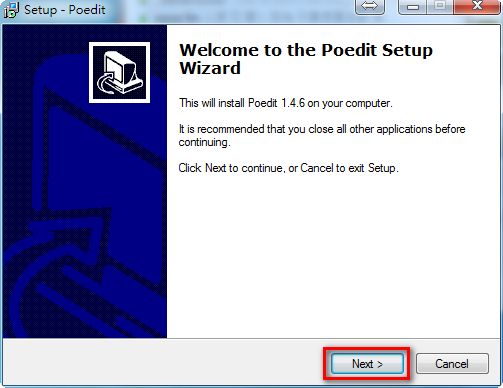
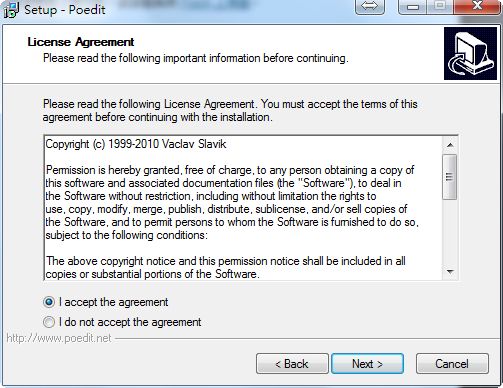
2.When you get to the license agreement, remember to select “I accept…..”
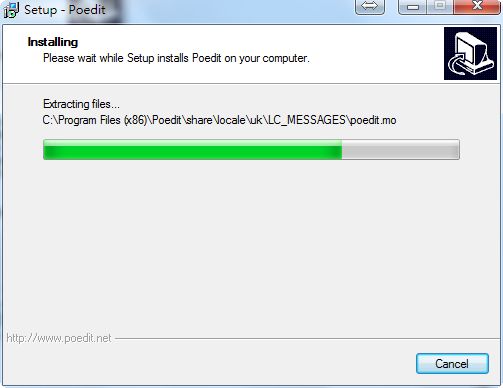
3.Installing~
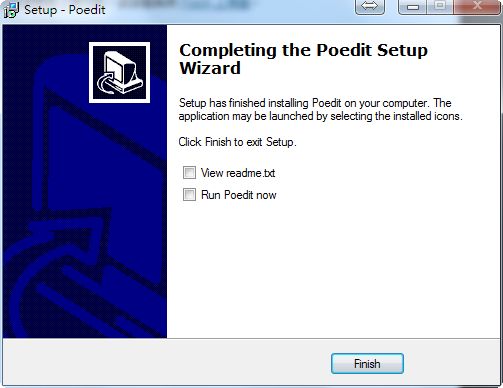
4.Installation complete
Poedit Tutorial: Opening PO and POT Files Directly
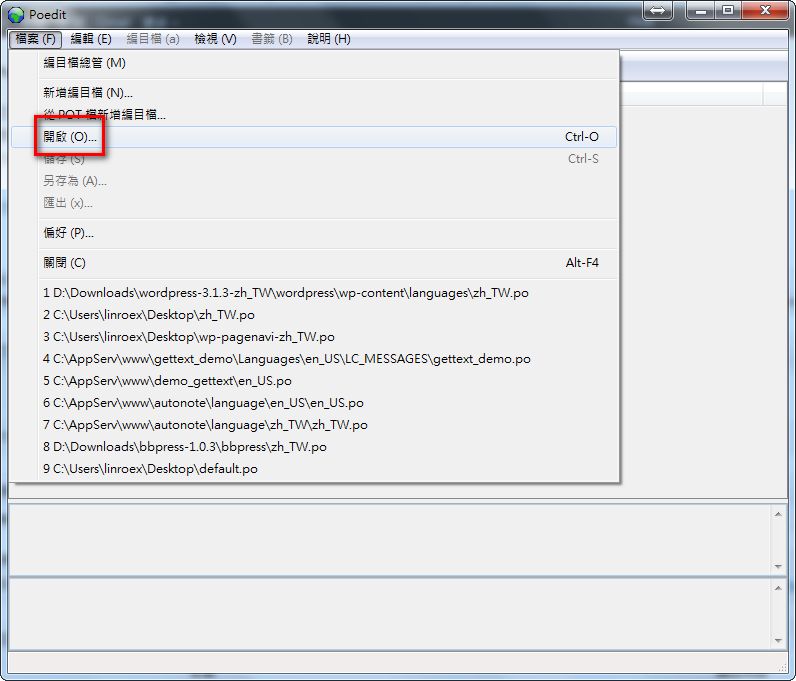
In this section, I'll show you how to analyze the source files to extract the strings that need translating and create a PO file. If the project you're translating provides a POT file, you can follow this article and open the PO file directly to start translating. Finally, export the file as an mo file and you're done!1.Open Poedit, then click File → Open in the top-left corner.
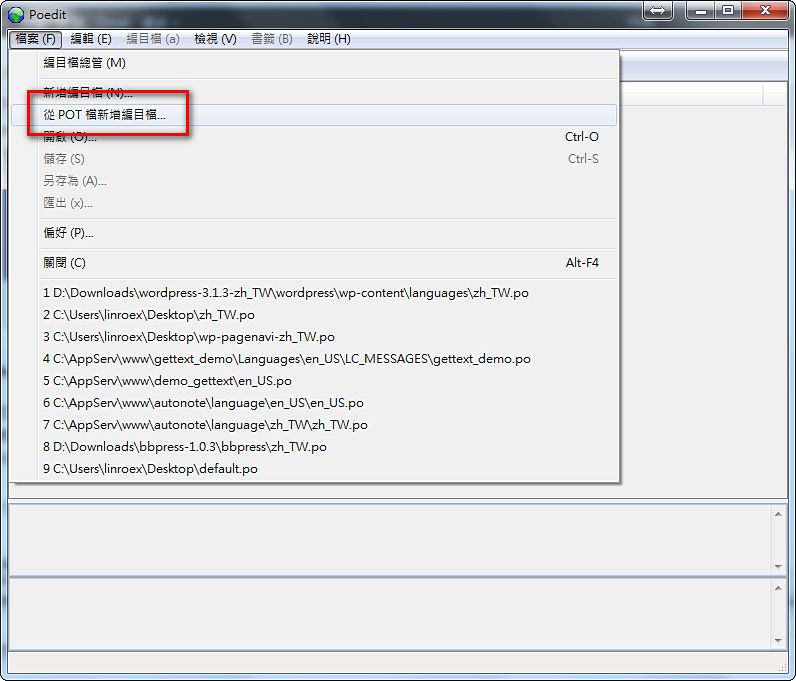
If your source file is a POT file, choose File → Create Catalog from POT File.
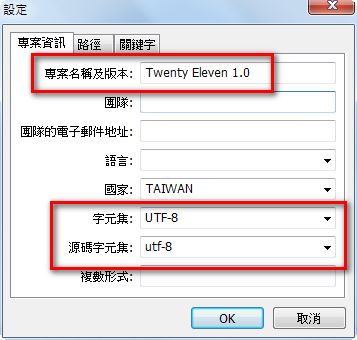
2.If you chose Create Catalog from POT File just now, it will ask you to fill in some settings. The fields inside the red box are required. After filling them in, click OK, and it will ask you to save the PO file.
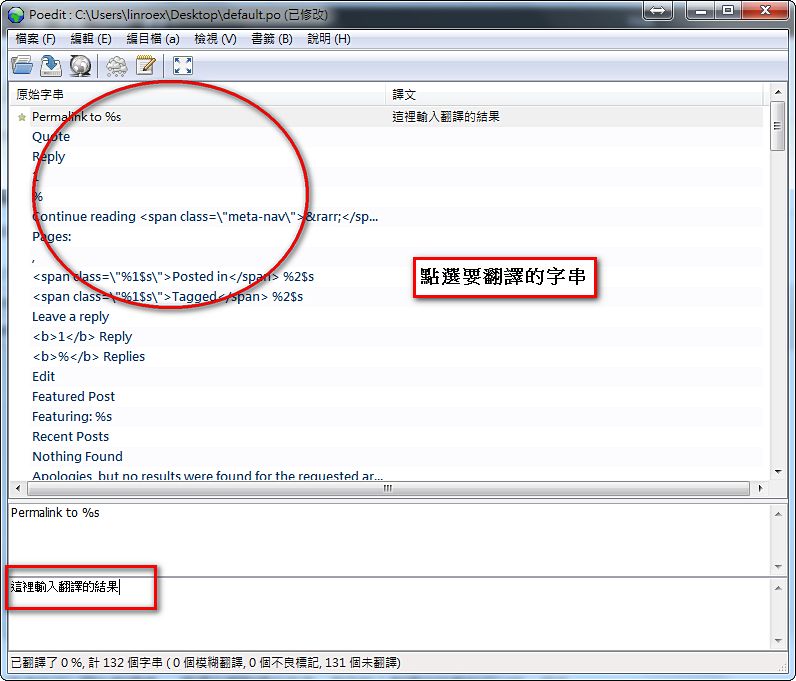
3.Now you can start translating~ Select the string you want to translate, then enter the translation. I also recommend saving right after translating a short section (Ctrl+S).
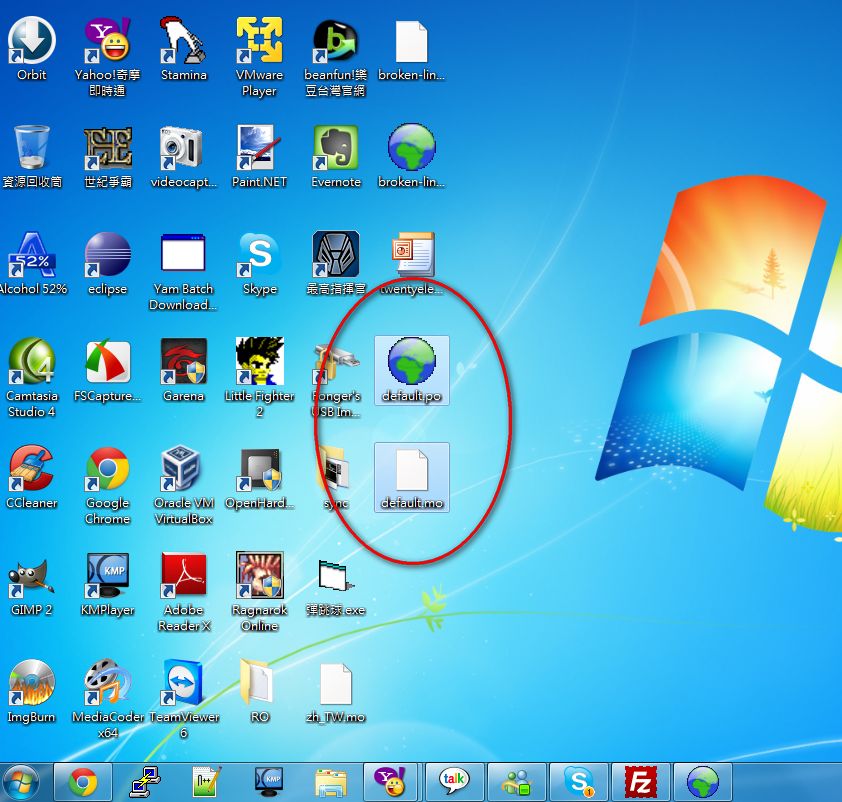
4.When you press Ctrl+S or choose File → Save, Poedit automatically generates the mo file, so you don’t need to export it separately.
Poedit Tutorial: Creating a PO File
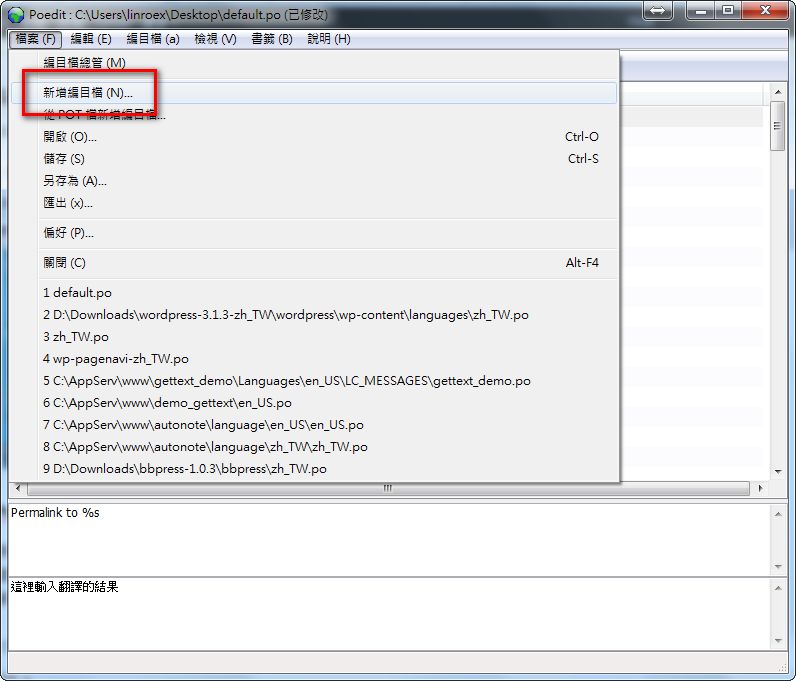
Sometimes you're a developer who needs to put together a PO file for other team members to use for multilingual work. Or you're a translator, and the program you want to translate has only code and no PO file. In either case, you can follow the tutorial here to create a PO file.1.Open Poedit, then click File → New Catalog in that order.
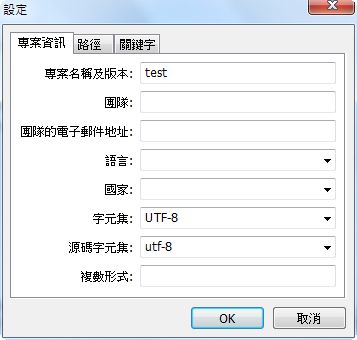
2.Fill in some information. In the project information section, you must set “Project name and version,” “Charset,” and “Source code charset.”
- Project name and version: set it yourself
- Charset: utf-8
- Source code charset: utf-8
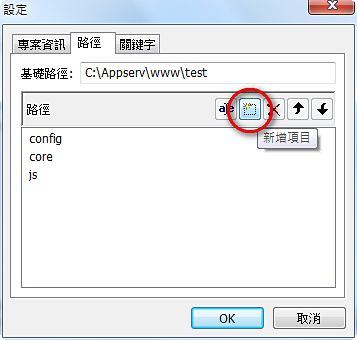
3.Next, go to the “Paths” tab and enter the location of the files you want to multilingualize in the “Base path” field. Note this: if your program folder has a single-level structure, you only need to set the base path. But if there are other folders under the base path you set, you need to add those paths below it.
For example: my program is in the C:Appservwwwtest folder, and it contains three folders: config, core, and js. Then:
- Base path: C:Appservwwwtest
- Under it, set:
- config
- core
- js
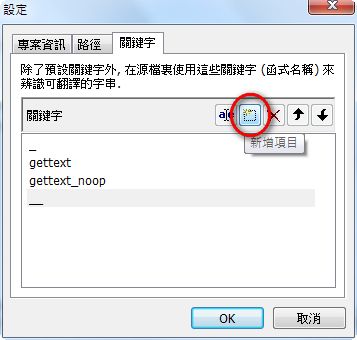
4.Finally, go to the “Keywords” tab. Here you set which keywords the tool should handle. Usually we set the following (the second and third are underscores):
- Gettext
- _
- __
- gettext_noop
- _e
5.Once everything is set, click OK. It will ask where to save the PO file. After saving, you can start translating right away.