
PollDaddy features:
- Free
- No ads
- Requires a member account
- Supports Chinese, with no garbled text
- The poll widget has many built-in themes
For more details, check out their official website.
Website: http://www.polldaddy.com/
1. Creating an Account
1.First, open the PollDaddy website, then click SignUp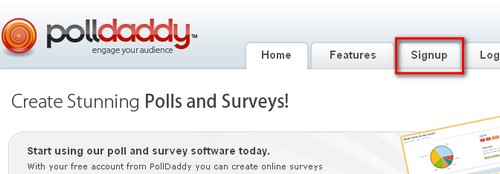
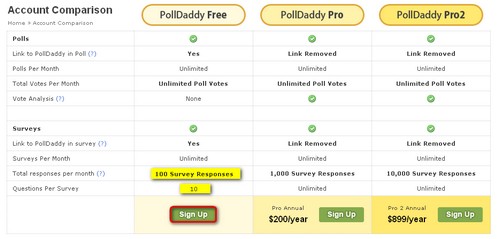
2.When you get to Signup, it offers three options. The first is free, and the second and third are paid. For most people, the free option is enough. Worth noting: free members can track up to 100 respondents per month, and each question can have at most 10 answers (which is plenty!!)
3.Now it’s time to fill in the application. If you can’t read English, go open Google Translate~ Just kidding, I’ll give you the translations right here so you don’t have to go to Google XD
First name Your English name
Last name Same as First name
Email address Your email address
Re-enter email address Confirm your email address
Password Your password
Re-enter password Confirm password
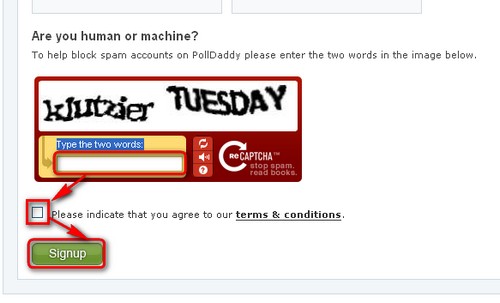
Finally, check the box for “”, then type the code from the image below “” and click Signup to finish the application.
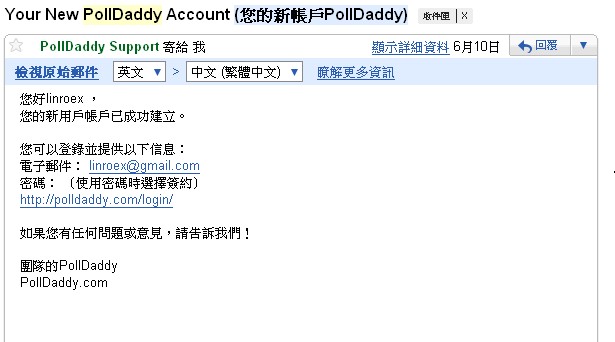
4.After you’ve created your account, check your inbox for the email~
2. Creating a Poll Service
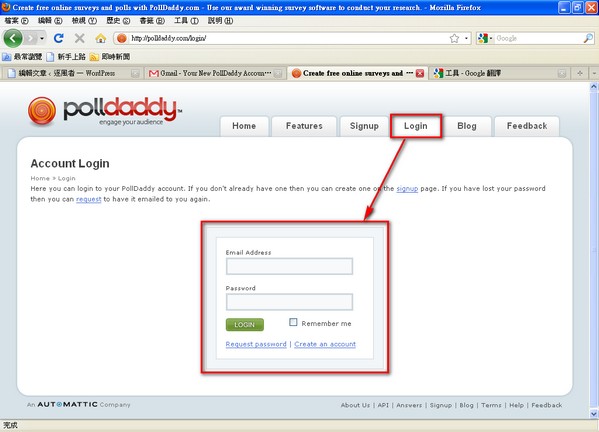
Once you have an account, of course you need to create a poll. The first step is again to go to the PollDaddy website.Then click Login and enter your username and password (the username is the email address you signed up with).
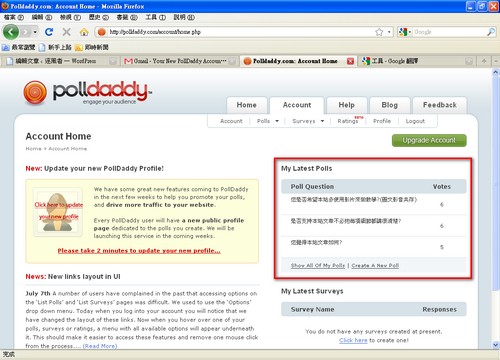
2.After logging in, you can see the polls you’ve already created on the left. Everyone just signed up, so there’s nothing there yet. I’ve had mine for a long time and have used it before XD
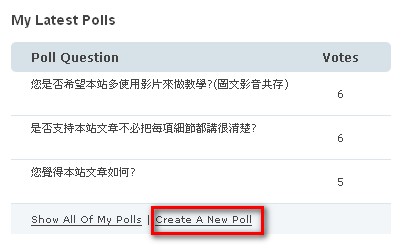
But our focus is creating a new poll, so click Create A New Poll.
3.After clicking Create A New Poll and going to the page for adding a poll, enter the poll’s title (the question) in the field labeled “Please enter your poll question here”
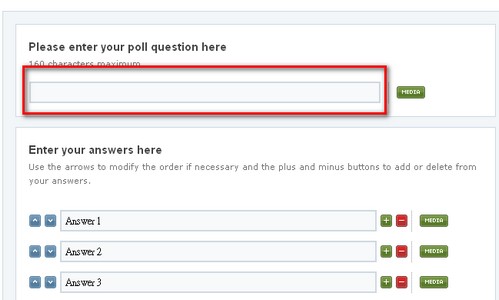
4.Set your answers in the field labeled “Enter your answers here”
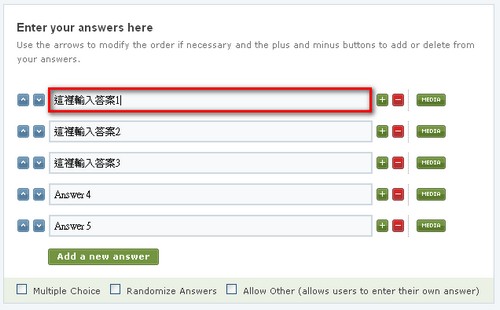
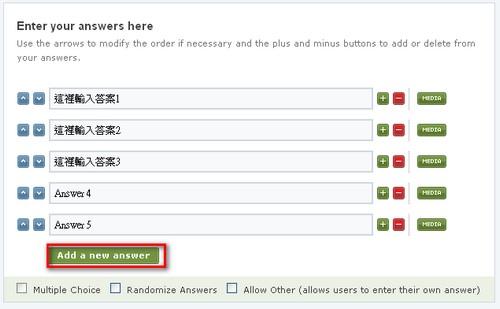
If the 5 default answer fields aren’t enough, click Add a new answer.
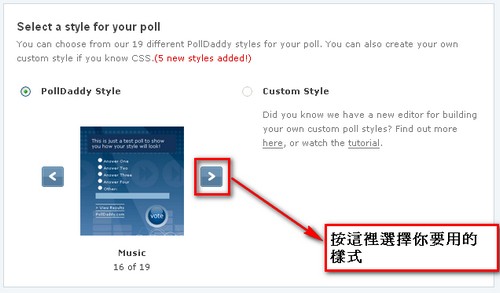
5.In the field labeled “Select a style for your poll,” choose the style you want to use (there are 19 styles available).
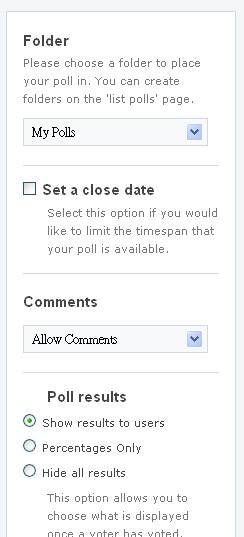
6.Once everything is set, you can configure other things on the right side. Personally, I usually leave the defaults.
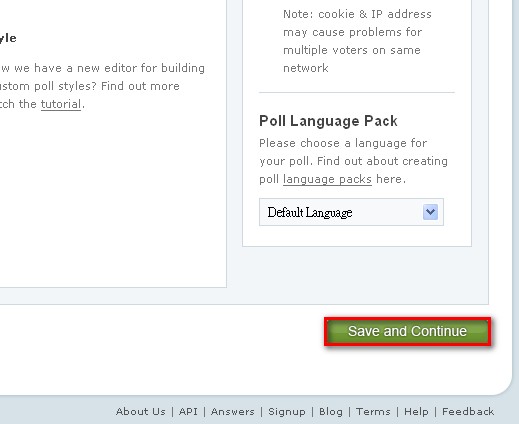
7.Finally, click the Save………… button to save your settings.
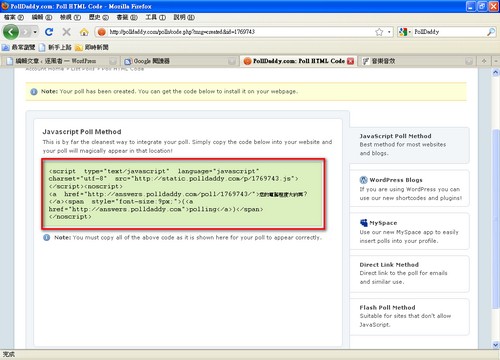
Next, it takes you to another page. Simply copy the code it provides and paste it into your blog.
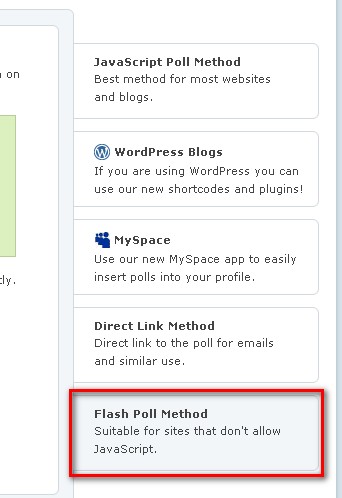
If you use a blog service like Wretch that doesn’t support JavaScript, PollDaddy also provides Flash code.
Keywords: PollDaddy, online polls, free polls, blog plugin