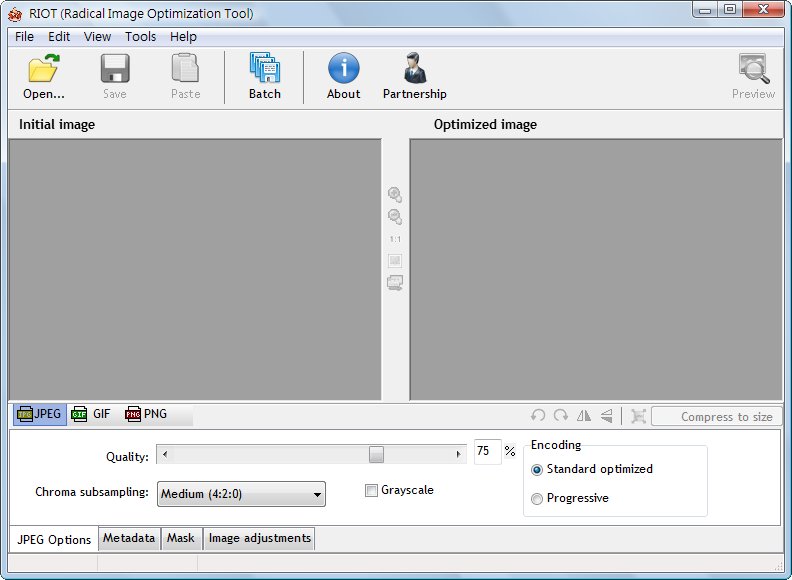
If you’re a web designer, or you run your own blog, you’ve probably cared a lot about how fast your pages load, since slow loading annoys users. And if you use Wretch Photo Album, you’ve probably worried about image sizes too, right? Wretch Photo Album has space limits, and the only way to get more space is to buy VIP membership. The program I’m introducing today is called RIOT, and it’s a lifesaver for all of the people above. RIOT can batch compress images, and in my own tests the compression ratio was quite high. RIOT can also batch resize images, which is really handy for bloggers~
RIOT Info
- Official website: http://luci.criosweb.ro/riot/
- Download links: Official | 4Shared | Box.net | Xun6
- File size: 1.05MB (compressed file)
- MD5: ba29d50d98f673968588433e97ac5f96
RIOT Installation Tutorial:
1. Unzip the RIOT archive you downloaded, then open the Riot-setup installer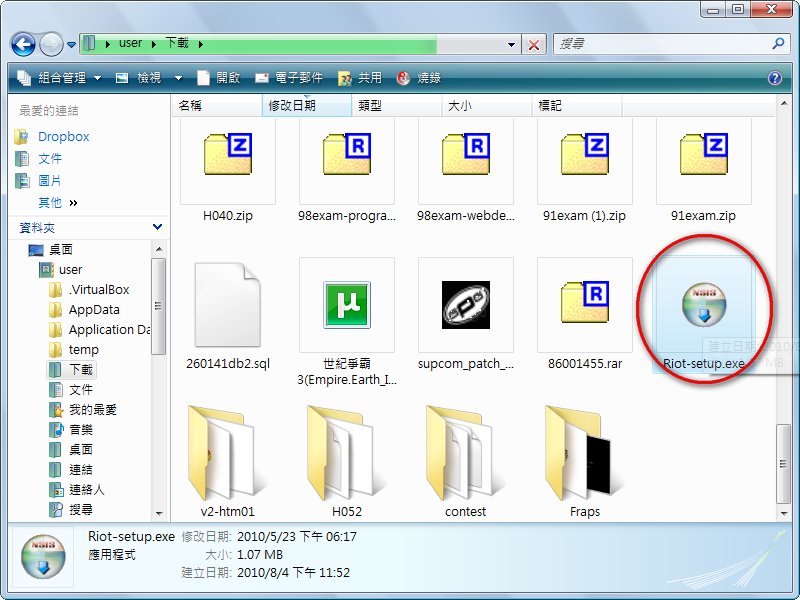
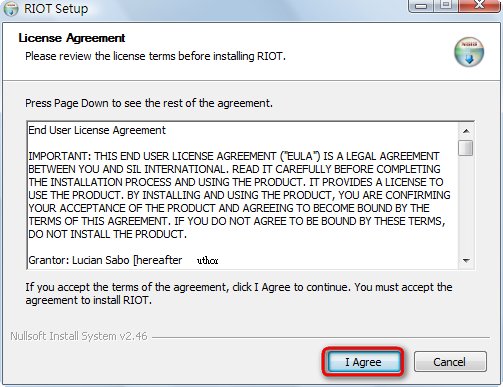
- Click 【I Agree】
- Click 【Next】
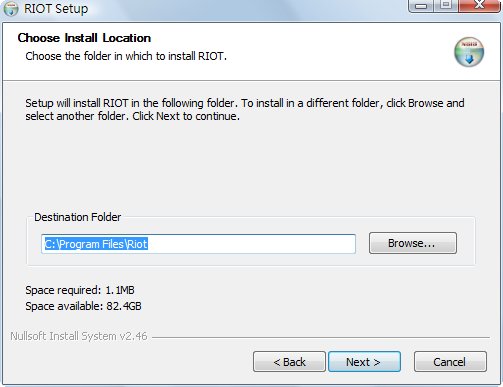
- Click 【Next】
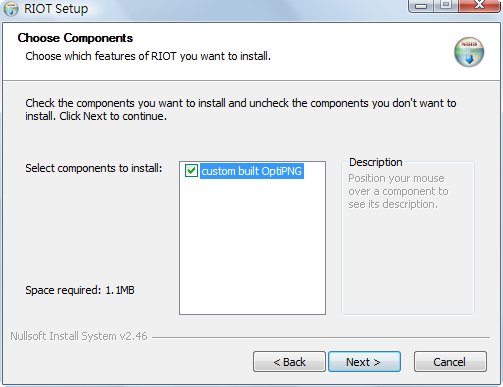
- Click 【Install】
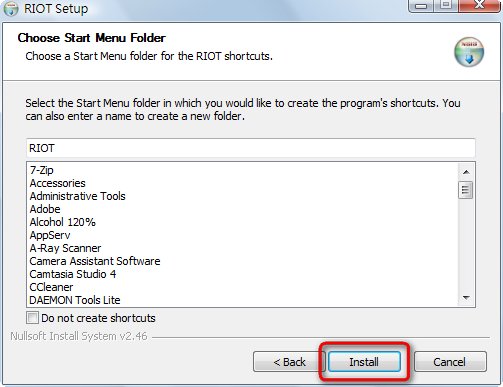
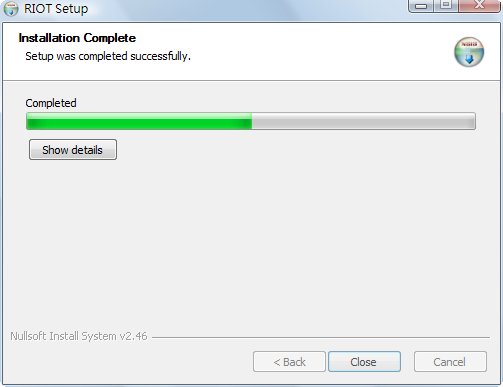
- Installing. When it finishes, just click 【Close】
RIOT Usage Tutorial:
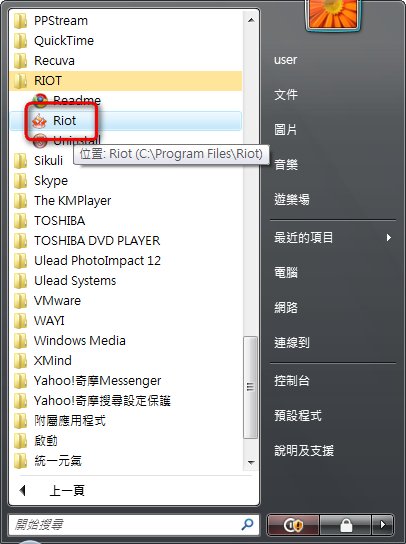
In this section, I'll show you how to batch compress images with RIOT.- Open the RIOT main program
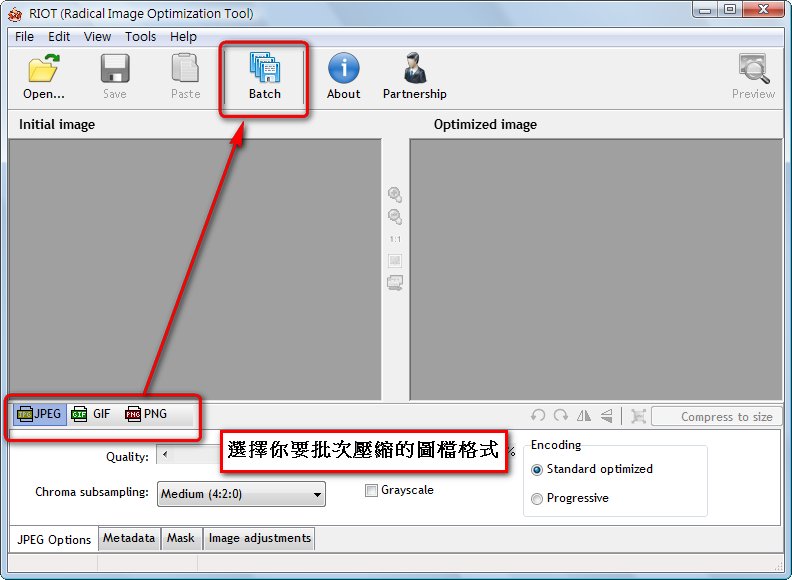
- Choose the image format you want to batch compress, then click 【Batch】
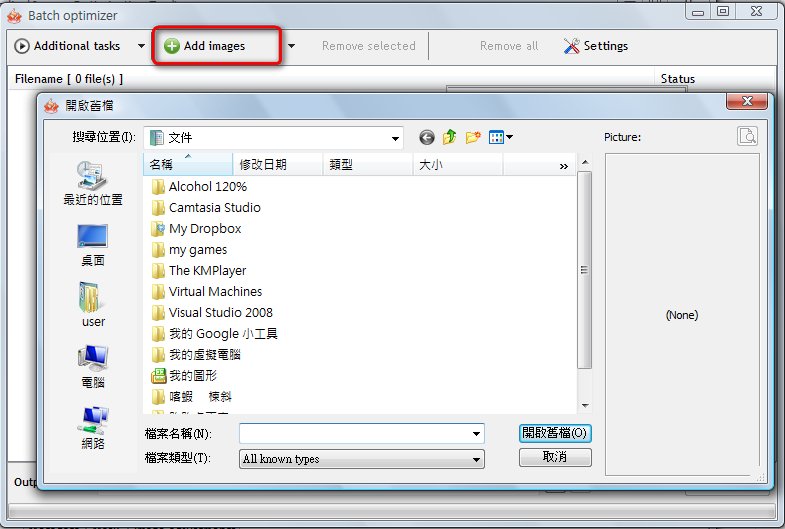
- Click the 【Add Images】 button, then select the images you want to compress (you can select many at once)
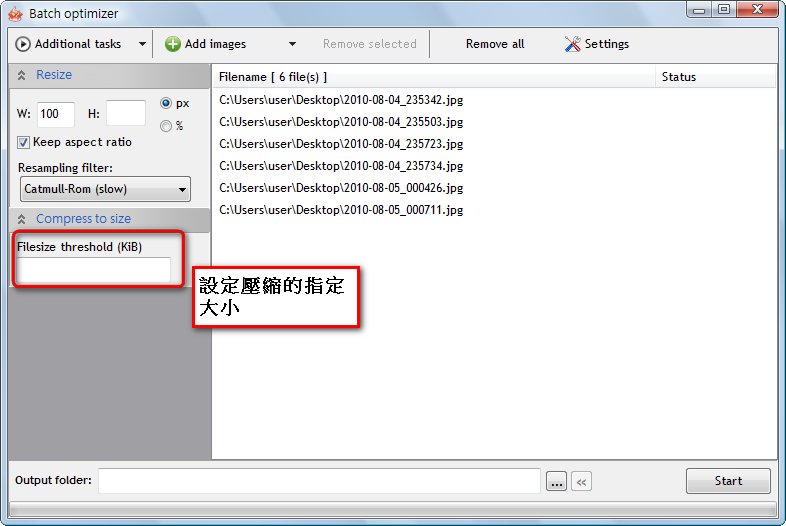
- Click the 【Additional tasks】 button and choose the action you want. Resize changes the width and height of the image, and Compress to size compresses the image to within a specified size.
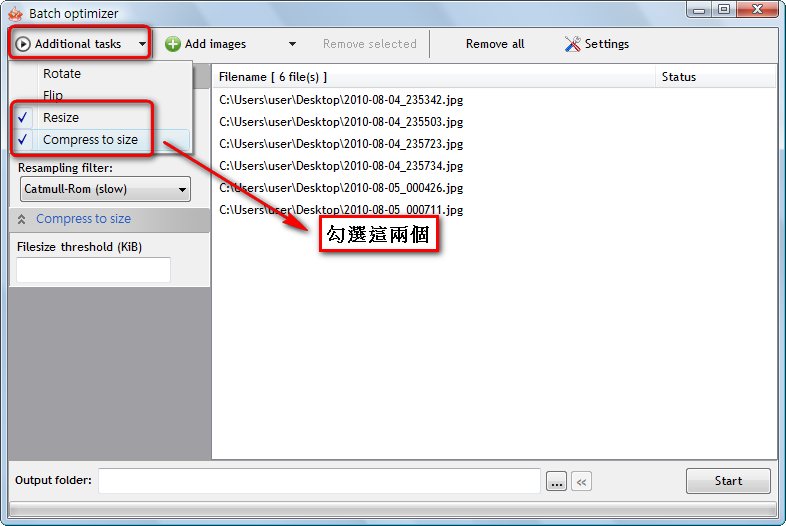
- Enter the width in the W field and the height in the H field. When an image’s width or height exceeds the values you set, it’s automatically scaled down to the specified dimensions. Also, enter the compression size in the 【Filesize threshold】 field, and the system will compress every image to that size (in KB).
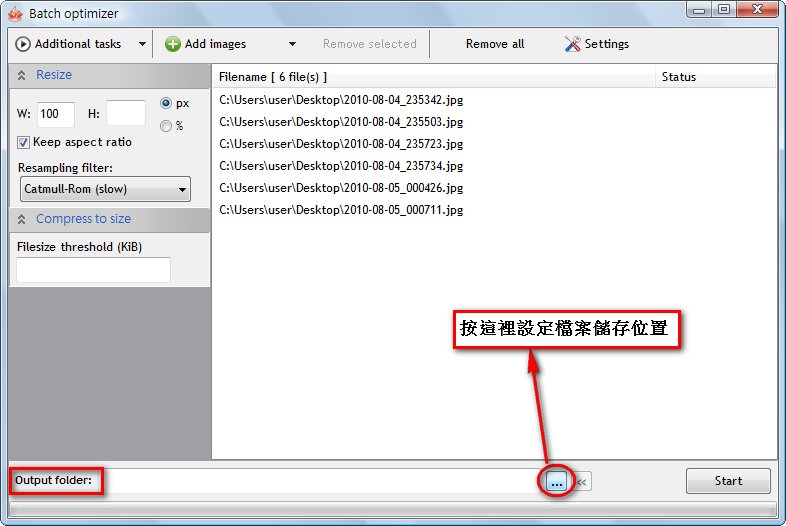
- Set where the processed images will be saved in the 【Output Folder】 field, then click 【Start】 to begin processing
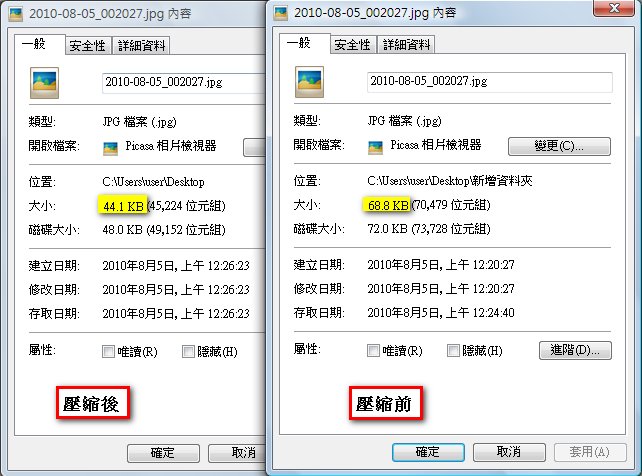
File size difference before and after compression: