A while ago I got a real scare from a herniated disc. It made me look into how I use my computer, and I found that most of my posture had been wrong all along. This time it was caused by sitting for long periods, but sitting isn’t the only problem. Looking down at your phone, hunching over your laptop, or having your monitor at the wrong height can all lead to even harder-to-treat herniated discs in the neck! Laptops in particular: most people don’t notice that they use them with the wrong posture. Because laptops are small, using one on a desk means you have to hunch your head down, which puts stress on your neck. Using one for long periods can cause a herniated disc in the neck or other problems.
Besides neck herniated discs, I’m sure you’ve also felt your shoulders and neck getting very uncomfortable while hunching over a laptop. In fact, all you need is a suitable laptop stand at a comfortable height, so you don’t have to look down at the screen. That helps a lot with these problems.
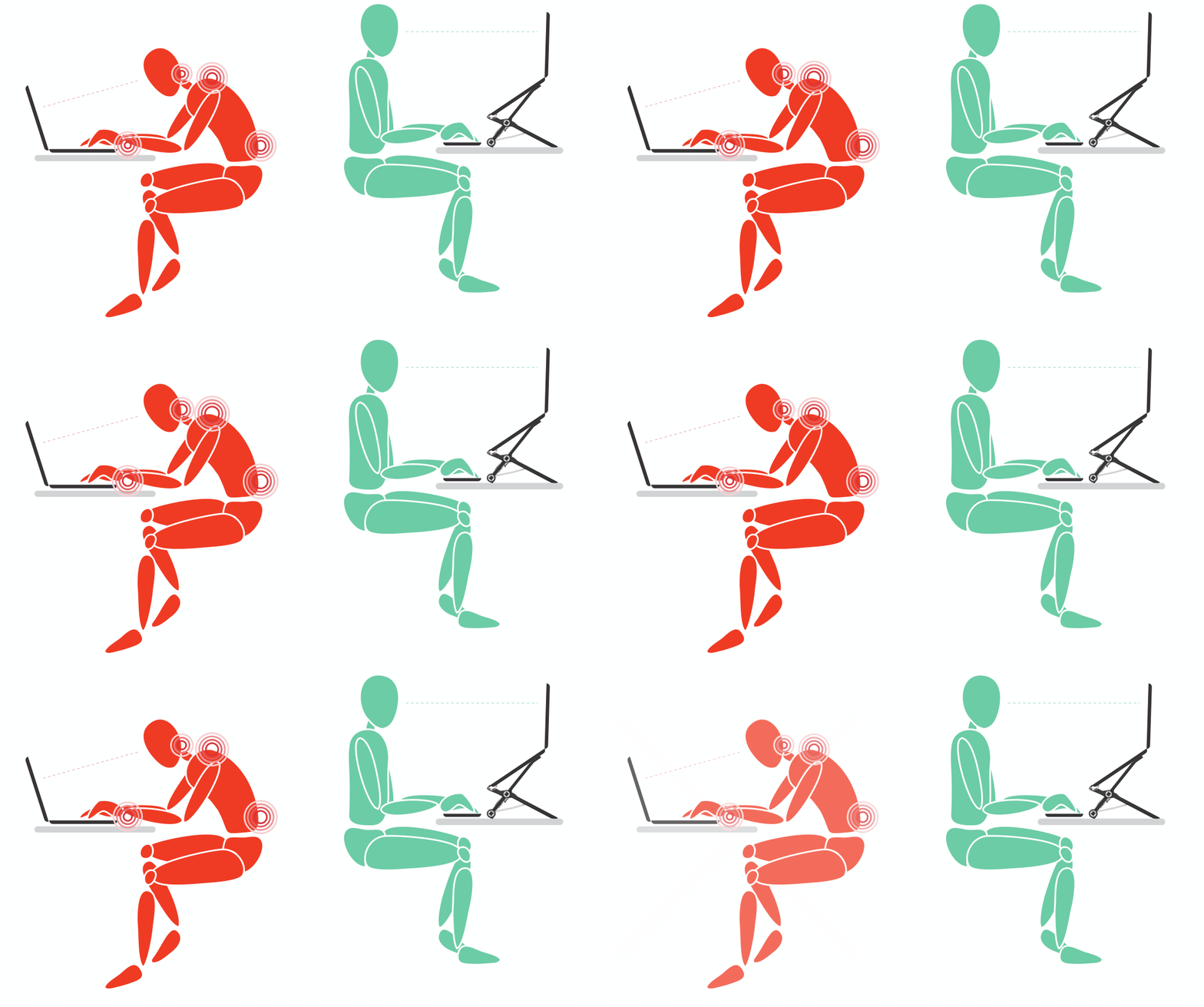
(Image taken from the Roost Laptop Stand official website)
The one I bought is the Roost Laptop Stand, which was a huge success on Kickstater. Looking at common laptop stands, they have several drawbacks: the height is hard to adjust, they’re heavy, and they’re inconvenient to carry. Since a laptop is something you carry with you, a big stand that doesn’t fold is impossible to take out. For someone like me, who carries a laptop everywhere to find beautiful places to write code, those stands are simply not practical. That’s the biggest feature of the Roost Laptop Stand: when folded, it’s about the size of a recorder, so it slides easily into a backpack, and it weighs only 170 grams.
So far I’ve tested it with a MacBook Air, a 13-inch MacBook Pro, and a 15-inch MacBook Pro, and it works fine with all of them. You can also adjust the height to match your own. It’s made of plastic, but the structure is well designed and it feels very stable. However, after switching to this stand you’ll also need to buy a keyboard and mouse. Otherwise, even though raising the laptop is better for your neck, you’d have to lift your hands to use the laptop’s keyboard and trackpad, which could cause problems in other parts of your body…
This is the long cardboard box it came in.
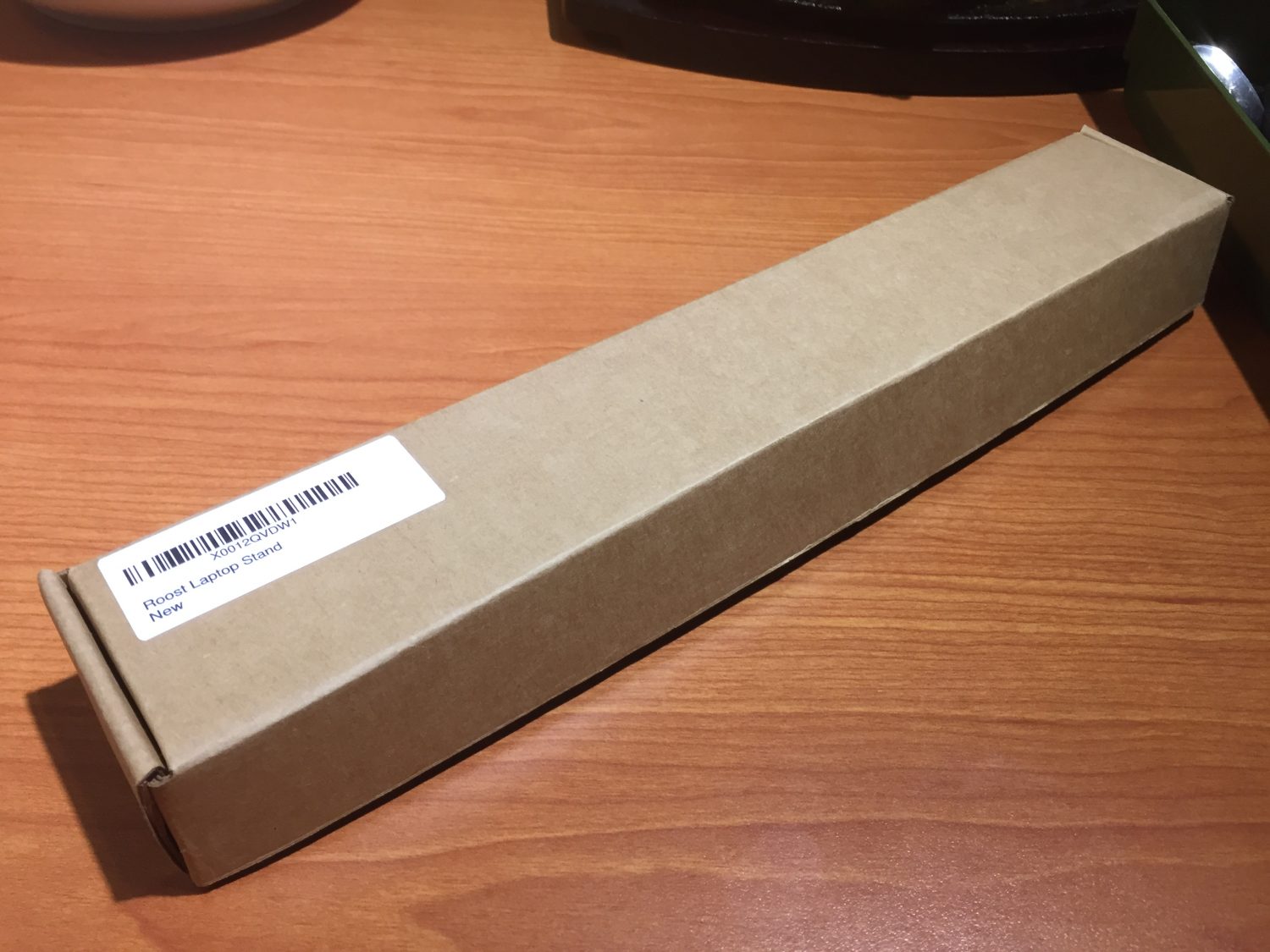
The delivery arrived while I was out, and my family took it for me. When I got home I couldn’t find it for a while, because it’s really tiny… Here’s a photo with an iPhone for scale.
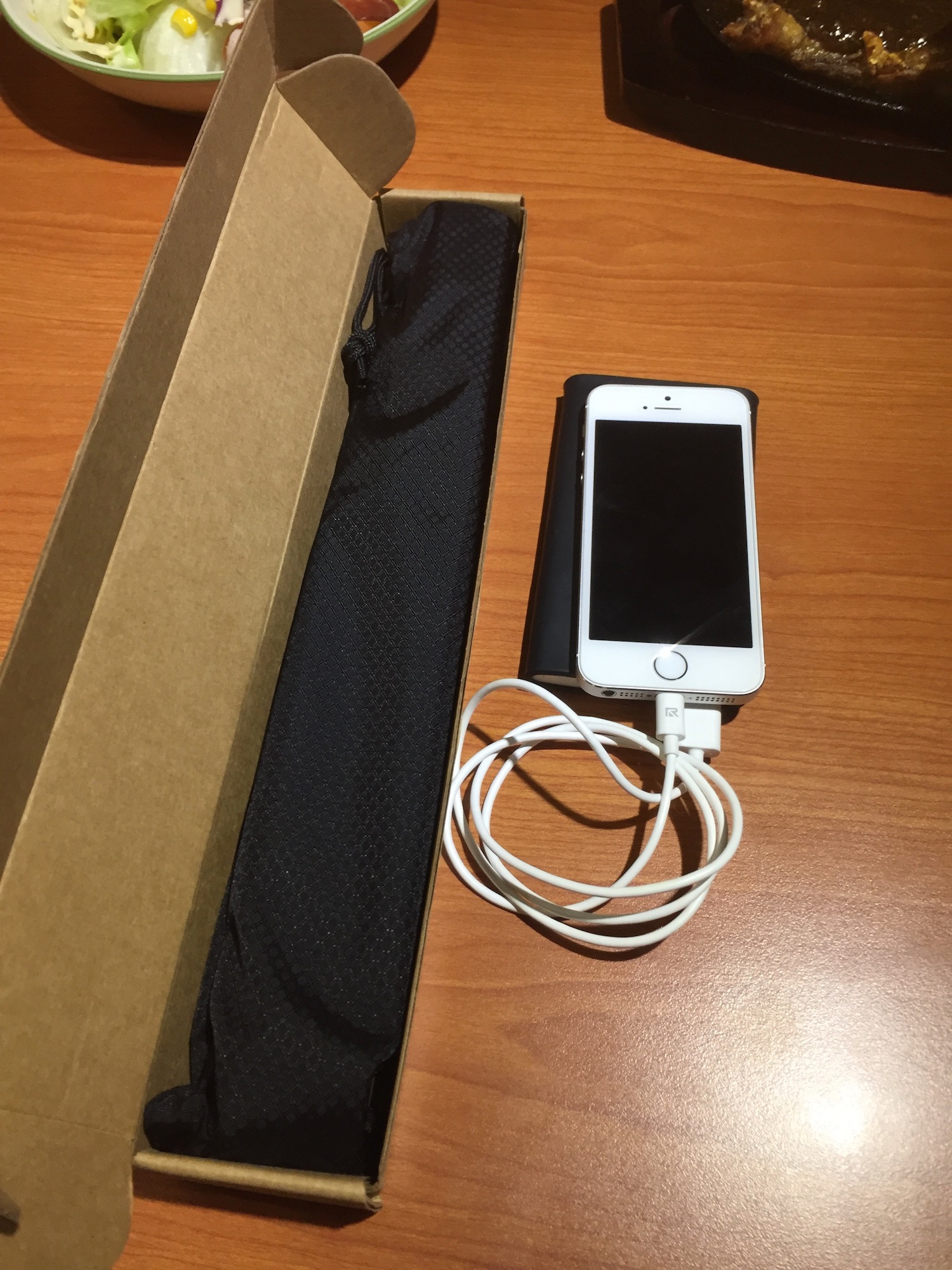
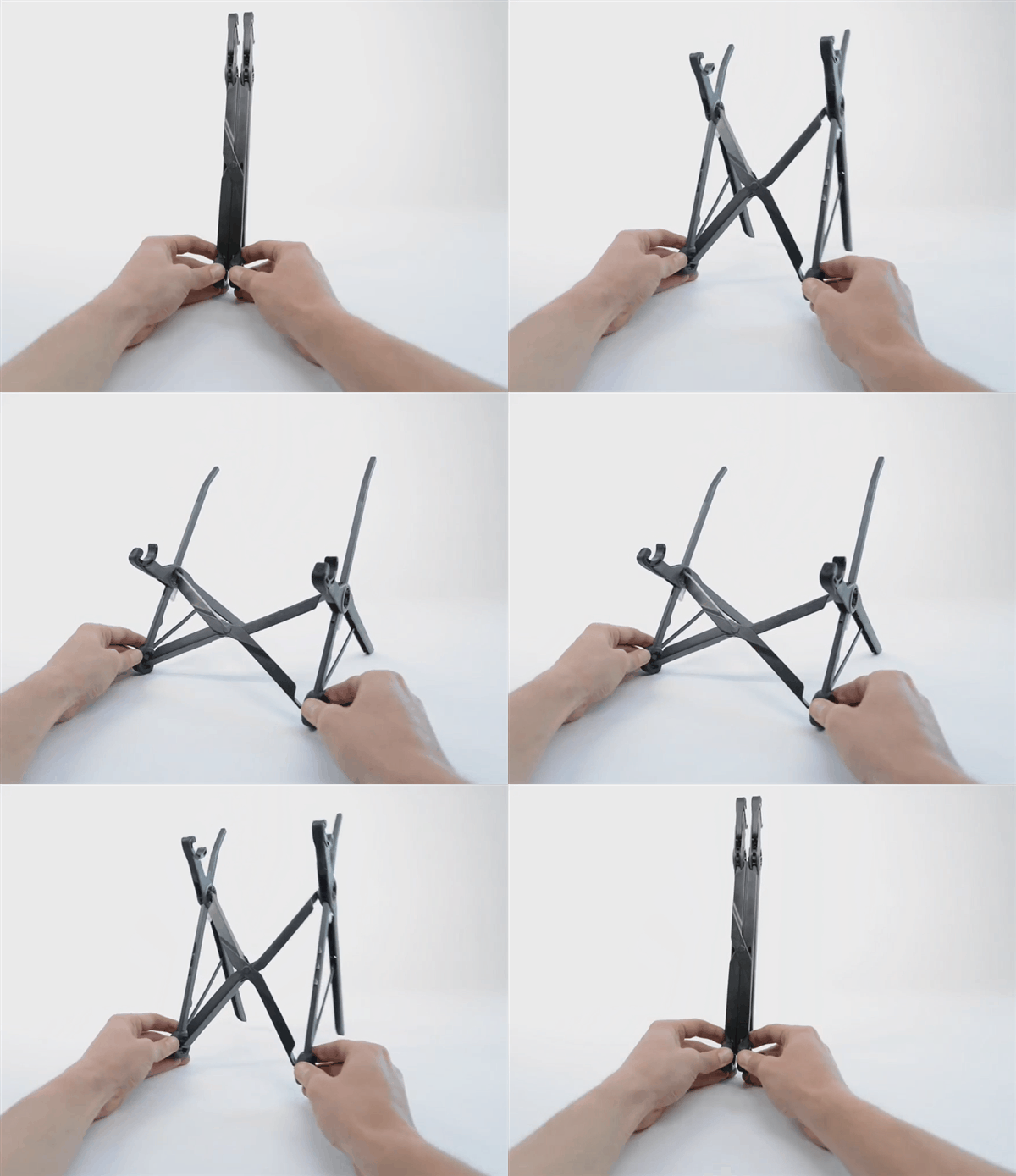
When you open it, there’s a manual. Be sure to read it! Even though I’d mastered all sorts of gadgets, I was still a bit confused the first time about how to open and close the Roost Laptop Stand. It’s not that it’s difficult to use. I was just afraid I’d use it wrong and break something that cost nearly NT$2000. The opening and closing mechanism isn’t hard to learn. Once you’ve done it once, you’ll remember it, and you’ll find yourself admiring the cleverness of the design! (Image taken from the Roost Laptop Stand official website)
The Roost Laptop Stand also comes with a thoughtful storage bag. Take our treasure out of the bag! My neck will be relying on it for the next few years (on my knees)
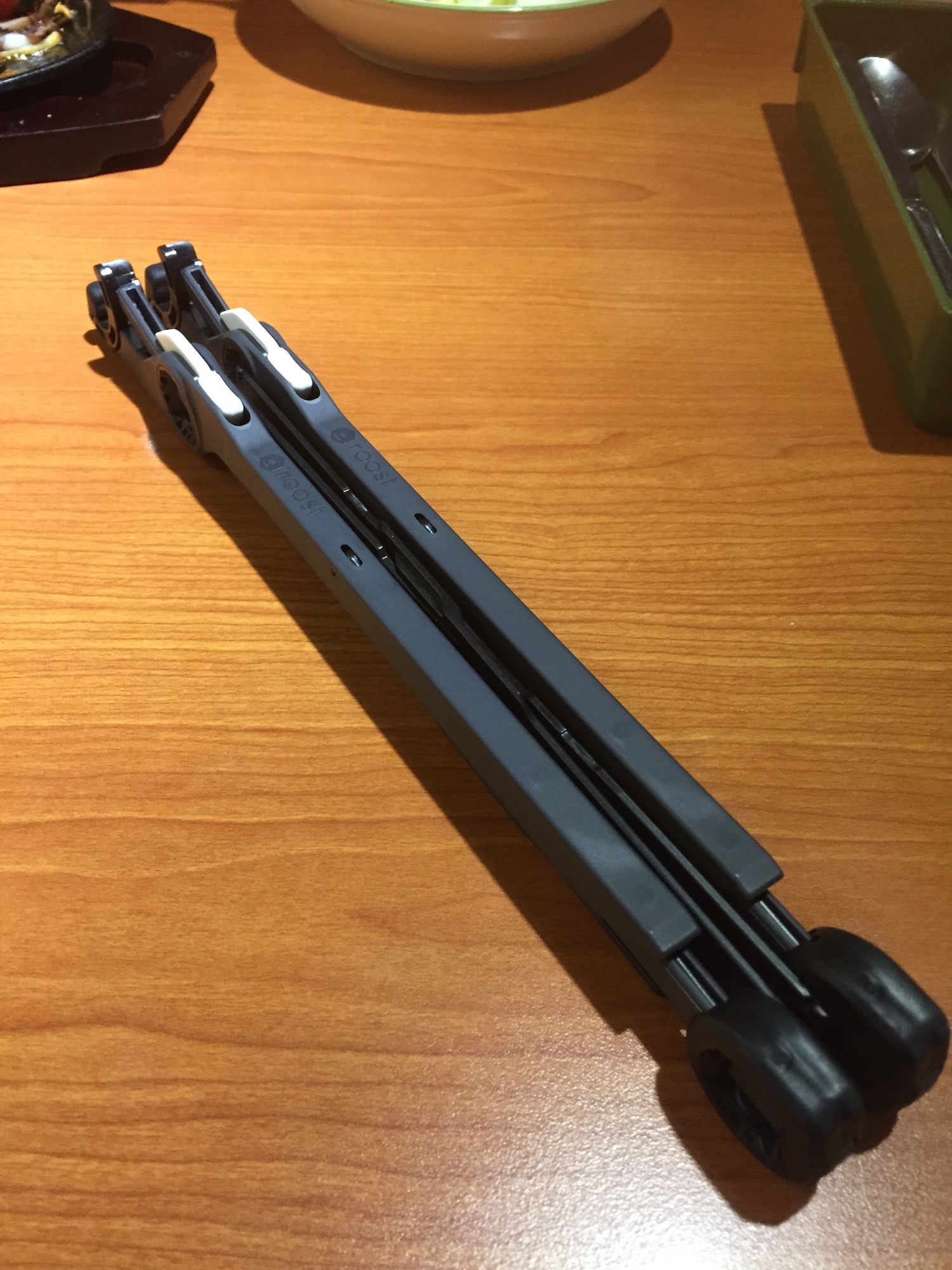
Once it’s open and your laptop is on it, you’ll see that the laptop is now higher. Press the white buttons (both sides at once) to adjust the height. The best height is when your eyes can look level at the top edge of the screen.
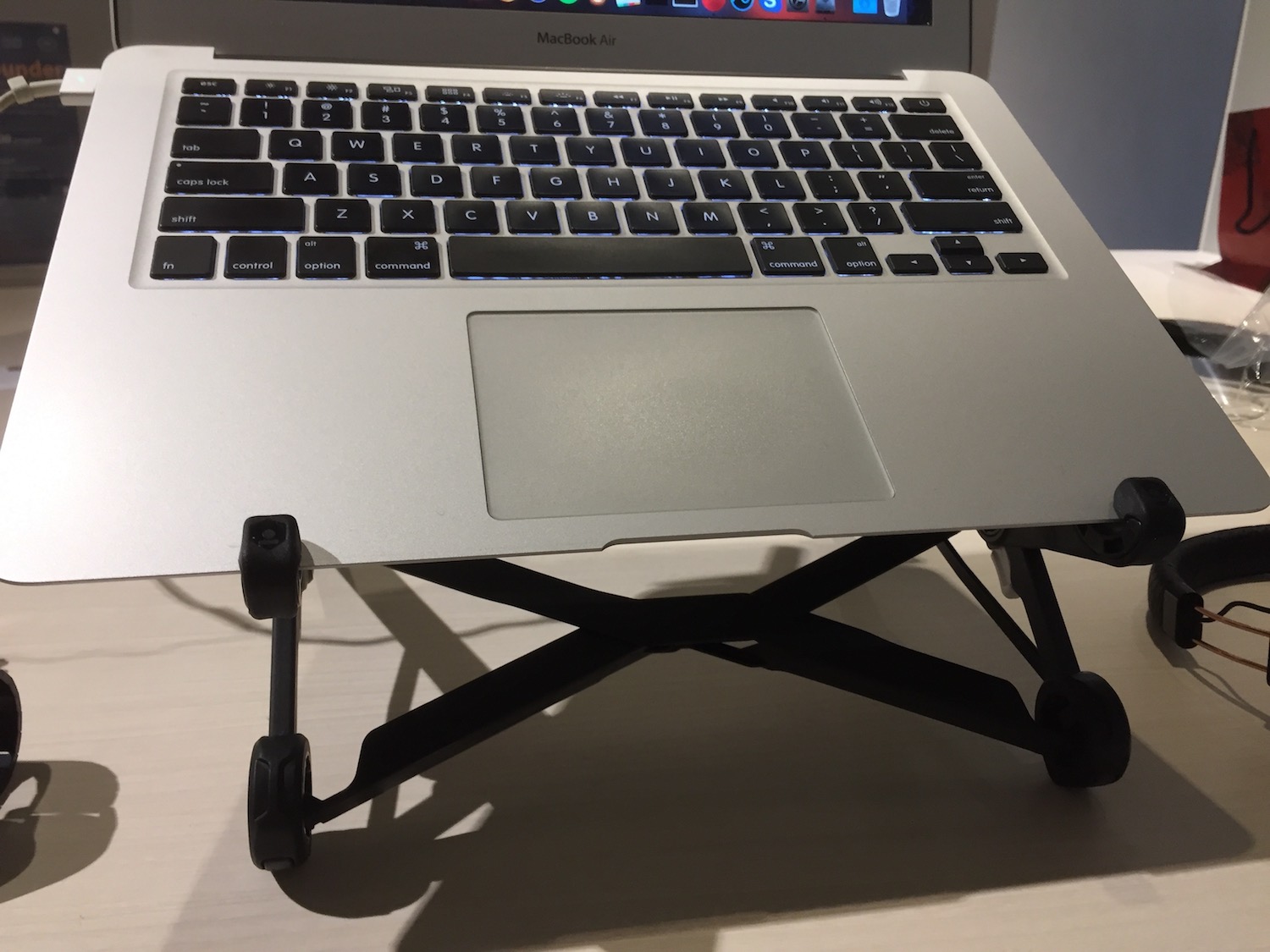
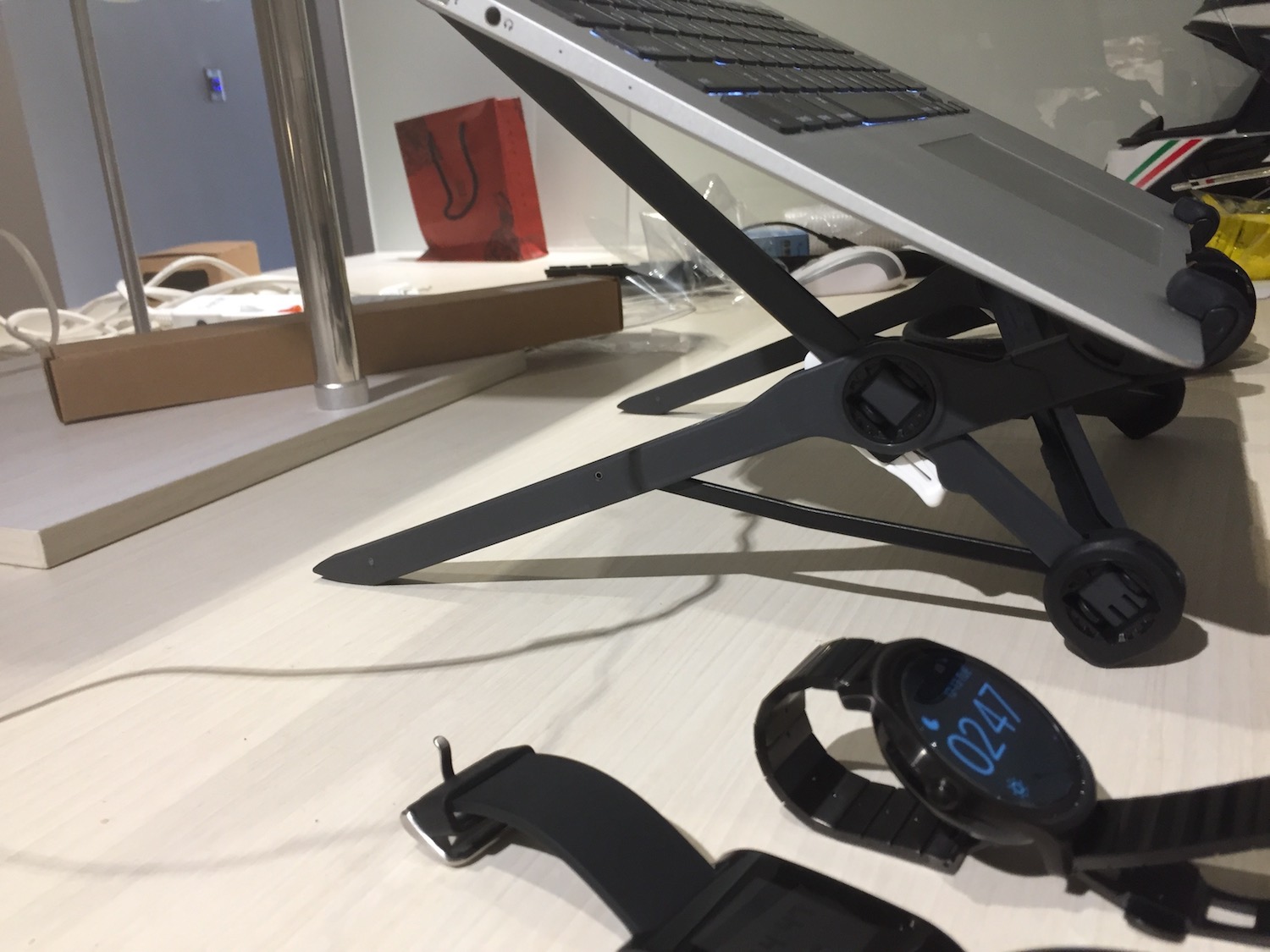
If you want to buy one, you can place an order on the Roost Laptop Stand official website. It ships directly to Taiwan without needing a forwarding service. Also, if you buy five or more at once, you can email them to ask whether there’s a group-buy discount.
Roost Offical Site: https://www.therooststand.com/
As a bonus, after a friend’s recommendation, I chose Logitech’s M337 Bluetooth mouse and K380 cross-platform Bluetooth keyboard. Why did I choose them?
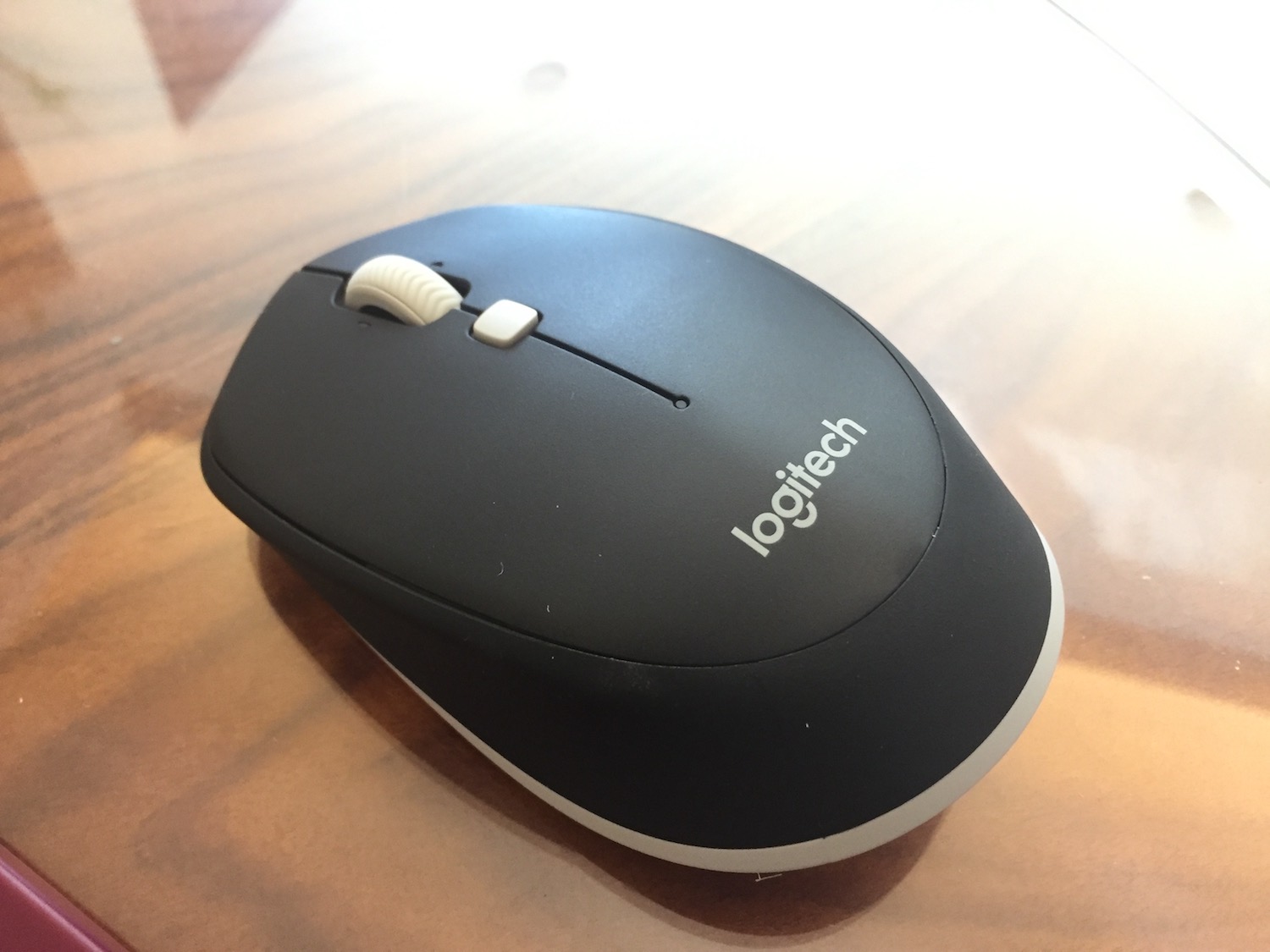
The M337 Bluetooth mouse is probably the most feature-packed mouse I’ve ever seen. Its design isn’t ergonomic, and it’s on the small side, so people with large hands may find it hard to grip. But this mouse connects over Bluetooth, so it doesn’t take up a USB port, and it supports customizable shortcut keys. After installing Logitech’s official software, the mouse integrates deeply with the operating system (Mac OS and Windows), and it has features like horizontal scrolling.
Hold the square white button in the middle, and with the software configured, you can scroll horizontally.
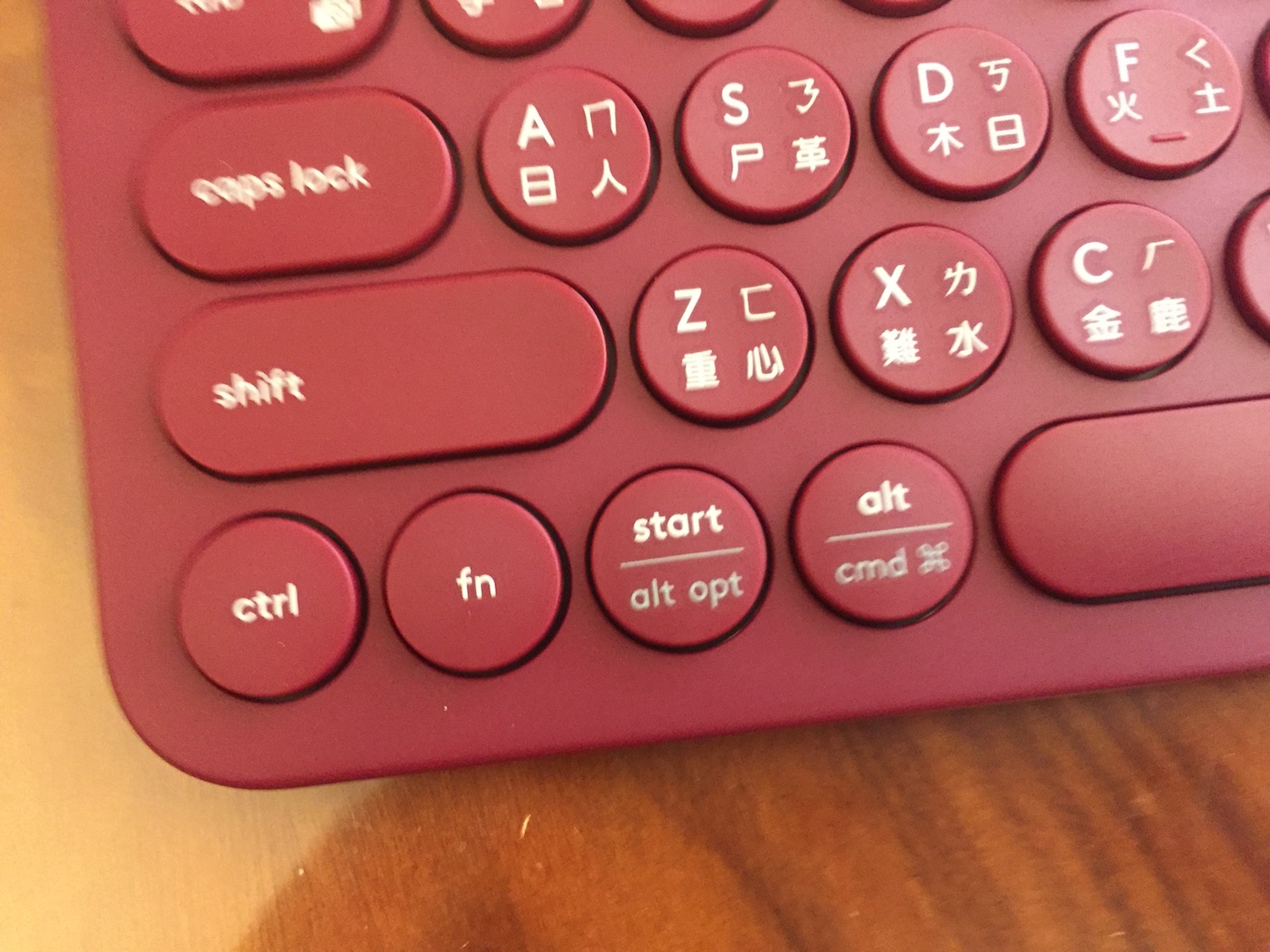
The K380 cross-platform Bluetooth keyboard is very easy to carry because of its size, yet it isn’t so cramped that it’s hard to type on. Personally I find it acceptable. What surprised me is that it works with the MacBook’s shortcut keys (volume and music controls), which most keyboards can’t do, so I find that very convenient. It can also remember up to three devices, and you can switch between them quickly with F1 to F3. It even switches the keyboard layout depending on the operating system. Regular keyboards are designed for Windows, and some Mac OS-specific keys are in different positions from the laptop’s keyboard, so switching from the laptop keyboard to an external one can feel awkward. With this keyboard, that problem almost never comes up!
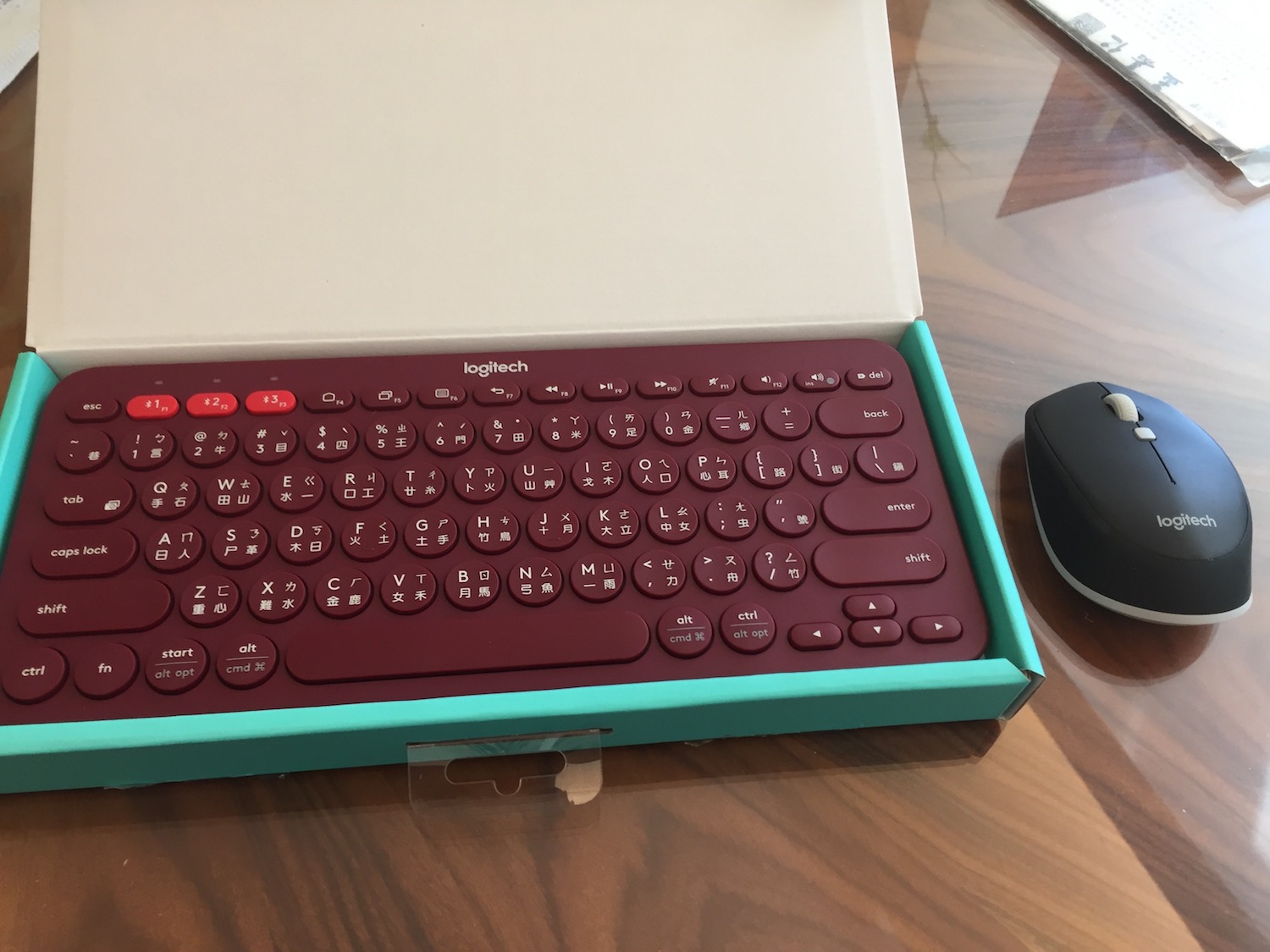
The top row has the Windows key layout, and the bottom row is specific to Mac OS. It detects which one to use automatically when connected to a computer!
As for the laptop side, I was also surprised to learn that the MacBook Air can connect to so many Bluetooth devices at once (mouse, keyboard, headphones). Bluetooth keyboards and mice are generally quite a bit more expensive than wireless ones, but just knowing they save me two USB ports makes it worth it!