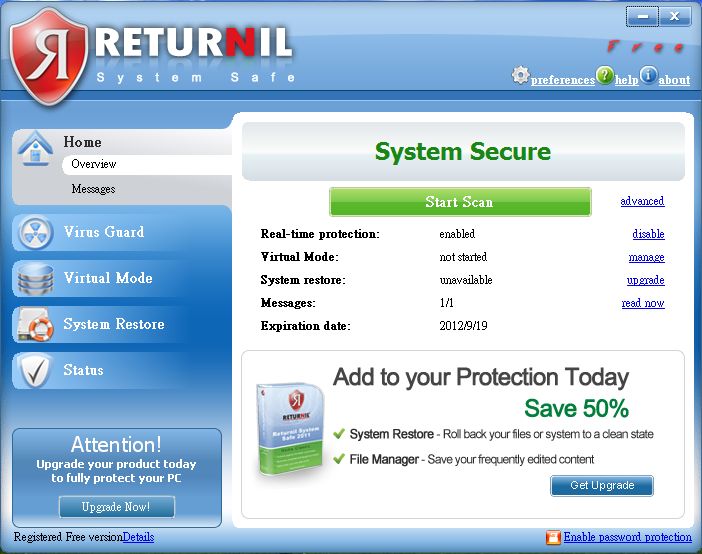
In this article, the shadow system we'll introduce is Returnil Virtual System (hereafter RVS)Returnil Virtual System Tutorial:
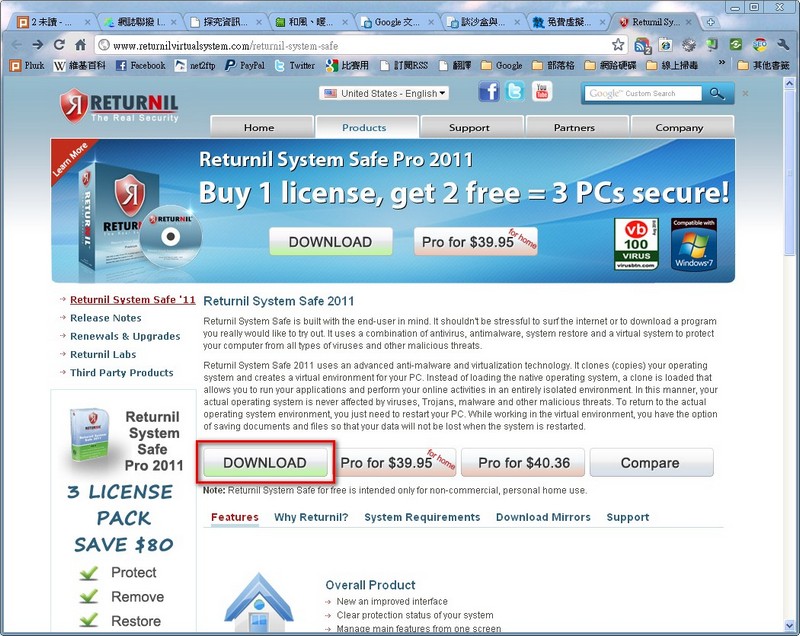
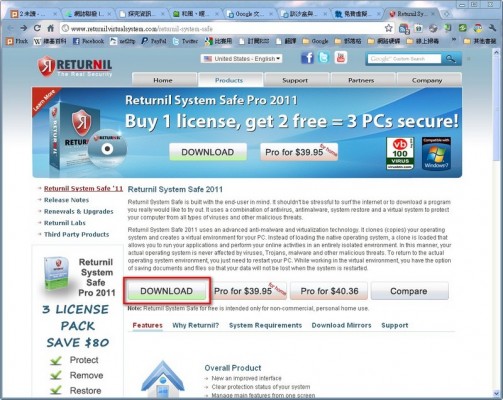
- First, go to the RVS official website and download the main program
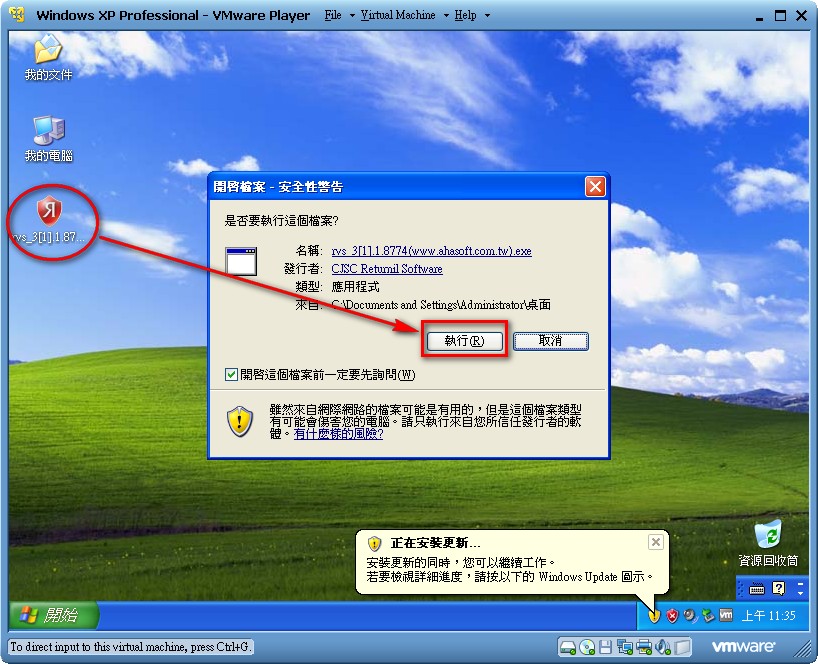
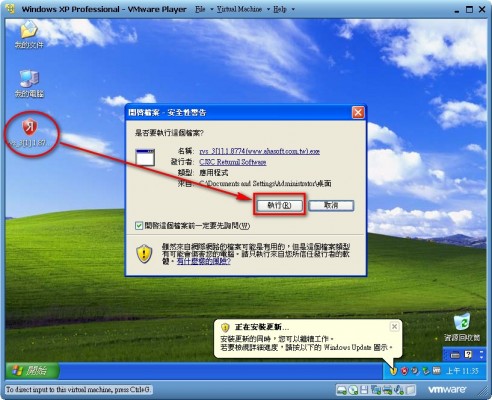
2. Once RVS has finished downloading, open the main program you downloaded and click [Run]
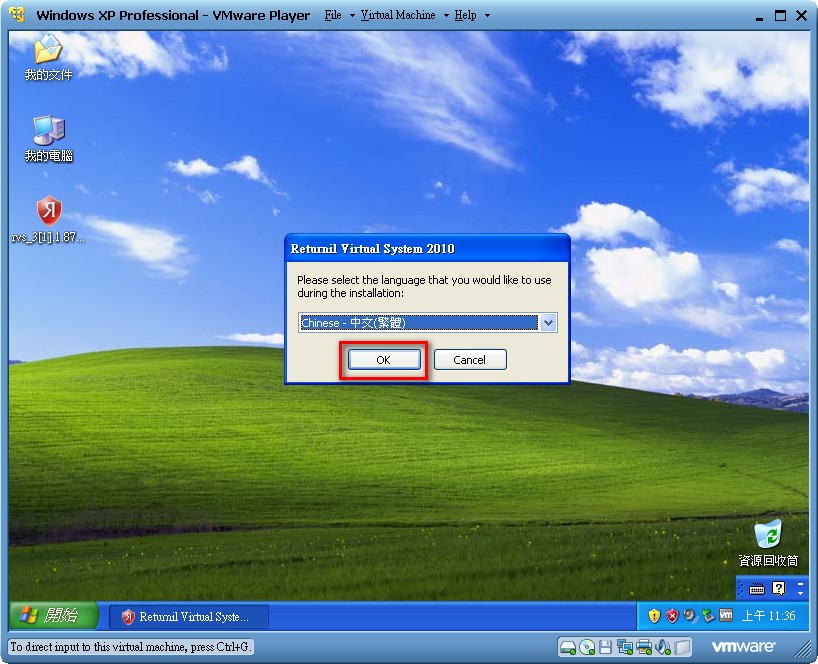
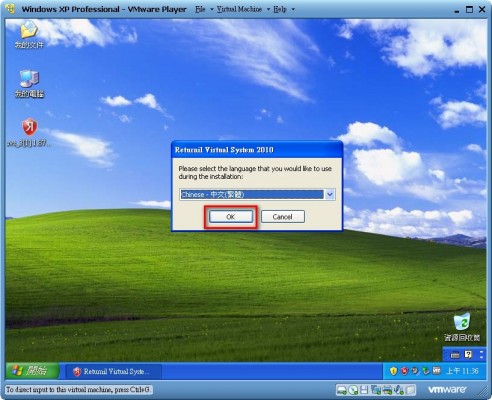
3. Here you choose the language for the program’s interface. Click [OK]. This program doesn’t have a Traditional Chinese interface yet.
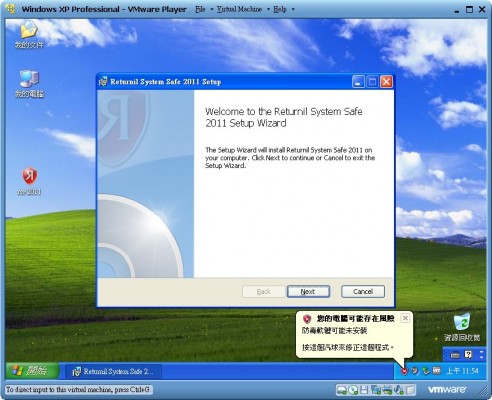
4. This is the welcome screen. It just explains what RVS is. Click [Next] to move on to the next step.
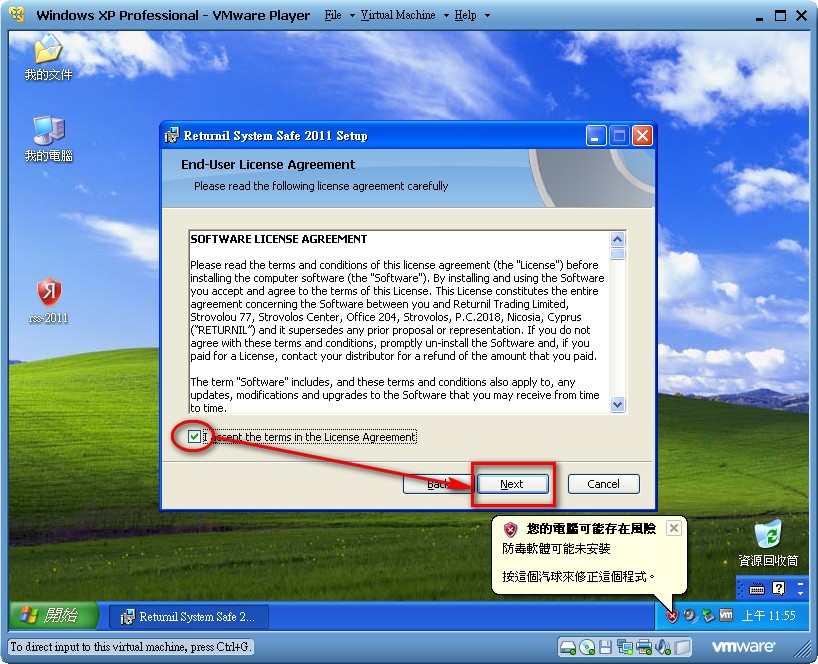
 5. Select [I accept the terms in the license agreement], then click [Next]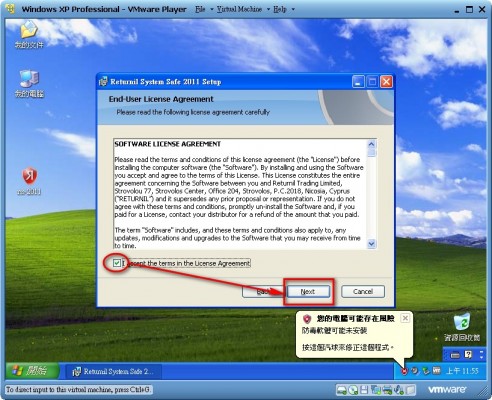
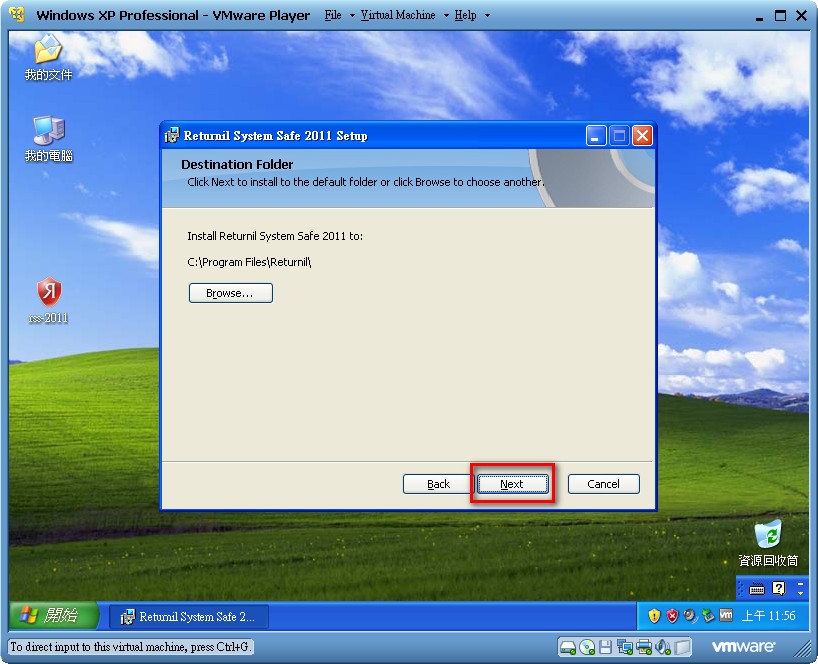
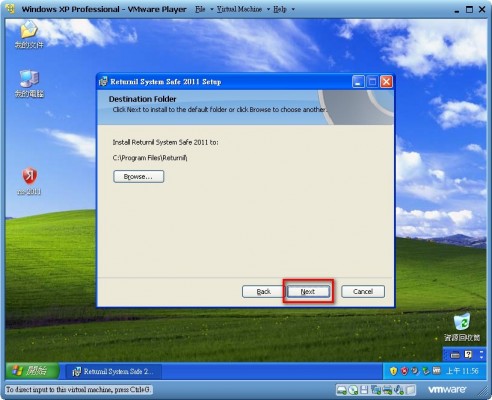
6. This screen sets where the program will be installed. Just click [Next].
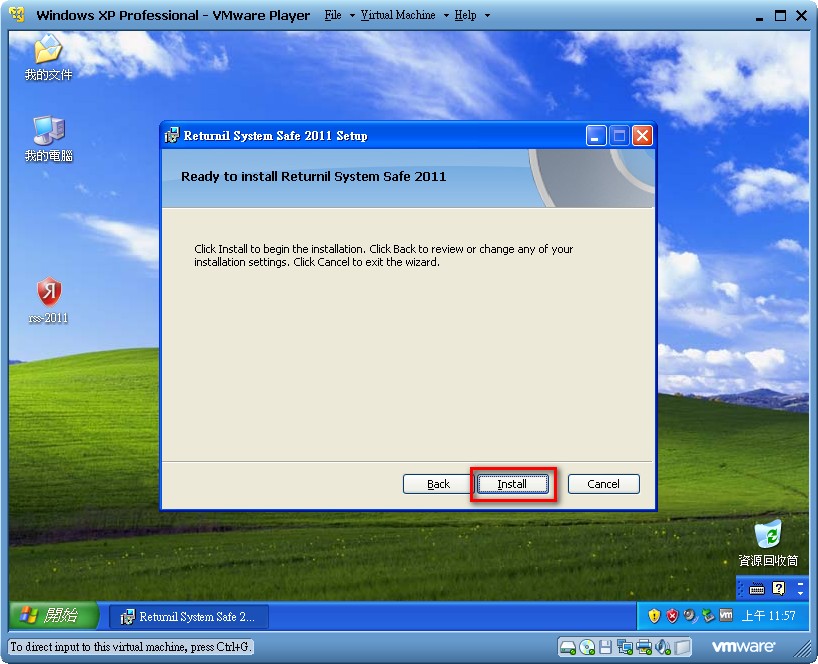
7. Click [Install] to start the installation.
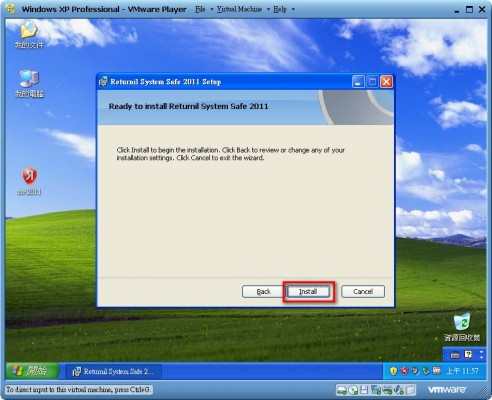
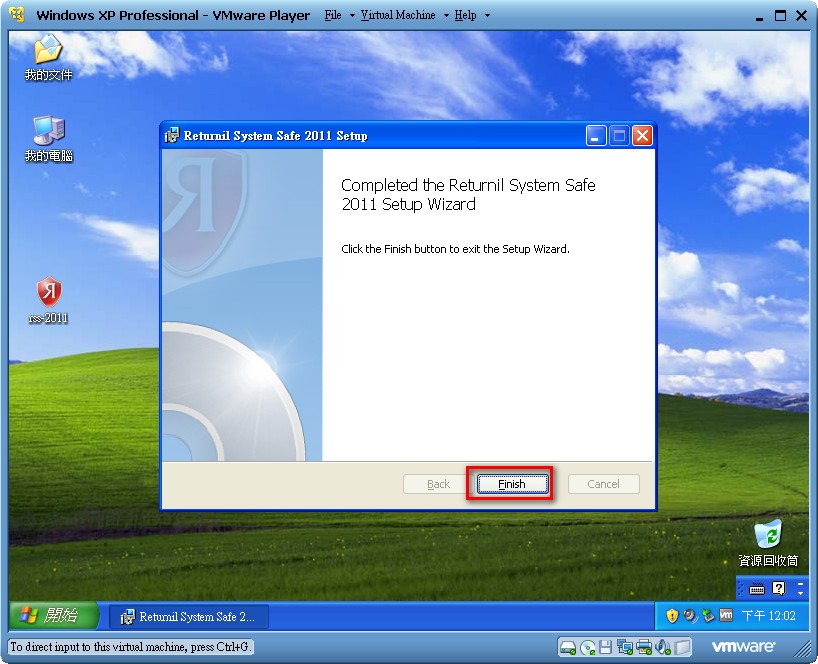
- The installation is complete. Click [Finish].
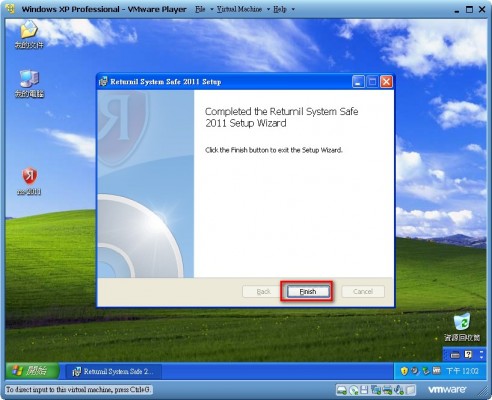
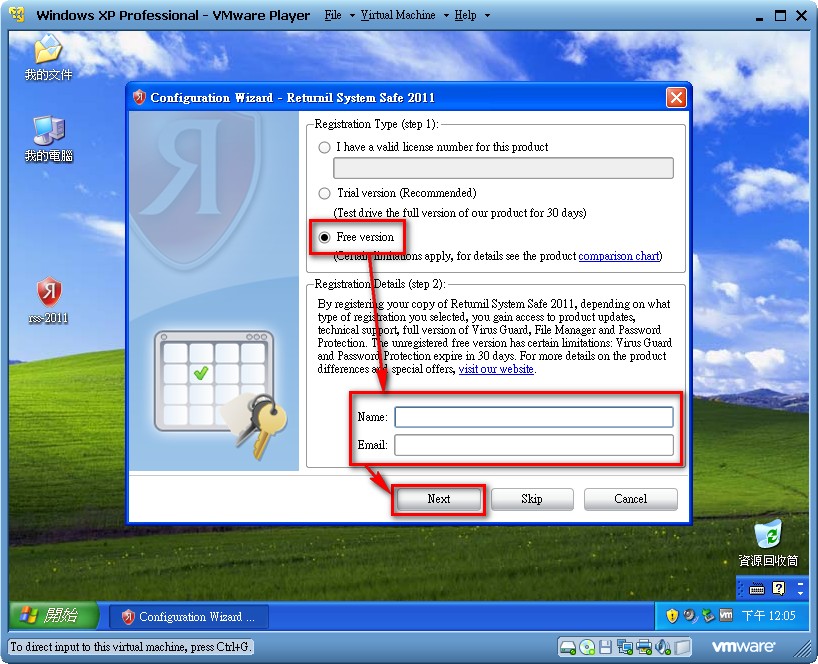
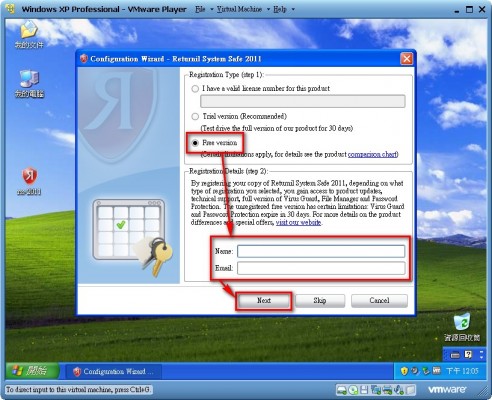
9. A window will open. Select [Free version], enter your name and email address below it (it’s best to enter your name in English), then click [Next].
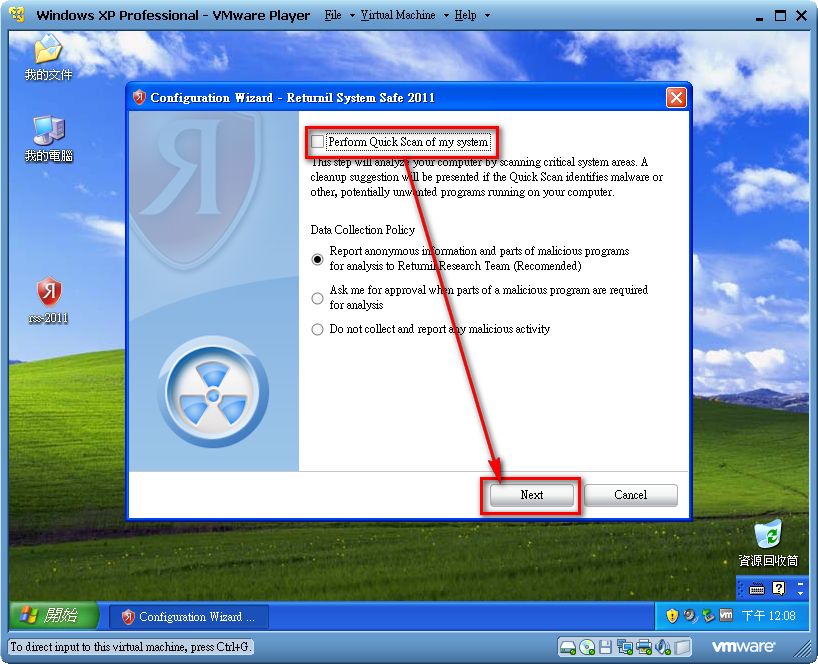
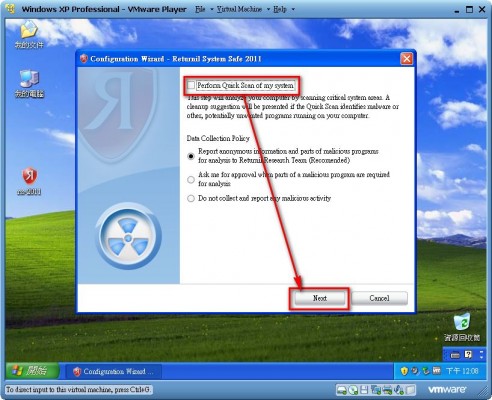
10. Uncheck [Perform Quick Scan of my system], then click [Next].
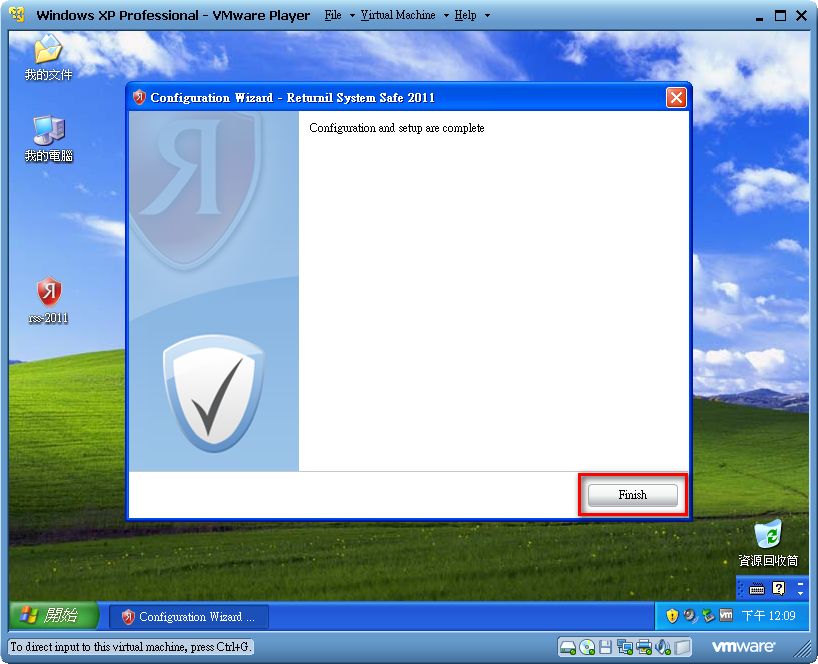
11. Click [Finish] and the whole installation is done.
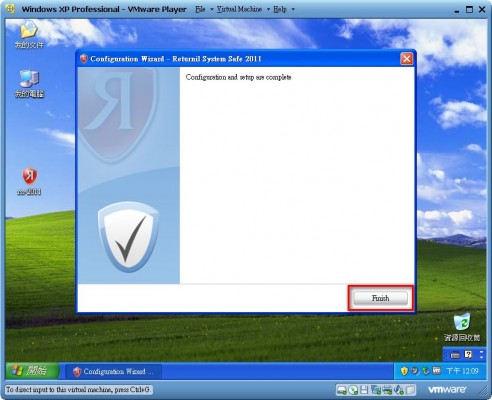
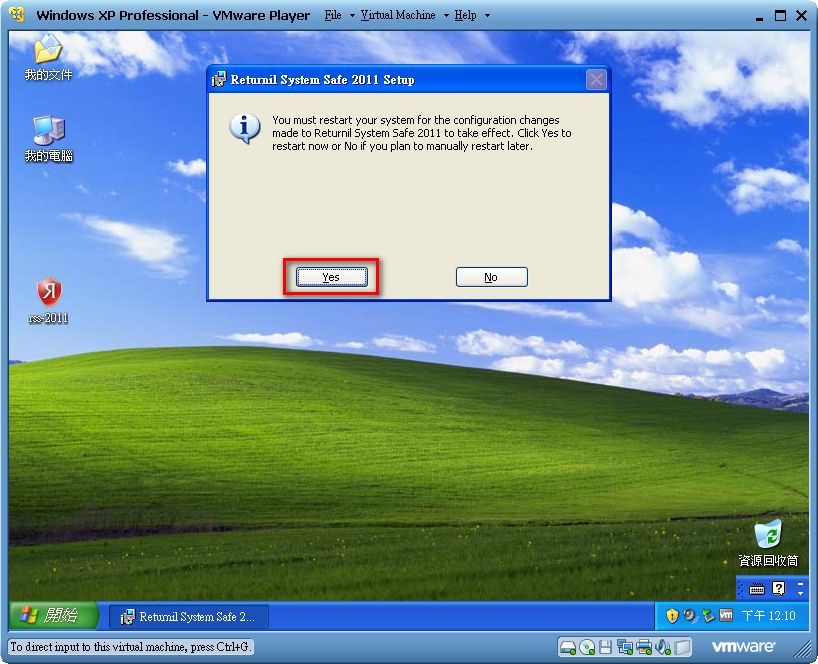
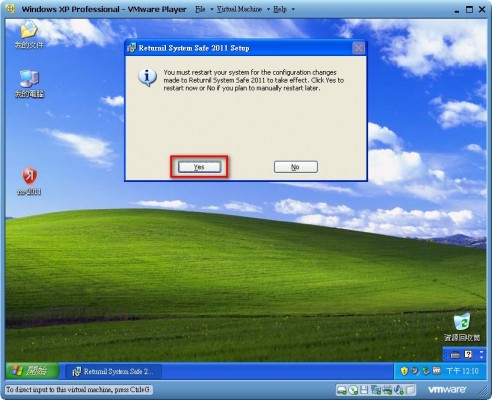
12. The system will ask you to restart. Click [Yes] to restart.
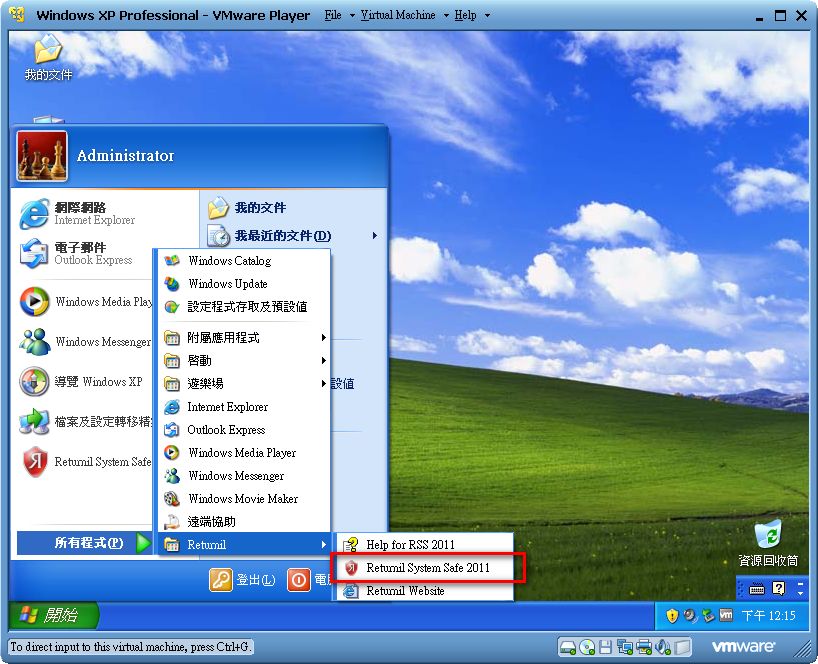
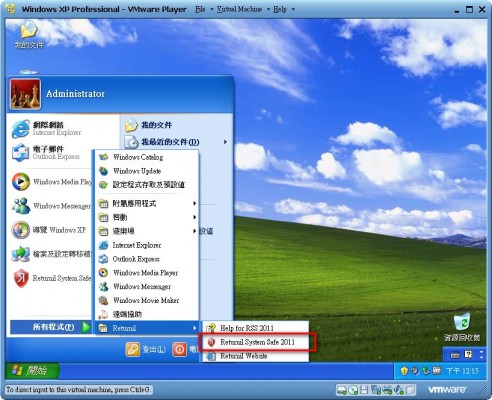
13. After restarting, go to [Start -> All Programs -> Returnil -> Returnil System Safe 2011] to run RVS.
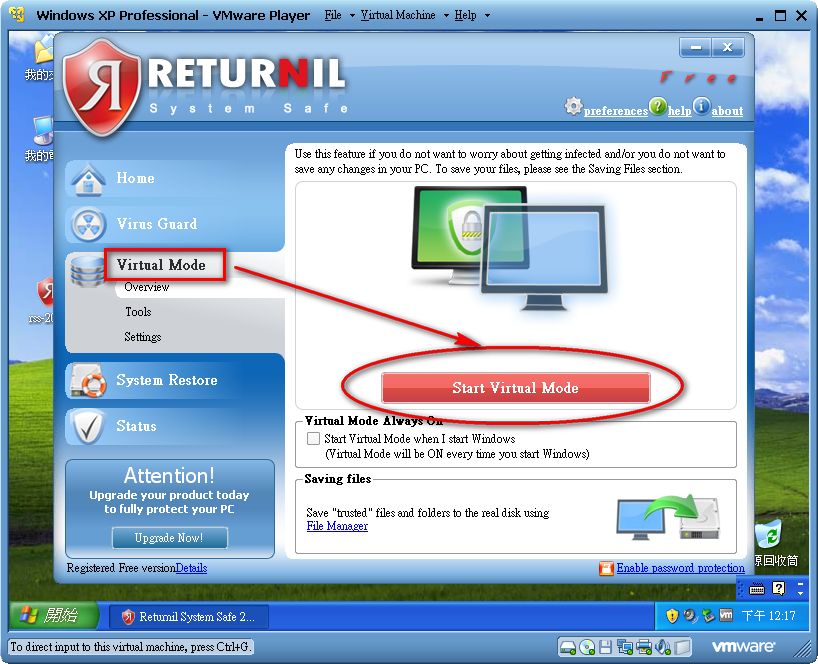
14. After opening RVS, select [Virtual Mode] on the right, then click [Start Virtual Mode]. This turns on the restore card simulation (shadow) feature.
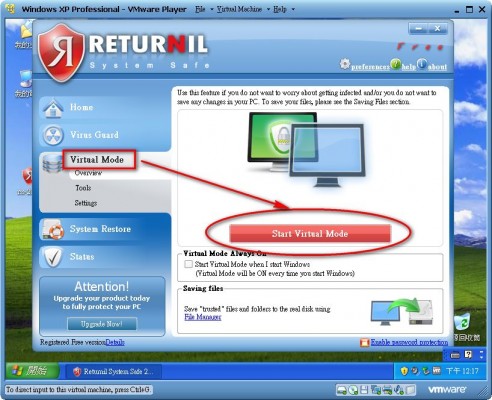
P.S. If you want restore card mode to be on every time you boot, check [Start Virtual Mode when I start Windows].
That’s the end of the tutorial~ Below is a video version of the installation and usage tutorial.