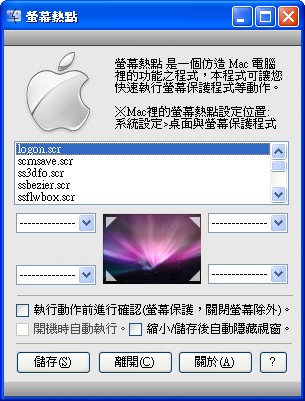
For now, Screen Hotspots can only be used for functions like logging out, shutting down, and turning off the screen. Cang Hai may add more features in the future, and anyone with suggestions for this program is welcome to leave a comment on this article.
Program Information
- Software name: Screen Hotspots
- Author: Jeremy (Cang Hai)
- File size: about 297KB
- Download links: Author's download | Xun6 | 4Shared | Box.net
- Virus scan report: VirusTotal
- MD5 hash: a4336cdd57fbc315706e83a40699655b
Screen Hotspots on the Mac Board (forum section)
Tutorial
1. First, download the file, extract it, and double-click the main Screen Hotspots program.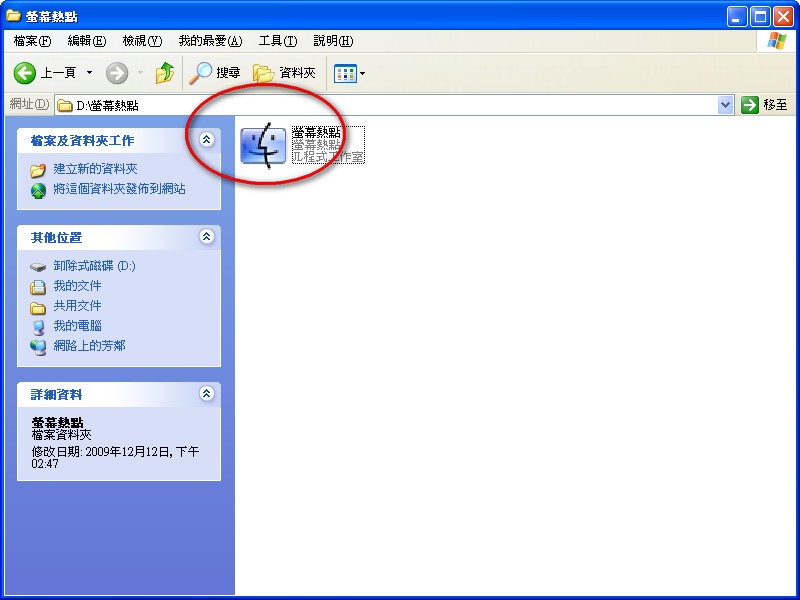
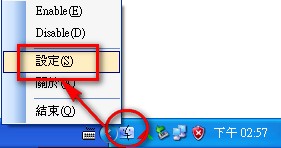
- By default, the program minimizes to the system tray (the lower-right corner of the screen). Right-click the logo and choose Settings to open the settings window.
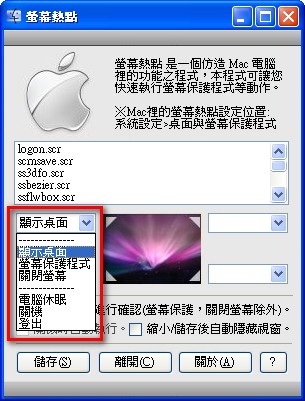
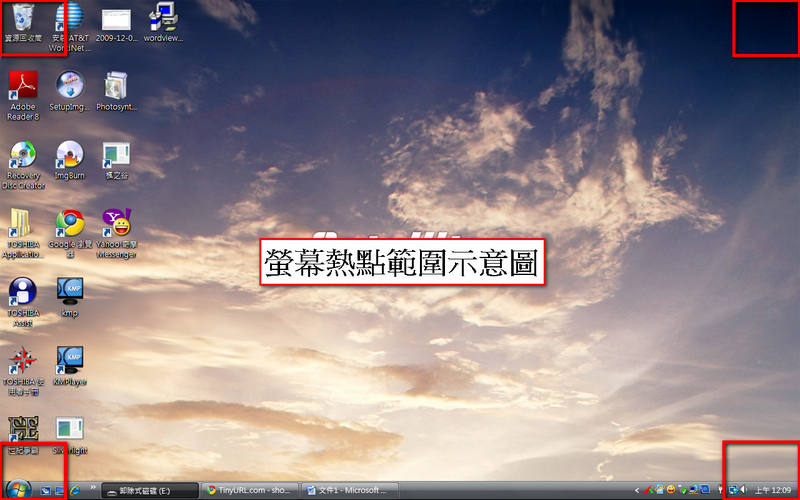
- Screen Hotspots can be set up in each of the four corners of the screen. In this example, I’ll use the upper-left corner. First, open the drop-down button at the upper left, then choose the action you want to run (log out, shut down, show desktop, screen saver, and so on).
- Next, decide whether to confirm before the action runs. Sometimes your mouse may happen to rest inside a hotspot, and if that hotspot is set to shut down, your computer will suddenly show a “shutting down” message XD
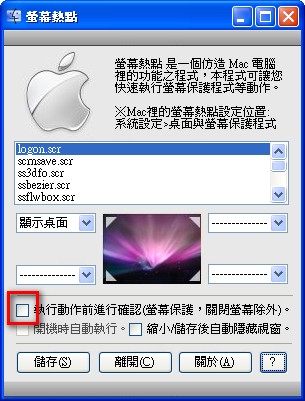
- After choosing whether to confirm, click Save. If the settings window doesn’t hide itself after saving, click the minimize button in the upper-right corner of the window to hide it. Whatever you do, don’t click the close button~
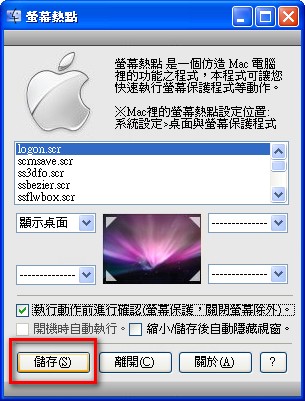
- After saving your settings, move your mouse to the upper-left corner and give it a try ^^
Summary: According to the site owner’s own testing, this program is quite useful, but it has some bugs. For example, the show-desktop feature works only some of the time when Chrome is open, and the turn-off-screen feature doesn’t work on older monitors. The program also has rather few features, so it can’t really be compared with mouse gestures yet. These shortcomings will have to wait until winter break to be fixed, because Cang Hai and I are both very busy right now. Cang Hai is attending cram school, and although I’m not in cram school, I still have to study, so I won’t have time to update the program until winter break.