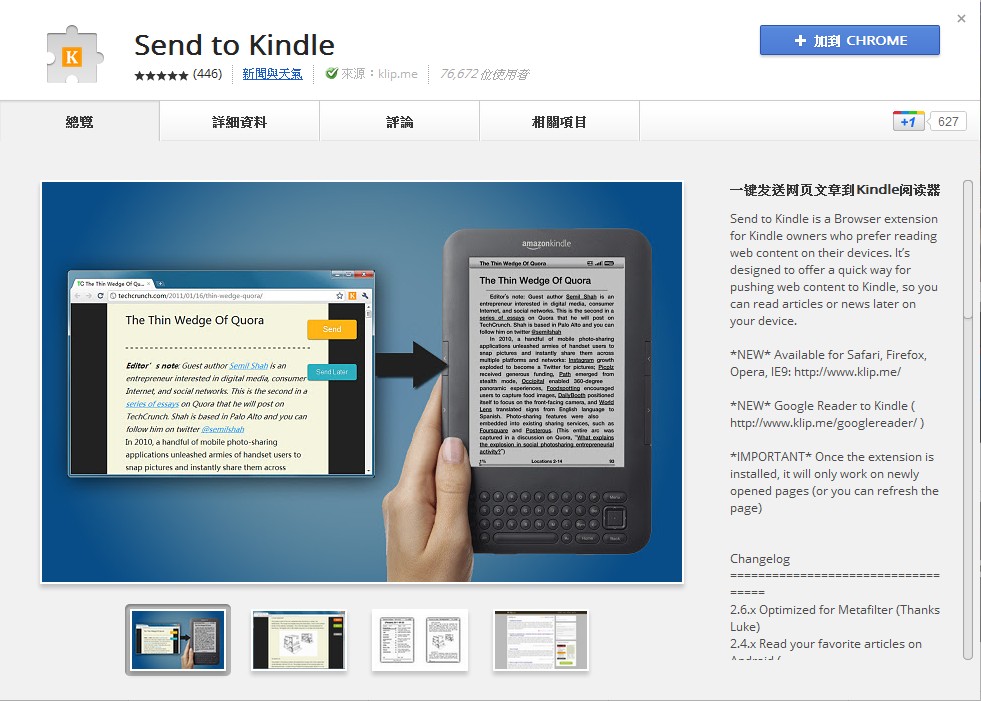
Send to Kindle is a Chrome extension that every Kindle user should install!! You often come across interesting articles or tutorials online. Some people bookmark them, others export them to PDF. If you have a Kindle, you have one more option: send the page to your Kindle. That’s exactly what the Send to Kindle extension does.
Send to Kindle delivers content to your Kindle by email, so you don’t need to connect the Kindle to your computer with a USB cable. You only need to turn on the Kindle’s internet connection. The extension also tidies up the page for you first, removing ads and keeping the important parts. You can also make one more round of edits yourself before sending.
Send to Kindle Information
- Official website: http://www.klip.me/
- Download page: Chrome WebStore
Setting Up and Using Send to Kindle
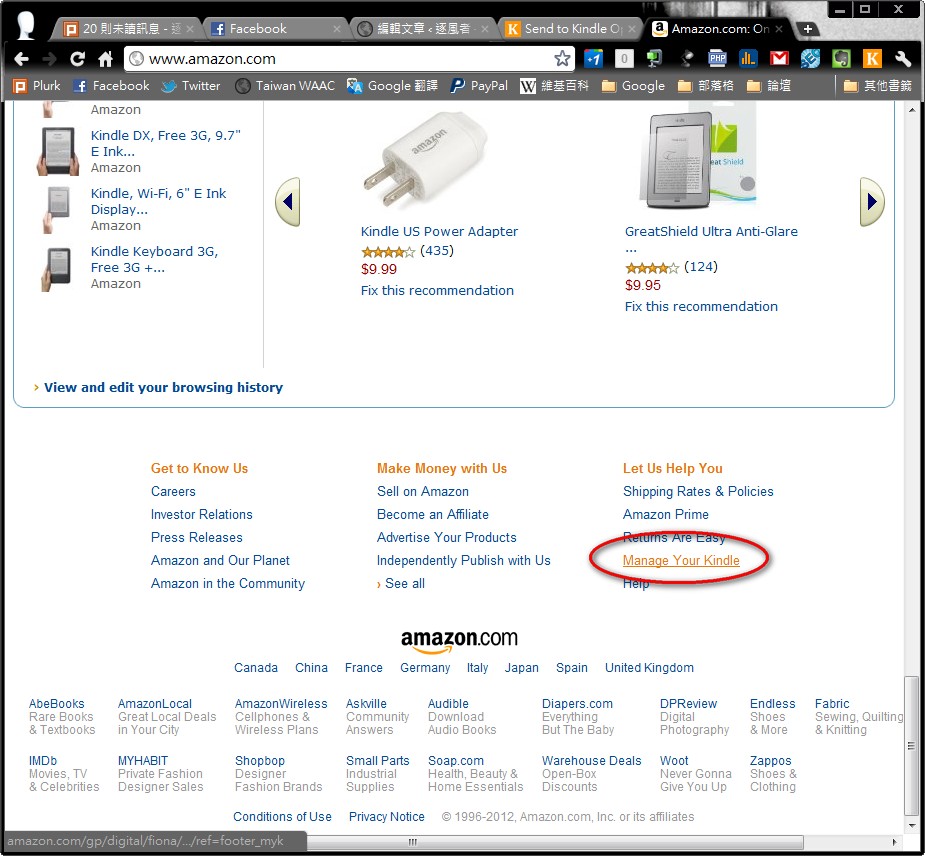
Installing Send to Kindle doesn't mean you can use it right away. You need to make some settings first.- Open the Amazon website. At the very bottom of the page you’ll find “Manage Your Kindle.”
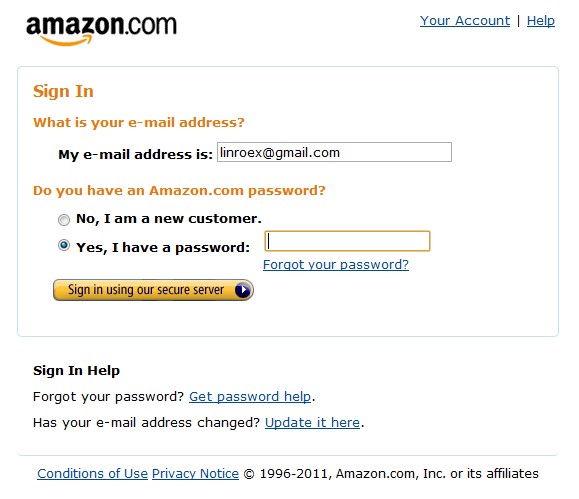
Log in to your Amazon account.
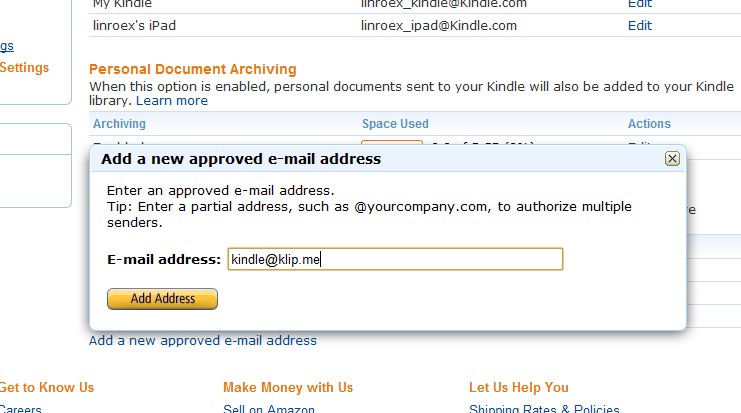
- On the left side of the page, find “Personal Document Settings” and click it. Then, under “Approved Personal Document E-mail List,” add a new address: kindle@klip.me
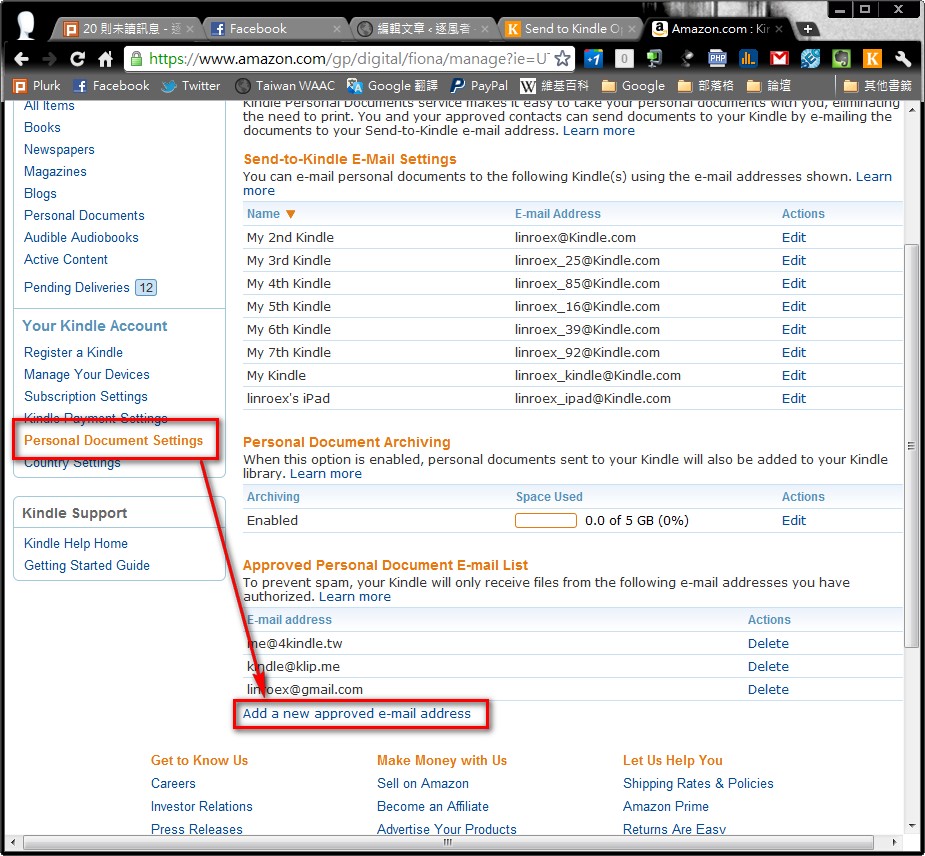
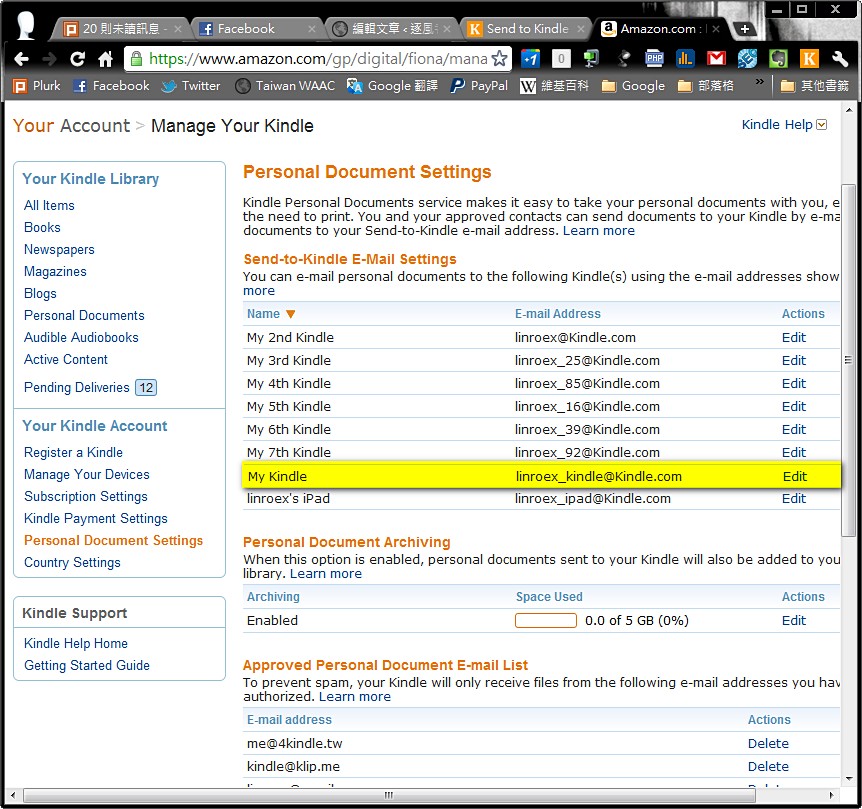
- Next, on the same page, look at the top for “Send-to-Kindle E-Mail Settings.” Find the email address your Kindle uses to receive files, and copy it.
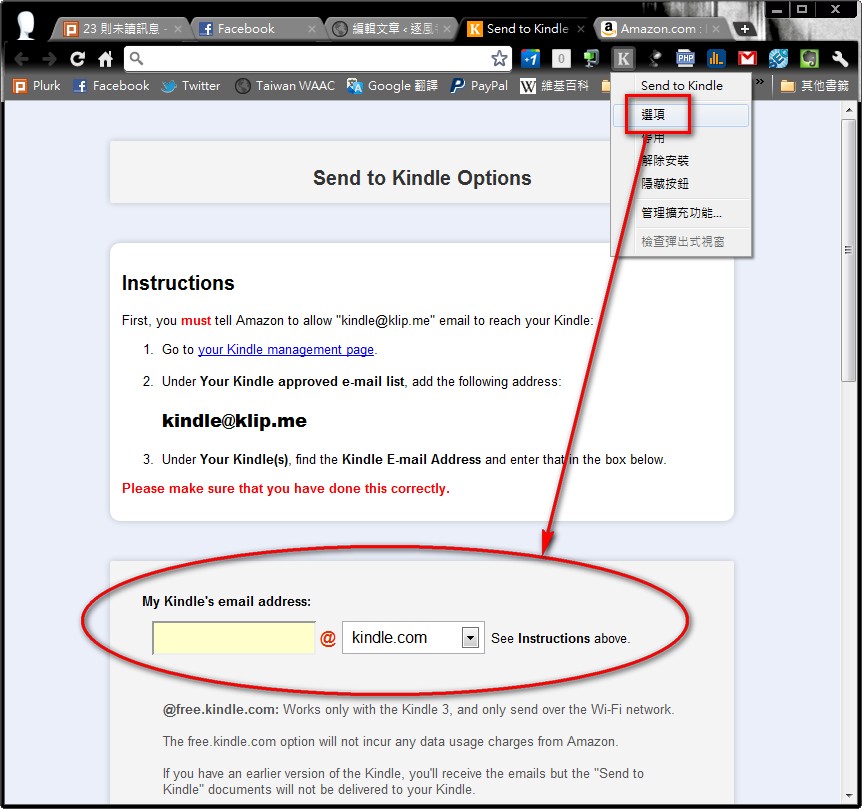
- Right-click Send to Kindle and choose “Options.” In the field “My Kindle’s email address:,” enter the address you copied earlier. Enter only the part before the @.
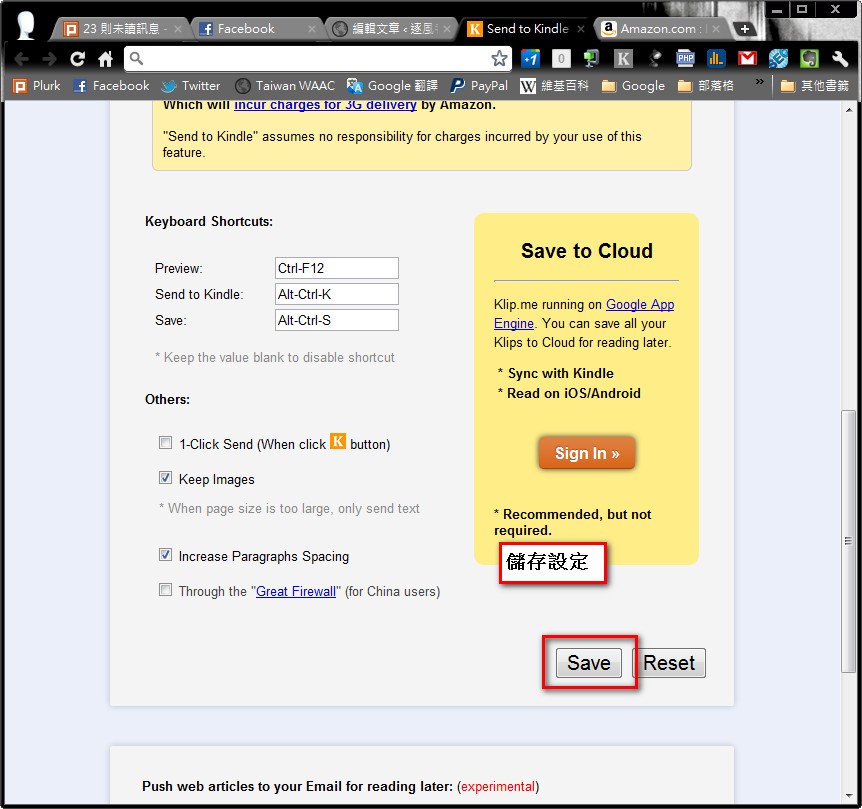
- After making the settings, click “Save” to save them (you may need to scroll down the page a little).
- Next, open the web page you want to send to your Kindle and click the Send to Kindle button. It automatically removes the unnecessary elements, and what you see on screen is what will be sent to your Kindle.
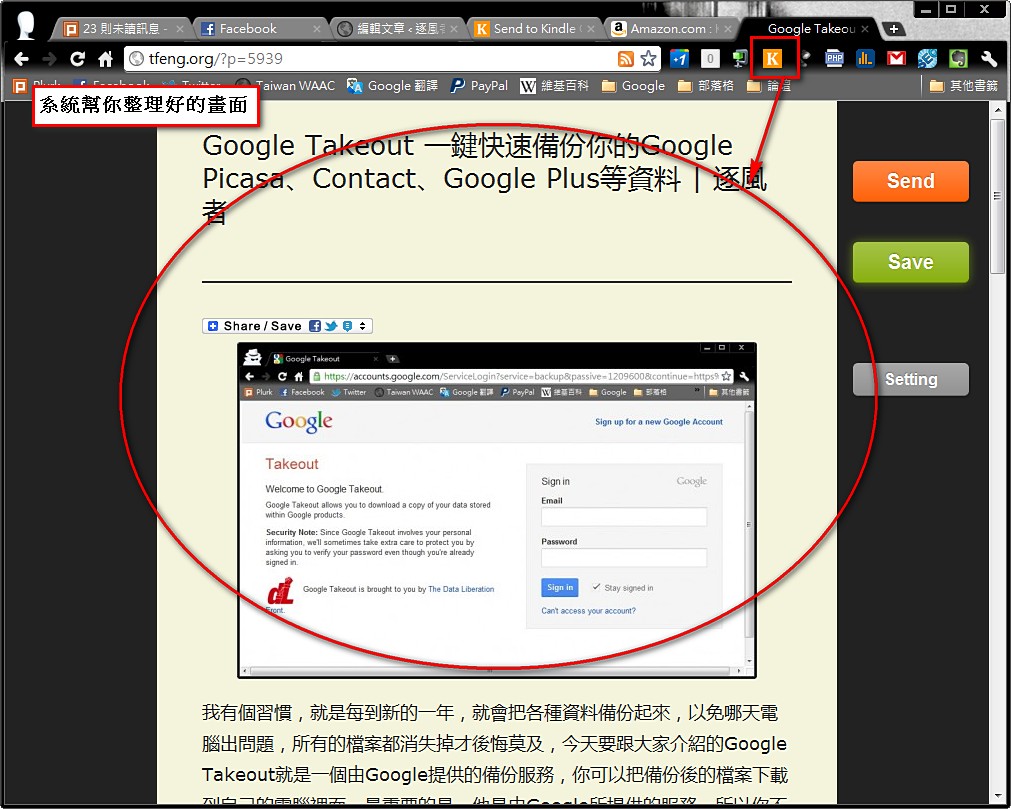
On this screen you can also make edits, such as adding some text. Just click the part you want to change. Think of it as a simple version of Word rather than a web page.
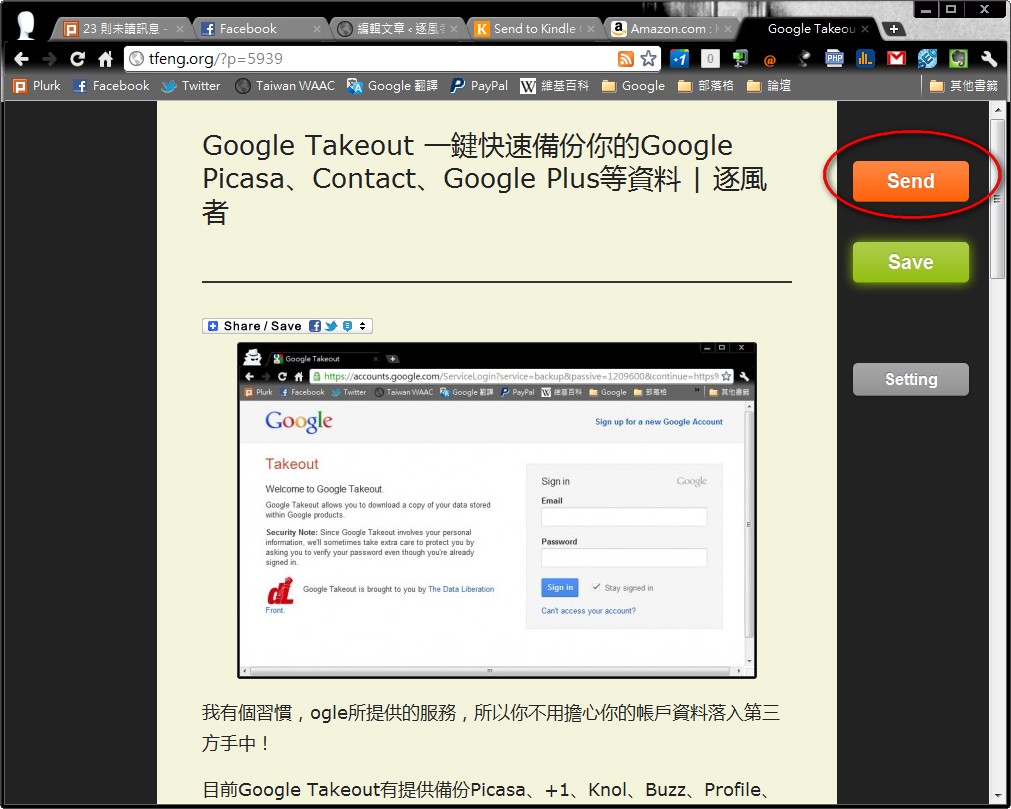
- Click Send, and it will be on its way. In my experience, it takes about 10 minutes to appear on your Kindle.
Also note that in some cases, sending files to a Kindle may cost money. For details, see: http://www.amazon.com/gp/help/customer/display.html?nodeId=200505520&#fees