
In the previous article, we introduced the TeamViewer program and showed how to make your own TeamViewer. In this article, we will show you how to use TeamViewer to make a remote connection with a friend.
Note: This site uses the official English version for the tutorial. Also, if the images are hard to see, you can click them to view the enlarged versions.
Download link: Official English download
1. Installation Guide
1. First, download the file, then double-click the installer.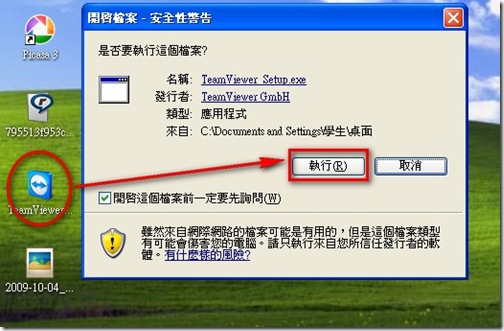
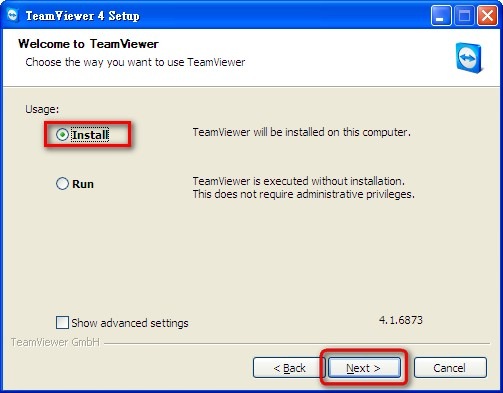
- Select Install, then click Next.
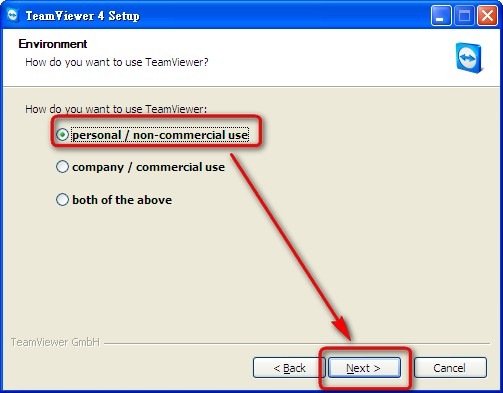
- Select the first option (personal……), then click Next.
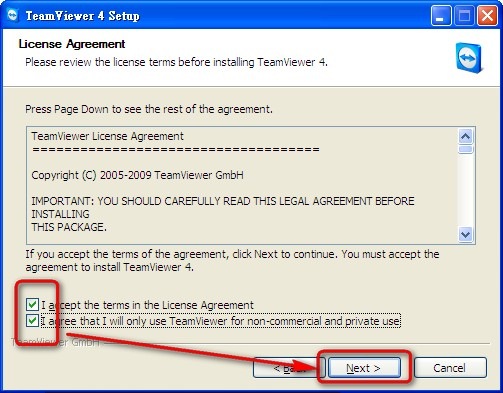
- This is the license agreement. There is basically nothing worth reading, so just check the two options.
- You do not need to change the next few screens. Keep the default values.
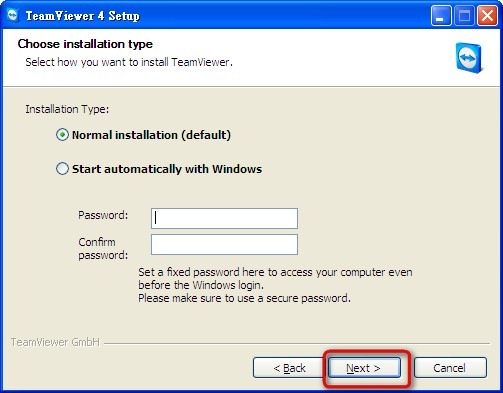
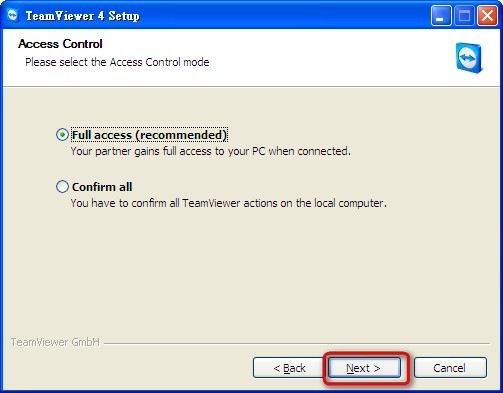
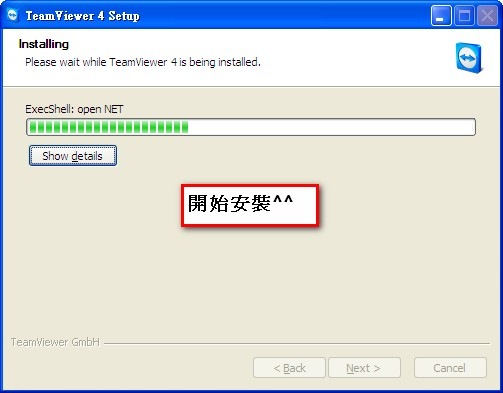
- The installation starts now. Just wait a moment.
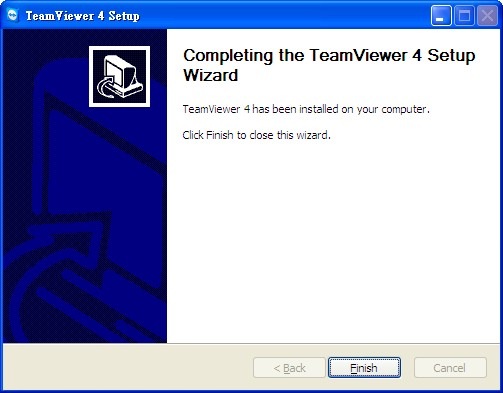
When this screen appears, the installation was successful ↓↓↓
2. Configuration Guide
I hope everyone has installed TeamViewer from the previous section! After installation, we need to make a few basic settings to make it more convenient to use.- Click “Extras” → “Options” in order.
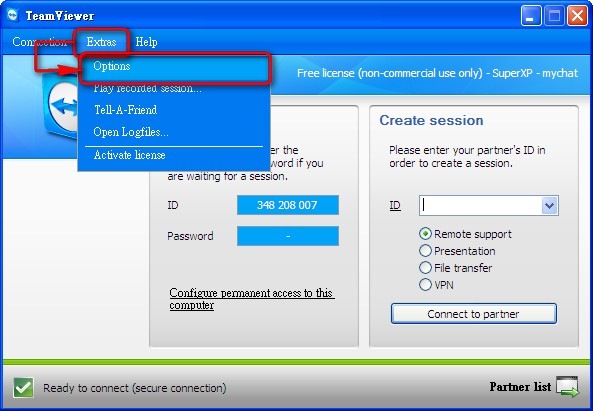
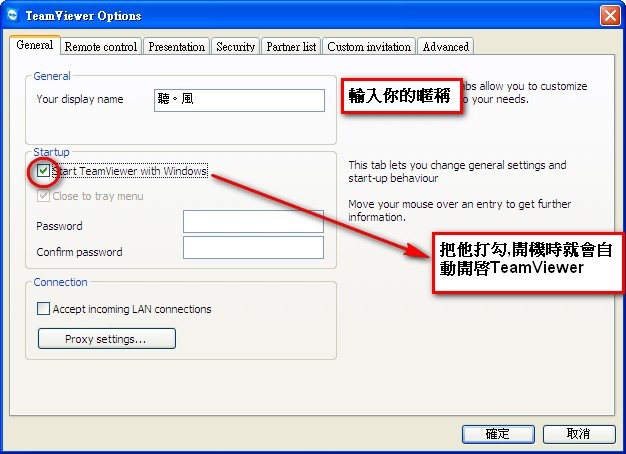
- In the General section, enter your nickname, and in the Password field, enter the password you want. When someone connects to you, they will need to enter this password.
After setting the name and password above, switch to the Security tab and check both options under General. This prevents others from messing with your computer’s settings.
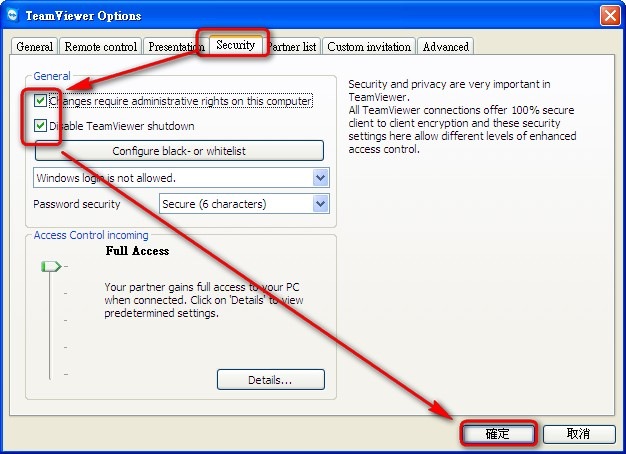
Once you have made these settings, click OK to save the data.
3. Remote Connection Guide
Phew~ Now we finally get to the main topic: how to use TeamViewer to remotely control someone else's computer! First, get the ID and password of the controlled computer. Then enter the ID in the ID field under Create Session, and click Connect to partner.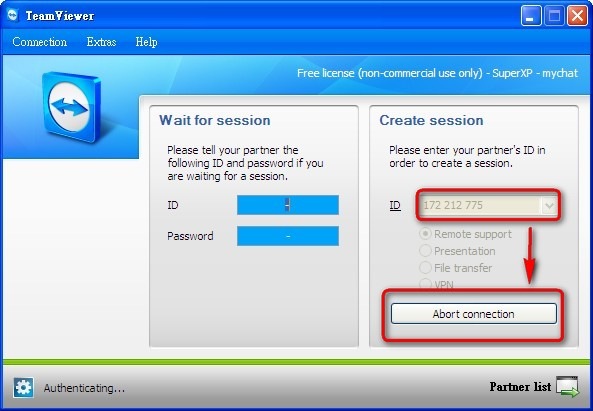
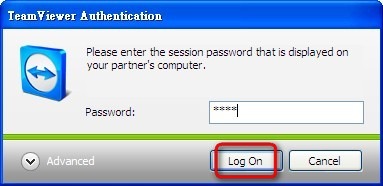
Next, a password input window will appear. Enter the password the other person gave you (not your own password), then click Log On.
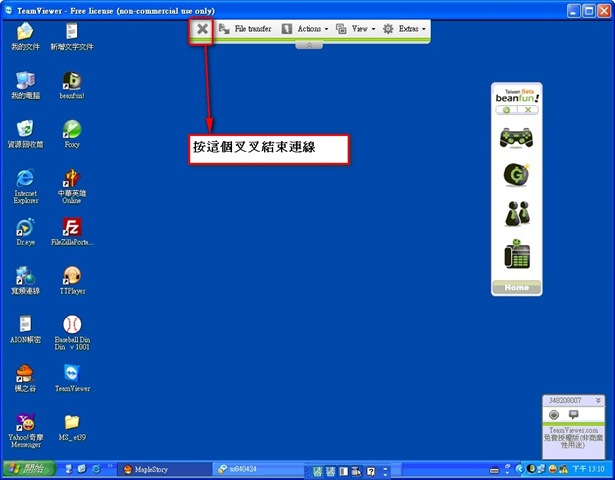
OK~ Success! You can now see the other person’s desktop. Go ahead and move the mouse!
How do I get the ID and password?
For the password, the second section showed you how to set it yourself. Just give that password to the other person. As for the ID, you will see it as soon as you open the program.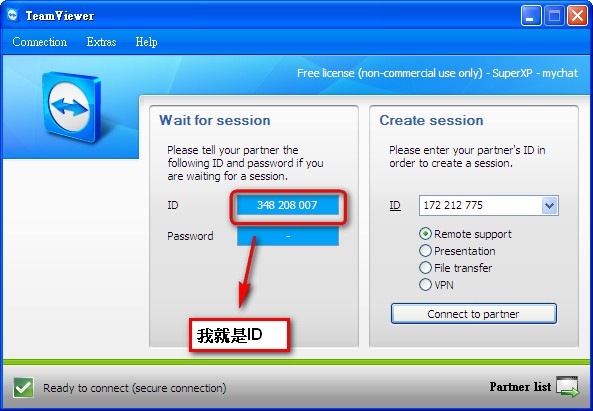
Afterword: Besides the features covered above, TeamViewer has many other ways to use it that you can explore on your own, such as the recording feature in the new version. This article only covers the most commonly used features. Some people may ask why I did not use a Chinese version of the program for the tutorial. The reason is simple: Chinese versions come in many editions, and each person’s translation is different. And since everyone already uses the Chinese program, there is nothing much to explain.