I back up my data regularly. I copy my Google, Facebook, and Evernote data, photo albums, and more to Google Cloud Storage. Uploading through the browser always meant dealing with slow speeds, and if the connection dropped, I had to resend a 10 GB file from the beginning. So I read through the official documentation and found some handy tips for uploading large files to Google Cloud Storage, which I’m sharing here.
This post covers:
- How to have GCP Storage verify a file's MD5 checksum
- How to enable resumable uploads, so a dropped connection doesn't mean starting over
- How to push your upload speed to the limit with parallel transfers
If you need to send truly enormous amounts of data, say 10 TB, network transfer may actually be slower than shipping physical media. In that case, consider the Offline Media Import / Export service that Cloud Storage offers. It’s similar in spirit to AWS’s truck-based transfer service for S3, only more modest.
First, no matter what you’re doing, install gsutil. It’s the command-line tool built specifically for Google Cloud Storage, with lots of handy features hidden inside. Nothing a browser upload can match!
For installation instructions, see this official document: Install the latest Cloud Tools version
Once it’s installed, run the following in Terminal to confirm that installation and configuration worked:
gsutil ls gs://{Your Bucket Name}Uploading Files with gsutil and Resumable Uploads
When you upload a file larger than 8MB with gsutil, resumable uploads work by default. No extra parameters needed! If the connection drops partway through, just run the same command again, and it will pick up where it left off.gsutil cp -r src_url dest_urlTo upload a folder, add the -r option.
Examples:
gsutil cp ~/Documents/facebook.zip gs://backup-bucket/2016-10-10

gsutil cp ~/Documents/*.zip gs://backup-bucket/2016-10-10

gsutil cp -r ~/Documents/ gs://backup-bucket/2016-10-10
Also, if you swap the two path arguments in the cp command, it becomes a download.
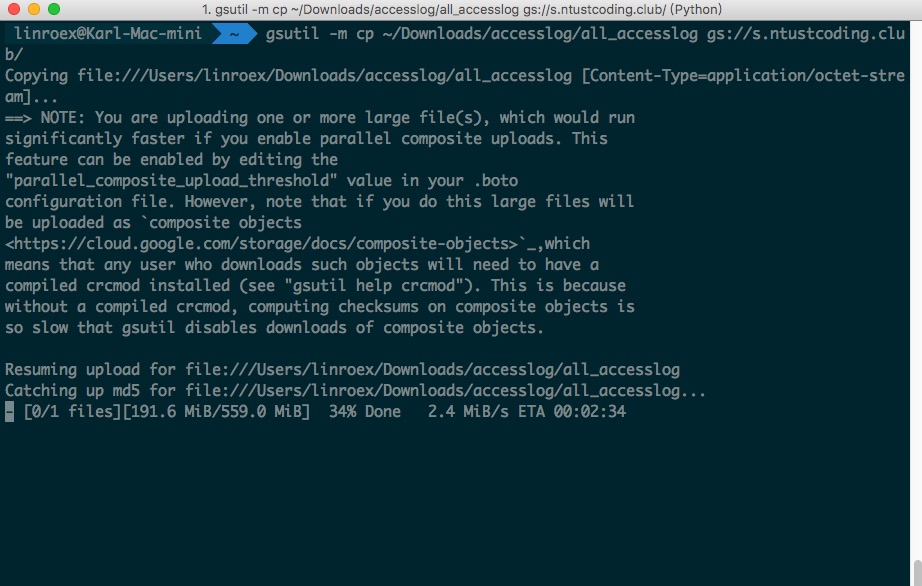
Reference: Google Cloud Storage Official Docs - gsutil cp
Squeezing Out Upload Speed with Parallel Transfers
First, if you want to upload many files (note: not one large file), add the -m option right after gsutil. gsutil will then upload files using multiple threads, which helps a lot when you have many small files.Note: put it after gsutil, not after cp!
gsutil -m cp Downloads/fb.zip gs://backup/2016-10-10
For a single large file, you can use parallel_composite_upload_threshold to split the file into pieces and upload them. For example, with a 10 GB file, the following command splits it into ten pieces for upload, which also helps upload speed to some degree.
gsutil -o GSUtil:parallel_composite_upload_threshold=1000M cp ~/Downloads/all_accesslog gs://backup/
Verifying File Integrity
With MD5, you can verify that the file you uploaded to GCP Storage is complete. Compute the checksum locally first, then have the server compute one again after it receives the file. If the two match exactly, the file is intact. This prevents the nightmare of thinking you have a backup, only to discover that an unstable connection dropped part of the file and it can't be restored.You can compute the file’s checksum (base64-encoded) with the following command. Note that if you upload with parallel_composite_upload_threshold, you can only use the CRC32C checksum.
gsutil hash ~/Downloads/apache.log
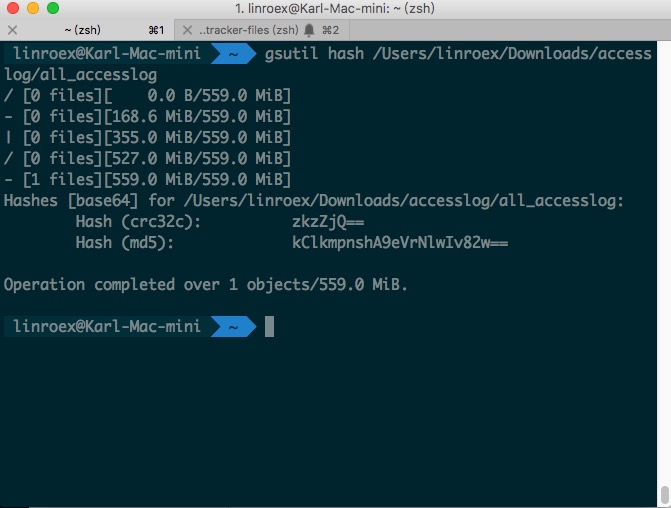
Once you have the checksum, you can attach it as a header when uploading with the following command. After the upload finishes, GCP Storage automatically checks whether the checksums match.
gsutil -h Content-MD5:kClkmpnshA9eVrNlwIv82w== cp fb.zip gs://backup/