Gmail is my favorite email service, and there are plenty of reasons why. The main one is simple: Gmail’s spam filtering is very accurate. I’ve never seen Gmail mark a real email as spam. I’ve been using it for more than two years, and spam has never worried me. Gmail’s storage isn’t unlimited like Yahoo’s, but it keeps growing. In fact, the current capacity is so large that you won’t use it up in a lifetime, so there’s no need to worry about a full inbox. Login page: http://mail.google.com/mail
Top 10 advantages of Gmail:
- Supports POP3 mail retrieval
- Filters
- Can be extended with other features (for example, as online storage)
- Very accurate spam detection
- Automatic email forwarding
- Changeable themes
- Mobile access
- Convenient email sorting
- Conversation stacking (emails from the same sender are grouped together)
- Nearly 8G of huge storage
- Create a Gmail account
- Send email and attach files
- Use Gmail labels (for organizing)
- Set up an auto-reply
- Add a signature
- Change the theme
- Change your display name
1. How to Create a Gmail Account
1. Go to the Gmail sign-in page and click the big Create account button.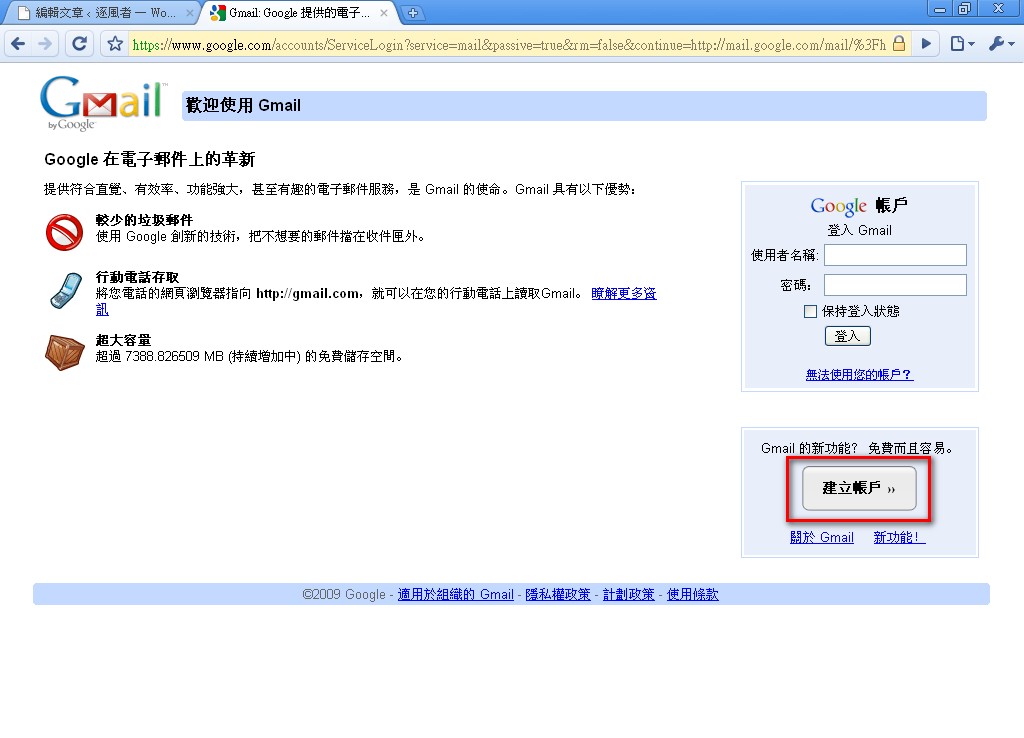
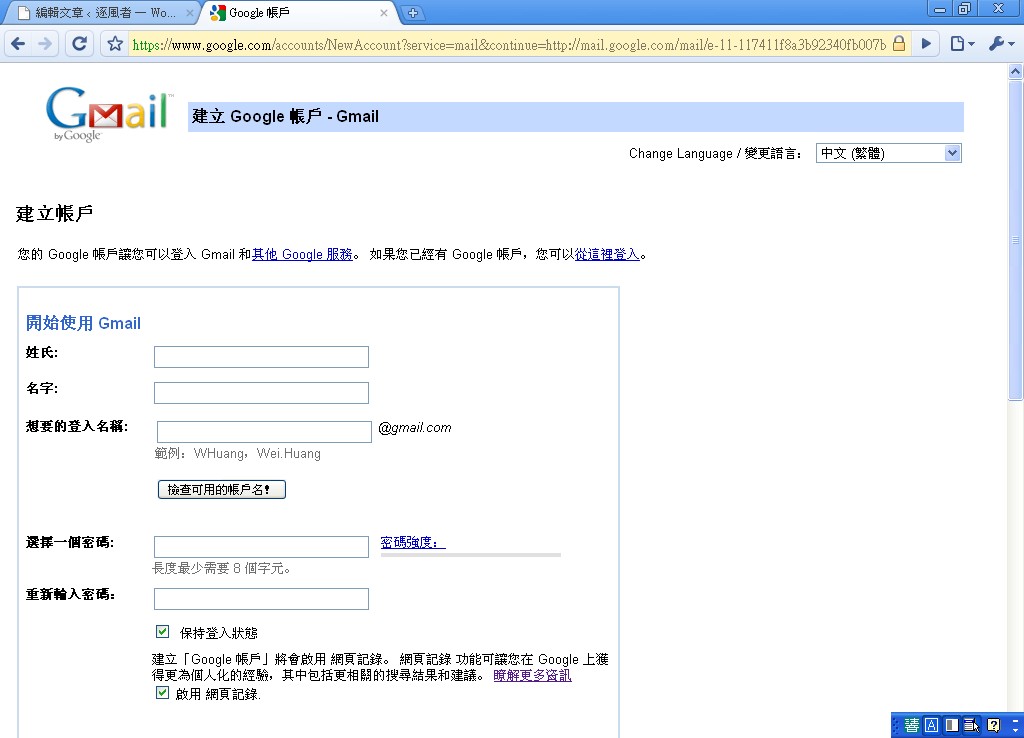
- Fill in your details. The username you want becomes your account name. After you enter your information, don’t forget the verification code. Then click [I accept. Create my account].
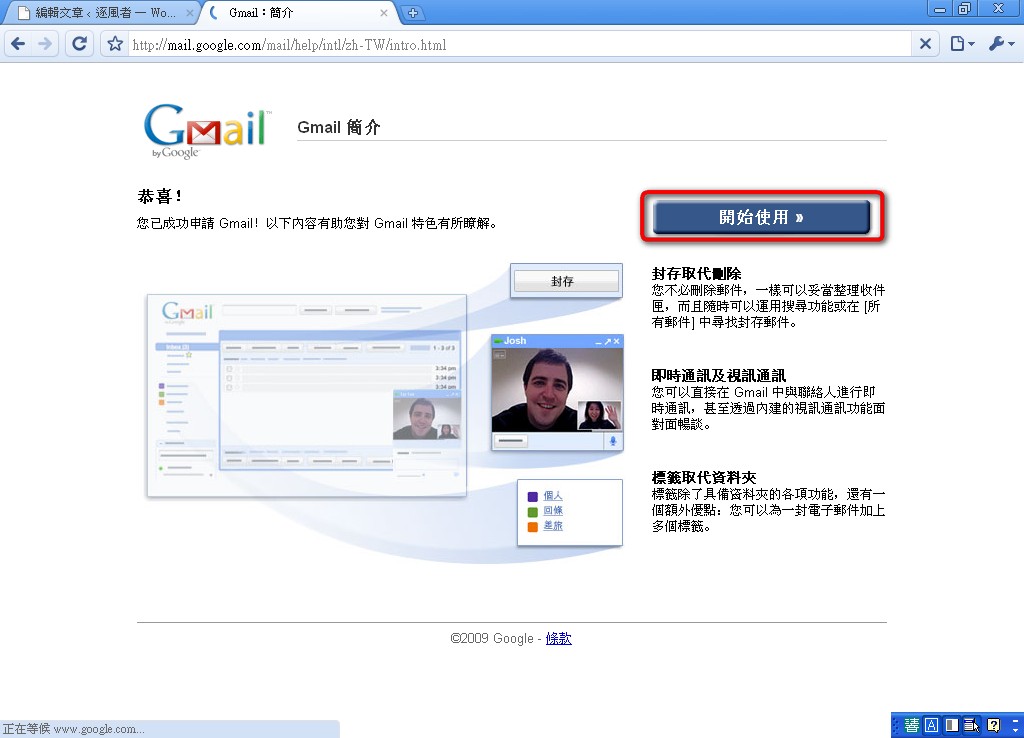
- If the screen below appears, your account has been created. Click [Get started] to enter Gmail.
.
2. Sending Email with Gmail
The first time you use Gmail, you might have trouble finding where to compose an email, because the option is text rather than a button, so it isn't very obvious. Here's how to send an email with Gmail!- Click [Compose] in the upper left.
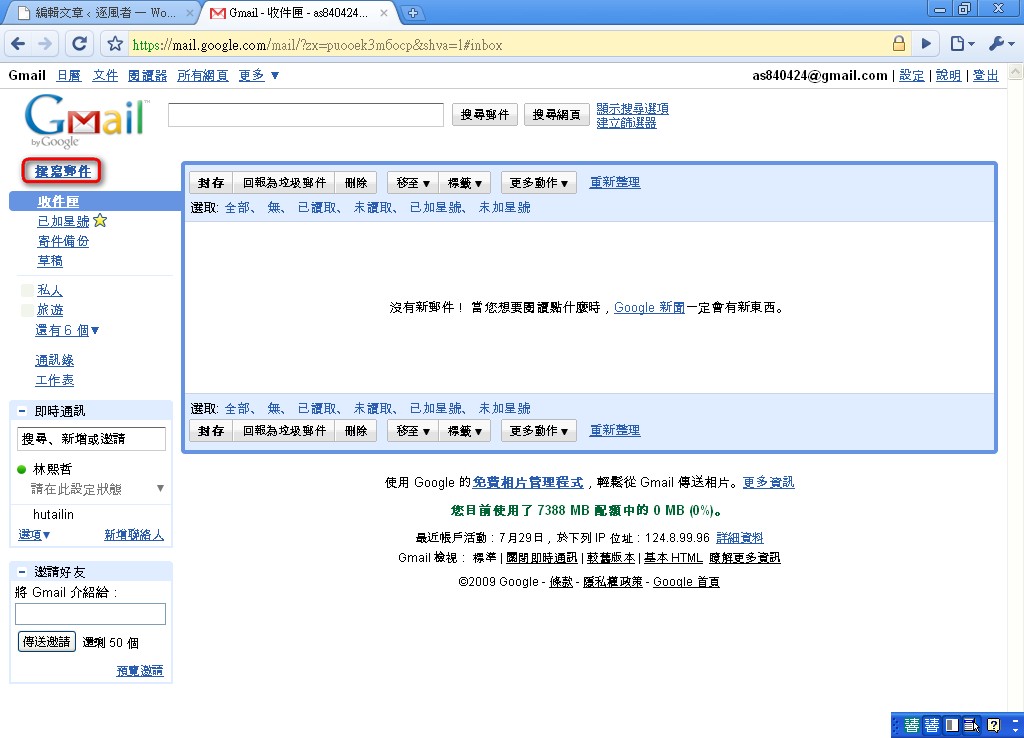
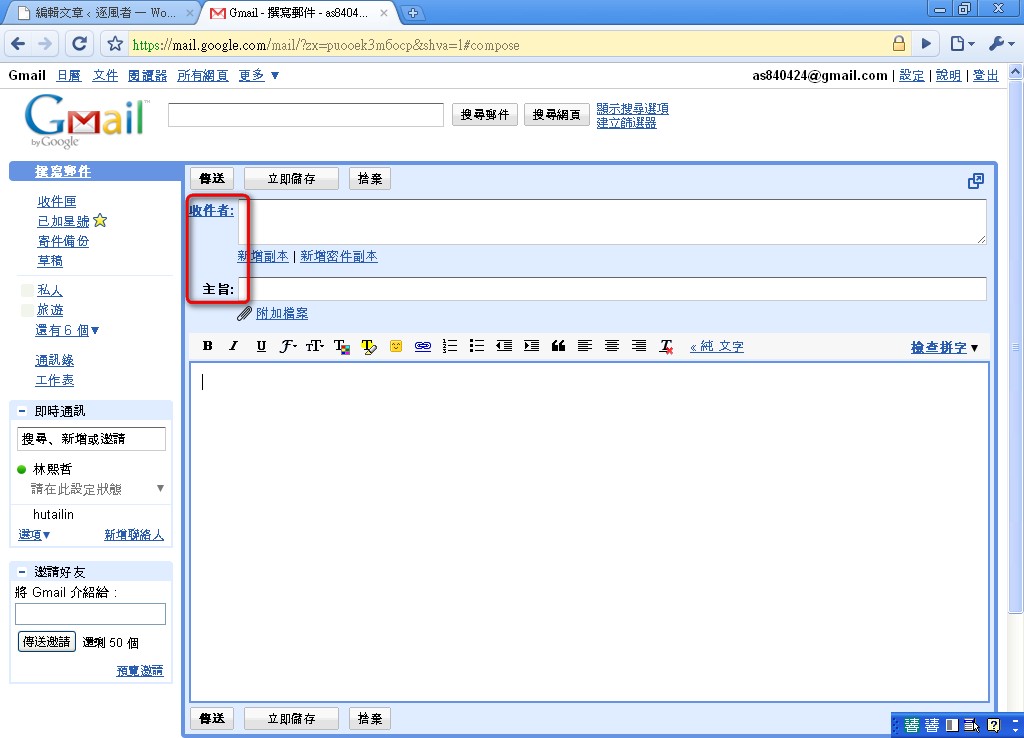
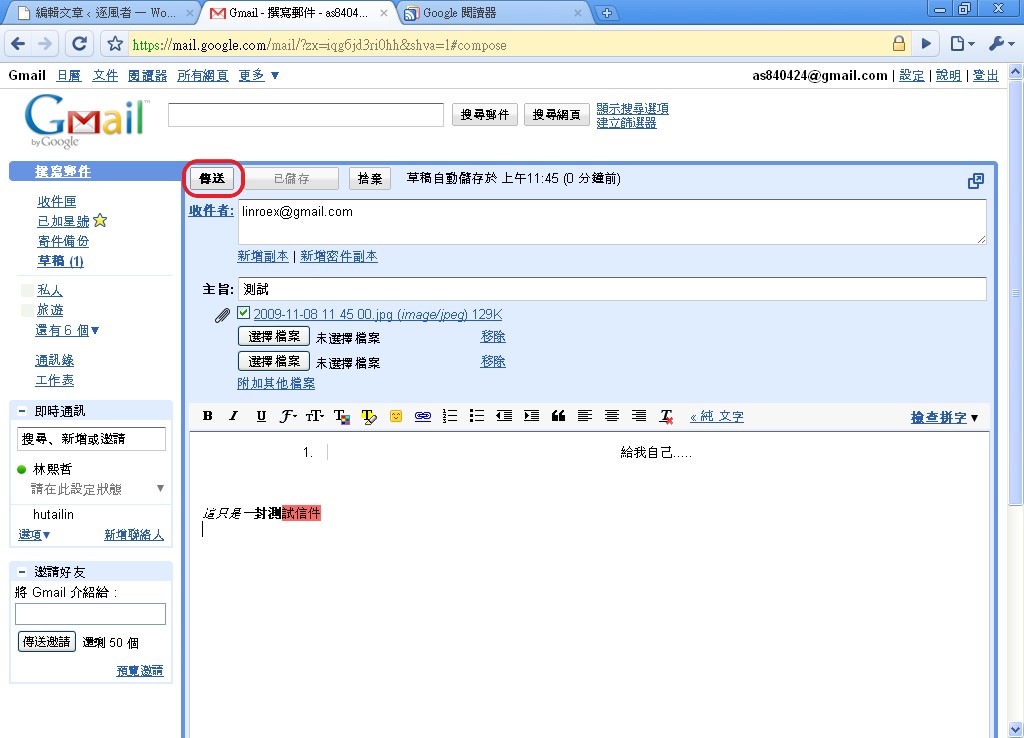
- Next you’ll see the compose window you’re probably familiar with. Type the recipient’s address in the [To] field. To send to several people at once, separate the addresses with commas (,). Then type a subject in the [Subject] field.
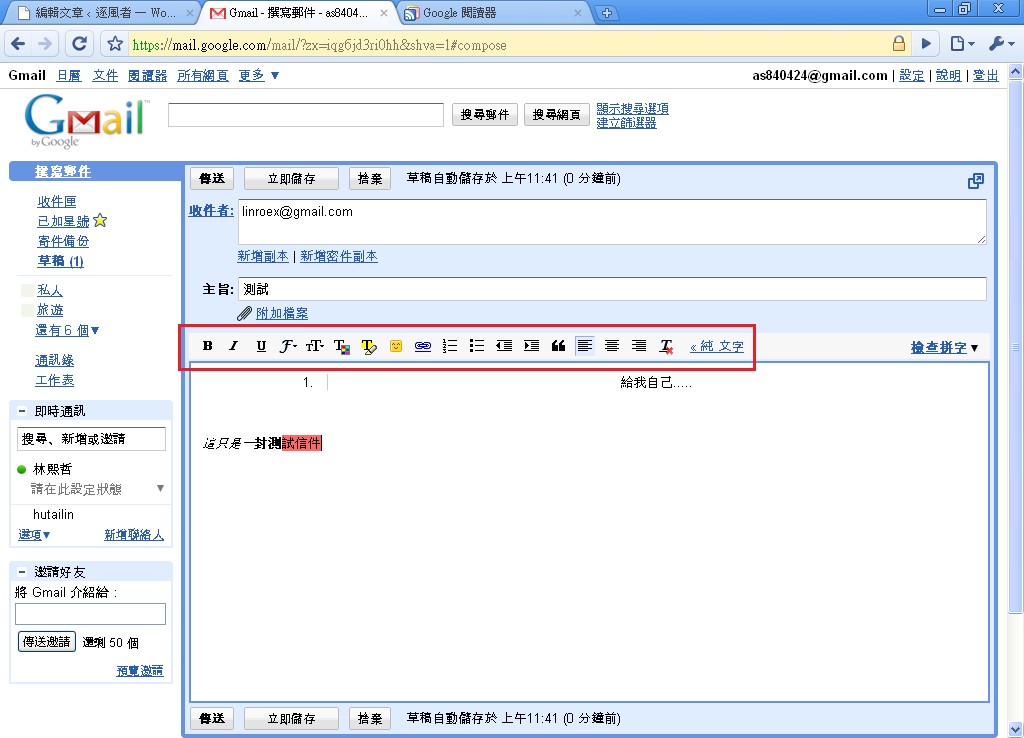
- Now write your message. Gmail has a very handy editor, so you don’t have to deal with the HTML yourself. You can create all kinds of effects right in Gmail’s editor (bold, italic, text color, and so on).
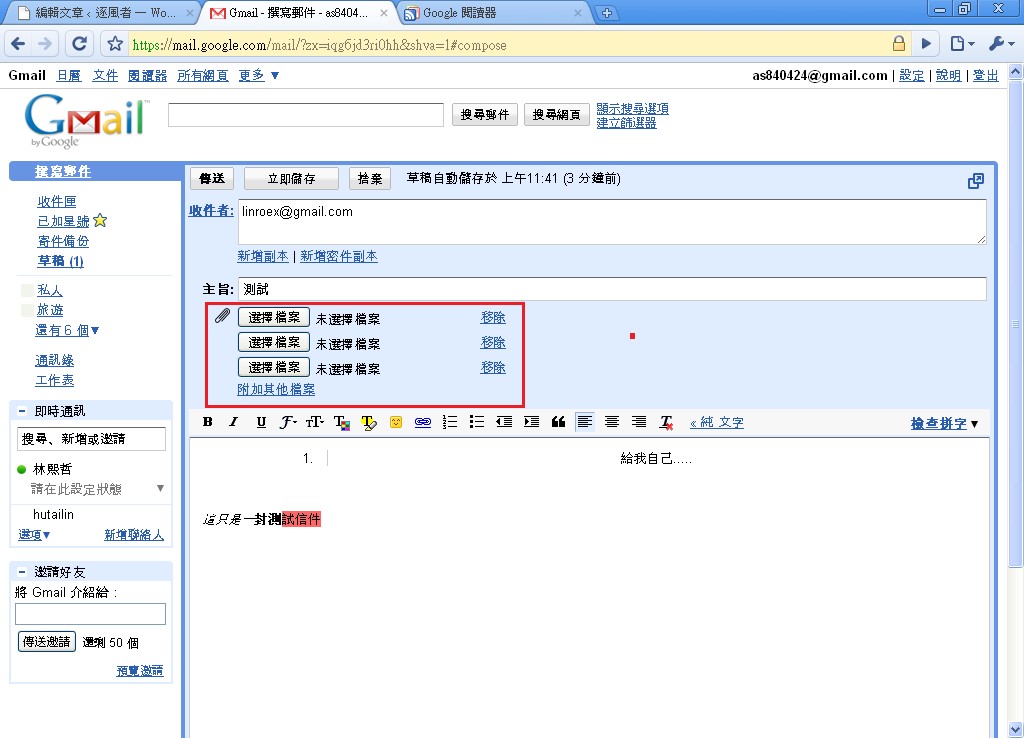
- You can also click [Attach files] below the subject and select the files you want to include. I believe the limit is 5M per file.
- When you’ve finished writing, click [Send], and it’s on its way.
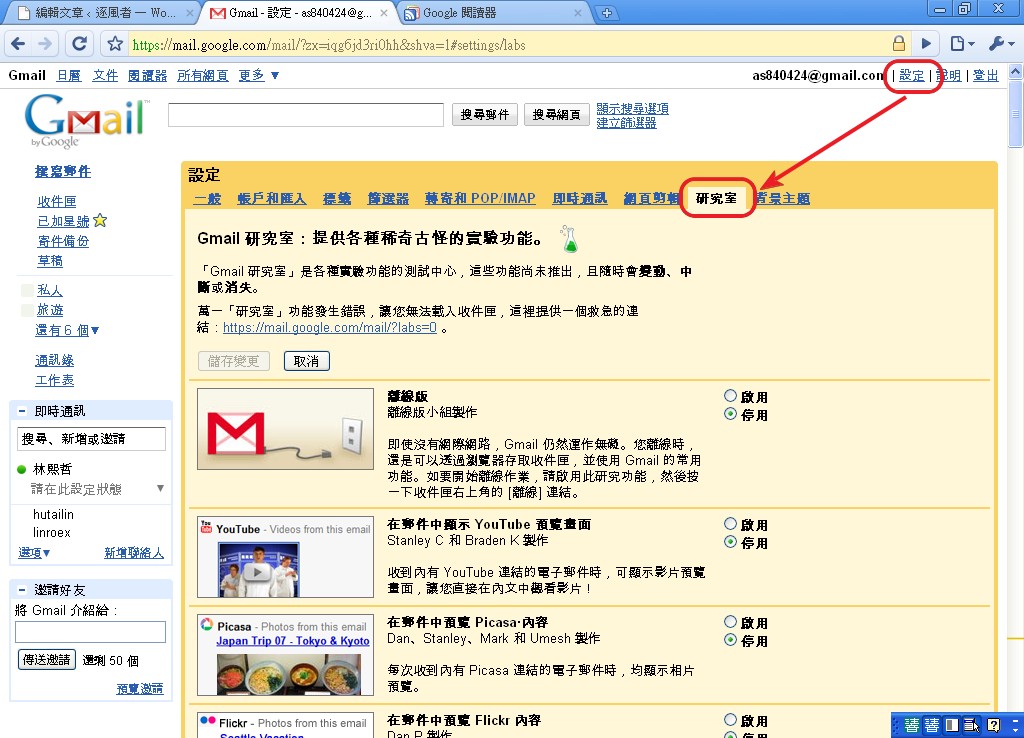
- Gmail itself doesn’t offer a way to insert images, but you can check Gmail Labs. I remember there’s a feature for it. The detailed steps are:
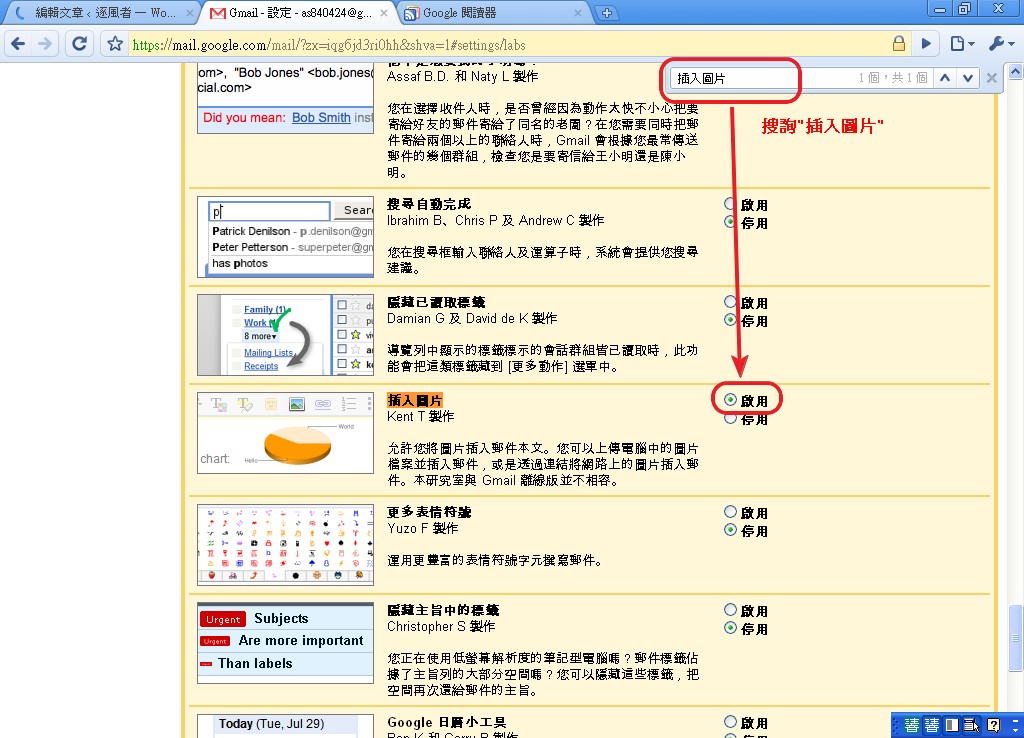
Click [Settings] → [Labs], then use search (Ctrl+F) to find the [Insert image] feature. Change its setting from Disable to Enable, and finally click [Save Changes].
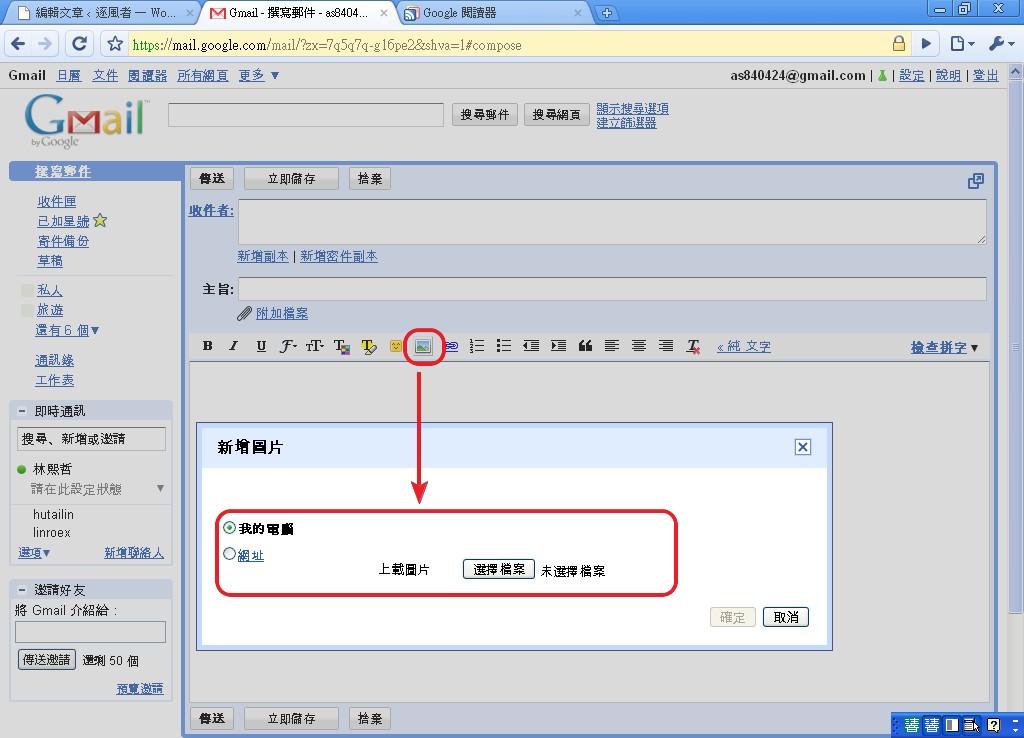
Now go back to composing an email, and you’ll see a new Insert image button in the editor.
3. Gmail Labels
Gmail's built-in labels, combined with filters, make it easy to organize your mail. I sorted thousands of emails in only 10 minutes. Let me show you how to use labels.I. Creating a label:
Of course, the first step is to create a label to use!- Click [Settings] → [Labels], then scroll down to the [Labels] section (not the system labels).
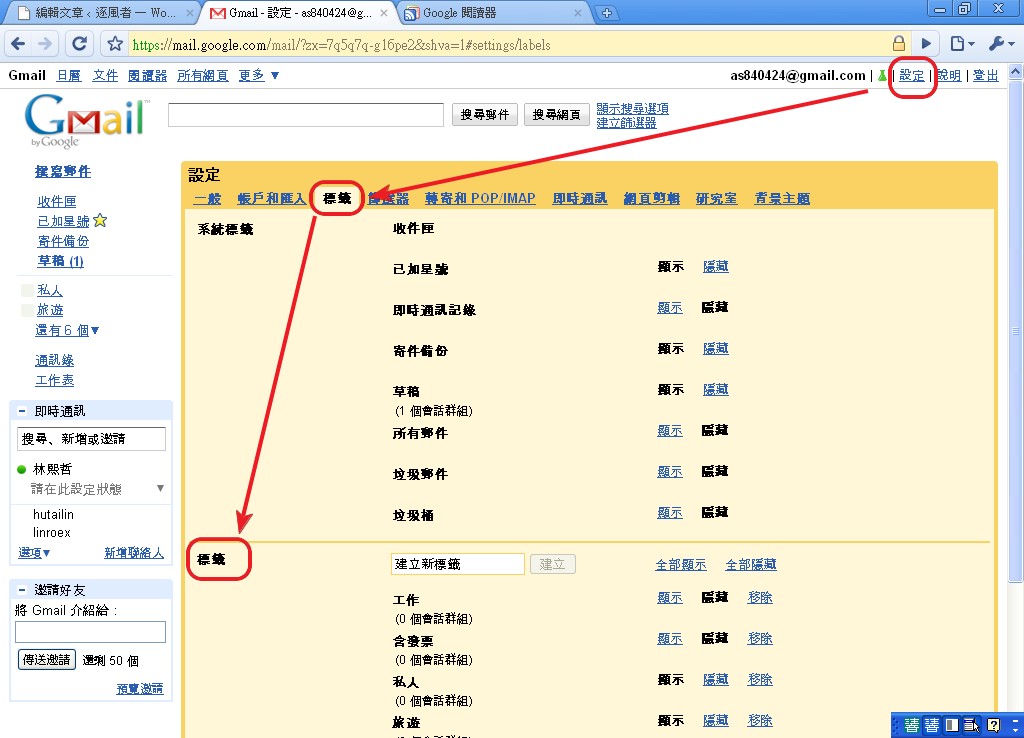
- Next to [Labels] you’ll see a white box for creating a new label. Type a label name there and click [Create] to add it.
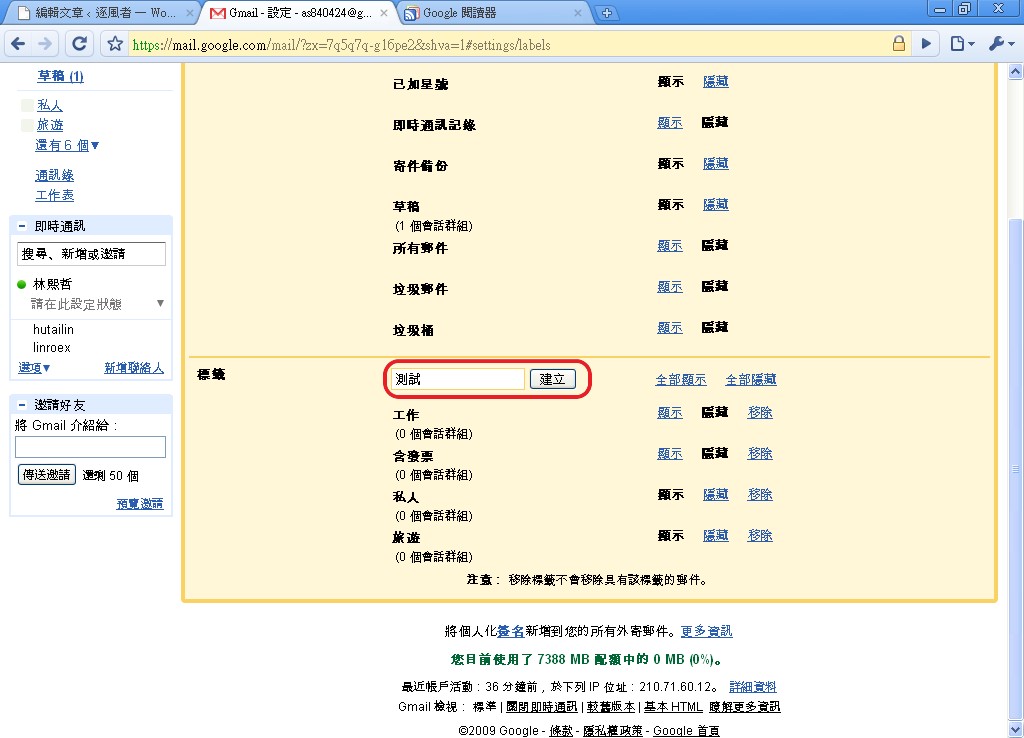
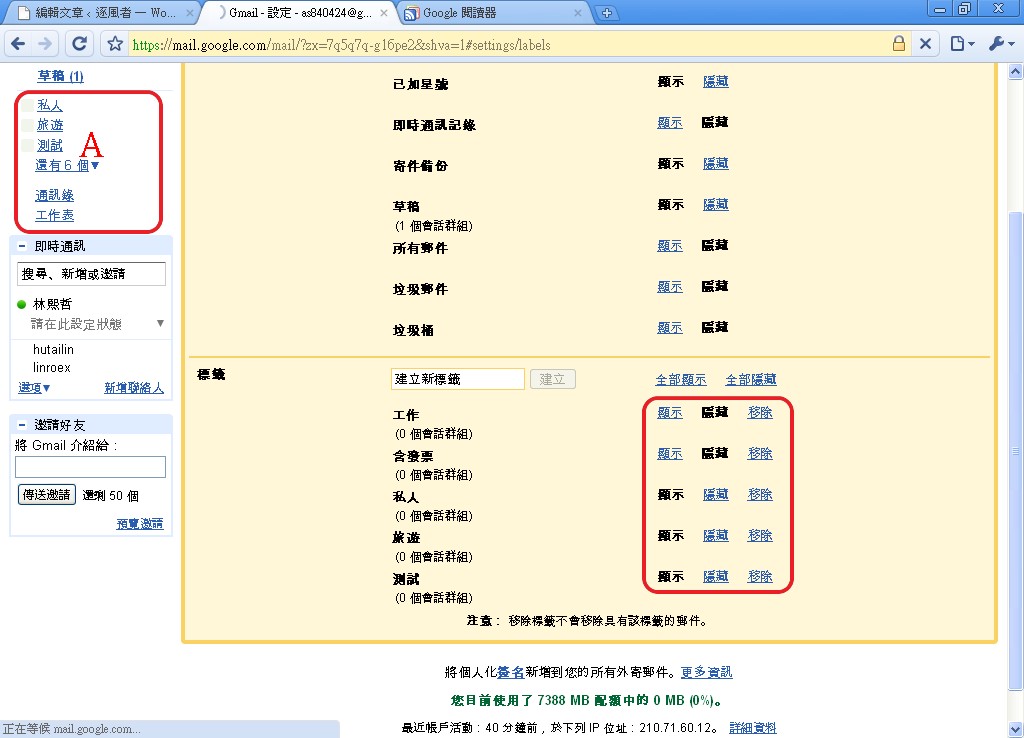
- Then you can choose whether this label appears in the sidebar of your inbox (area A in the screenshot). If you want it there, click [Show] next to the label.
II. Adding labels to emails
Adding labels to one email or many isn’t hard. It became even easier after Gmail’s big label overhaul. You can drag and drop, or use the traditional method.
- Select the emails you want to label. You can select many at once.
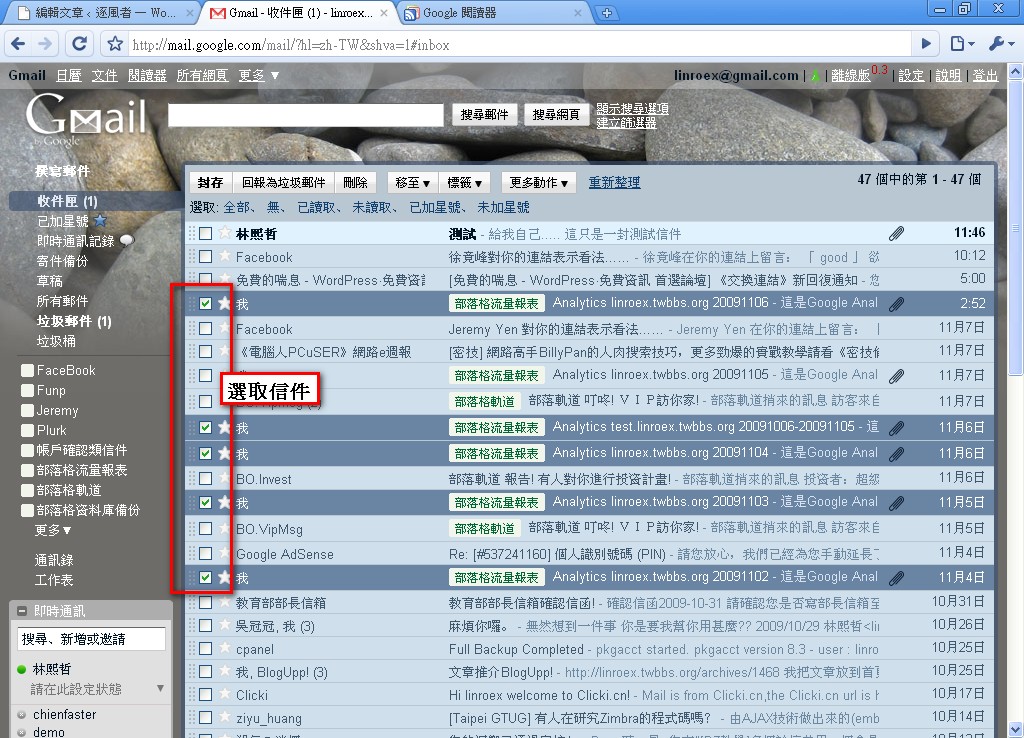
- Click [Labels], then choose the label you want to apply.
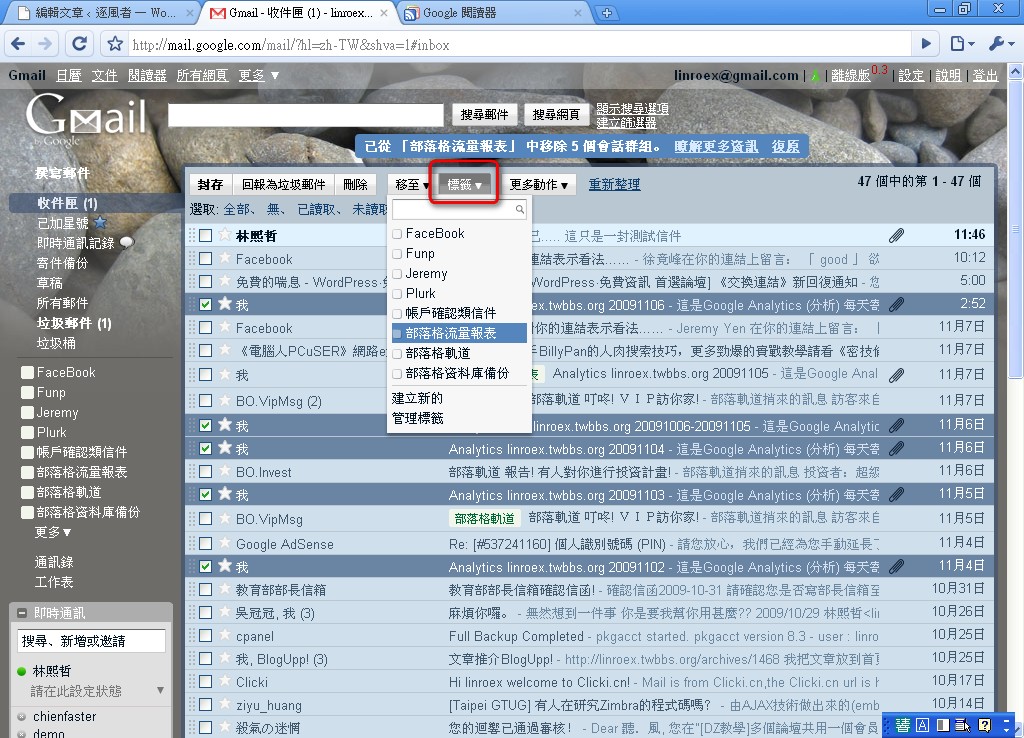
- If it worked, the text shown in the box will appear.
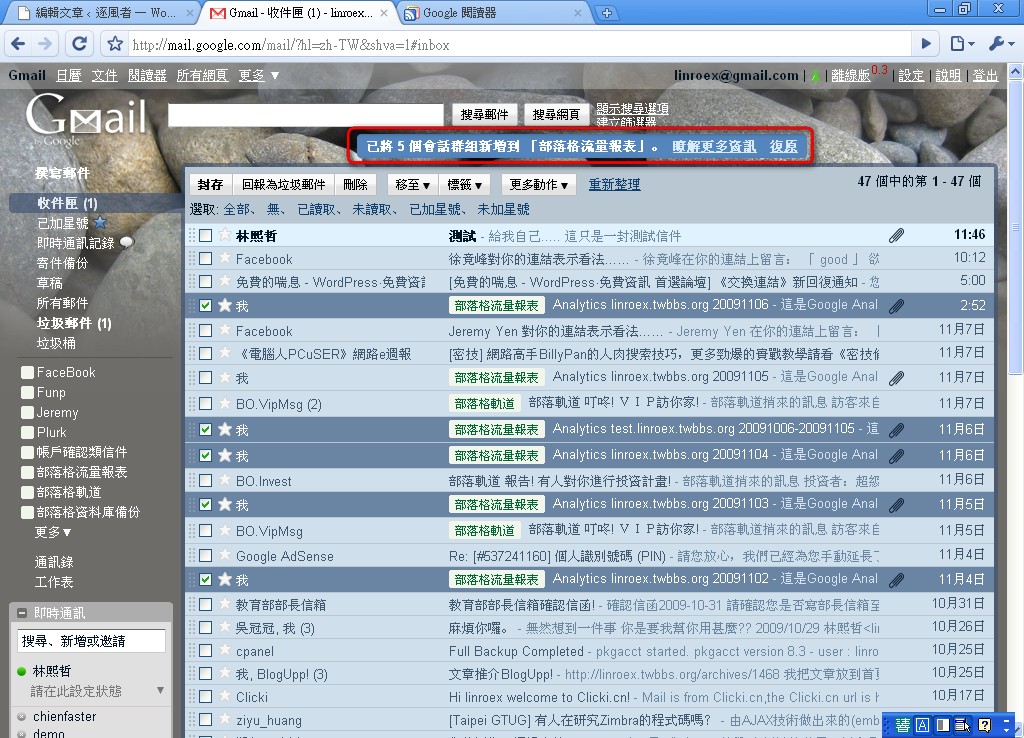
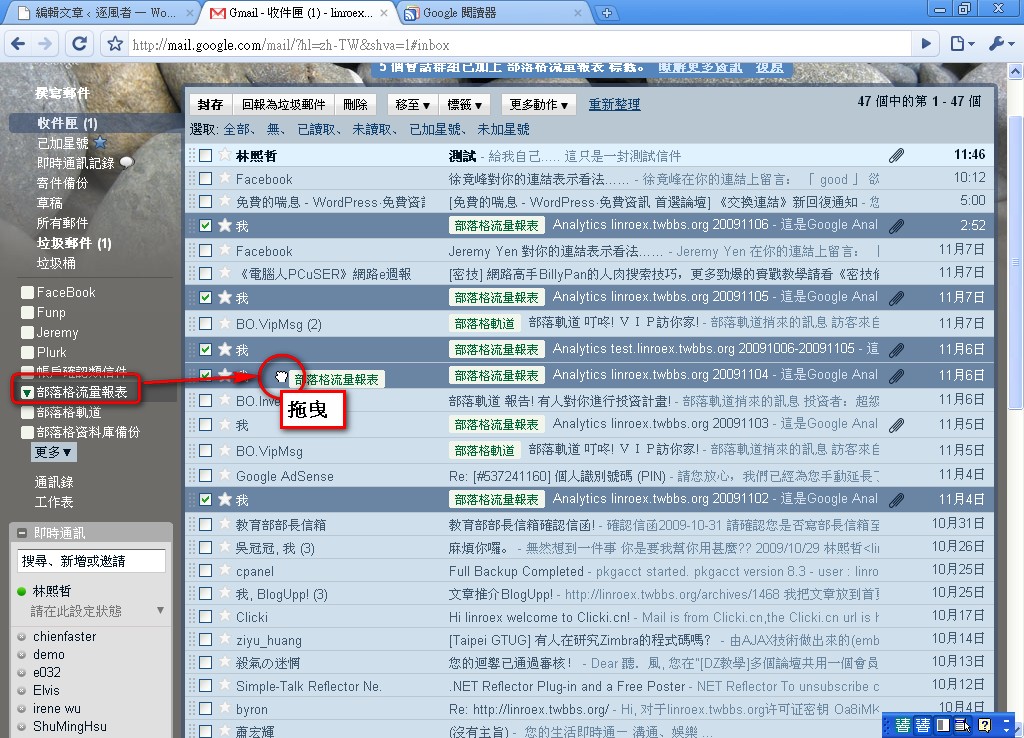
You can also add a label by dragging. As before, first select the emails. Then drag the label from the sidebar onto one of the selected emails.
.
4. Turning On the Vacation Responder
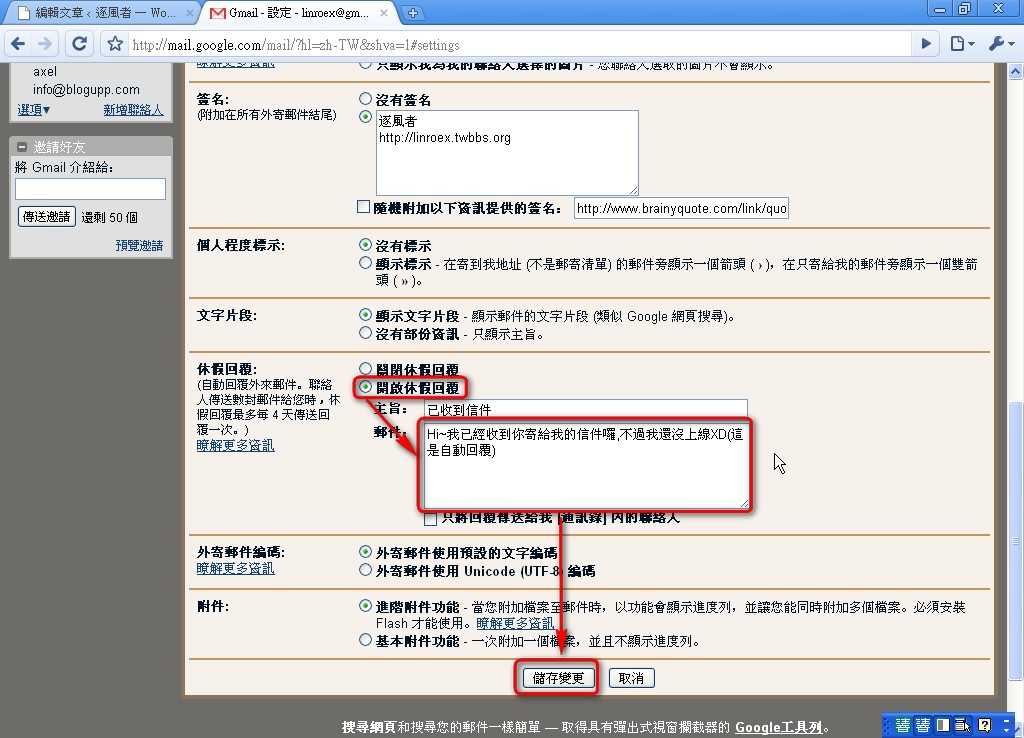
The vacation responder is for when you're too busy to check your inbox often. When someone sends you an email, it automatically replies for you. Handy, right?- Click [Settings] → [General] at the top of Gmail.
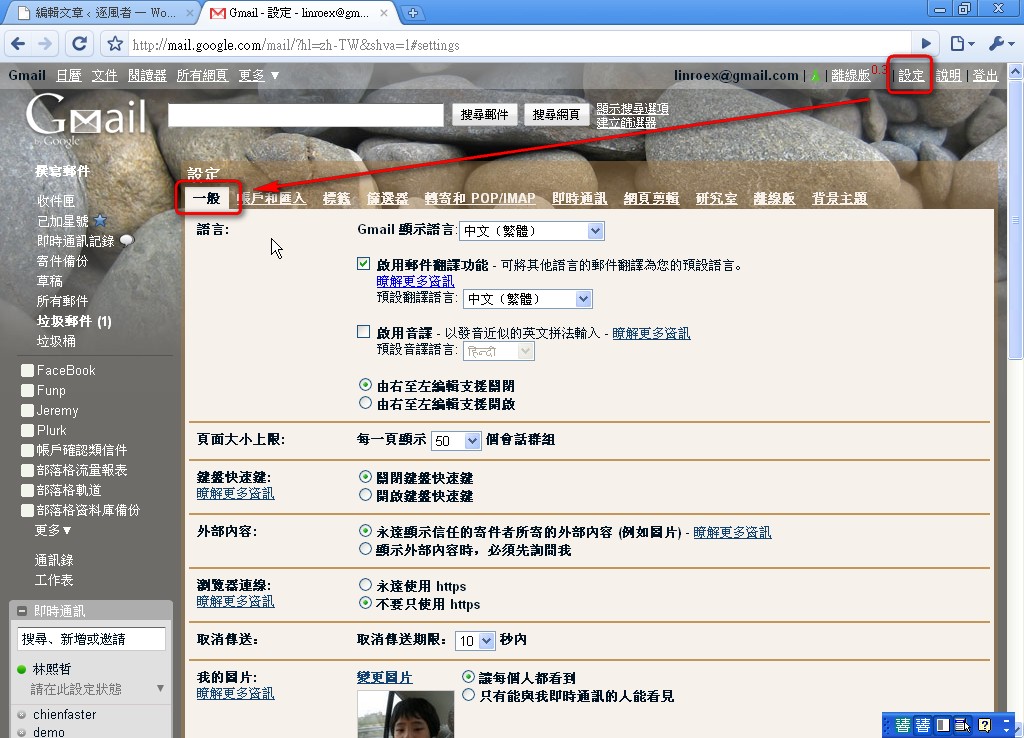
2. Scroll down to find [Vacation responder]. Select [Vacation responder on] next to it, then enter a subject and message for your reply. Finally, click [Save Changes].
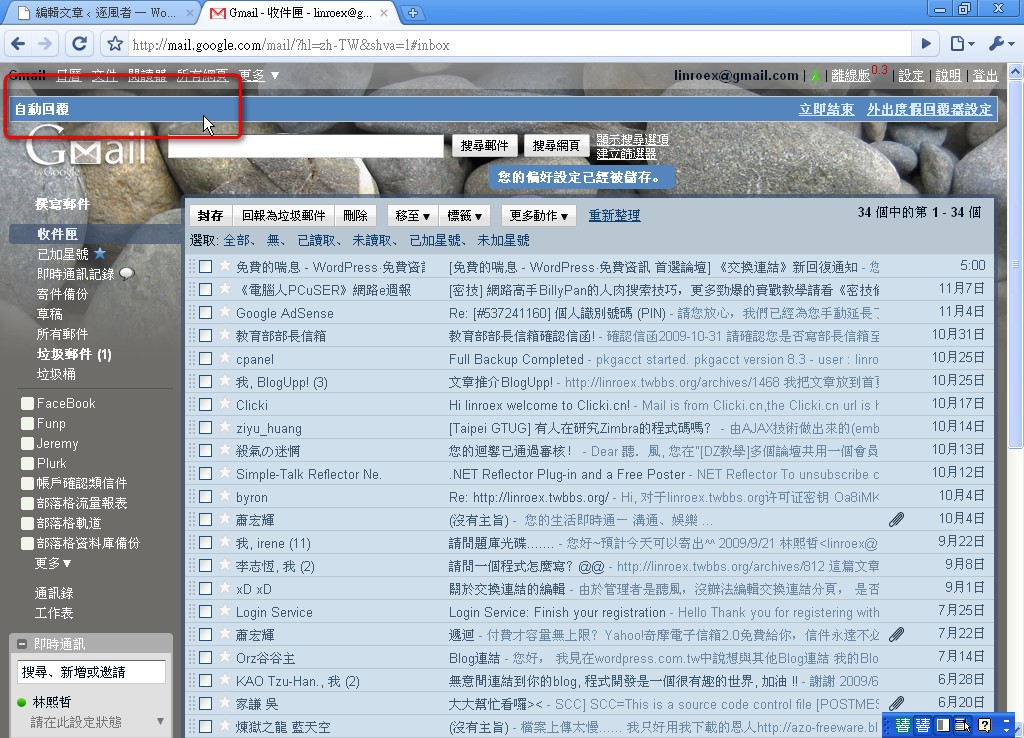
3. While the vacation responder is on, a banner at the top of your inbox reminds you that it’s active.
.
5. Setting Up a Signature
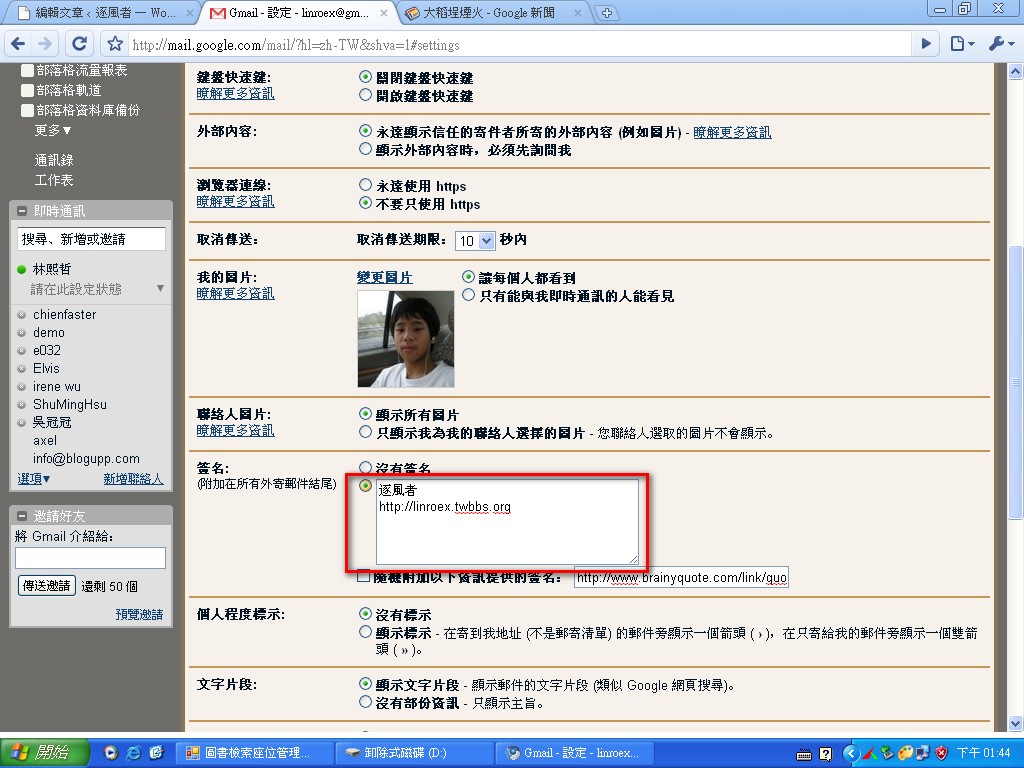
Almost every email provider has a signature feature. Does Gmail? That might sound like a silly question, since Gmail has everything the others do! Here's how to set up a signature.- Click [Settings] → [General] at the top of Gmail.
2. Scroll down to the signature section, select the option next to “No signature,” then type your signature. Finally, click [Save Changes] as before.
6. Changing the Gmail Theme
Another feature that sets Gmail apart is the ability to change themes. Everybody gets tired of things eventually. You get bored with toys after playing with them too long, and even the same girlfriend gets old after a while XD (they say there's a scientific basis for wanting something new!). Anyway, you may have noticed that some of the screenshots in this tutorial have a stone background. That's the theme I switched to~1. Click [Settings] → [Themes] at the top of Gmail, then choose a theme you like.
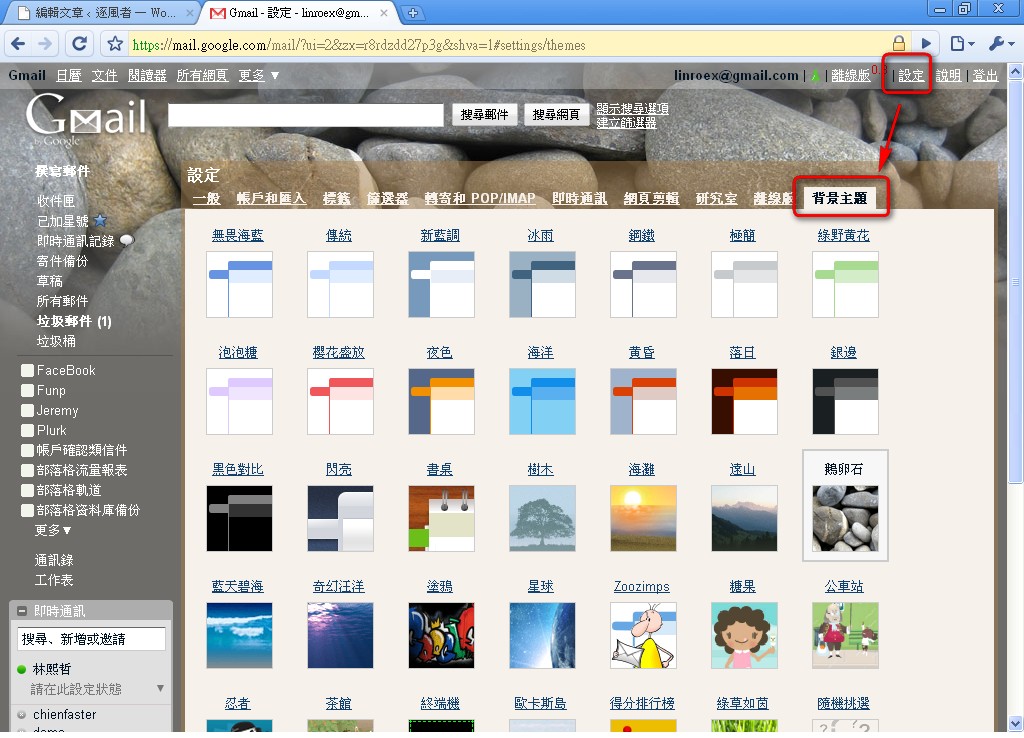
2. If you choose a scenery theme, Gmail will ask for your location. Just fill it in as requested.
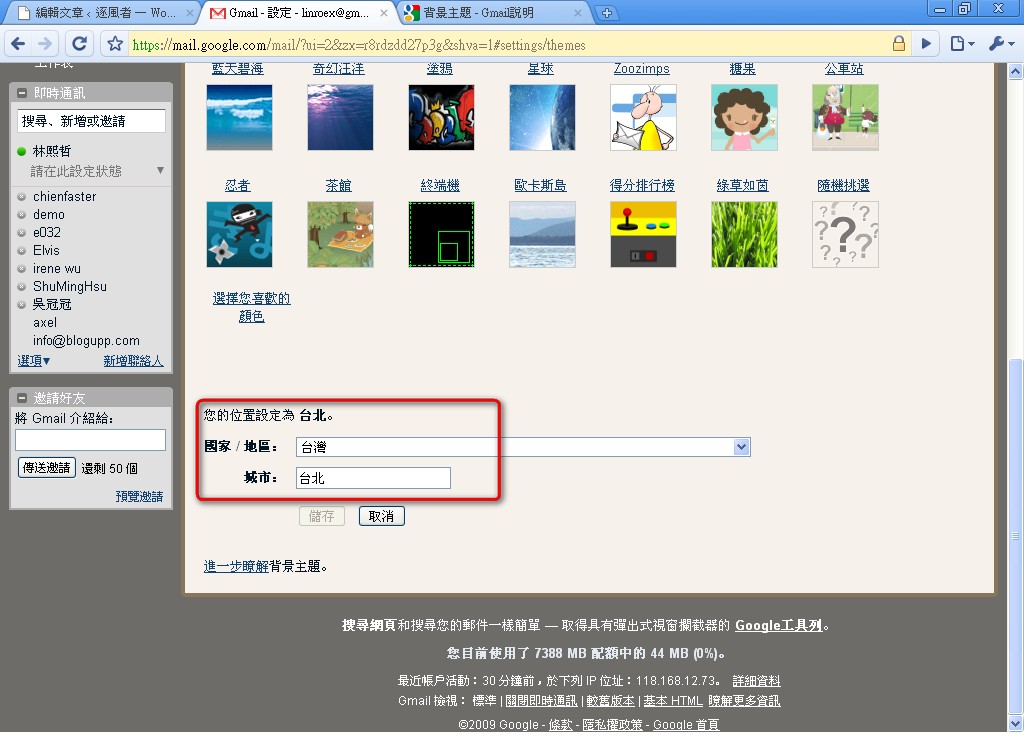
3. If you want to make your own theme, that’s easy too. Gmail offers a very simple design interface. Just scroll down and click [Choose your favorite color].
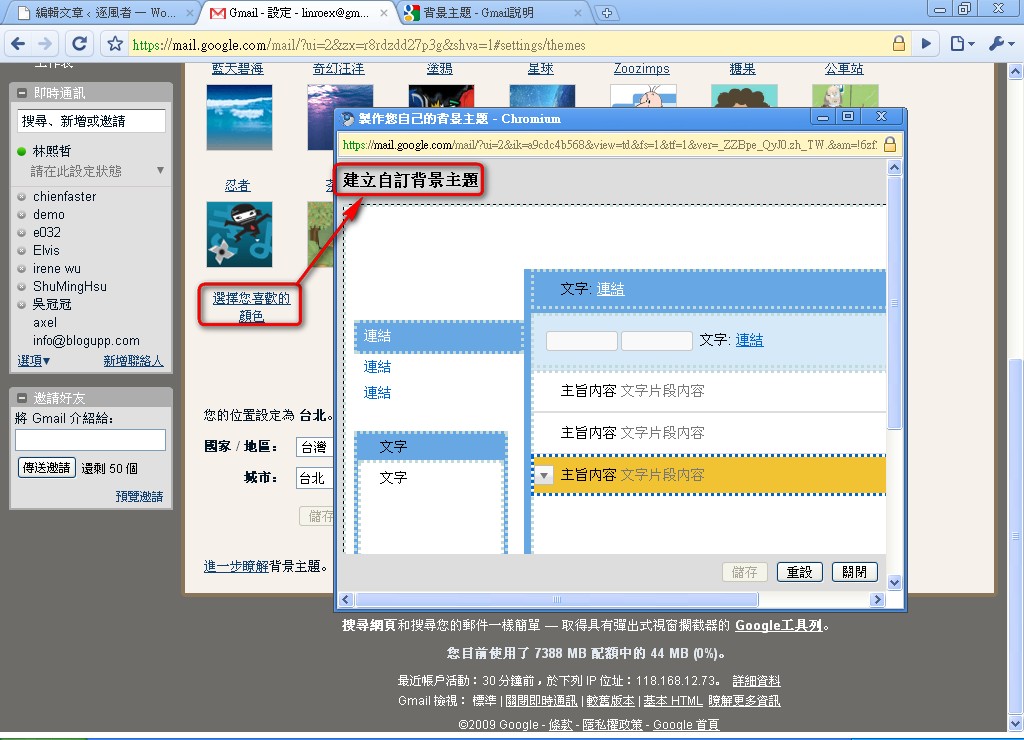
Note: Gmail's Themes feature doesn't work with every browser that Gmail supports. It only works with Internet Explorer 7.0+, Firefox 2.0+, Safari 3.0, and Google Chrome. If you're not using one of these browsers, the Settings page won't show the [Themes] tab. Please note that Themes don't work with Internet Explorer 6.0.Quoted from http://mail.google.com/support/bin/answer.py?hl=zh-TW&ctx=mail&answer=112508
7. Changing Your Display Name
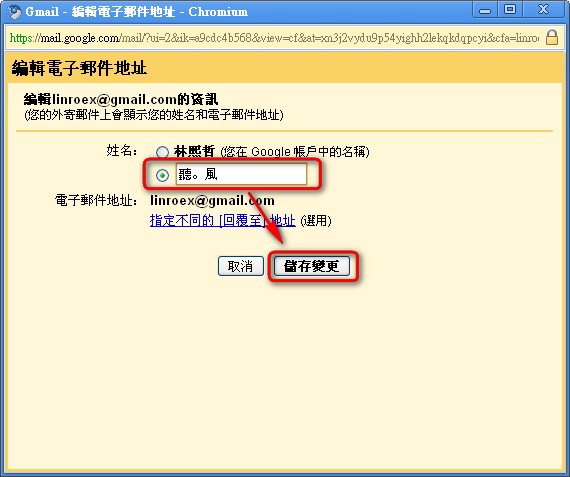
When you email friends, your message shows the name you entered when you signed up. What if you don't want them to know your real name? Here's how to change it.1. Click [Settings] → [Accounts and Import], then click [Edit info] next to [Send mail as].
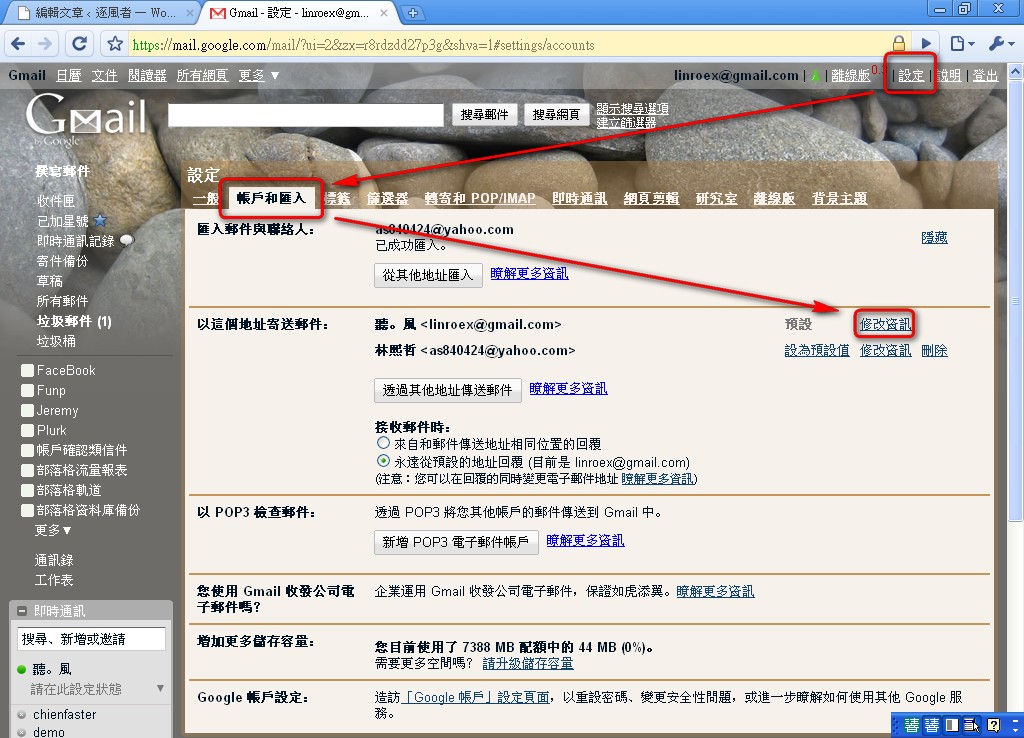
2. A new window will pop up. In the [Name] field there are two options. Choose the second one, type the nickname you want to use, and click [Save Changes].