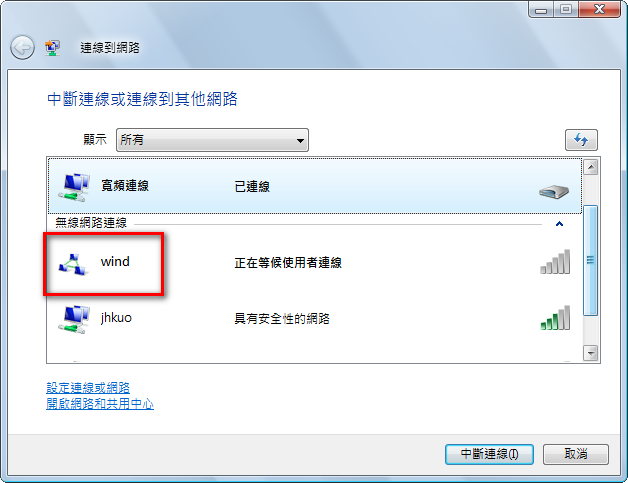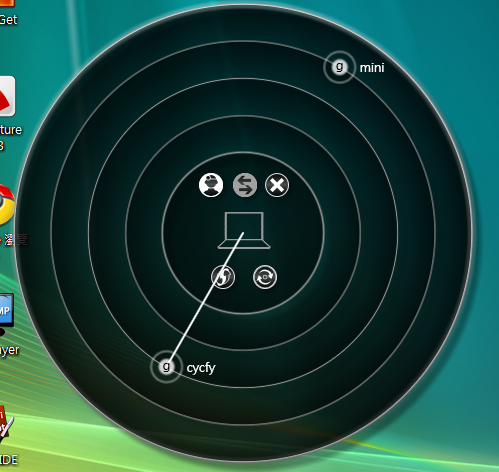
Remember the iPod Touch I bought a while ago? The iPod Touch has to be slim and light, so it only supports wireless networking, not the Ethernet connections (such as ADSL) that are more common. So I’d been looking for a way to turn my home ADSL into a wireless signal. I originally planned to buy a broadband router, but the price was a bit high, so I held off. Then I did some research of my own and found that Vista (XP and Windows 7 work too) can use a wireless network adapter to turn the ADSL connection directly into a wireless signal, with an effective range of 30 feet. For someone like me who needs wireless internet, that’s really convenient.
In short, this method uses a wireless network adapter to set up a wireless local network, then shares the broadband connection with anyone who connects to it. The more people who connect, the slower it gets. It’s not just broadband, either: 3G connections can be shared too.
Tutorial for XP: http://blog.xuite.net/pccompass/travel/12341636
Tutorial for Windows 7: http://www.techbang.com.tw/posts/2080
Tutorial: Turning Your Laptop into a Base Station
1. Click [Start] → [Connect to].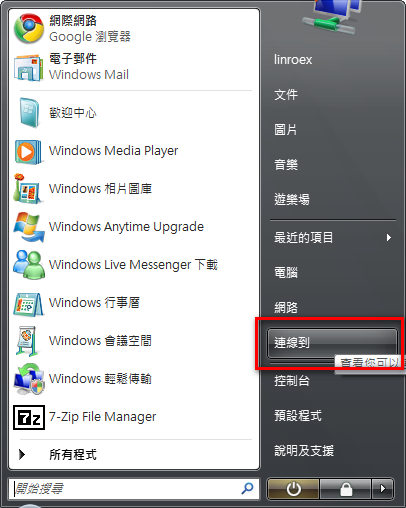
- Click [Set up a connection or network].
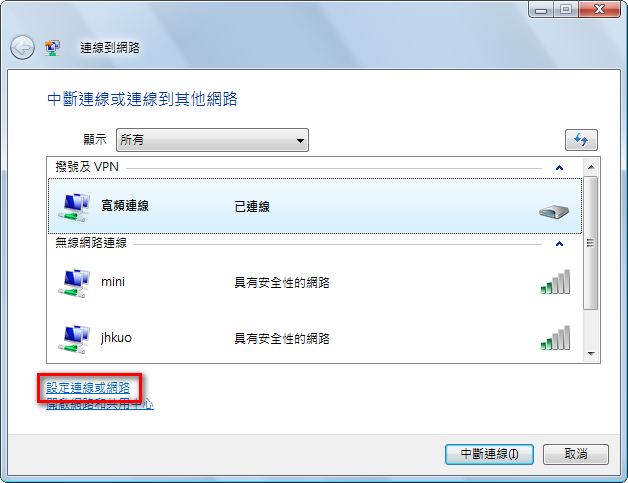
- Double-click [Set up a wireless ad hoc (computer-to-computer) network]. Handheld devices like the iPod Touch or HTC phones can also share the connection XD
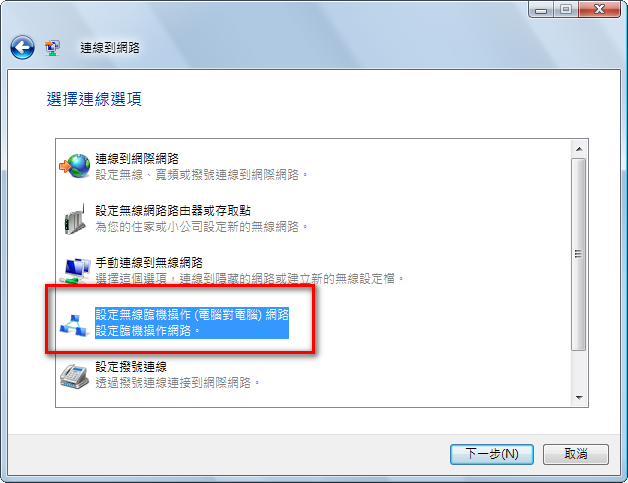
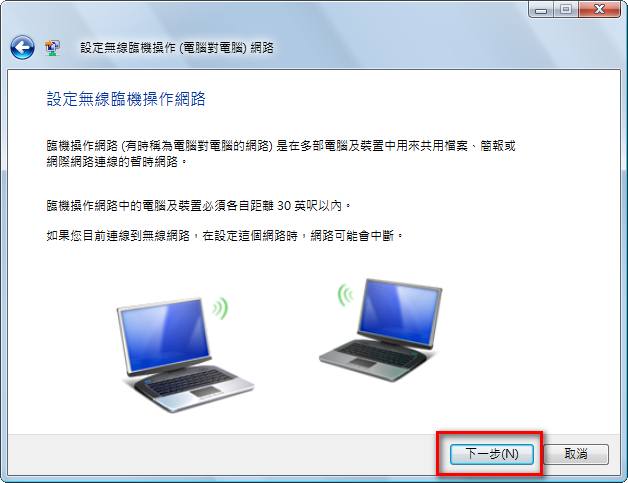
- Click [Next]
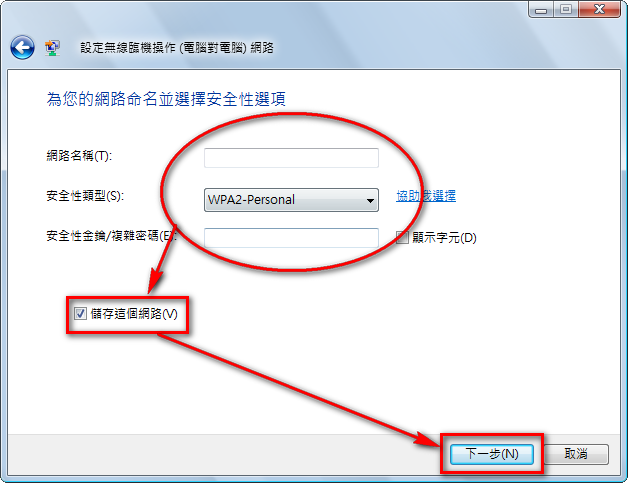
- In the Network name field, enter a name for this wireless network (anything you like). The Security type setting determines whether you encrypt the network. If you’re worried about your signal being intercepted or someone else using your connection, I recommend turning on encryption (WEP or WPA2 both work). Personally, I was too lazy to set up encryption, since I wasn’t using anything important on my iPod Touch anyway. If you do enable encryption, you must fill in the Security key below. Don’t let the confusing wording throw you: the Security key is simply the password you use to join the network. Finally, check [Save this network] and click [Next].
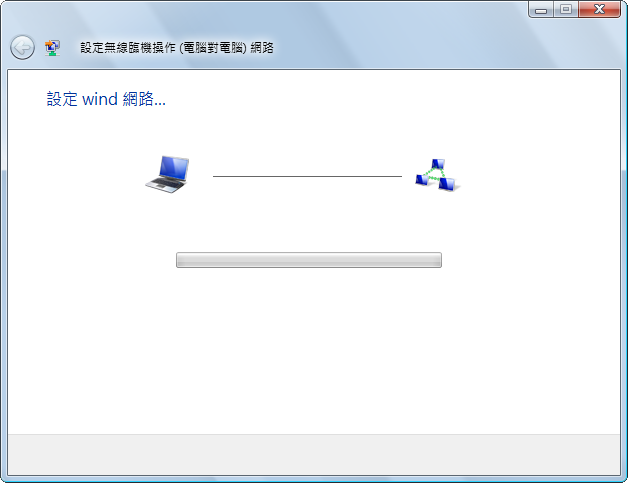
- Setting up… Make sure your wireless switch is turned on, or the setup won’t succeed.
- After setup is finished, click [Turn on network connection sharing] to start sharing your internet connection.
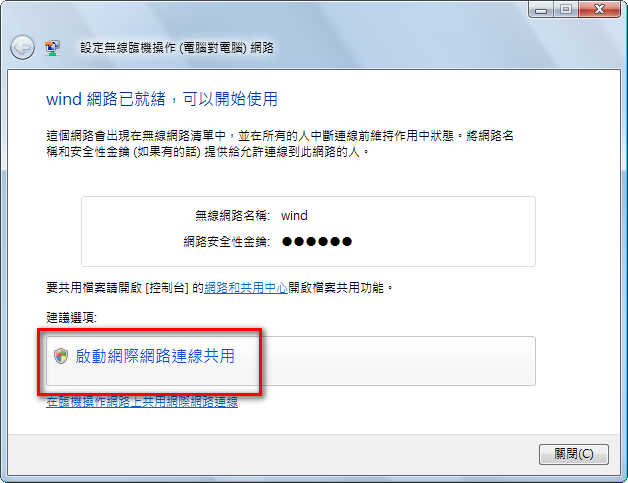
P.S. If you can’t find this option, you can also right-click the network connection you want to share (such as ADSL), go to Properties → Sharing, check [Allow other network users to connect through this computer’s Internet connection], and then check the option below it, [Allow other network users to control or disable the shared Internet connection].
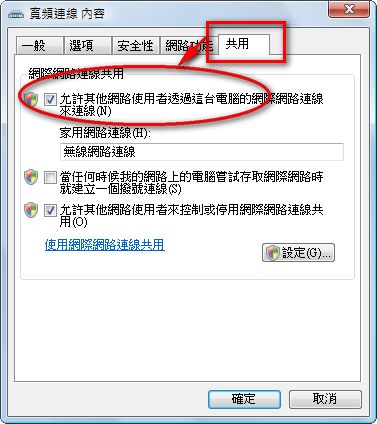
- Under [Available connections], choose your network (ADSL or 3G Internet).
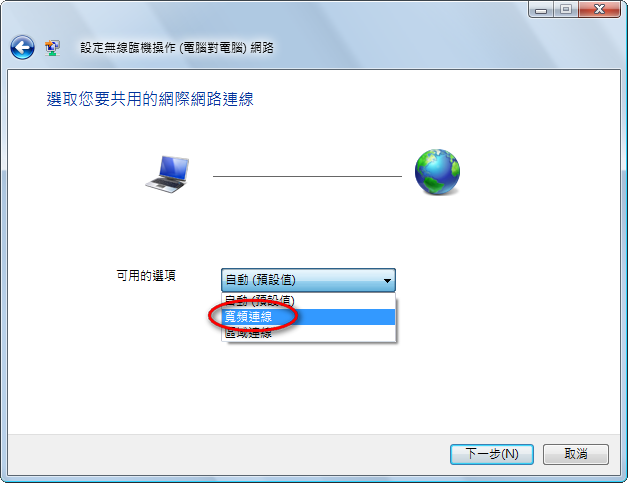
- Setting up, please wait ^^
- Once setup is complete, open [Connect to] as in step 1, then double-click the wireless network you just added, and you’re done. After you restart the computer, you’ll need to follow this last step again to bring the network back up.