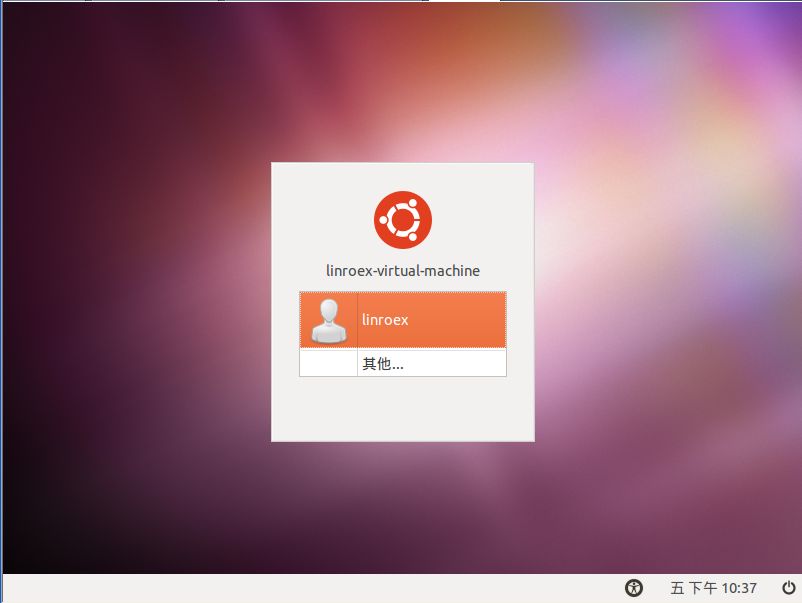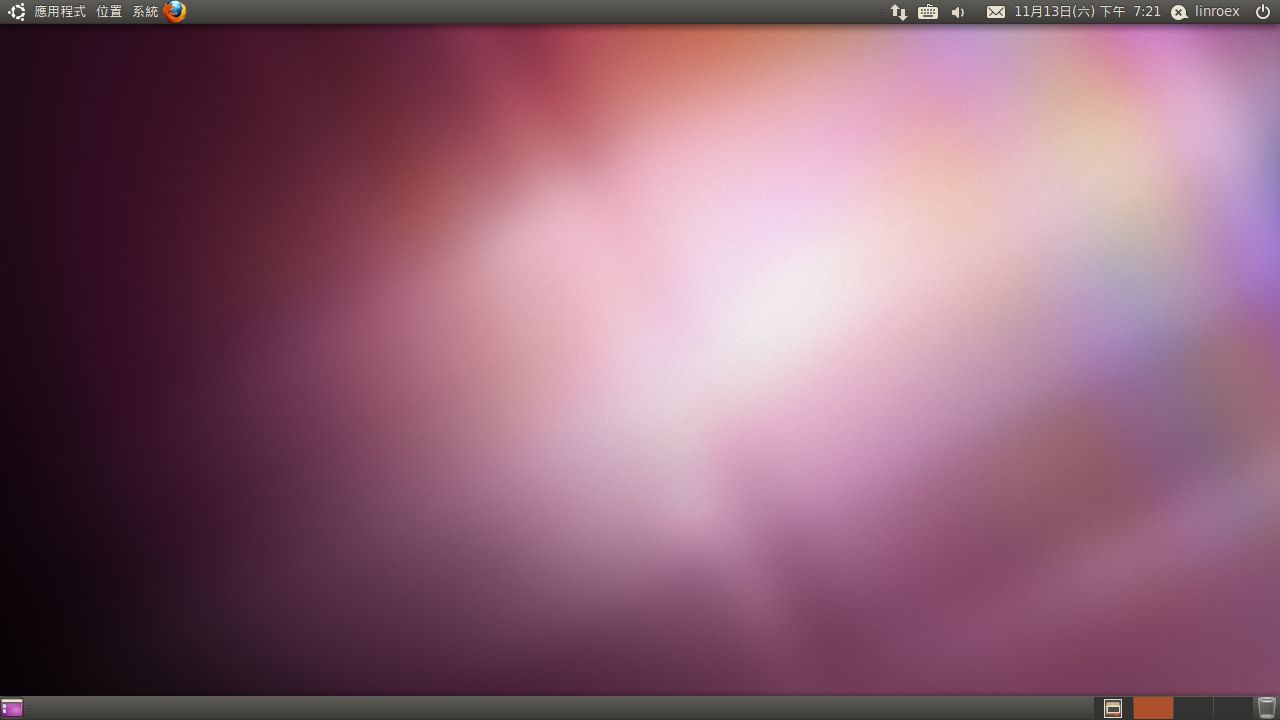
If you don’t know what Ubuntu is, read https://coder.tw/?p=1149.
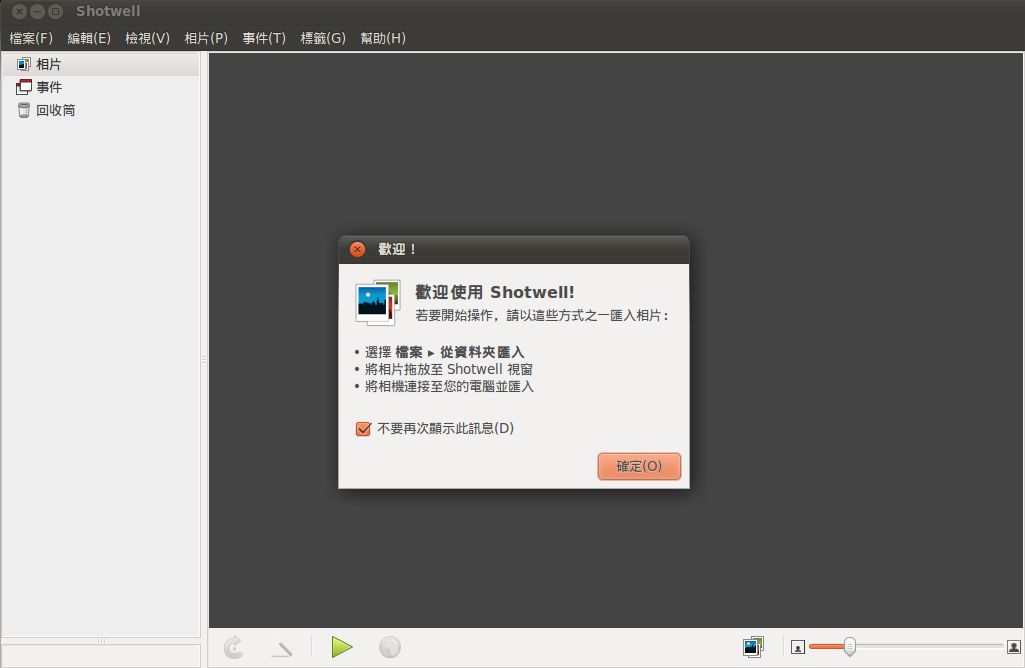
▼▼Ubuntu 10.10 uses Shotwell to manage photos
Ubuntu Information
- Official website: http://www.ubuntu-tw.org/
- Download page: http://www.ubuntu-tw.org/modules/tinyd0/
- Supported architectures: both 32-bit and 64-bit
Ubuntu Installation Requirements
- More than 2.6GB of hard drive space
- An internet connection (recommended)
Ubuntu 10.10 Installation Guide
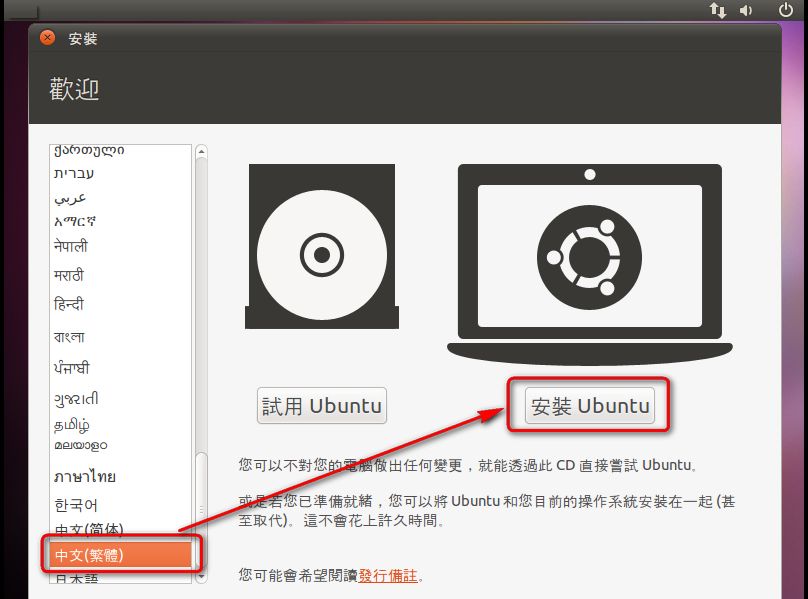
Before installing Ubuntu 10.10, set your computer to boot from CD in the BIOS (guide to setting CD boot). Then download the Ubuntu ISO from the download page and burn it to a CD.- Set the language to Traditional Chinese, then click [Install Ubuntu].
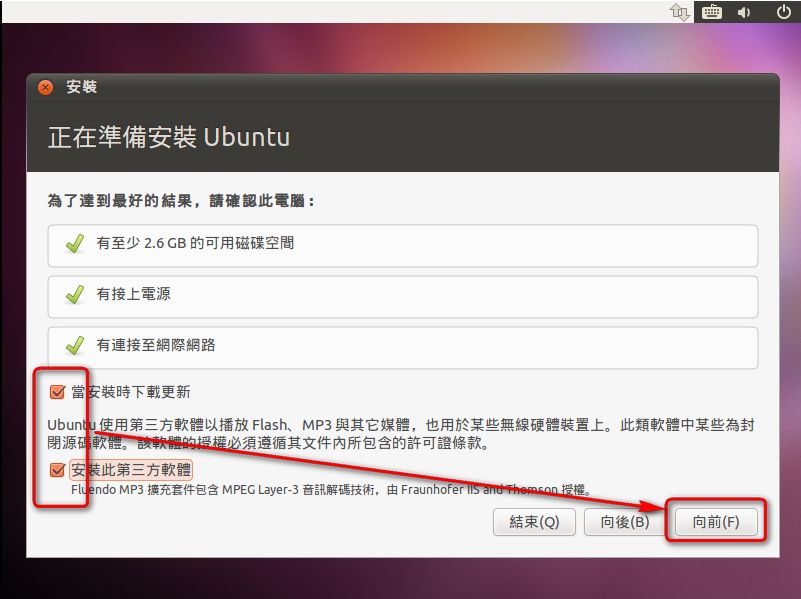
- Connect to the internet, check [Download updates while installing] and [Install this third-party software], then click Forward. You don’t have to be online, but if you aren’t, the installed system will be in English.
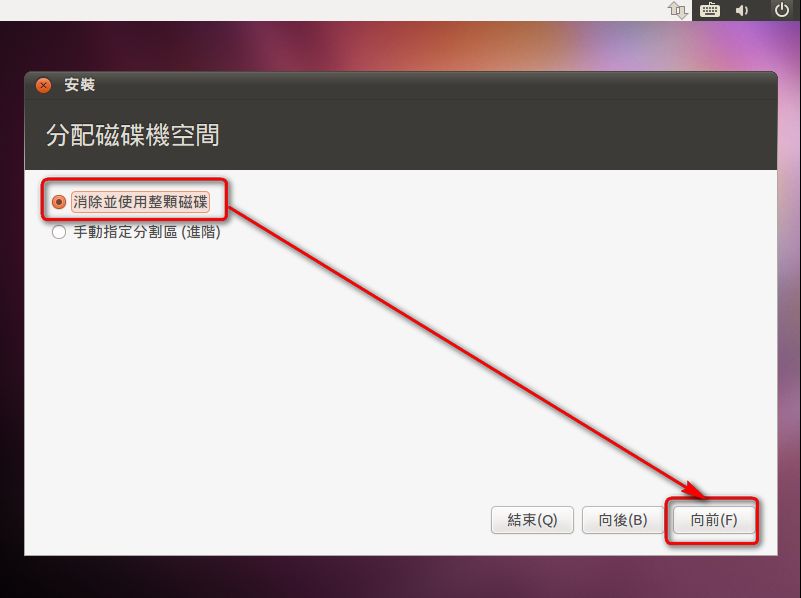
- I recommend [Erase and use the entire disk] for installation, since it’s the simplest. If you want a dual-boot setup, choose manual partitioning instead. I’ll cover manual partitioning in a future post, because explaining it takes a while, so it’s not included here.
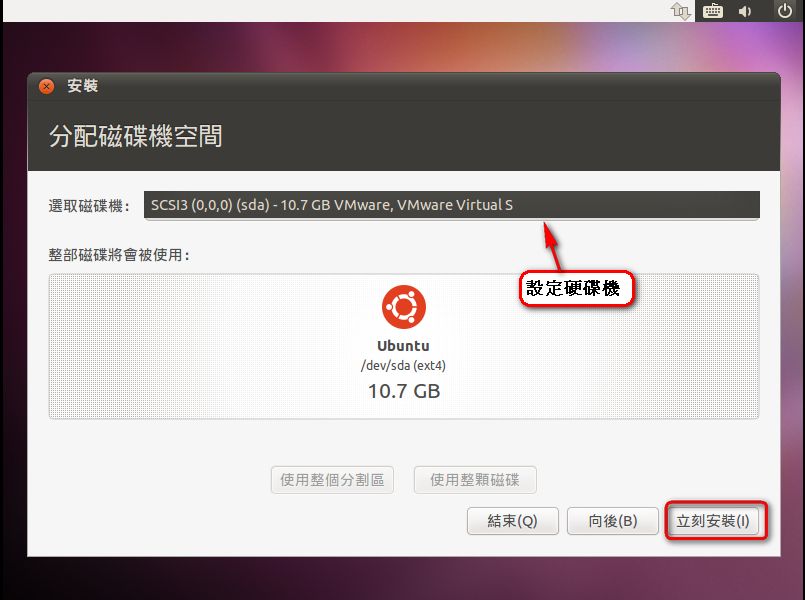
- Choose the drive to install to. Most home computers have only one drive, so there’s nothing to set. You only need to choose if you have two.
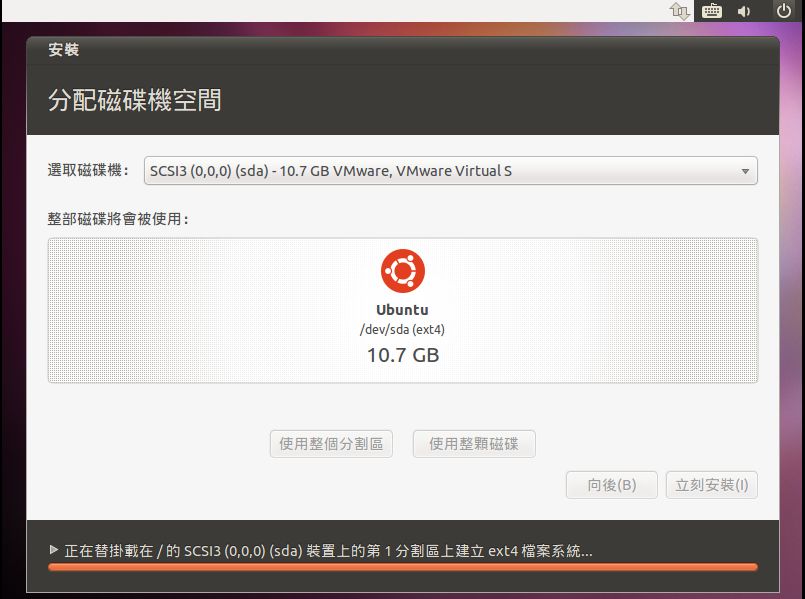
- Please wait while it sets things up.
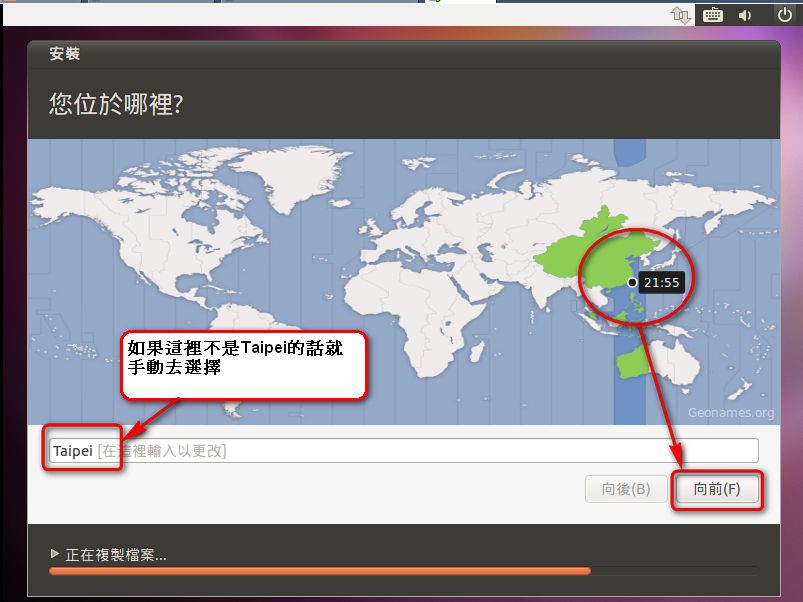
- This is where you set the system time zone. It’s usually set automatically. If it isn’t set to Taipei, you can choose it manually.
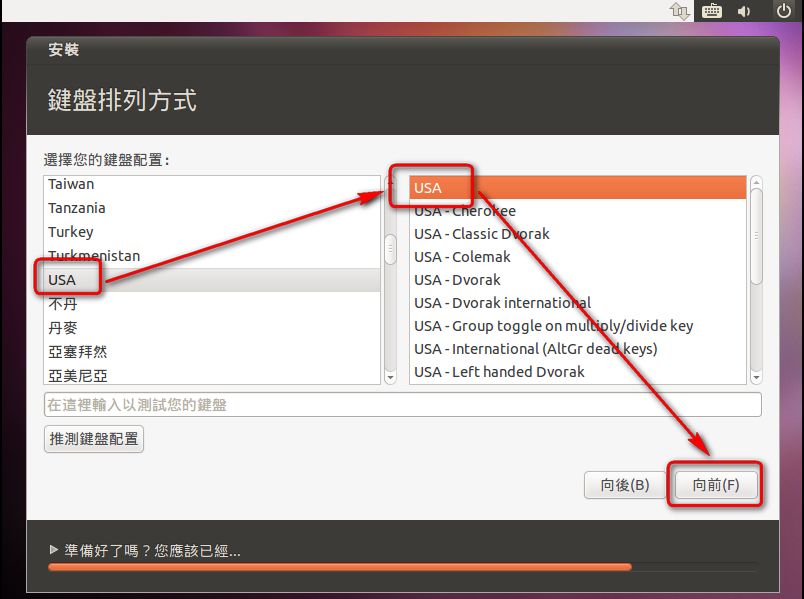
- Set the keyboard layout. Keyboards differ from country to country in how the letters are arranged, so this needs to be set. In Taiwan, people usually use USA. The system detects it automatically, so you can just click [Forward].
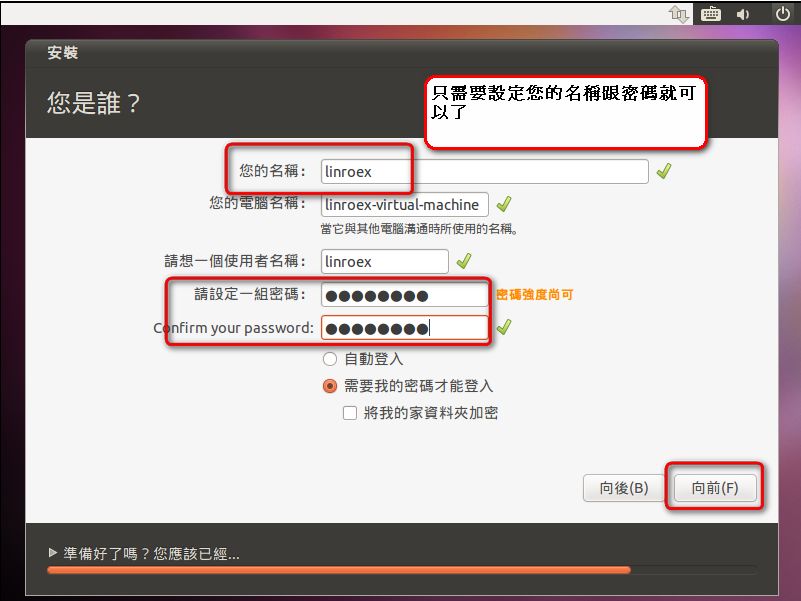
- Enter your computer name. You can use your nickname as the computer name, but Chinese characters aren’t allowed. Just setting [Your name] will automatically generate a computer name. You also need to set a user password.
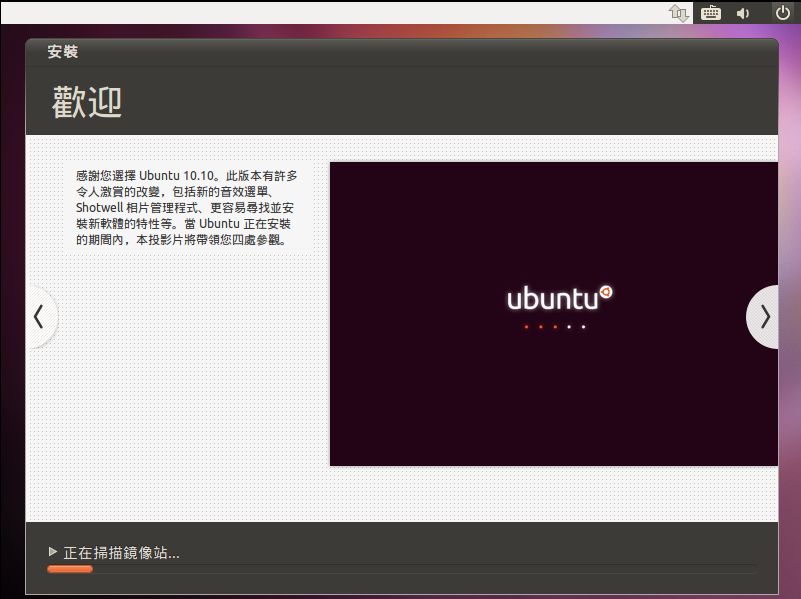
- Installing. The computer runs everything automatically, so this takes a while.
- When installation finishes, click [Restart Now].
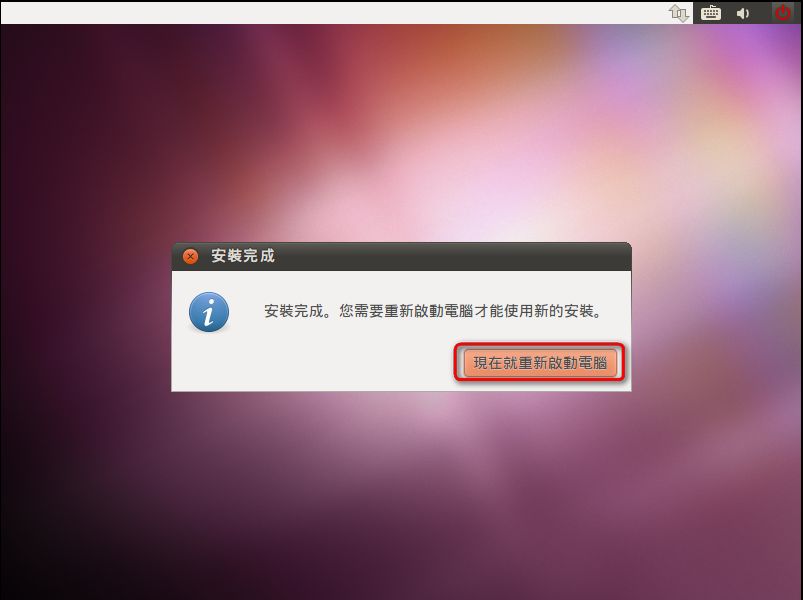
- Installation complete