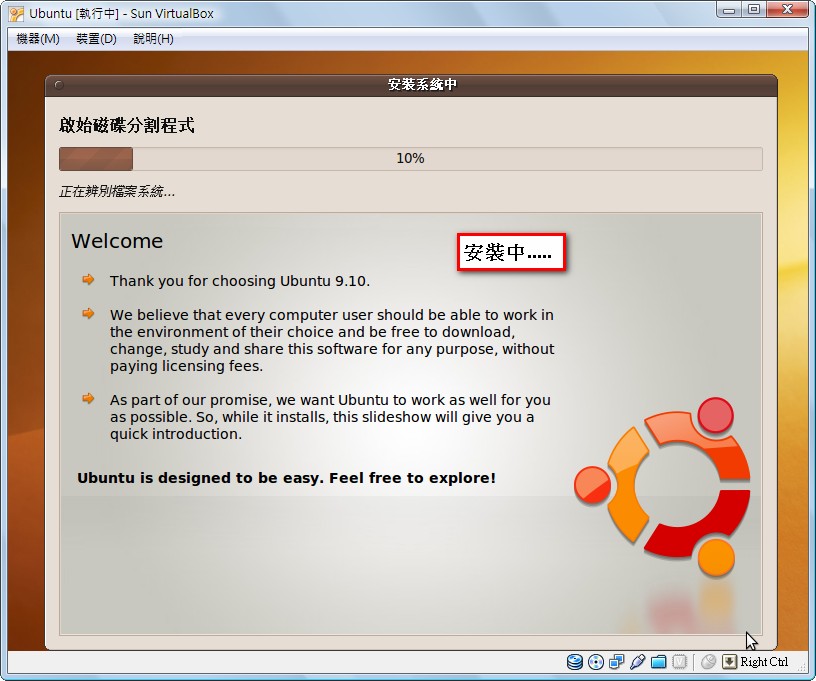
Ubuntu 9.04 looks like this update is aimed squarely at Windows 7. Ubuntu was updated not long after Windows 7 came out, and many of its features are very similar to Windows 7, maybe even better!! If not for the small number of programs that support Ubuntu, it might be the most famous operating system by now~~
A quick introduction to Ubuntu: it’s a Linux operating system, which means its source code is public, so you can modify its contents yourself. It’s also free, and its stability far exceeds the Windows family. On Ubuntu, seeing a crash even once is rare XD However, few programs on the market support Ubuntu, especially games. There are almost no games that support Ubuntu, so Ubuntu hasn’t been able to attract a huge user base like Windows does. Also, Ubuntu releases a new version about every six months, so its updates come quickly. And this Ubuntu 9.0.4 release adds a rather attractive interface that can compete with W7!!
Note: Thanks to Kgame for the correction. In fact, Ubuntu’s visual effects come from installing GNOME, not from the base system.
Ubuntu Features
- Free
- Multiple languages (including Traditional Chinese)
- A new version every 6 months
- Includes common free software (OpenOffice, etc.)
- Supports 64-bit computers
- Live mode (just burn it to a CD and you can use it without installing)
- Four built-in virtual desktops
- An interface that rivals W7
Download page: http://www.ubuntu-tw.org/modules/tinyd0/index.php?id=7
Ubuntu Download Guide
1. Go to the download page.For the version, select “Ubuntu 9.04 (latest version)”. Pick any download mirror nearby :)
Click “Start download”
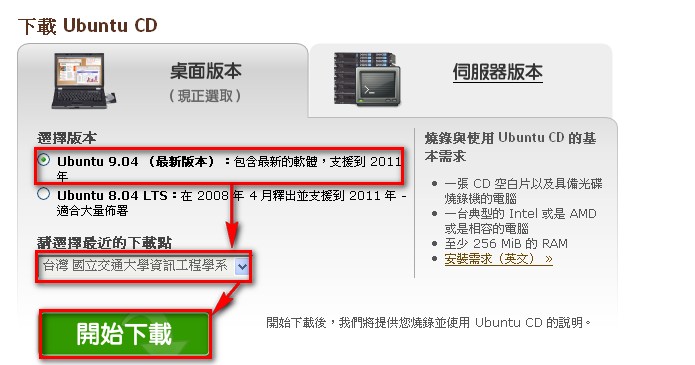
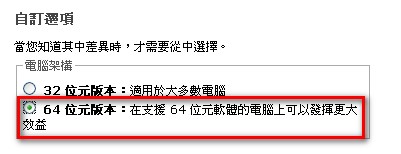
Also, if your computer is 64-bit, scroll down the page to the automatic options, check 64bit, and then click download~~~~
Once it’s downloaded, just burn it to a CD.
Ubuntu Installation Guide
1. Set the BIOS to boot from CD. If you're not sure how, see this article: [How to set the BIOS to boot from CD? (essential for reinstalling a computer)]- Use the arrow keys to select Traditional Chinese, then press Enter.
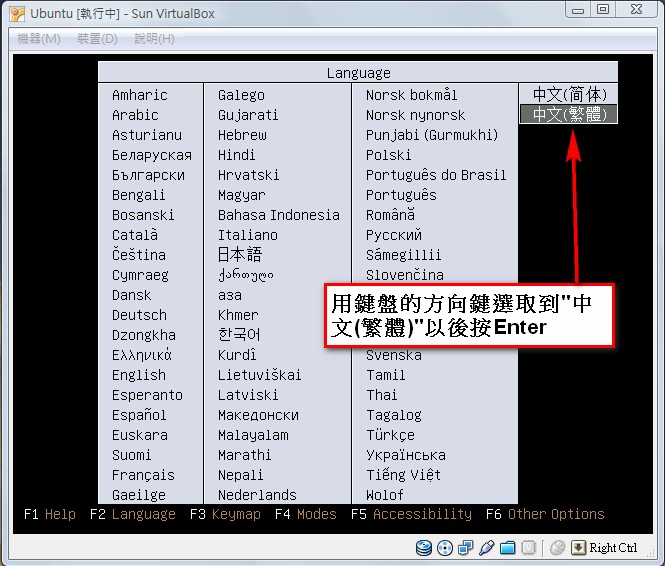
- Wait a few seconds for the interface to switch to Chinese. Once it does, use the arrow keys again to select [Install Ubuntu].
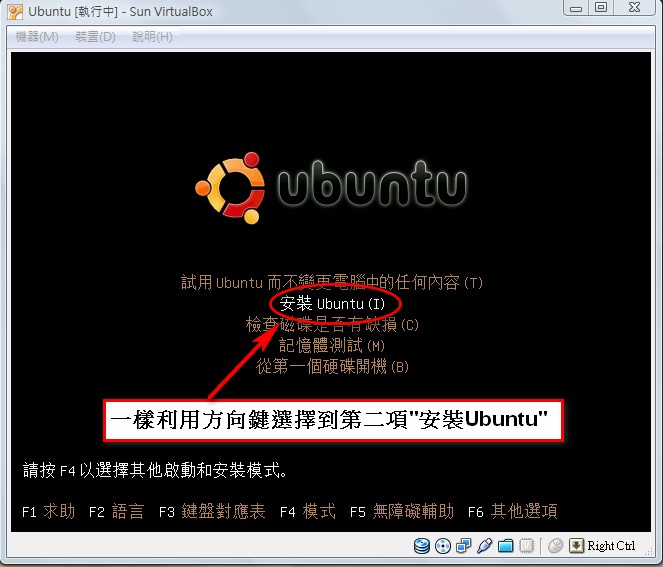

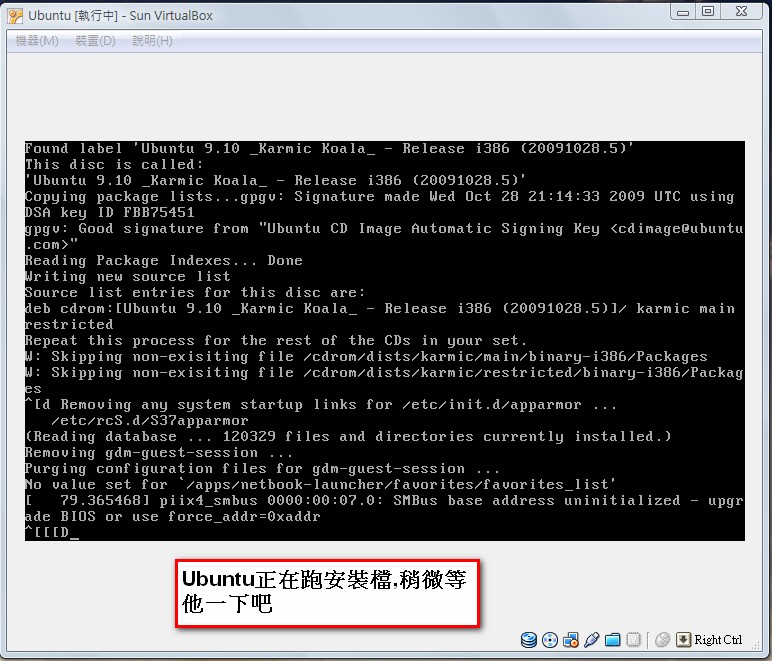
- Ubuntu is loading the files needed for installation. Please wait a moment.
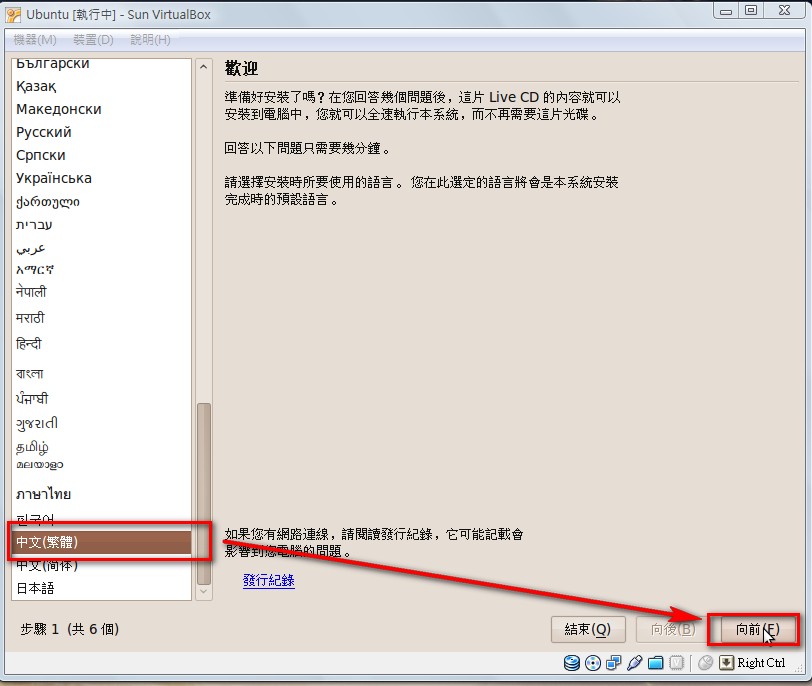
- Once loading is done, you can start the installation. First, this is where you set the language. Select Traditional Chinese, then click [Forward].
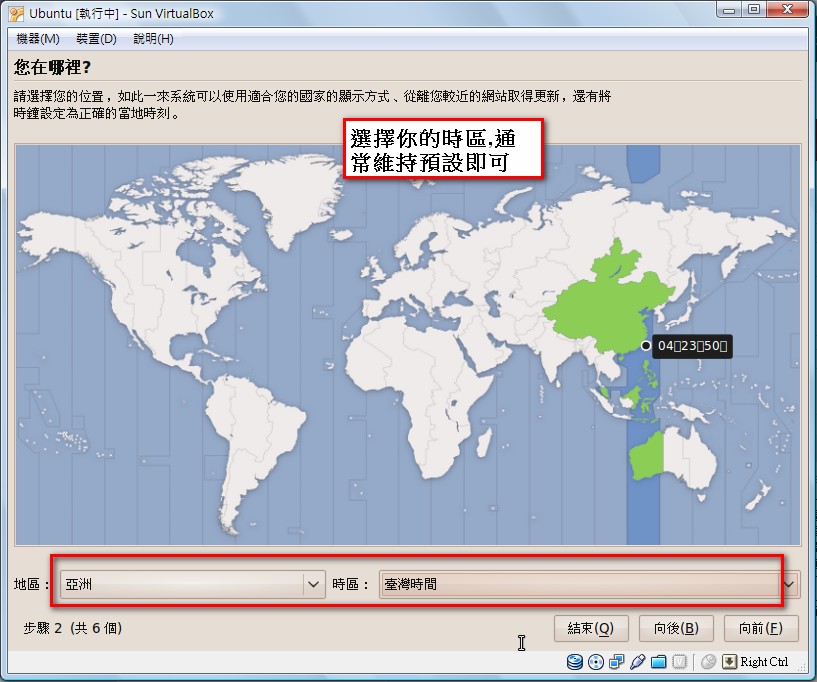
- Set your time zone. The default is usually fine. When you’re done, click [Forward].
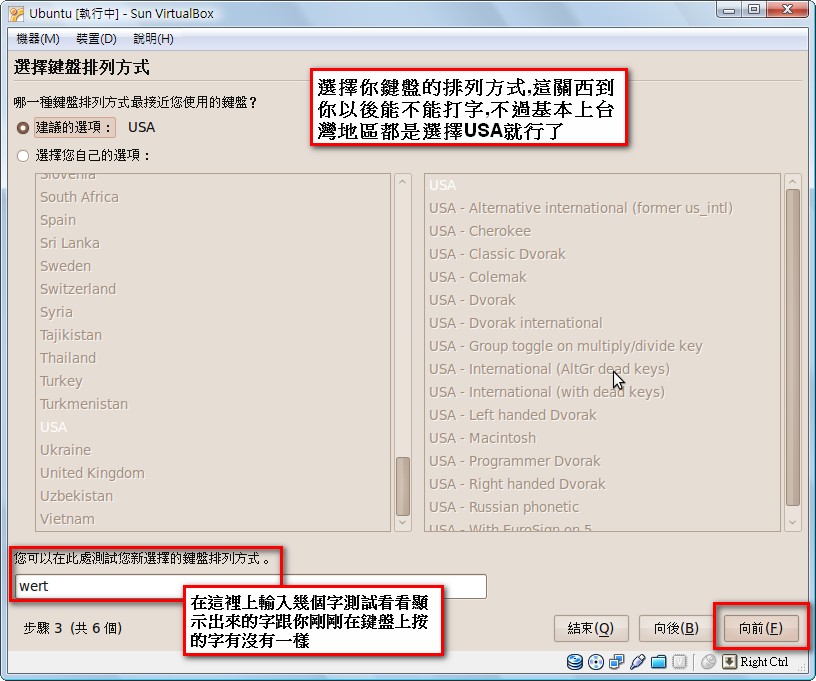
- Set the keyboard layout. Keyboards in Taiwan are usually [USA→USA], so keep the default and click [Forward]. If you’re not sure your layout is [USA→USA], test it in the box below by checking whether the keys you press match the characters that appear.
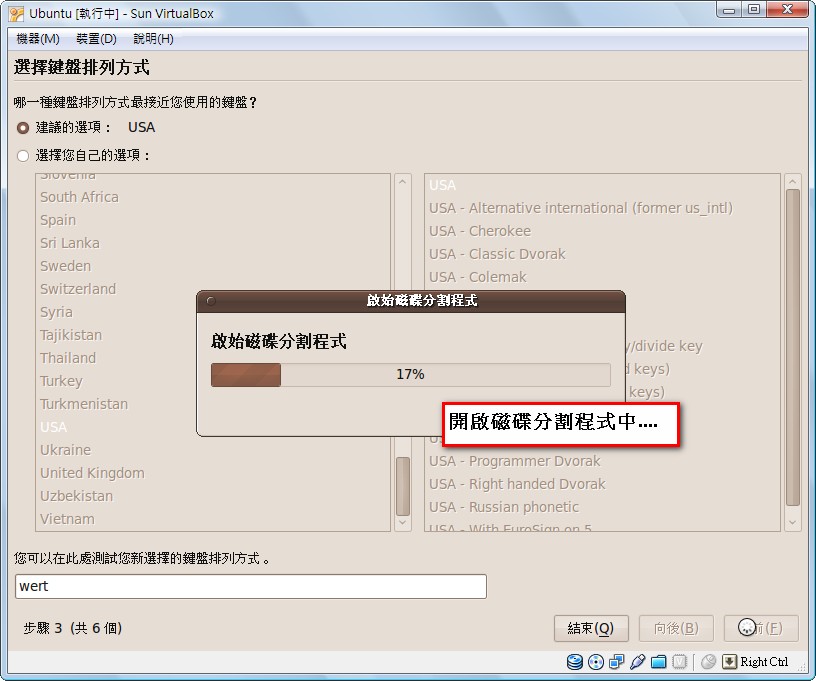
- The disk partitioning tool is opening. Don’t press anything else.
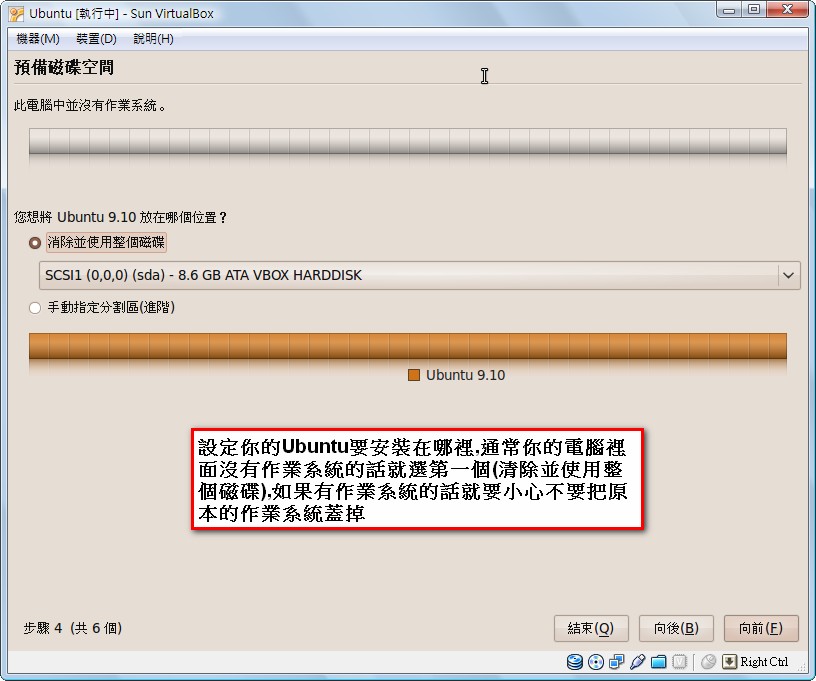
- Choose the partition where you want to install Ubuntu. If you have only one hard drive, install to that one. If you have two, be careful: if you install onto the drive that holds your current operating system, that system may be erased. I recommend beginners select [Erase and use the entire disk] and click [Forward], which is the least likely to cause problems.
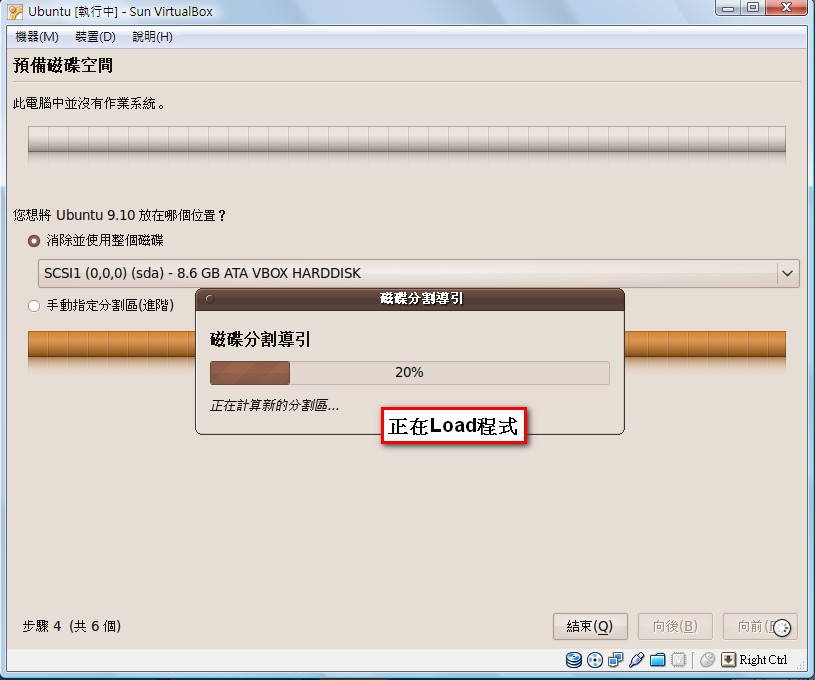
- Loading the program…..
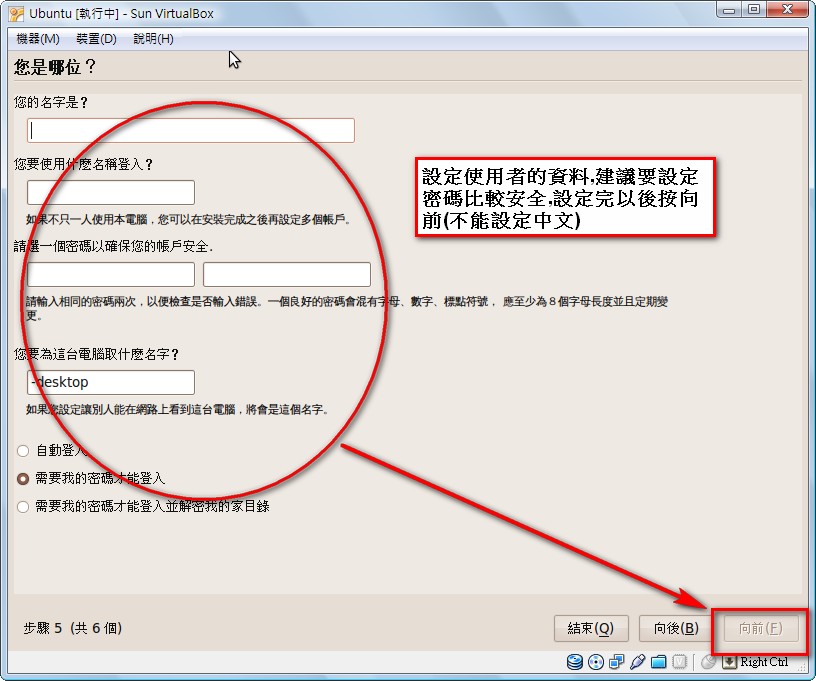
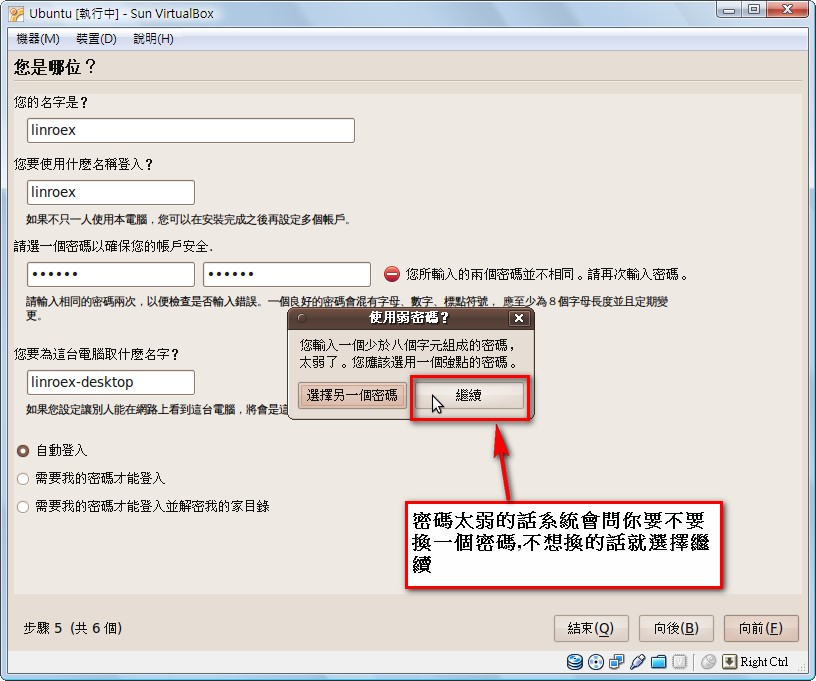
- Enter some information here. Note that the name must be in English, and you must set a password. Ubuntu won’t let you past this step without one ^^ Some people worry about forgetting the password after setting it, but you can’t skip it either. In that case, check [Log in automatically] below, and you won’t need to type the password to log in.
A password that’s too weak won’t work either ▼▼
- Here the system checks whether the information you entered has any errors. If everything looks good, click [Install].
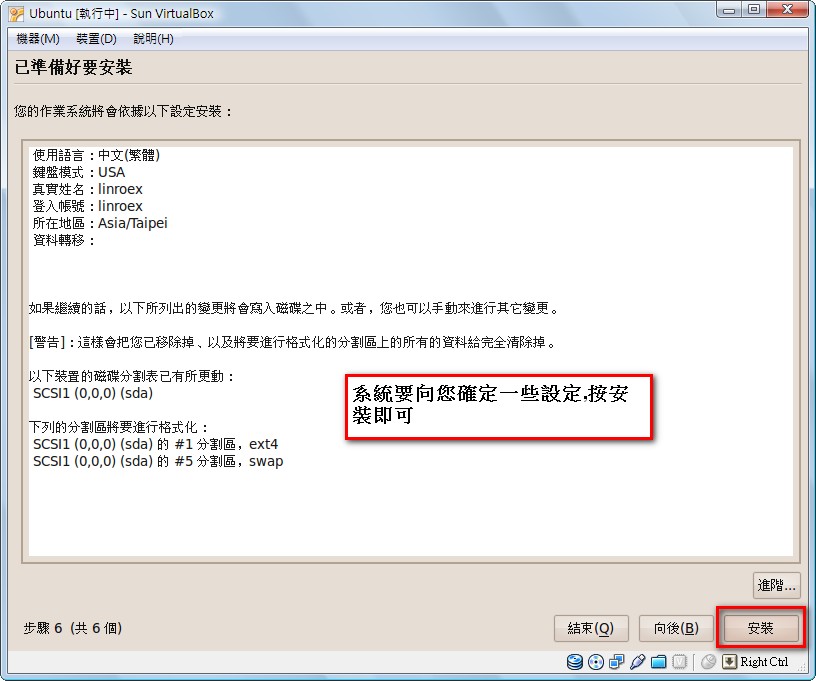
13. Installation has started. From here, the program runs on its own, so I’m off to bed XD