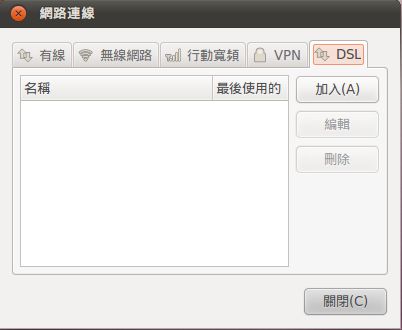
Addendum: I’ve heard that pppoeconf is still slow and there are faster ways to do it, orz… But compared with the version I used before, pppoeconf is actually pretty fast XD
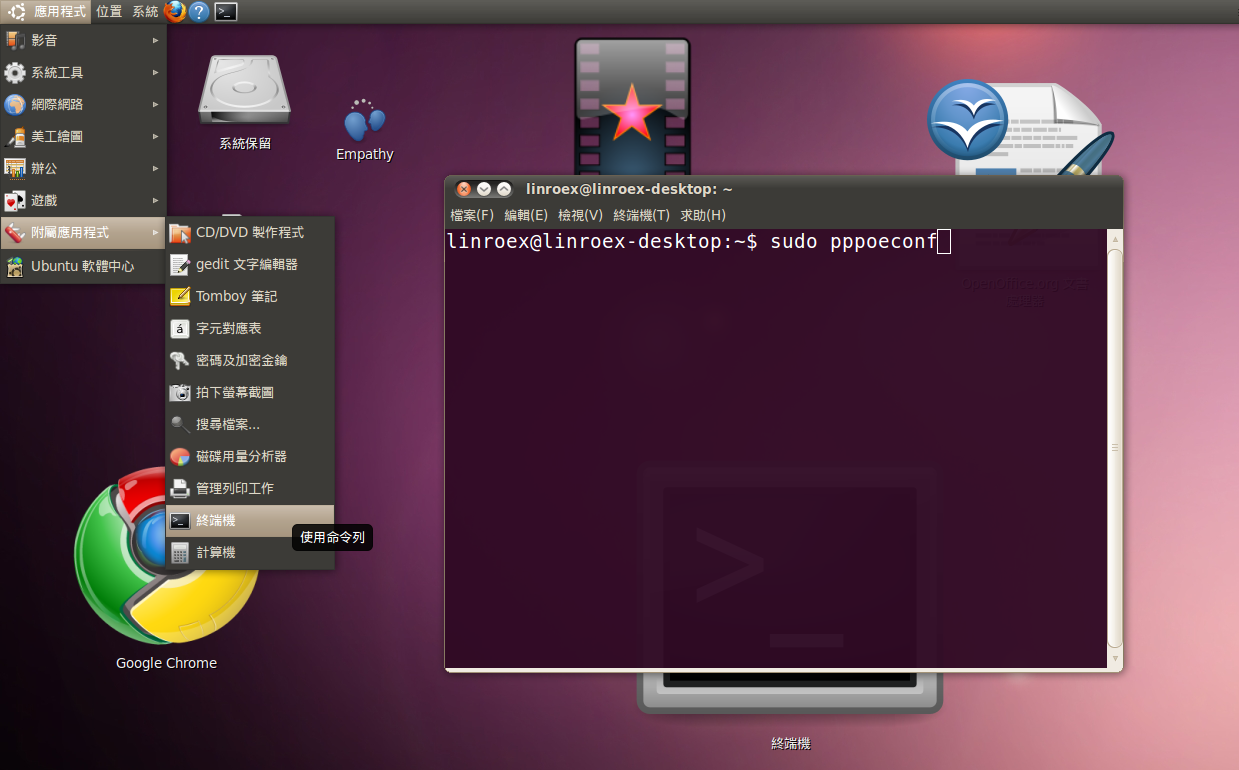
- After you log in to Ubuntu, open the Terminal and enter the following command:
sudo pppoeconf
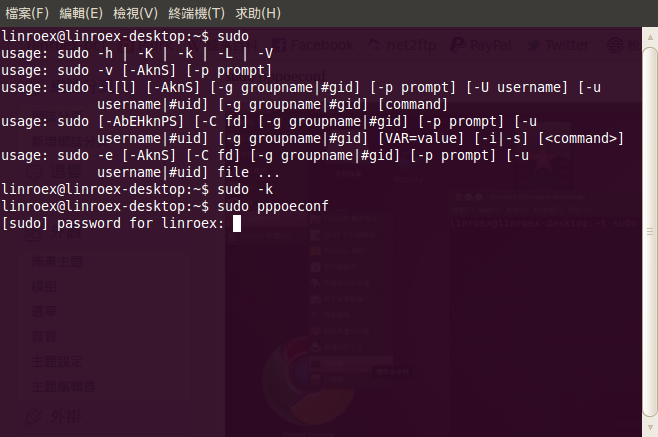
- Next, enter the system password you set when you installed Ubuntu. The screen will not show what you type, so after entering the password, just press Enter. Don’t worry about whether anything shows up on the screen.
- Next, a window appears about Ethernet devices and so on. It is only checking whether your network card and local network were detected, so just click Yes. (If no devices are found at all, your network card may not be supported by Ubuntu… in that case, click No…)
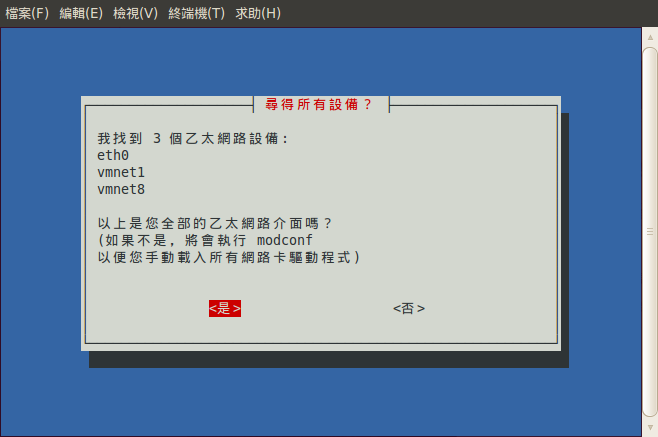
- If you see this window, just click Yes. It appears because I had already set up PPPoE before.
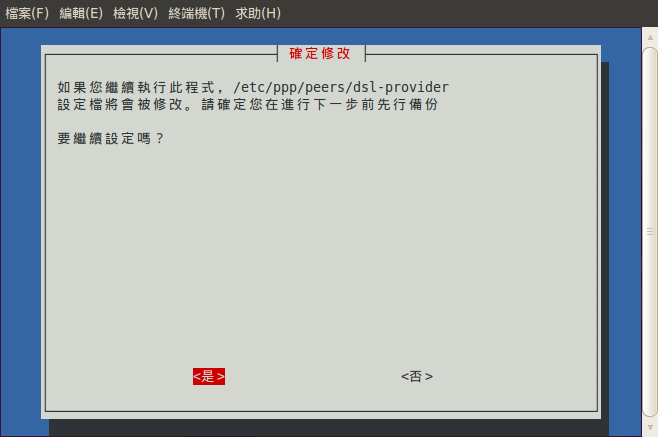
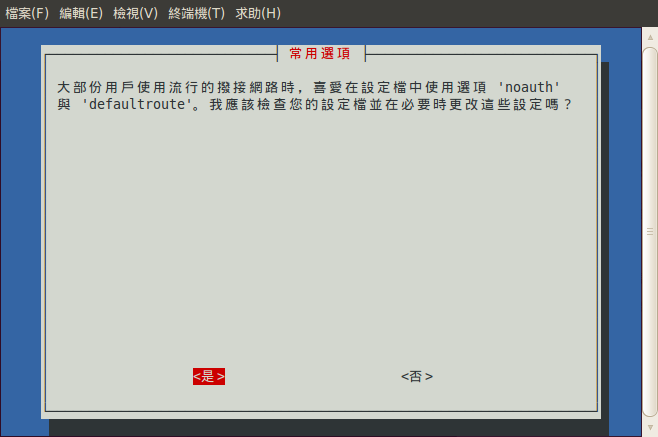
- Click Yes here as well.
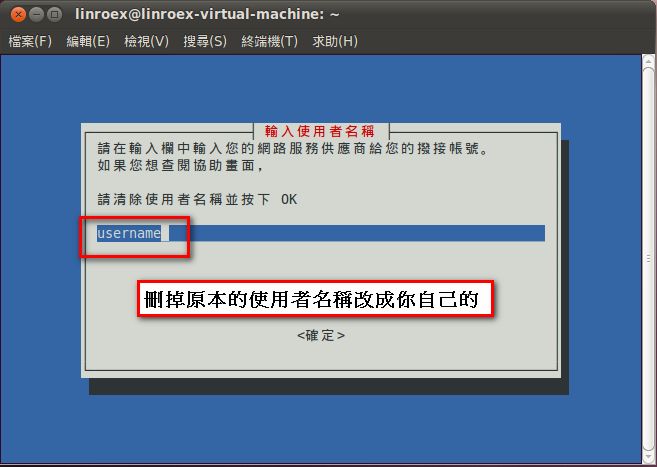
- This is for the account name you use when going online. Clear the existing text, type your account name, and then press Enter.
- This is for the password you use when going online. Clear the existing text, type your password, and then press Enter.
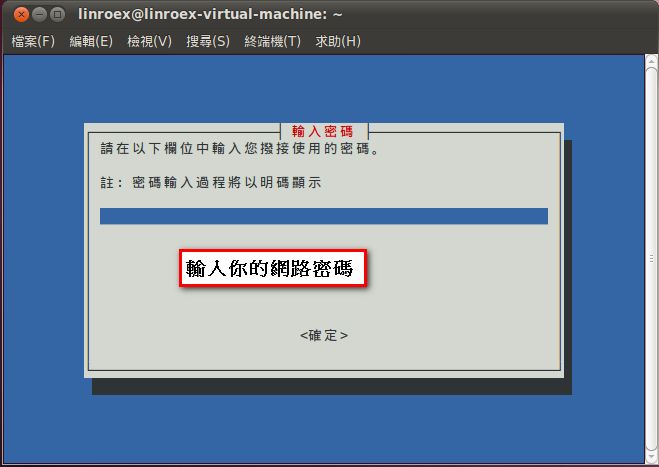
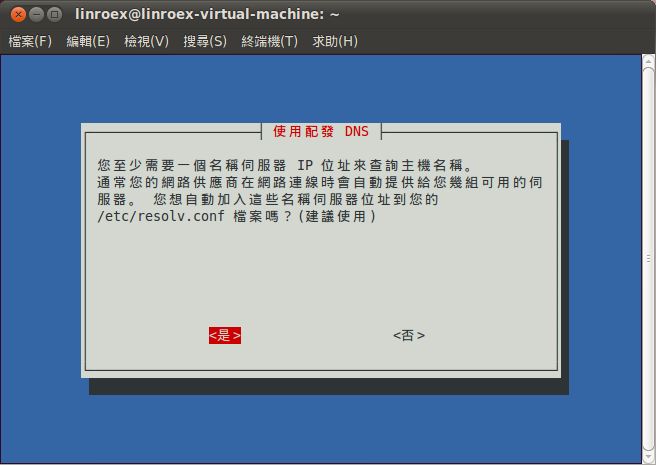
- This is about the DNS server. Just click Yes.
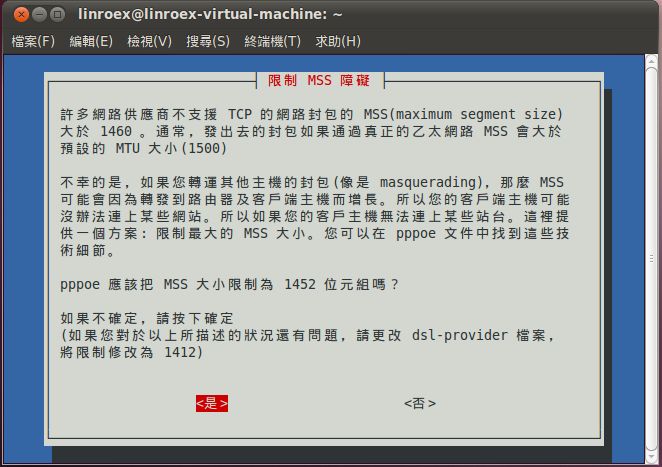
- Click Yes here too, and you’re good to go~
- Click Yes here as well. This way, the connection is made automatically every time you start the computer, so you don’t have to connect manually anymore.
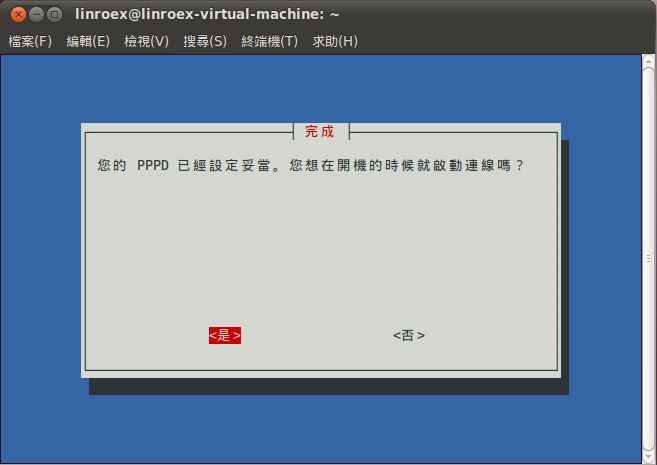
- This asks whether you want to activate the connection right away. There’s no reason to say no, right? XD
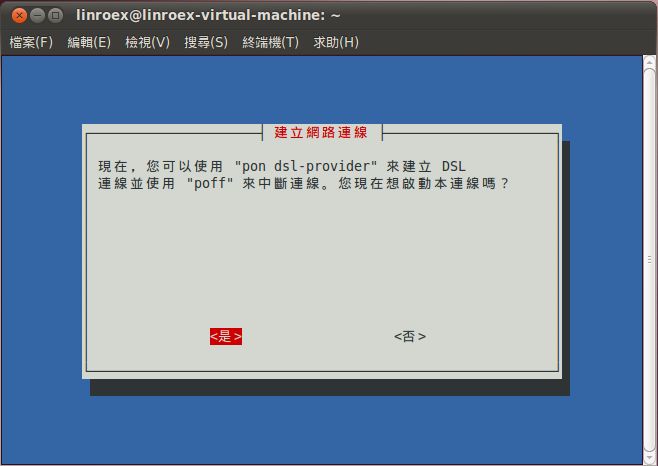
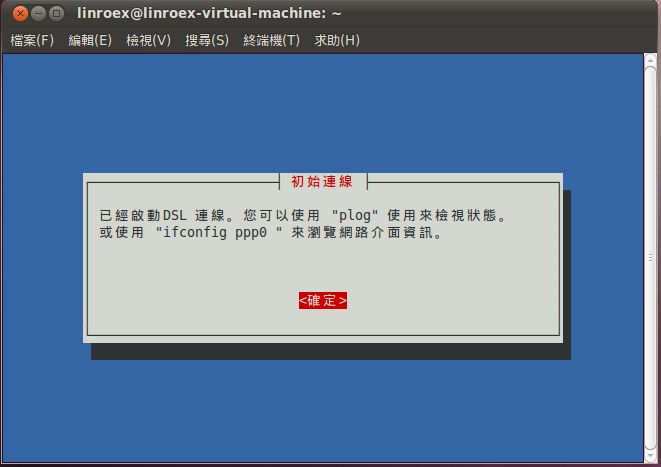
- Setup complete~