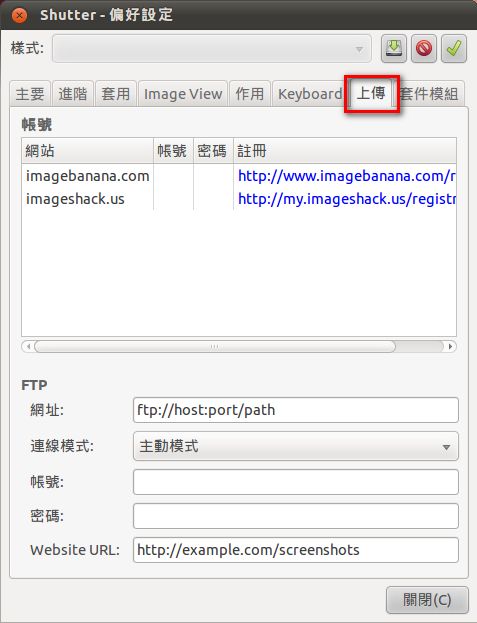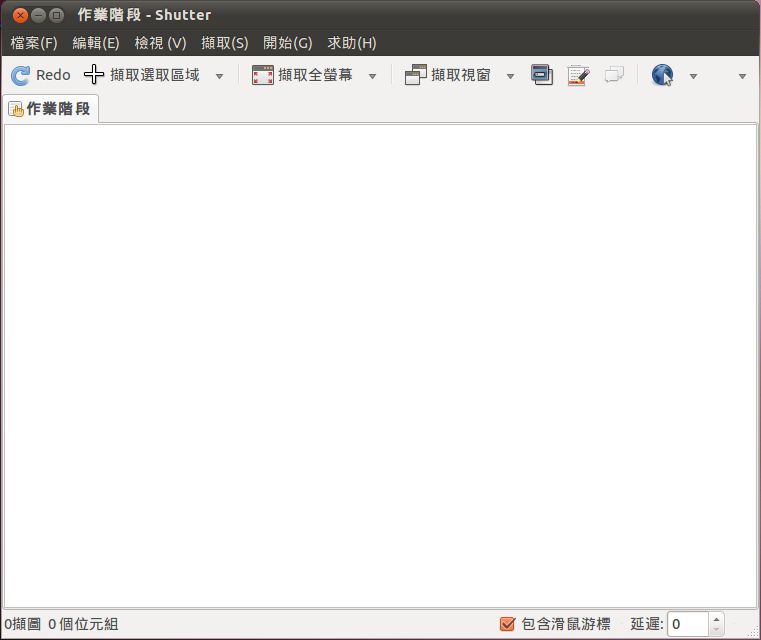
Shutter’s features can’t really compare with FSCapture, but for my very basic needs, it is more than enough. It has the basics, such as automatic saving, delayed capture, and saving in various formats. You can also edit images directly, so it is a pretty convenient screenshot program on Ubuntu~
Shutter Features
- Supports the three common capture modes: full screen, a specific area, and a window
- Can upload directly to web storage or FTP
- Built-in simple image editing
- Can save as JPEG
Shutter Installation Guide
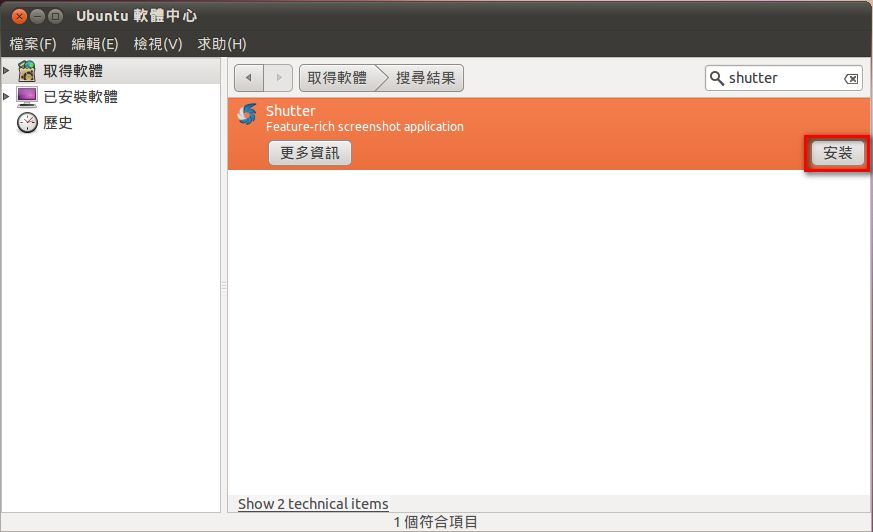
1. Click Applications → Ubuntu Software Center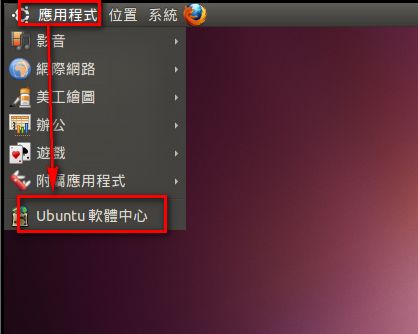
- Type Shutter in the search box
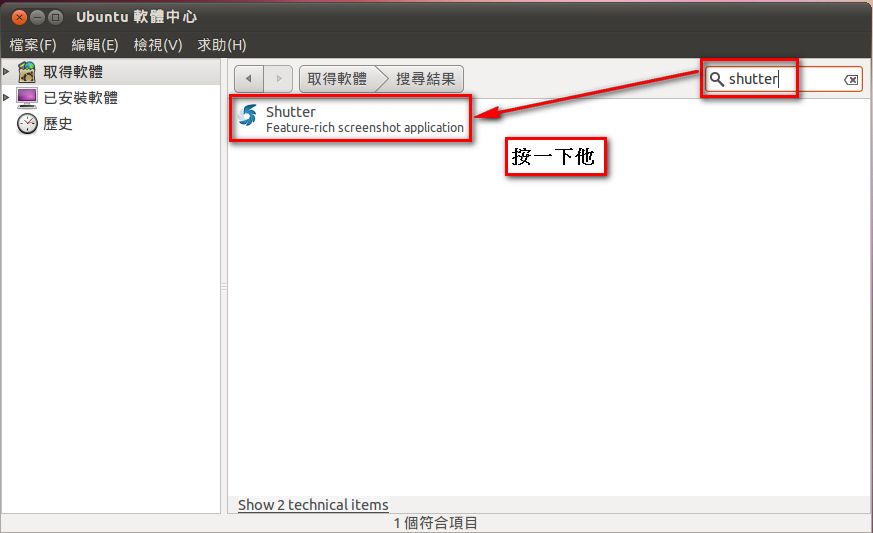
- Go ahead and click Install
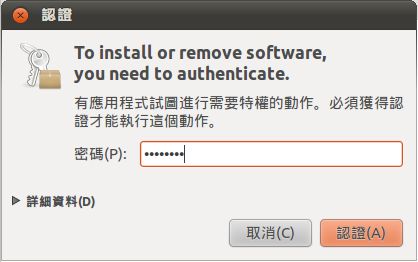
- Enter your user password
Shutter Basic Guide
1. Go to Applications → Accessories → Shutter to open Shutter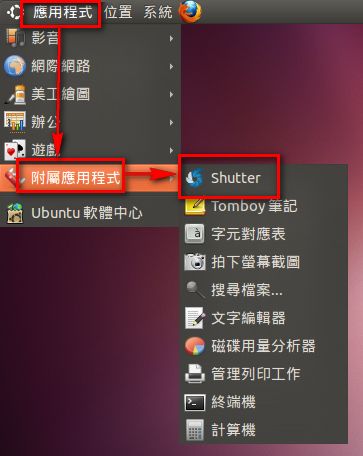
- You can choose to capture the full screen, a window, or a specific area
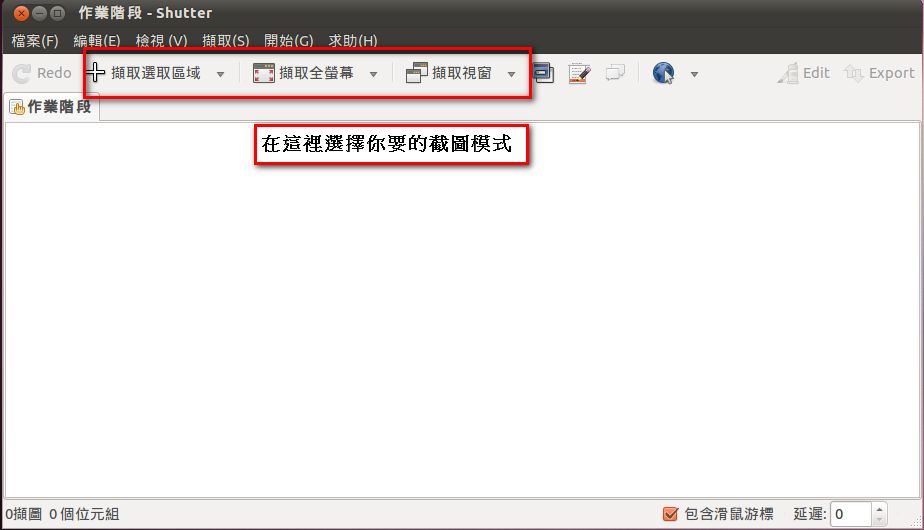
- After capturing, click the Edit button in the upper right to start editing
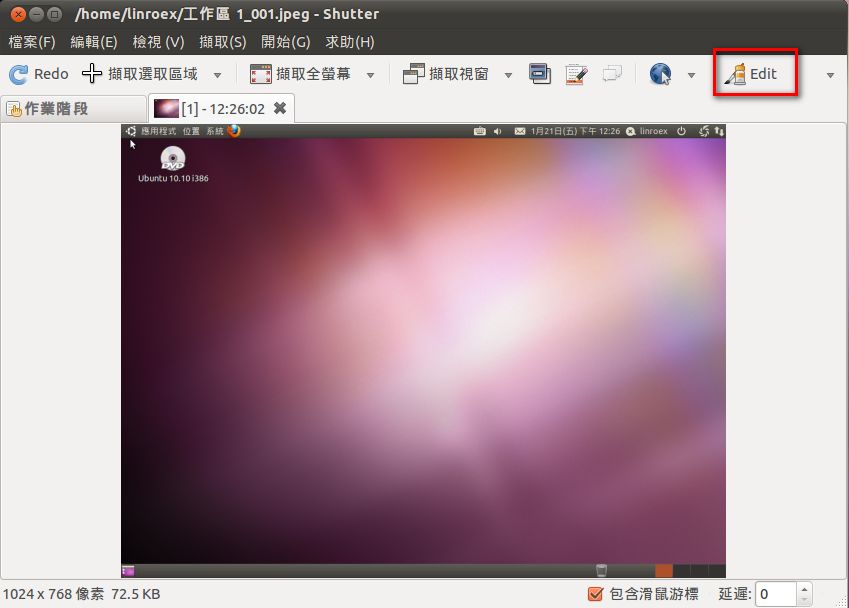
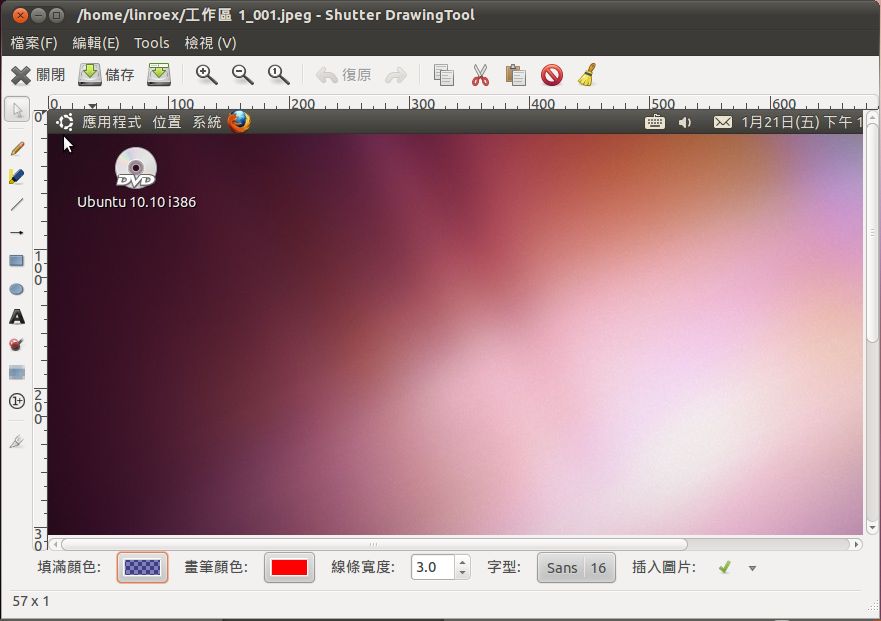
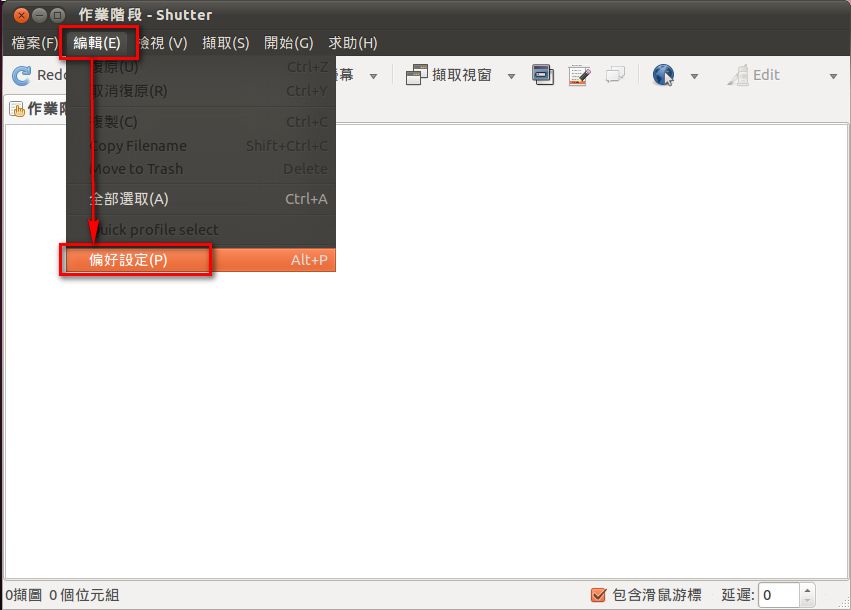
- You can also go to Edit → Preferences to make more advanced settings
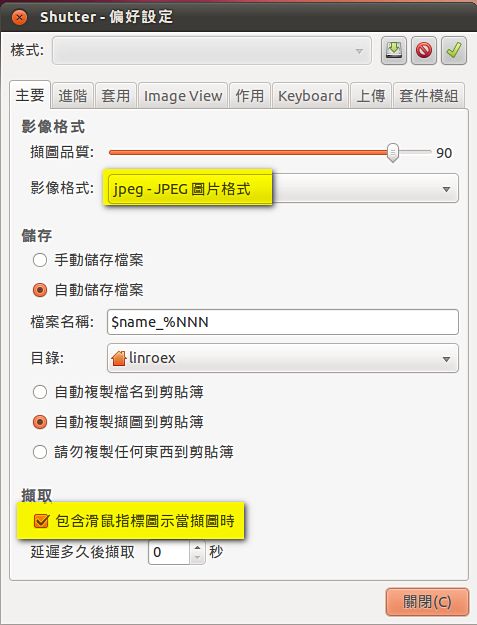
- On the General tab, I recommend changing the default file format to JPEG, and deciding whether you want the mouse pointer included in your captures
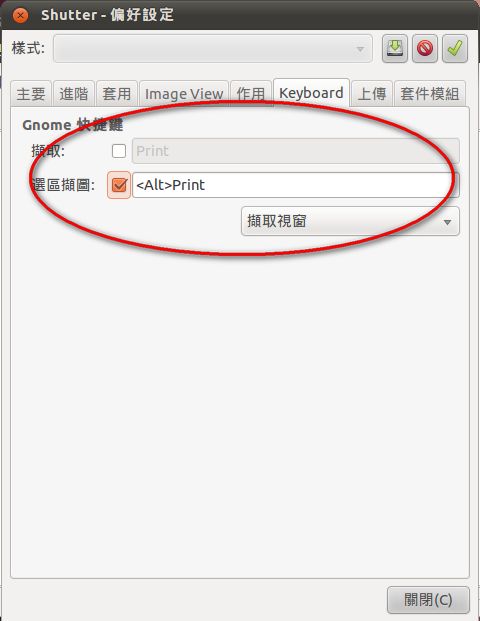
- On the Keyboard tab, you can set keyboard shortcuts for capturing
- On the Upload tab, you can set where your screenshots go after capturing. I personally find this feature very useful