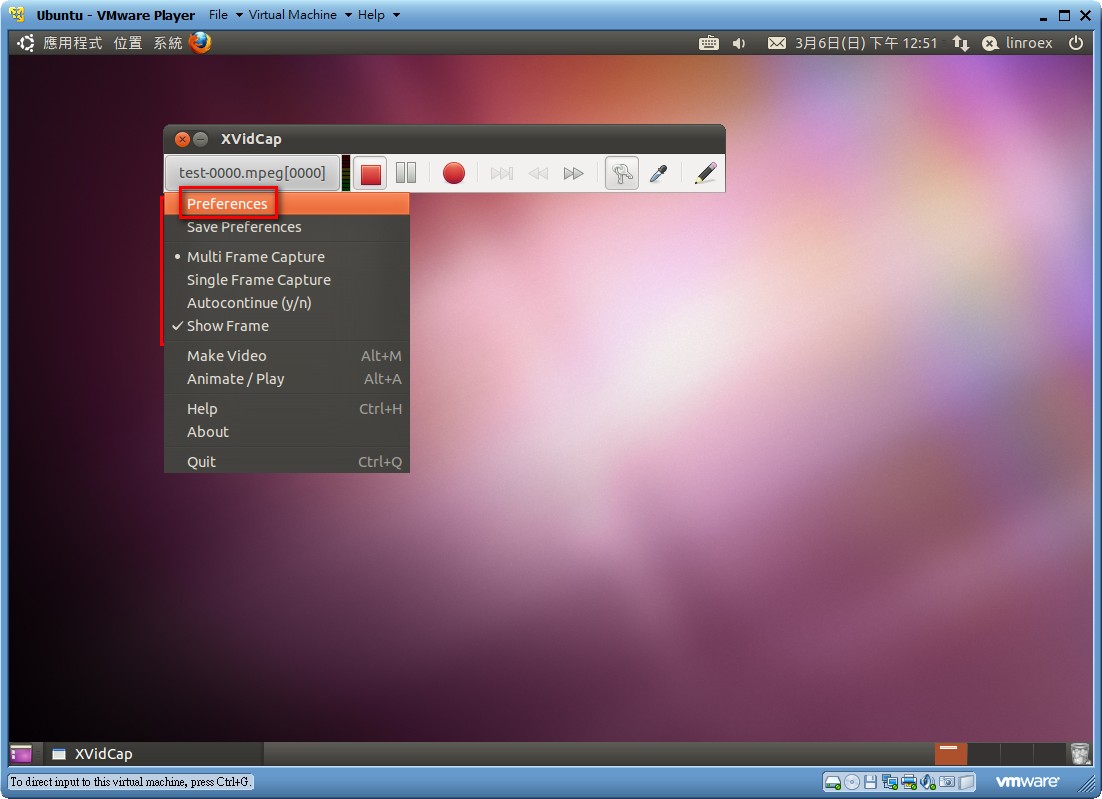
Since I recently started writing articles about Linux, I have been paying attention to the helper tools for writing under Linux, such as screenshot and screen recording tools. On Linux, I recommend Shutter for screenshots. For screen recording, I recently found a fairly well-known one called XVidCap. I tested it myself and it works pretty well. I’m not sure whether that’s because of the software itself or because I tested it in a virtual machine, but the video quality from XVidCap isn’t very good.
The main feature of XVidCap is that it supports many formats built in. It can save directly in common formats such as avi, mpeg, and swf, without needing another program to convert them. It has two small drawbacks, though: it doesn’t support keyboard shortcuts, and it doesn’t have a Chinese interface.
XVidCap Usage Guide
1. Click Applications → Ubuntu Software Center, search for "xvidcap", and then click Install.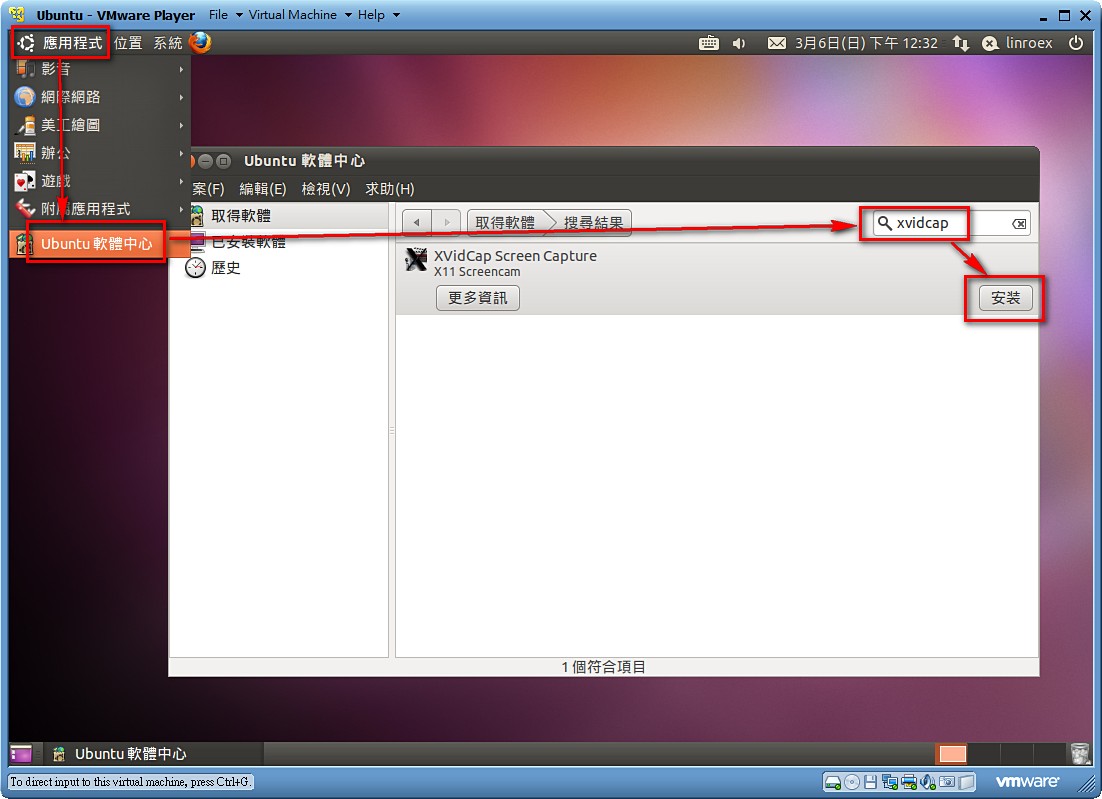
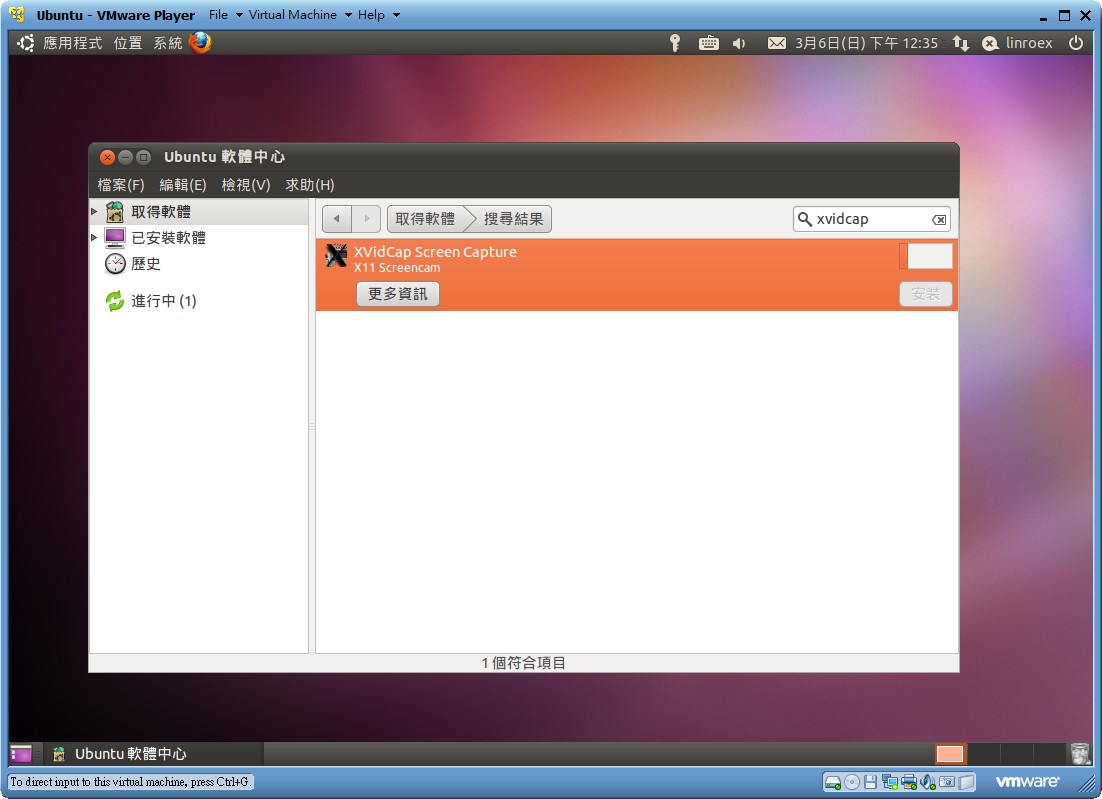
- Please wait while it installs~
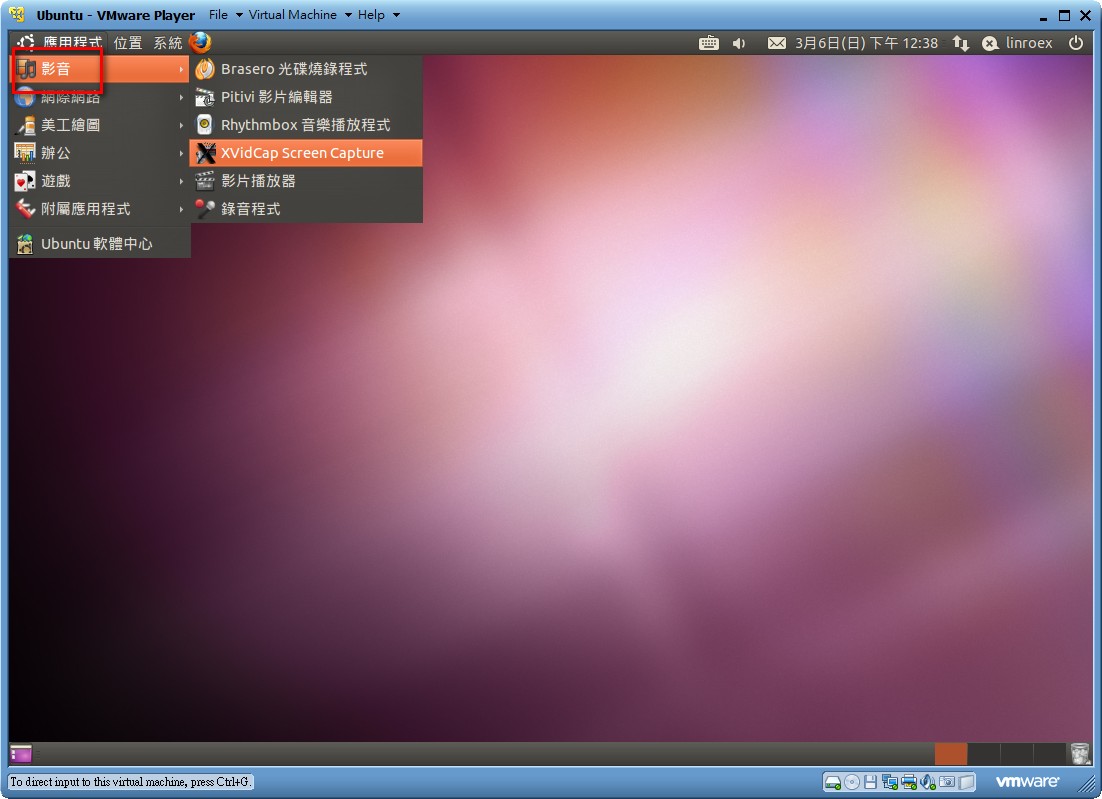
- You can find XVidCap Screen Capture under Applications → Sound & Video. Go ahead and open it~
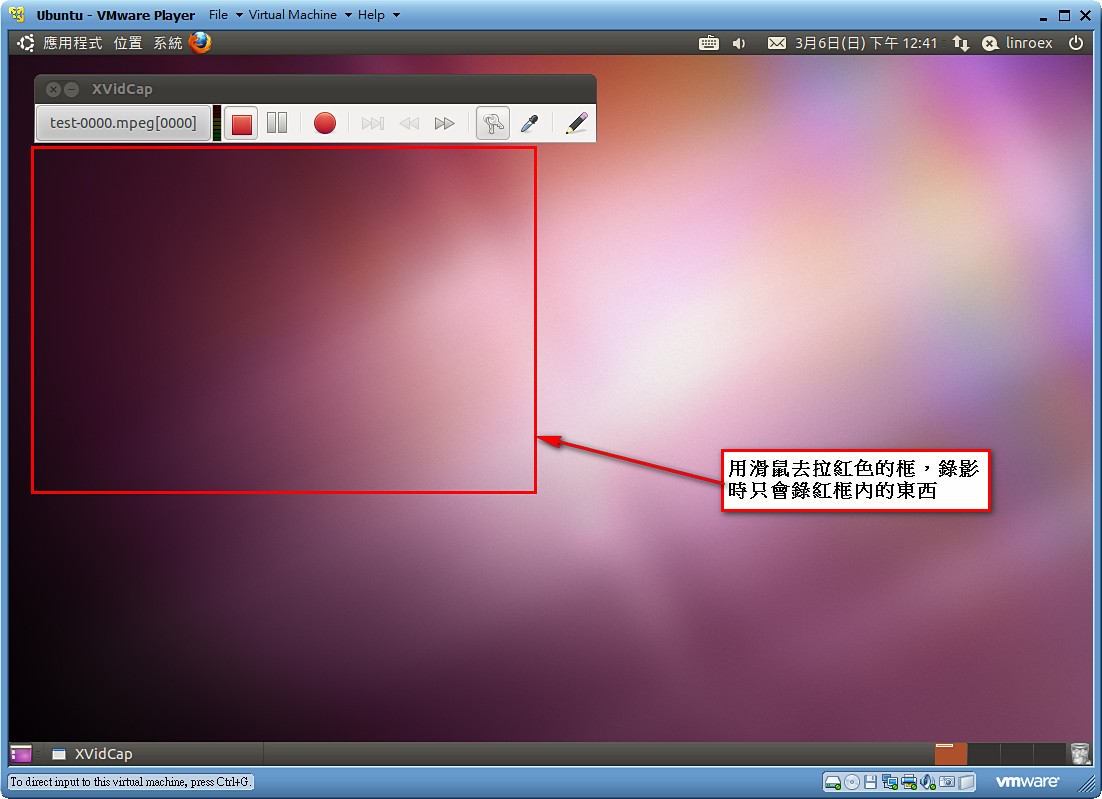
- After you open XVidCap Screen Capture, you’ll see a fairly small interface and a thick red frame. Drag the red frame with your mouse. The area inside the red frame is the area that will be recorded.
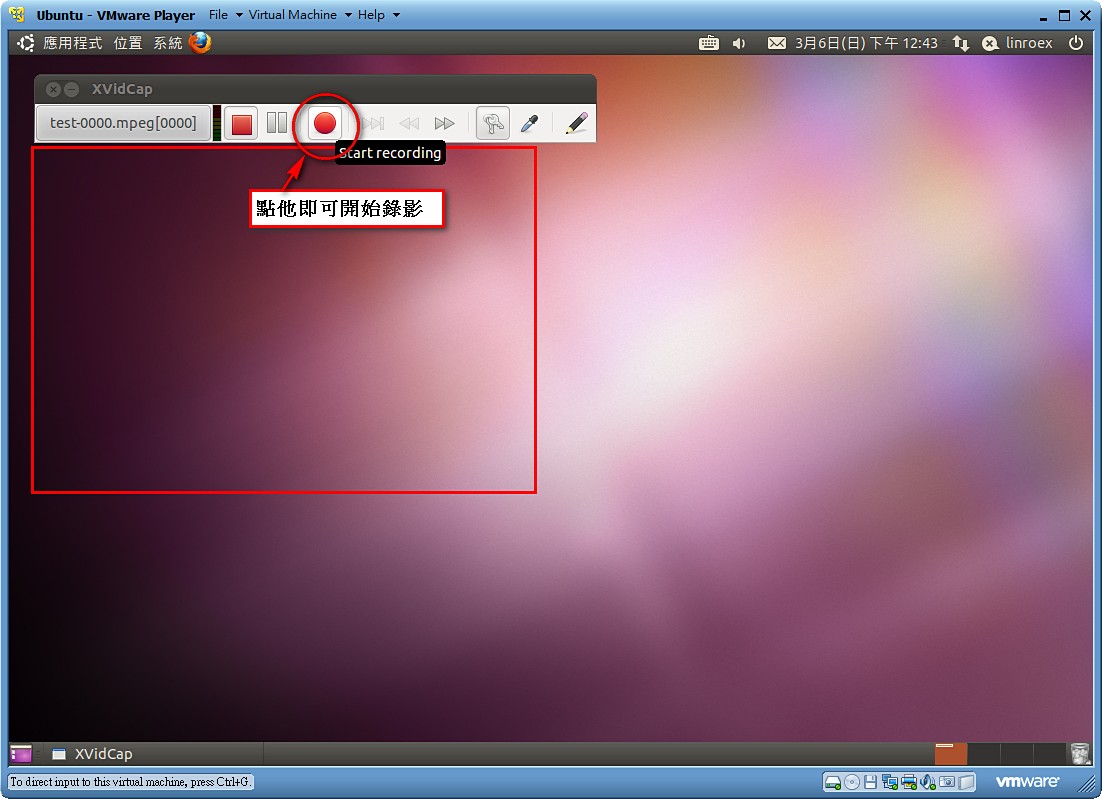
- After setting the recording area, click the round red button to start recording.
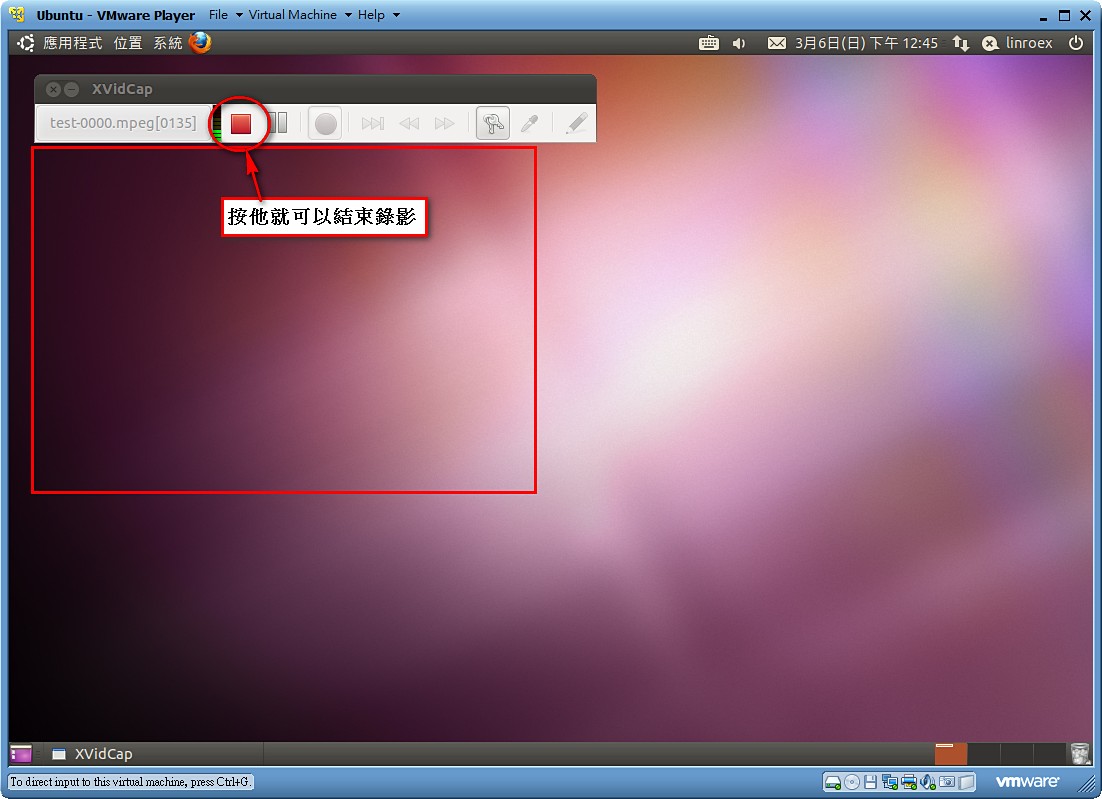
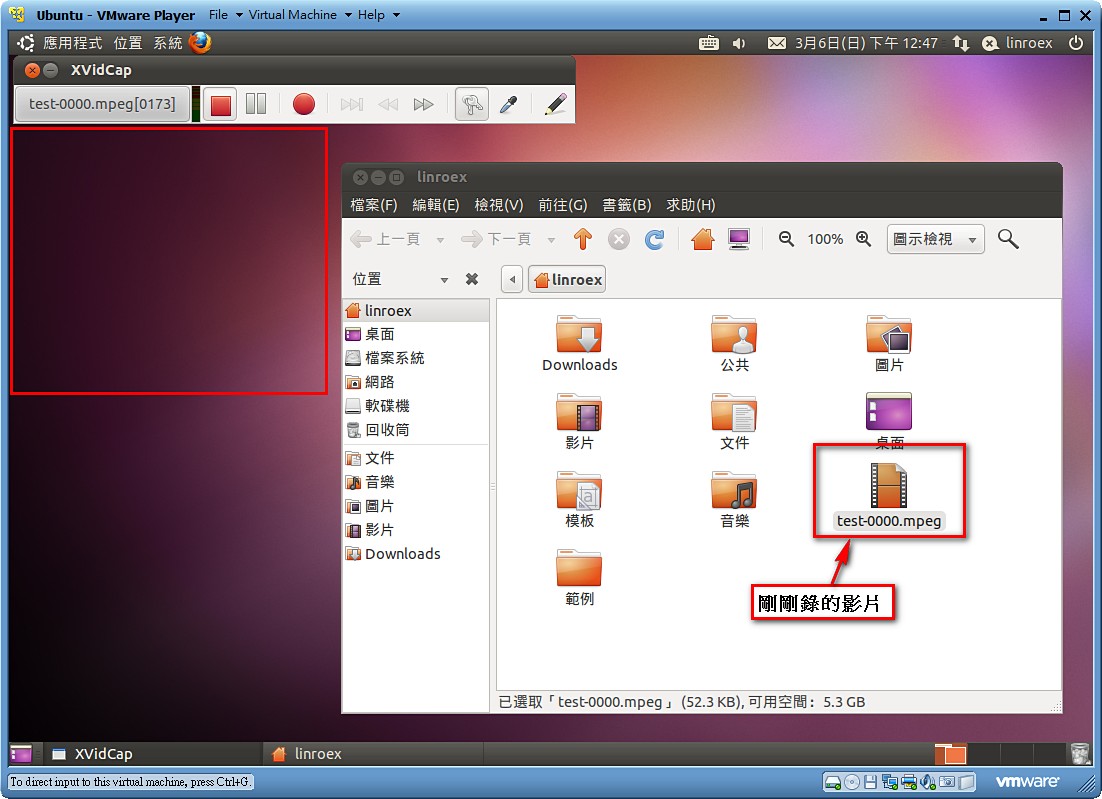
- Click the square red button to stop recording. By default, XVidCap Screen Capture saves the video to your home folder.
- You can also right-click on the far left edge of the program and click Preferences to make detailed settings, such as where recorded files are saved and what format they use. Unfortunately, it is only in English.