UptimeRobot is a long-established, stable, and full-featured website status monitoring service. Once you set it up, UptimeRobot periodically checks whether your site is online. This matters a great deal to site owners. Imagine you update your server and the site breaks, and you only notice three hours later. All the visitors during those three hours are lost! The free plan of UptimeRobot lets you monitor up to 50 targets, checking each one every five minutes. It supports four check types: HTTP Status, Keyword, Ping, and Port. When something goes wrong, UptimeRobot can notify you by SMS, email, Slack, WebHook, and many other channels. What matters even more to me is that UptimeRobot is well run and stable. I have been using it since 2011.
Website: https://uptimerobot.com/
I won’t go into the details of account registration. After you log in, there are two things to do: first, set up how you want to receive notifications; second, set up the websites you want to monitor and how to monitor them.
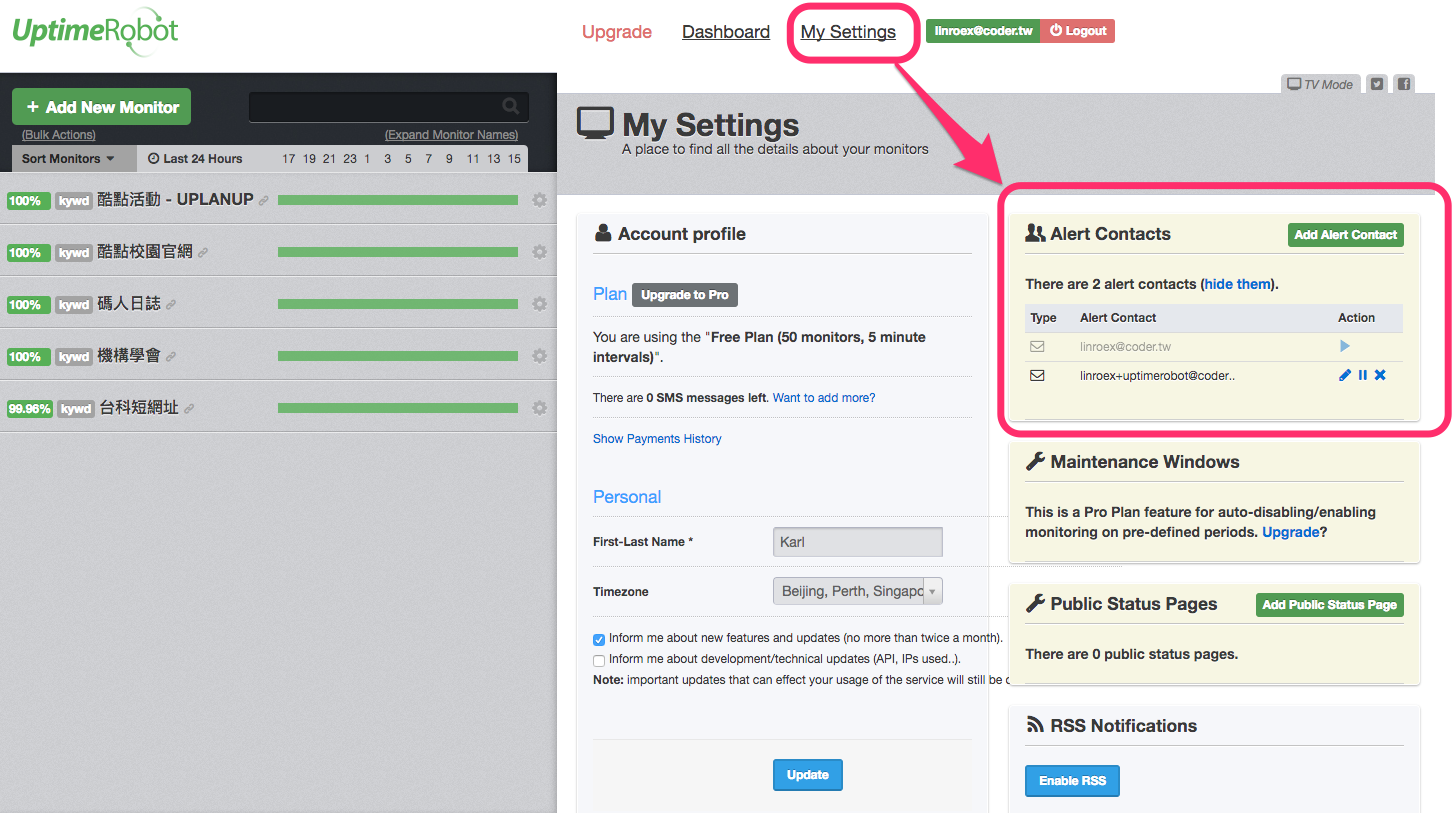
After logging in, you can set up notifications from My Settings in the middle of the page. In addition to basic SMS, email, and WebHook, UptimeRobot has built-in support for many third-party services such as Slack and Twitter. You can set up multiple notification methods, and whenever a site’s status changes (Up / Down), it will notify you through the channels you have set up.
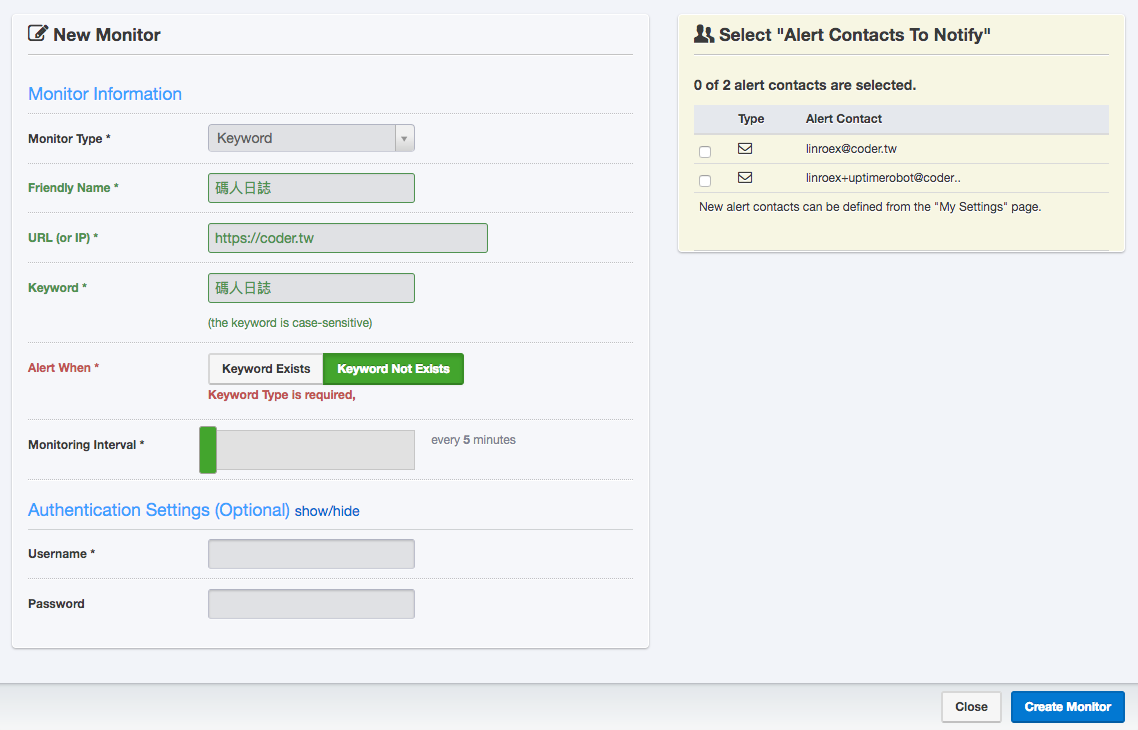
After you set up notifications, click “Add New Monitor” on the left to configure a monitor. Personally, I most often use the “Keyword” type. The “HTTPS” type only checks the HTTP status, so it notifies you when the status becomes something like 404 or 301. But in some cases, such as a database error or a program error, the HTTP status is still 200 while users can’t see the content they expect. “Keyword” checks whether a specified keyword exists on the page, which avoids this problem. But be careful not to pick a keyword that changes!
While you’re setting up a monitor, don’t forget to select the notification channels for that monitor on the right.