macOS has a handy Notification Center. You can write a program to send messages to it, and they’ll appear on screen just like on iOS. But if all you want to do is send a message, you can do it with a single command in Terminal! You don’t need to learn Objective-C or Swift to use macOS’s notification feature. For example, while you wait for tests to run, you might want to make good use of the time by reading some documentation. In that case, you can use Notification to tell you when the tests have finished. You don’t have to worry about getting so absorbed in your reading that you forget the tests are still running, and when they finish, you’ll get a notification right away, so not a moment is wasted! Of course, tests aren’t the only use. Because this Notification works as a command, any program run in Terminal can do the same thing!
This is an AppleScript command that displays a notification in macOS. Just type the following command in Terminal:
osascript -e 'display notification "Hello" with title "Title" '
Because it’s an AppleScript command, you need to run it with osascript.
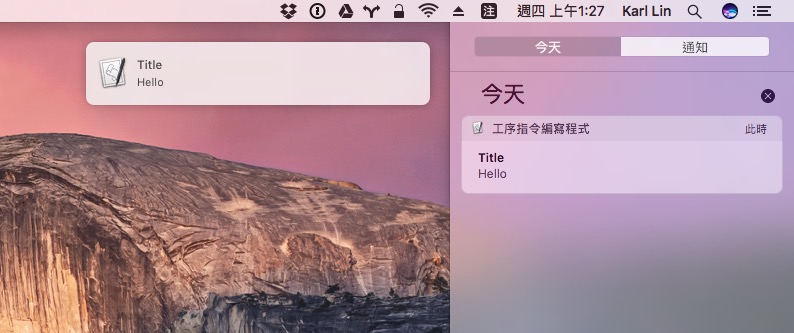
As an example with brew, I want Homebrew to notify me when it finishes updating:
brew update;osascript -e 'display notification "done" with title "Title"'
Of course, typing this long command every time is a hassle, so you can set it up as an alias or do something else to make it easier to use. For example, add the following line to the very end of ~/.bashrc (or .zshrc):
alias notify = "osascript -e 'display notification \"done\" with title \"Title\" ' "
After reopening Terminal, here’s the brew update example again:
brew update; notify
But note that this won’t work if you’re working over ssh!