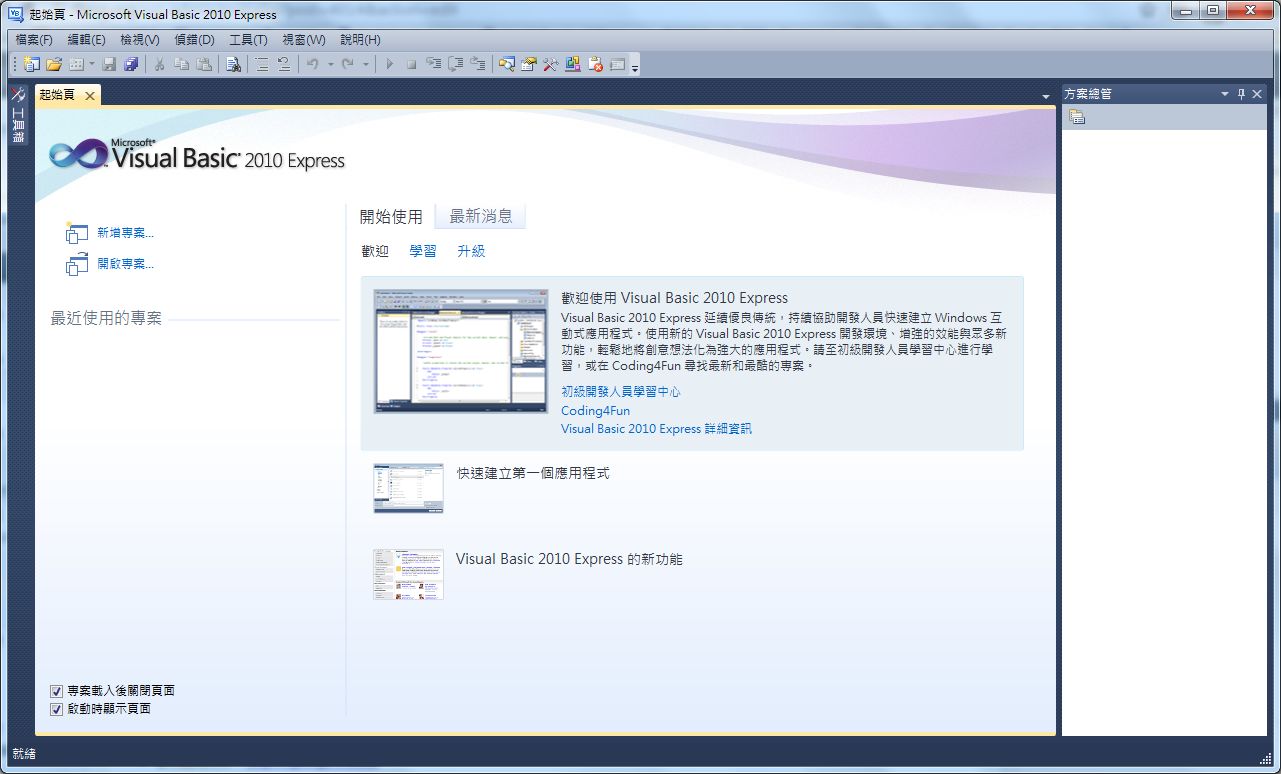
Of all the new features in Visual Studio 2010, my favorites are the parallel computing library and DataTips. In the past, writing parallel programs was very troublesome and took a lot of time. In Visual Studio 2010, you can use the built-in library directly to build parallel features. The improved DataTips also let me easily check the value of each variable while debugging. I’ve also heard that this version of VS is especially strong for team development. I haven’t studied that, though, so I don’t really know what software life cycles or process control are. I only roughly know the benefits of code version control, because I often wrote buggy code and then spent ages hunting down the problems.
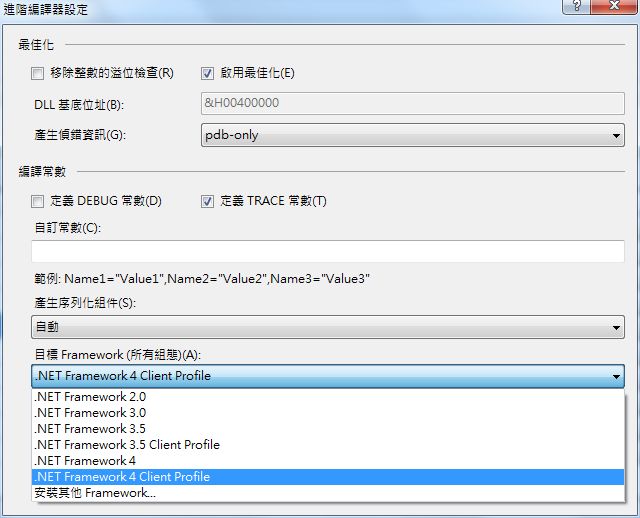
Also, since .NET Famework 4 isn’t very widespread yet, VS2010 includes Multi-Targeting Support, which lets you build an application against a different version of the .NET Famework. That way, you don’t have to worry about your program not opening on computers that don’t have .NET Famework 4.
Visual Studio 2010 information:
- Official website: http://www.microsoft.com/visualstudio/zh-tw
- Poster downloads: .NET Famework 4 poster | VS2010 shortcut poster
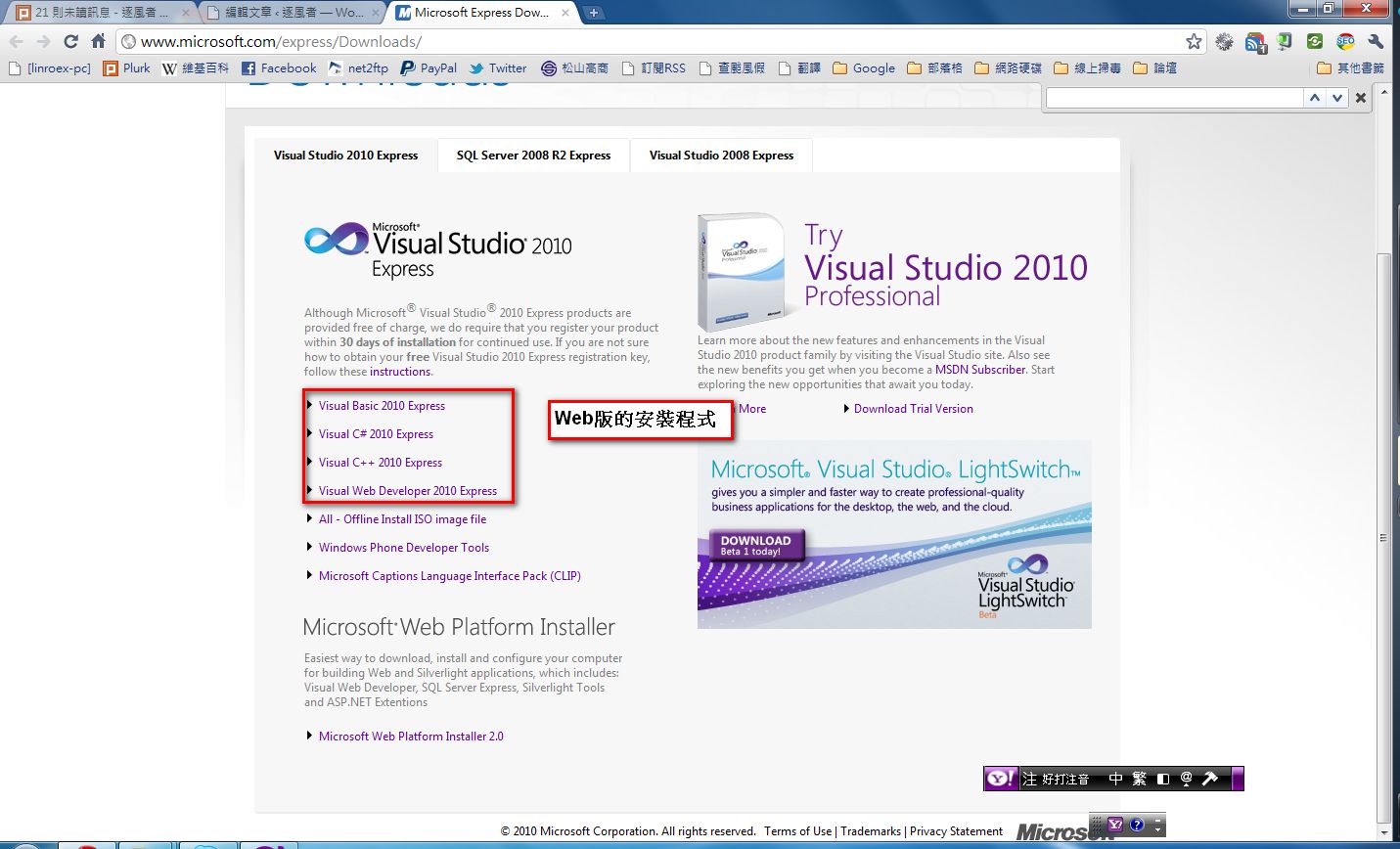
- Main program (Express) download: http://www.microsoft.com/express/Downloads/
- Official documentation: http://goo.gl/70KoB
Visual Studio 2010 features:
- Enhanced debugging (DataTips)
- Heterogeneous platform development management (Team Explorer Everywhere)
- Built-in parallel computing library
- Complete software life cycle and process control (I don't really understand this either; I only roughly know it's used for team development)
- Code version control
- Automated UI testing
- Multi-Targeting Support
Installing Visual Studio 2010
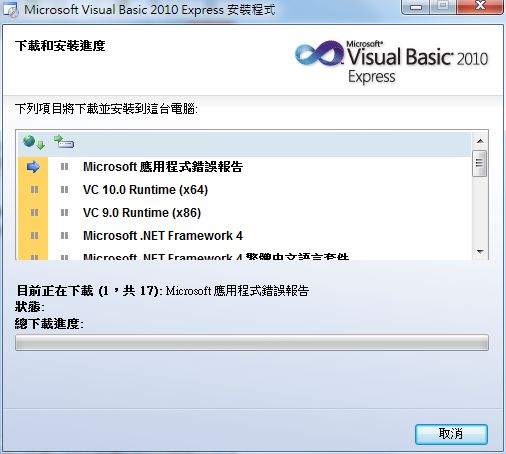
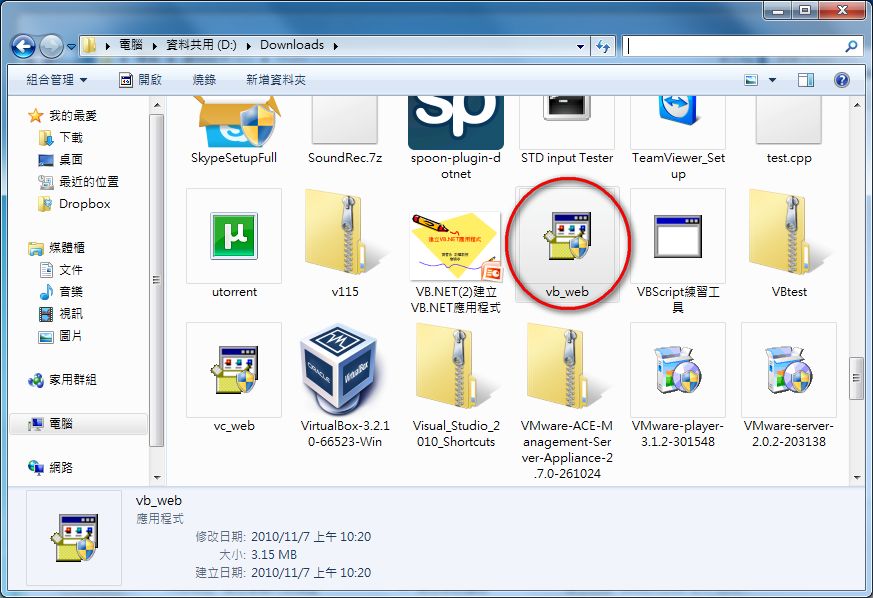
Here I'll write the tutorial using the Visual Basic 2010 web installer. The web installers for other languages install in pretty much the same way.- First, open the installer you just downloaded.
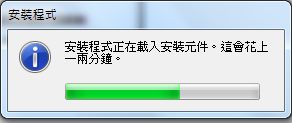
- The installer loads the components it needs for installation.
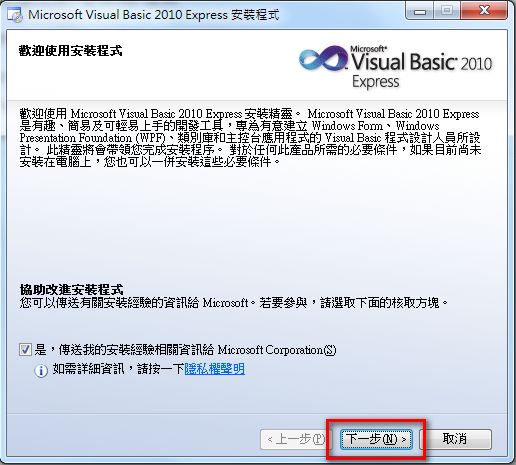
- Click Next.
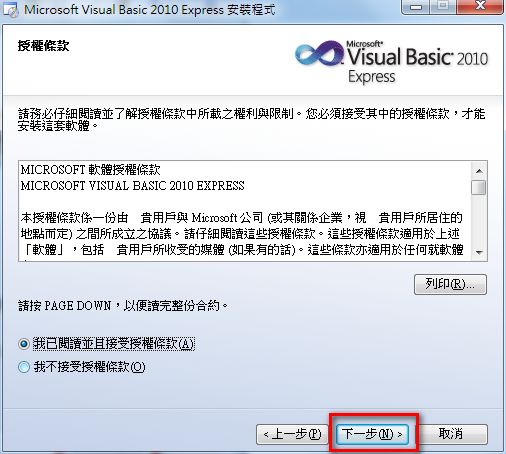
- Select I have read and accept the license terms, then click Next.
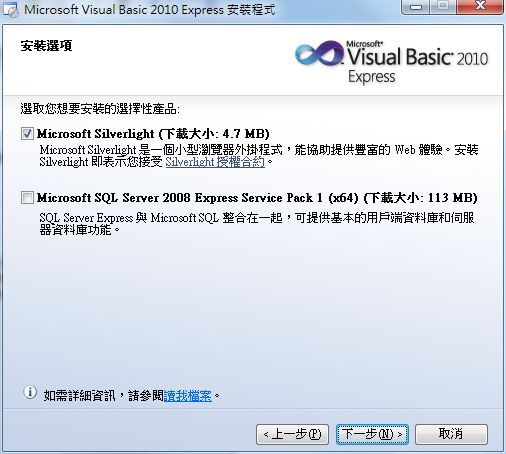
- Choose which programs to install besides the compiler itself. If you’re writing database programs, choose Microsoft SQL Server. As for Silverlight, just let it install. You’ll likely need it sooner or later, and the Silverlight files are small, so it won’t take long.
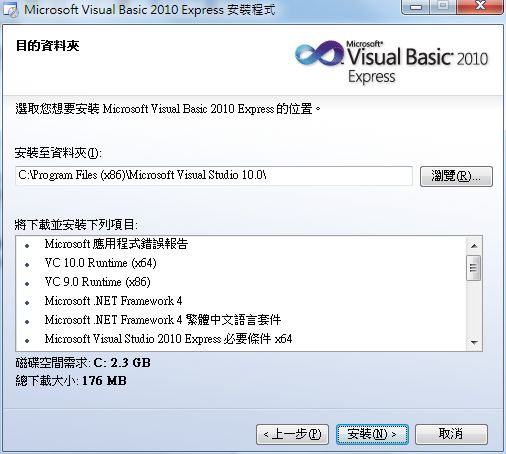
- This step asks where to install. Usually you keep the default and click Next. This screen also shows the programs that will be installed so you can confirm them. Once you’re OK with the list, click Install.
- At this step you can step away. The system automatically handles all the downloading and installing. It takes quite a while, though….. If your connection is slow, you may as well go to sleep first xD