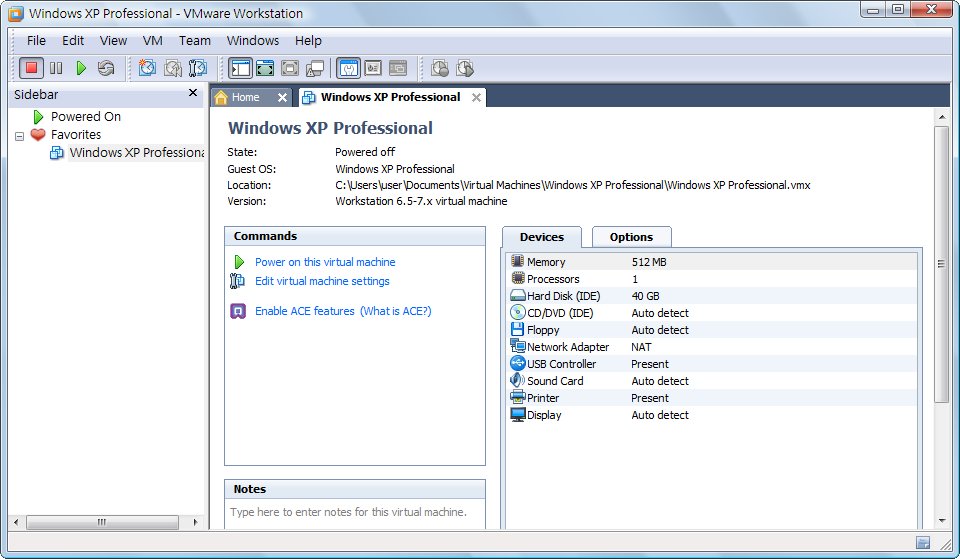
VMware is a program that lets your computer run two or more operating systems at the same time. It’s not like dual-booting, where you pick one at startup. You can really have many operating systems running simultaneously. Some people may wonder why anyone would run so many operating systems at once. Do you have nothing better to do? From a gaming perspective, running two operating systems at once enables a so-called dual-window setup. From a security perspective, virtual machines help security staff test for viruses. And if you’ve downloaded a program from the internet and aren’t sure whether it’s safe, VMware can help you out.
The virtual machine market is mainly split among VMware, VirtualBox, and Virtual PC. Only VMware is paid. Even so, its market share is the highest of these three. In my view, a paid product should have a market share of at least 0.0, but Windows is a huge exception, haha…. That said, VMware and Windows can’t be compared. VMware is really worth the money, because its features are much better than the other two. For example, its performance is thousands of times better than Virtual PC, and it lets you use DirectX, which the other two can’t do.
There’s a misconception to clear up. Many people think virtual machine software comes with an operating system built in. In reality, it creates a new virtual computer for you, and you have to install the operating system yourself. Also, very old computers can’t run virtual machines well, because running two operating systems at once consumes a lot of resources.
Below, I’ll show you how to download the trial version of VMware Workstation and how to install it.
Downloading the Trial Version of VMware Workstation
1.First, go to the VMware website, click [Support & Downloads], then click VMware Workstation under Product Downloads.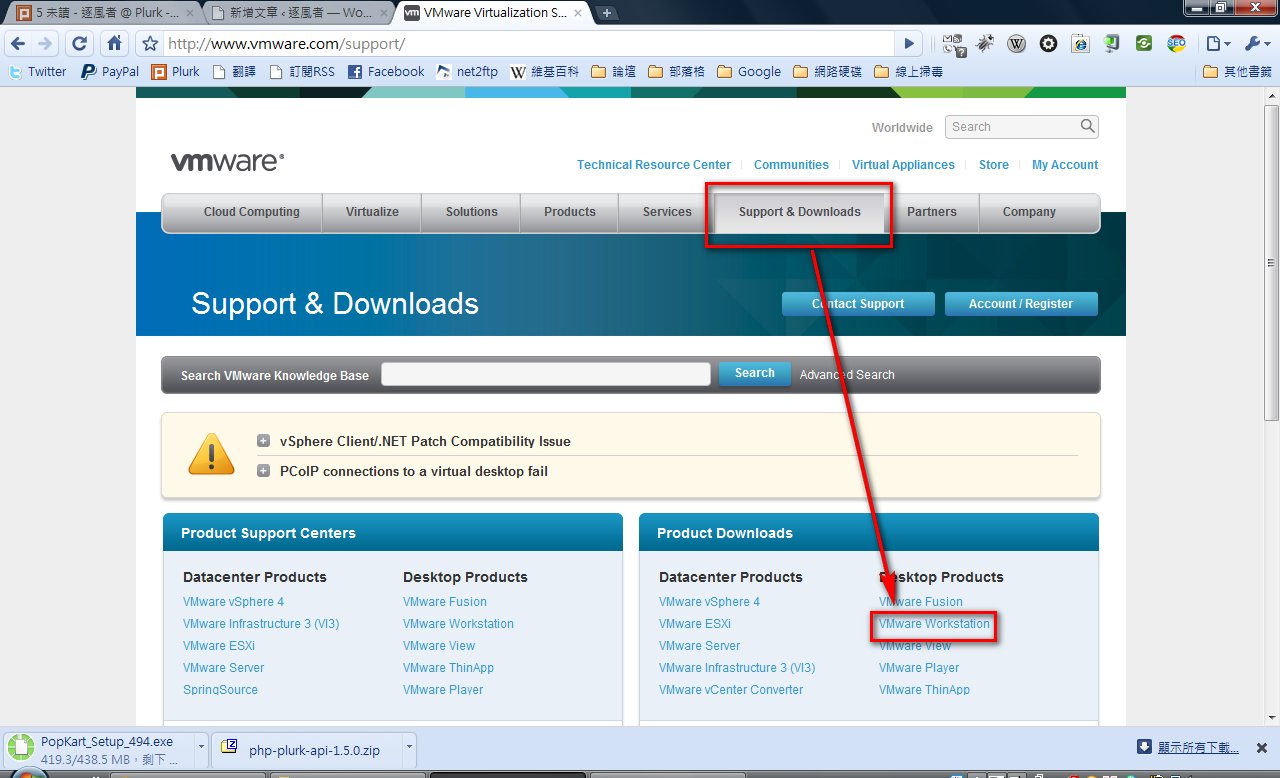
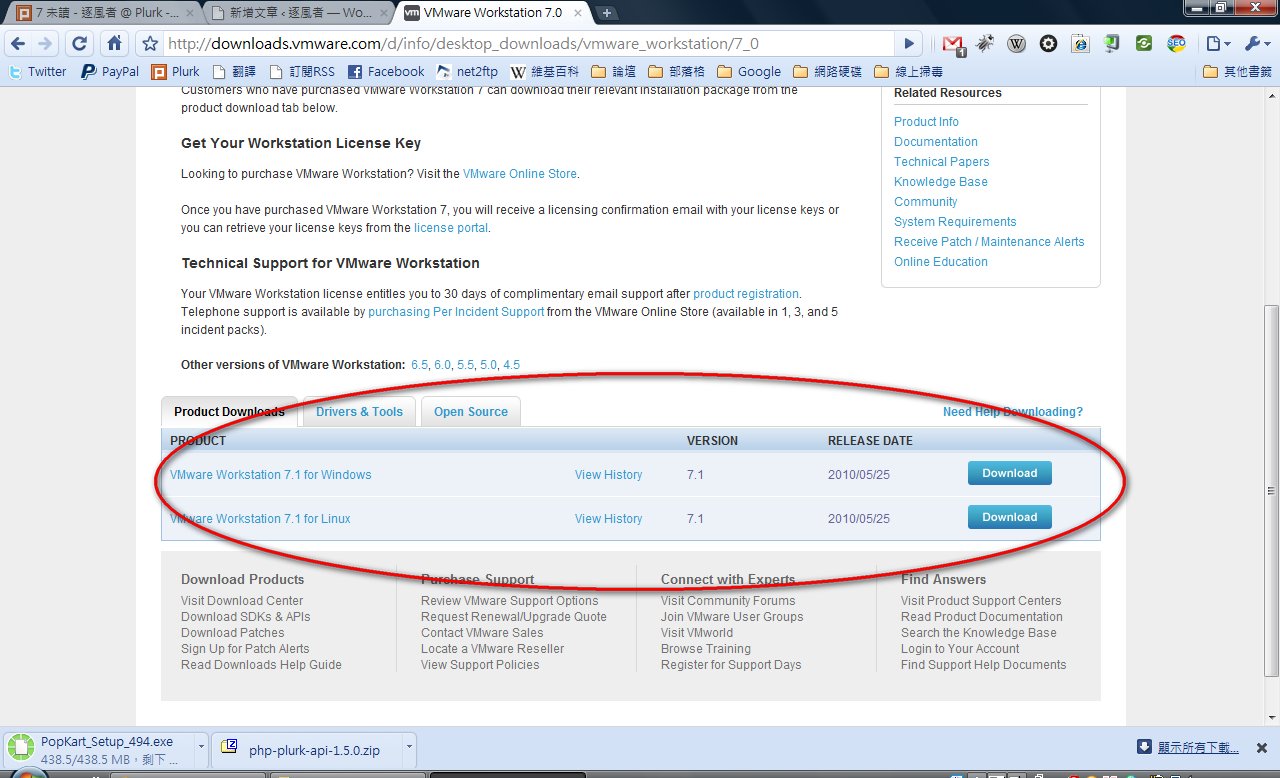
2.Scroll to the bottom of the page and you’ll see Download buttons. Choose the one that matches your computer, Windows or Linux.
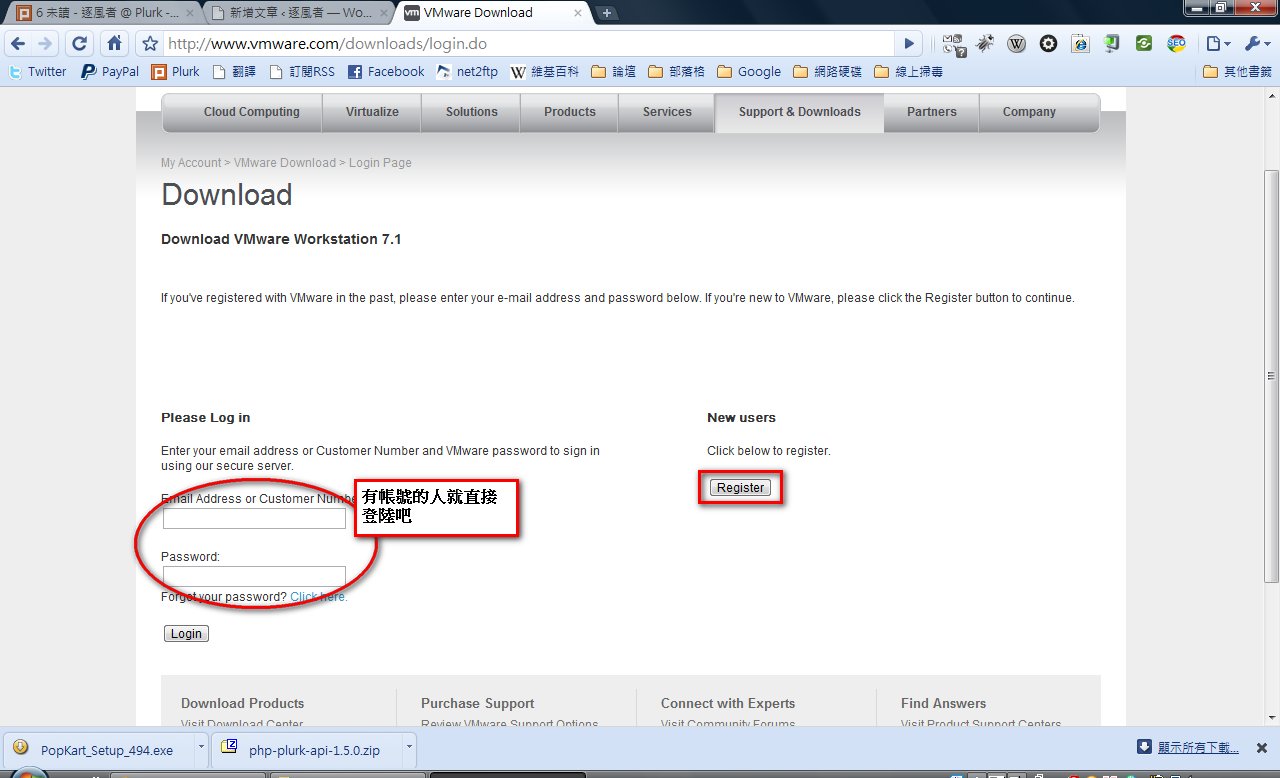
3.To download the trial version of VMware, you need to register a VMware account first. If you already have one, just log in on the left and skip ahead to step 5. If you don’t, click [Register].
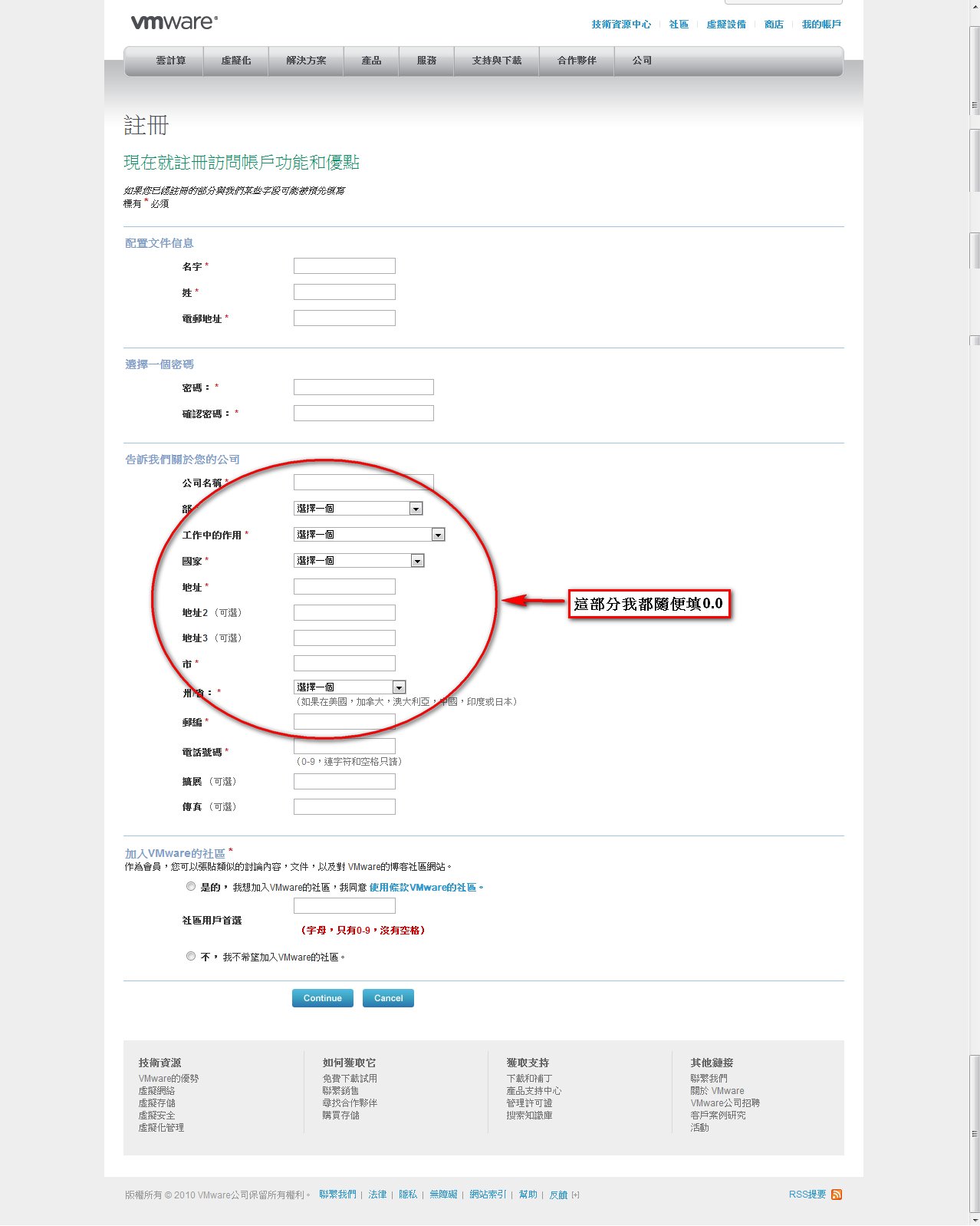
4.Fill in the required information, then click [continue].
The image below shows the translation (click the image to enlarge it).
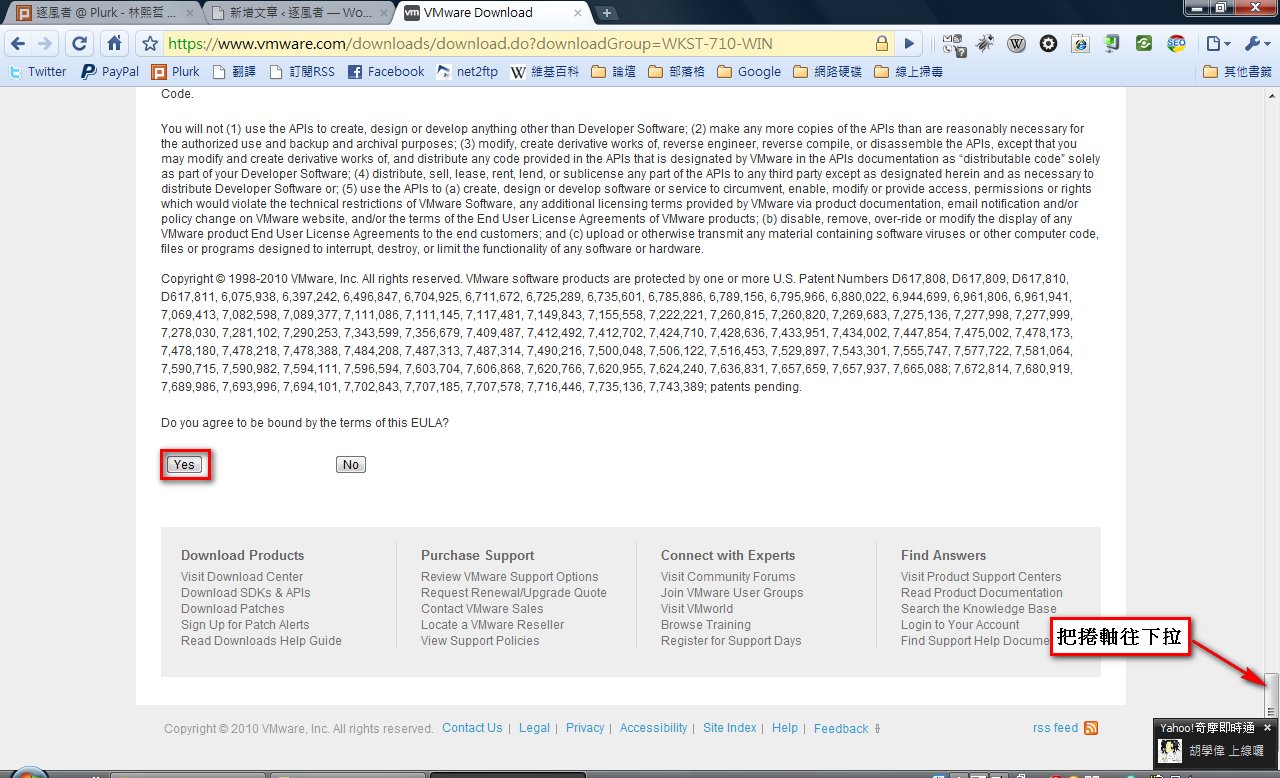
5.You’ll see a license agreement. As usual, if you can’t understand it anyway, just click Yes: )
6.Finally, the download link appears! ^^ If you’re just a casual user who wants to play around with virtual machines, the second download link is enough.
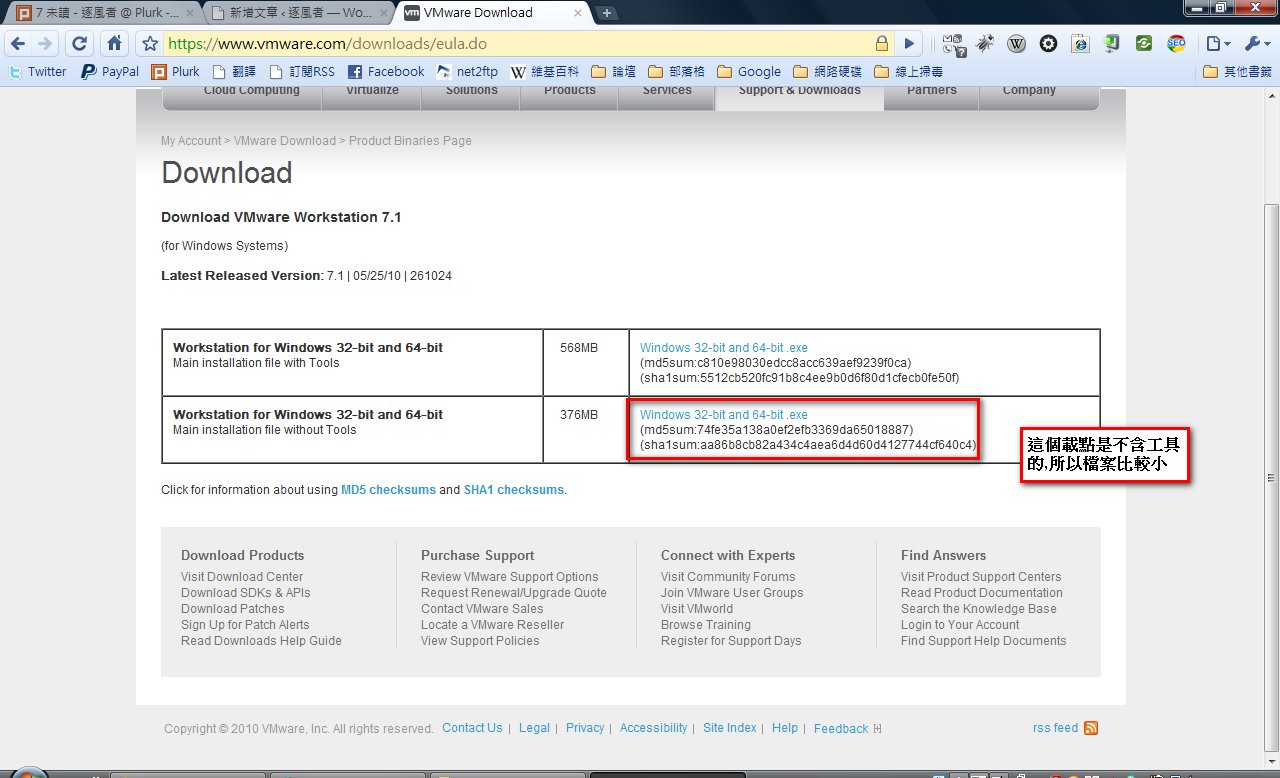
7.Just be patient….. Even the smallest file is over 300 MB……. Once the download finishes, you can move on to the next step.
VMware Workstation Installation Guide
1.Double-click the VMware installer, then click Run.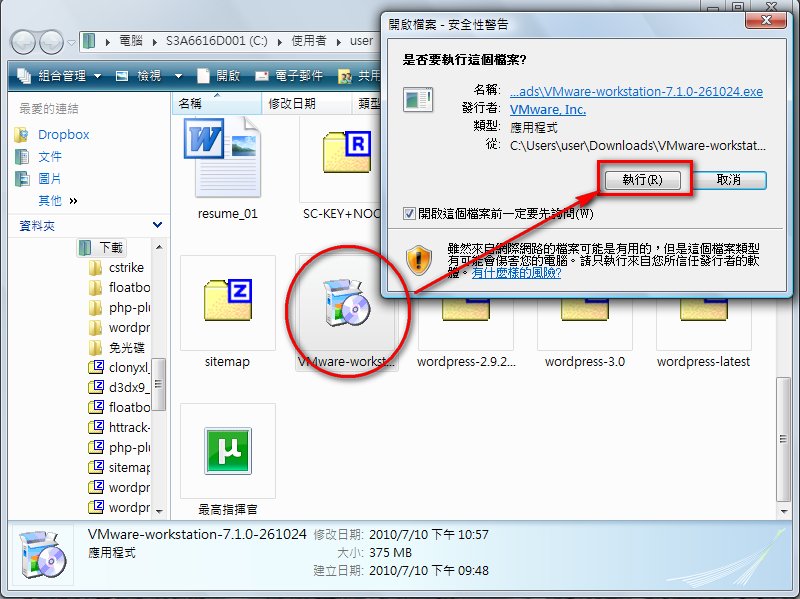
2.Loading, please wait a moment.
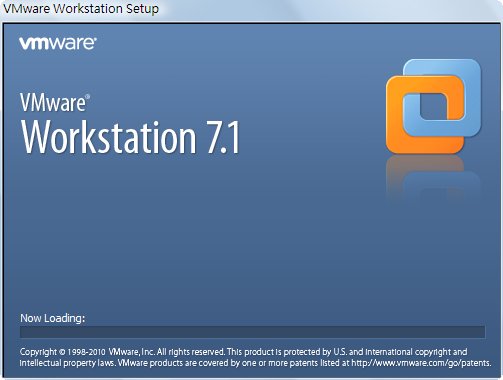
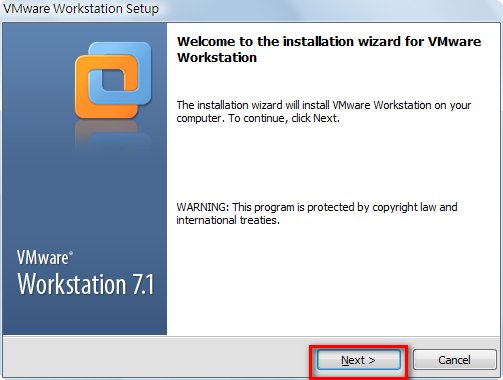
3.Click Next.
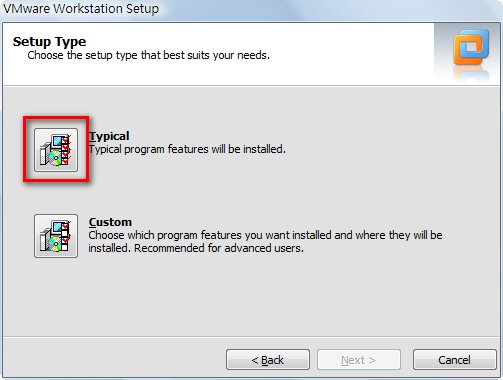
4.Click Typical.
5.Click Next, unless you want to change the install location.
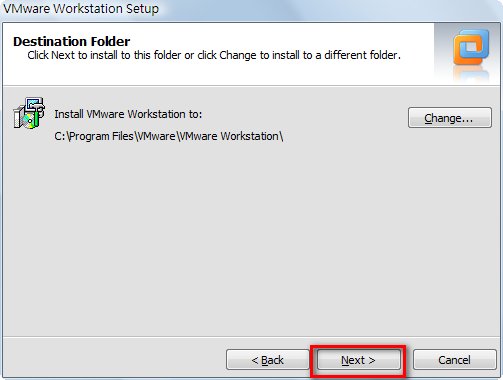
6.Click Next.
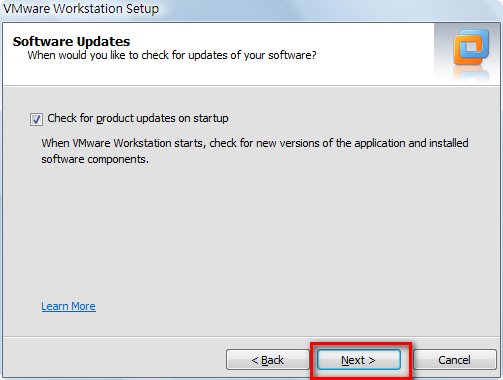
7.Click Next.
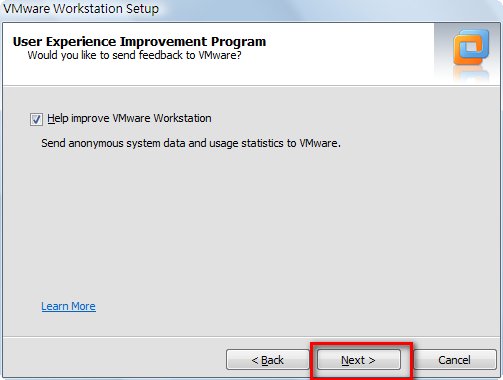
8.Still clicking Next….
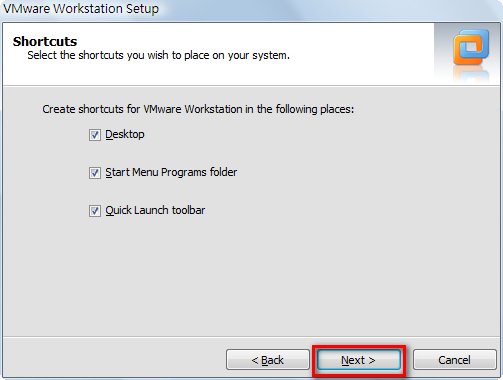
9.Finally, it’s not Next anymore~ Click Continue~
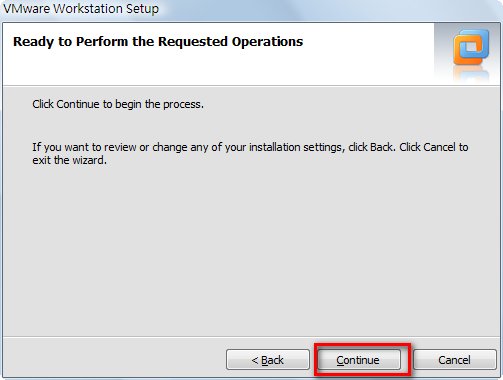
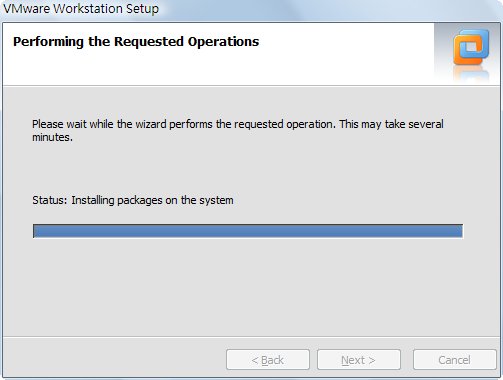
10.Installing
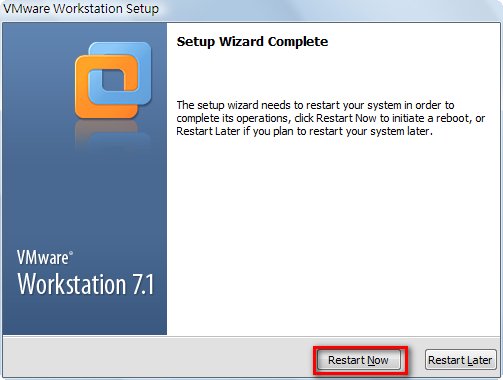
11.It will ask you to enter a key…. If I remember correctly, the trial key should be sent to the email address you used when you signed up. But I entered a random email address 0.0, so I’m not sure….
12.Restart your computer~
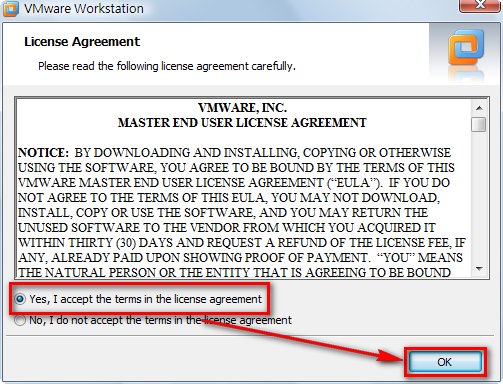
13.After restarting, open the VMware main program, select Yes, I accept……., then click OK.
Installation complete! ^_^ The only downside to VMware right now is that there’s no Chinese interface…. But you can search online for a Traditional Chinese patch~