Developers who switched from Sublime Text to Visual Studio Code (hereafter VS Code) surely miss the “Paste and Indent” feature! When coding, copying and pasting code is unavoidable, and the indentation often gets messed up afterward, so you have to fix it by hand. Sublime Text provides a so-called Paste and Indent feature that automatically matches pasted code to the indentation of the current file. VS Code has a similar feature, but it works differently and must be enabled in the settings file.
Unlike Sublime Text, in VS Code, “Paste and Indent” is not a keyboard shortcut. Instead, it’s tied directly to paste. Just set editor.formatOnPaste to true in the settings file, and every paste will be indented automatically from then on.
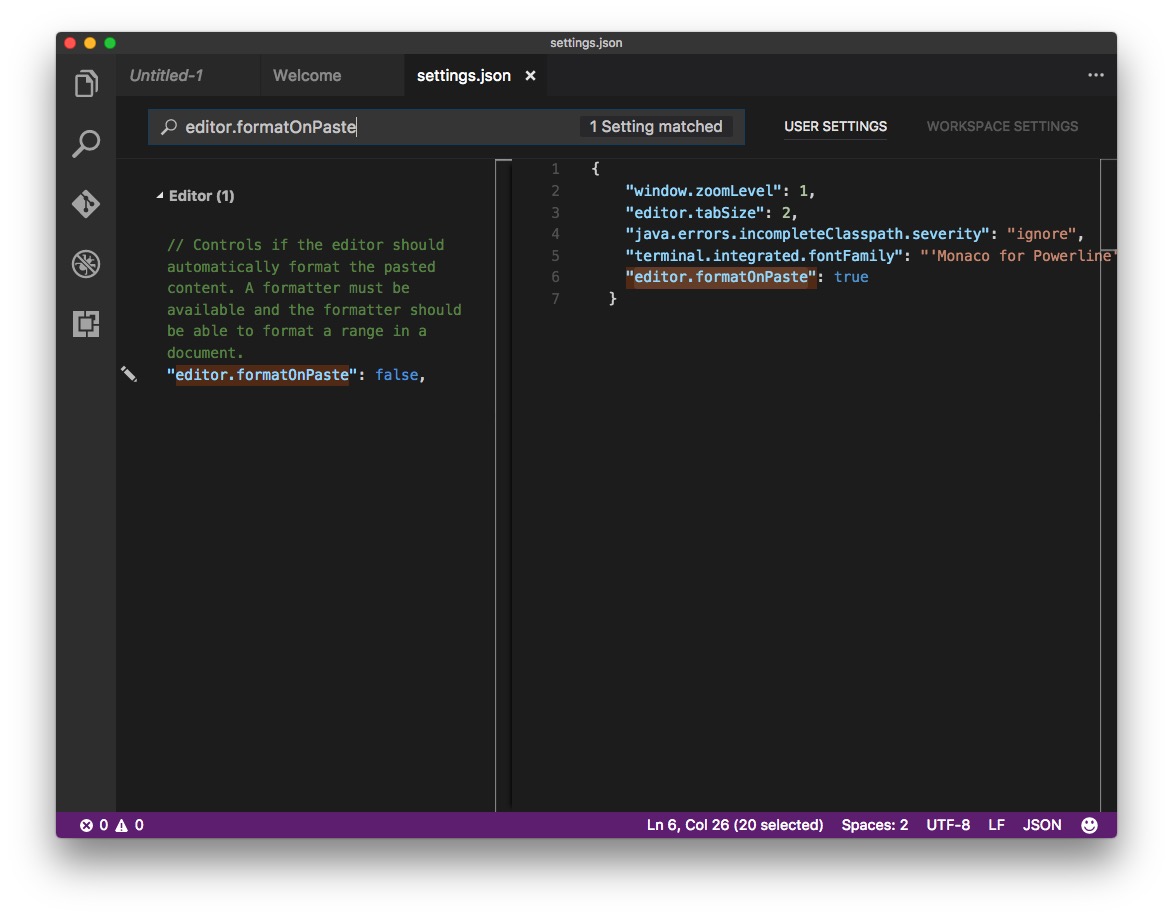
"editor.formatOnPaste": true
One difference from Sublime Text, however, is that VS Code’s “formatOnPaste” is actually tied to the programming language, rather than being true “paste that matches indentation.” For example, VS Code doesn’t support the erb format (Rails Template File) by default, so I installed a Rails plugin. But that plugin doesn’t support formatOnPaste. So when my file format is erb, pasted code isn’t auto-indented. Or, if the file uses the default PlainText format, formatOnPaste may not work either.
To be more precise, VS Code’s formatOnPaste works more like a code beautifier. Rather than making pasted code match the surrounding indentation, it formats the code according to the rules of the coding style.