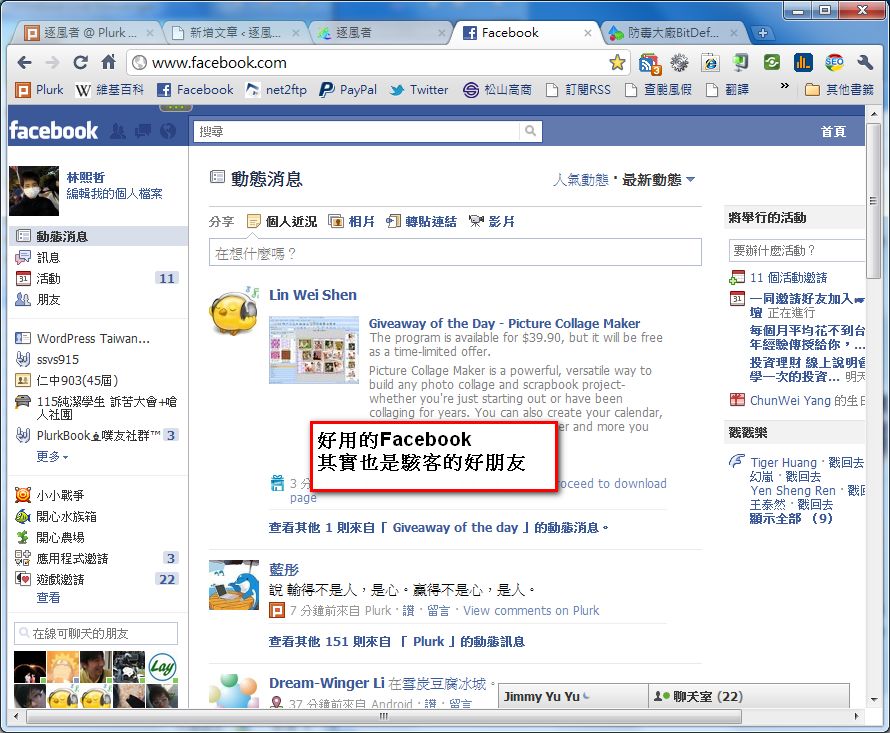
A “malicious link” is an attack method that is especially well suited to social networking sites. It’s relatively easy to pull off, and its success rate is quite high. For example, the recent Facebook scam “How to see who viewed your profile!!” is a malicious link attack. A malicious link can be explained in one simple sentence: it’s a URL that contains a Trojan, a virus, or something that can take control of your computer. When you click on such a link, your computer has probably already been infected.
Many people believe you only get infected by downloading pirated software. They don’t know malicious links exist. For example, my mom often says, “He only goes online, so why would his computer get infected?” That’s exactly the work of malicious links. It sounds amazing, but it’s true. Preventing malicious links isn’t hard. In fact, it’s quite simple. It’s just that many people’s wrong ideas lead them to accidentally click malicious links.
Also, don’t think malicious links are rare. On the contrary, this kind of attack is very common. Malicious links have shown up everywhere, from instant messaging apps like MSN to social networks like Facebook and Twitter. So don’t take malicious links lightly.
Possible Effects of Malicious Links
- Taking control of your computer
- Secretly downloading Trojans and viruses onto your computer
How to Prevent Malicious Links?
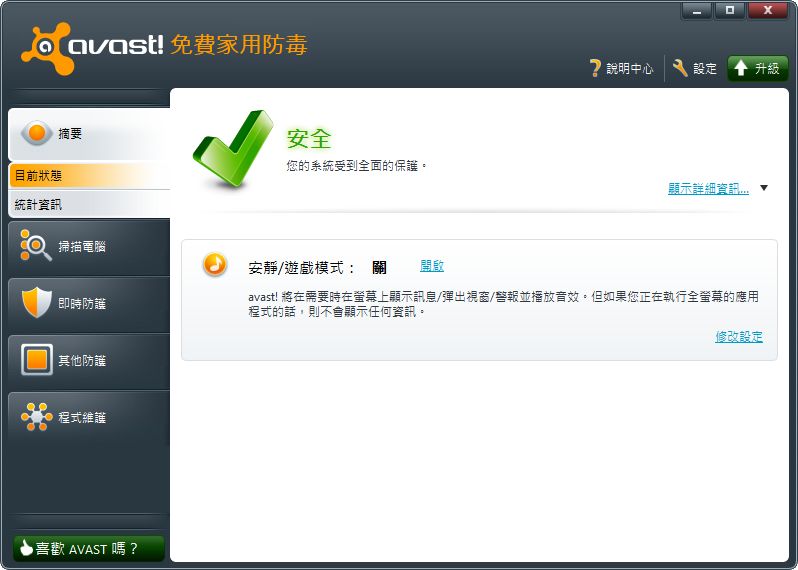
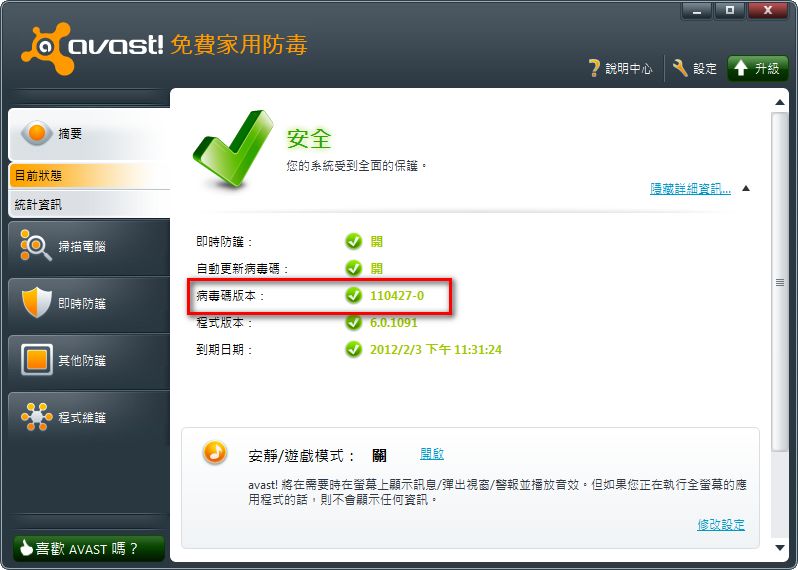
1.Install Licensed Antivirus SoftwareInstalling antivirus software sounds old-fashioned, but do you know that many people’s computers don’t have any antivirus at all? Or they have it installed but never update the virus definitions, or they use pirated antivirus. Using pirated antivirus is basically inviting the wolf into the house. Everyone knows pirated software easily gets infected. So what about pirated antivirus? Don’t you think it’s ridiculous to use a poisoned program to prevent viruses? And if you don’t update the virus definitions, then having antivirus installed is the same as not having it, because the antivirus doesn’t recognize what viruses look like! Virus definitions tell the antivirus which files are dangerous and which are normal. And don’t say antivirus is expensive, because many vendors now offer free antivirus. For example, Avast is a well-known free antivirus vendor.
▼▼Avast is a well-known free antivirus program
▼▼Are you sure your virus definitions are up to date?
2.Use a Modern Browser
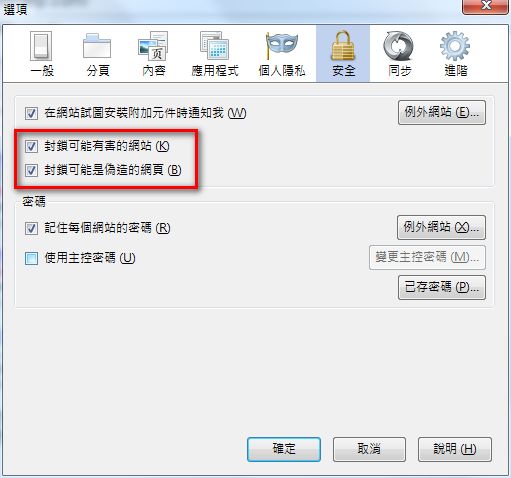
Using a modern browser means using browsers such as IE9, Firefox, or Chrome that check for malicious links. Right now, because malicious links are rampant, nearly all modern browsers check whether a URL is malicious. There’s another reason tied to how malicious links work. Many of them exploit vulnerabilities in the browser itself, which let web content gain excessive permissions, such as downloading and running programs without permission. Newer browsers are much more secure than older ones. Chrome, for example, is very secure! Stop using habit as an excuse~
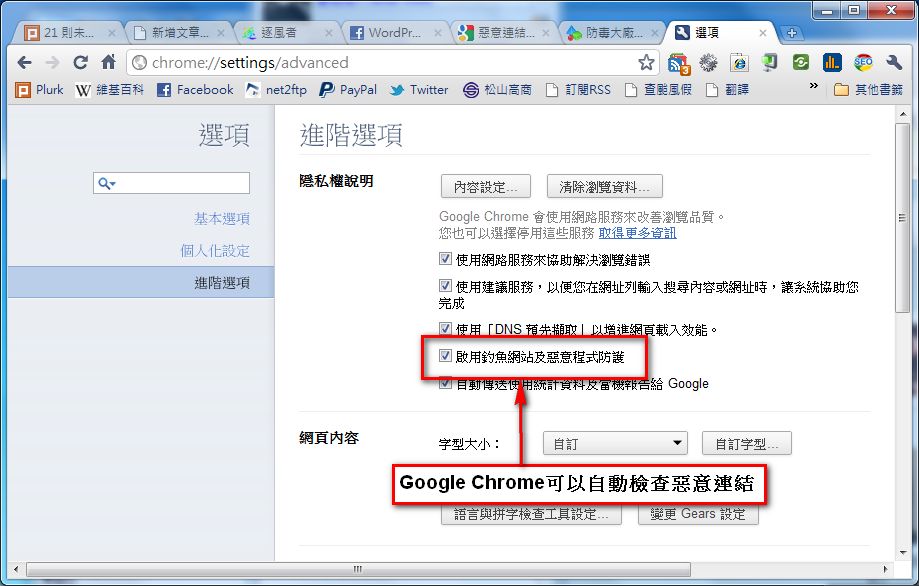
▲▲▼▼Chrome and Firefox automatically block malicious links and phishing sites
3.Control Your Curiosity and Don’t Click URLs Carelessly
This tip is practically a cure-all. If you never click on a link you see, you’re almost impossible to hit with a malicious link attack. But that’s very hard to do, because the internet is a world built on links. So all we can say is: don’t click on URLs that others send you, no matter who sent them, whether it’s a stranger or your friend or classmate. You can’t be sure the “person” sending you the link really is your friend. It’s quite possible their account was hacked, and the hacker is using it to send links. So don’t click links carelessly. Also, when you click a link, check whether the URL contains file extensions such as “.vbs” or “.com.” If it does, it’s very likely a problem.
4.Install a Malicious Link Checker
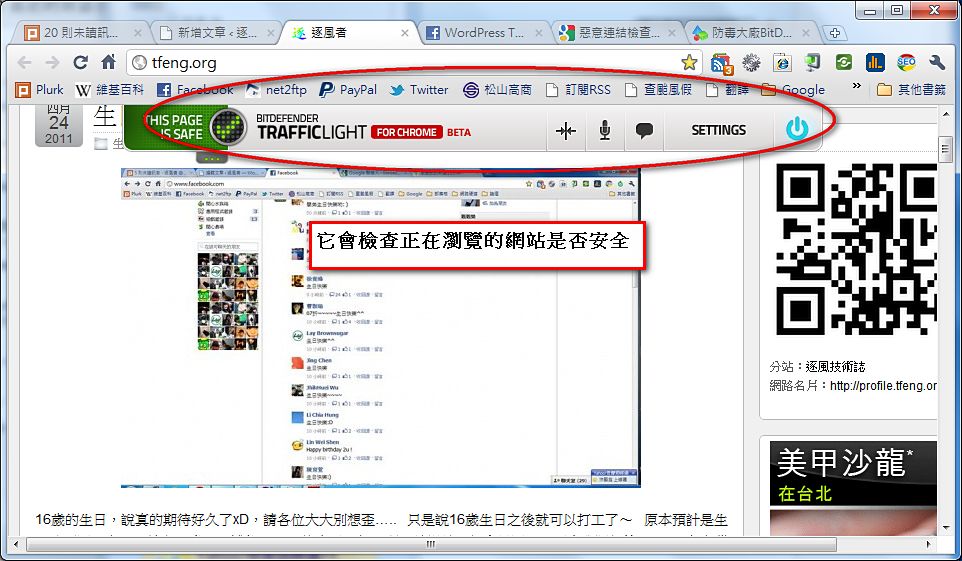
If you use a browser like Firefox or Chrome, you can look for malicious link checker extensions. They warn you when you click on a malicious link. The malicious link checker I use myself is called TrafficLight, released by antivirus giant BitDefender. The program works in many browsers, including IE, Firefox, Chrome, and more. For a detailed introduction, you can refer to the introduction on the Software Player blog. Also, many antivirus programs have built-in malicious link checking. When choosing antivirus software, I recommend picking one with this feature.