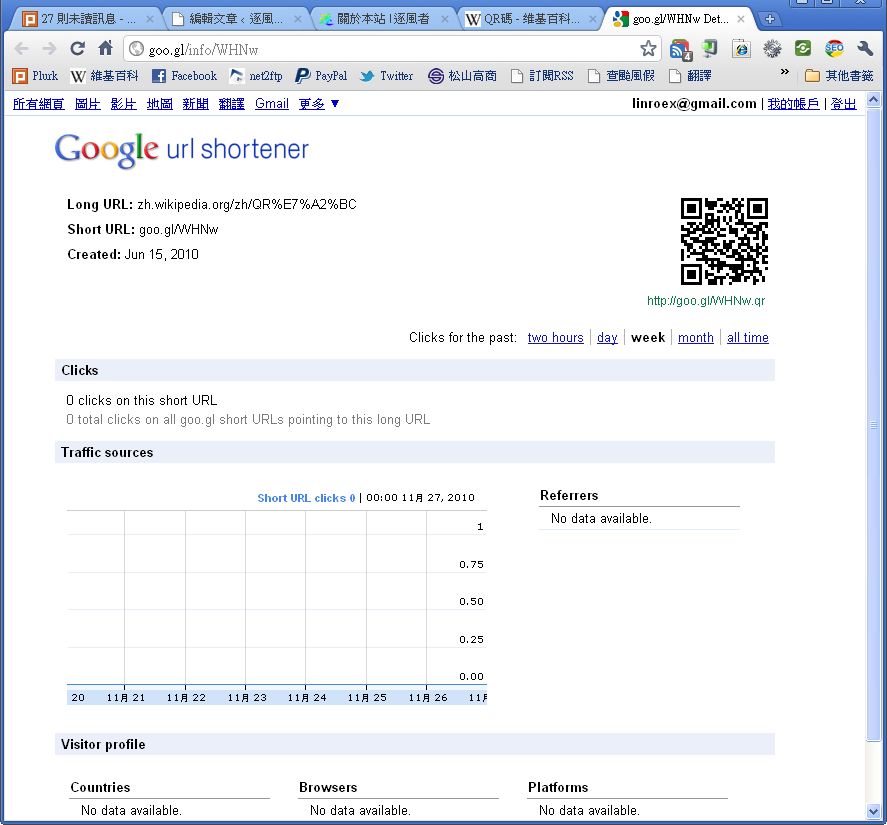
A QR code was invented by a Japanese person. Aside from being square, it has square markers in three of its four corners, except the bottom-right one. These help scanners (or cameras) work out the orientation. QR codes were originally designed for auto manufacturing, but now they’re used for all sorts of things. High-speed rail ticket purchases, moving news, and downloading apps from Android Market can all use QR codes. Even Google’s goo.gl URL shortener offers QR code generation, so you can turn a URL directly into a QR code. In Japan, QR codes are especially popular. Magazines and business cards often include them, and even immigration control uses QR codes instead of stamps.
In fact, almost any barcode can store data the way a QR code does. So why does everyone use QR codes for storage? That’s because two-dimensional barcodes can hold more data, up to thousands of characters. And QR codes have a high success rate when scanned. Unlike ordinary one-dimensional barcodes, which sometimes can’t be scanned at all, and the clerk has to type in the barcode number by hand.
Making and Reading QR Codes with PsQrEdit
Here I'll introduce a program that can help you make QR codes. It's called PsQrEdit. Most QR code software is made for mobile phones, because that's where the demand is. But PsQrEdit is different. It installs directly on your computer, converts your data into barcodes for you, and can also decode them. It's a very convenient program.1.First, download the PsQrEdit main program from the link below.
Xun6 | Box.net
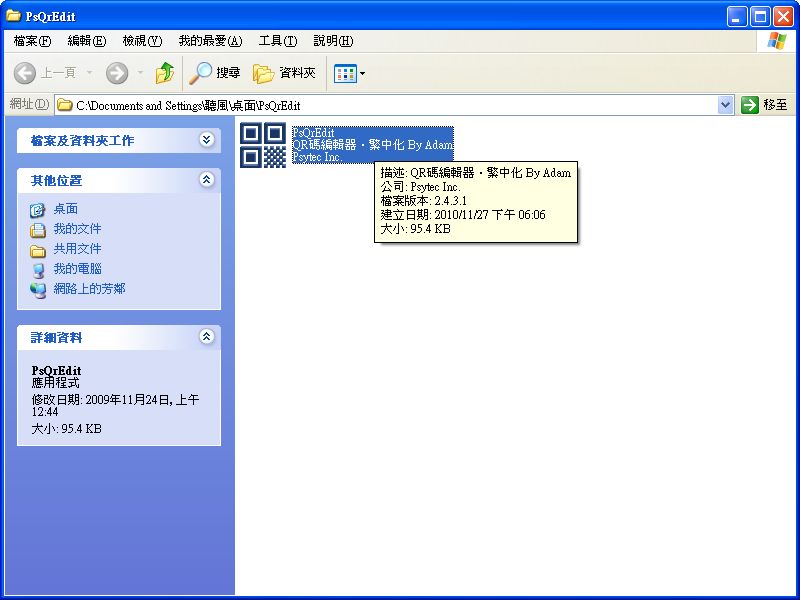
2.Extract the main program you just downloaded, then open PsQrEdit.
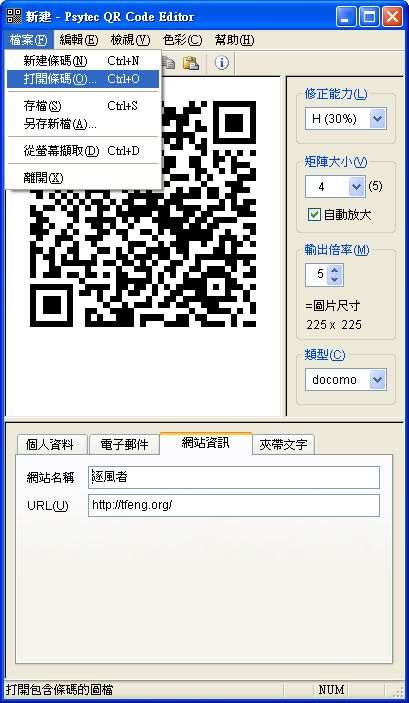
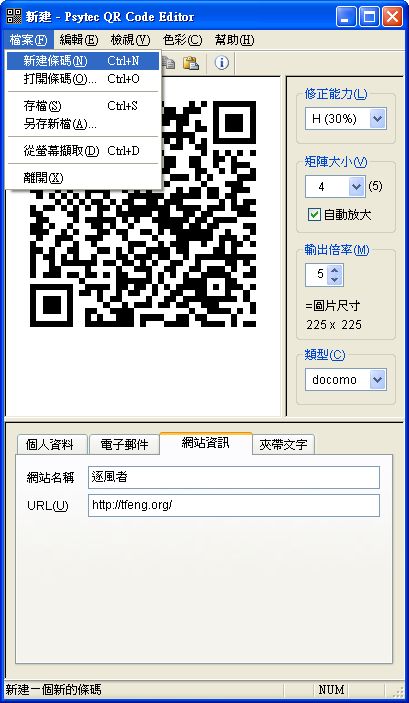
3.Check whether [File] → [New Barcode] is available. If it is, click New Barcode.
4.At the bottom of the program, you can enter information. Type in the data you want to turn into a QR code. The default categories are Personal Information, E-mail, and Website Information. If the barcode you want to make doesn’t fit any of these, choose Text instead. Note that each barcode can only use one of these four: Personal Information, E-mail, Website Information, or Text. A single barcode can’t contain all four types of information at once. So if you’re currently set to Personal Information and click the Text tab, the existing barcode will disappear.
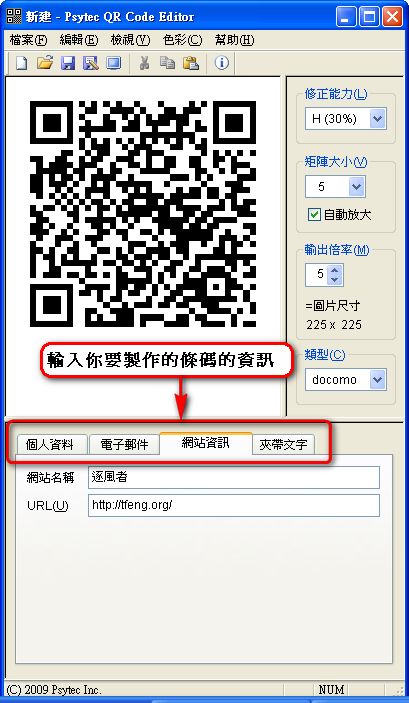
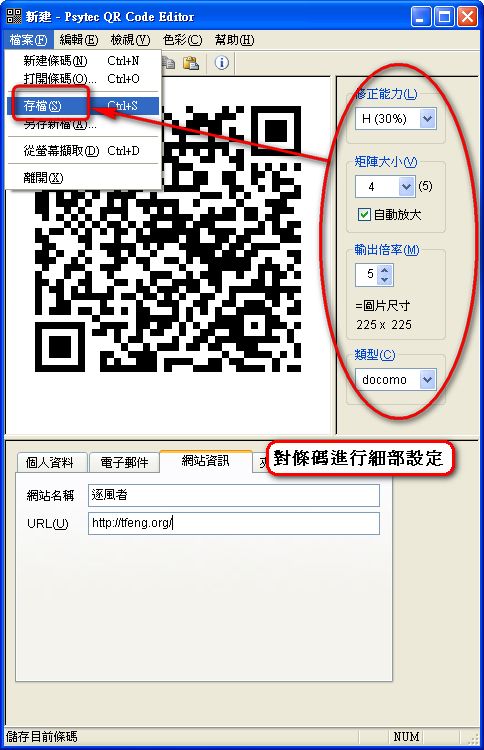
5.Next, set the barcode’s properties. For example, under [Error Correction Capability], it’s recommended to set H (30%). [Matrix Size] affects the number of lines in the barcode. The higher the matrix size, the less white you’ll see in the barcode. [Output Magnification] sets the barcode’s size. After you finish these settings, click [File] → [Save] and you’re done.
6.Reading barcode information is easy. Just select [File] → [Open Barcode] to read the barcode’s information.