Windows 7 Features:
- Supports DirectX 11
- Full support for 64-bit CPUs
- Supports more Aero effects without consuming too many resources
- Better UAC protection
- Built-in Windows XP compatibility mode
Windows 7 System Requirements
- 1 GHz or faster 32-bit (x86) or 64-bit (x64) processor
- 1 GB RAM (32-bit) or 2 GB RAM (64-bit)
- 16 GB of available hard disk space (32-bit) or 20 GB (64-bit)
- DirectX 9 graphics device with WDDM 1.0 or higher driver
- Still worried your computer can't be upgraded to Windows 7? Try the Windows 7 Upgrade Advisor .
Windows 7 Installation Tutorial
Yesterday I happened to browse a Czech forum and found that a cracked version of Windows 7 (Win7) was already out, and it was even the Enterprise edition. In other words, I wouldn't have to go through any activation at all. So I downloaded it and decided to write a tutorial. If you want Windows 7, go find it yourself. I've already said which forum it was, and if I say any more, the internet police will come after me : ) Enough chatter. Here's how to install Windows 7.Note: Windows 7 (Win7) has a so-called Enterprise evaluation edition (mine was the full release) that lets you try it for 90 days. If you want a taste, go download it now. (After the 90 days are up, come back and crack it XD.)
- First, set the boot order to start from the CD, then put the disc in and start the computer (so many words, I know).
If you don’t know how to set CD boot, you can refer to this article https://coder.tw/?p=2290
- The computer starts loading the Windows 7 setup files.
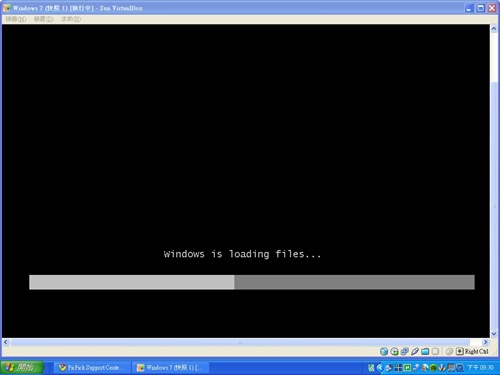
Loading……
- Once the Windows 7 setup screen appears, set the values as shown in the picture below and click Next. (Basically, leaving the defaults is fine.)
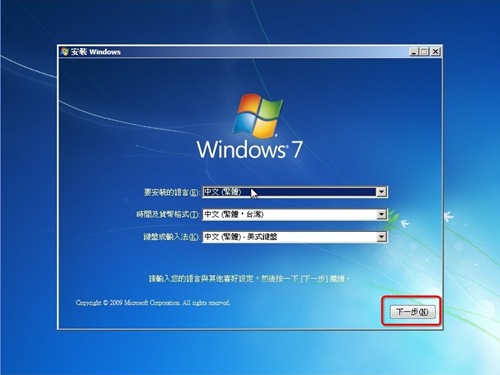
- Click “Install now.”
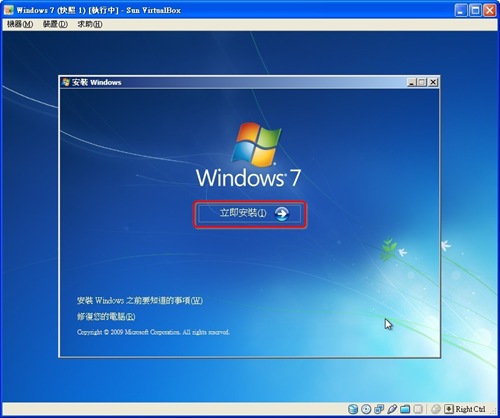
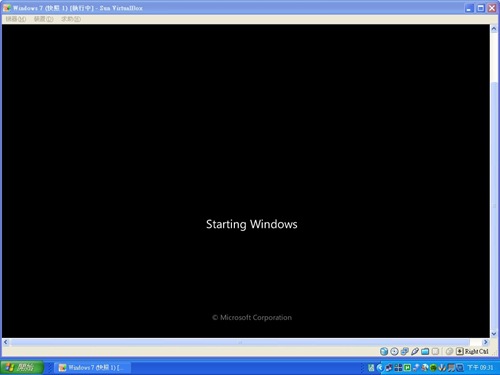
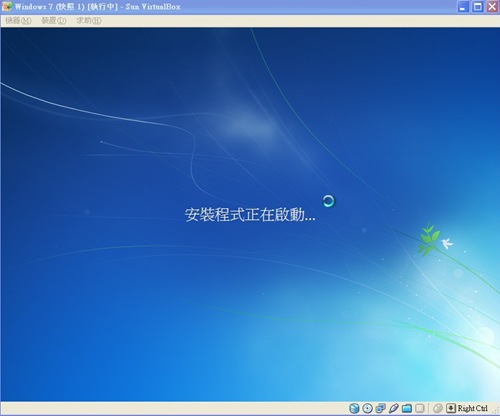
- Starting the setup program.
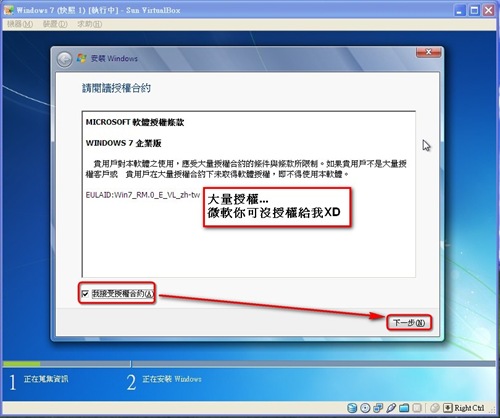
- The familiar license agreement appears. As usual, accept the license terms and click Next.
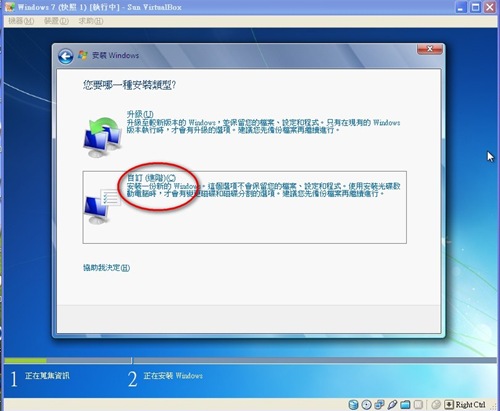
- Choose the installation type. If you want to upgrade your existing OS and keep your files, pick the first option. But since this tutorial is about installing from scratch, of course we pick Custom.
- Next, choose the partition where you want to install Windows 7. Unless you want a dual-boot setup, it’s generally recommended to format the drive that has your old XP or Vista system and install over it.
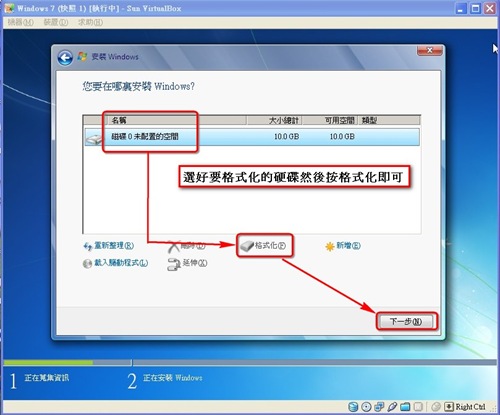
- Installation of Windows 7 begins. This part takes quite a while. I installed it in a virtual machine at the time, so I had to wait even longer XD.
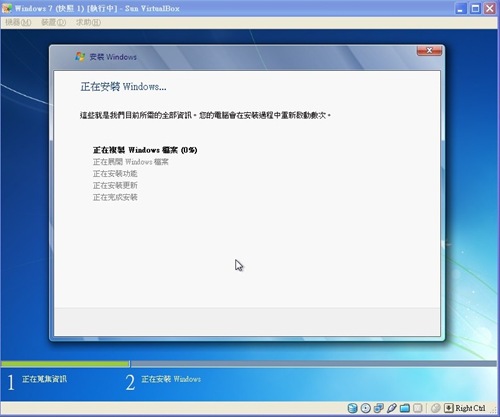
Partway through, the computer restarts on its own. Ignore it.
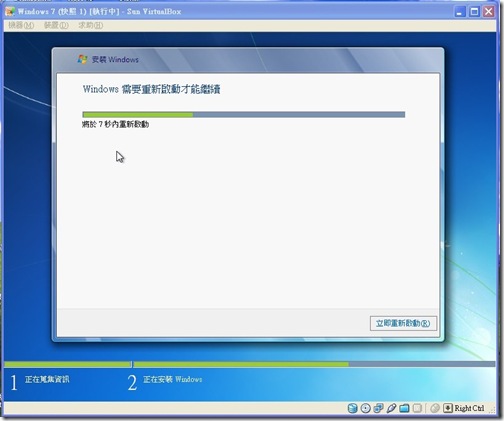
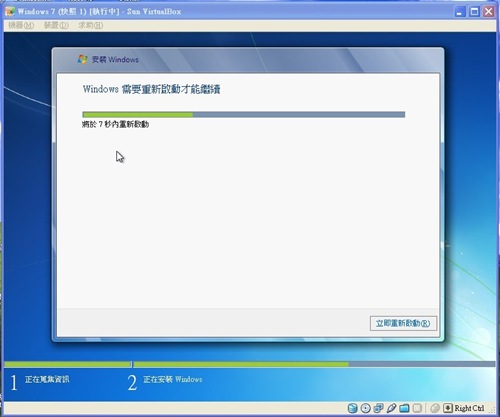
After the restart, the computer will go back to the Windows 7 setup screen. Don’t assume the installation failed. It’s just that the installation disc is still in the drive and you haven’t switched the boot order back to the hard drive. In that case, restart the computer again, then take the disc out.
- Enter an account name.
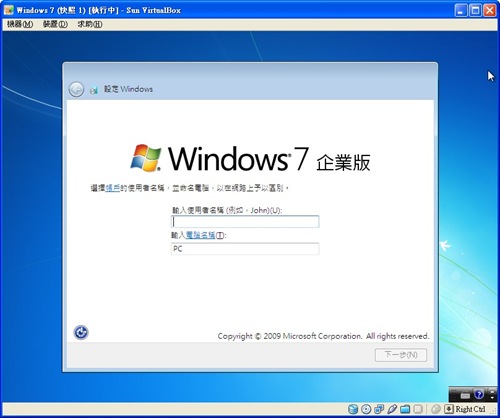
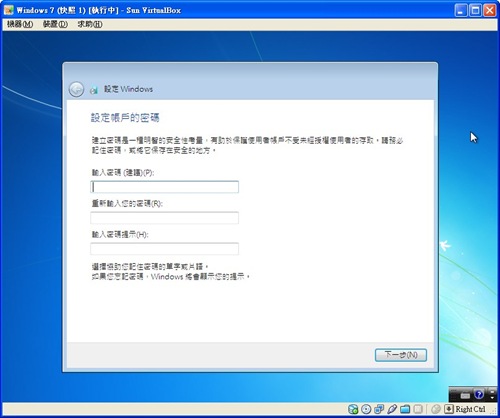
- Enter a password for the account, or skip it and click Next.
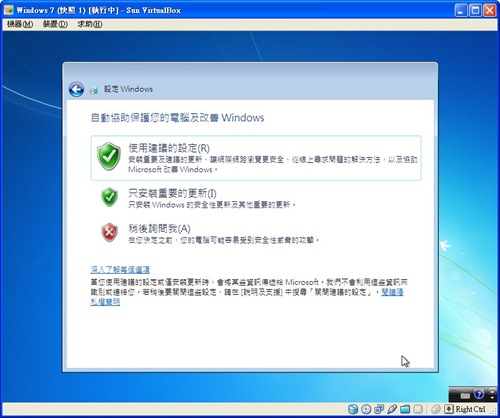
- Choose how updates are handled. I recommend the first option.
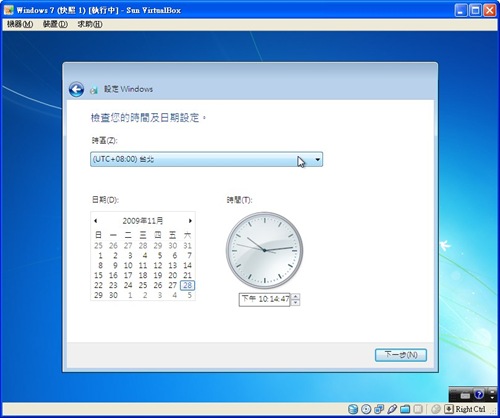
- Set the time zone. Taiwan is UTC+8.
- Choose your network location. Most people use a home network, but on a laptop you can choose a public network.
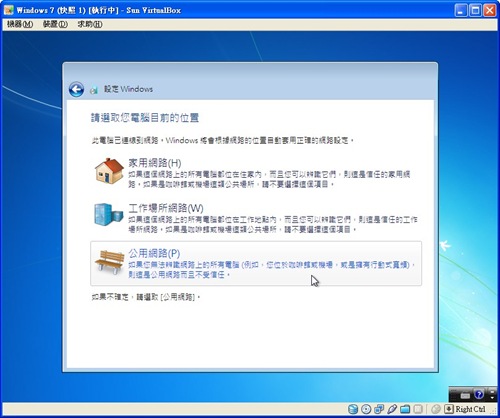
Setting up the network ↓↓↓↓
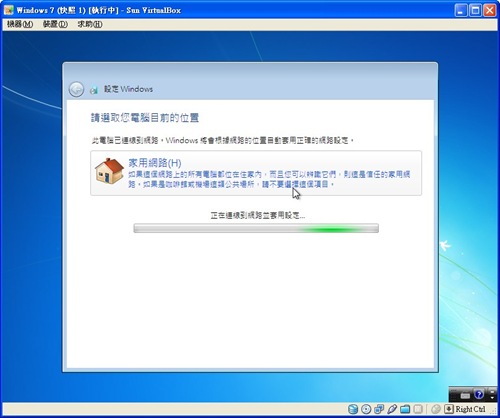
- Installation complete! Here are a few screenshots for everyone to see.
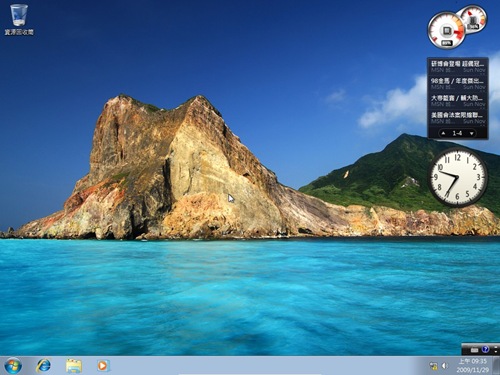
↑↑ Background: Turtle Island (Guishan Island)~
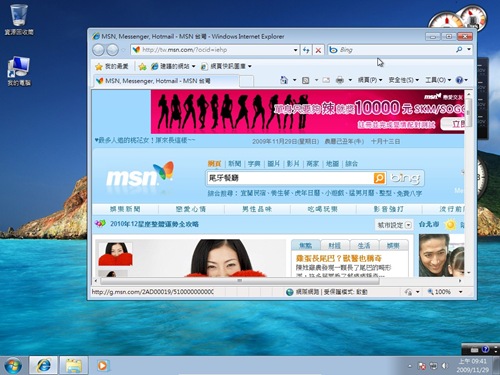
↑↑ IE8, built into Windows 7
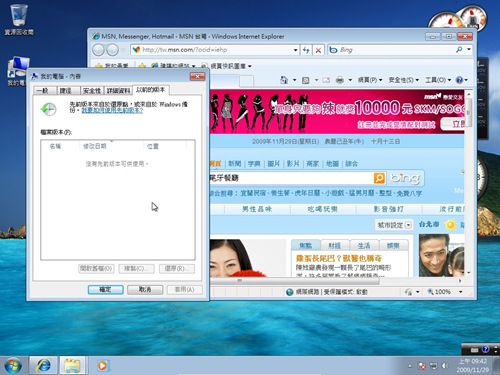
The restore feature is more complete: you can restore a specific folder directly ↑↑ .