Plenty of computer experts will tell you not to set too many startup programs, because it makes the computer slow. That may have been true in the past, but with today’s much more powerful hardware, having a few programs launch at startup is actually convenient. Just don’t go overboard. It depends on your hardware XD
In this post, I want to show everyone how to add programs to startup on Windows XP. It’s really simple. Just follow the pictures below and you’ll definitely get it :)
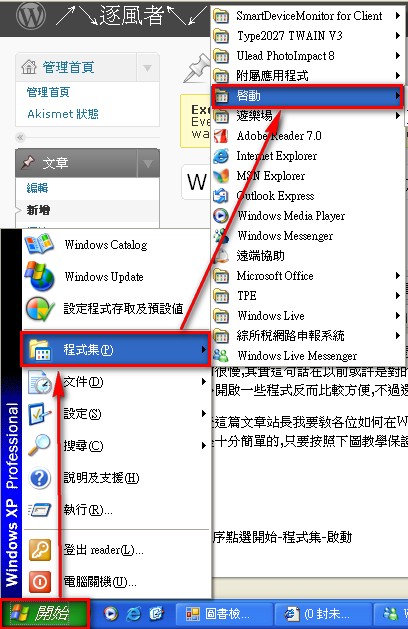
- Click Start - All Programs - Startup.
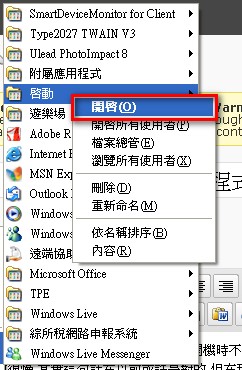
- Right-click the Startup entry and select “Open.”
- Drag every program you want to run automatically at startup into that folder.
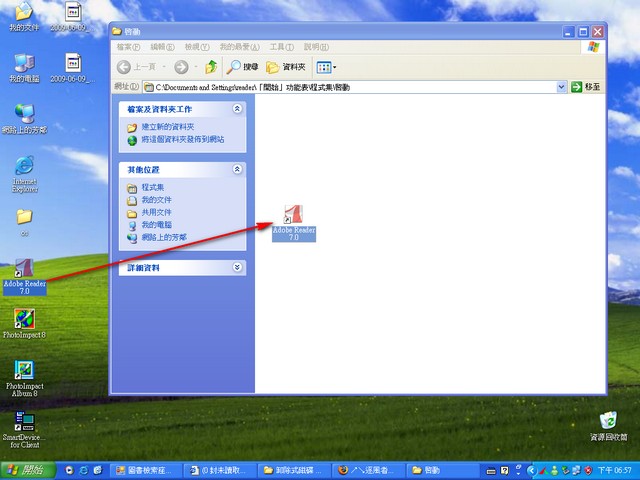
That’s it! Now restart your computer and see whether the programs you put in the folder launch automatically. One more thing, my dear readers: it’s best not to drag the main program file itself into the folder. Instead, create a shortcut to the program and drag the shortcut in.
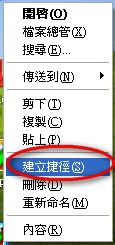 ← Right-click the file you want to make a shortcut for and select “Create Shortcut.”