WinX HD Video Converter Deluxe is the first paid software I’ve written about. Its main job is video conversion, and one feature I personally think is pretty nice is that it can download videos from YouTube~ But to be honest, before writing this post my thinking was: “Conversion software? There’s tons of free stuff like that online—who would dare charge money for it?” But… when I actually used this software, I found it wasn’t as ordinary as I’d imagined XD
WinX HD Video Converter Deluxe’s features are, frankly, quite ordinary—it’s just video conversion~ It just supports more formats. But in fact its strength isn’t in the features, it’s in the interface design: everything is clear at a glance. You can go try it out and see for yourself~ It also comes with lots of built-in profiles. These profiles are useful when you don’t know what format you want to convert to. For example, you might want to put a video on your phone to watch, but you don’t know what formats your phone supports—then just pick the profile for your phone model and you’re set~ The one pity is that this software doesn’t offer a Traditional Chinese interface…
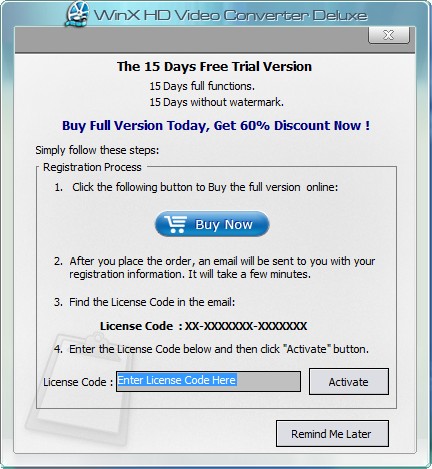
Also, WinX HD Video Converter Deluxe is paid software, but it offers a 15-day free trial, so anyone who wants to play with it can give it a try. The company behind it, Digiarty Software, often runs promotions where you like something and get a serial number. Keep an eye on the news on their website and you might just snag a free serial number :)
WinX HD Video Converter Deluxe Information
- Official website: http://www.winxdvd.com/
- Download page: http://www.winxdvd.com/hd-video-converter-deluxe/
- Supported operating systems: Windows, Mac
WinX HD Video Converter Deluxe Features
- Supports multi-core processors
- Can download YouTube videos
- Supports extracting audio tracks from videos
- Supports many formats, including MPEG, AVI, MOV, and more
- Built-in profiles for iPad, Sony, Android, and more
How to Use
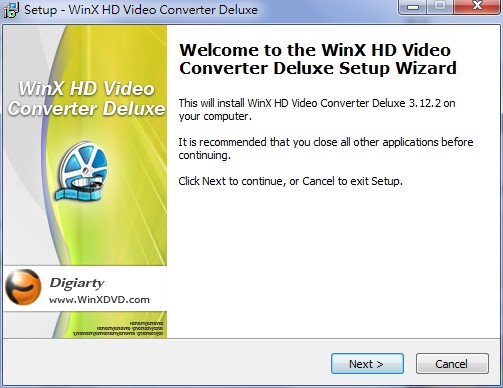
Here I'll walk you through the most basic conversion tutorial, plus how to download YouTube videos~ Actually WinX HD Video Converter Deluxe can do more than this, but I won't go into it here—let everyone figure it out on their own~- Installation? I don’t need to say much about this part XD Just keep clicking Next and you’re done~
- After installation, you’ll see a registration screen. If you want to use the trial, just click “Remind Me Later”~ This window also reminds you how many days are left in your trial period
- Click “Add File” and add the videos you want to convert. You can load many videos at once~
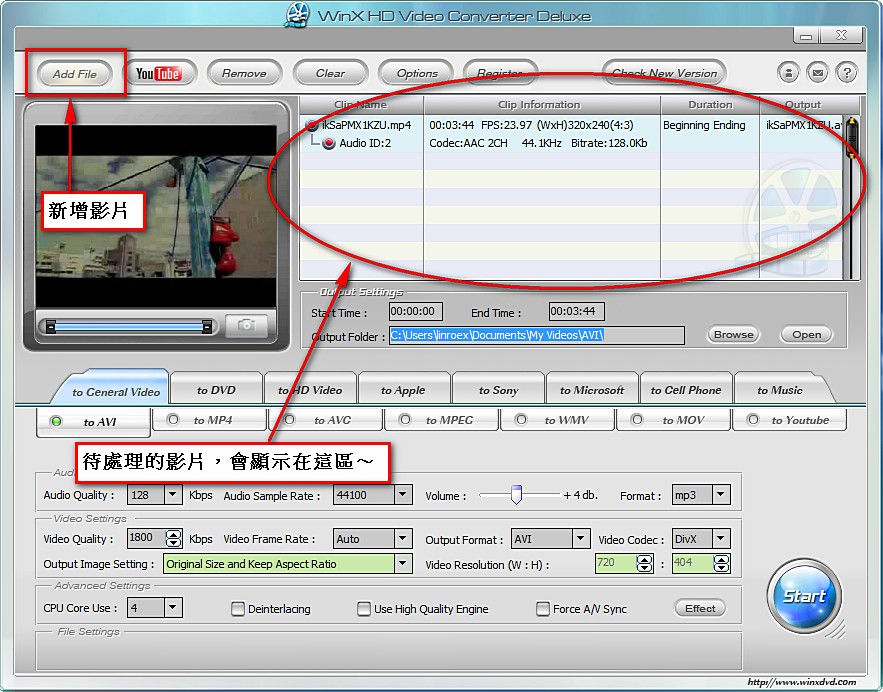
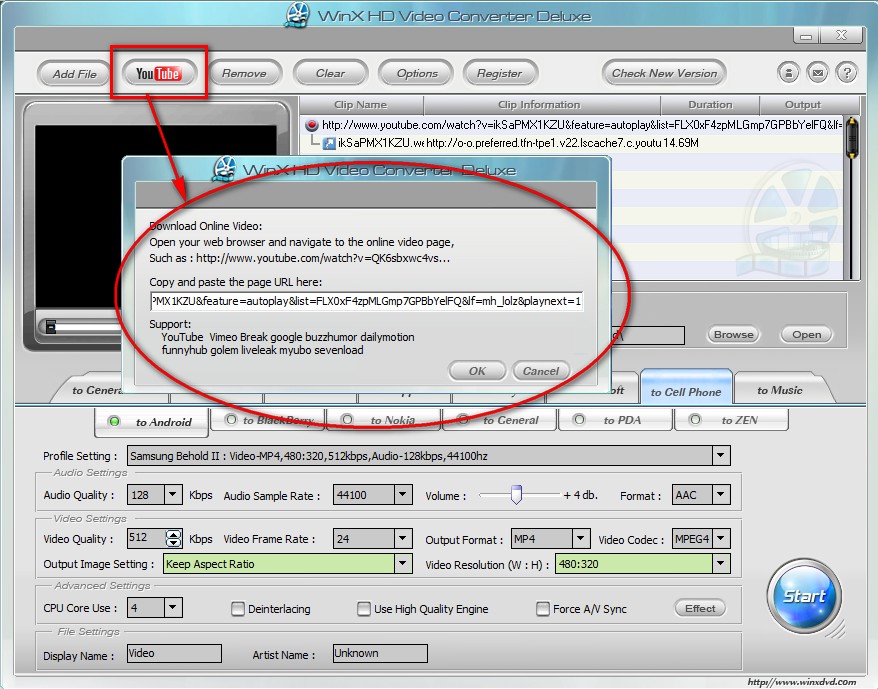
If you want to download YouTube videos and then convert them, click the YouTube button and enter the video’s URL. If you want to download in batches, just click the YouTube button several more times and enter different video URLs~
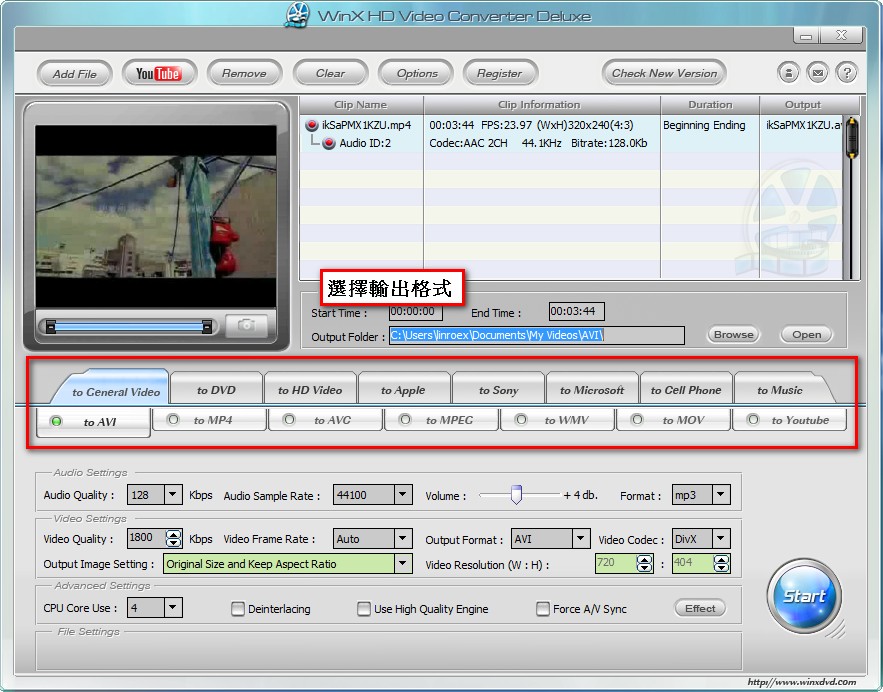
- Choose the output format~ You can also adjust detailed settings such as resolution, encoding method, quality, and so on. If you don’t understand them, just keep the default values
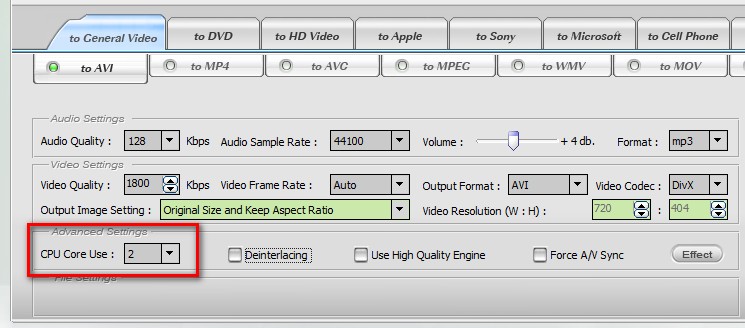
On a multi-core computer, you can set how many CPUs to use for processing under “CPU Core use”. In my case I turned all 4 cores on, and the conversion speed was unbelievably fast!!
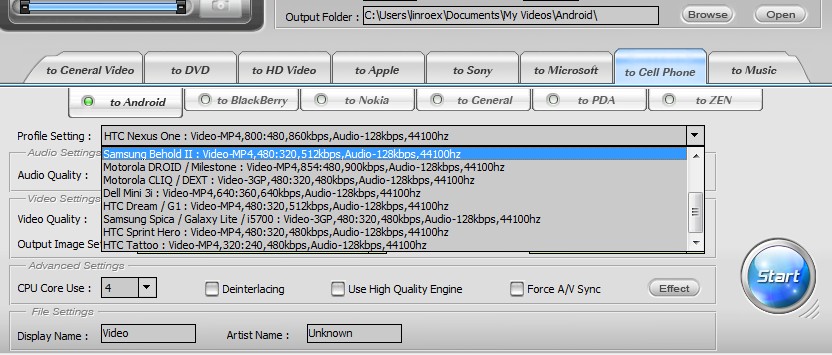
This is the design I praise the most! You can directly choose to output to AVI, MPEG, WMV, and other formats, or if you want to put it on your phone to watch, you can choose “to Cell Phone” and then select your phone model—it will automatically set everything up for you, and you don’t even need to know what format your phone supports XD And if you want to extract the audio track, just click “to Music” at the end~
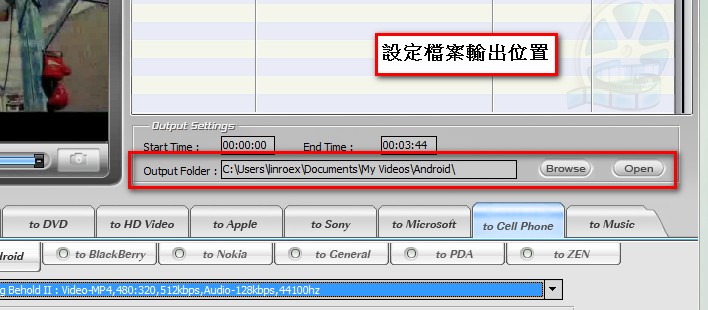
- Set where the output file should be saved
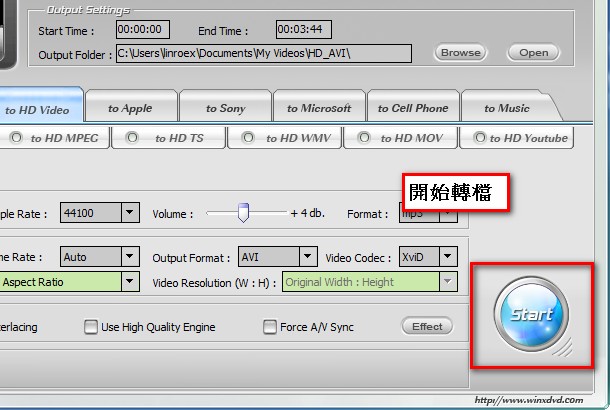
- Click “Start” and the conversion begins!