
You ask me how deep my love is, how much I love you? (just kidding~) You ask me what I think is the best blogging software in the world for building a site? I’ll definitely tell you it’s WordPress. It’s not just because my own blog is built with WordPress that I say this. Back when I was choosing what software to use to build Wind Chaser, I considered using something like Xoops paired with plugins to construct a blog, and I also tried LifeType, the blogging software the school uses, but neither was very good. LifeType’s interface in particular was really unbearable, extremely unfriendly, and it had our English teacher dropping by every so often to ask me how to read replies, how to publish a post… On top of that, LifeType’s extensibility isn’t as good as WordPress’s. Anyway, WordPress is just the best ^^ If you don’t believe me, try installing it yourself~~
Note: Before setting up WordPress, I suggest you at least have some understanding of the web. Although WordPress emphasizes simplicity and intuitiveness, you still need a bit of background to get it working well.
Before setting up WordPress, please first prepare a space to host your site. You can buy shared hosting, use free hosting, or set up your own server (not recommended unless you’re an expert). Whichever host you use, it must support PHP, MySQL, and Apache. Basically every shared host supports these three services, but you’d better check anyway to avoid being cheated.
WordPress Features
- Highly extensible, with lots of free plugins
- Lots of free & paid themes
- Installing the WordPress core program, plugins, and themes is very easy
- More freedom than a BSP (Wretch, PIXNET)
WordPress Information
- Official site: http://wordpress.org/
- Chinese site: http://tw.wordpress.org/
- Core program + Traditional Chinese language pack download (version 2.9.2): Official | 4Shared | Box.net
WordPress Installation Tutorial
1. First, get a shared host ready, go to its backend, enter your account & password, and press 【Login】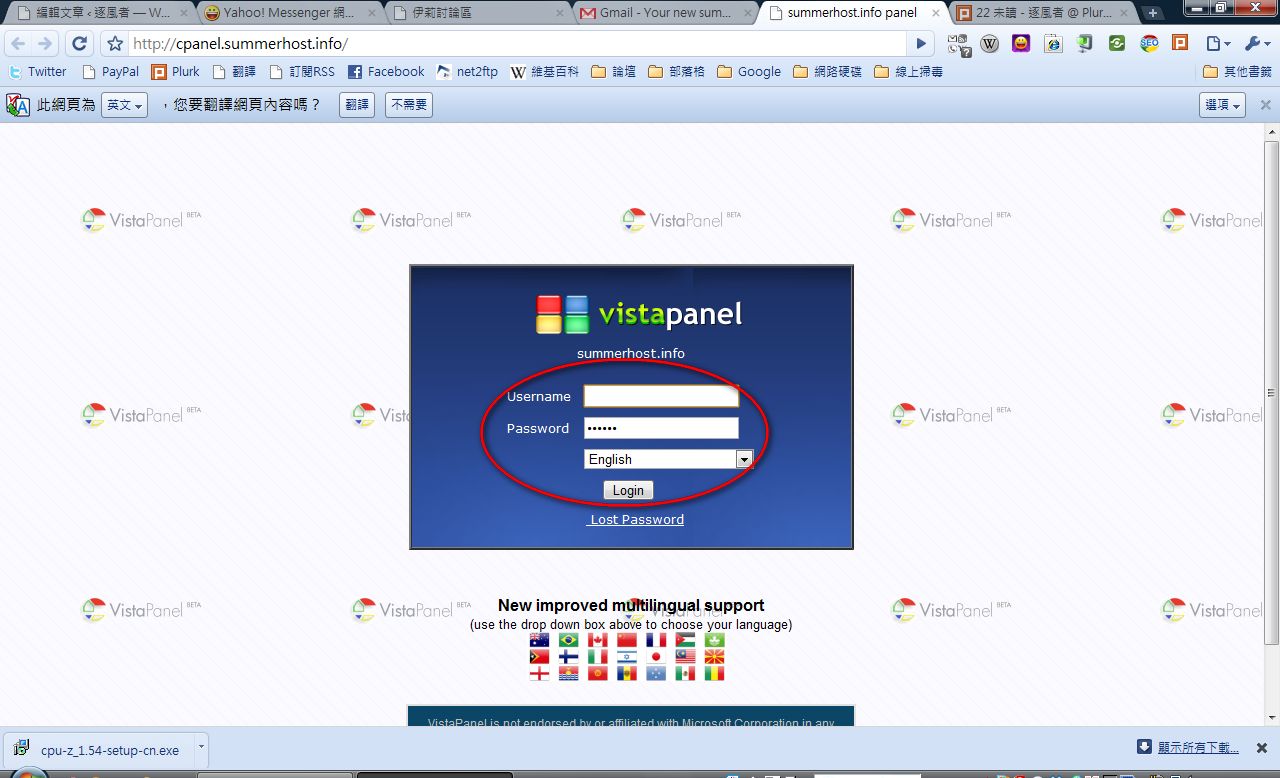
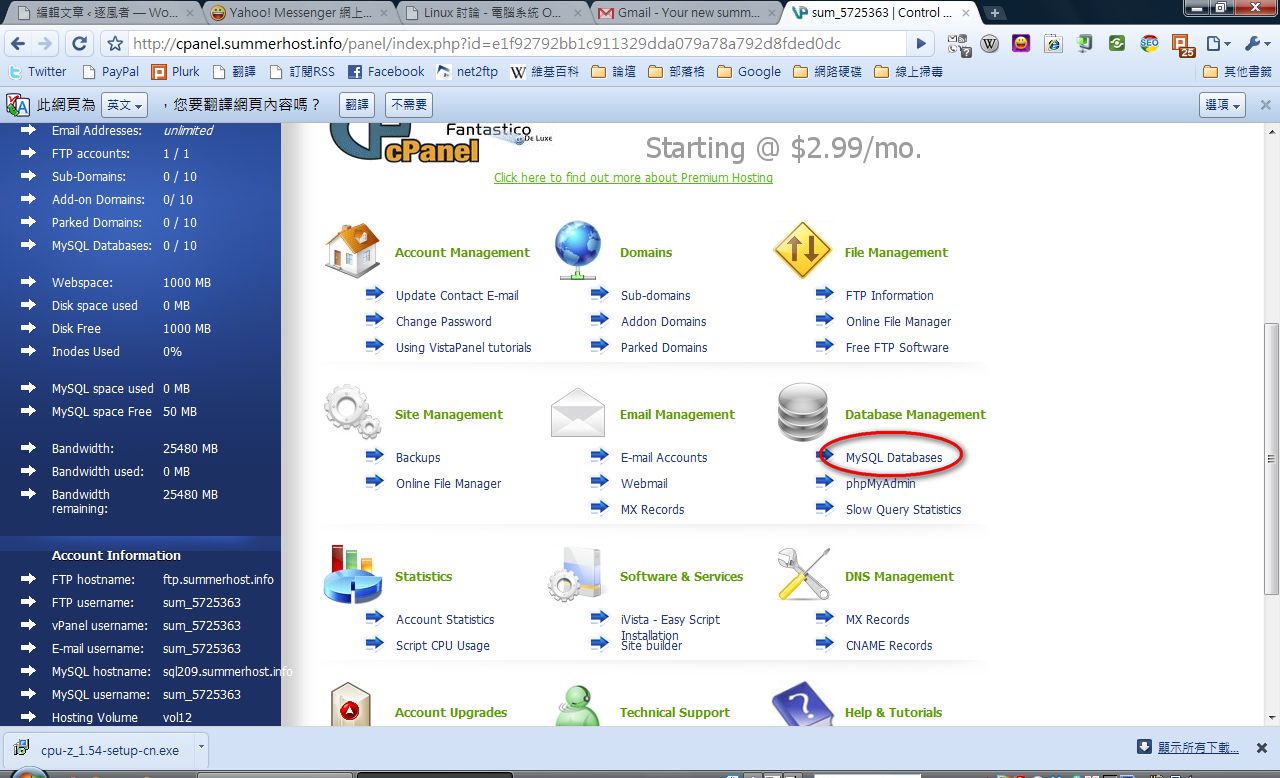
- Click 【MySQL Databases】
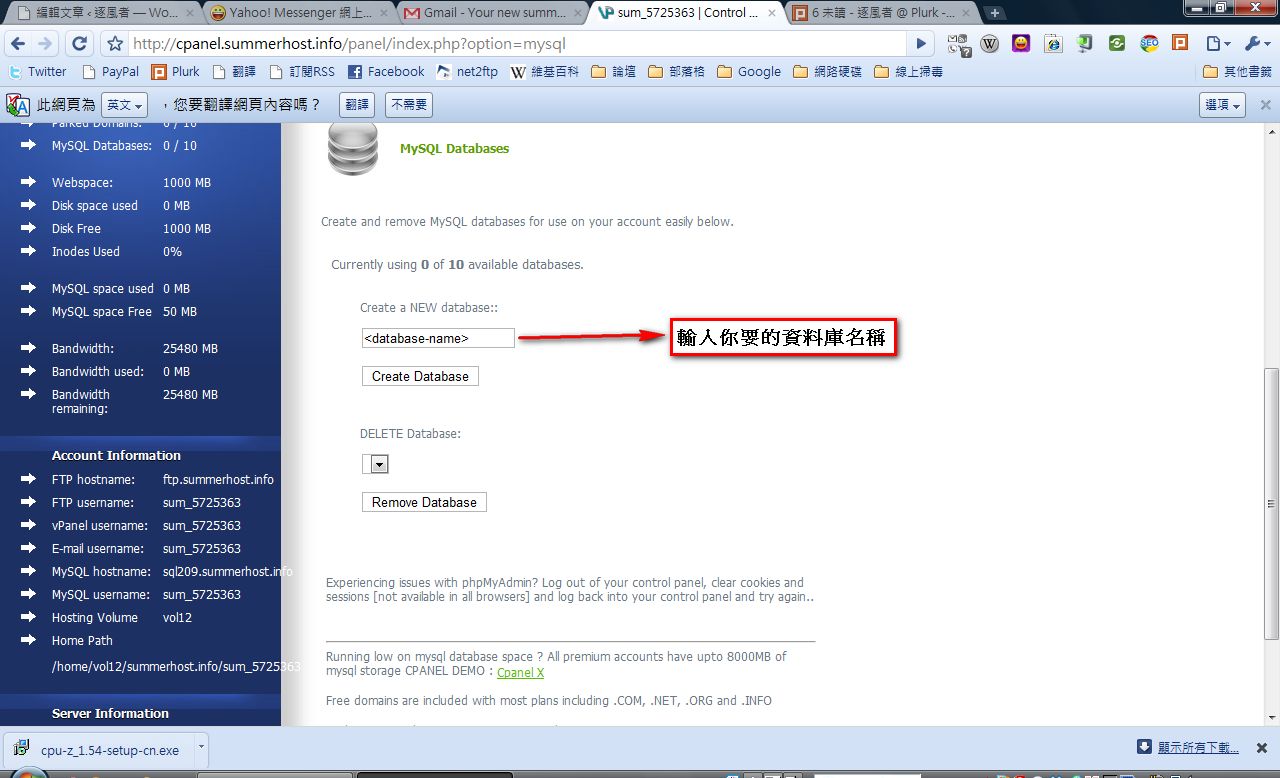
- Under 【Create a NEW database::】, enter a database name, then press 【Create database】 to create the new database
P.S. Some hosts let you set the database account and password yourself, while others have them preset. It depends on what the host wrote in the email they sent you when you applied for the shared hosting. Mine, for example, was preset
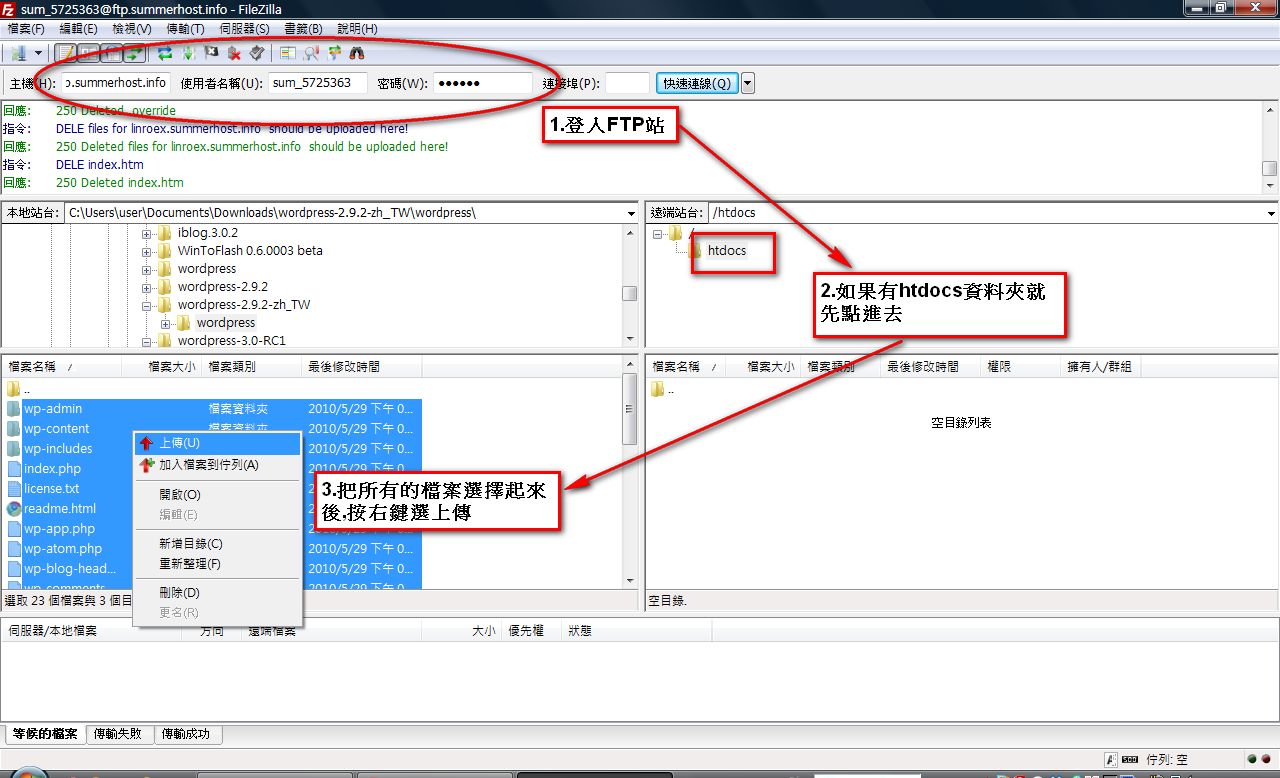
- After creating the database, open your FTP program (if you don’t have one installed, you can use the online version, net2ftp), then upload the WP files to your web space
P.S. After you log in to your shared host via FTP, you may find a folder called htdocs. If that folder exists, upload all the WordPress core files into that folder. If it doesn’t exist, just upload them directly to the root directory
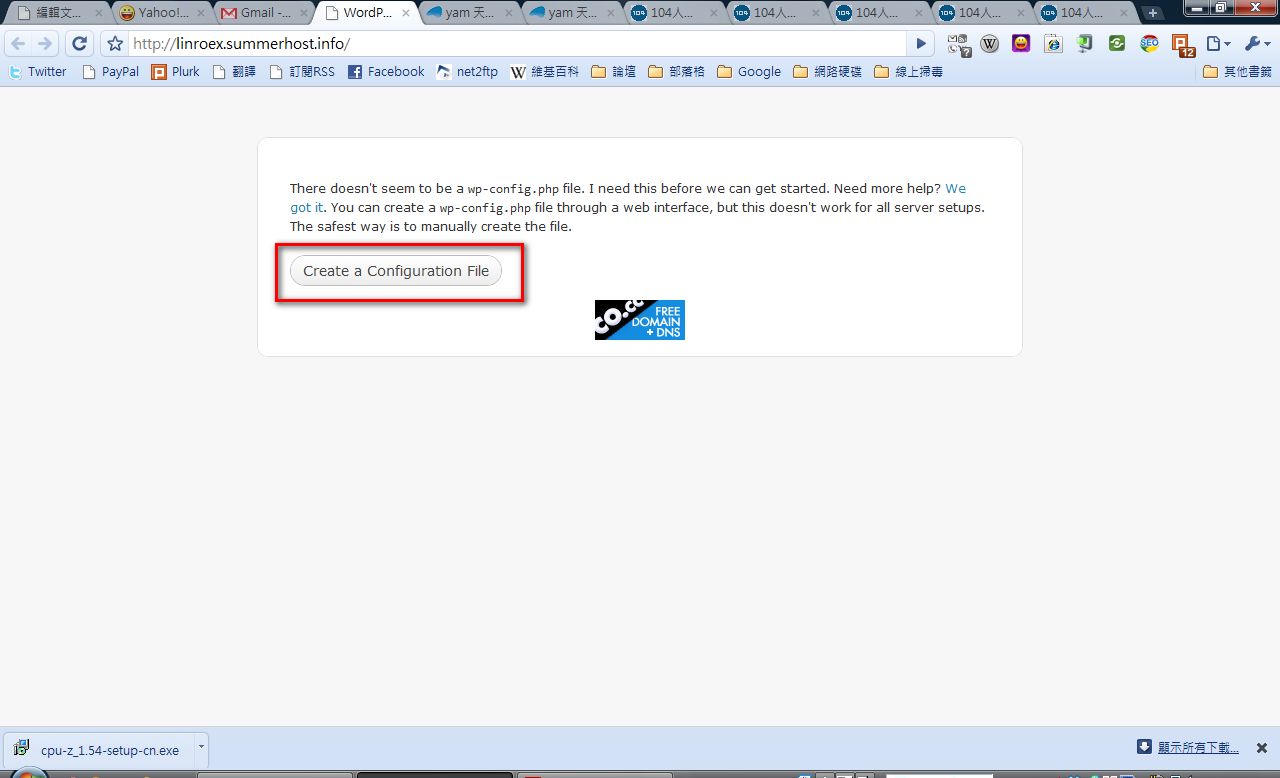
- Once the upload is finished, open your browser (Chrome, IE, Firefox…), enter your site URL, then click 【Create a Configuration File】
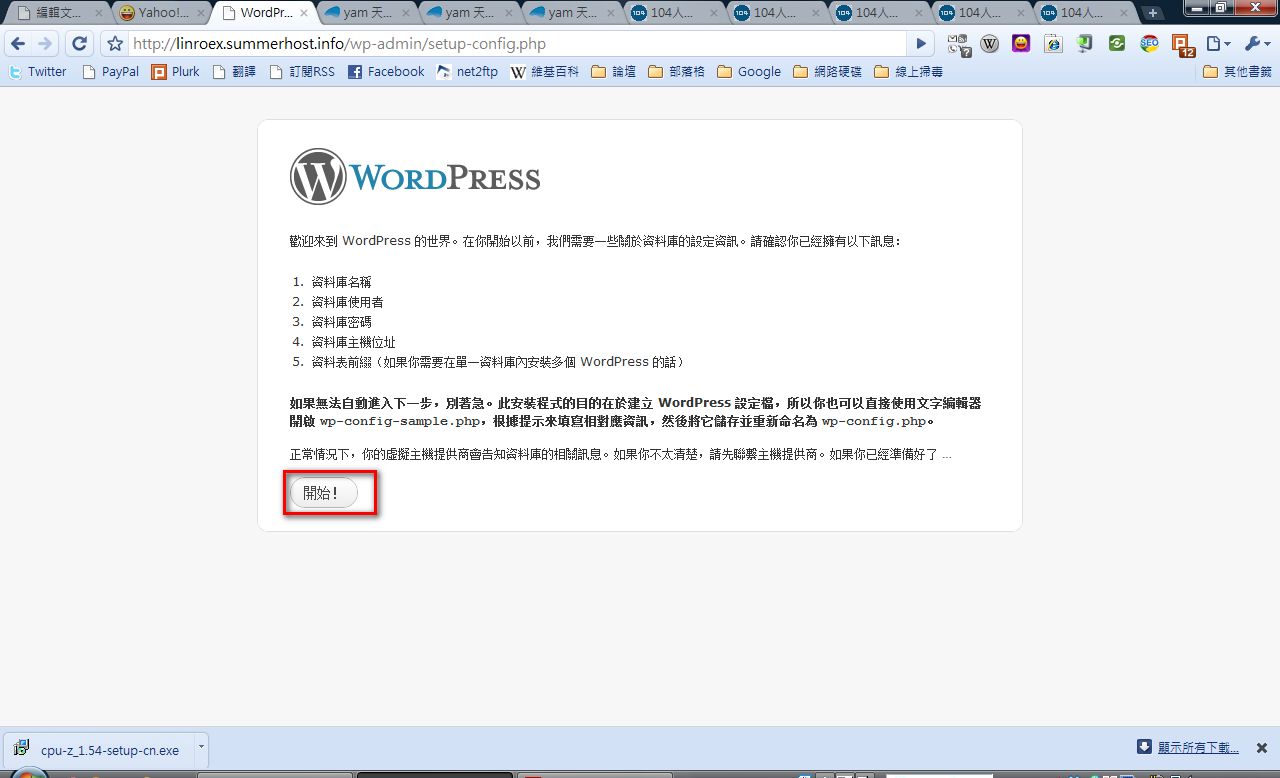
- Click 【Start】
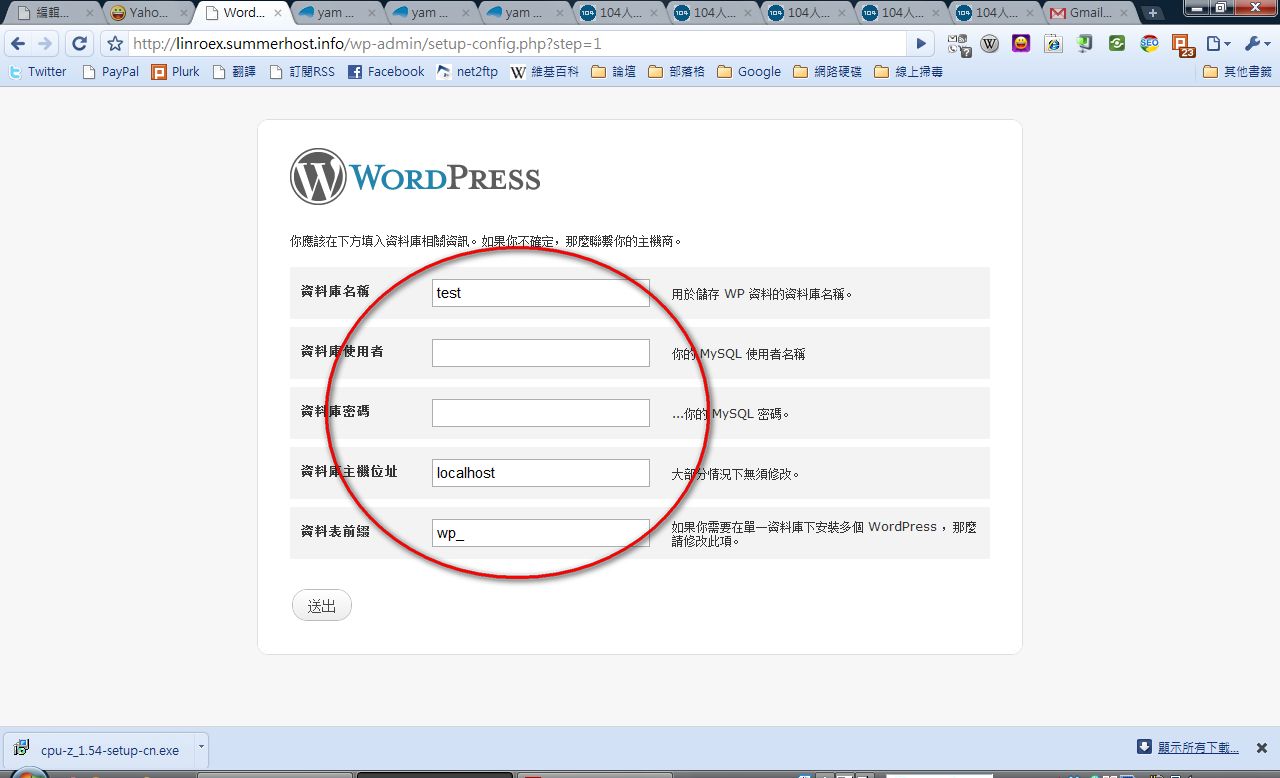
- Enter the relevant database information. The database prefix and host address “basically” don’t need to be changed; just keep the default values. After setting it up, press 【Submit】
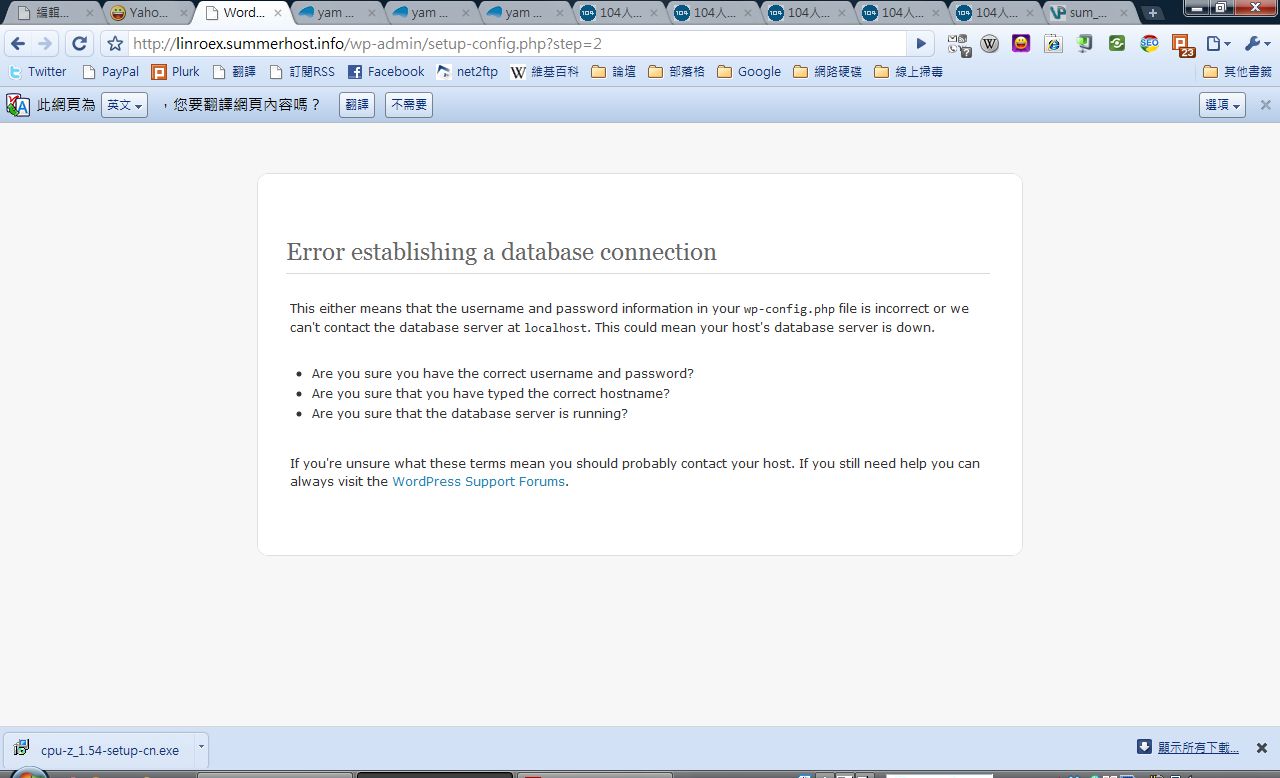
If the screen below appears after you press Submit, it means you filled in the database information incorrectly
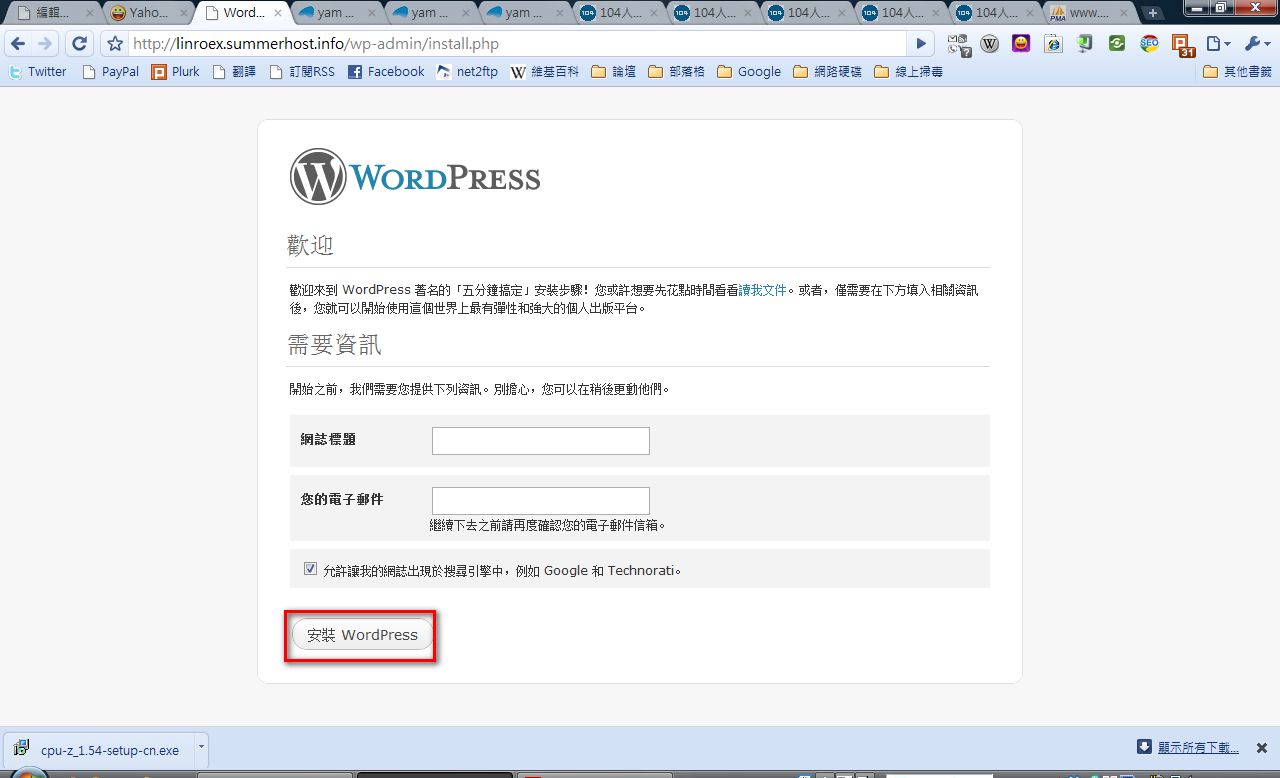
- Enter your blog title and your personal email address, then press Install WordPress
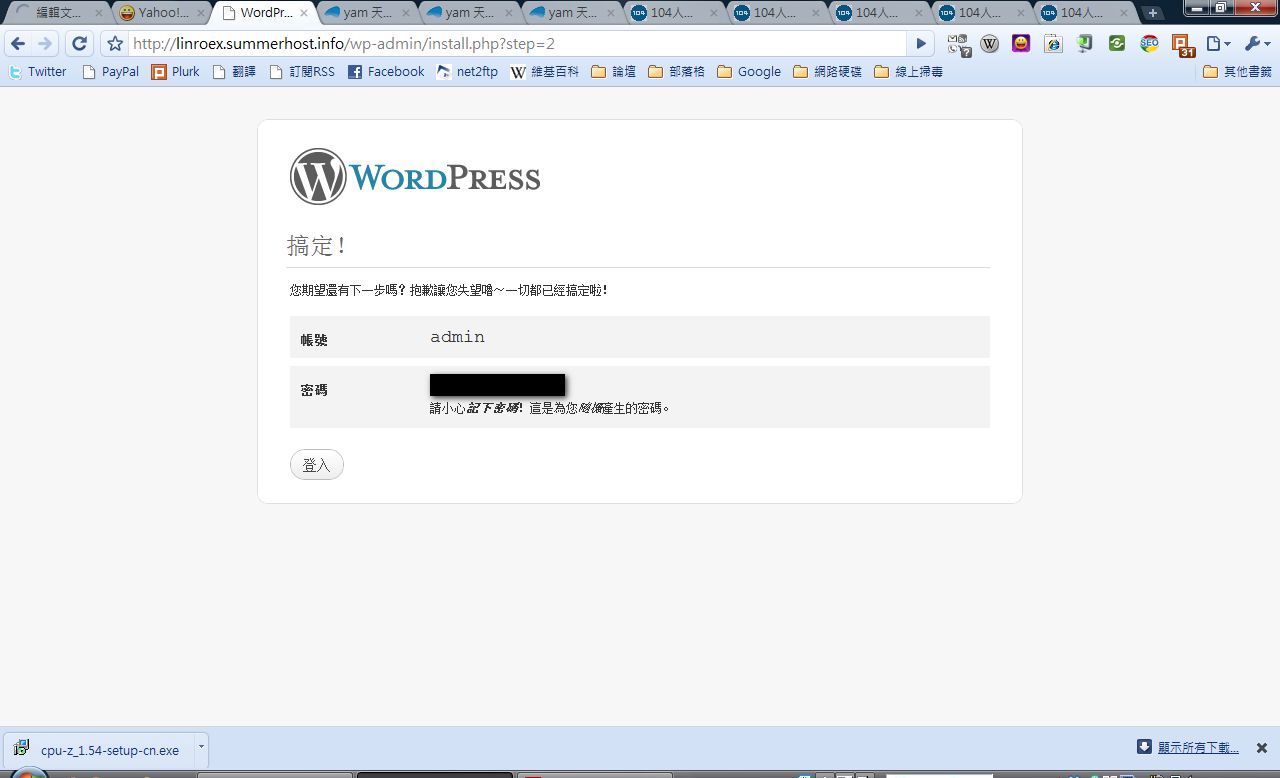
- Your login username and password are shown here. The password is randomly generated by the system. Click Log In, and you can change it later in the backend
P.S. With WordPress 3.0, users can set their own username and password
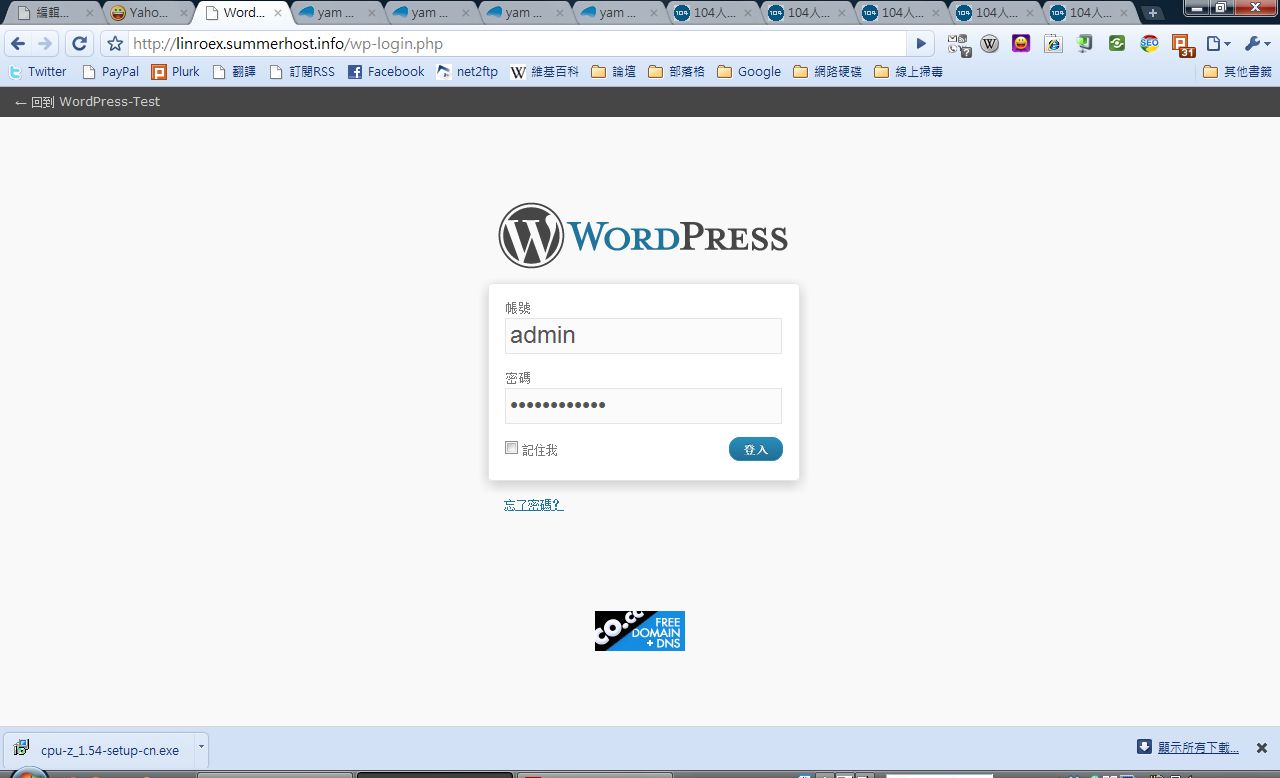
- Enter the username and the password the system just gave you. Below, I’ll show you how to change the password
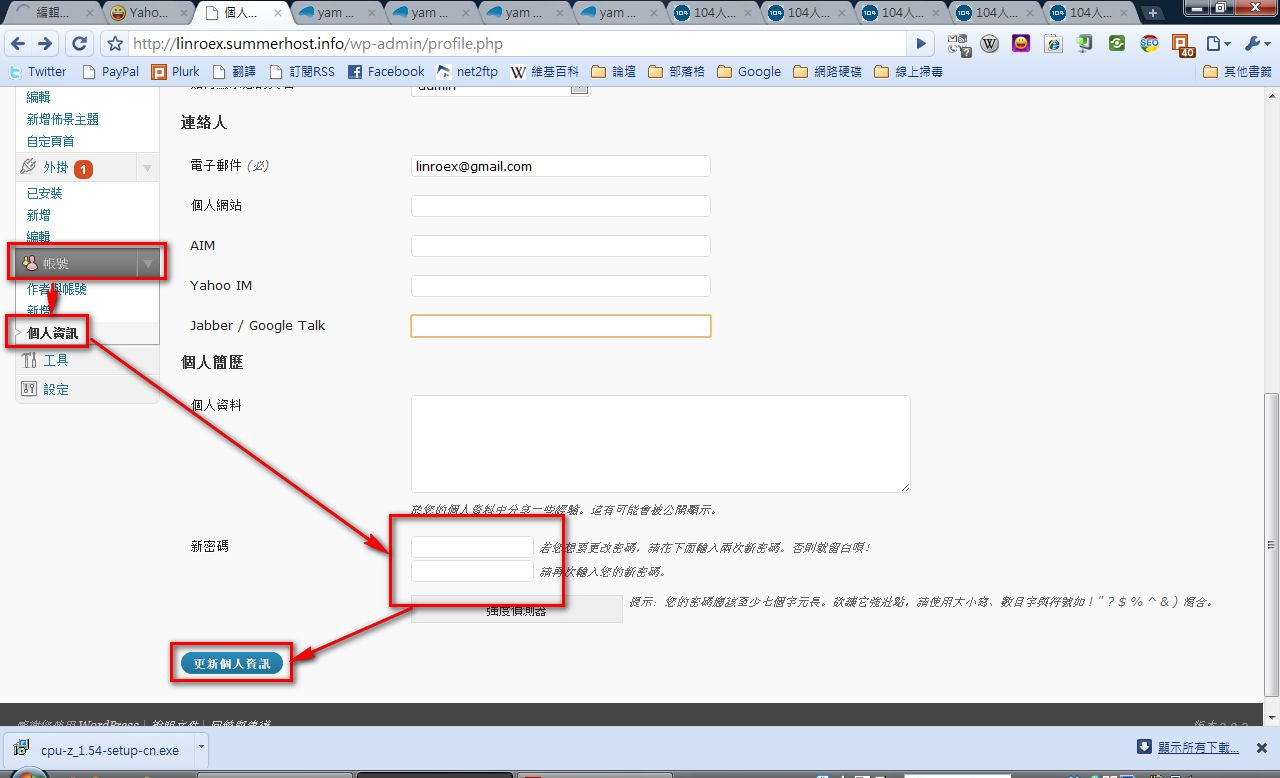
- Click Users, then Your Profile in order, then enter the password you want in the New Password field of your profile. Once you’ve set it, press Update Profile
Done~~ I’ll write tutorials on installing WordPress themes and plugins later. If there’s anything you don’t understand, feel free to leave a comment and ask me