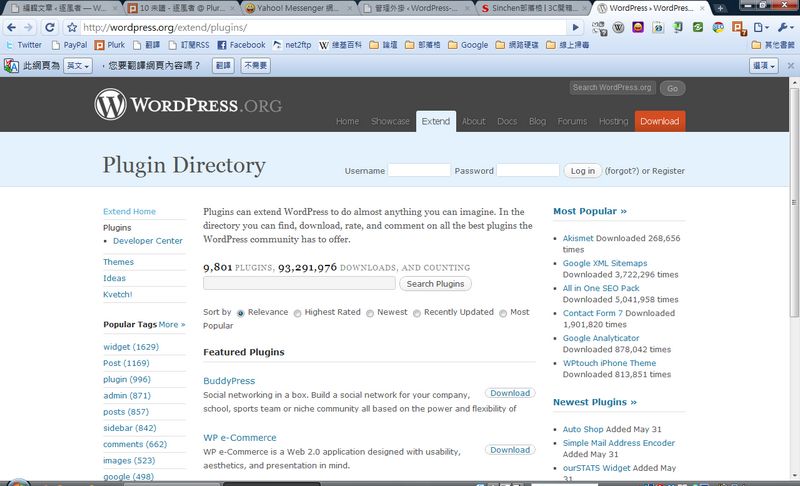
1. Plugin Installation - Quick Install from the Dashboard
P.S. With this method you don't need to download the main program yourself; you can install the plugin directly.Installing from the dashboard is the method I use most, because it’s convenient. You don’t have to go download the plugin’s main program, and you don’t need any FTP program — you just open the WordPress dashboard and you can install plugins.
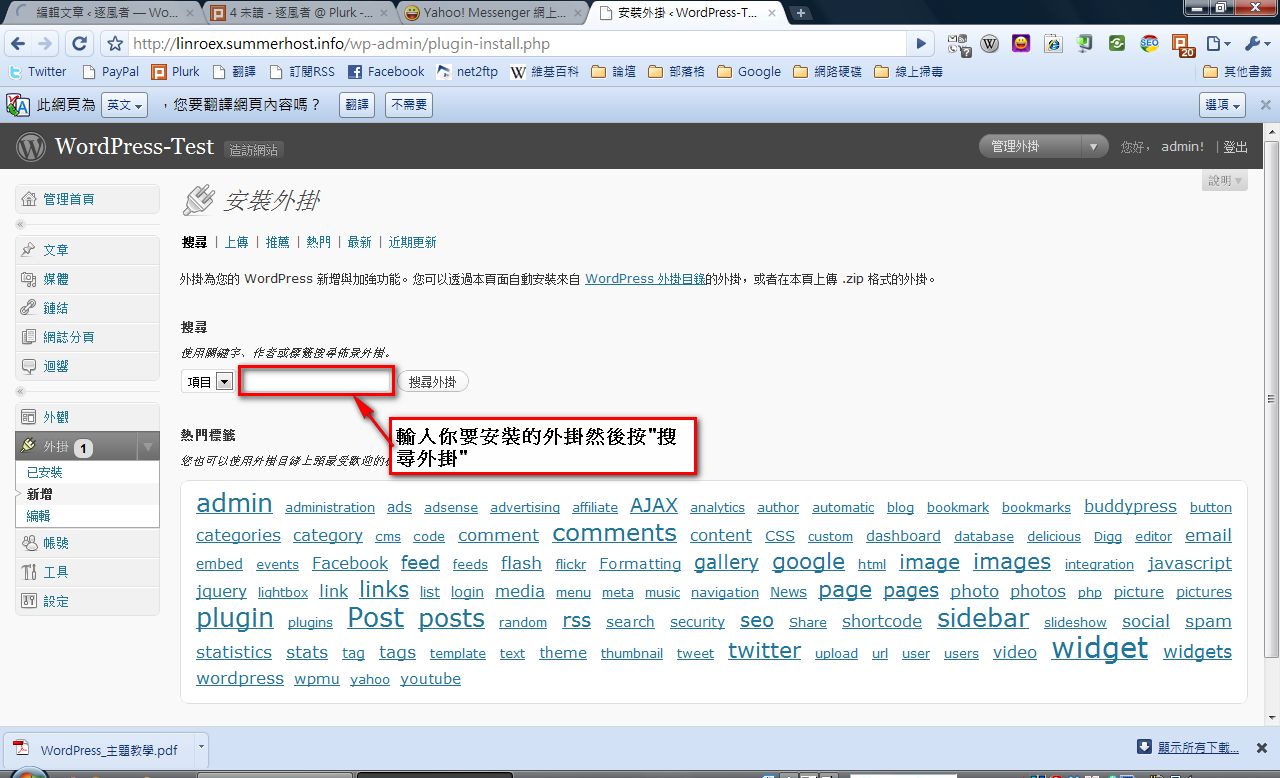
- Go to the WordPress dashboard, click [Plugins] → [Add New] in order, then type the name of the plugin you want to install into the search box and click [Search Plugins].
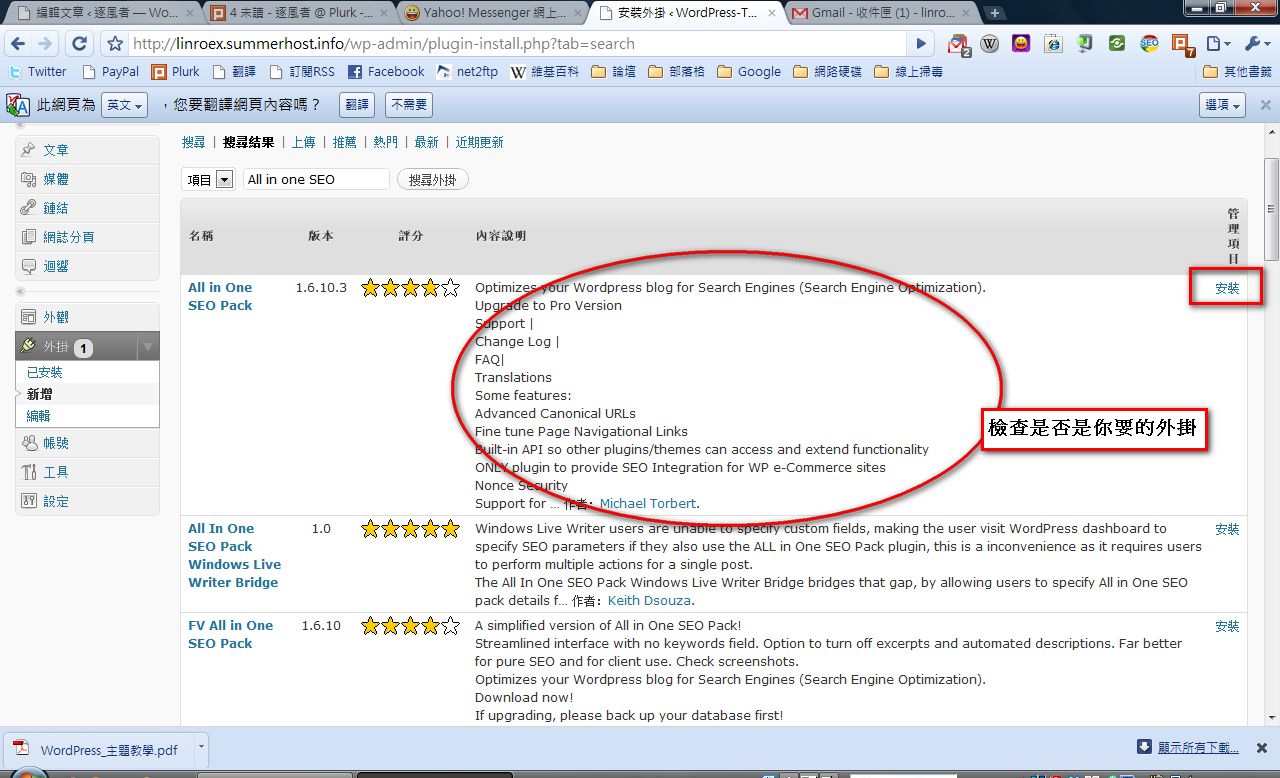
- The system lists the plugins it found. Usually the one at the top is the plugin you want to install. Take a quick look at the plugin’s description to check that it’s the one you want, then click [Install Now] next to the plugin you want to install.
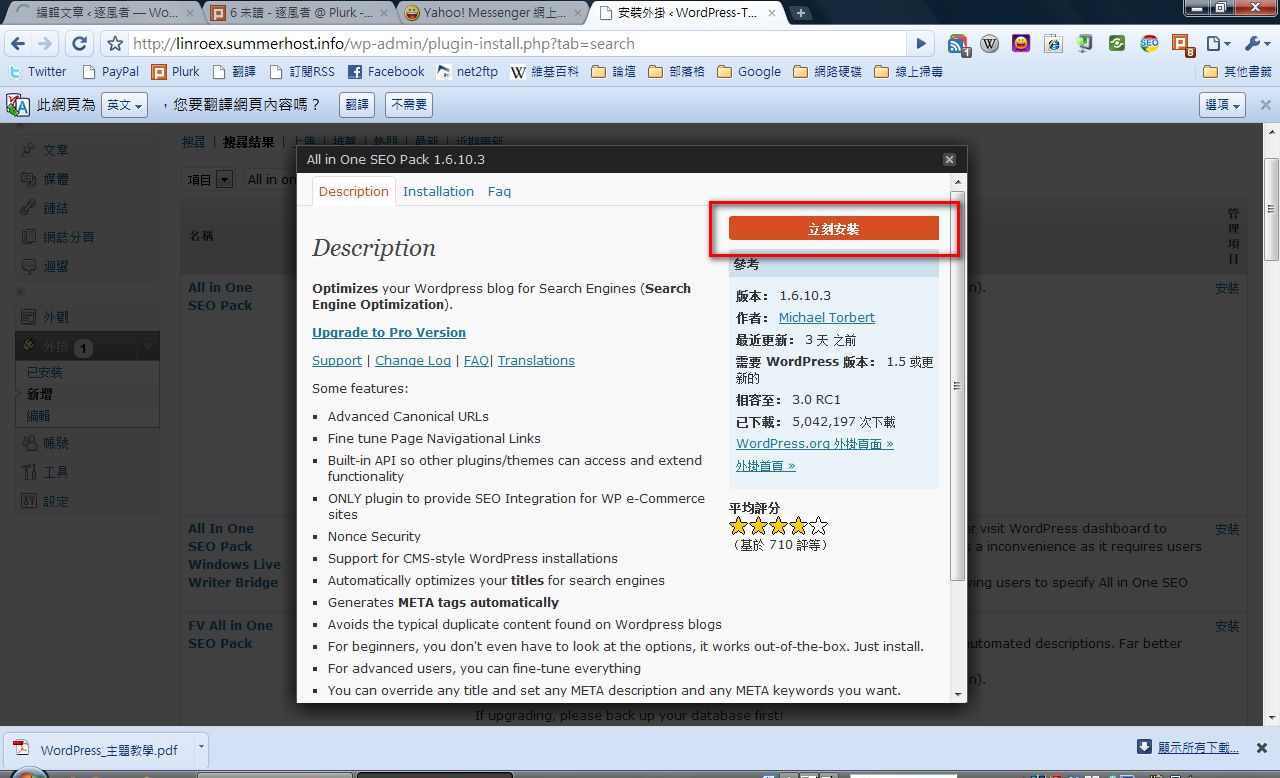
- After you click install, the system shows you more detailed information about this plugin. Just skim it and click [Install Now].
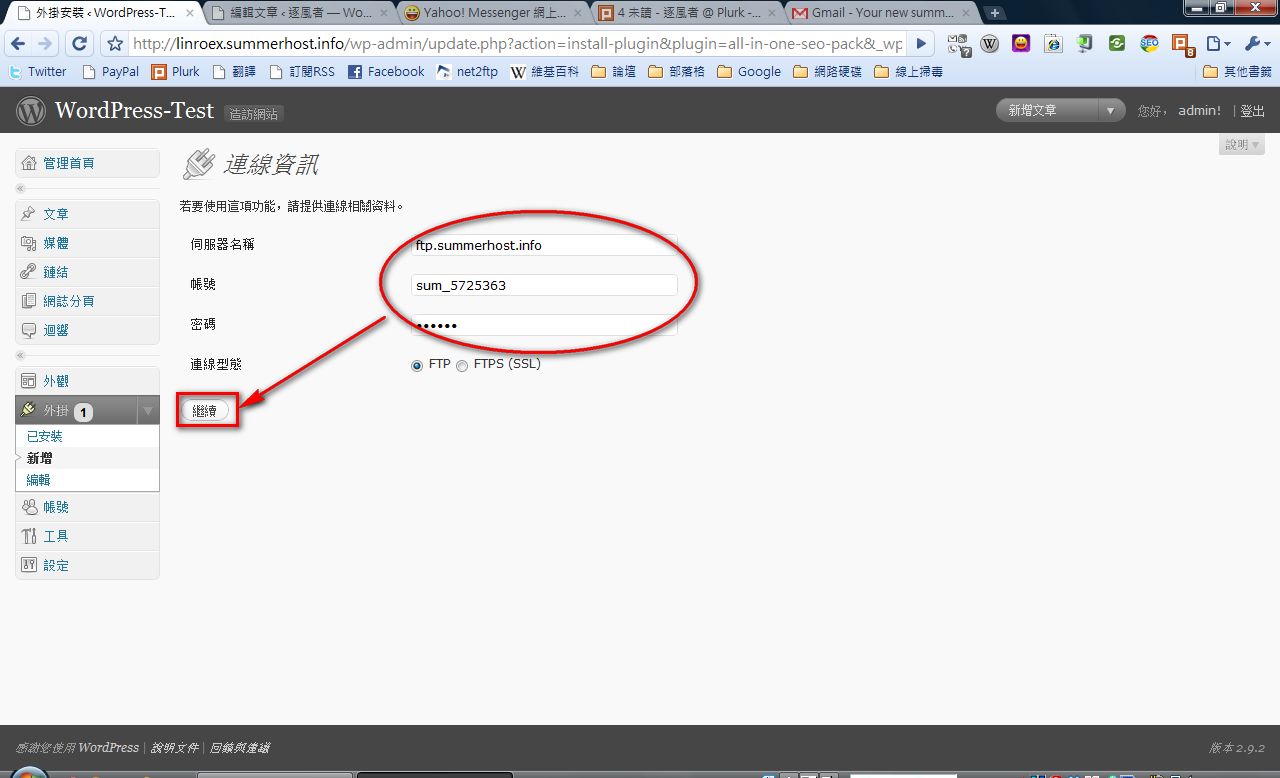
- Enter your FTP account, password, and FTP location, then click [Continue]. (For connection type, just choose FTP — unless you really care about information security, in which case choose SSL, though SSL also requires server-side support.)
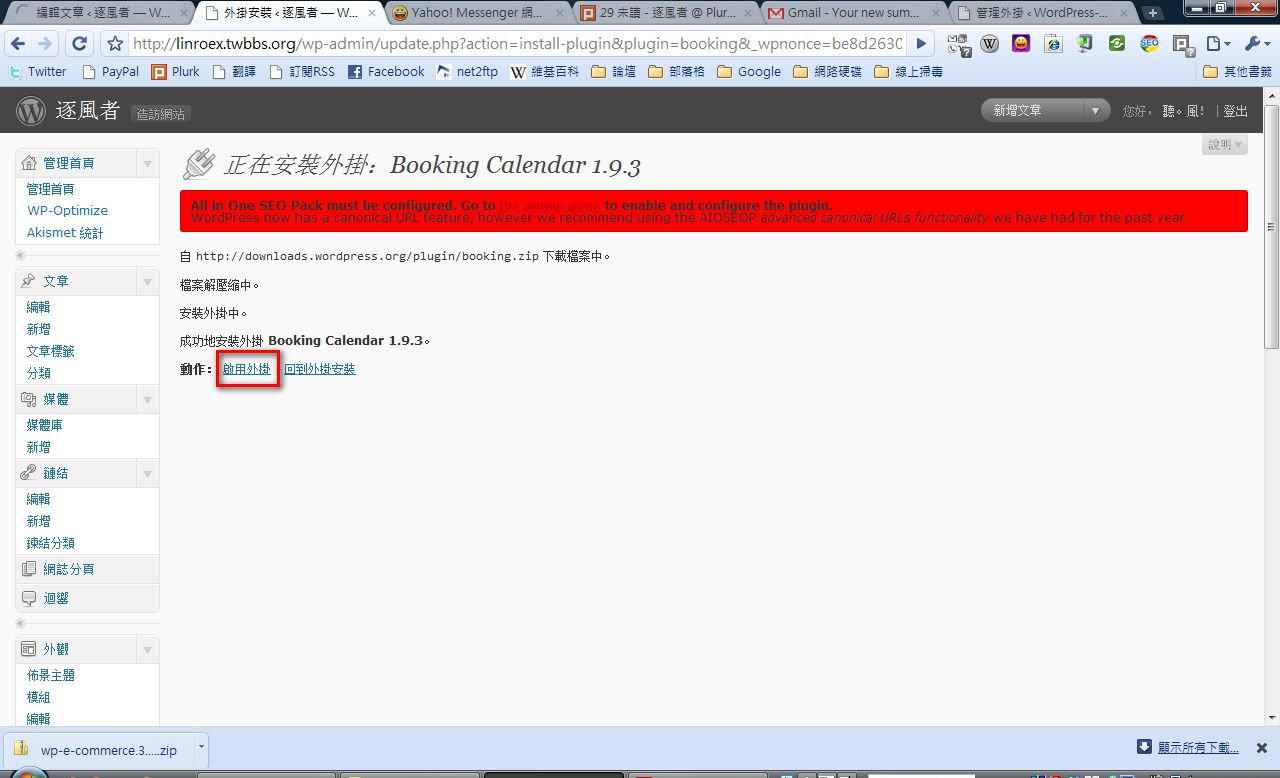
- After the plugin is installed, if you see “Plugin installed successfully.” that means it worked. If not, it failed. Usually if the installation fails you can try a second time, but if the second attempt also fails, install it via FTP instead.
▼▼Click [Activate Plugin]
2. Plugin Installation - FTP Method
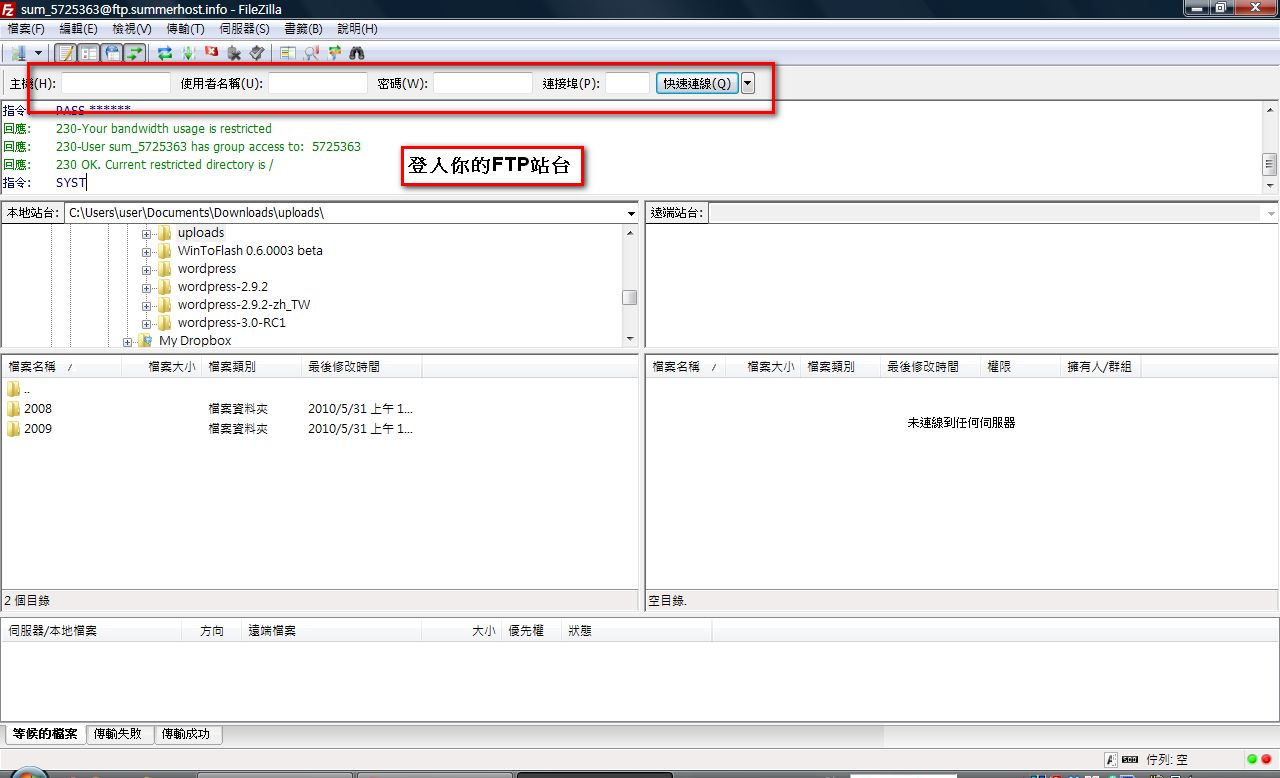
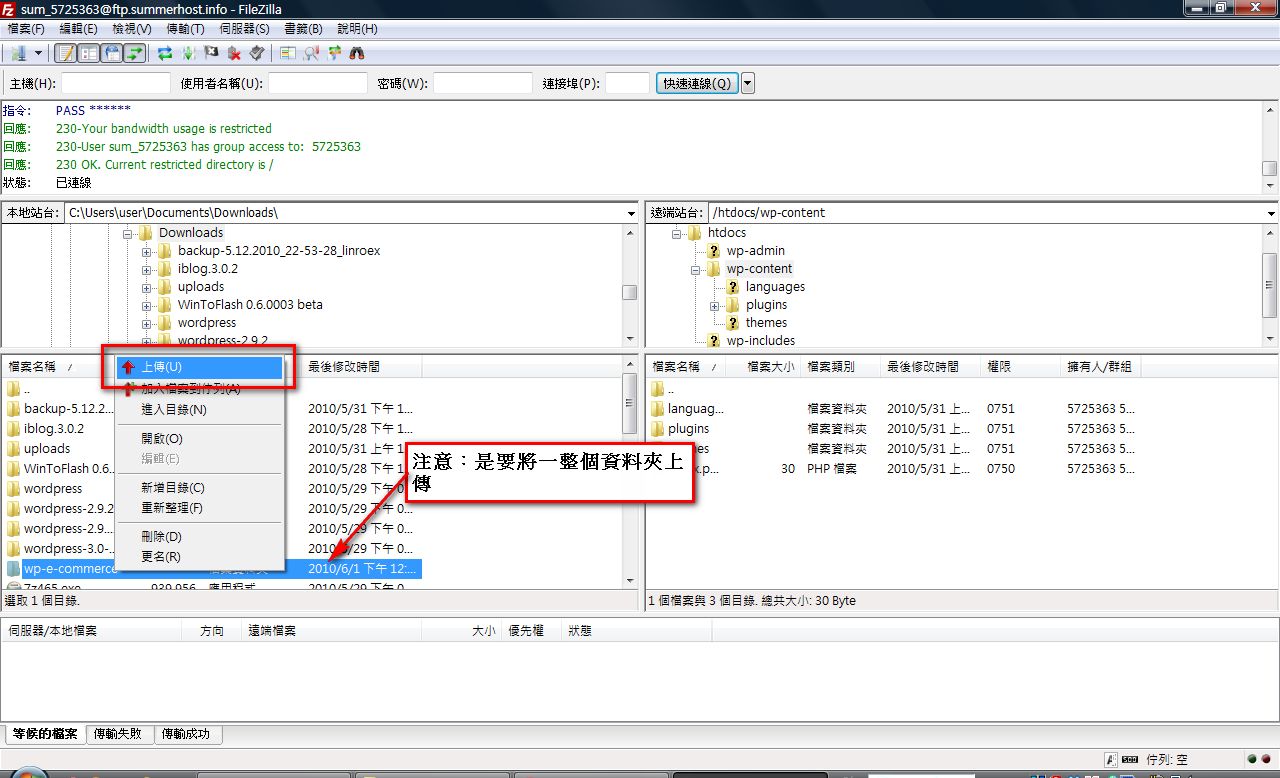
Installing from the dashboard is fast and convenient, but some shared hosts restrict you from using the dashboard install method. That's when the traditional FTP installation comes in handy.- Here I’ll use FileZilla for the tutorial. First, open your FTP client and log in to your FTP site.
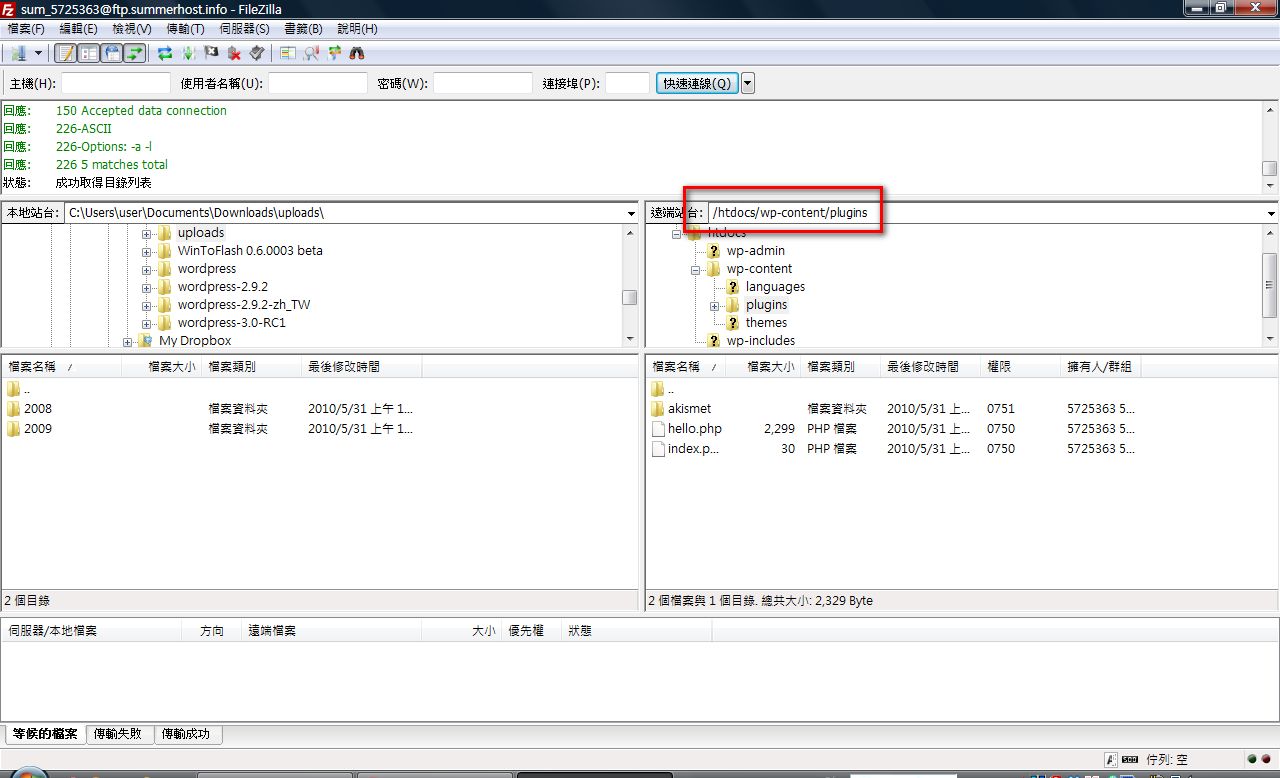
- Navigate in order to the WordPress directory → wp-content folder → plugins folder.
- Upload your plugin’s main program to the plugins folder.
Note: The plugin main program you download from the official site is a compressed archive. Extract it first, then upload it. Note that you should upload a single folder, not a bunch of separate folders (files).
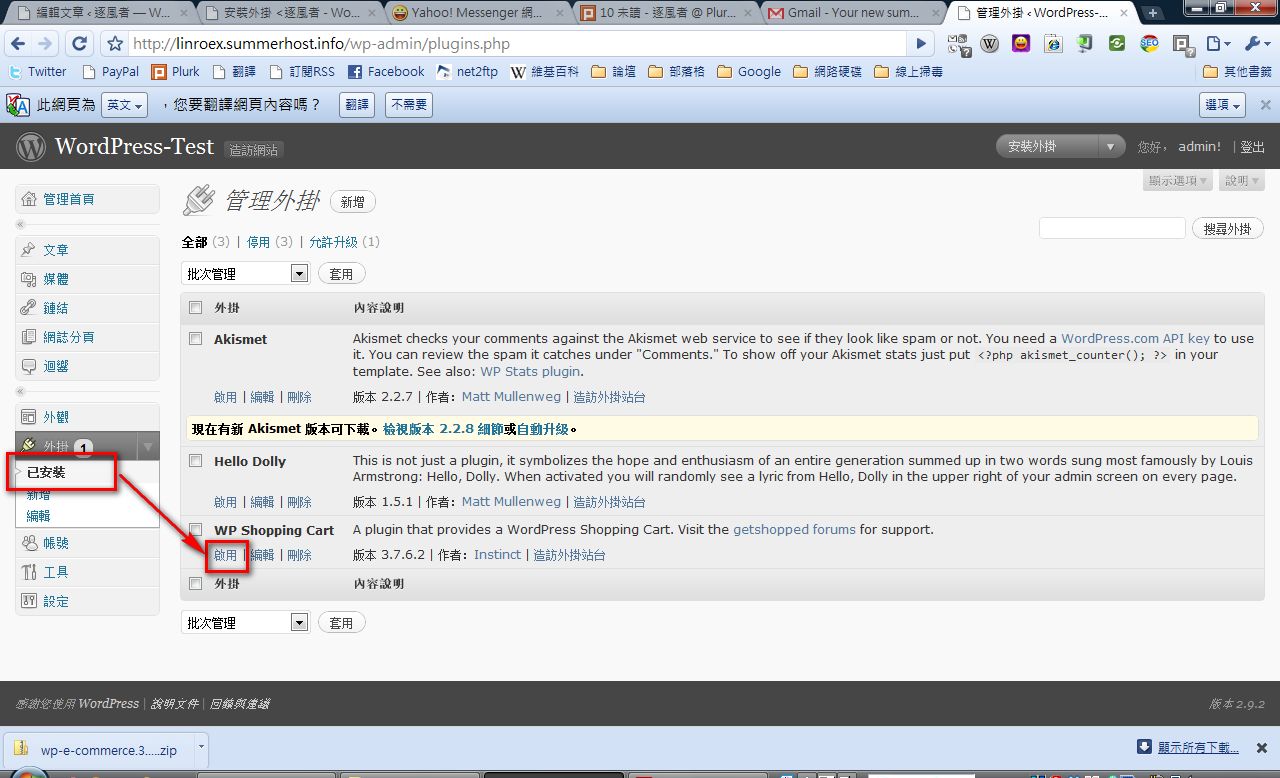
- After uploading, go to the dashboard, click [Plugins] → [Installed Plugins] in order, then click [Activate] on the plugin you just uploaded.
3. Theme Installation - Dashboard Method
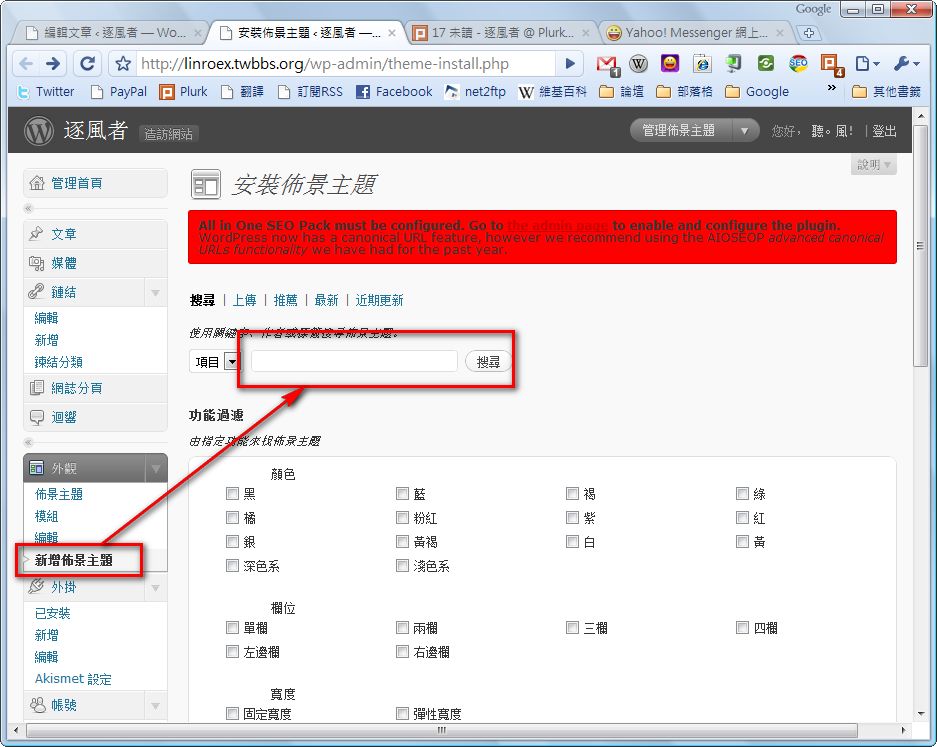
It has the same advantages as installing plugins from the dashboard: fast and convenient. But it has one drawback — you can only install themes listed on the official WordPress website.- Log in to the WordPress dashboard, go to Appearance → Add New Theme, then type the name of the theme you want to install into the search box and click search.
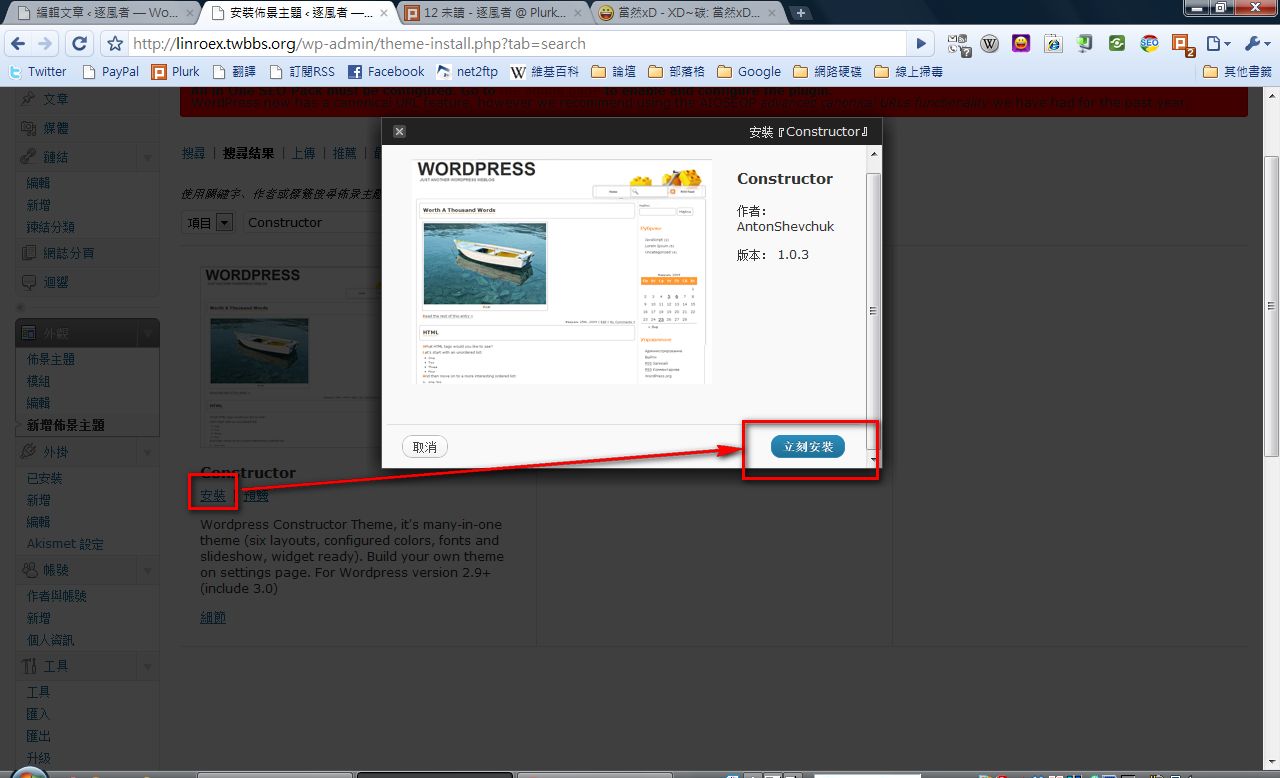
- The system lists the themes it found. Choose the one you want to install and click [Install] → [Install Now], or you can click [Preview] to see what the theme looks like first.
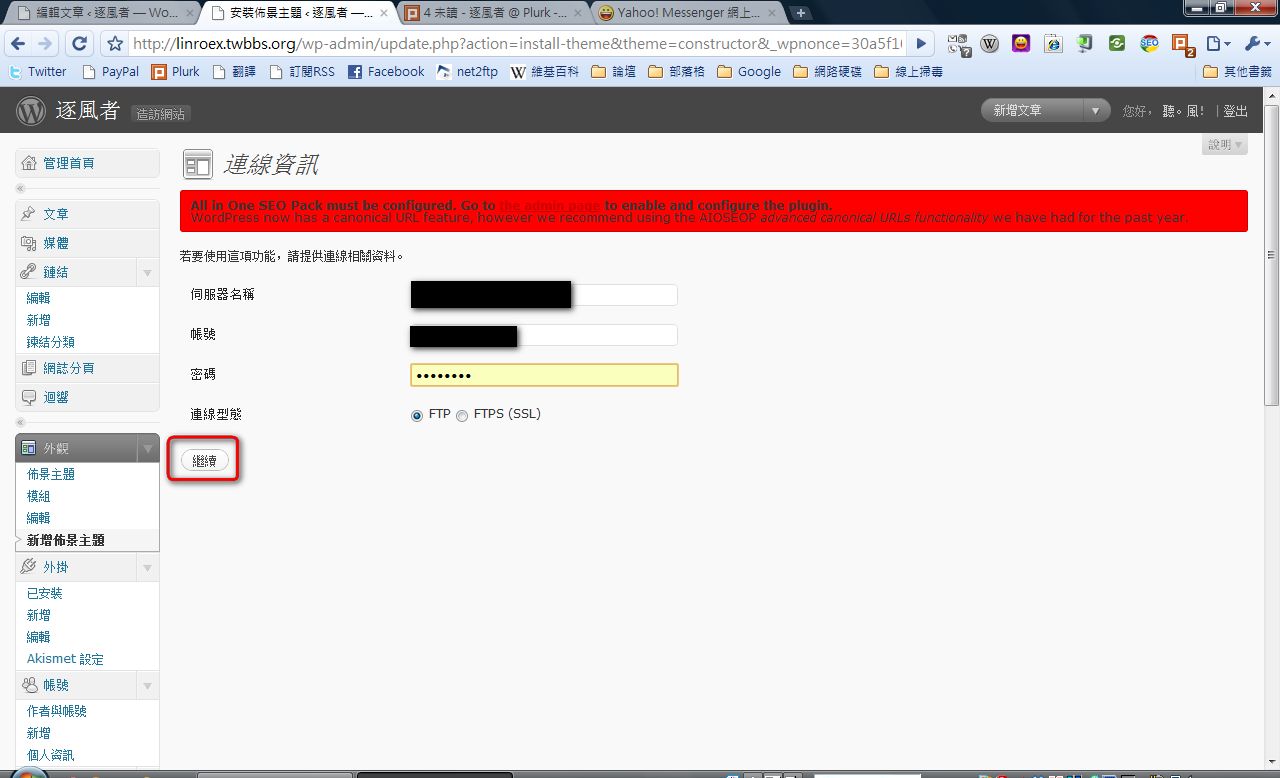
- Enter your FTP site details and click [Continue].
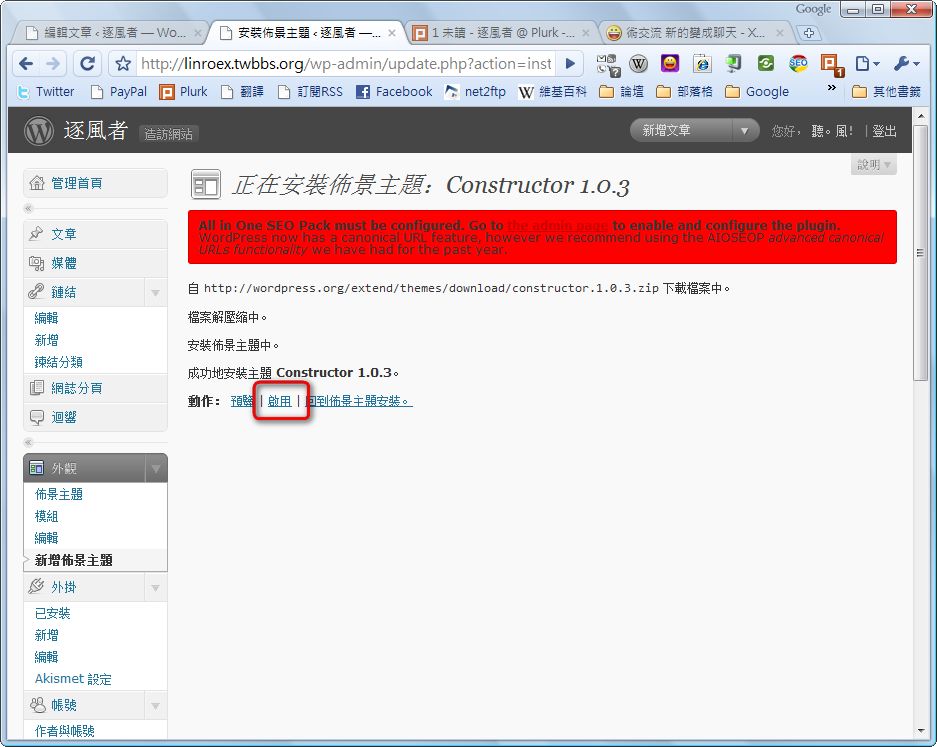
- After the theme is installed, just click [Activate].
4. Theme Installation - FTP Method
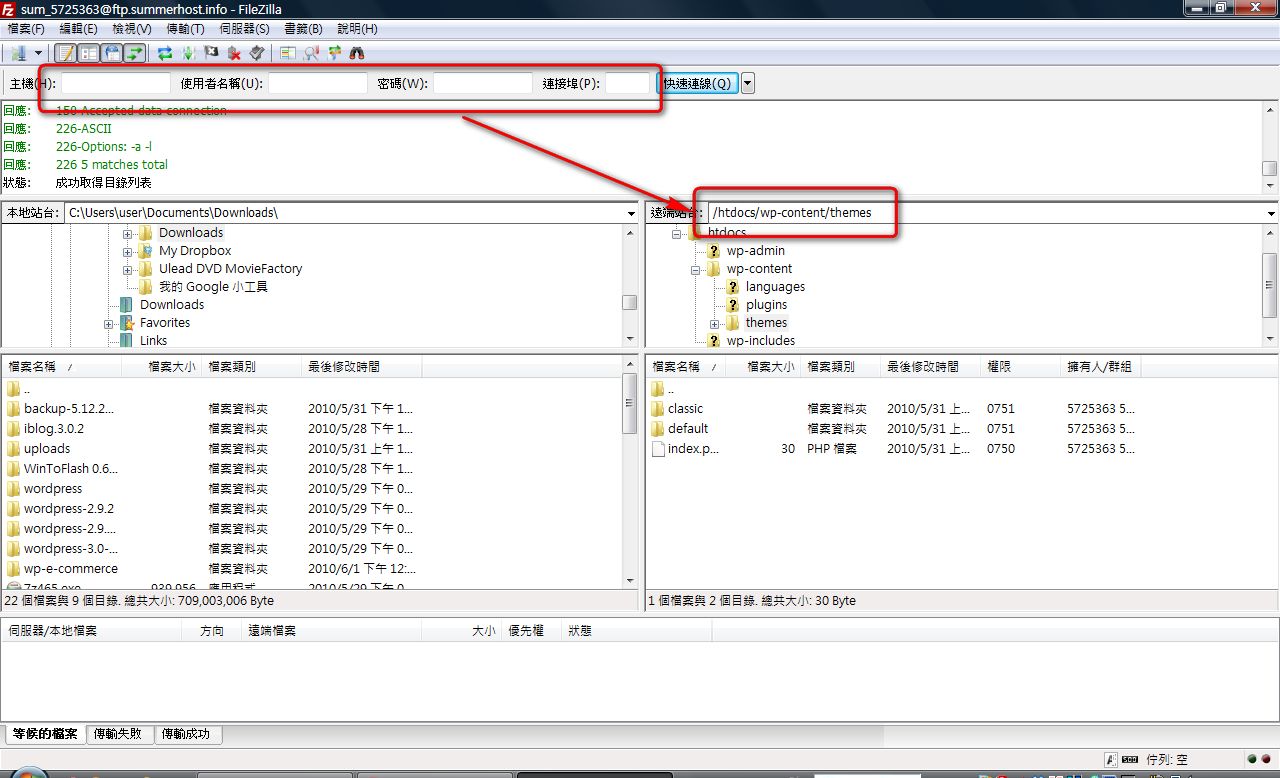
Sometimes you'll see some really beautiful WordPress themes online, but they aren't listed on the official website. In that case you can upload the theme to your site via FTP and then install it.- Open your FTP client, log in to your FTP site, then navigate to the WordPress directory → wp-content folder → themes folder.
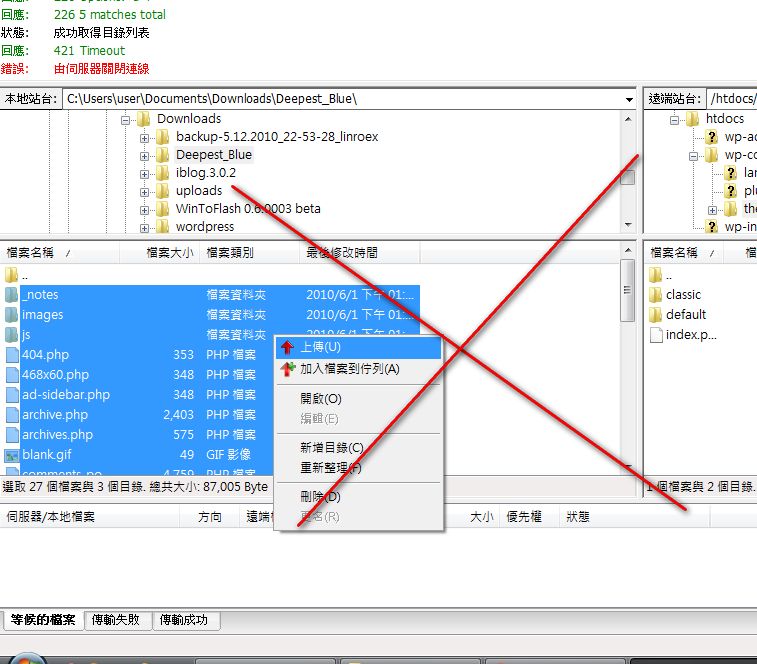
- Upload your theme to the themes folder.
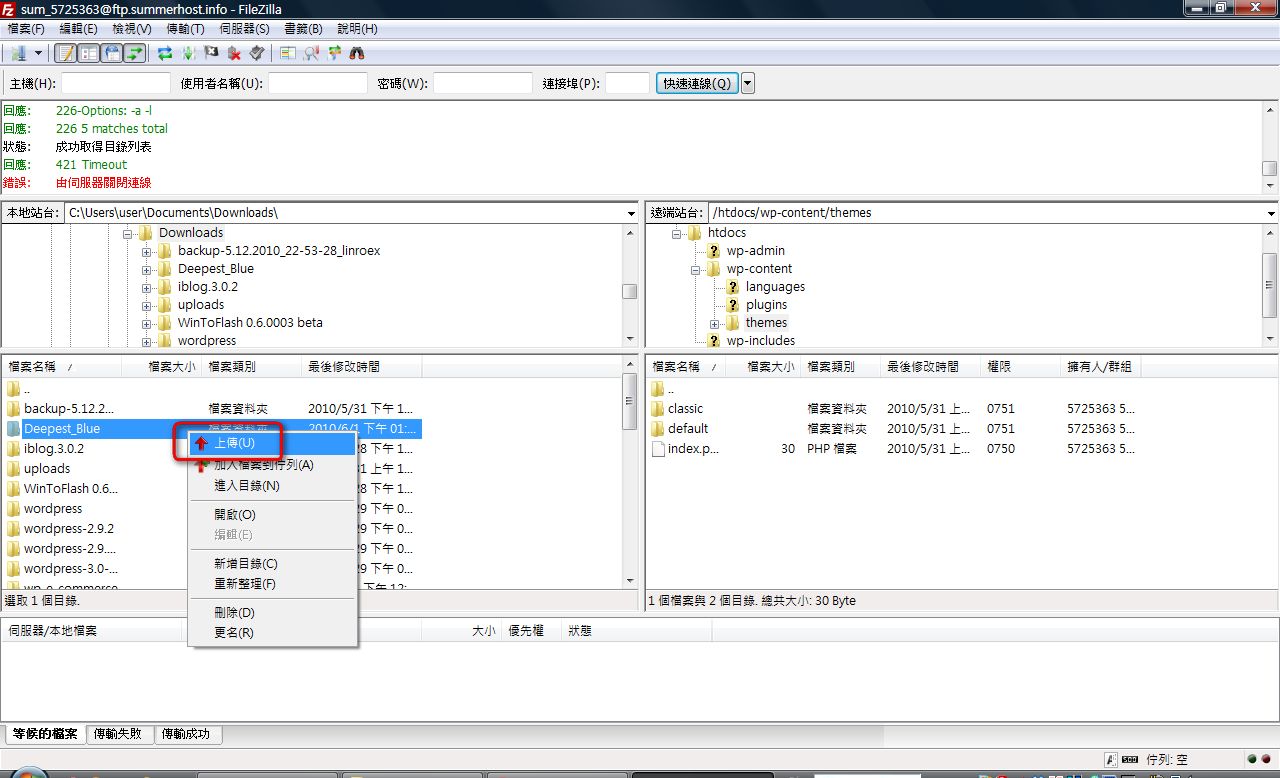
The one below is an example of what NOT to do ▼▼
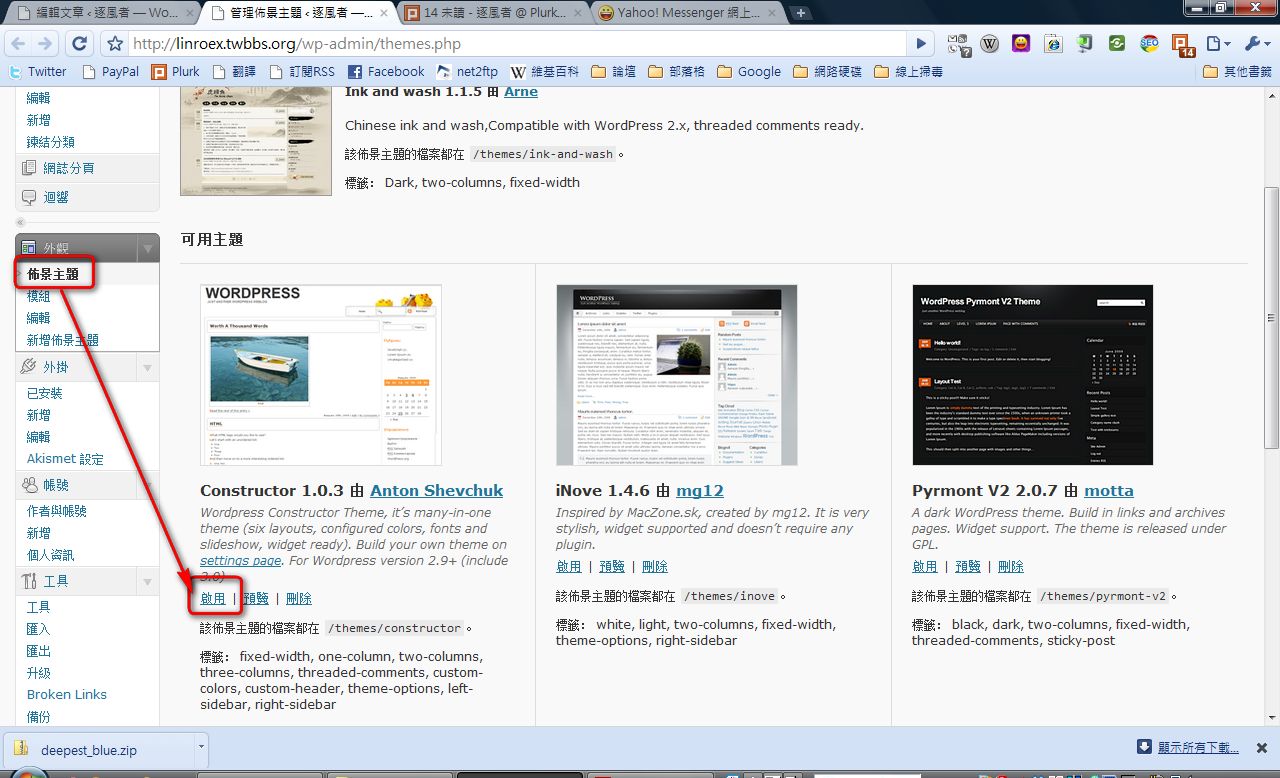
- After uploading, go to [Dashboard] → [Appearance] → [Themes] in order, then click [Activate] on the theme you just uploaded.
Common Unofficial Theme Sites
- Smashing Magazine (English)
- Simple Themes (English)
- SkinPress (English)