Today, the site admin Tingfeng is going to introduce a plugin called WP-Polls. WP-Polls gives your blog Ajax-based polling, and it is completely free, has no restrictions, and won't slow your site down. You might worry that WP-Polls's theme isn't pretty enough, but that's not a problem either, because you can set WP-Polls's own theme and color scheme.
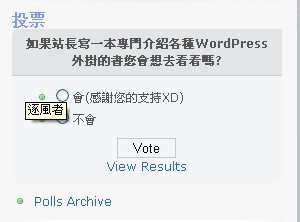
WP-Polls information:
Plugin name: WP-PollsOfficial website: http://lesterchan.net/portfolio/programming/php/#wp-polls
Download: http://downloads.wordpress.org/plugin/wp-polls.2.50.zip
.
1. How to install WP-Polls
1. Log in to the admin area first, then go to Plugins → Add New and type wp-polls in the search box. That's it — this part isn't covered in full detail here.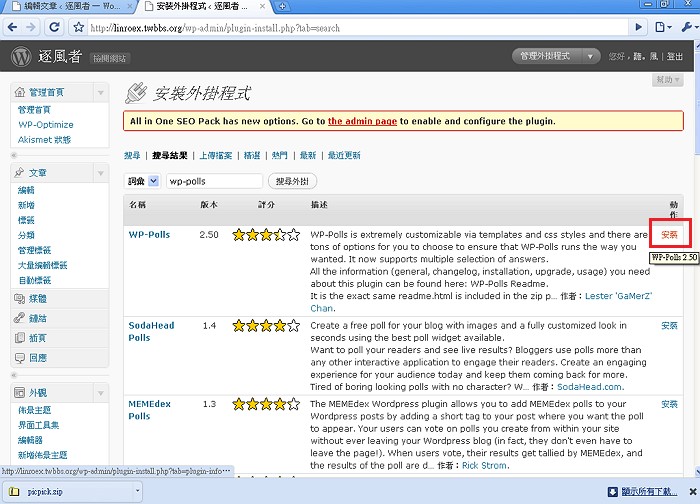
..
2. Adding a poll
1. Once WP-Polls is installed, log in to the admin area and go to Polls → Add Poll to open the new-poll screen.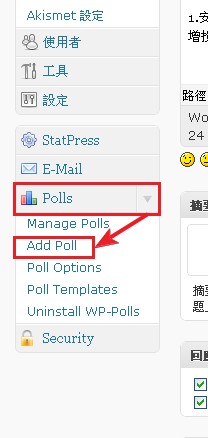
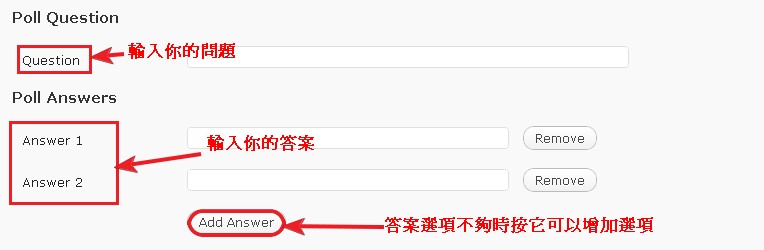
- On the Add Poll screen, enter your poll question in the Question field, then enter your answers under Poll Answers. By default you can only enter 2 answers; if that isn’t enough, click Add Answer to add more options.
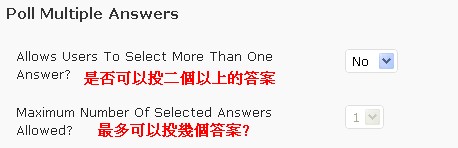
- You can then set whether users may choose more than one answer (Allows Users To Select More Than One Answer?). If you enable it, Maximum Number Of Selected Answers Allowed? sets how many answers a user may pick at most.
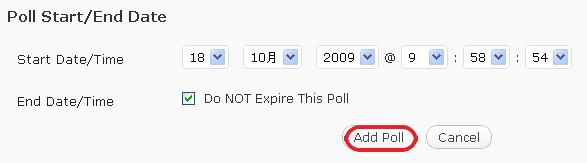
- Next you can set the Poll Start/End Date, which controls when the poll starts and ends. You can basically leave the default values as they are, then click Add Poll to finish creating the poll.
.
3. Putting a poll in a post or the sidebar
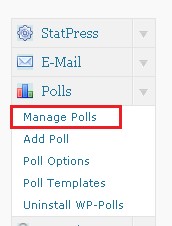
By the previous section you had all created your polls, right? But don't think that's all there is to it — after creating a poll you still have to display it. So in this section I'll show you how to put a WP-Polls poll into a post.- Go to the admin area and click Polls → Manage Polls.
- Find the ID of the poll you just created.
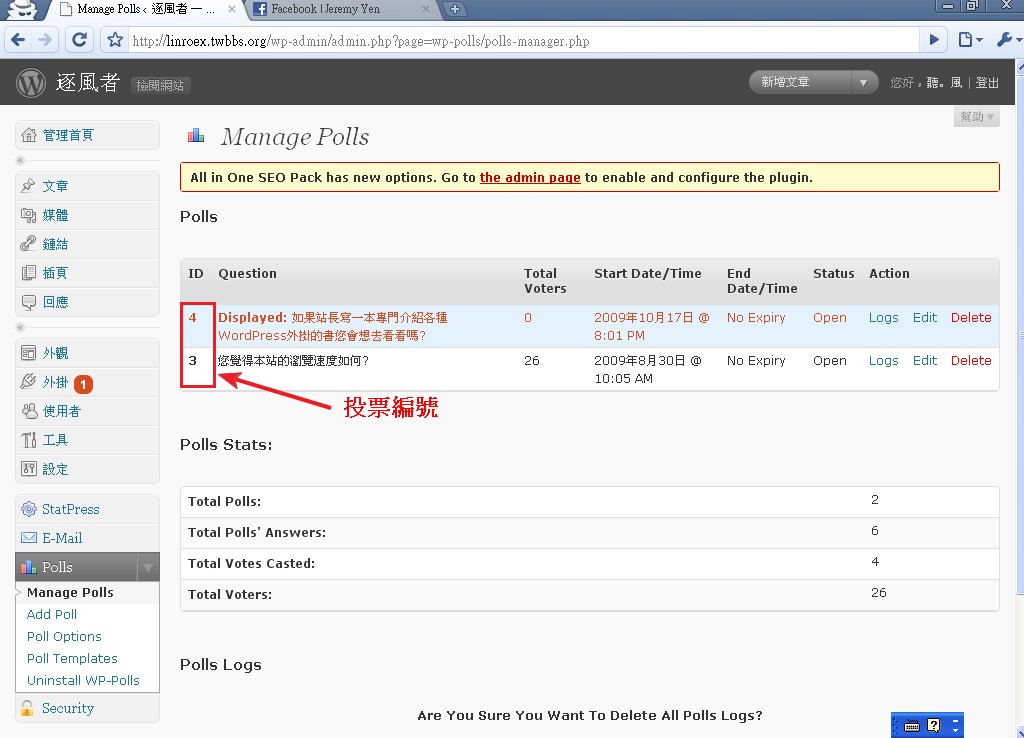
- Once you have the ID, go to the new-post screen and switch to the [Visual editor]. You’ll see a poll icon in the top-right corner of the editor; click it, enter the ID, and click OK.
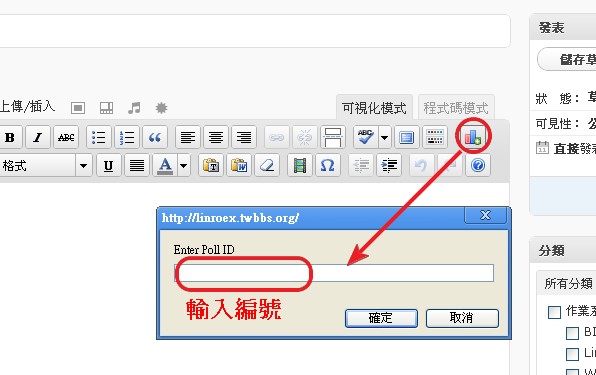
- And… done. Now just write your post and click Publish. XD
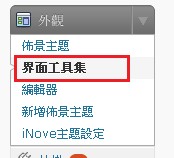
If you want to put a WP-Polls poll in the sidebar, that isn’t hard either. First go to Appearance → Widgets.
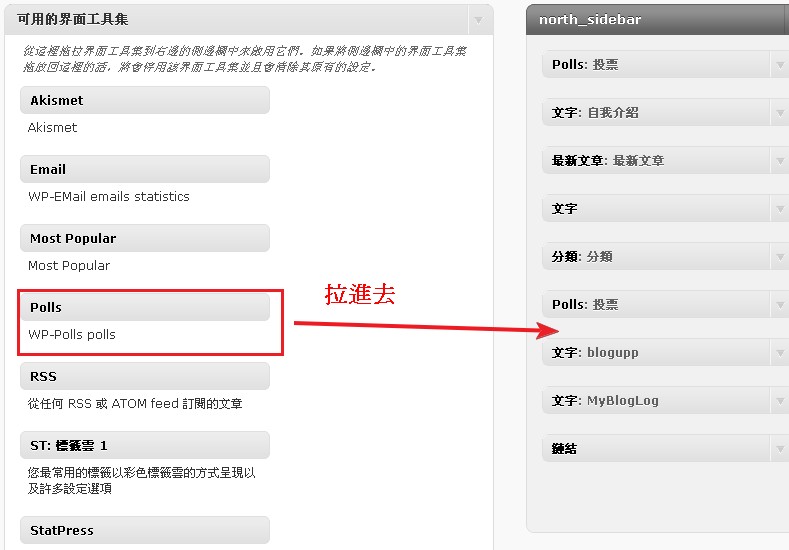
Then drag the Polls widget in.
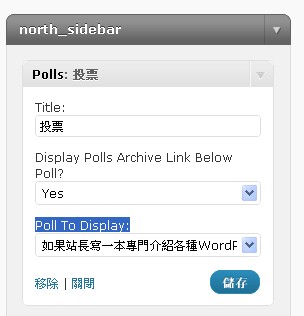
Next, set a title in the Title field, choose the poll you want to display under Poll To Display:, and click Save.
.
4. Deleting a poll
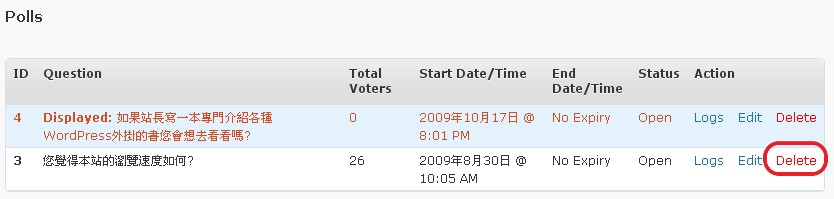
1. Go to the admin area and click Polls → Manage Polls.- Click Delete next to the poll you want to remove.
4. Setting WP-Polls's theme
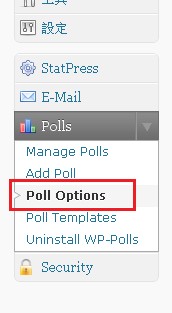
I said earlier that one of WP-Polls's features is that you can set its theme yourself, and in this section we finally get to it. There are actually many ways to modify WP-Polls's theme — for example, editing the main program directly — but that's too much hassle!! So I'll introduce the built-in method.- Go to the admin area and click Polls → Polls Options.
- Set the relevant color properties under Poll Bar Style. Note that colors must be in hexadecimal.