WP Security Scan plugin info:
- Official site: http://semperfiwebdesign.com/
- Current version: 2.7.1.1
- Compatible WordPress: 2.3~2.8.4
- Download: http://downloads.wordpress.org/plugin/wp-security-scan.zip
Built-in features of WP Security Scan:
- Check file permissions
- Change the WP database prefix
- Change the WordPress password
- Hide the WordPress version number
How to install WP Security Scan
1. Go to the WordPress admin, click 【Plugins】→【Add New】in order, then type "WP Security Scan" in the text box.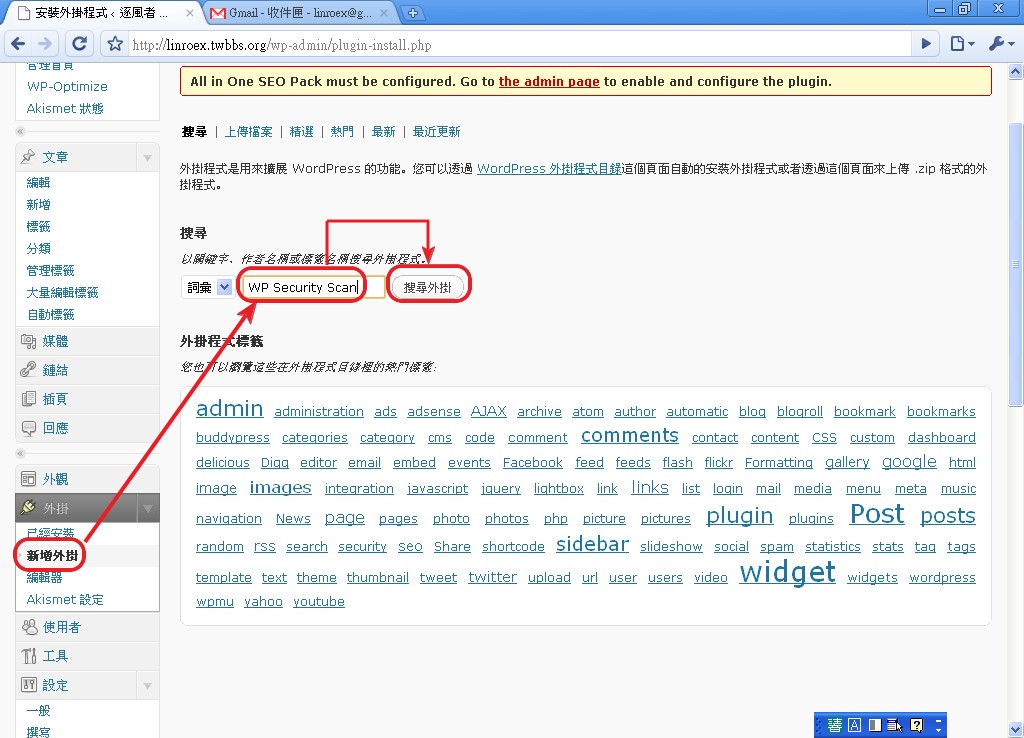
2. Next, WordPress shows the similar plugins it found. Click Install after the first one, and a screen will pop up showing the WP Security Scan info. You should see 【Install Now】next to it — just click that.
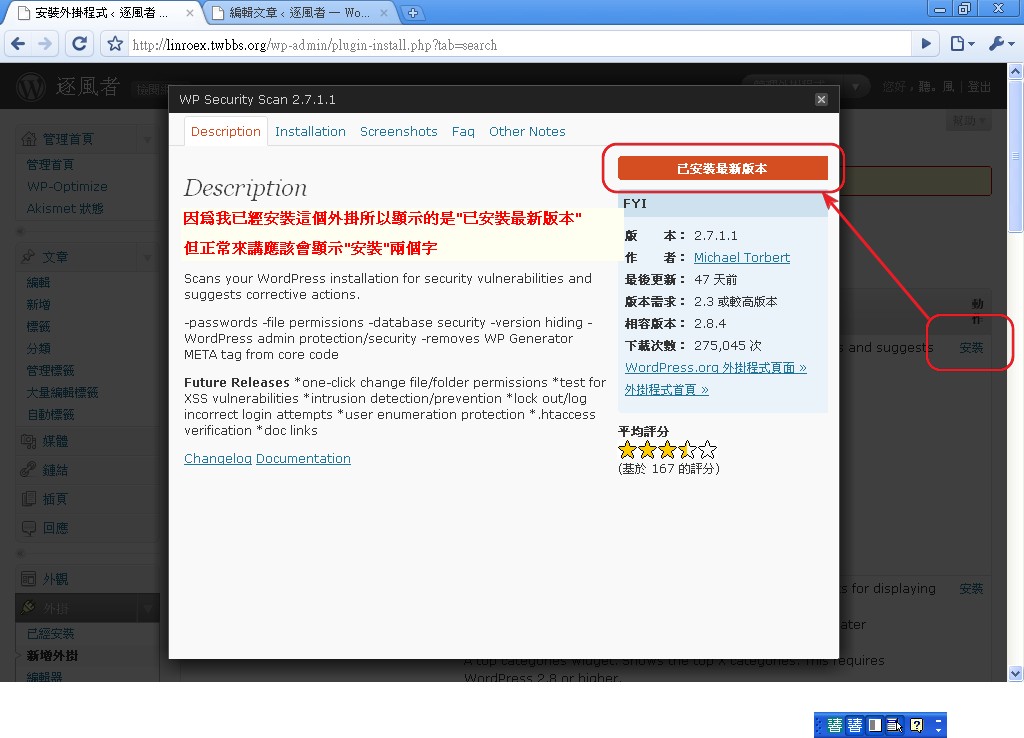
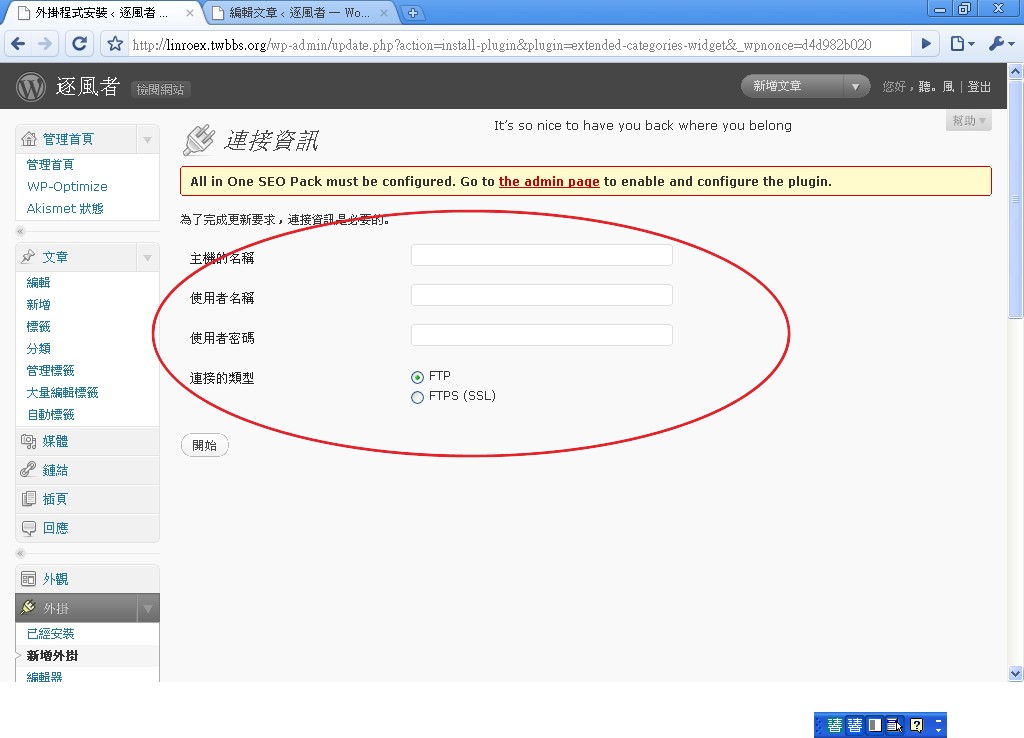
- Finally, WordPress will ask for your server’s ID and password — that’s your hosting account’s username and password. Enter them and click Start, and WordPress will begin installing.
.
How to use WP Security Scan:
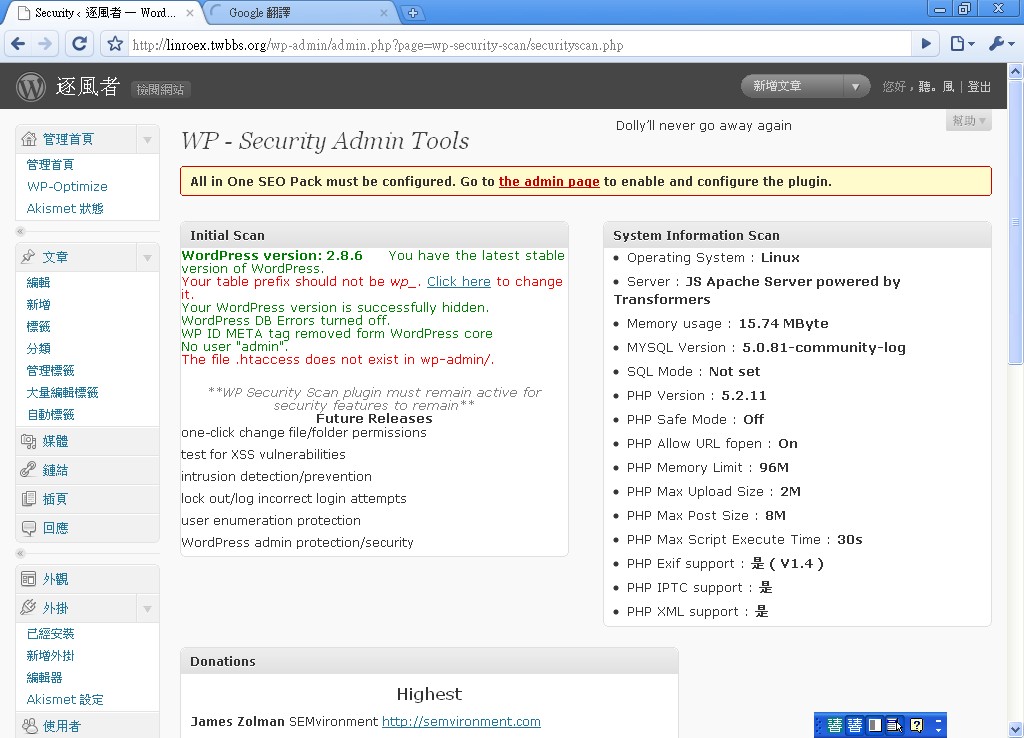
. 1. Take a first look at the basic info with WP Security Scan Once WP Security Scan is installed, open the WordPress admin and scroll all the way to the bottom. You'll see a Security option in the sidebar — click straight into it and it will show your server's basic info. Since it's in English, I've included a Chinese translation below.P.S. This plugin shows the parts that aren’t configured properly (that is, the vulnerabilities) in red, and the safe parts in green.
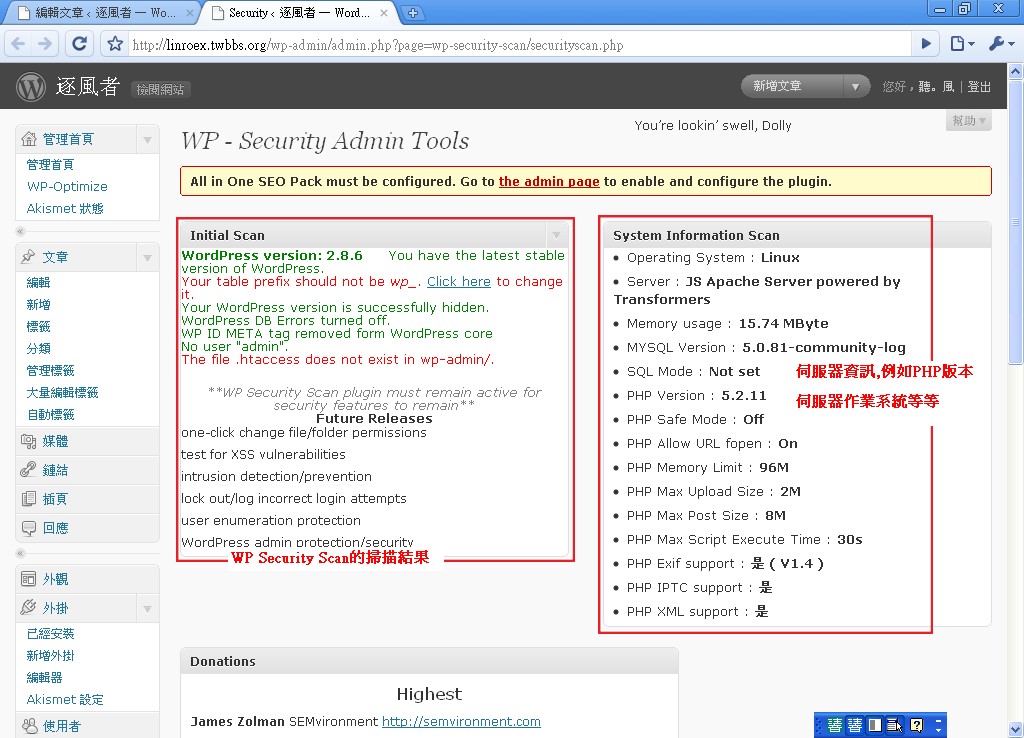
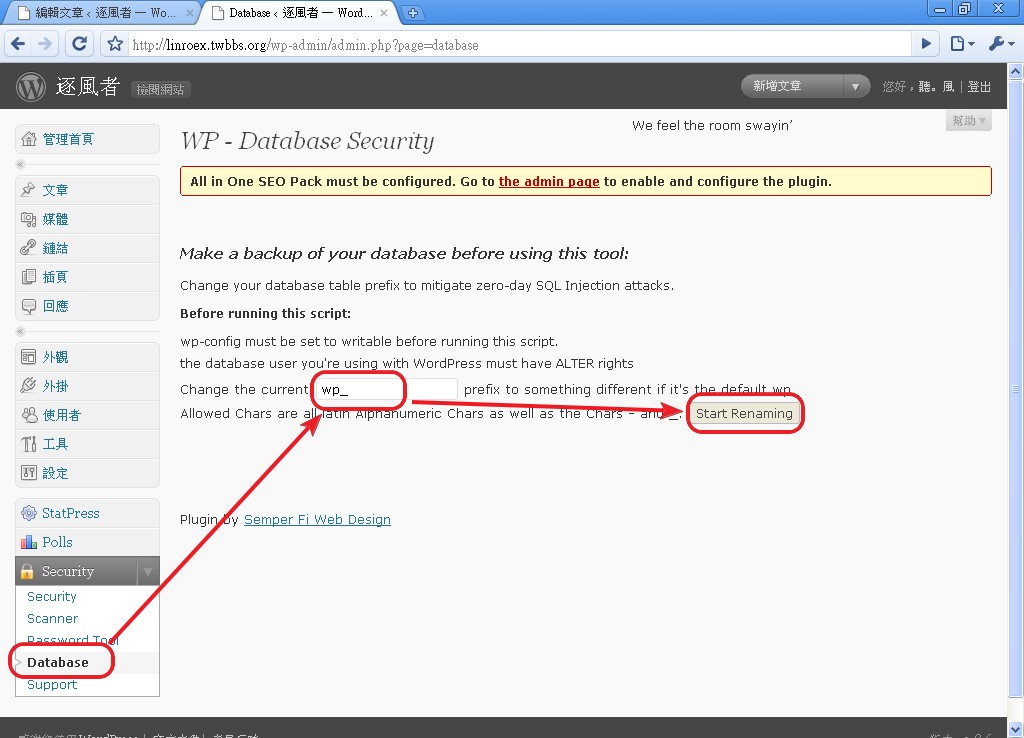
In the scan results, WP Security Scan shows your current version number, whether the database prefix has been changed, whether the WordPress version number is hidden, and whether the default admin account has been changed. If you can’t understand what it says, throw it into Google Translate — everyone’s output is different, so I can’t just hand you a translation. 2. Changing the database prefix Why change the database prefix? It’s because the WordPress installer automatically sets the database prefix to wp_ from the start. Although that saves everyone the trouble of coming up with a database prefix (which isn’t really that much trouble anyway), it also gives hackers an opening. The well-known Zero-day attack, for example, uses the database prefix to attack sites. So for the sake of security, this plugin gives you a way to change the database prefix.
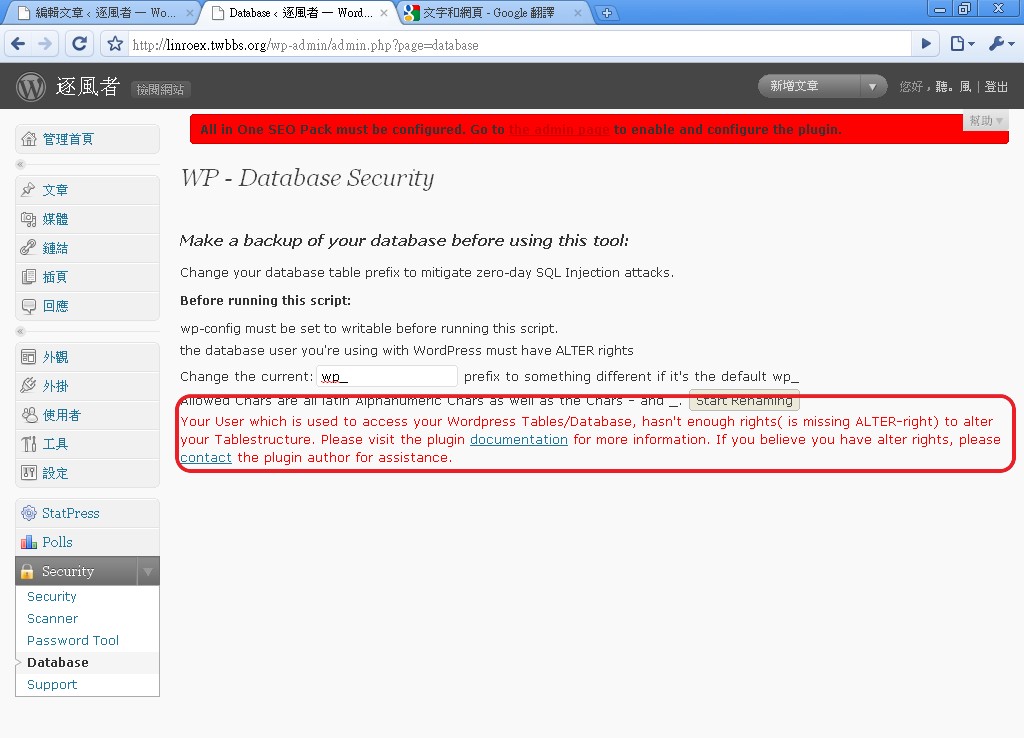
- Go to the blog admin, click 【Security】→【Database】in order, then in the “Change the current” field enter the database prefix you want. It has to be in English letters, and you must add an underscore ( _ ) at the end.
1. Go to the admin, click 【Security】→【Scanner】in order.
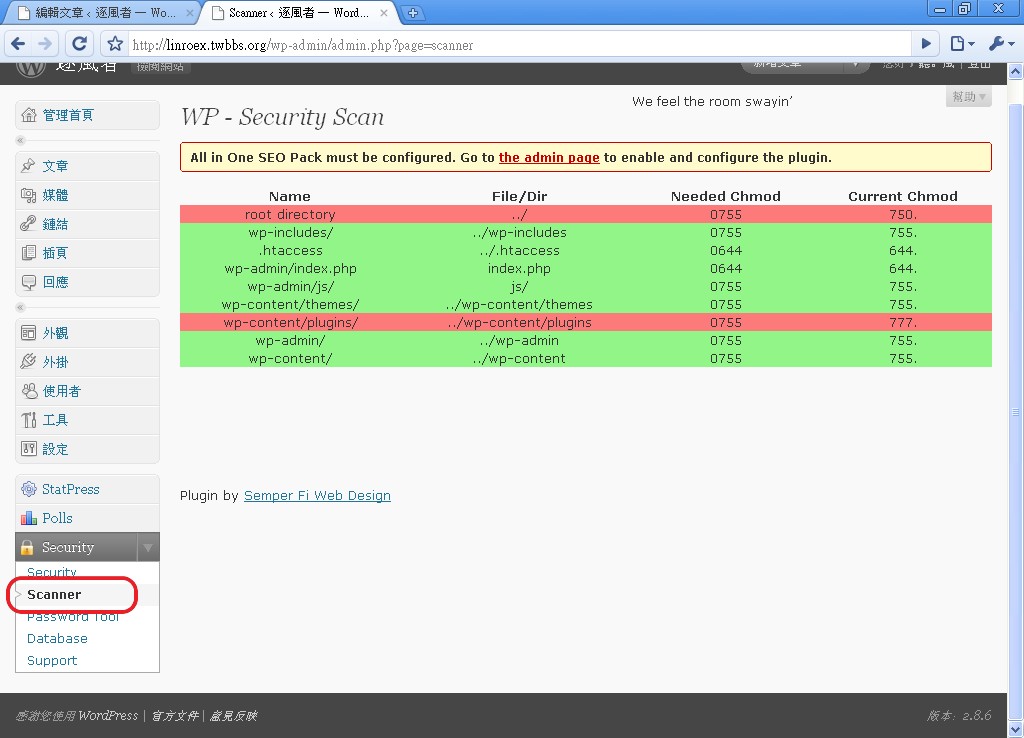
2. Next, a table shows the files that need to be changed. Green means it’s already fixed, red means it hasn’t been fixed yet. Here’s the translation of that table:
Name: file nameFile/Dir: file location (.. means the root directory)
Needed Chmod: the required file permission, that is, the number you enter when changing file permissions
Current Chmod: the file’s current permission
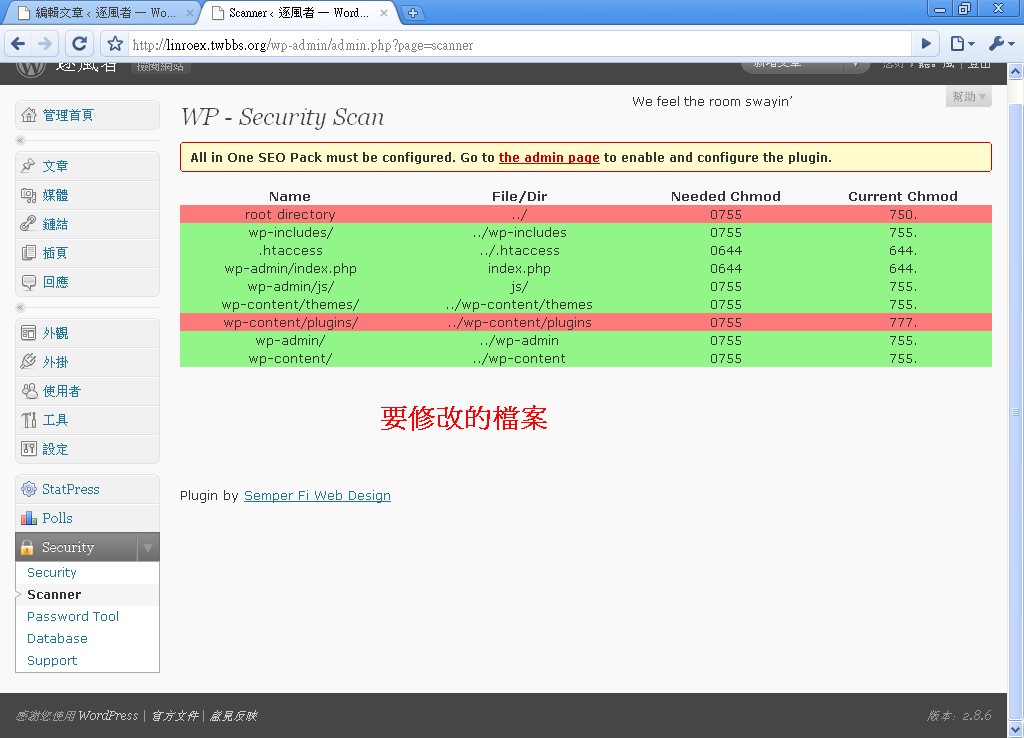
4. Changing the default admin account
In the WordPress online installer, the default administrator account is admin. This is actually a big vulnerability, because it's basically publishing your username to the whole world — a hacker only needs a brute-force attack to crack your password. So I recommend changing the system's default account. Here's how:
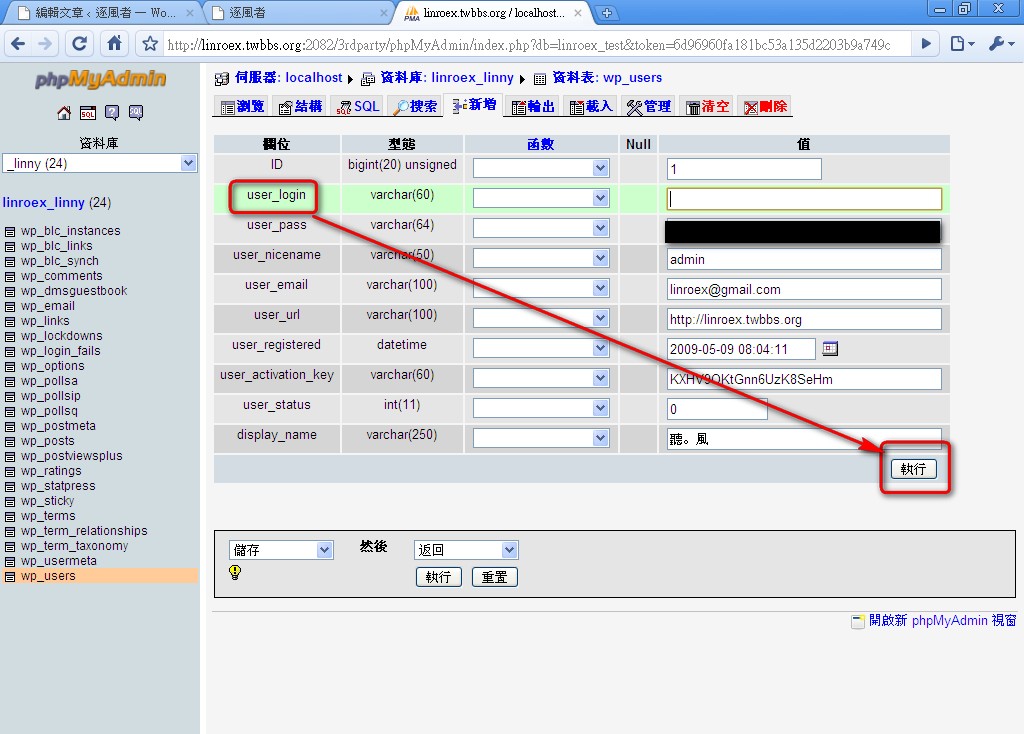
1. Go into your hosting space's database.
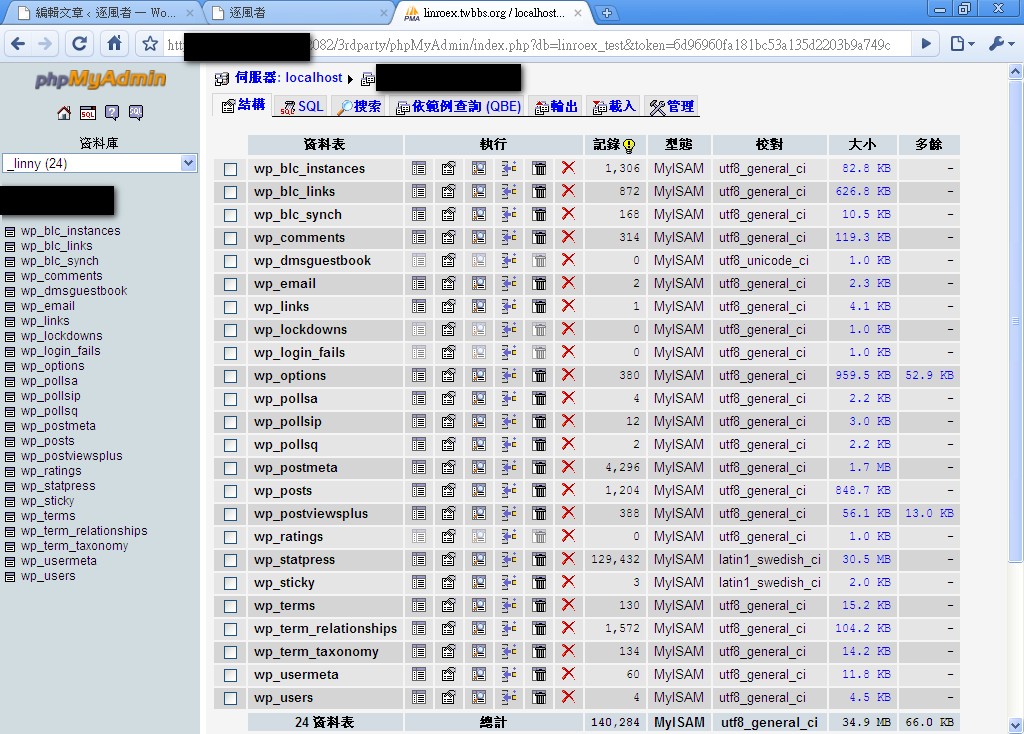
2. Click Browse next to wp-users.
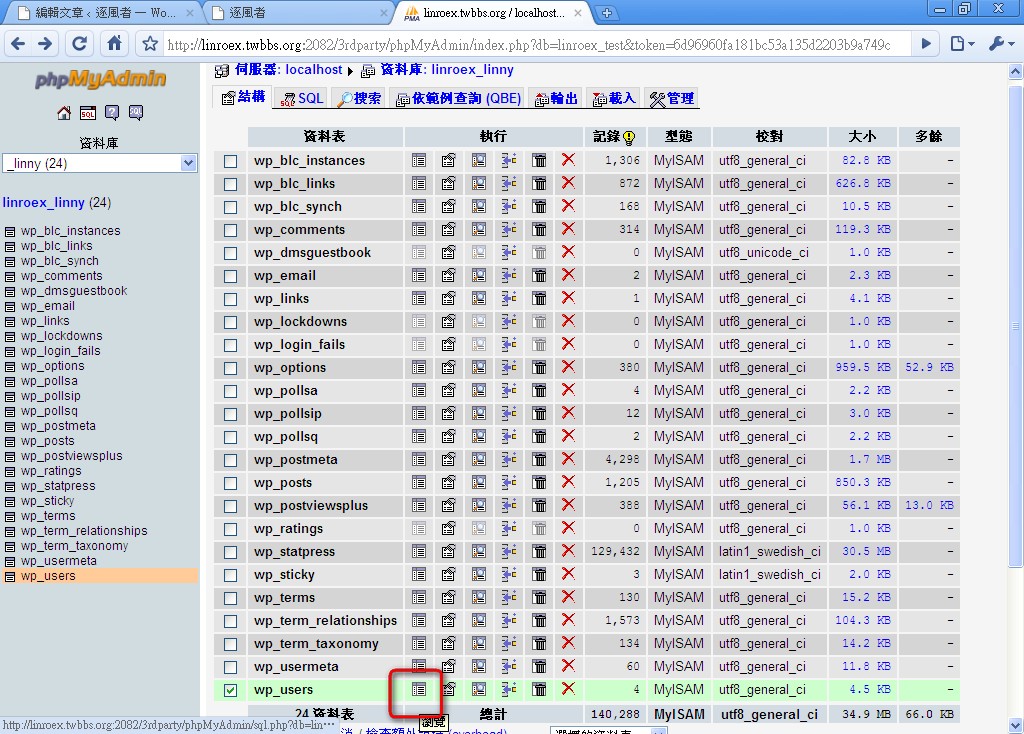
3. You'll now be in the wp-users table, which shows the accounts currently registered on your blog. Click the pencil icon next to the account named admin.
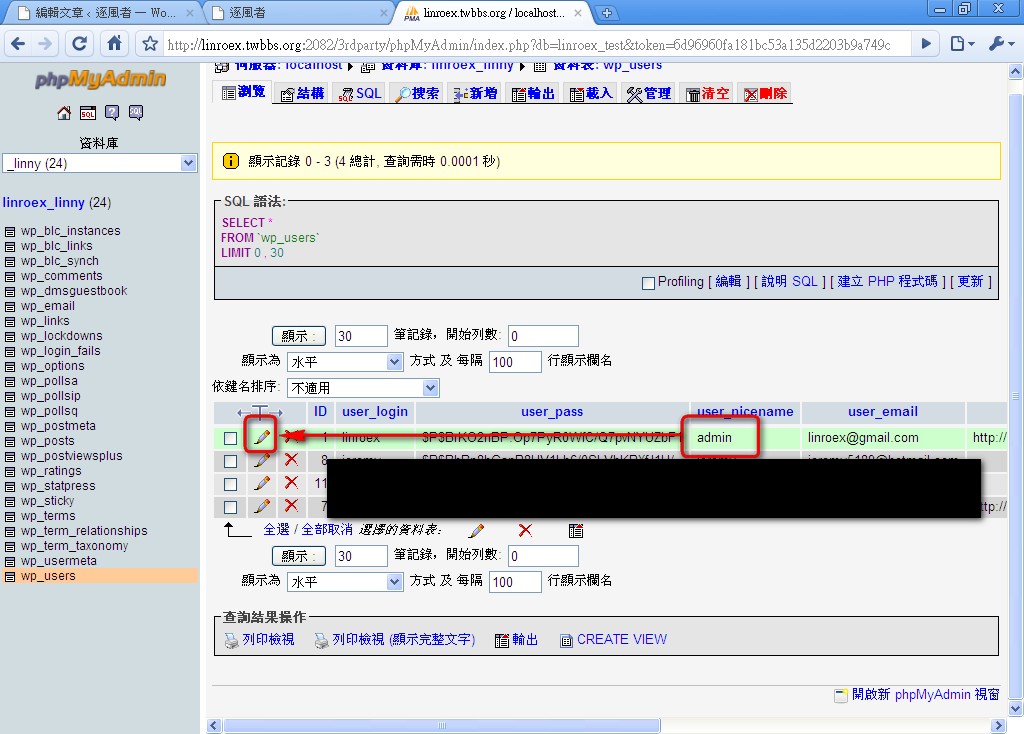
4. Change the user-login field to the account name you want, then click Go and the change is done.