A lot of people who learn C++ actually start with Dev C++. VC++ is convenient for beginners, sure, but you can’t learn standard C (ANSI C) with it, because VC contains far too many functions that belong to .NET — compile that code with another compiler and you’ll run into trouble. So beginners generally go with Dev C++ or Code::Blocks. Unfortunately, Dev C++ hasn’t been updated for several years, and it no longer supports many newer features. Code::Blocks, on the other hand, has poor Chinese support: if there’s Chinese anywhere in your code you’ll run into problems, and that includes not being able to use Chinese in comments. The one I want to recommend here, wxDev C++, actually carries on Dev C++’s characteristics while adding some new features, unlike Dev C++ which has no end of problems… So if you’re comfortable with Dev C++, I’d suggest giving wxDev C++ a try, because it’s almost identical to Dev C++! As for me, I’ll just keep using my Code::blocks~
wxDevC++ information:
- Official website: http://wxdsgn.sourceforge.net/
- Download links: Official download|4Shared |Official download page
- Version: 7.3.1
- P.S. The official download page lets you choose between the full installer and the web installer
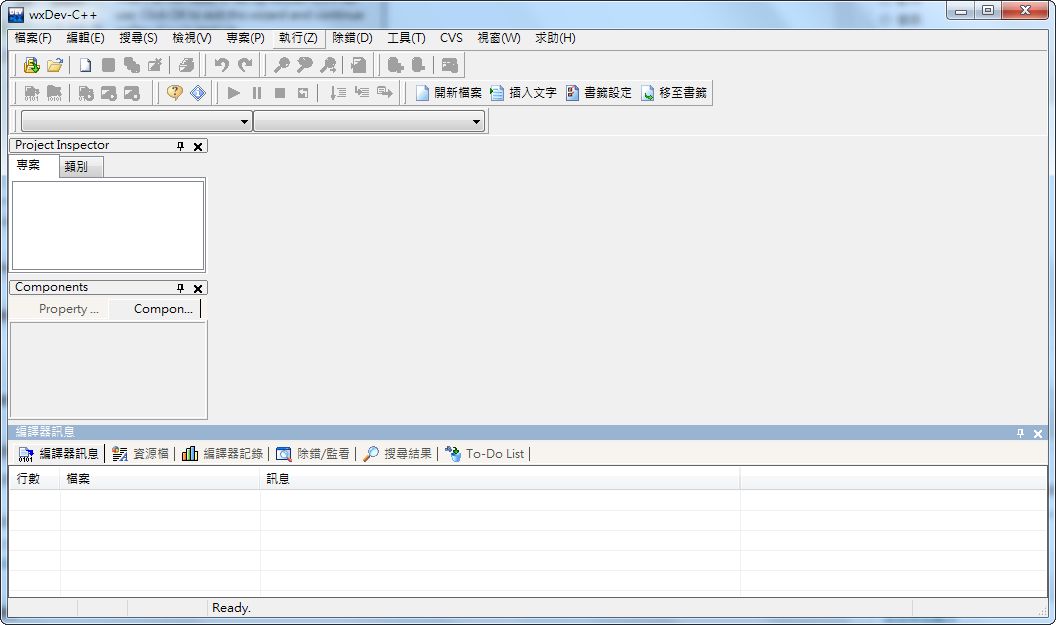
wxDevC++ installation tutorial
1. Run the installer, then click 【I Agree】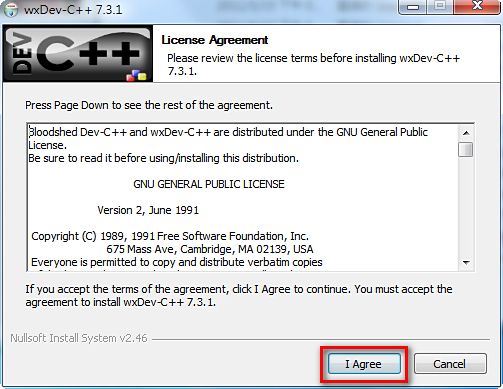
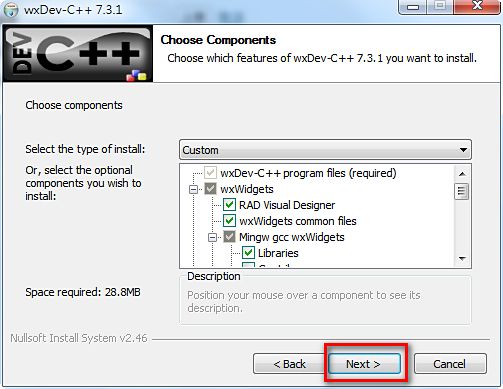
- This asks which components you want to install. Keep the defaults and click 【Next】
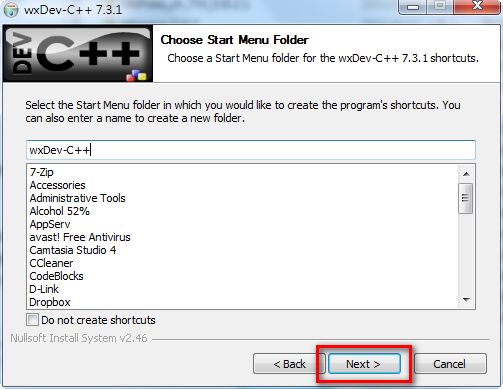
- Same as usual — just click 【Next】
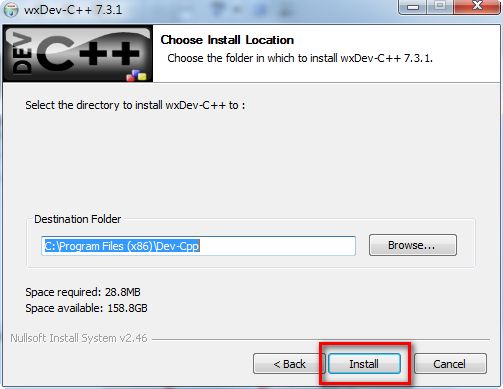
- This asks which folder to install to. Unless you have some special setup in mind, just click 【Install】 and the installation will begin
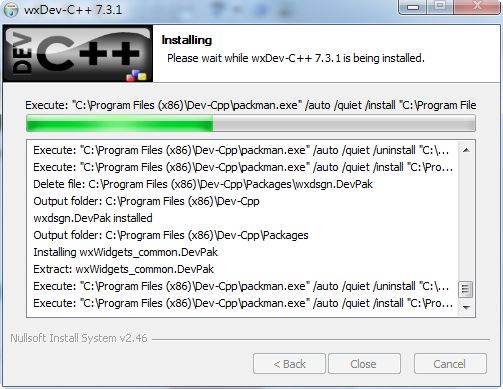
- Installing, please wait
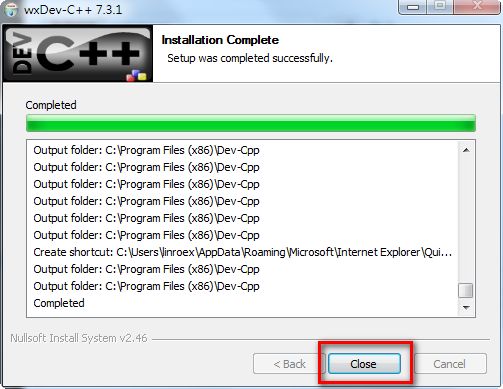
- Installation complete — just click 【Close】
Using wxDev C++ for the first time
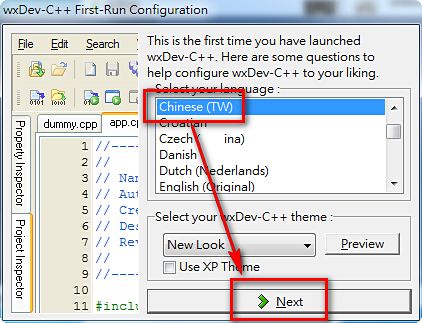
The first time you use wxDev C++ you'll need to configure a few things, such as the language and the IDE style. The setup is almost identical to Dev C++, so if you've used Dev C++ before you can skip this section and just do it yourself.- Start the wxDev C++ main program, select 【Chinese(TW)】, then click 【Next】
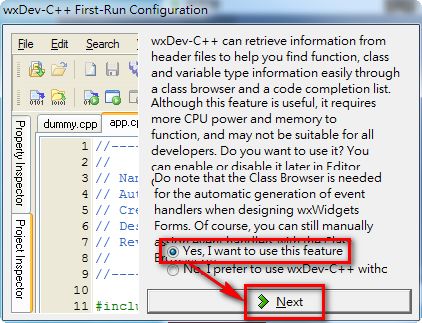
- Select 【Yes】, then click 【Next】
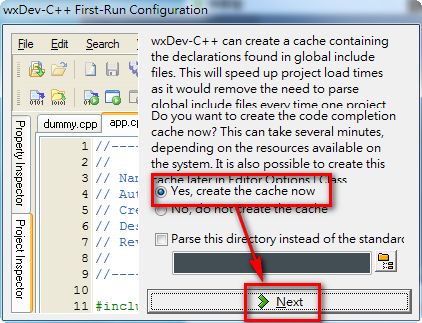
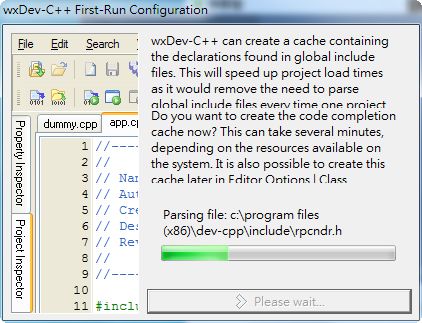
- This one seems to be about creating some cache space. I can’t quite make it out… Select 【Yes】 and click 【Next】
- Configuring, please wait
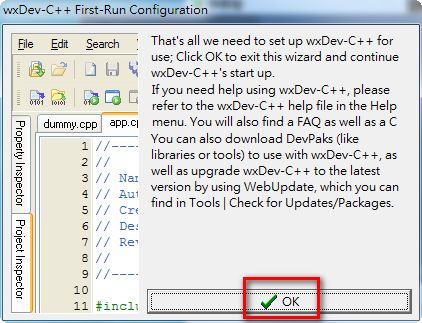
- Click 【OK】 and you’re done~ wxDev C++ will then open automatically